Free Download For Win & Mac | 100% Clean & Secure
Record Android Phone/Tablet
Whether you encounter the similar situations below?
"I need a way to capture my Samsung device screen and my computer's webcam concurrently for a product demonstration. Could you please advise how to set this up?"
"I want to capture my Android screen directly on my computer with smooth performance and clear audio, whether I'm recording mobile gameplay, an app tutorial, or a step-by-step walkthrough. Can FocuSee help with this? "
With Record Android Phone/Tablet, you can easily connect your Android phone or tablet to your computer and start recording right away. Whether you're creating tutorials, walkthroughs, or other content, FocuSee ensures high-resolution, lag-free recordings. This guide will walk you through connecting your Android device, configuring recording settings, and editing and exporting your videos for professional results.
Computer System Requirements
| Operating System | Windows OS | macOS |
| Version | Windows 10 or later | macOS 10.15 or later, optimal on macOS 12.3 and above |
| Processor | Intel i5 or higher, dual-core 2.9GHz or above | Apple M1 or later, or Intel-based Mac |
| Memory | At least 8GB RAM | At least 8GB RAM |
Supported Android Devices
| All Android phones and tablets with Android 11 and above |
Supported Video Output Formats
| MP4, GIF |
Supported Video Resolution
| 480P, 720P, 1080P, 2K, 4K |
Step 1. Download and Install FocuSee.
Visit our official website to download FocuSee onto your computer. Ensure your internet connection is stable during the download and installation process. Follow the on-screen instructions to complete installation.
Step 2. Configure Settings Before Recording.
Launch FocuSee on your computer. The video creation interface will appear. Before recording, configure your camera, microphone, and speaker settings. You can also enable the Teleprompter feature to help you deliver content smoothly.
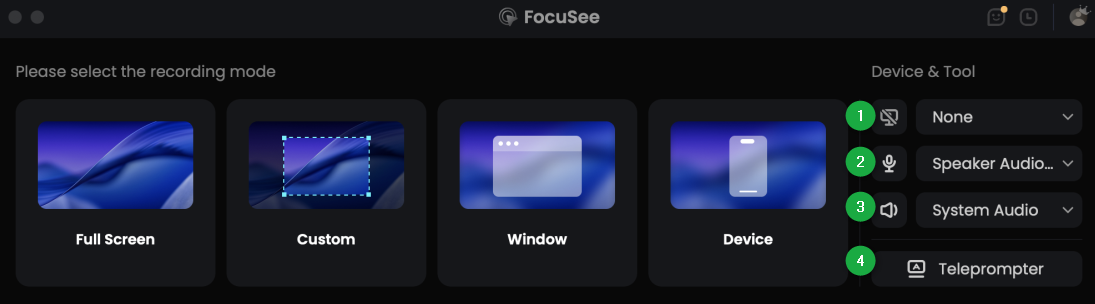
Configure Settings
If no camera, microphone, or speaker is detected on your computer, it will show no corresponding device detected. Please ensure that the devices are available to record the content you desire.
Step 3. Select the Recording Mode.
Choose Device mode from the recording options to begin recording your Android screen.
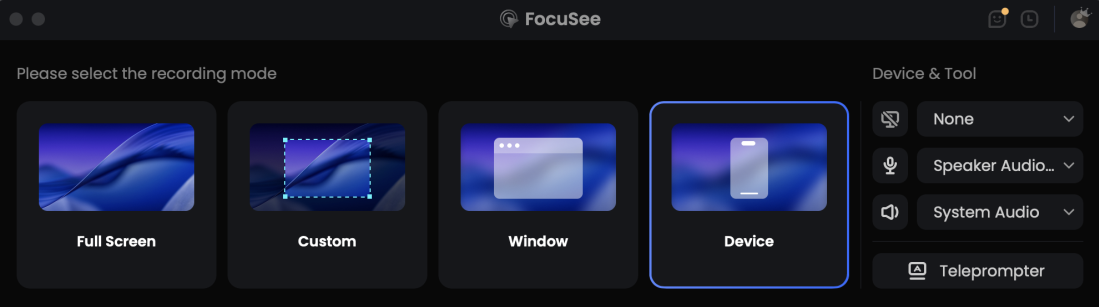
Select Device Mode
Step 4. Connect Your Android Device to the Computer.
Select your Android device's operating system to begin the connection process.
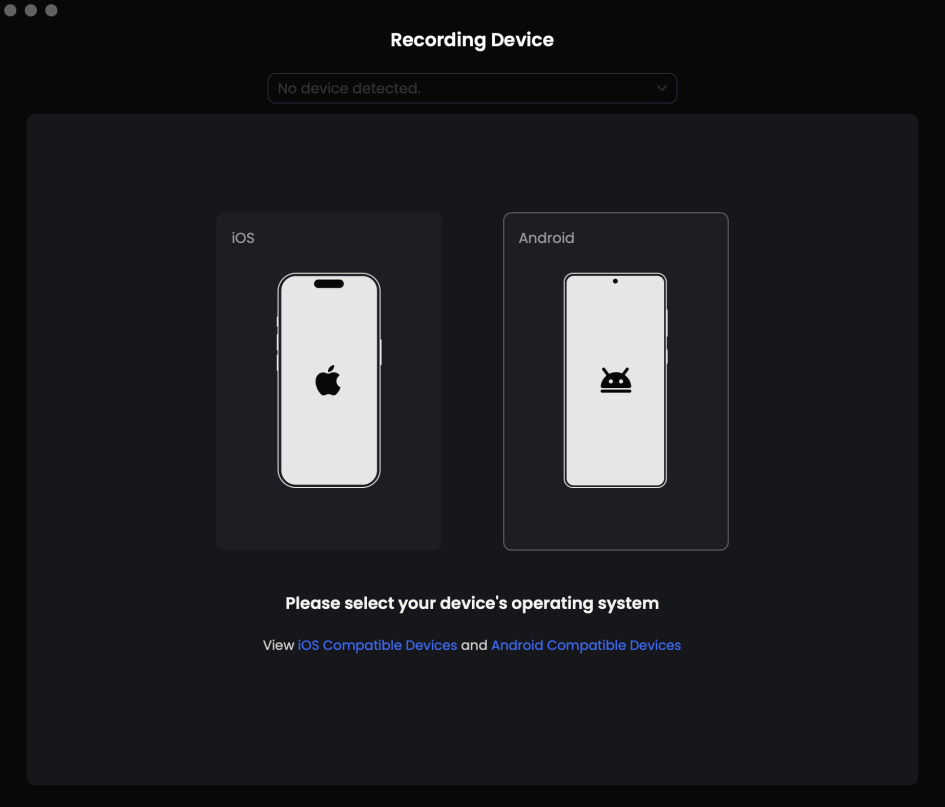
Choose Android Version
Connect your Android device to your computer using a USB cable. Enable USB Debugging on your device. When the "Allow USB Debugging" prompt appears, tap Allow or Confirm, then select MTP Mode. If the prompt does not appear, re-enable USB Debugging and switch to MTP mode. Once connected successfully, FocuSee will automatically recognize your device.

Connect Android Device
If your Android failed to be detected via USB cable, please check the instructions below:
1. Check whether you are using the latest version of FocuSee. If not, please download it.
2. Check if you have enabled USB debugging option in Settings.
3. Reconnect the Android device or give another USB cable a try.
4. Please make sure your Android device can be detected by the computer.
5. Check whether you have the latest version of USB Driver and ADB Driver on your computer and device. If not, download and update from your Android device official website.
After connecting, your Android screen will be mirrored in FocuSee, ready for recording. If you have multiple devices connected successfully, you can switch between them before starting the recording.
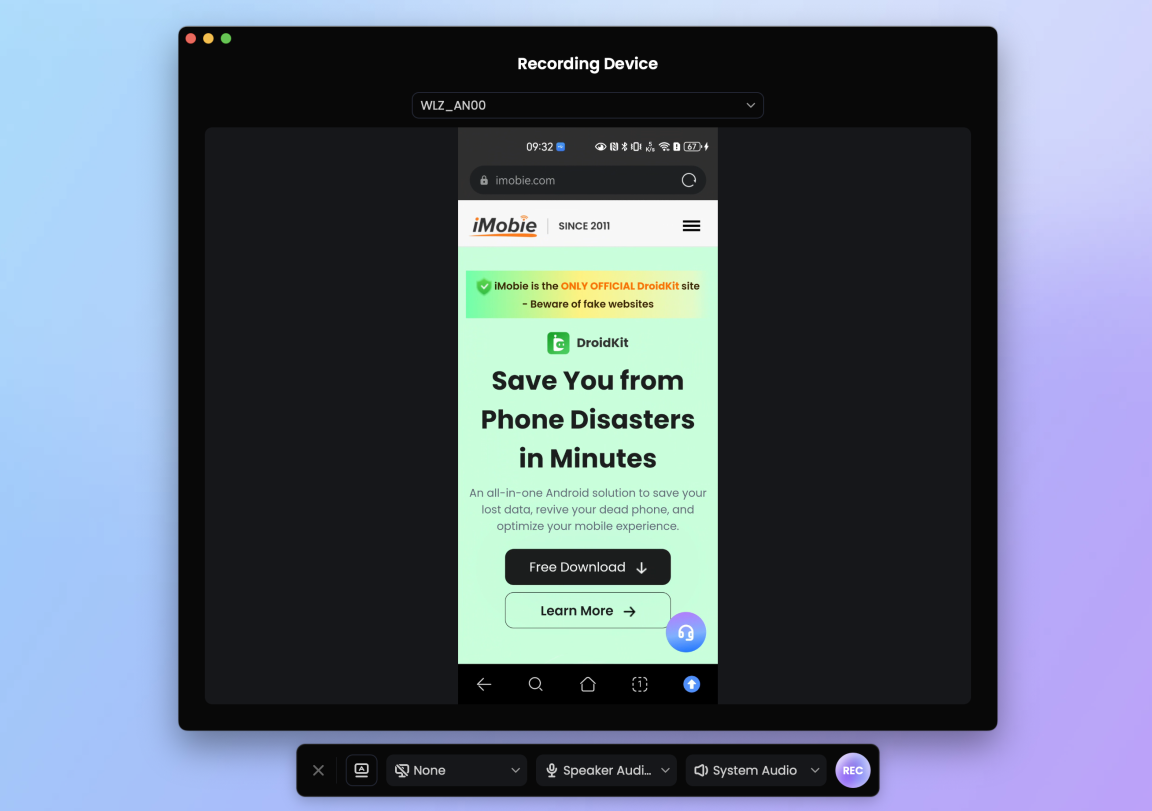
Connect Device Successfully
Step 5. Initiate Recording.
Adjust your camera, microphone, and audio settings as needed. Click the purple REC button to begin recording your Android screen.

Click Rec Button
Locking the screen during a recording session on an Android 11 device will result in the loss of device audio. Please ensure the device stays unlocked for the entire process.
Step 6. Wait for the Recording Countdown.
FocuSee will display a 3-second countdown before recording starts to give you time to prepare. Once the countdown ends, your Android screen recording will start automatically, and you can begin your demonstration.

Wait for the Recording Countdown
Step 7. Complete the Recording.
When your session is finished, click the purple Stop button to end the recording. Your recording will be automatically saved for editing.
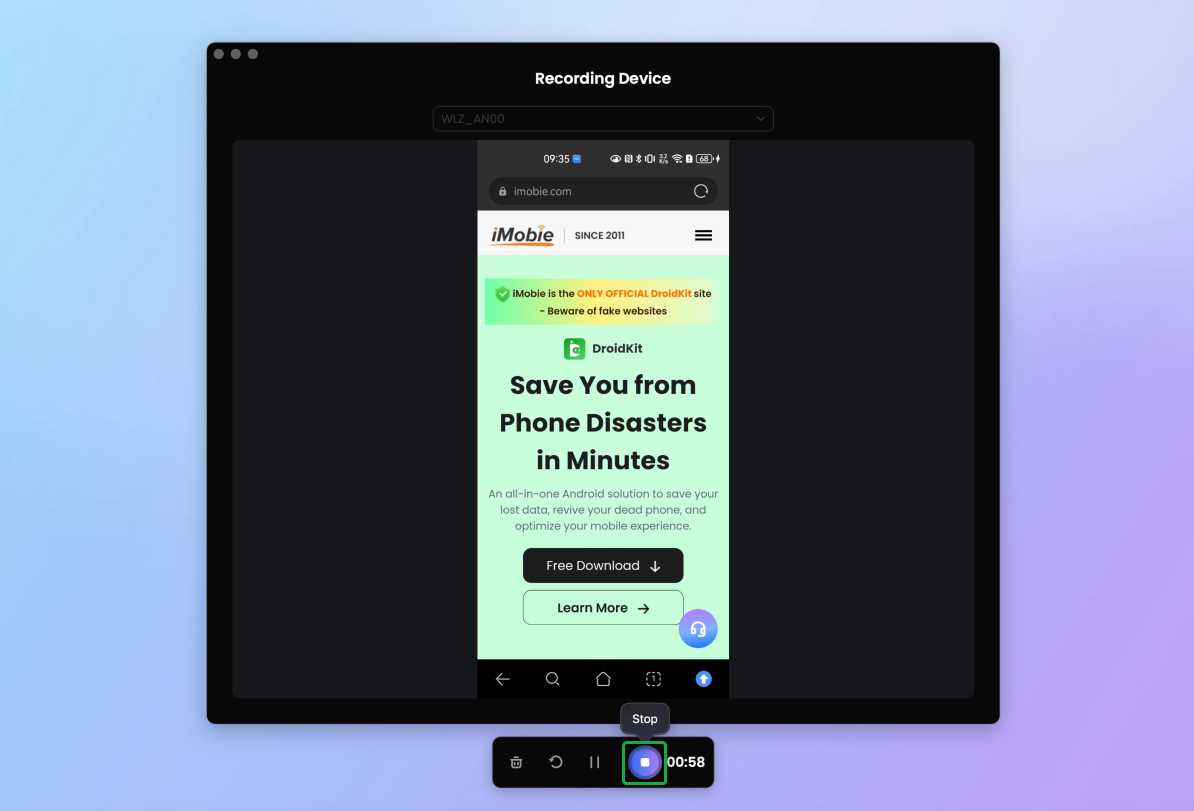
Click Stop Icon to Complete the Recording
Step 8. Edit the Video.
You can directly edit your video in FocuSee by cropping, trimming, and adjusting both the video background and the device frame.
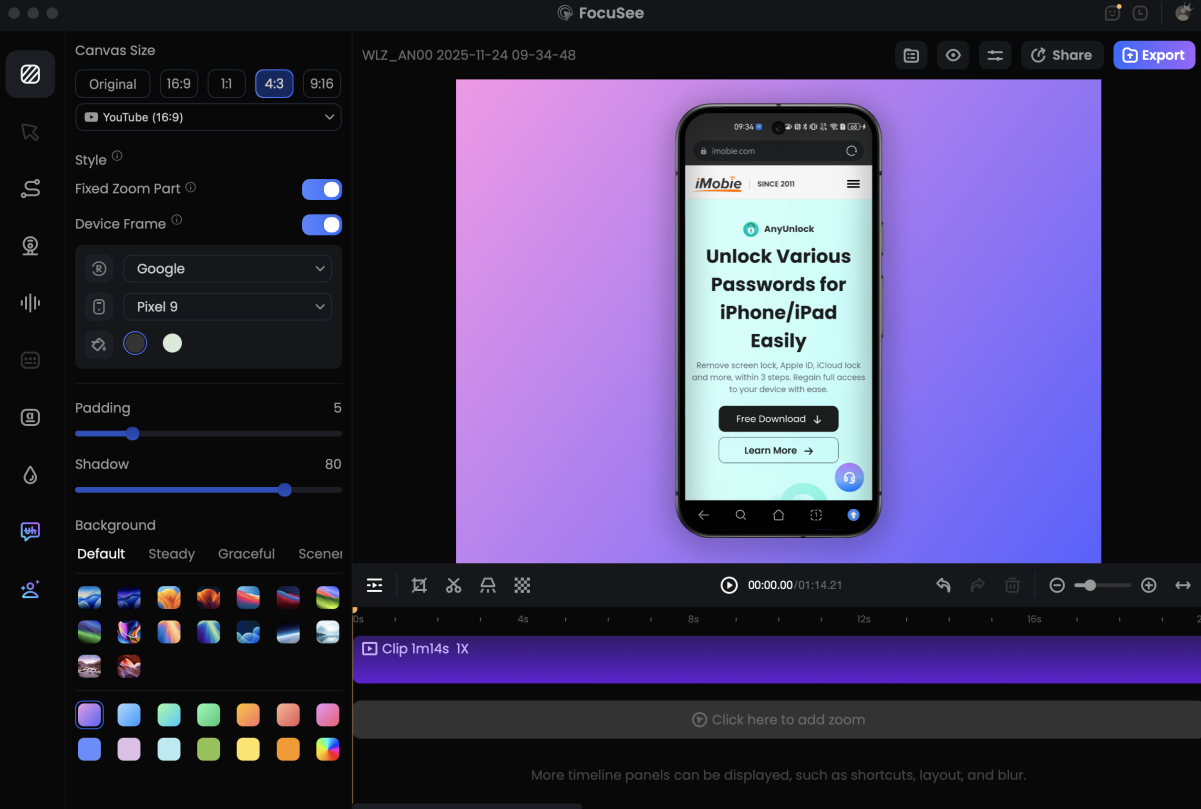
Edit the Video
1. When recording from an Android device, zoom effects are not applied automatically. If needed, you can manually add them during the editing process. Please note that cursor effects and shortcut key features are not supported when editing Android device recordings.
2. Please click the following post to learn more about video editing details: Edit the Recording.
Step 9. Export the Video.
Once editing is complete, please click the Export button to export the video. Before exporting the video, you can set the video output parameters on this interface.

Export the Video
If you have further question after reading this guide, please refer to FAQs page to check more solutions. Or you can contact our Support Team to get further help. We are here to help you!

Try It Out & Share Your Feedback!

We'd love to hear how FocuSee is working for you.
Give it a try and share your thoughts—your feedback helps us keep improving.
If you're enjoying FocuSee, we'd be so grateful if you could leave us a review on Trustpilot. Your support helps others discover FocuSee and motivates our team!

Thank you for being part of the iMobie community — we couldn’t do it without you!
Try It Out & Share Your Feedback!
We'd love to hear how FocuSee is working for you.
Give it a try and share your thoughts—your feedback helps us keep improving.
If you're enjoying FocuSee, we'd be so grateful if you could leave us a review on Trustpilot. Your support helps others discover FocuSee and motivates our team!
Thank you for being part of the iMobie community — we couldn’t do it without you!