Free Download For Win & Mac | 100% Clean & Secure
Import Video to Create Project File for Editing
If you already have a recorded video and would like to enhance it with FocuSee's powerful editing features, you can easily import the video and create a project for further editing. Once imported, you can add zoom effects, annotations, layouts, backgrounds, and more to make your content more engaging and professional.
Step 1. Download and Install FocuSee.
Visit our official website and get FocuSee downloaded onto your computer. Ensure you have a stable network connection during the download and installation process. Follow the prompts on the screen to install FocuSee.
Click here for a complete walkthrough of the download and installation process.
Step 2. Choose the Import Video to Create Project Option.
After launching FocuSee, click the File button on the home screen. From the dropdown menu, select Import Video to Create Project.
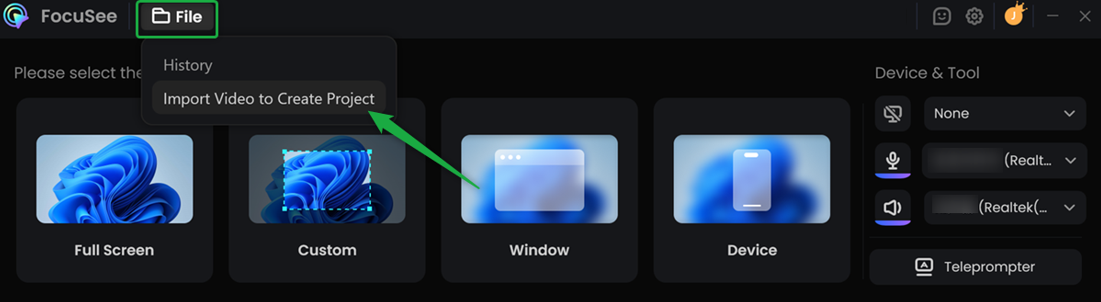
Choose the Import Video to Create Project Option
Step 3. Import Your Video File.
Click the upload area or simply drag and drop your video file into the designated region. Once the file is imported successfully, FocuSee will automatically generate a project file for editing.
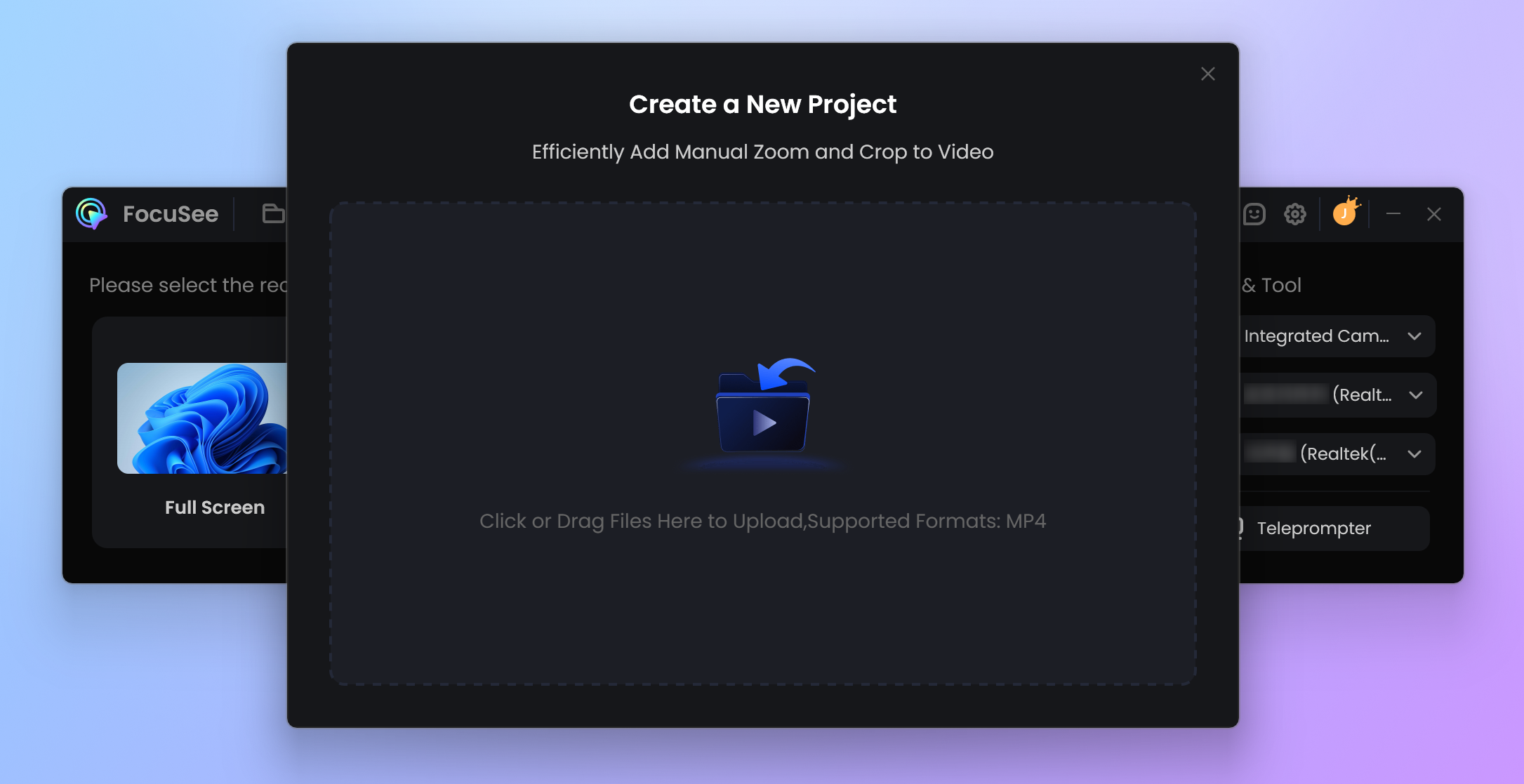
Import Your Video File
Currently, FocuSee only supports MP4 videos encoded with the H.264 codec. If your video uses another codec, please convert it to an H.264-encoded MP4 file before importing.
Step 4. Edit Your Video.
Once the video is imported, FocuSee will automatically create an editable project file. You can then enhance your video with a variety of editing tools to make your content more engaging and professional. You can apply the following effects and features:
• Adjust Background & Layout: Customize the video background, aspect ratio, and layout to create a more polished and visually appealing presentation.
• Zoom-in Effects: Automatically highlight mouse activity and zoom in on important areas to guide viewers' attention.
• Add Annotations: Use arrows, text boxes, shapes, magnifiers, spotlights, and mosaic effects to emphasize key points and clearly explain each step.
• Add Watermarks: Insert your brand logo, text, or custom images to strengthen brand identity and protect your content.
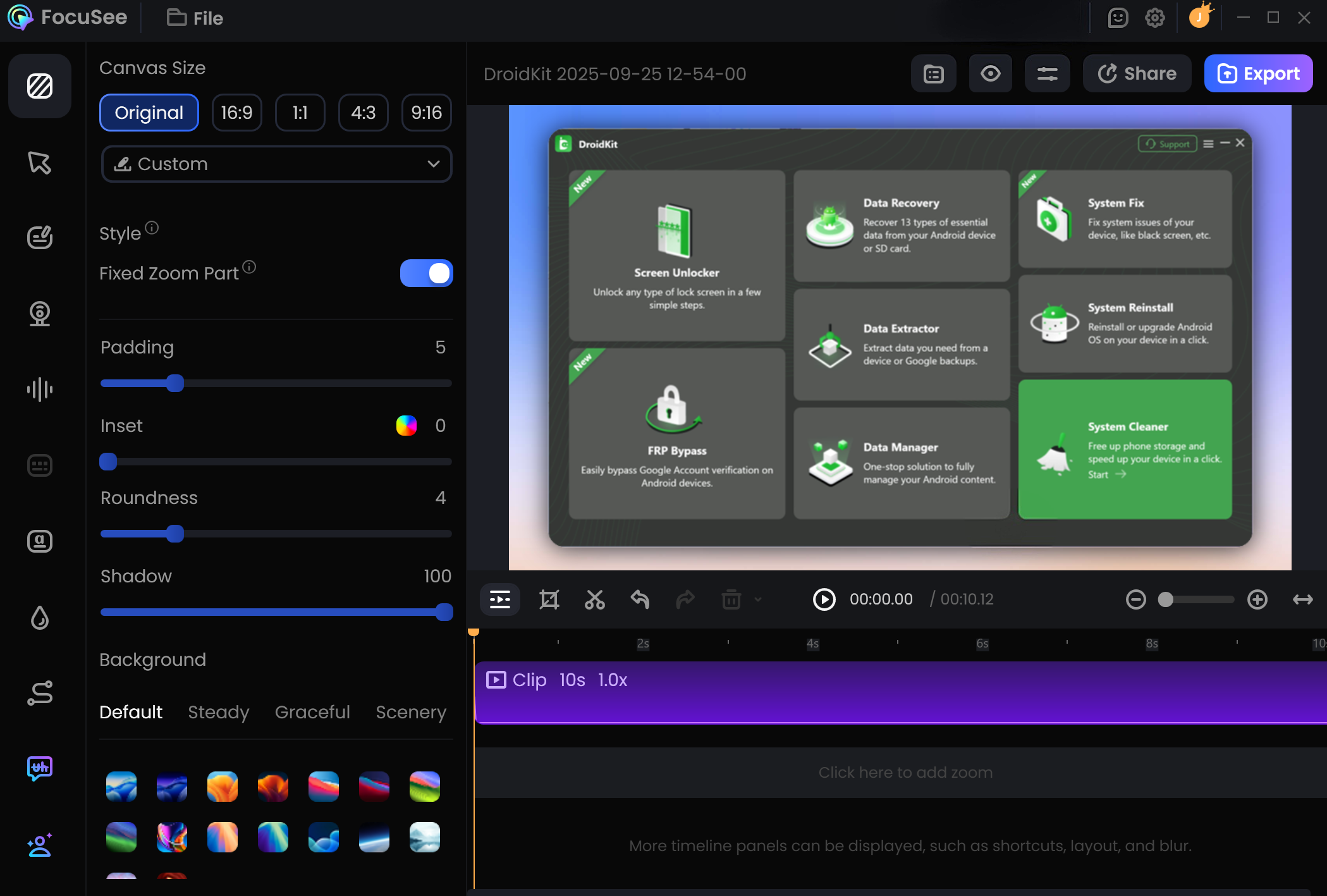
Edit Your Video
After making your edits, you can preview the results at any time and continue refining your project until it looks exactly the way you want.
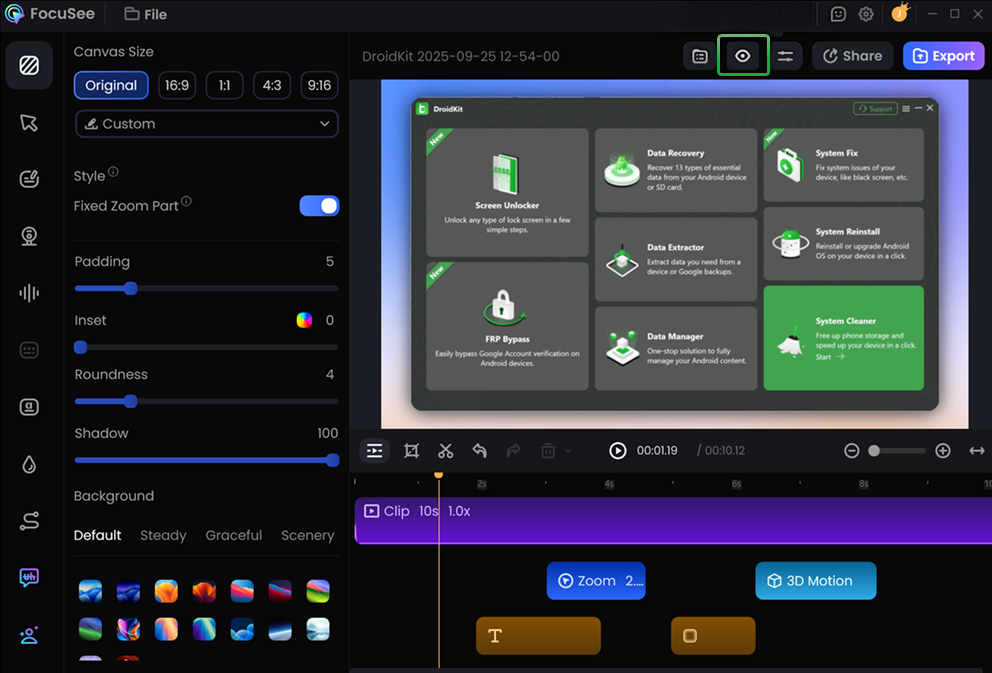
Preview Edited Video
Step 5. Export the Video.
Once you are satisfied with the final result, click the Export button in the upper-right corner to export your project as a high-quality video file and share it with your audience.
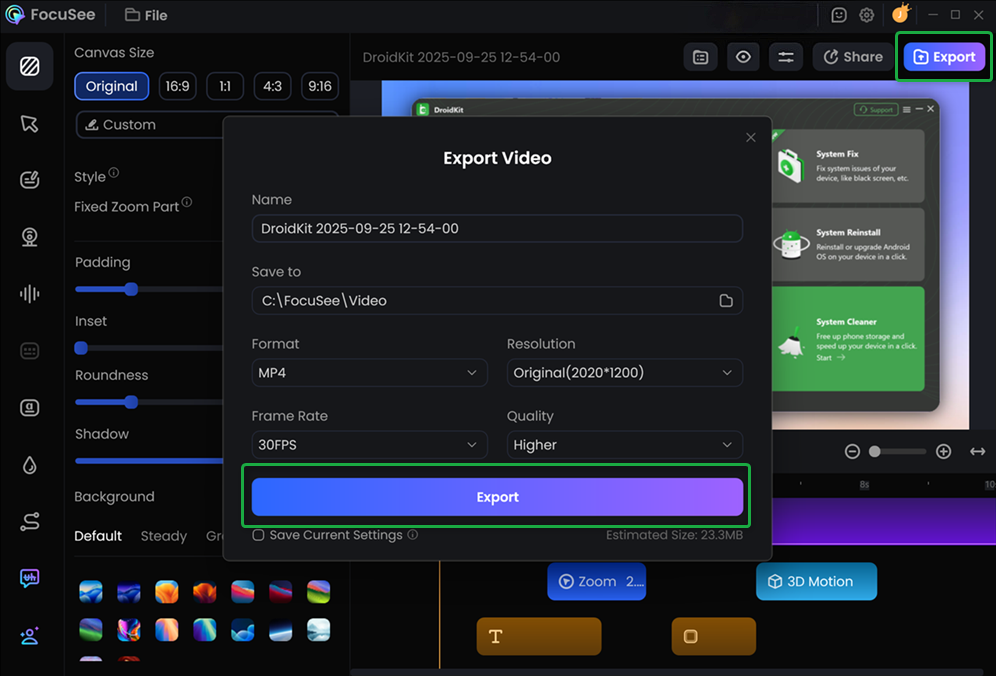
Export the Edited Video
If you have further questions after reading this guide, please refer to FAQs page to check more solutions. Or you can contact our Support Team to get further help. We are here to help you!
FocuSee Import Video to Create Project FAQs
1. Can I import any video file into FocuSee?
Currently, FocuSee only supports MP4 videos encoded with the H.264 codec when creating a project from an existing video. If your video uses a different codec or format, please convert it to an H.264 MP4 file before importing.
2. Why am I unable to import my video?
If you're unable to import your video, please check the following:
• The file is in MP4 format.
• The video is encoded with H.264.
• The video file is not corrupted.
• The file size is within your system's available storage and memory limits.
• You are using the latest version of FocuSee.
If the issue persists, please contact our support team for further assistance.
3. Will importing a video affect the original file?
No. Importing a video into FocuSee does not modify or overwrite the original file. FocuSee creates a separate project file for editing, while your source video remains unchanged.
4. Does FocuSee support importing videos recorded by other software?
Yes. Videos recorded with other screen recorders, cameras, or editing tools can be imported into FocuSee, provided they are saved as H.264-encoded MP4 files.
5. Can I continue editing the project later?
Yes. After importing a video and creating a project, you can save the project and reopen it later to continue editing without starting from scratch.

Try It Out & Share Your Feedback!

We'd love to hear how FocuSee is working for you.
Give it a try and share your thoughts—your feedback helps us keep improving.
If you're enjoying FocuSee, we'd be so grateful if you could leave us a review on Trustpilot. Your support helps others discover FocuSee and motivates our team!

Thank you for being part of the iMobie community — we couldn’t do it without you!
Try It Out & Share Your Feedback!
We'd love to hear how FocuSee is working for you.
Give it a try and share your thoughts—your feedback helps us keep improving.
If you're enjoying FocuSee, we'd be so grateful if you could leave us a review on Trustpilot. Your support helps others discover FocuSee and motivates our team!
Thank you for being part of the iMobie community — we couldn’t do it without you!