Free Download For Win & Mac | 100% Clean & Secure
Edit Subtitles
What Is Subtitle Editing? How Can It Improve Your Videos?
Subtitle editing allows you to refine both the content and appearance of your video subtitles, making them more accurate, readable, and visually appealing. Whether you're creating software tutorials, product demos, online courses, or social media content, well-designed subtitles help viewers understand your message more easily and highlight key information.
FocuSee provides comprehensive subtitle editing tools. You can edit subtitle text, customize the font, size, color, position, outline, and background, and fine-tune the overall display style to ensure your subtitles blend seamlessly with your video for a more polished and professional result. Subtitle editing is especially useful for:
• Tutorial videos and software walkthroughs
• Product demonstrations and feature introductions
• Educational and training videos
• Online courses and presentations
• Social media videos and content creation
System Requirements
To ensure smooth background music editing, we recommend the following system configuration.
Windows
• Operating System: Windows 10 or later
• Processor: Intel i5 or above, dual-core 2.9 GHz or higher
• Memory: At least 8 GB RAM
Mac
• Operating System: macOS 10.15 or later (macOS 12.3 or later recommended)
• Processor: Apple M1 or later, or Intel-based Mac
• Memory: At least 8 GB RAM
Step 1. Download and Install FocuSee.
Visit the official website to download FocuSee onto your computer. Please ensure your internet connection is stable during the download and installation process. Then follow the on-screen instructions to complete the installation.
Click here for a complete walkthrough of the download and installation process.
Step 2. Launch FocuSee and Enter Editing Interface.
After launching FocuSee, you can either create a new recording or import an existing video. Once your video is ready, you will enter the editing interface where all editing features are available.
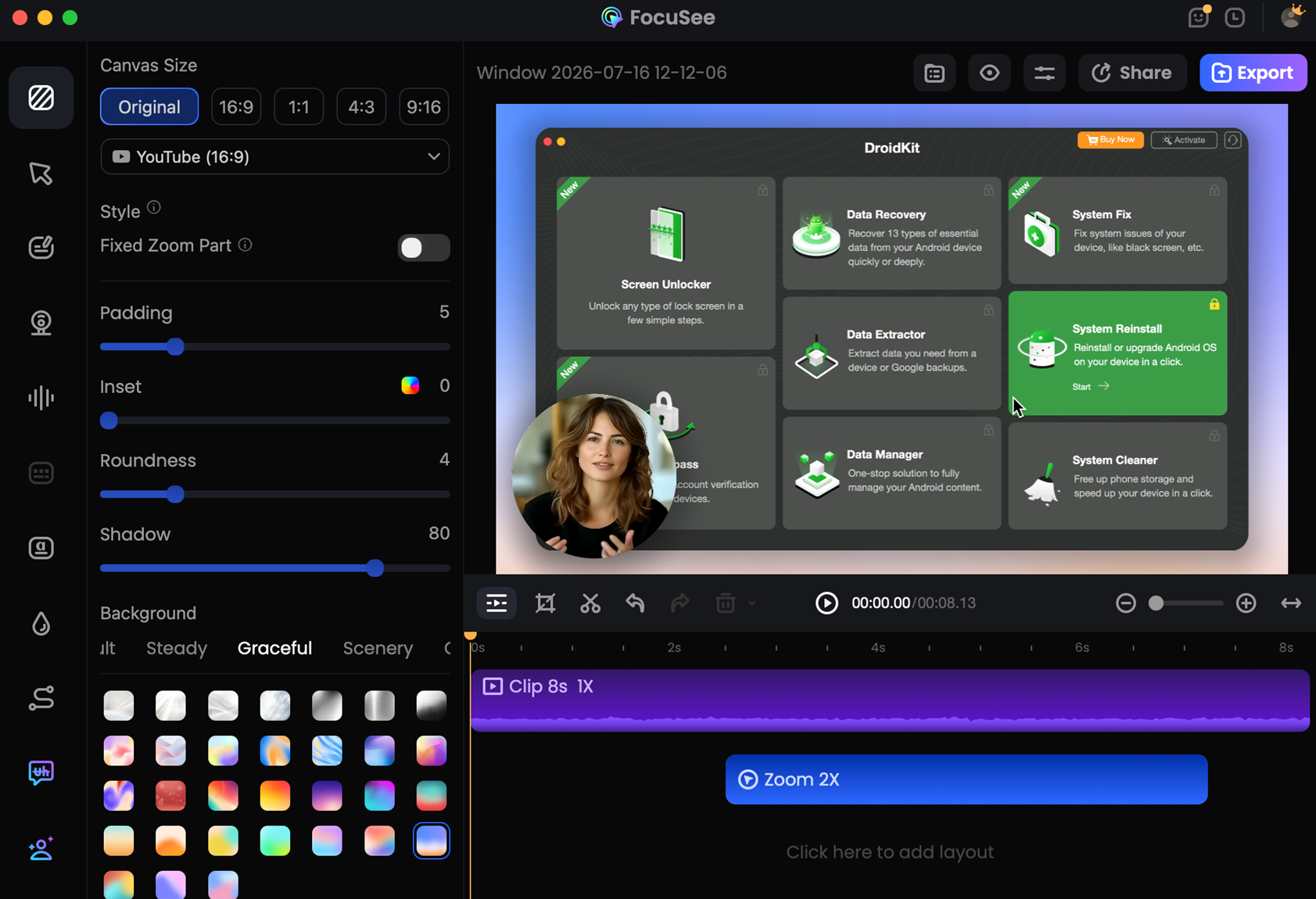
Enter Editing Interface
Step 3. Open Captions Panel.
In the editing interface, click Captions from the left sidebar to open the subtitle editing panel.
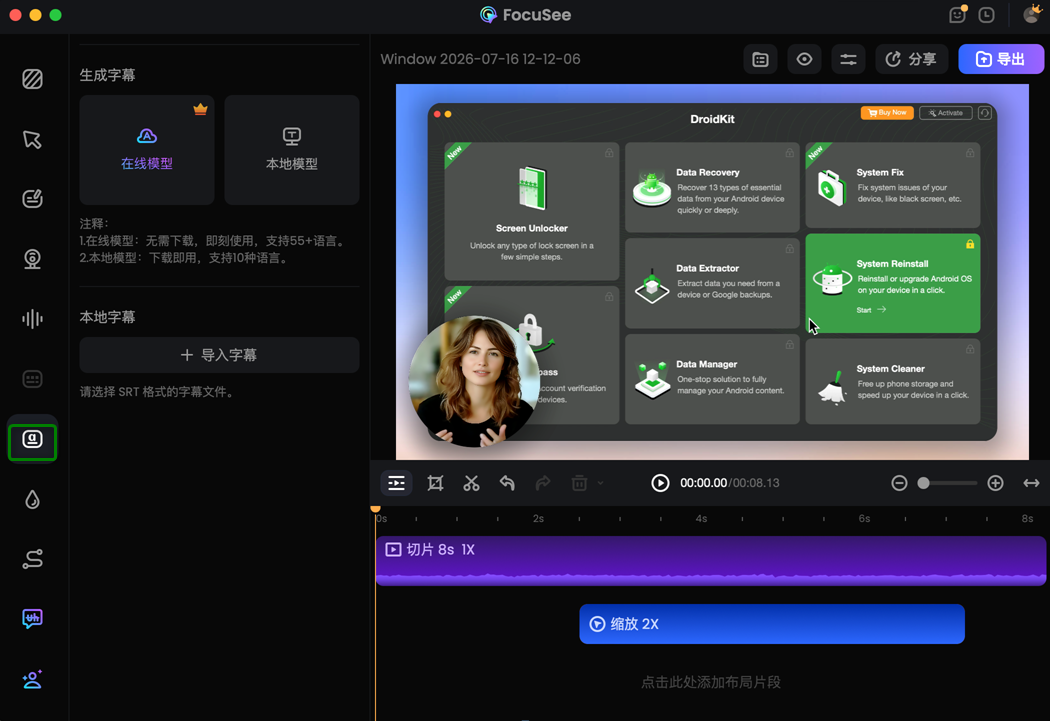
Click the Captions Button
Step 4. Add Subtitles to Your Video.
FocuSee provides two flexible ways to add subtitles to your video. You can use FocuSee to automatically generate subtitles. Choose the Advanced Model for higher accuracy and support for more languages (credits required), or use the Local Model for free.
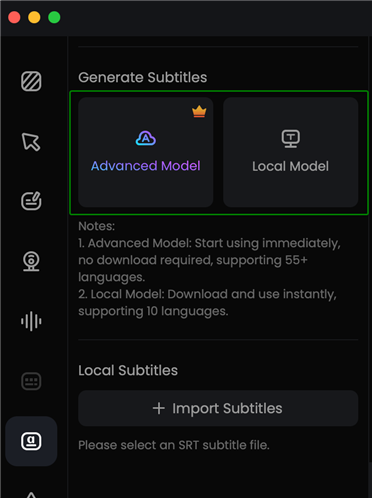
Generate Subtitles Automatically
Alternatively, you can import an existing SRT subtitle file to add subtitles to your video.
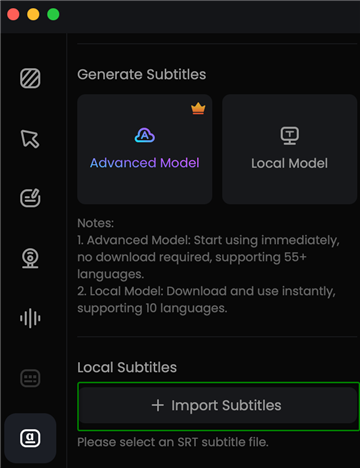
Import SRT Subtitle File
1. For more information about AI Subtitles, click here to learn more about how to use this feature.
2. For more information about Captions, click here to learn more about how to use this feature.
Step 5. Manage the Subtitle List.
After generating subtitles, you can manage them from the top of the subtitle editing panel. Click Delete to remove all subtitles from your video, or click Disable Subtitles to hide subtitles.
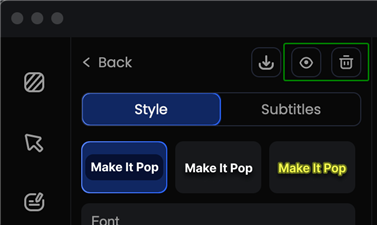
Delete or Disable Subtitles
In the subtitle list, you can edit and manage each subtitle block individually. Select a subtitle block to directly edit the subtitle text, adjust its display time on the timeline, or delete any unnecessary subtitle blocks.
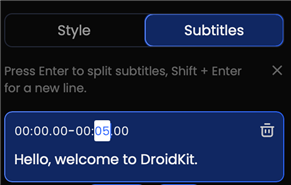
Edit Subtitle Content and Timing
You can also merge subtitle blocks or add new subtitle content to refine your subtitles.
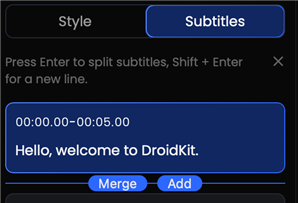
Merge and Add Subtitle Blocks
Press Enter to split a subtitle block, or press Shift + Enter to add a line break.
Step 6. Customize Subtitle Style.
After editing your subtitle content, you can further customize the appearance of your subtitles. FocuSee provides five subtitle styles to choose from. You can select from the first three standard styles to match your video design.
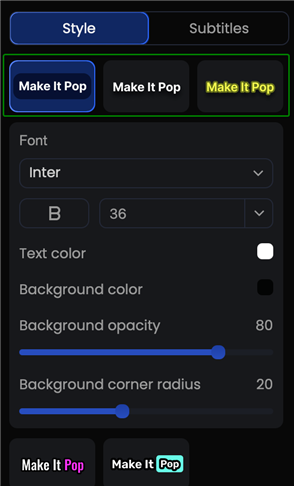
Choose Subtitle Style
After selecting a subtitle style, you can fine-tune its appearance by adjusting the font, font size, word color, stroke color, stroke width, shadow color, shadow size, shadow position, and shadow opacity.
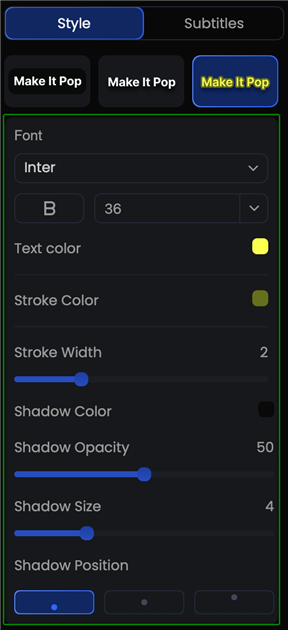
Customize Subtitle Settings
For more eye-catching subtitles, you can choose from two Highlight styles. These styles emphasize key words and create more dynamic subtitle effects, making your videos more engaging and visually appealing.
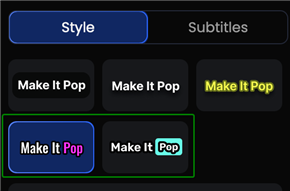
Select Highlight Subtitle Style
After selecting a Highlight subtitle style, you can further customize its appearance by adjusting the font, font size, word color, stroke color, stroke width, highlight color, and highlight opacity.
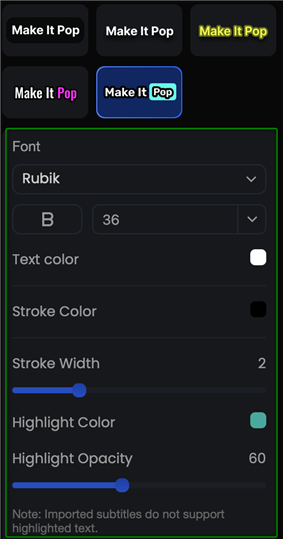
Customize Subtitle Settings
The Highlight subtitle styles are not available for manually imported subtitle files. You can still select the Highlight style, but highlighted words will not be displayed. Other subtitle settings, such as font, color, size, and position, will continue to apply.
Step 7. Adjust Subtitle Position.
Move the subtitles to your preferred position on the screen by adjusting the Position value. A higher value moves the subtitles upward, while a lower value moves them downward.
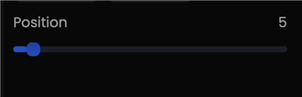
Adjust the Subtitle Position
Step 8. Expert the Video.
Once you finish editing, click the Export button to export your video. You can adjust output settings such as format, resolution, and quality before saving.
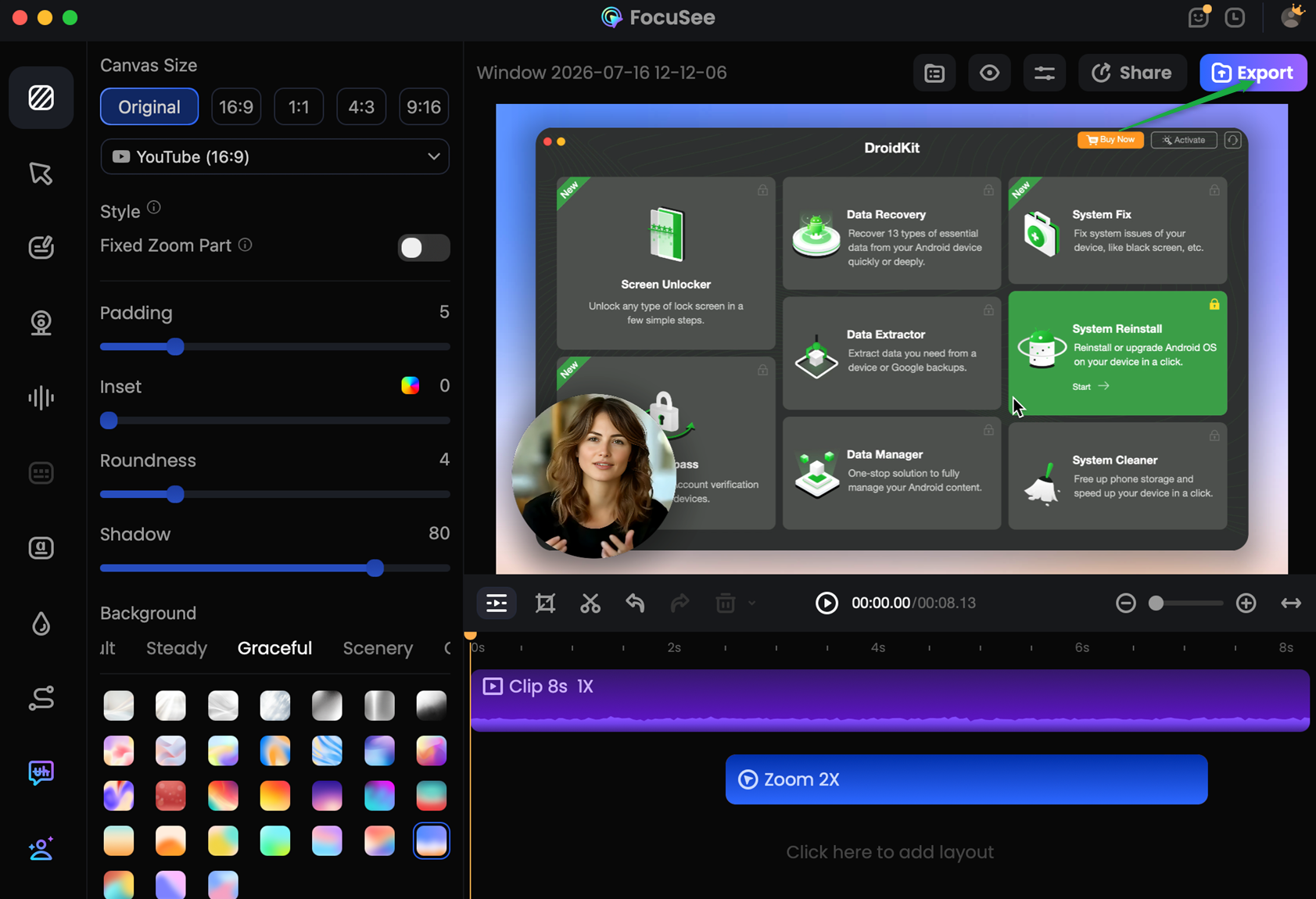
Export the Video
If you have further questions after reading this guide, please refer to FAQs page to check more solutions. Or you can contact our Support Team to get further help. We are here to help you!
FocuSee Edit Subtitles FAQs
1. How do I edit subtitles in FocuSee?
You can edit subtitles in FocuSee by opening the Captions panel in the editing interface. From there, you can modify subtitle text, adjust timing, correct recognition errors, and customize subtitle styles to match your video.
2. Does FocuSee support automatic subtitle generation?
Yes. FocuSee can automatically generate subtitles using AI. After generating subtitles, you can review, edit, and customize them directly in the Captions panel to ensure accuracy.
3. Can I import an SRT subtitle file into FocuSee?
Yes. FocuSee supports importing SRT subtitle files. After importing, you can edit subtitle content, adjust timing, and customize the subtitle appearance before exporting your video.
4. Can I customize subtitle styles in FocuSee?
Yes. FocuSee allows you to customize subtitle styles, including font, font size, word color, and subtitle position. All changes are applied in real time, helping you create subtitles that match your video style.
5. Can I adjust subtitle timing in FocuSee?
Yes. You can adjust the timing of individual subtitle blocks directly in the Captions panel. This makes it easy to synchronize subtitles with your video and improve the viewing experience.
6. Can I add subtitles to tutorial or presentation videos?
Yes. FocuSee is designed for creating tutorial videos, product demonstrations, training materials, and presentations. Adding customized subtitles helps make your videos clearer and easier for viewers to follow.
7. Can I edit subtitles without professional video editing experience?
Yes. FocuSee provides an intuitive subtitle editing workflow that allows beginners to modify text, adjust timing, and customize subtitle appearance without complicated editing skills.

Try It Out & Share Your Feedback!

We'd love to hear how FocuSee is working for you.
Give it a try and share your thoughts—your feedback helps us keep improving.
If you're enjoying FocuSee, we'd be so grateful if you could leave us a review on Trustpilot. Your support helps others discover FocuSee and motivates our team!

Thank you for being part of the iMobie community — we couldn’t do it without you!
Try It Out & Share Your Feedback!
We'd love to hear how FocuSee is working for you.
Give it a try and share your thoughts—your feedback helps us keep improving.
If you're enjoying FocuSee, we'd be so grateful if you could leave us a review on Trustpilot. Your support helps others discover FocuSee and motivates our team!
Thank you for being part of the iMobie community — we couldn’t do it without you!