Free Download For Win & Mac | 100% Clean & Secure
Add Background Music
Background music helps create more engaging and professional videos by adding emotion, improving pacing, and making your content more enjoyable to watch. With FocuSee, you can upload your own music or choose from built-in music presets, then customize the audio with trimming, volume adjustment, fade effects, looping, and playback controls. Background music is ideal for:
• Tutorial videos
• Product demonstrations
• Marketing videos
• Online courses
• Social media content
• Presentation videos
System Requirements
To ensure smooth background music editing, we recommend the following system configuration.
Windows
• Windows 10 or later
• Intel i5 or above
• 8 GB RAM or more
Mac
• macOS 10.15 or later
• Apple Silicon or Intel processor
• 8 GB RAM or more
Supported Audio Formats
FocuSee currently supports importing background music in the following formats:
• MP3
• M4A
• AAC
• WAV
Step 1. Download and Install FocuSee.
Visit the official website to download FocuSee onto your computer. Please ensure your internet connection is stable during the download and installation process. Then follow the on-screen instructions to complete the installation.
Click here for a complete walkthrough of the download and installation process.
Step 2. Launch FocuSee and Enter Editing Interface.
After launching FocuSee, you can either create a new recording or import an existing video. Once your video is ready, you'll enter the editing interface, where you can access all editing tools.
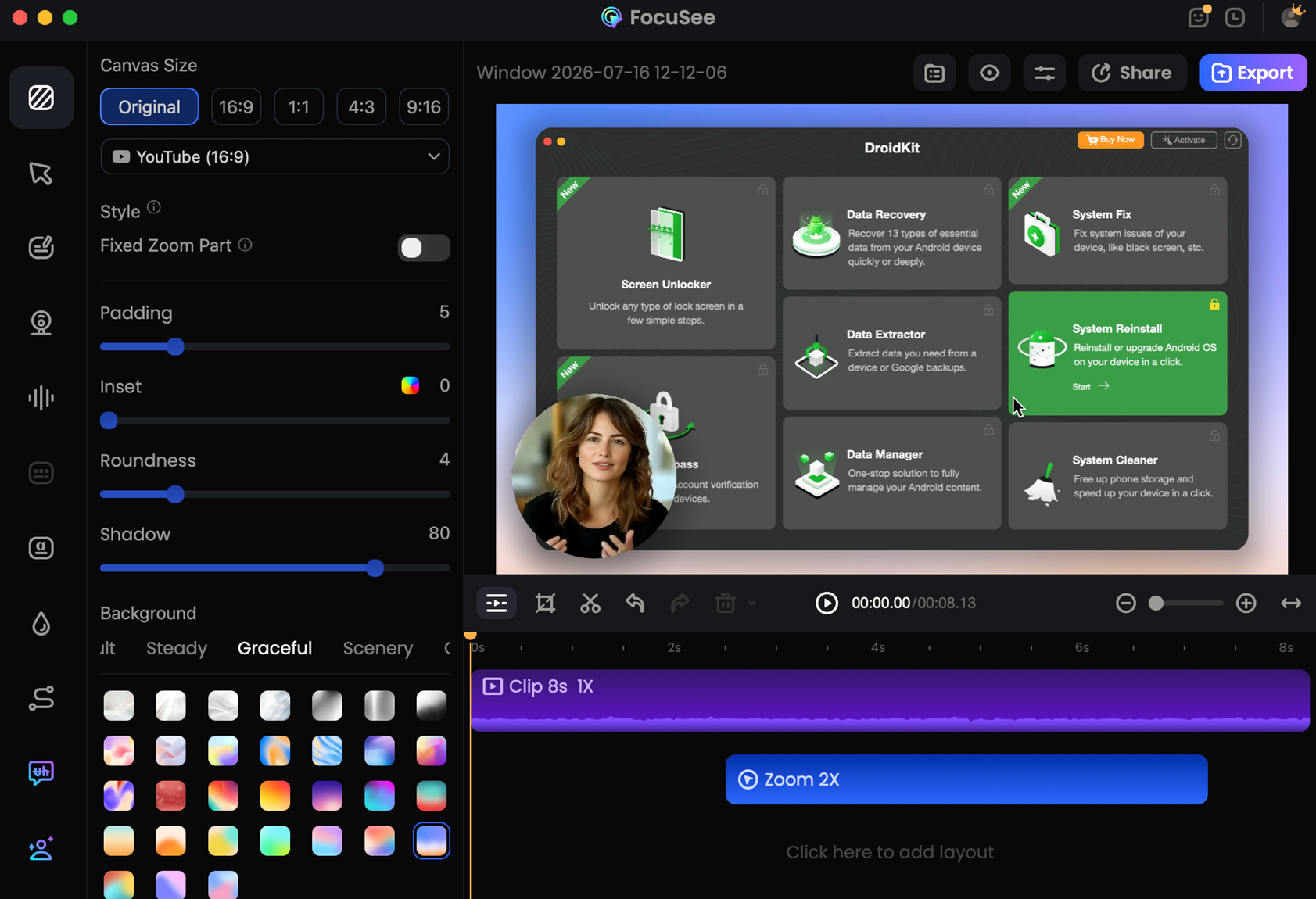
Enter Editing Interface
Step 3. Open the Background Music Panel.
In the left-side editing panel, click Audio Control to expand the audio settings. Scroll down to the Background Music section, where you can upload your own audio or choose from FocuSee's preset music library.
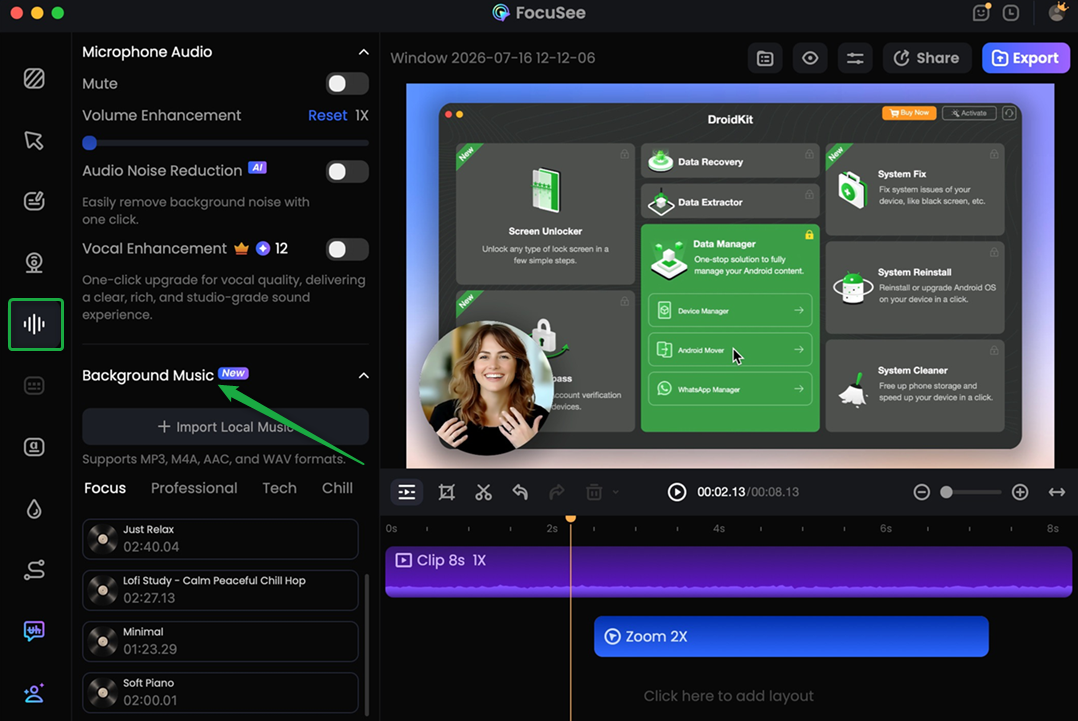
Open Background Music Panel
Step 4. Add Background Music.
To upload your own music, click the Import Local Music button and select an audio file from your computer. FocuSee supports MP3, M4A, AAC, and WAV formats. After the import is complete, FocuSee automatically displays the file name and duration.
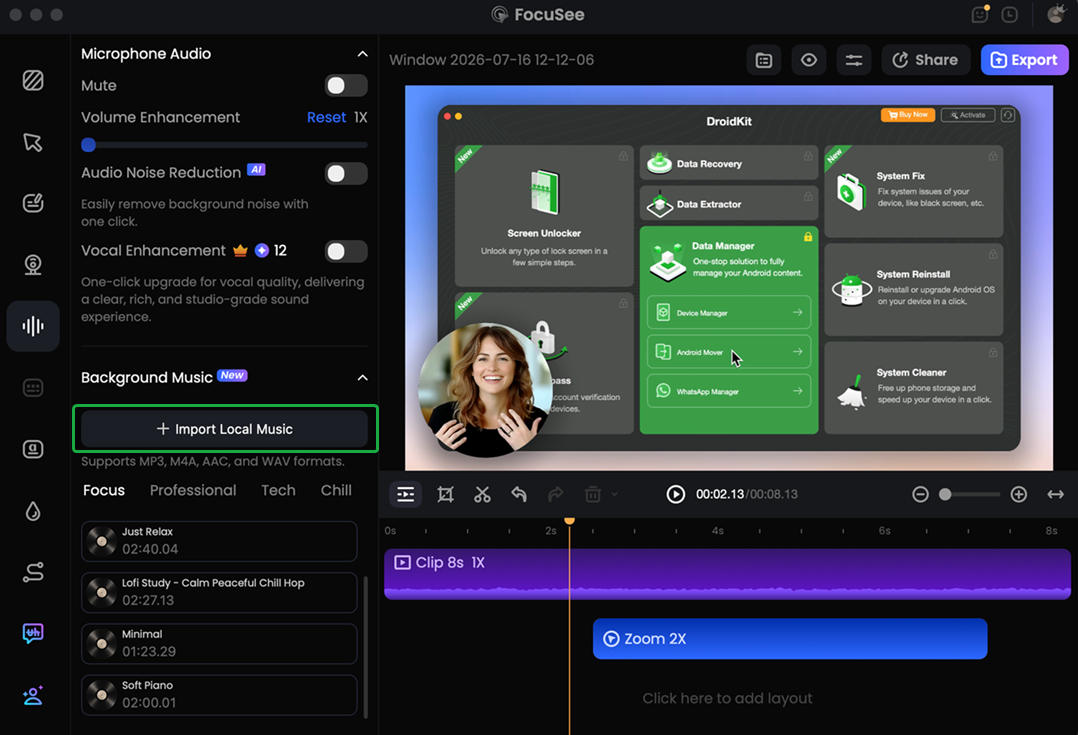
Upload Background Music
Alternatively, choose music from FocuSee's built-in library. Select a category—Focus, Business, Tech, or Chill—preview your preferred track, then click the Add icon to add it to your project.
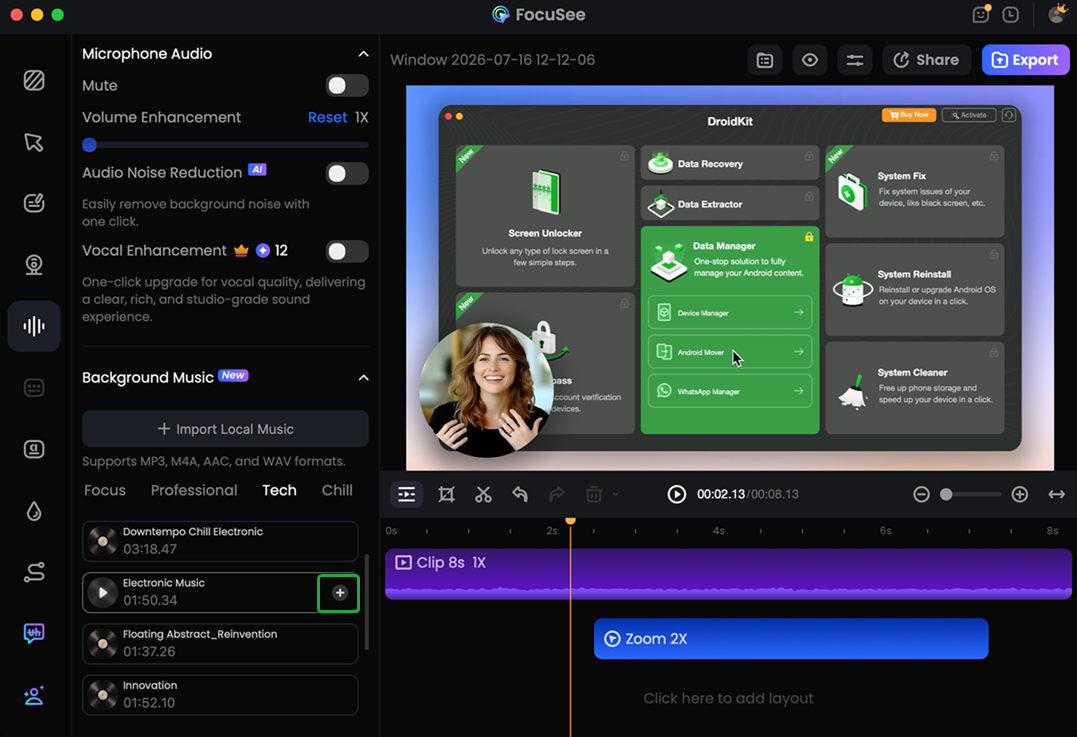
Choose Background Music
Only one background music track can be used in a project at a time. To use a different track, remove the current one before uploading or selecting another.
Step 5. Trim the Background Music.
After adding a music track, click the Trim (scissors) button beside the music to open the Music Editor.
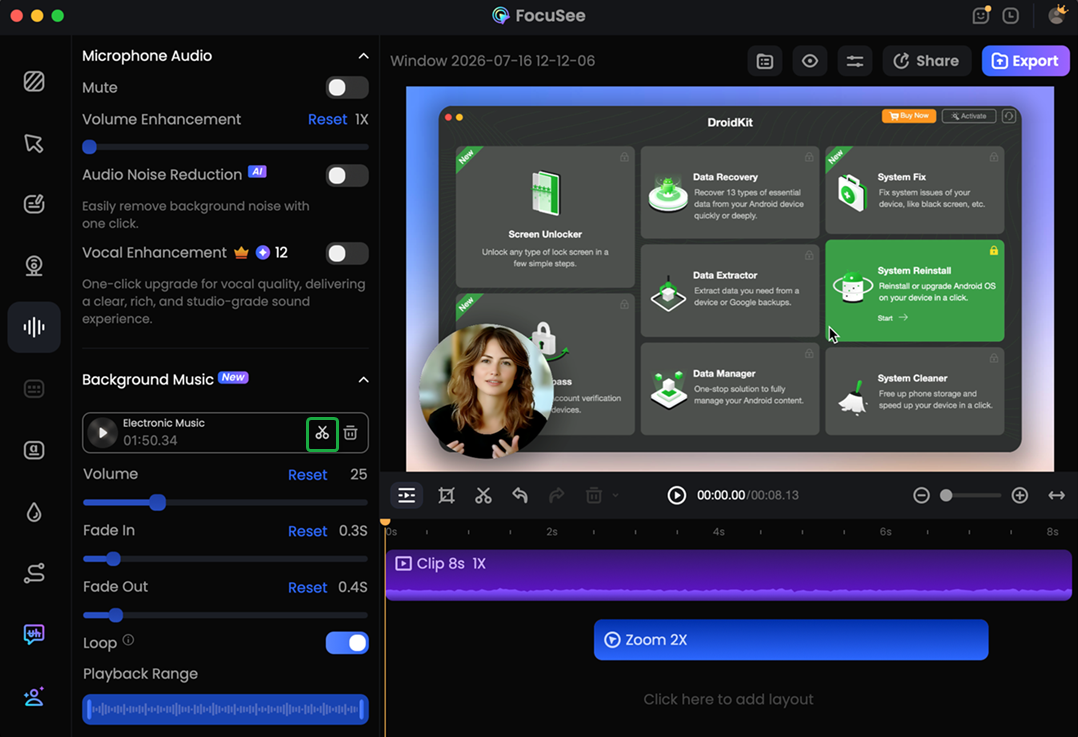
Click Trim Option
Drag the start and end handles to select the portion of the music you want to keep. You can also preview the selected portion before saving your changes. Then click Apply to save and apply the trimmed music.
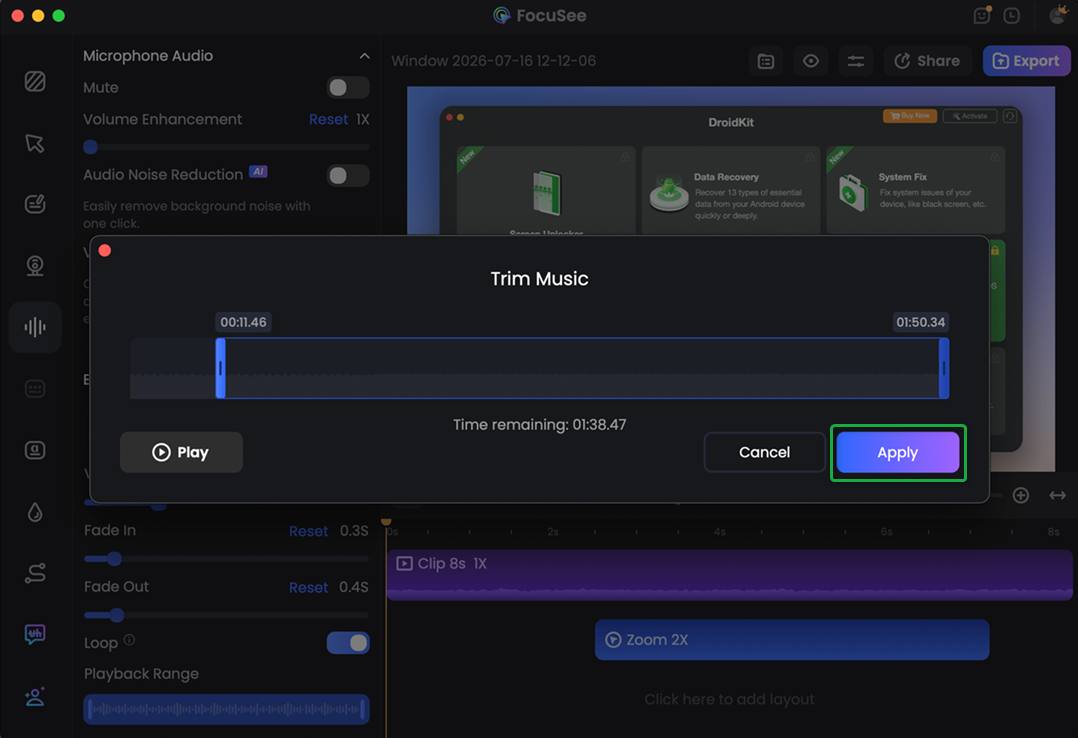
Trim the Background Music
If you'd like to replace or remove the current music, click Delete next to the music track.
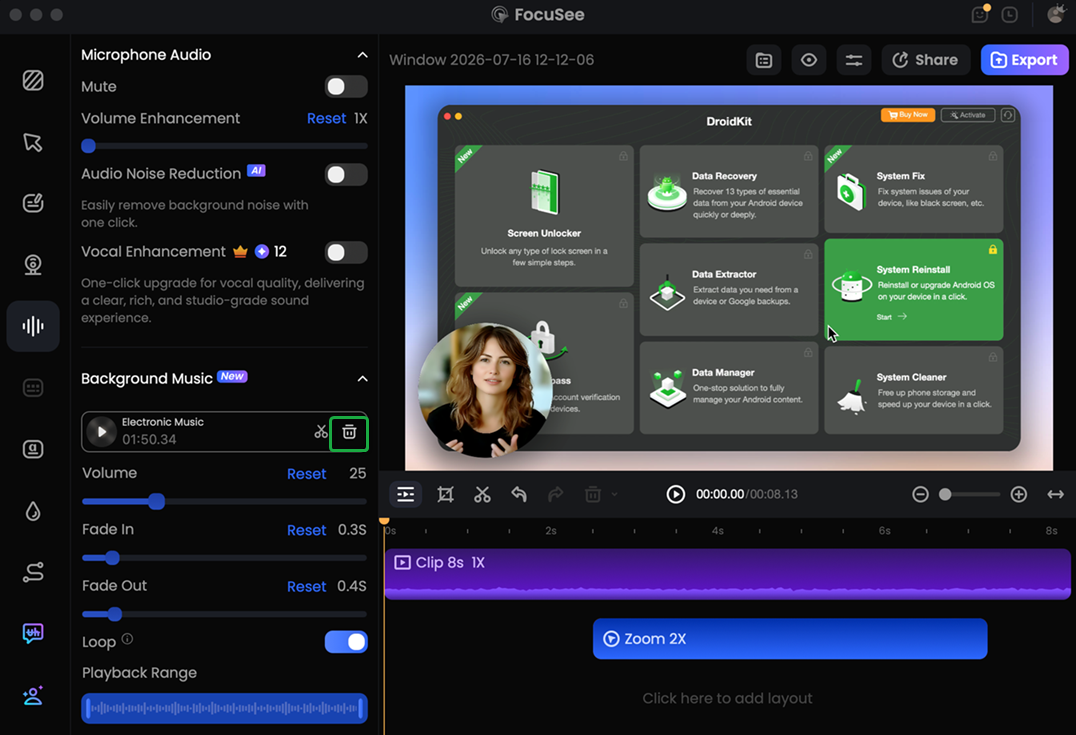
Click Delete Option
Step 6. Adjust Background Music Settings.
After adding the music, you can further customize how it sounds in your video. These settings help the background music blend naturally with your narration or system audio.
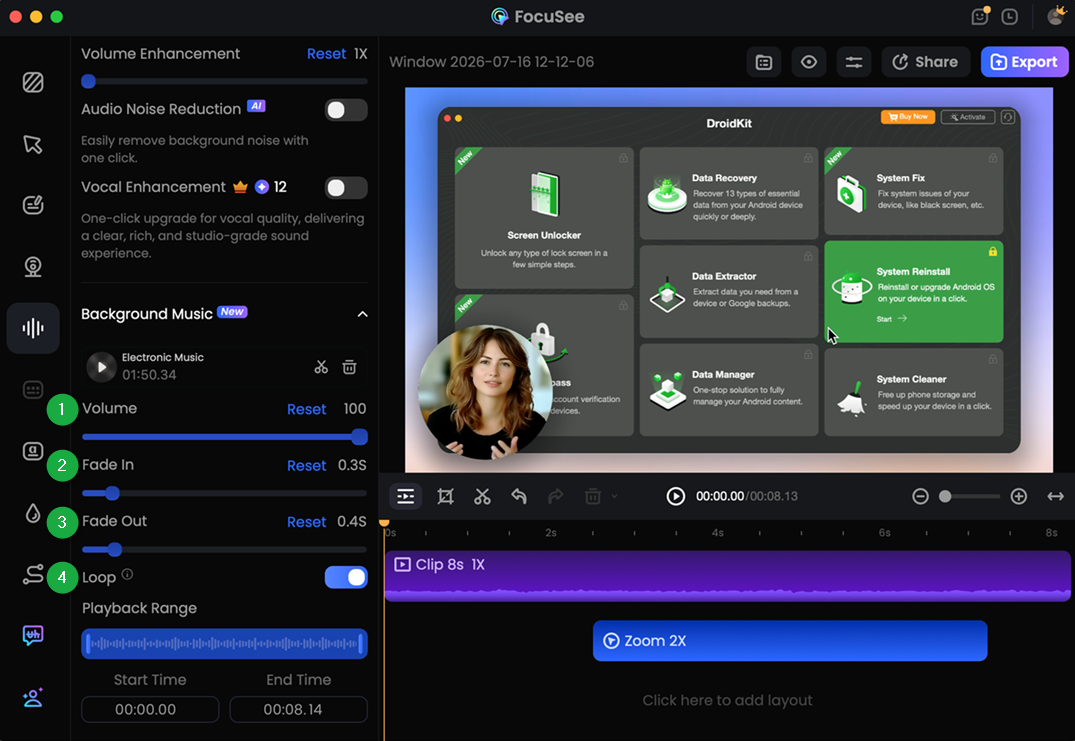
Adjust Background Music Settings
Step 7. Set the Playback Range.
If you don't want the background music to play throughout the entire video, you can specify when it starts and ends. Set the Start Time and End Time to define the playback range. You can enter custom values to make the music play only during a specific part of your video.
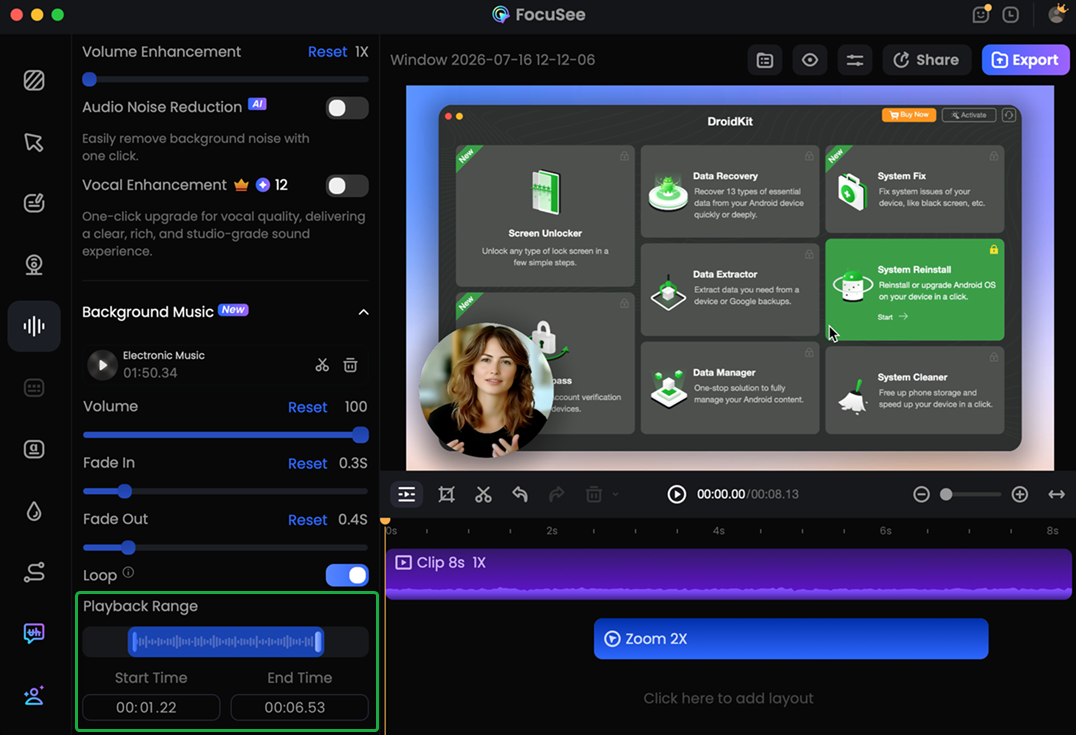
Set the Playback Range
Step 8. Export Your Video.
Once you've finished editing the background music, click Export in the upper-right corner. Choose your preferred export settings, then export the video. The background music will be included in the final exported video.
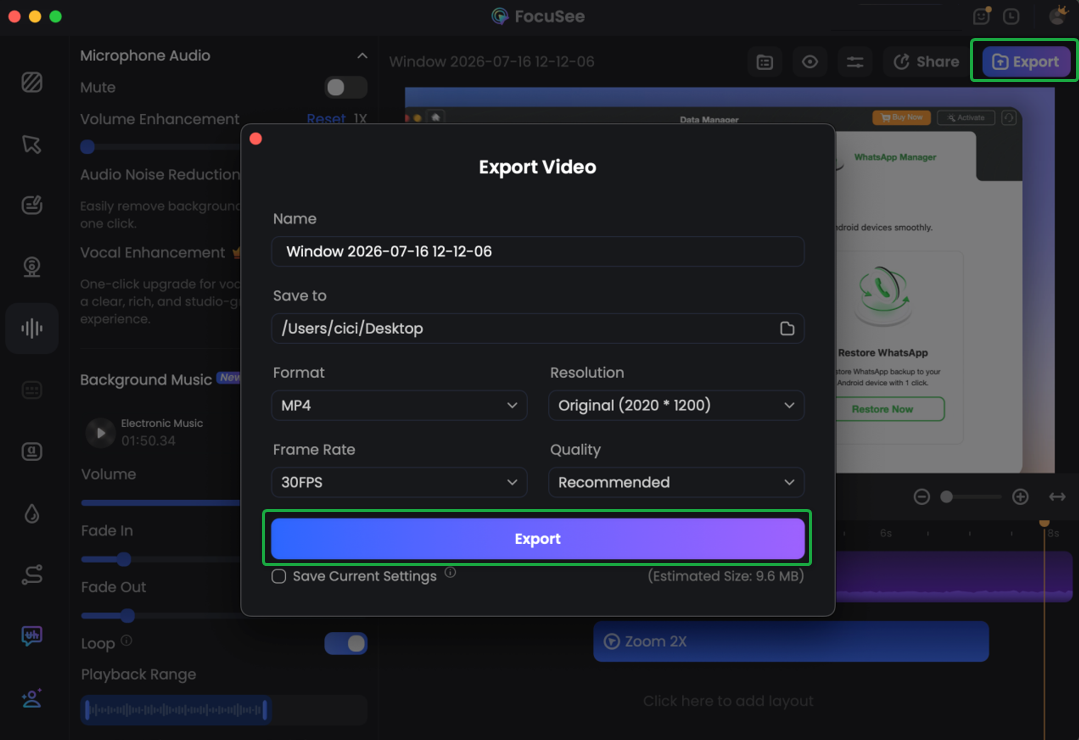
Export Your Video
If you have further questions after reading this guide, please refer to FAQs page to check more solutions. Or you can contact our Support Team to get further help. We are here to help you!
FocuSee Add Background Music FAQs
1. Can I add multiple background music tracks to a video?
No. Currently, FocuSee supports only one background music track per project. To use a different track, remove the existing one before adding another.
2. Which audio formats are supported for background music?
FocuSee supports MP3, M4A, AAC, and WAV audio files for background music.
3. Can I use only part of a music track?
Yes. Click the Trim button to open the Music Editor, then select the portion of the music you want to use and click Confirm to apply the changes.
4. How do I replace or remove background music?
Click the Delete button next to the current music track. After removing it, you can upload another audio file or select a different preset track.
5. Can I control when the background music starts and ends?
Yes. Use the Start Time and End Time settings to define the playback range, so the music only plays during the desired portion of your video.
6. Does the background music loop automatically?
Yes. Loop playback is enabled by default. If the music is shorter than the video, FocuSee automatically repeats it until the video ends. You can disable Loop at any time.
7. Does background music affect my original recording?
No. Background music is added as a separate audio track. It doesn't modify your original system audio or microphone recording, and you can adjust its volume independently.

Try It Out & Share Your Feedback!

We'd love to hear how FocuSee is working for you.
Give it a try and share your thoughts—your feedback helps us keep improving.
If you're enjoying FocuSee, we'd be so grateful if you could leave us a review on Trustpilot. Your support helps others discover FocuSee and motivates our team!

Thank you for being part of the iMobie community — we couldn’t do it without you!
Try It Out & Share Your Feedback!
We'd love to hear how FocuSee is working for you.
Give it a try and share your thoughts—your feedback helps us keep improving.
If you're enjoying FocuSee, we'd be so grateful if you could leave us a review on Trustpilot. Your support helps others discover FocuSee and motivates our team!
Thank you for being part of the iMobie community — we couldn’t do it without you!