Free Download For Win & Mac | 100% Clean & Secure
Annotations
What is Annotation in FocuSee, and how does it improve your videos?
Annotation in FocuSee is a built-in video annotation feature that allows you to add text annotations, shape annotations, and highlight effects such as spotlight, blur, and magnifier to your screen recordings or videos. It helps you clearly explain steps, emphasize important areas, and hide sensitive information.
With flexible customization options including position, duration, style, and animation, FocuSee enables you to create content that is more engaging, professional, and easy to follow. It is widely used in:
• Tutorial videos and screen recording tutorials
• Product demos and walkthroughs
• Educational and training content
• Video editing and presentation guides
Computer System Requirements
To ensure smooth performance when using FocuSee for screen recording and video annotation, please make sure your computer meets the following system requirements.
Windows
• Operating System: Windows 10 or later
• Processor: Intel i5 or higher, dual core 2.9 GHz or above
• Memory: At least 8 GB RAM
Mac
• Operating System: macOS 10.15 or later. For optimal performance, macOS 12.3 or above is recommended
• Processor: Apple M1 or later, or Intel-based Mac
• Memory: At least 8 GB RAM
Step 1. Download and Install FocuSee.
Visit the official website to download FocuSee onto your computer. Please ensure your internet connection is stable during the download and installation process. Then follow the on-screen instructions to complete the installation.
Click here for a complete walkthrough of the download and installation process.
Step 2. Launch FocuSee and Enter Editing Interface.
After launching FocuSee, you can either create a new recording or import an existing video. Once your video is ready, you will enter the editing interface where all editing features are available.
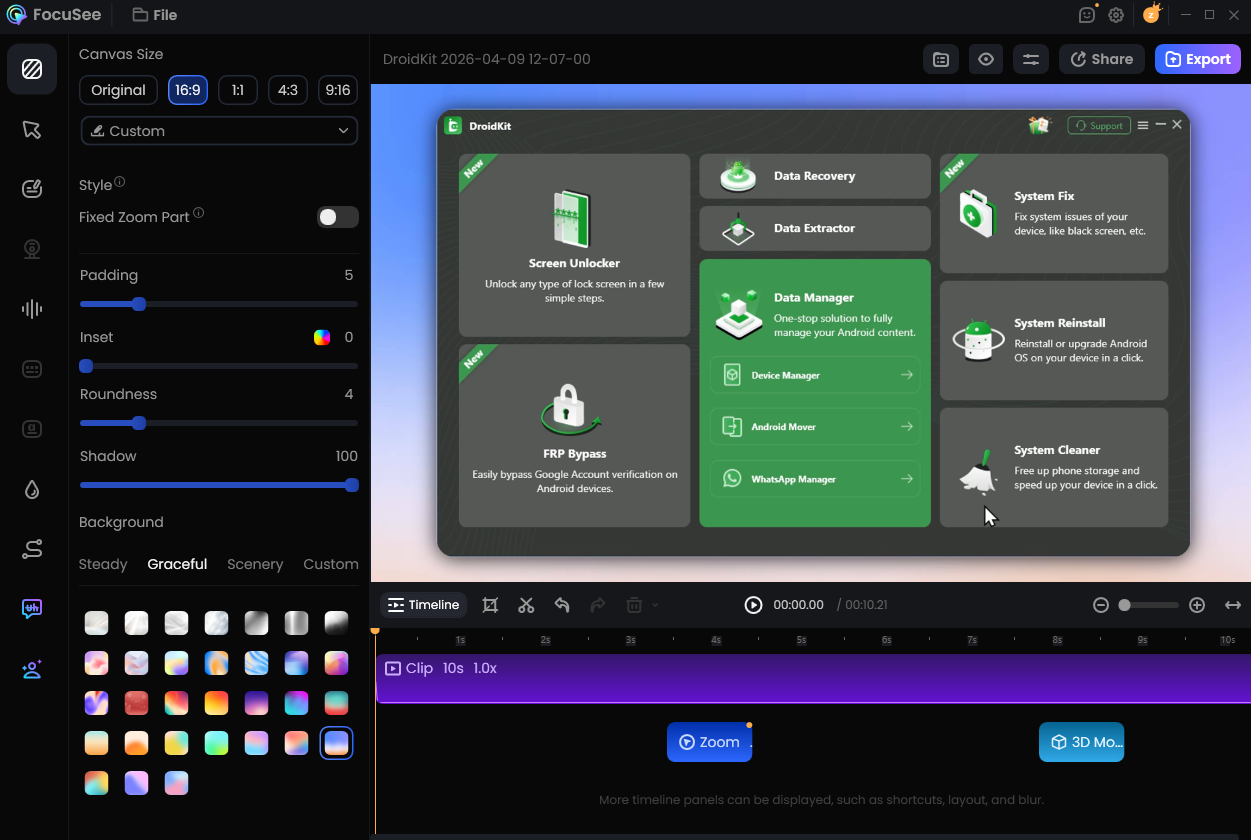
Access the Editing Interface
Step 3. Open Annotation Panel.
In the editing interface, click Annotation from the left sidebar to open the annotation panel. You will find all annotation elements organized into categories for easy access, including Text, Shape, and Mask effects.
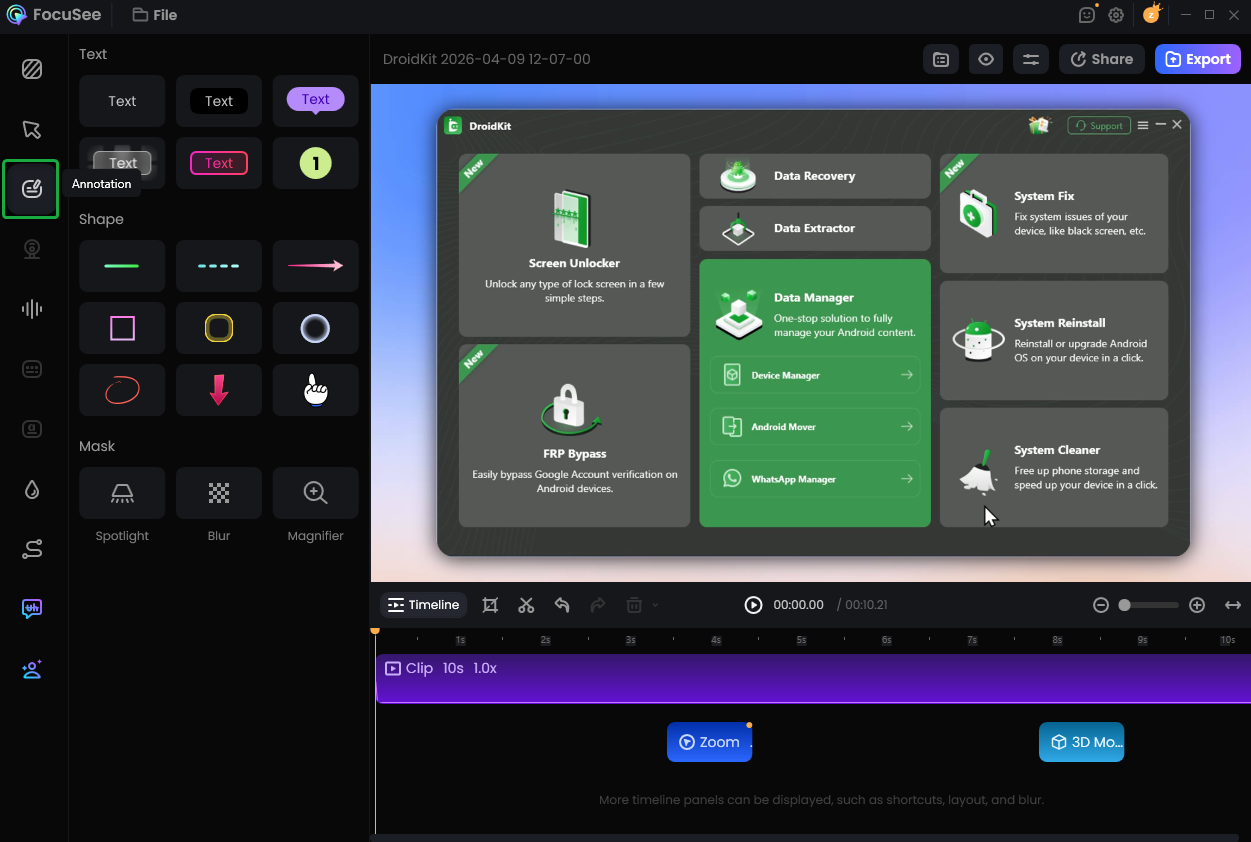
Click Annotation Button
Step 4. Add Annotation Elements.
Move the playhead to the point where you want to add annotations, then select the desired annotation element from the panel and add it to the video and timeline.
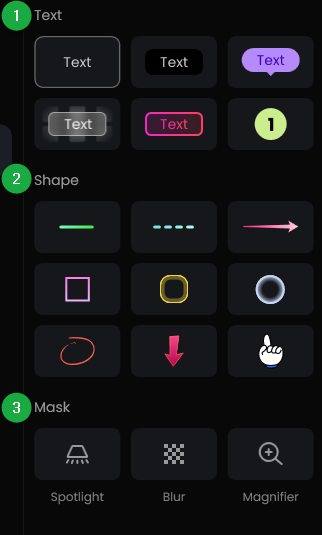
Add Annotation Elements
You can choose from:
Step 5. Customize Annotation.
Once an annotation is selected, you can precisely adjust it on the canvas and in the properties panel. Drag to reposition, resize proportionally using the corners, or rotate to achieve the desired orientation.
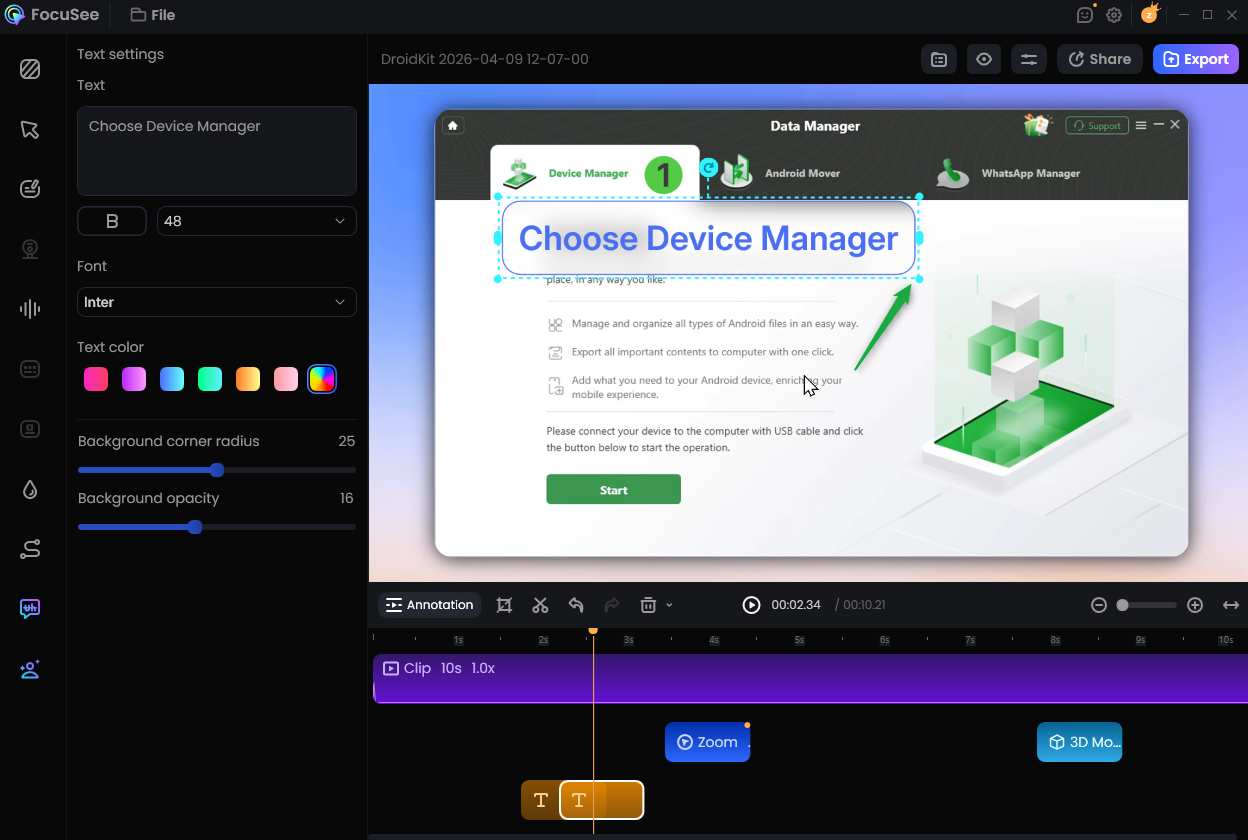
Customize Annotation
Selecting a Text annotation allows you to enter content directly and adjust font, size, color, and style. Changes are reflected in real time, helping clearly present steps and key information.
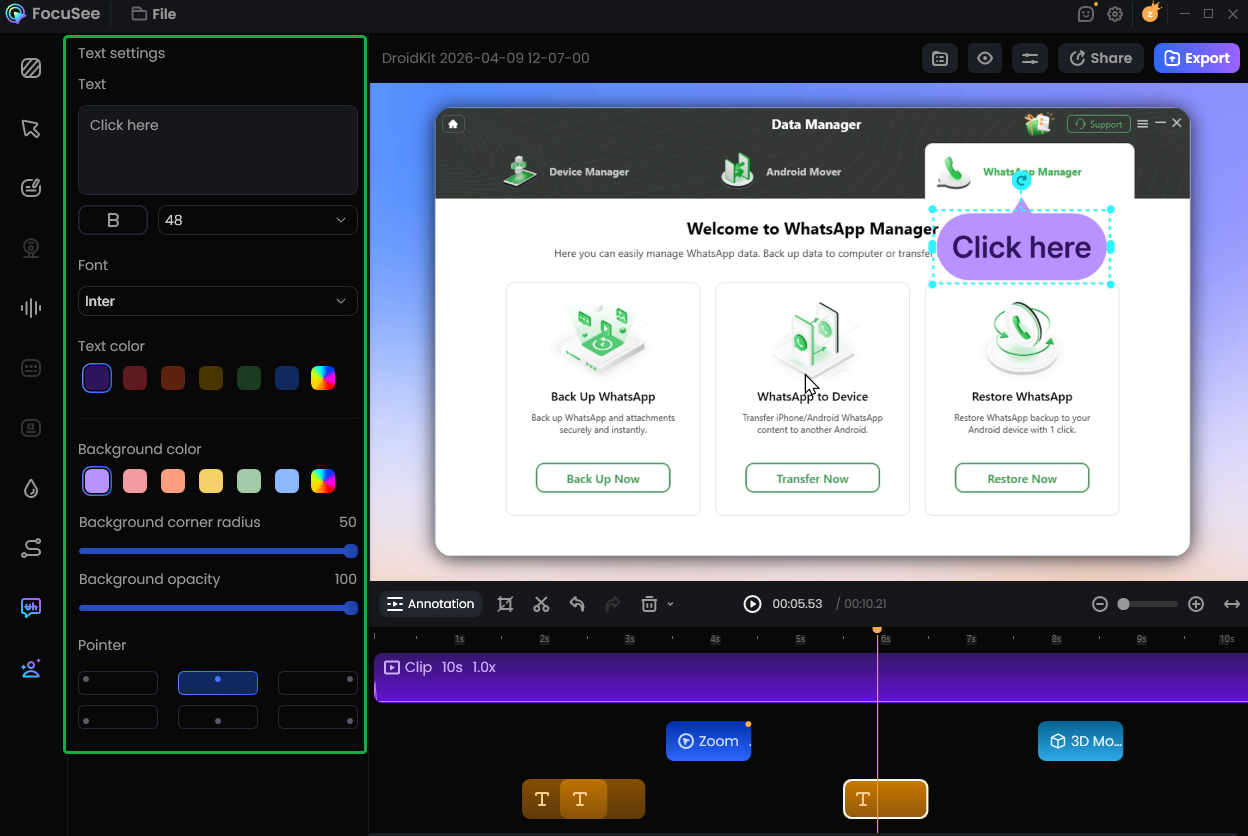
Customize Text settings
For shape annotations, you can easily adjust various properties such as color, opacity, stroke width, corner radius, and other visual styles to better suit your specific needs and preferences.
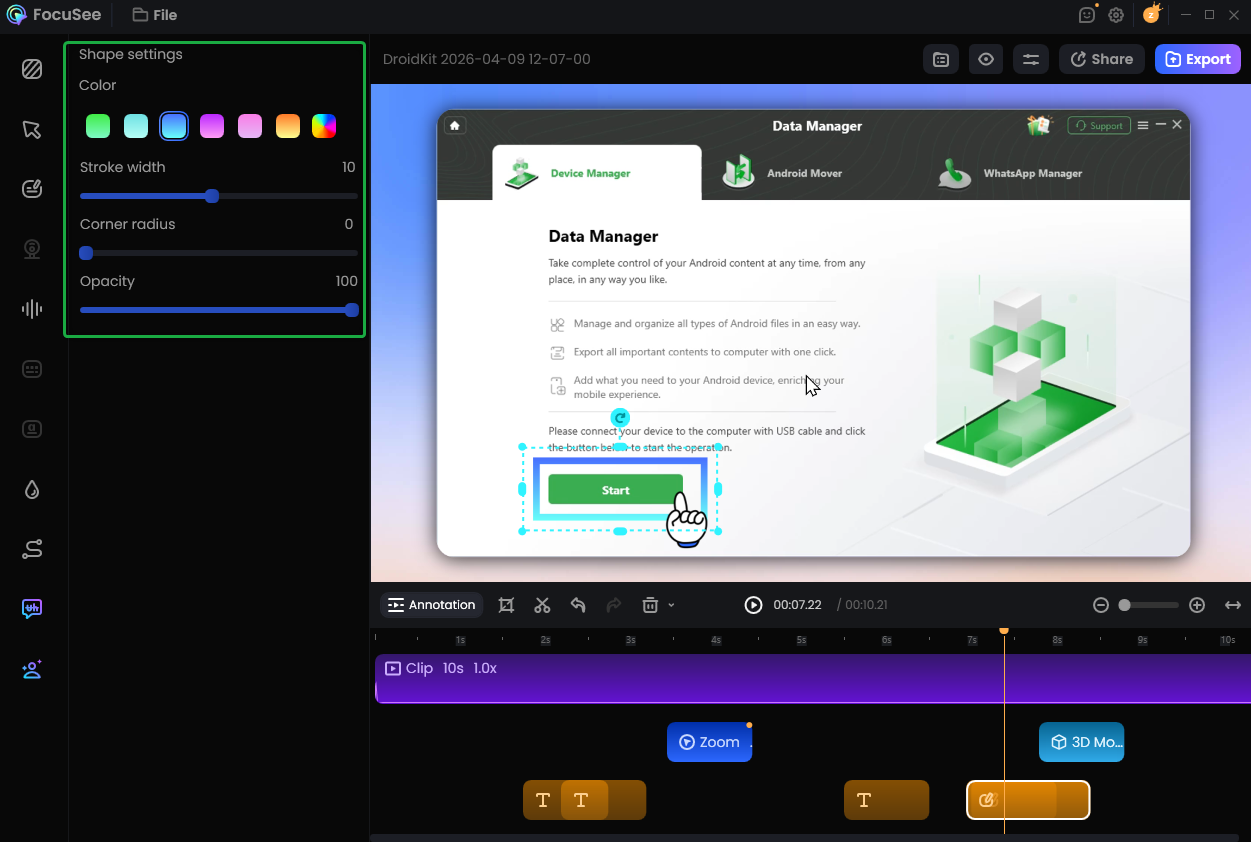
Customize Shape settings
For Mask effects, you can add a Spotlight, Blur, Magnifier or Callout to highlight important areas or conceal sensitive information. You can also adjust properties such as size, opacity, and intensity to create the desired visual effect.
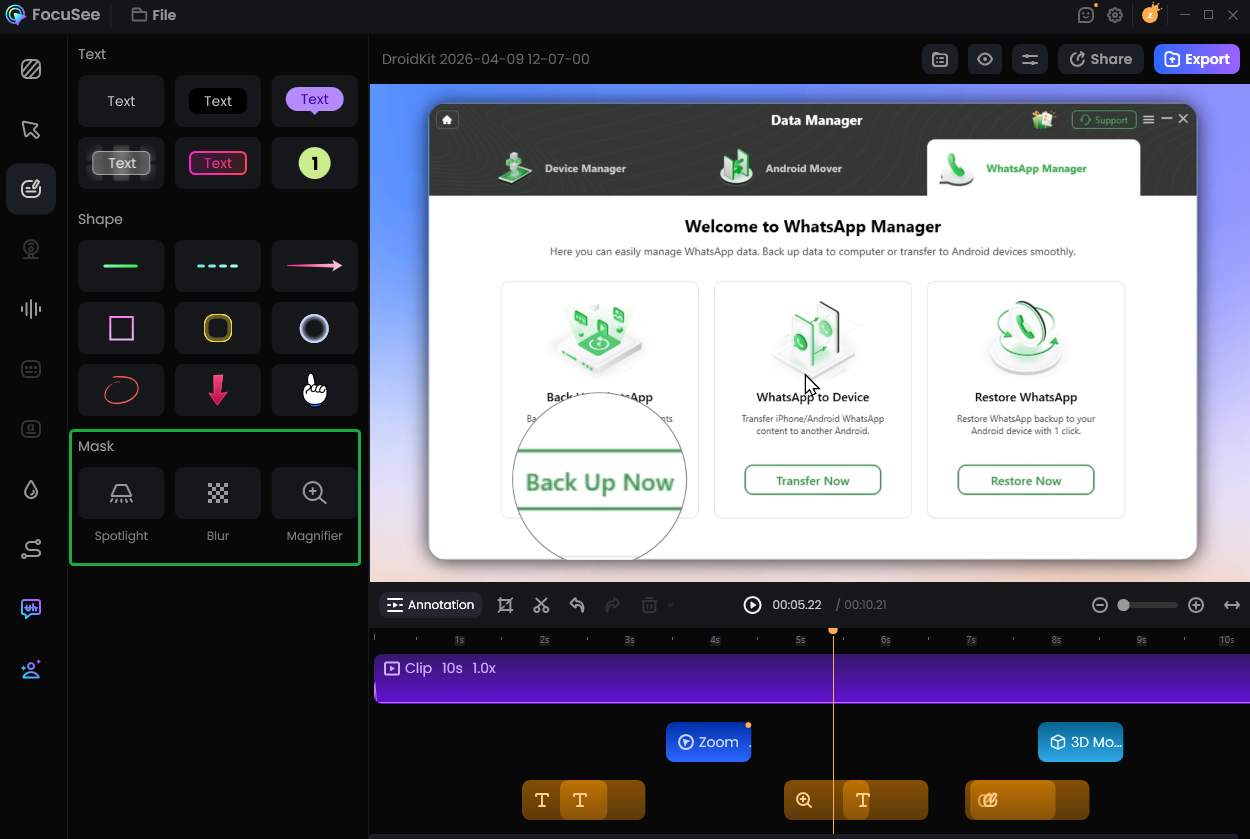
Customize Mask Effects
If you want to highlight a specific area of your video, you can use the Callout feature. By zooming in on a selected area, you can clearly showcase operation details and emphasize key information, helping viewers understand your content more quickly. You can also customize the Popout effect, marquee effect, color, roundness, and mask opacity to create a clear and professional visual presentation.
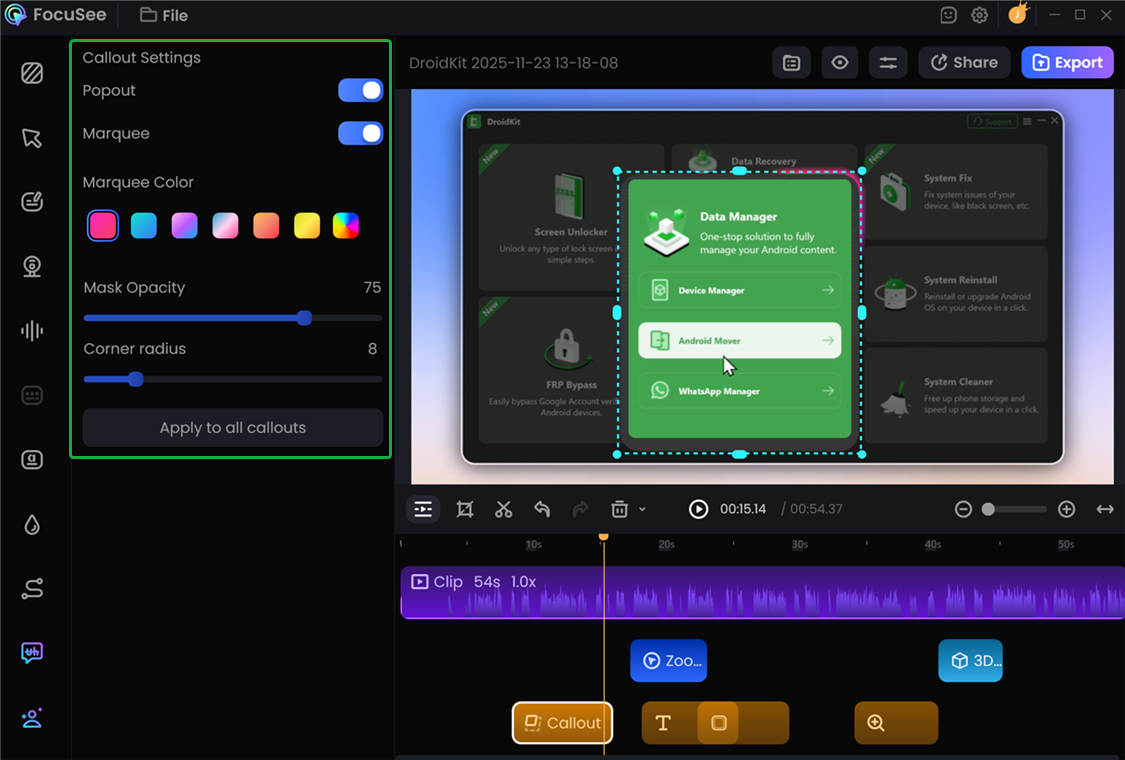
Apply the Callout Effect
1. Please click here to view the detailed guide for the Blur effect, including feature introduction, settings, and usage scenarios, to help you quickly hide sensitive information in your videos.
2. Please click here to view the detailed guide for the Spotlight effect, including feature introduction, settings, and usage scenarios, to help you precisely highlight important areas in your videos.
Step 6. Export the Video.
Once you finish editing, click the Export button to export your video. You can adjust output settings such as format, resolution, and quality before saving.
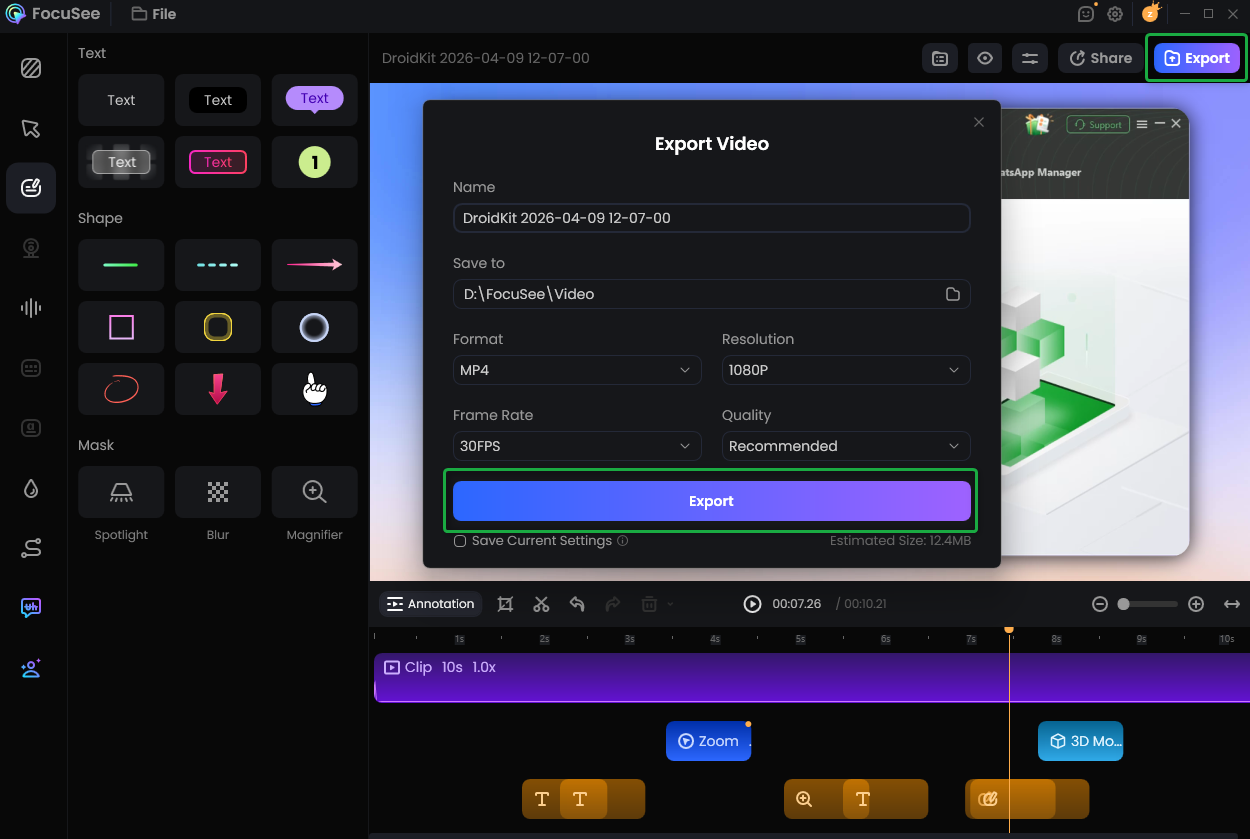
Export the Video
If you have further questions after reading this guide, please refer to FAQs page to check more solutions. Or you can contact our Support Team to get further help. We are here to help you!
FocuSee Annotation FAQs
1. How do I highlight part of a screen recording in FocuSee?
Use Spotlight or Magnifier from the Mask effects to highlight a specific area in your screen recording. You can adjust the size and position to focus attention on important content.
2. How do I add text to explain steps in a video?
Select Text annotation to add labels or step by step instructions. Enter your content and customize font, size, color, and style to make your video easier to follow.
3. How do I blur sensitive information in a video?
Use the Blur effect to blur or hide sensitive information such as passwords, personal data, or confidential content in your video.
4. Can I control when annotations appear in the video?
Yes. You can control the timing of each annotation by placing it on the timeline and adjusting its duration, so it appears exactly when needed.
5. Can I customize the style of annotations in FocuSee?
Yes. FocuSee allows full customization of video annotations, including text, shapes, and highlight effects. You can adjust font, color, size, opacity, and other visual settings to match your video style.
6. Why are my annotations not showing in the preview or exported video?
Please check whether the annotation is within the visible timeline range, not hidden behind other elements, and has appropriate opacity settings.
7. Can I add annotations to an existing or imported video?
Yes. You can import your video into FocuSee and add annotations during editing, making it easy to enhance tutorials, product demos, and presentations.
8. What types of videos benefit most from annotations?
Annotations are widely used in screen recording tutorials, product demos, educational videos, training content, and video presentations, where clear visual guidance improves viewer understanding.

Try It Out & Share Your Feedback!

We'd love to hear how FocuSee is working for you.
Give it a try and share your thoughts—your feedback helps us keep improving.
If you're enjoying FocuSee, we'd be so grateful if you could leave us a review on Trustpilot. Your support helps others discover FocuSee and motivates our team!

Thank you for being part of the iMobie community — we couldn’t do it without you!
Try It Out & Share Your Feedback!
We'd love to hear how FocuSee is working for you.
Give it a try and share your thoughts—your feedback helps us keep improving.
If you're enjoying FocuSee, we'd be so grateful if you could leave us a review on Trustpilot. Your support helps others discover FocuSee and motivates our team!
Thank you for being part of the iMobie community — we couldn’t do it without you!