Screen Studio vs OBS: Which Screen Recorder Is Better for Tutorials?

Choosing between Screen Studio and OBS Studio for tutorials comes down to one question: how much work do you want to do after recording?
Screen Studio is designed for creators who want polished tutorials with minimal editing, but it only runs on macOS. OBS Studio is free, open-source, and available on Windows, macOS, and Linux, but it focuses on recording rather than automated post-production.
We tested both tools using the same software-tutorial workflow to compare recording quality, automatic zoom and cursor effects, post-production time, and platform support. Here’s what we found.
Also Read: Camtasia vs OBS: Which Screen Recorder Should You Choose >
Screen Studio: Beautiful Polish with Zero Editing
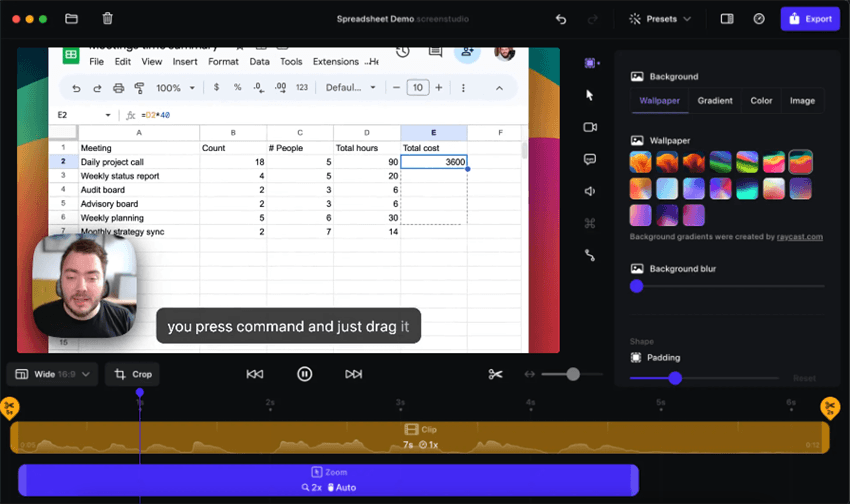
Screen Studio Interface – Mac Only
Screen Studio is built around a simple idea: make screen recordings look polished without requiring a traditional editing workflow.
During our test, its biggest advantage was the amount of post-production it handled automatically. Zooms, cursor emphasis, and visual focus could be applied without manually building keyframes in a separate editor.
This makes Screen Studio particularly well suited to software tutorials, product demos, and walkthroughs where the viewer needs to follow specific UI actions.
The trade-off is platform availability: Screen Studio is designed for macOS, so Windows and Linux users cannot use it as their primary screen recorder.
Pros
- Automatic zoom and visual focus
- Cursor effects require little manual work
- Designed for polished tutorials and product demos
- Reduces the need for traditional timeline editing
Cons
- macOS only
- Paid software
- Less suitable if you need a highly customizable recording/streaming setup
OBS Studio: Free, Powerful, but Manual-Heavy
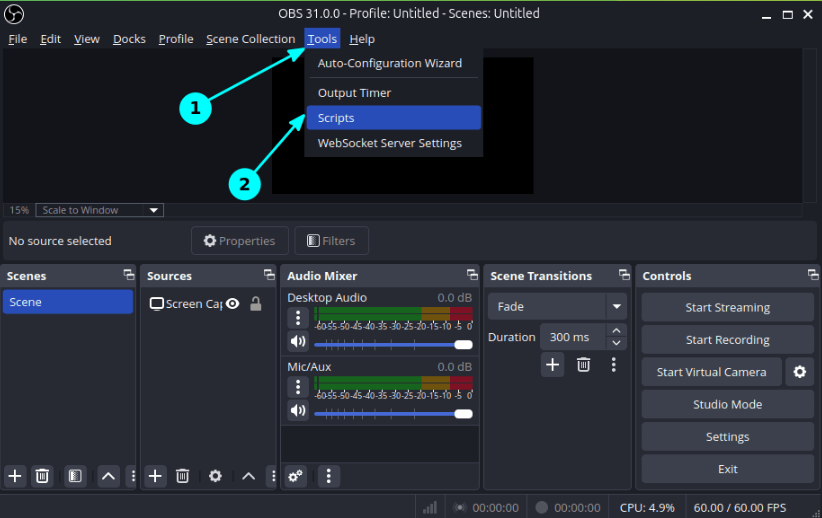
OBS Studio Zoom in Script
OBS Studio takes the opposite approach. Instead of automating the editing process, it gives you extensive control over how your screen, camera, audio, and other sources are captured.
In our test, OBS produced clean raw footage and offered much more control over the recording setup. The trade-off appeared after recording: OBS does not automatically create the zooms, cursor emphasis, and visual transitions that make software tutorials easier to follow.
If you want those effects, you’ll generally need to edit the footage afterward using another video editor. That makes OBS a strong choice for creators who prioritize control, flexibility, and price, but less convenient for those who want a polished tutorial with minimal post-production.
Pros of OBS Studio:
- 100% free and open-source.
- Cross-platform compatibility across Windows, Mac, and Linux.
- Incredible raw capture power with advanced multi-source scene building.
Cons of OBS Studio:
- Heavy manual editing burden for post-production.
- Requires importing footage to a separate video editor to add zoom or cursor effects.
- Steep learning curve for setting up optimal recording profiles.
Hands-on Test: Screen Studio vs OBS
We recorded the same 5-minute software tutorial with both tools using the same screen resolution and workflow. We compared setup time, recording quality, automated effects, and the time needed to produce a polished final video.
| Screen Studio | OBS Studio | |
| Setup Time | 2 min | 5 min |
| Recording Quality | 1080p/60fps | 1080p/60fps |
| Automatic Zoom | Yes | No |
| Cursor Effects | Automatic | Manual |
| Extra Video Editor | No | Yes |
| Post-Production | 4 min | 22 min |
| Total Workflow Time | 11 min | 32 min |
Result: Screen Studio cut post-production time by about 82% in our test, while OBS offered more recording control but required substantially more editing to achieve a similar tutorial style.
Head-to-Head Comparison: Time, Cost, and OS Compatibility
To make the best decision for your workflow, you have to weigh the trade-offs between saving money and saving time.
| Screen Studio | OBS Studio | |
| Windows | ❌ | ✅ |
| macOS | ✅ | ✅ |
| Linux | ❌ | ✅ |
| Price | Paid | Free |
| Automatic Zoom | ✅ | ❌ |
| Cursor Effects | ✅ | ❌ |
| Built-in Editing | ✅ | ❌ |
| Advanced Recording Controls | Limited | ✅ |
| Live Streaming | Limited | ✅ |
| Post-Production Effort | Low | High |
This comparison highlights the current dilemma for tutorial creators: Screen Studio easily wins on post-production time but entirely fails on Windows support. Conversely, OBS Studio wins on price and cross-platform flexibility but loses heavily when it comes to the hours required to polish a final tutorial. Neither platform provides built-in AI audio cleanup and auto-subtitling out of the box, leaving another gap for creators who want fully accessible videos without extra work.
What About Windows Users?
If you want Screen Studio-style tutorials on Windows, the choice is less straightforward. Screen Studio is macOS-only, while OBS Studio works on Windows but doesn’t automatically add zooms or cursor effects.
Recreating those effects manually can mean extra editing and keyframing. A Screen Studio for Windows alternative can bridge that gap by combining screen recording with automated zoom, cursor effects, and post-production—without requiring a Mac or advanced editing skills.
FocuSee: The Cross-Platform Screen Studio Alternative
This is where FocuSee bridges the gap. FocuSee is an AI-powered auto-editing screen recorder available for both Windows and macOS, making it the ideal hybrid solution that solves the OS limitation of Screen Studio and the manual labor of OBS.
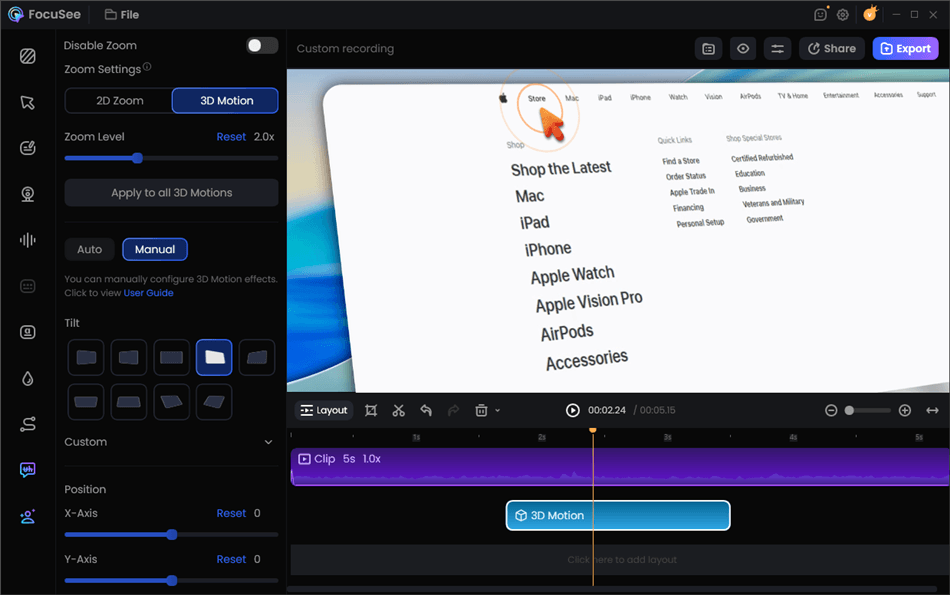
Screen Studio Alternative for Windows – FocuSee
Instead of just capturing raw footage, FocuSee automatically adds smart zooms, cursor tracking, and click highlight effects under supported conditions as you record. Once you finish recording, you aren’t dumped into a complex timeline with hours of manual keyframing ahead of you. The software provides an AI-assisted editing workflow where these visual focus elements are already applied, drastically reducing your post-production time compared to the OBS route.
In addition to dynamic zoom and cursor polish, FocuSee differentiates itself as a tutorial video maker with built-in AI enhancements. It can automatically generate AI subtitles, clean up background audio noise, and remove webcam backgrounds—all without needing a green screen or third-party plugins. Best of all, users still retain control and can manually adjust the automated zoom timing or cursor effects before exporting the final video.
Comparing the Workflows: Why Automated Editing Wins for Tutorials
To understand how much faster an auto-editing tool is, let’s compare the actual step-by-step workflow of creating a polished tutorial in both OBS Studio and FocuSee.
The OBS Manual Editing Workflow:
1. Set up your scenes and record the raw screen capture in OBS.
2. Import the heavy video file into a professional video editor (like Premiere Pro).
3. Spend hours manually adding keyframes to zoom in on important UI clicks.
4. Manually add graphics to highlight your cursor movements.
5. Type out or manually sync captions for accessibility.
6. Render and export the final video.
The FocuSee Auto-Editing Workflow:
1. Open FocuSee and record your screen (Windows or Mac).
2. Review the auto-applied smart zooms, cursor tracking, and AI-generated subtitles.
3. Adjust the timing of the automated focus effects, customize your camera layout, or blur your background if needed.
4. Export your polished tutorial.
While OBS is incredible for live streaming or capturing complex gameplay, FocuSee helps turn plain recordings into polished tutorials without requiring you to learn complex video editing software or spend your entire afternoon keyframing a single video.
Frequently Asked Questions
Can OBS do auto zoom like Screen Studio?
No, OBS Studio does not have built-in auto-zoom for post-production. You either need to use complex third-party plugins that zoom during live recording, or you must import your footage into a separate video editor to manually add zoom keyframes.
Is Screen Studio worth it when OBS is completely free?
Yes, if you own a Mac and value your time. The hours saved by not having to manually edit zooms, add motion blur, or track a cursor often justify the price of a Screen Studio license for professional creators.
What is a good Screen Studio alternative for Windows?
FocuSee is an excellent alternative for Windows users. It offers similar auto-editing capabilities, automatically applying smart zooms, cursor animations, and AI subtitles to your screen recordings on PC.
How do you get smooth cursor effects in OBS?
OBS does not smooth or highlight cursors natively in post-production. You must rely on separate cursor-highlighting desktop apps while recording, or manually track and animate graphics over your mouse in a program like After Effects later.
Which is better for software tutorials and product demos?
Auto-editing tools (like Screen Studio or FocuSee) are generally better for fast, polished tutorial turnarounds. OBS is better suited for users who need complex multi-camera live streaming or those who have zero budget and don’t mind manual video editing.
Final Verdict: Which Option Should You Choose?
Choosing the right software comes down to your operating system, your budget, and how much time you are willing to spend editing.
- Choose Screen Studio if: You are a Mac user who wants a beautiful, zero-editing experience out of the box and you do not mind paying for a premium license.
- Choose OBS Studio if: You are a live streamer, you are on a strict zero-dollar budget, or you already know how to use professional video editing software and do not mind manually keyframing your tutorials.
- Choose FocuSee if: You are a Windows (or Mac) user who wants the automated smart zoom, cursor polish, and AI subtitle capabilities of Screen Studio, but you want to avoid the heavy manual post-production required by OBS.
If you want to create professional, easy-to-follow product demos and tutorials without spending hours in a video editor, checking out a cross-platform Screen Studio alternative is the best next step. Explore how FocuSee can streamline your tutorial creation workflow today.
Related Articles
- OBS Alternative: Finding an Easier Screen Recorder
- Best Screen Recorders for Windows PC
- How to Make a SaaS Product Demo Video