10 Best Screen Recorders for Windows: Tested for Quality & Workflow

Finding the best screen recorder for Windows isn’t just about features—it’s about choosing a tool that fits your workflow. The wrong choice can lead to lag, poor audio, and wasted time, especially for tutorials, demos, or gameplay recording.
This guide compares the 10 best screen recorders for Windows based on real-world performance, helping you find a reliable tool that delivers smooth, high-quality results without unnecessary complexity.
Comparison Table of Top Screen Recorders for Windows
| Best For | Ease of Use | Editing Time Needed | Key Strength | |
| FocuSee | Tutorials & product demos | Easy | ⭐ Low (Auto) | Auto zoom, AI editing, high clarity output |
| OBS Studio | Advanced users & streaming | Complex | ❗ High (Manual) | Full control, no watermark |
| Camtasia | Professional video editing | Medium | ⚪ Medium | Powerful timeline editor |
| Snagit | Quick clips & documentation | Easy | ⭐ Low | Fast capture & annotation |
| Loom | Instant sharing & communication | Easy | ⭐ Low | Cloud sharing, quick workflow |
| Movavi | Budget editing workflow | Easy | ⚪ Medium | Built-in editor, simple UI |
| ShadowPlay | Gaming (NVIDIA users) | Easy | ❗ High (No editing) | Low performance impact |
| Bandicam | High-FPS recording | Medium | ❗ High | 480 FPS support |
| FlashBack Express | Free beginner tool | Easy | ⚪ Medium | No watermark, simple UI |
| ShareX | Power users & automation | Complex | ❗ High | Advanced capture options |
All tools were tested on a MacBook Pro (M1), a Windows 11 Dell XPS 15, and a custom desktop with an NVIDIA GPU, focusing on frame rate stability, CPU usage, and audio sync.
Top 10 Screen Recorders for Windows
We have tested and ranked the following tools based on workflow efficiency, recording quality, and specific use cases.
1. OBS Studio
OBS is the industry standard for gameplay recording and live streaming. It is completely free and places no watermarks on your footage.
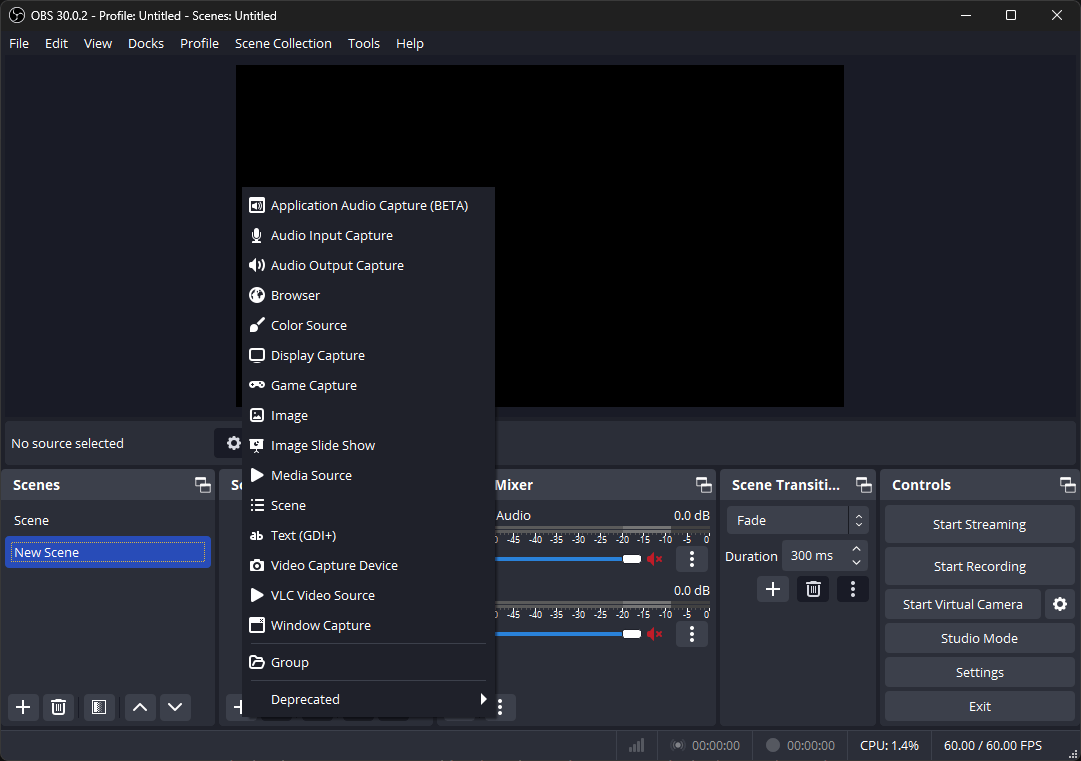
Screen Recorders for Windows – OBS Studio
The Audio Solution:
Unlike basic tools, OBS allows you to record your microphone and system audio onto separate tracks. If your game sound is too loud during the recording, you can lower it in post-production without affecting your voiceover. This solves the “muted track” nightmare common with simpler tools.
- Pros: Infinite customization, multi-track audio recording, open-source, low CPU usage (with NVENC).
- Cons: Steep learning curve, no built-in video editor, requires setup for different “scenes.”
2. FocuSee (Best for Professional Tutorials & Demos)
For users who need a high-quality screen recorder without a complex setup, FocuSee offers a fundamentally different approach. Instead of relying on manual editing to achieve professional results, it enhances clarity, focus, and audio quality automatically—making it ideal for professional screen recording workflows.
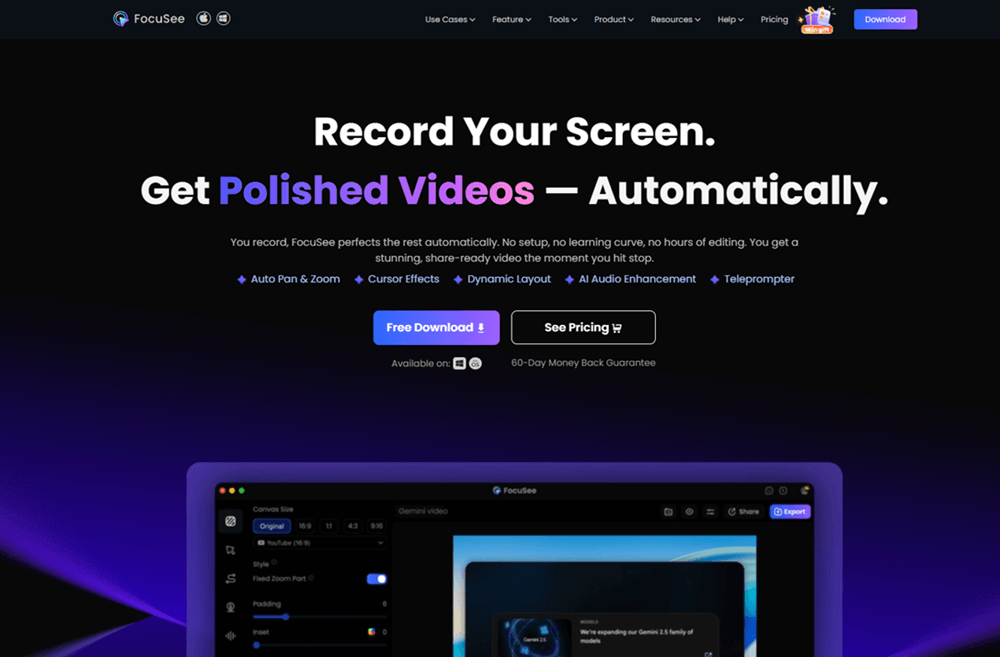
FocuSee Official Website
Unlike traditional tools that simply capture footage, FocuSee acts as a screen recorder for tutorials, optimizing how your content is presented. It automatically tracks cursor movement and applies smooth, context-aware zoom effects, ensuring UI elements remain clear and easy to follow—even in fast-paced demos.
This built-in clarity enhancement is what sets FocuSee apart as a high-quality screen recorder. Rather than depending on post-production, it improves readability, focus, and visual flow by default. Features like cursor highlighting, motion tracking, and dynamic zooming make recordings significantly more engaging compared to static captures from tools like OBS.
Beyond visuals, FocuSee also improves audio quality through AI-powered cleanup, removing pauses, filler words, and background noise. The result is a tighter, more polished output that meets the standard of professional screen recording without requiring advanced editing skills.
FocuSee handles the most time-consuming parts of tutorial production automatically:
- Customizable Cursor Effects: Highlight rings, click animations, and cursor smoothing make user actions visually explicit.
- 3D Motion: Adds subtle tilt and depth that follows cursor movement, creating a cinematic feel without manual keyframing.
- AI Smart Cut: Removes filler words, long pauses, and dead air.
- AI Audio Enhancement: Cleans noise, echoes, and breathing for studio-quality voiceovers.
- Background Removal & Blur: Replace or blur your environment instantly — no green screen required.
- Privacy Blur & Masking: Hide sensitive data with simple on-screen masks.
User Concern: Does auto-cut create “jump cuts”?
Reality: Yes, technically the video skips silent segments. But FocuSee often masks these transitions with smooth zoom or motion effects, keeping the viewer’s attention on the interface rather than the edit.
3. Snagit
If your workflow involves sending quick feedback to colleagues rather than long-form tutorials, Snagit is unmatched. It excels at “quick-draw” captures—you can record a 30-second video, turn it into a GIF, or grab a scrolling screenshot instantly.
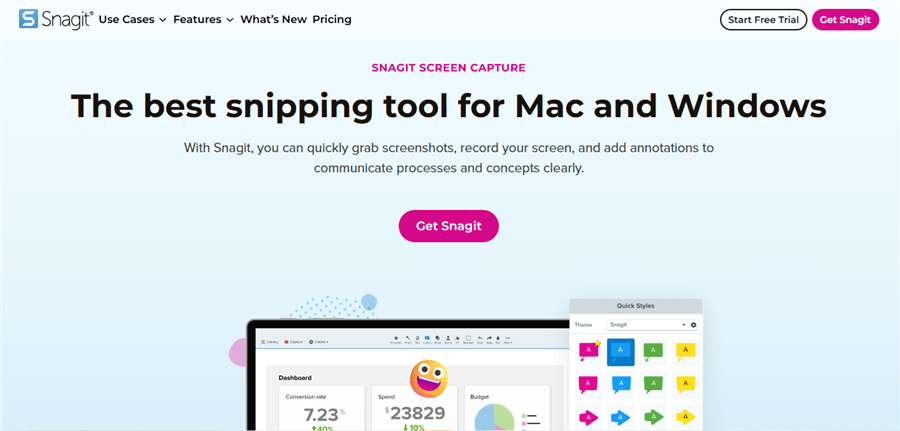
Screen Recorders for Windows – Snagit
- Pros: Extremely fast workflow, excellent annotation tools, creates GIFs easily.
- Cons: Video editing features are very basic (trimming only), not suitable for high-FPS gaming.
4. Camtasia
Camtasia is a heavyweight in video tutorial software. Unlike FocuSee, which automates editing, Camtasia gives you a full timeline editor similar to Premiere Pro but simplified for screen content. It creates a .trec project file that stores cursor data, allowing you to change the cursor size or highlight color after recording.
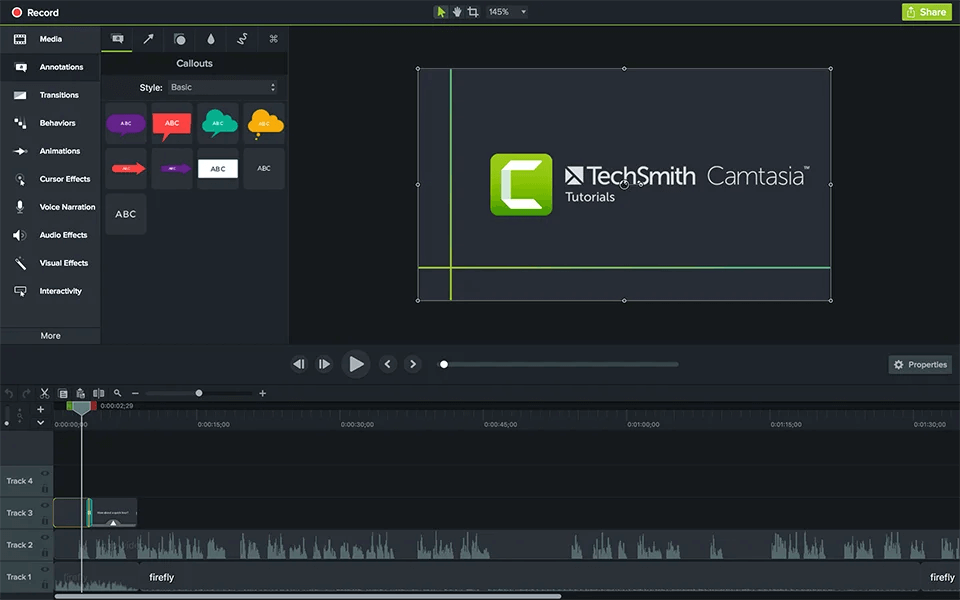
Screen Recorders for Windows – Camtasia
- Pros: Powerful timeline editor, large asset library (intros/outros), cursor data editing.
- Cons: Expensive license, resource-heavy (can lag on older laptops).
5. Loom
Loom focuses on speed and cloud sharing. It is designed to replace long emails with short videos. As soon as you hit “Stop,” the video is uploaded to the cloud, and a link is copied to your clipboard.
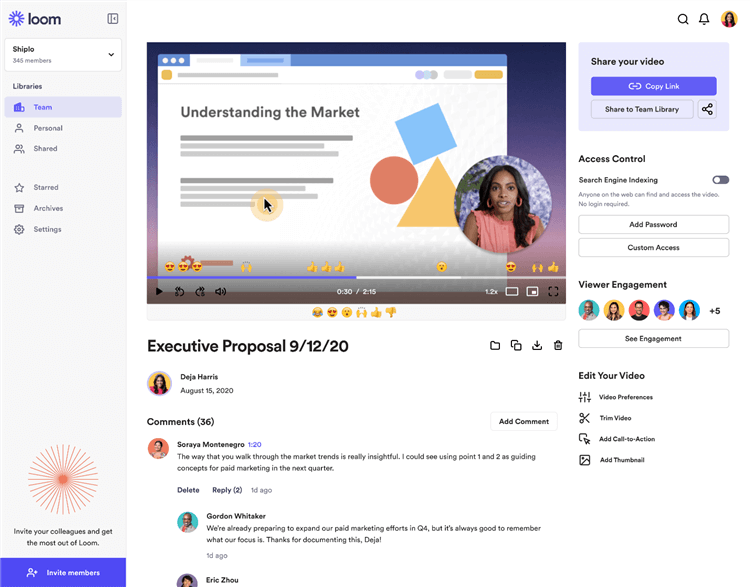
Screen Recorders for Windows – Loom
- Pros: Instant sharing link, cloud storage, and browser extension available.
- Cons: Monthly subscription for unlimited storage, dependent on internet speed for uploading.
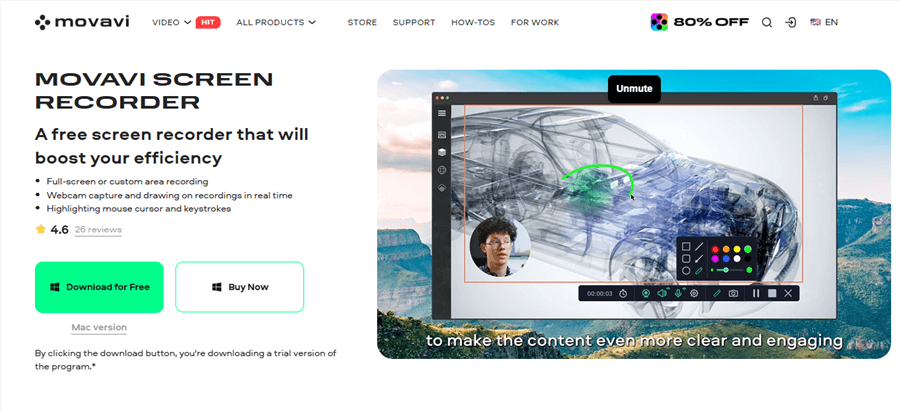
6. Movavi Screen Recorder
If Camtasia is out of your budget, Movavi offers a similar “capture plus edit” workflow at a lower price point. It includes a scheduler to record webinars automatically and offers a cleaner interface than open-source alternatives.
Screen Recorders for Windows – Movavi Screen Recorder
- Pros: User-friendly interface, scheduled recording, good built-in editor.
- Cons: Fewer advanced cursor effects than Camtasia; the free version has limitations.
7. NVIDIA ShadowPlay
Included with GeForce graphics cards, ShadowPlay (part of the GeForce Experience overlay) interacts directly with your GPU. It has an “Instant Replay” feature that continuously records the last few minutes of gameplay in the background, allowing you to save a highlight after it happens.
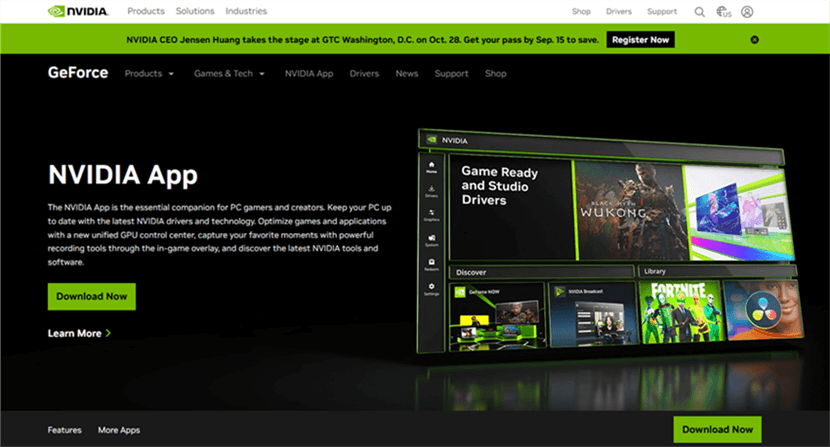
Screen Recorders for Windows – NVIDIA ShadowPlay
- Pros: Almost zero impact on game performance (FPS), Instant Replay feature, free for NVIDIA users.
- Cons: No editing features, limited to full-screen or game-window recording.
8. Bandicam
Bandicam remains relevant because of its optimization. It compresses video files in real-time, allowing users with older hardware to record high-resolution footage without filling up their hard drives instantly.
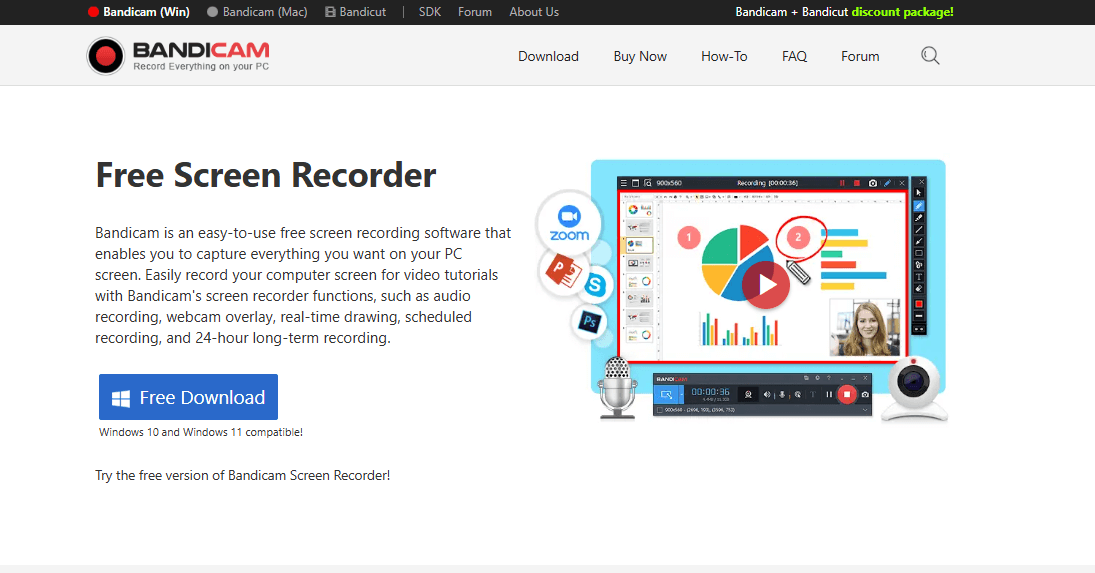
Screen Recorder for Windows – Bandicam
- Pros: High compression ratio (small files), supports 480FPS recording, lightweight.
- Cons: Dated interface, watermarked on the free version.
9. FlashBack Express
Unlike the free version of Bandicam, FlashBack Express does not impose a watermark or recording time limit. It is a fantastic entry point for students or casual users who find OBS too complex but need more features than Windows Game Bar.
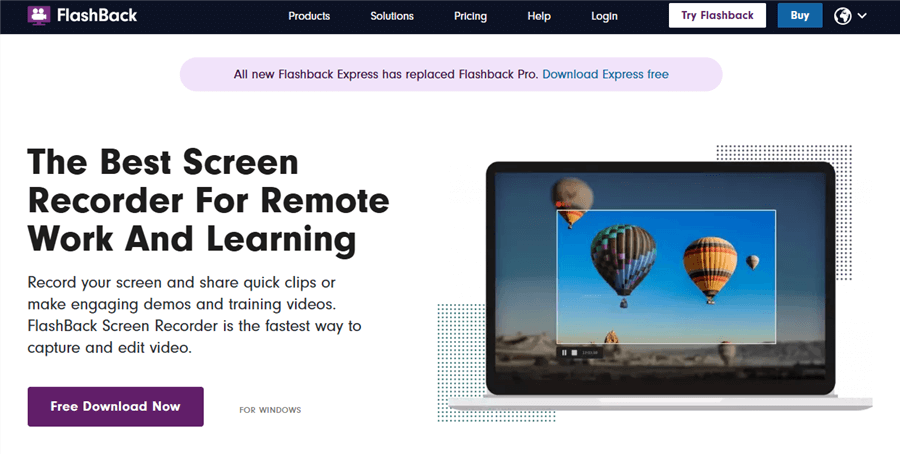
Screen Recorder for Windows – Flashback
- Pros: No watermark, no time limits, dedicated “gaming” mode.
- Cons: Editor in the free version is limited; the interface feels older.
10. ShareX
ShareX is an open-source “Swiss Army Knife” for Windows. While its interface is cluttered, it offers over 80 distinct capture methods. It is best for users who want to capture a specific region, recognize text (OCR), or upload files directly to specific servers.
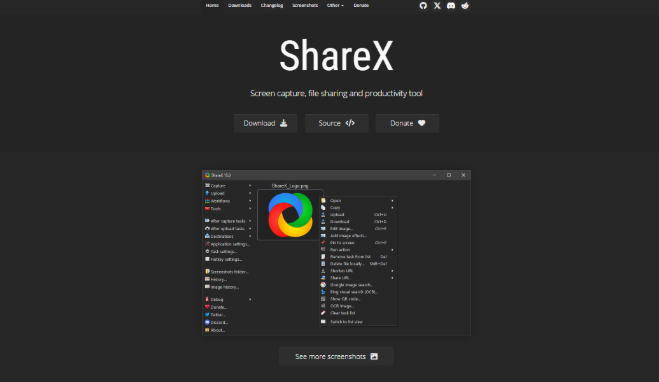
Screen Recorders for Windows – ShareX
- Pros: Completely free, massive feature set, extensive hotkey support.
- Cons: Very cluttered menu system, difficult for beginners, lacks a polished video editor.
Quick Decision Matrix: Choosing the Right Tool
Before installing any software, analyze the trade-off between control and convenience. In our analysis, we categorize solutions into three buckets.
| FocuSee | OBS Studio | Camtasia | Snagit | Loom | |
| Auto Zoom | ✅ Yes, non-destructive & adjustable | ❌ No | ❌ No | ❌ No | ❌ No |
| Cursor Animation | ✅ Automatic, customizable | ⚪ Only via plugins/manual | ✅ Yes, editable in timeline | ⚪ Limited | ⚪ Limited |
| Auto-Cut | ✅ Smart AI editing | ❌ Manual only | ✅ Manual / timeline | ⚪ Only basic trim | ❌ N/A |
| Non-Destructive Editing | ✅ Yes | ❌ No built-in editor | ✅ Yes | ⚪ Limited | ⚪ No |
| Separate Webcam | ✅ Yes | ⚪ Requires setup | ✅ Yes | ⚪ Limited | ✅ Yes |
| Ease of Use | ✅ High | ⚪ Medium / setup-heavy | ⚪ Medium | ✅ High for short clips | ✅ High |
| Cost | Paid (free account available) | Free | Expensive | Mid | Subscription |
1. Manual Open-Source (The “Director” Approach)
Tools like OBS Studio are powerful but demand time. You act as the director and engineer. While they offer no watermark recording, the complexity can be a barrier. If you are technically inclined, this is a viable route. However, for professionals producing weekly content, the setup time often outweighs the cost savings.
2. Built-in Utilities (The “Quick Fix”)
Windows includes basic tools like the Snipping Tool and Xbox Game Bar. These are adequate for capturing a 30-second clip of a bug, but they fail during long sessions. They cannot separate audio tracks, meaning you cannot adjust your microphone volume independently of the system sound in post-production.
3. Automated Professional Tools (The “Efficiency” Approach)
These solutions prioritize the outcome. They handle screen video capture and post-production simultaneously. For example, they might automate zoom-ins or cursor highlighting—tasks that take hours to edit manually in Premiere Pro.
Decision Factors:
- Time Cost: Do you have 2 hours to edit a 10-minute clip?
- Technical Skill: Are you comfortable configuring bitrates and scenes?
- Output Polish: Does the final video need to look professional immediately?
Technical Guide: Audio Workflows and Hardware Acceleration
Beyond the interface, the engine powering your screen capture software dictates the quality of your output. Two critical factors separate professional recordings from amateur ones: Audio Routing and Codecs.
The “Muted Mic” Problem (Audio Routing)
A common frustration with basic tools is audio mixing. If you record your system sound (the PC) and your microphone onto a single track, you are stuck with those levels forever. If the game music drowns out your voice, the recording is ruined.
The Solution:
Advanced tools like OBS Studio, FocuSee, and Camtasia utilize multi-track recording.
- Track 1: Captures desktop audio only.
- Track 2: Captures microphone input only.
When you import the file into an editor, you see two distinct audio waves. You can mute the system sound during your intro or boost your voice volume without creating static noise on the music track.
Hardware Acceleration (NVENC/QuickSync)
If you experience lag while recording, your software is likely competing with your applications for CPU power.
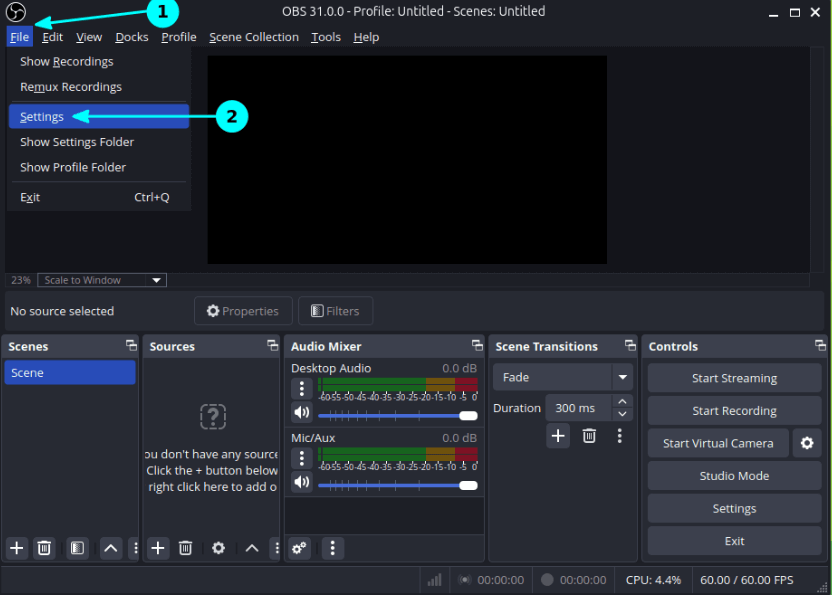
- The Fix: In your software settings, look for “Encoder.” Switch it from “x264” (Software/CPU) to NVIDIA NVENC or Intel QuickSync.
- Why: This offloads the heavy video rendering to a dedicated chip on your graphics card. This allows you to record 1080p/60fps tutorials or gameplay while your computer remains snappy and responsive.
Why Built-in Windows Tools Often Fail for Pros
It is a common starting point: you press Win + G to launch the Xbox Game Bar. While Windows 10 and 11 built-in recorders are convenient, they are designed for casual capture, not professional communication.
- Rigid Audio: As mentioned above, Game Bar flattens your audio into one layer.
- No Region Selection: You generally must record the entire active window. You cannot crop out the taskbar or select just a specific paragraph of text.
- Lack of Context: There are no tools for webcam overlay customization (circle crops, background removal) or real-time annotation (drawing arrows on screen).
Eventually, the lack of control forces users to seek a dedicated recorder that adapts to their environment, rather than forcing them to change their workflow.
Final Verdict: Which Recorder Fits Your Setup?
Choosing the right screen capture tool ultimately depends on how you value your time.
- Best free screen recorder: OBS Studio — Fully free with no watermark; ideal for users who want maximum control
- Best for speed & automation: FocuSee — Auto-zoom and AI editing help you produce polished tutorials fast
- Best for advanced editing: Camtasia — Powerful timeline editor for heavy post-production workflows
- Best for instant sharing: Loom — Generates a shareable link immediately after recording
- Recommended encoder setup: Use NVENC or Intel QuickSync with H.264 for smooth performance and broad compatibility
Evaluate your needs. Do you want to tinker with settings, or do you want to create content? Select the tool that removes obstacles from your workflow and allows you to focus on your message.
FAQs: Best Screen Recorders for Windows
What is the best PC screen recording software for professional-quality video tutorials?
For professional-quality tutorials, tools with automated zoom, clean audio, and post-editing flexibility perform best. FocuSee is a good screen recorder, ideal for polished tutorial videos with minimal editing, while Camtasia suits users who prefer full timeline control. Advanced users who want maximum manual control often choose OBS Studio.
What is the best Windows screen recorder for business presentations and product demos?
For business demos, look for tools that support webcam overlays, cursor highlights, and clean exports. FocuSee stands out for automated focus and AI cleanup, which helps create marketing-ready demos quickly. Loom is better suited for quick internal presentations that need instant sharing.
Which screen recording software is best for Windows if I need annotations and mouse highlights?
If visual clarity is your priority, choose software with built-in cursor effects and annotation tools. Snagit excels at quick annotations and feedback videos, while Camtasia provides more advanced, editable cursor effects for longer tutorials.
What is the best screen recorder for Windows 11 to create product walkthrough videos?
For walkthrough videos, the key features are auto-zoom, smooth cursor tracking, and clean audio. FocuSee is particularly effective because it automatically highlights on-screen actions, reducing manual editing time. Users who prefer manual scene control may opt for OBS Studio.
Which are the best Windows screen recorders with built-in video editing features?
Screen recorders with integrated editors save significant post-production time. Camtasia offers the most powerful timeline editing, while Movavi Screen Recorder provides a simpler capture-and-edit workflow. FocuSee focuses on automated AI editing rather than manual timelines.
What is the best free Windows screen recorder that includes basic video editing tools?
Among free options, OBS Studio is the most capable recorder but lacks a built-in editor. If you want basic trimming inside the app, FlashBack Express is a good beginner-friendly alternative with no recording time limits.
What is the best free screen recorder for Windows with no watermarks on exported videos?
OBS Studio remains the top free choice because it records without watermarks or time limits. FlashBack Express is another solid option for users who want a simpler interface than OBS.
Which Windows 11 screen recorder is best for high-resolution recording on a 4K display?
For 4K recording, choose software that supports hardware acceleration (NVENC or QuickSync). OBS Studio and Bandicam both handle high-resolution capture efficiently. For polished tutorial output at 4K, FocuSee provides automated visual enhancements.
Which Windows screen recorder is best for recording webinars and online courses?
For long-form webinar capture, stability and scheduled recording matter most. Movavi Screen Recorder includes a useful recording scheduler, while OBS Studio is preferred for fully customizable multi-track recording. For course creators who want faster editing, FocuSee streamlines post-production.
What is the best screen recorder for Windows 10 for recording step-by-step software tutorials?
For step-by-step tutorials, prioritize cursor tracking, zoom effects, and clear audio. FocuSee is optimized for guided tutorials with automatic focus effects, while Camtasia is better for users who want detailed manual editing after recording.