Camtasia vs OBS: Which Screen Recorder Should You Choose 2026

If you’re creating tutorials, training videos, or product demos, the choice comes down to how much control versus editing convenience you need. OBS gives you powerful recording controls but focuses on capture; Camtasia combines recording with a built-in multi-track editor.
In this guide, we’ll compare their features, workflow, and production time to help you choose the better fit—and look at an alternative for creators who want polished results with less manual editing.
Also Read: Screen Studio vs OBS Studio >
Hands-on Test: Screen Studio vs Camtasia
We recorded the same 5-minute software tutorial with Screen Studio and Camtasia, using the same screen resolution and on-screen workflow. We then measured setup, recording, editing, and export time.
| Screen Studio | Camtasia | |
| Setup Time | 2 min | 4 min |
| Recording | 5 min | 5 min |
| Basic Editing | 3 min | 8 min |
| Zoom & Cursor Adjustments | 1 min | 12 min |
| Export | 2 min | 3 min |
| Total Workflow | 13 min | 32 min |
Result: Screen Studio was faster for producing a polished software tutorial, while Camtasia offered more manual control at the cost of additional editing time.
OBS Studio: Unmatched Free Recording Power
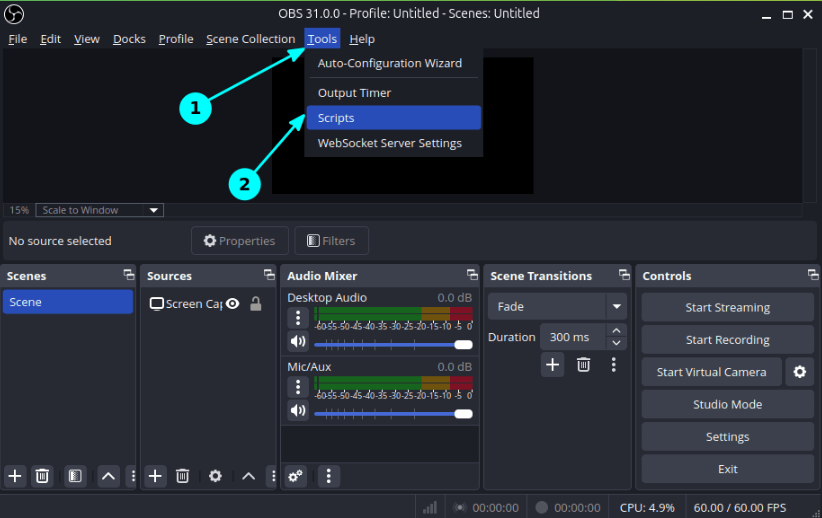
OBS Studio Zoom in Script
OBS (Open Broadcaster Software) Studio is universally recognized as the ultimate free tool for screen recording and live streaming. Because it is 100% free and open-source, it is the go-to choice for gamers, streamers, and creators on a zero-dollar budget.
However, OBS operates differently from traditional tutorial software. It works on a “scene” system, meaning you set up your screen layout, webcam, and graphics before you record. Once you hit record, the layout is fixed. The most critical limitation for tutorial creators is that OBS does not have a native timeline video editor. If you make a mistake, cough, or want to zoom in on a specific click, you cannot do it inside OBS. You must export the video and import it into a separate tool like DaVinci Resolve or Premiere Pro.
Pros of OBS Studio:
- 100% free and open-source with no watermarks.
- Unmatched power and flexibility for live streaming.
- Highly customizable scenes and audio mixing.
- Uses minimal system resources if configured correctly.
Cons of OBS Studio:
- Steep learning curve for beginners.
- No post-recording timeline editor to fix mistakes.
- Cannot dynamically add zooms or cursor highlights after recording.
Camtasia: The Premium Standard for Video Editing
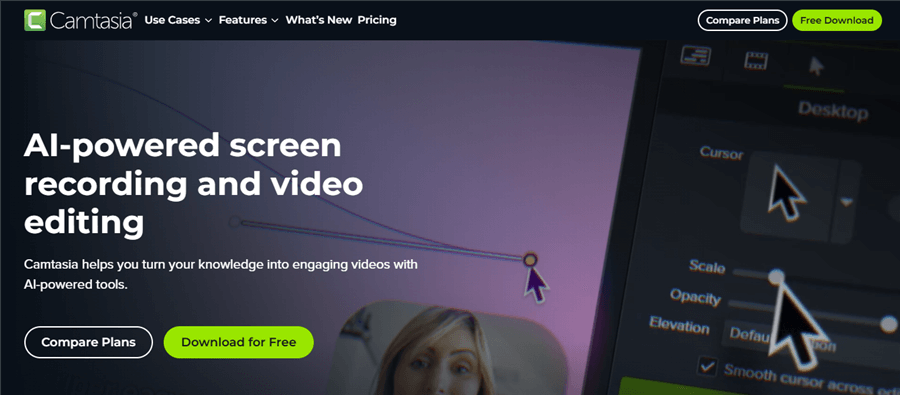
Best Tutorial Video Maker – Camtasia
Camtasia solves the exact problem OBS creates by combining a high-quality screen recorder with an intuitive, multi-track video editor. It has long been the premium standard for instructional designers, course creators, and businesses that need to produce polished training videos.
Unlike OBS, Camtasia records your screen, webcam, and system audio on separate tracks. This allows you to easily cut out mistakes, move your webcam around, and apply cursor highlights after the recording is finished. However, this convenience comes at a cost. Camtasia is a premium paid product that can be quite expensive for beginners or casual creators.
Furthermore, while Camtasia is beginner-friendly, it still requires manual editing. If you want to zoom in on a drop-down menu, highlight your cursor, and add text annotations throughout a 10-minute tutorial, you must manually adjust keyframes on the timeline for every single action.
Pros of Camtasia:
- Built-in multi-track video editor for post-recording polish.
- Beginner-friendly drag-and-drop interface.
- Excellent native tools for cursor effects, annotations, and transitions.
- Records screen, camera, and audio on independent tracks.
Cons of Camtasia:
- Premium price tag makes it an expensive investment.
- Manual timeline editing still requires hours of work for zooms and effects.
Camtasia vs. OBS: Feature and Workflow Comparison
To help you make the best decision for your specific workflow, here is a direct, side-by-side comparison of how Camtasia and OBS stack up across the most important criteria for content creators.
| Comparison Criteria | OBS Studio | Camtasia |
| Price | 100% Free (Open-source) | Premium Paid (One-time or subscription) |
| Supported Platforms | Windows, macOS, Linux | Windows, macOS |
| Editing Capabilities | No native timeline editor | Built-in multi-track video editor |
| Automation / Smart Features | None natively (manual setup required) | Minimal; manual keyframing for zooms and cursor tracking |
| Learning Curve | Steep; requires learning scenes and sources | Easy to learn, but manual editing takes time |
| Live Streaming | Industry standard, robust streaming support | Not designed for live streaming |
| Post-Recording Effects | None; layout is fixed during recording | Excellent; add zooms, cursor highlights, and text later |
| Best Use Case | Live streaming, podcasts, and basic capture | Polished tutorials, courses, and business demos |
If your primary goal is to stream live to platforms like Twitch or YouTube, OBS is the undisputed winner. However, if your goal is to create edited, easy-to-follow software tutorials, Camtasia provides the editing tools you need—if you have the budget for it. If you are exploring other options to save money while retaining editing capabilities, you might need a dedicated Camtasia screen recorder alternative.
The Workflow Gap: Why Both Options Fall Short for Tutorials
When searching for the best screen recorder, most advice assumes you must choose one of two extremes: learn complex OBS scenes for free, or pay a premium for Camtasia’s convenience.
Because OBS lacks an editor, many creators try a clunky workaround to save money: they record in OBS and then export the video into a separate editing tool like Adobe Premiere or DaVinci Resolve. This fixes the budget issue but creates a disjointed, two-tool workflow that doubles your production time. On the other hand, creators who buy Camtasia often realize that while the software is great, adding zooms, highlights, and captions manually on a timeline still costs them hours of tedious labor per video.
This reveals a massive gap in the standard workflow. Tutorial creators ultimately want polished videos—complete with smooth zooms, dynamic cursor effects, and clear captions—without the heavy price tag of Camtasia or the exhausting manual labor required by traditional timeline editors.
FocuSee: The Auto-Editing Alternative
If you are caught between the lack of editing in OBS and the manual effort of Camtasia, there is a smart third option: an auto-editing screen recorder. FocuSee acts as a middle path designed specifically to help users turn raw desktop screen recordings into polished tutorials and demos with significantly less manual editing.
Instead of forcing you to add keyframes on a timeline to zoom in on a click (like Camtasia) or giving you no post-editing tools at all (like OBS), FocuSee acts as an AI-powered screen recorder that automatically applies visual enhancements while you record.
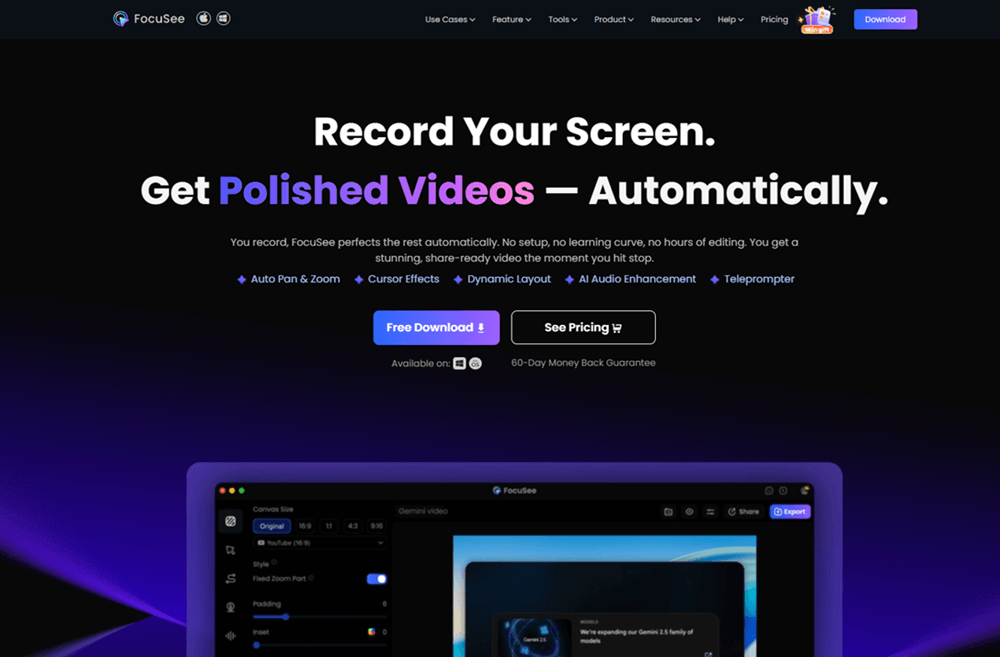
FocuSee Official Website
How the FocuSee workflow works:
Step 1. Setup: Open FocuSee on your Windows or Mac desktop and choose to record your screen, webcam, and microphone.
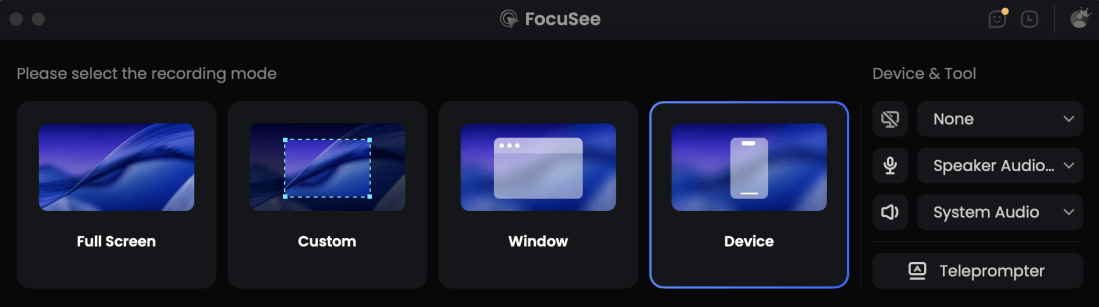
Choose the Recording Model
Step 2. Record: Perform your software tutorial or demo normally.
Step 3. Auto-Edit: Under supported conditions, FocuSee automatically tracks your cursor, applies automatic zoom and cursor effects, and generates AI subtitles.
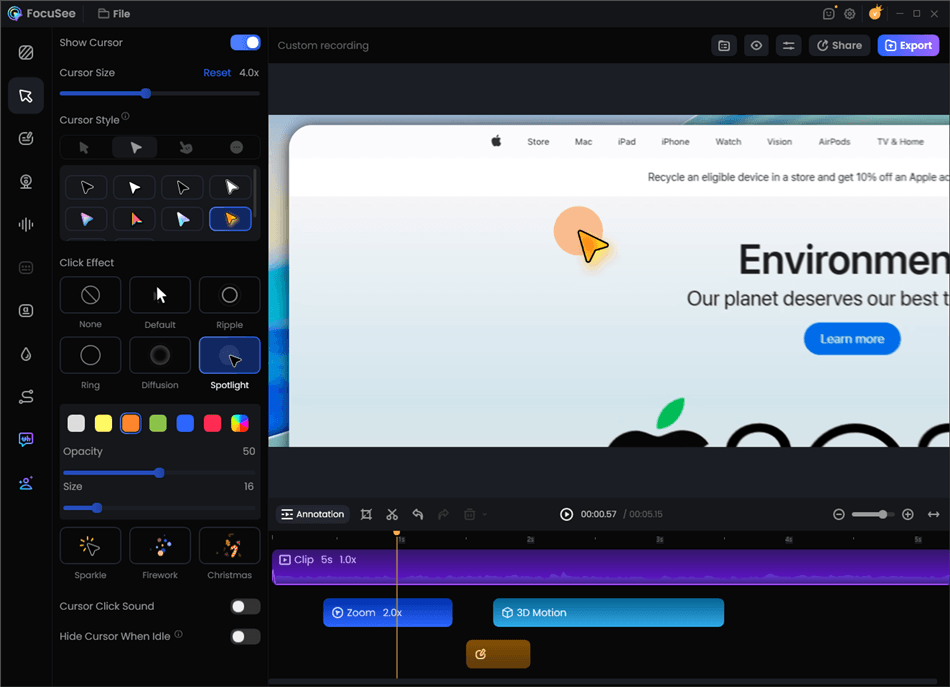
Record Screen with Cursor Following
Step 4. Refine: Review the automated edits, tweak the zoom timing if needed, or add a pre-designed background.
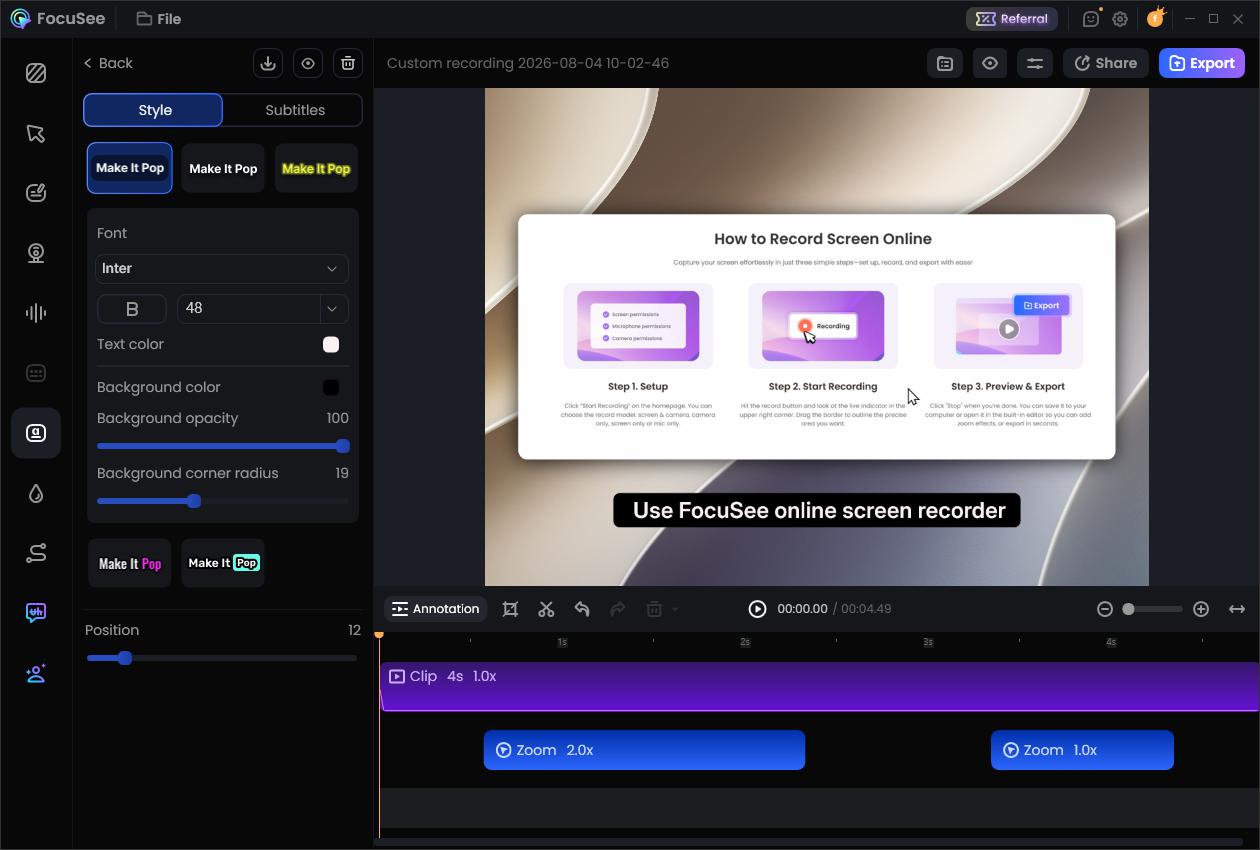
Edit Subtitle
Step 5. Export: Export the polished video directly without needing a separate video editor.
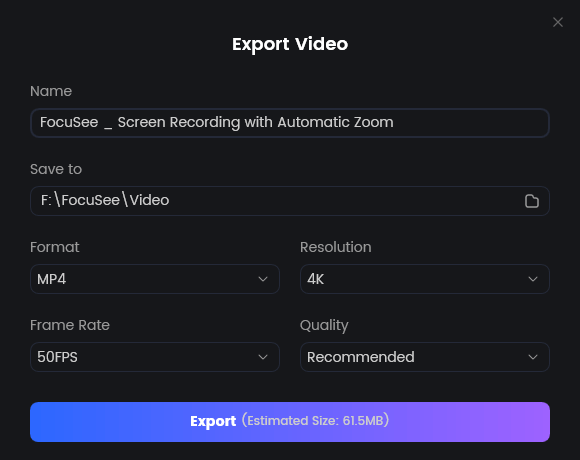
Export Your Video
While FocuSee is incredibly efficient for recorded tutorials, walkthroughs, and SOPs, it is important to note its boundaries: it does not replace OBS for live streaming. However, for creators optimizing for both time and budget, it automates the exact tasks that normally take hours of manual timeline adjustments.
Decision Guide: Time vs. Money Tradeoff
Which software should you actually choose based on your specific situation? Use this actionable decision framework to pick the right path based on your budget, time constraints, and content goals.
The Basic Path (OBS Studio)
- Choose this if: You have zero budget, primarily need to live stream, or only need to capture basic screen footage without post-recording edits.
- The Tradeoff: You save money, but you sacrifice the ability to edit mistakes or add visual polish without downloading a second piece of software.
The Premium Manual Path (Camtasia)
- Choose this if: You need a traditional multi-track timeline editor, have a comfortable budget, and want deep control over manual transitions, custom animations, and complex video layering.
- The Tradeoff: You get professional control, but you spend a premium price and must dedicate hours to manually editing zooms and cursor effects.
🚀 The Auto-Editing Path (FocuSee)
- Choose this if: You want to create polished software tutorials, product demos, or training videos quickly. You want the visual polish of Camtasia (zooms, cursor tracking, captions) without the high cost or the manual timeline effort.
- The Tradeoff: You save hours of editing time and money, but the tool is focused specifically on recorded screen content, not live streaming or cinematic film editing.
Frequently Asked Questions
Is Camtasia better than OBS?
It depends entirely on your use case. OBS is the undeniable winner for live streaming and free recording. Camtasia is better if your primary goal is to record and then manually edit a multi-track video tutorial.
Can you edit videos in OBS?
No, OBS does not have a native timeline video editor. While you can switch between scenes during a live recording, you cannot edit mistakes, cut clips, or add zooms after the recording is stopped.
Can I use OBS to record and Camtasia to edit?
Yes, this is a very common combination. Many users record in OBS to take advantage of its advanced capture settings, then import the MP4 into Camtasia for editing. However, this creates a disjointed two-tool workflow that takes more time to manage.
Why is Camtasia so expensive?
Camtasia bundles a professional-grade screen recorder with a fully-featured, multi-track video editing suite. You are paying for the convenience of having both tools built into a single, beginner-friendly interface.
Does OBS have an auto-zoom feature?
No, OBS does not natively feature auto-zoom. Zooming in OBS requires manually setting up hotkeys, cropping scenes, or using third-party plugins. If you want smart zooming that automatically follows your mouse, an auto-editing tool like FocuSee is a much faster OBS screen recorder alternative.
Which is better for YouTube tutorials: Camtasia or OBS?
For YouTube tutorials, OBS will require an external editor, which slows down your process. Camtasia is a standard choice but requires manual editing for every effect. For modern creators, FocuSee offers the fastest workflow by automatically editing zooms and cursor highlights for tutorial content.
Final Verdict: Which Screen Recorder Should You Choose?
Choosing between Camtasia and OBS does not have to be complicated once you know what you are optimizing for. OBS Studio remains the undisputed king of free live streaming and basic screen capture, while Camtasia is a powerhouse for traditional multi-track manual editing.
However, for the specific task of creating software tutorials, product walkthroughs, and training demos, neither extreme is perfect. OBS lacks the necessary editing tools, and Camtasia demands a premium price and hours of manual timeline adjustments.
If you want the speed of automated editing without sacrificing quality or breaking your budget, FocuSee is the ideal alternative. By automatically tracking your cursor, applying smart zooms, and generating AI captions under supported conditions, FocuSee helps you turn plain recordings into polished videos with significantly less manual effort. Check your system compatibility and try FocuSee today to streamline your tutorial creation workflow.
Related Articles:
- How to Make a Tutorial Video Like a Pro
- How to Make a SaaS Product Demo Video
- The Best Screen Recorders for Windows PC