Best Screen Studio for Windows: 6 Alternatives That Offer Auto Zoom

Screen Studio made polished screen recordings popular with features like auto zoom, mouse cursor movement, and cinematic effects—but there’s one major limitation: it only works on Mac. If you’re a Windows user trying to create similar product demos, tutorials, or social media videos, you’ll need an alternative.
This guide breaks down the best Screen Studio alternatives for Windows and compares their features, pricing, and ease of use.
Is Screen Studio Available on Windows?
No, Screen Studio is currently only available for macOS.
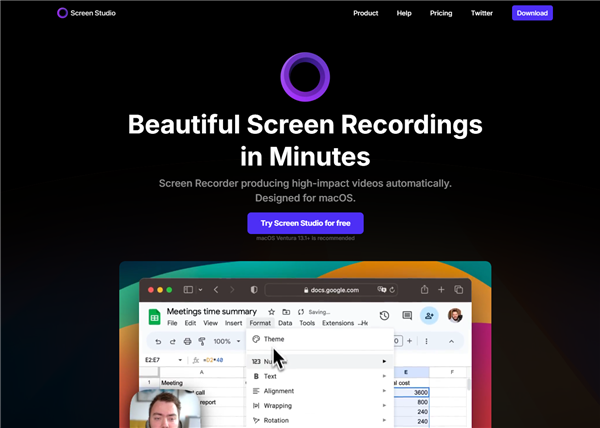
Screen Studio
Screen Studio was built specifically for Mac users and does not offer a native Windows version. There is currently no official Windows app, installer, or browser-based version available for PC users. This is why many creators, marketers, educators, and SaaS teams search for terms like:
- Screen Studio for Windows
- Screen Studio alternative for PC
- apps like Screen Studio
- screen recorder with auto zoom for Windows
What makes Screen Studio so popular is its ability to automate effects that normally require manual editing, including:
- Automatic zoom on clicks and actions
- Smooth cursor movement
- Motion blur effects
- Background customization
- One-click vertical video exports
These features help users create polished product demos, tutorials, onboarding videos, and social media clips much faster than traditional editors.
The challenge for Windows users is that most built-in tools—such as the Windows Snipping Tool or Xbox Game Bar—can record your screen, but they cannot automatically create the same polished “Screen Studio-style” effect.
That’s why many users now look for Windows alternatives that can replicate the same workflow without requiring manual editing.
6 Best Screen Studio Alternatives for Windows
If you’re looking for a Windows alternative to Screen Studio, the best option depends on how much editing control you need—and how much time you want to spend polishing videos manually.
Some tools focus on automation, while others prioritize advanced editing, collaboration, or free recording.
1. FocuSee — Closest to Screen Studio for Windows
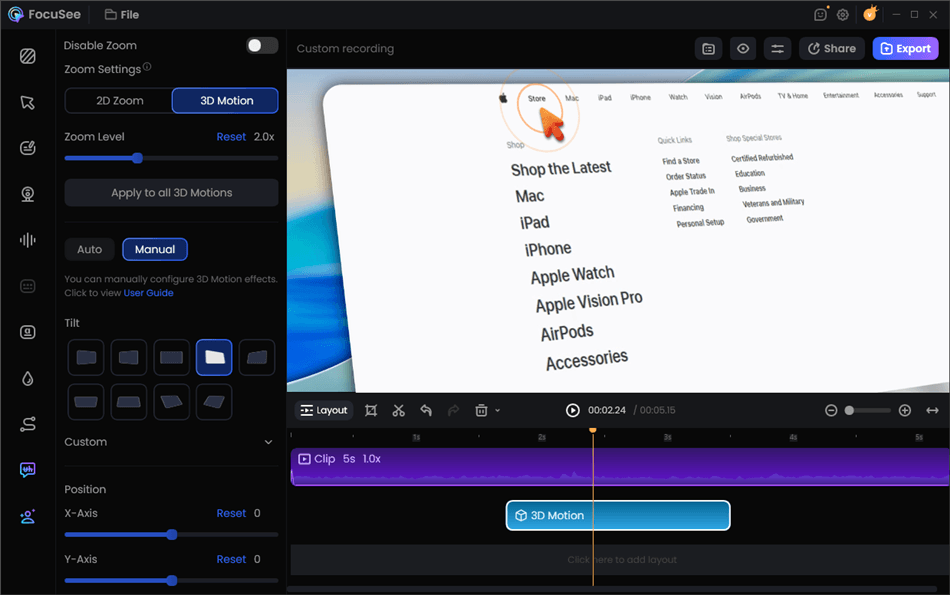
Screen Studio Alternative for Windows – FocuSee
Price: Free trial available and $19/month
Platforms: Windows, macOS
Best for: Product demos, tutorials, SaaS walkthroughs
Rating: ★★★★★ (4.8/5)
FocuSee is one of the few Windows tools that directly replicates the core appeal of Screen Studio—automatic zooms, cursor smoothing, 2D and 3D motion effects, and fast editing. Instead of manually keyframing animations, the software automatically detects clicks and highlights important actions during playback.
What it does well:
- Auto zoom on clicks
- Cursor smoothing
- Background blur
- AI smart cut
- Vertical exports for TikTok/Reels
- Beginner-friendly workflow
Limitations:
- Less advanced timeline control than Adobe Premiere Pro
2. Camtasia — Best for Advanced Editing Control
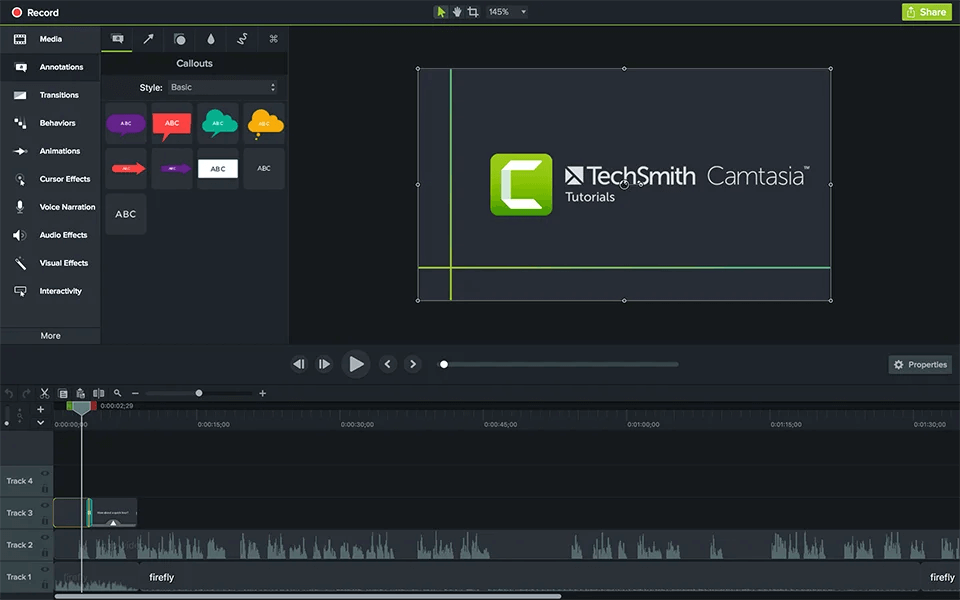
Screen Studio Alternative for Windows – Camtasia
Price: ~$299 one-time purchase
Platforms: Windows, macOS
Best for: Corporate training, advanced editing
Rating: ★★★★☆ (4.3/5)
Camtasia gives users far more editing control than automated tools.
You can build complex tutorials with annotations, transitions, and layered edits—but most zoom effects still require manual work.
What it does well:
- Full editing timeline
- Professional annotations
- Strong training use cases
Limitations:
- Expensive upfront cost
- Slower editing workflow
- Not ideal for quick product demos
3. Descript — Best for Editing Videos Like Documents
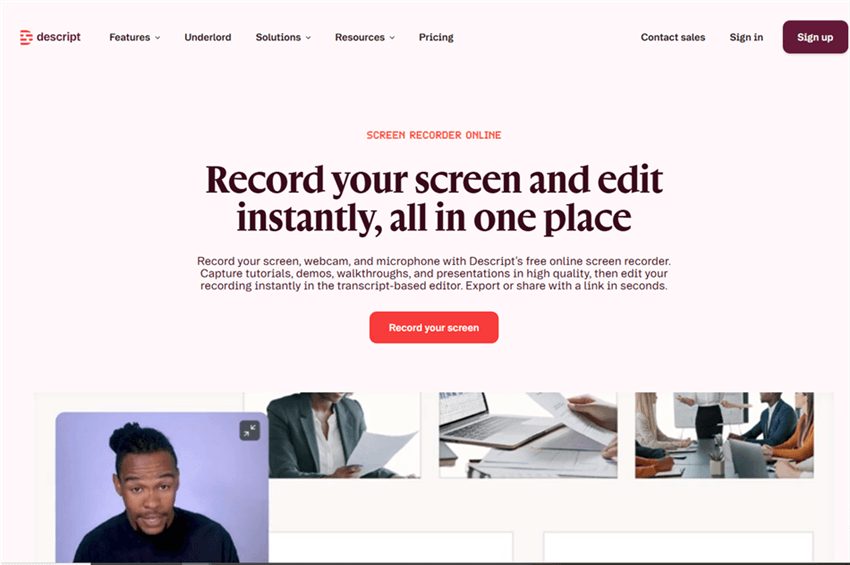
Screen Studio Alternative for Windows – Descript
Price: Free plan available
Platforms: Windows, macOS, Web
Best for: Podcasts, webinars, talking-head videos
Rating: ★★★★☆ (4.2/5)
Descript is great if your workflow is heavily voice-driven.
You can remove filler words, edit transcripts, and generate subtitles quickly.
What it does well:
- Text-based editing
- AI voice tools
- Fast subtitle generation
Limitations:
- Weak auto zoom capabilities
- Limited cursor effects
4. OBS Studio — Best Free Alternative
Price: Free
Platforms: Windows, macOS, Linux
Best for: Streaming and budget creators
Rating: ★★★★☆ (4.1/5)
OBS Studio remains one of the most popular free screen recording tools.
It’s highly customizable but requires significantly more setup than automated tools.
What it does well:
- Completely free
- Streaming support
- Highly customizable
Limitations:
- No built-in auto zoom
- Steeper learning curve
- No built-in editor
5. Tella — Best Browser-Based Option
Screen Studio Alternative for Windows – Tella
Price: Starts at $19/month
Platforms: Browser, Windows, macOS
Best for: Async demos and quick sharing
Rating: ★★★★☆ (4.0/5)
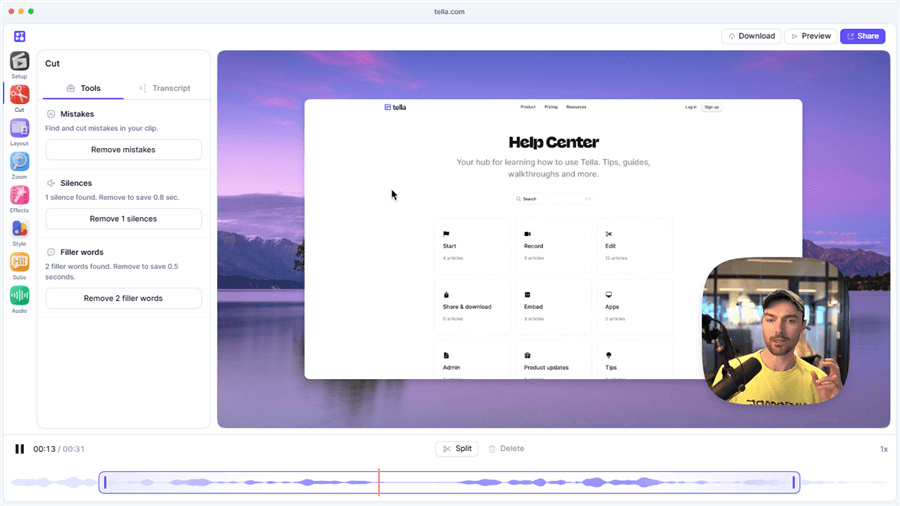
Tella focuses on simplicity. Record your screen, webcam, and slides, then instantly share via hosted links.
It’s faster than traditional editors but offers fewer visual automation features than Screen Studio.
What it does well:
- Browser-based recording
- Fast sharing workflow
- Simple editing tools
Limitations:
- Subscription pricing adds up
- Less cinematic than Screen Studio-style tools
6. ShareX — Best Free Power User Tool
Screen Studio Alternative for Windows – ShareX
Price: Free, open sourcePlatforms: Windows
Best for: Advanced screenshots and utility workflows
Rating: ★★★★☆ (4.0/5)
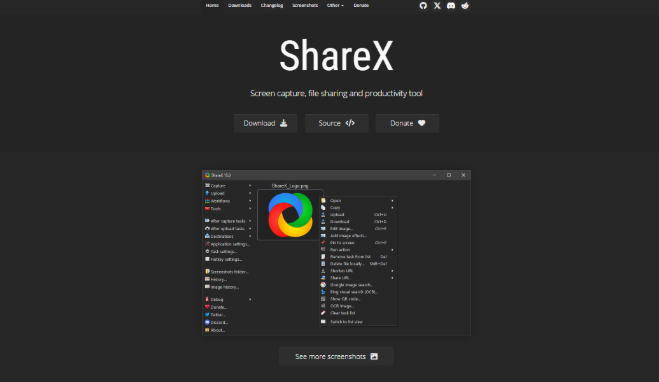
ShareX is incredibly flexible for screenshots, GIF creation, and quick captures.
Power users love its automation tools and shortcuts.
What it does well:
- Free
- Extremely flexible
- Great for screenshots and GIFs
Limitations:
- No auto zoom
- No cursor smoothing
- Not built for polished demo videos
Screen Studio vs Windows Alternatives Comparison
| Windows Support | Auto Zoom | Cursor Effects | Ease of Use | Starting Price | |
| Screen Studio | ❌ Mac only | ✅ | ✅ | Very Easy | $19/month |
| FocuSee | ✅ | ✅ | ✅ | Very Easy | Free trial |
| Camtasia | ✅ | Manual | Limited | Medium | ~$299 |
| Descript | ✅ | Limited | ❌ | Easy | Free plan |
| OBS Studio | ✅ | ❌ | ❌ | Hard | Free |
| Tella | Web + Desktop | Limited | Limited | Easy | Free plan |
| ShareX | ✅ | ❌ | ❌ | Medium | Free |
Why FocuSee Is the Closest Alternative to Screen Studio
After comparing multiple Windows alternatives, FocuSee stands out because it solves the exact problem most users have with traditional screen recorders: they can capture your screen, but they don’t automatically make videos look polished.
Screen Studio became popular because it automates effects that normally require manual editing. FocuSee offers a similar workflow on Windows.
Key features that make it the closest alternative include:
- Auto Zoom: Automatically zooms into clicks, text fields, and important actions
- Cursor Effects: Smooth cursor movement and add mouse click animations
- Background Blur: Keeps viewers focused on your active window
- AI Smart Cut: Removes pauses and unnecessary moments
- Flexible Export Formats: Export in 4K or resize videos for TikTok, Shorts, or Reels
For example, if you’re creating a SaaS demo or tutorial, viewers can easily lose track of small buttons or menus in traditional recordings. Automatic zoom and cursor effects help guide attention without requiring manual edits in tools like Camtasia or Adobe Premiere Pro.
If your goal is to create polished demos quickly, this type of automation is what makes FocuSee feel closest to Screen Studio.
This tool bridges the gap between raw capture and final export. You don’t need to be a video editor to achieve a polished look; the software handles the visual engagement for you.
How to Create a Product Demo on Windows with Auto-Zoom
Creating an advanced screen recording studio for Windows workflow doesn’t require complex hardware. With FocuSee, the procedure is streamlined into three logical stages: Setup, Record, and Automated Polish. Here is the exact procedure to create a demo that looks professionally edited.
1. Preparation and Setup
Before recording, clear your desktop of clutter. Launch FocuSee and select your recording mode. You can choose to record the full screen, a specific window, or a custom area.
Ensure your microphone is selected. Crucially, FocuSee records system audio (computer sounds) and microphone audio on separate internal tracks. This means if a notification dings during your recording, you can mute the system sound later without deleting your voiceover.
2. The Recording Process
Start the recording and perform your demonstration. Move your mouse deliberately. FocuSee detects clicks and pauses.
- Action: Unlike standard tools, do not worry about zooming in manually while recording. simply perform the actions naturally.
- Correction: If you make a mistake, pause briefly. The “AI Smart Cut” feature can help detect and remove silence or filler words later.
3. Automated Polish (The Editing Interface)
Once you hit stop, the software generates the video. This is the part that often scares non-editors, but the interface is designed to be approachable:
- Adjusting Zooms: You will not see a complex multi-layer timeline. Instead, you will see a simple video strip with “pins” marking where zooms occur. To change a zoom, click the pin. A small menu appears where you can drag a simple slider to adjust the zoom level (e.g., from 1.5x to 2x) or click the “Trash” icon to delete the zoom entirely.
- Enhance Cursor: On the right-hand sidebar, select a cursor style. This is a global setting—one click changes the cursor style for the entire video. You do not need to apply it frame-by-frame.
- Background Blur: Toggle the “Background Blur” switch. The software instantly masks out your desktop wallpaper, leaving only the active window in focus.
Finally, export the video. The software supports 4K resolution and offers presets for social media (vertical) or YouTube (landscape), handling the resizing automatically.
Why Built-In Windows Screen Recorders Aren’t Enough
Windows 10 and 11 include tools like the Snipping Tool and Xbox Game Bar for basic screen recording—but they’re not true alternatives to Screen Studio. They work well for quick recordings, bug reports, or internal communication, but they lack the features needed for polished product demos and tutorials.
Common limitations include:
- No automatic zoom effects
- No cursor smoothing or click animations
- Limited editing tools
- No background blur
- Basic audio controls
For example, if you record a SaaS walkthrough using Xbox Game Bar, viewers may struggle to follow small UI actions because everything stays static on screen. That’s why many creators move from built-in tools to software like FocuSee, OBS Studio, or Camtasia when they need more professional-looking videos.
Conclusion
Creating professional video content on Windows should not require a degree in film editing or a supercomputer. The goal of any screen studio for Windows is to remove the friction between your idea and the final video. By moving away from manual editing and embracing automated tools, you reclaim hours of your week and ensure your content looks consistent and engaging.
Whether you are a developer showing off a new feature, a teacher creating a lesson, or a marketer building a demo, the tools available today allow you to bypass the technical hurdles of the past. You can now focus entirely on your message, knowing that the software will handle the zooms, the cuts, and the polish.
If you have been struggling with complex interfaces or flat, unengaging recordings, it is time to upgrade your toolkit. Download FocuSee today and experience how automated editing can transform your workflow from a chore into a creative advantage.
FAQ: Choosing the Right Screen Studio for Windows
What is the best screen recording software for Windows with built-in editing features?
Based on our testing, FocuSee stands out as the top contender for non-editors. It combines high-resolution capture with automated post-production features like zoom and cursor effects, eliminating the need for external video editors like Adobe Premiere.
How can I create a product demo video on Windows with automatic zoom and cursor animation?
You need a tool that records cursor data, not just pixels. Software like FocuSee detects mouse clicks during the recording phase. Once you stop recording, it automatically applies zoom-ins and cursor highlights to those specific points, creating a polished demo instantly.
Can I use Windows screen recording software for creating tutorial videos?
Yes. While basic tools like the Snipping Tool capture raw footage, dedicated studio software allows you to add context—such as auto-generated subtitles, background blur, and mouse highlights—that is essential for educational content.
Which screen recording studio for Windows integrates well with both video editing and live streaming?
Most “studio” software focuses on recording and editing (asynchronous). If you need live streaming capabilities, you might look at OBS Studio, but be aware that OBS requires significant manual setup for zooms and effects compared to FocuSee.
Is there any screen recording software for Windows that’s easy to use for beginners but also offers advanced features?
Absolutely. The modern class of “screen studio” software is designed for non-editors. Features like AI Smart Cut (which removes silence) and pre-made templates allow beginners to produce professional results without learning timeline-based editing.