FocuSee is a fantastic screen recording tool! Its versatile recording options (full screen, custom area, window) meet all needs. The audio setup with waveform monitoring and noise reduction works amazingly—even my cheap mic sounded better. The editing features shine: one-click aspect ratio adjustment for social platforms, rich cursor effects (zooming, highlights, sounds), and smooth animations. The auto-subtitle function is impressive, hitting 95% accuracy despite poor audio.
Create Cinematic 3D Motion in One Click
With just one click, FocuSee automatically generates professional motion paths that highlight key actions and core content, making your demos, tutorials, and product videos more dynamic.
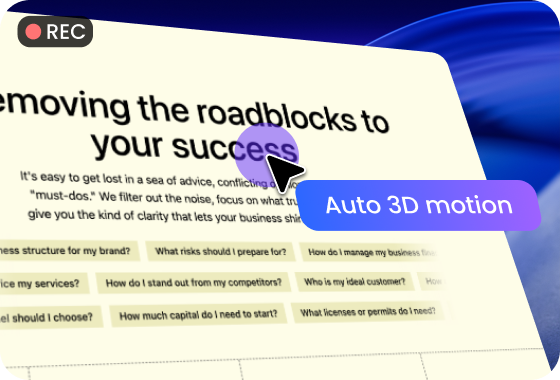
Smart 3D Motion - Automatically Focus on What Matters
FocuSee intelligently detects key actions and important areas in your recording, then applies 3d motion automatically to guide viewer attention. No manual keyframing or timeline editing is required. The system helps you instantly create smooth, natural camera movement that keeps focus on the most important parts of your content—so your message is always clear and easy to follow.
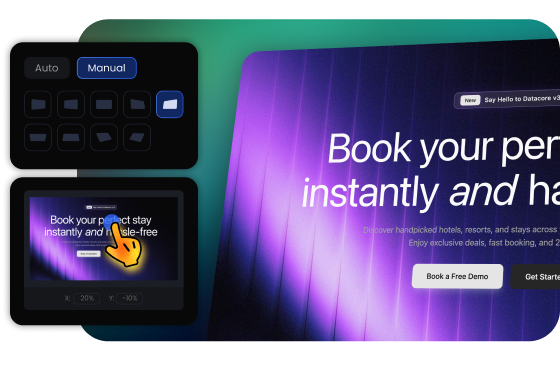
Custom 3D Motion - Full Control Over Every Camera Movement
When automatic detection isn’t enough, you can switch to manual mode and fully customize your 3D motion. Adjust camera position, angle, and focus area, or choose from built-in presets to design precise visual movement. Whether it’s a complex workflow, product walkthrough, or creative video, you can define exactly how each scene moves with complete flexibility.
Smooth 3D Camera Effect - Natural Motion with Cinematic Flow
The 3D camera effect creates smooth transitions in a virtual space, including zooming in, zooming out, tilting, and rotating. These movements are carefully aligned with the content flow to create a natural and immersive viewing experience. Even long or complex recordings stay visually structured and easy to follow, with motion that continuously guides attention to key details.

How to Use 3D Motion
Create cinematic screen recordings in three simple steps:
1
Record Your Screen
Capture your demo, tutorial, or workflow using FocuSee.
2
Add 3D Motion Effects
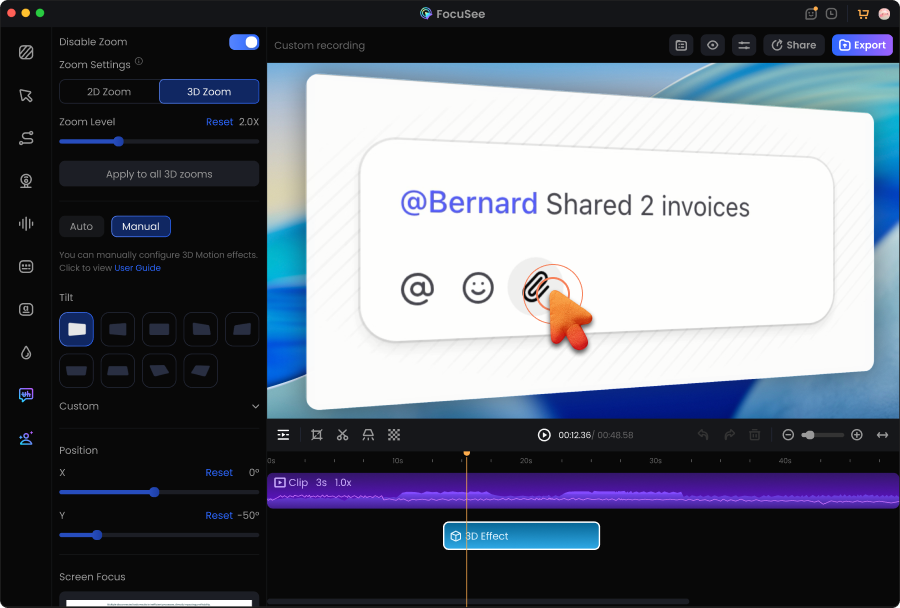
Let the system generate motion paths or customize your own 3D camera effect.
3
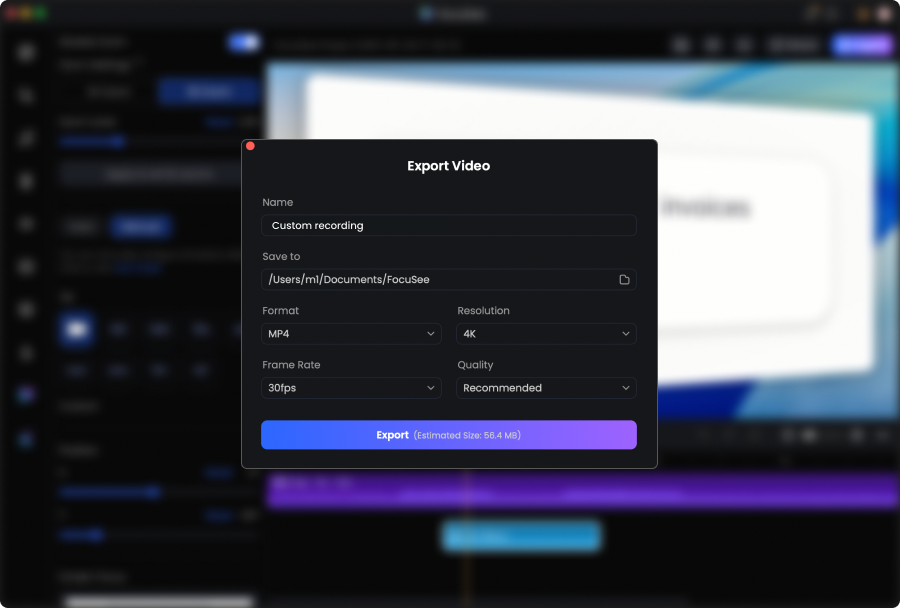
Preview and Export
Review the result and export a polished, cinematic video.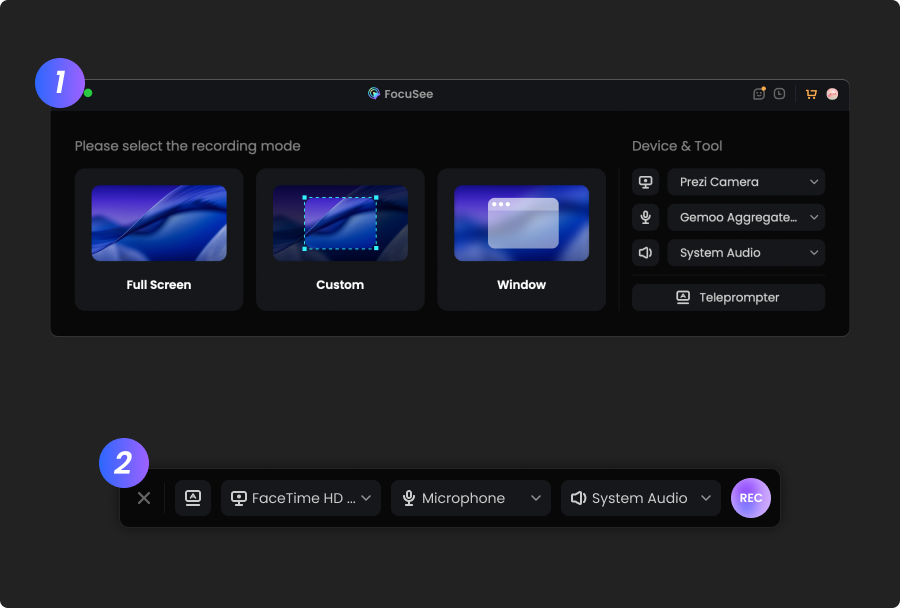
1
Record Your Screen
Capture your demo, tutorial, or workflow using FocuSee.
2
Apply 3D Motion Automatically or Manually
Use post-recording annotation tools to add text, shapes, highlights, and effects.
3
Preview and Export
Review the result and export a polished, cinematic video.
I’ve tried a bunch of screen recording tools, but FocuSee really stands out with its smart auto-zoom, motion blur, and layout features - all without needing to edit manually. It fits perfectly into my design tutorial workflow and genuinely saves time while making the videos look pro. If you're a creator or educator, this is a must-try.
I finally got the cursor tracking feature to work on my Windows PC, and it's a total game-changer for my vlogging setup. I'm so incredibly happy with it.




Based on 3,200 customer reviews
More FocuSee Features


FAQs About 3D Motion
1. What is 3D motion in screen recording?
3D motion simulates camera movement in a virtual space, adding depth, perspective, and cinematic flow to screen recordings.
2. How does the 3D camera effect work?
The 3D camera effect moves the view through zoom, rotation, and perspective shifts to highlight important actions naturally.
3. Do I need editing skills to use 3D Motion?
No. FocuSee automatically generates 3D motion without requiring keyframes or manual editing.
4. Can I customize 3D Motion?
Yes. You can switch to manual mode to fully control camera position, angle, and focus areas.
5. When should I use 3D Motion?
It is ideal for tutorials, product demos, software walkthroughs, and any video that benefits from depth and guided attention.

AI-Powered Screen Recorder for Mac & Windows
Effortless Recording & Editing, Professional Output