As someone who’s had their fair share of tech hiccups ruin an otherwise productive day, I can’t overstate how valuable stability and efficiency are. FocuSee delivers both — and then some. Everything I needed was right where I expected it to be, from intuitive cursor effects to built-in captioning and layout tools. The editing flow felt natural, almost like the app was designed by someone who’s actually edited videos under deadline.
Auto Subtitle Generator: Subtitle Creation Made Smarter and Faster
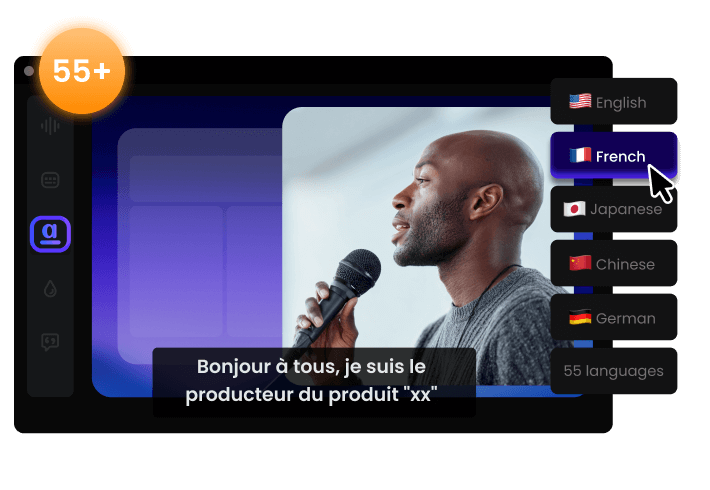
Automatically generate highly accurate subtitles in 55+ languages with AI-powered precision. From speech recognition to editing and styling, everything happens in one seamless, automated workflow — saving you hours of manual work and making video production effortless.
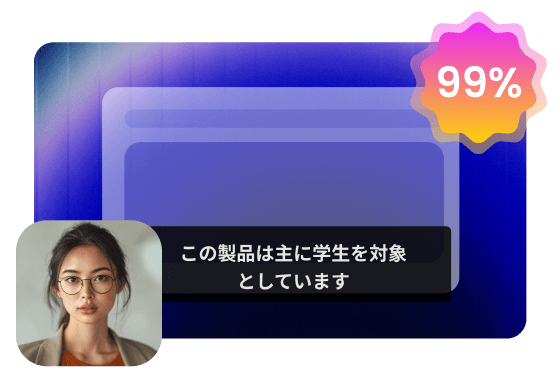
High-Precision AI Recognition – 99% Accuracy, Zero Effort
Manual transcription is slow, expensive, and frustrating. FocuSee's upgraded AI Subtitle Generator delivers up to 99% accuracy, automatically generating subtitles that align perfectly with your audio. No typing, no syncing, no repeated editing. Just ready-to-use subtitles that dramatically reduce your post-production workload and keep your focus on creating great content.
Support for Multiple Languages – Create in Your First Language
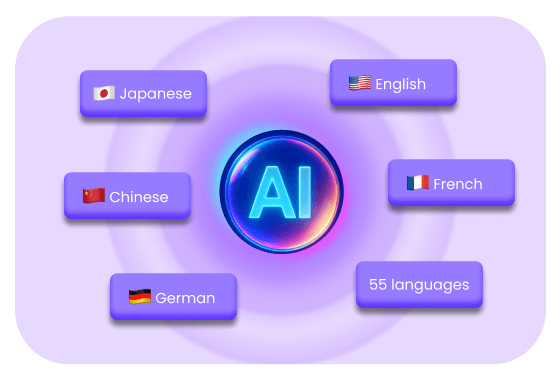
Whether you're recording tutorials in English, product demos in German, or online courses in Japanese, FocuSee’s auto subtitle generator recognizes 55+ languages with 99% accuracy. You can record and automatically generate subtitles in the same language you speak without manual editing or third-party tools required.
Click-to-Timeline Navigation – Edit With Total Control
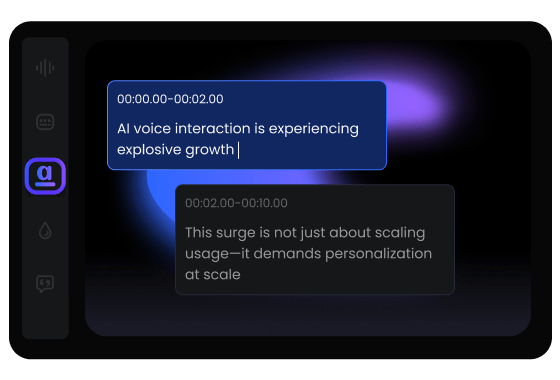
Editing subtitles shouldn't slow you down. With clickable timestamps, you can jump directly to any moment in your video to review, proof, and refine — without scrubbing or searching. Make instant adjustments and keep your editing flow smooth and efficient, finishing projects up to 2× faster.
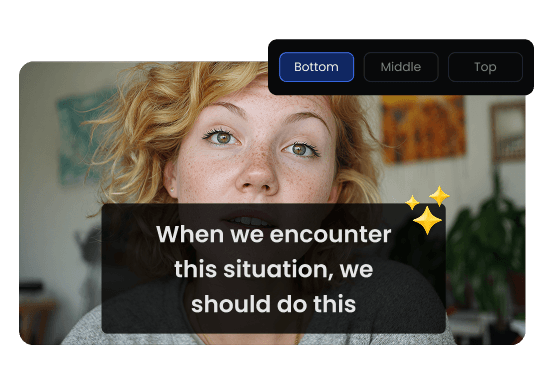
Flexible Subtitle Styling – Customize Your Final Look
Your content should look exactly how you want it. Adjust subtitle size, position, and spacing with complete freedom to match your brand's style or platform requirements. Whether it's a tutorial, marketing promo, or product walkthrough, your subtitles will always look polished, professional, and on-brand.
How to Use AI Subtitle Generator
Follow the process below to auto-generate your subtitles seamlessly within your workflow.
1
Record Your Video
Open FocuSee and start recording your screen.
2
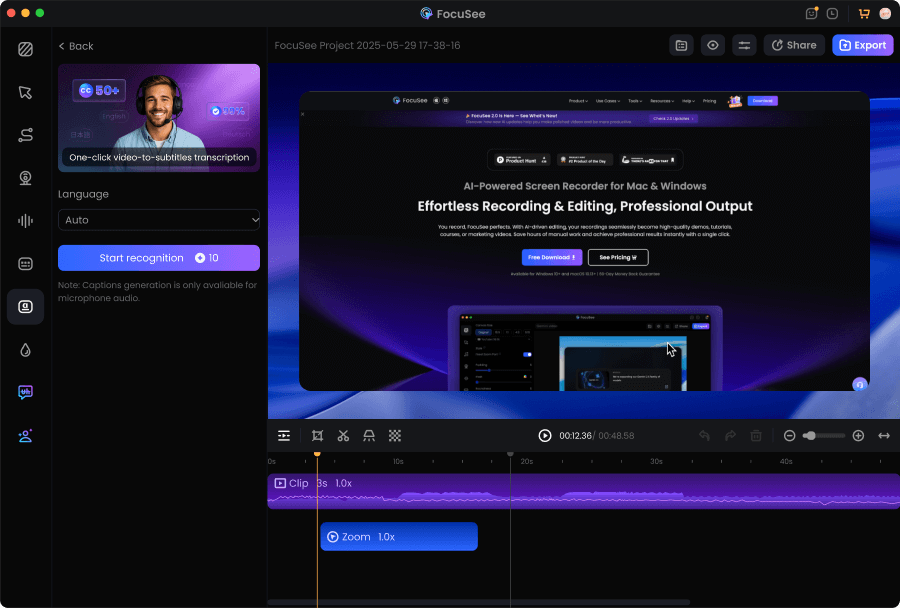
Auto Generate Subtitles
Click Captions and choose the language spoken in the video. FocuSee will automatically detect the audio and create subtitles.
3
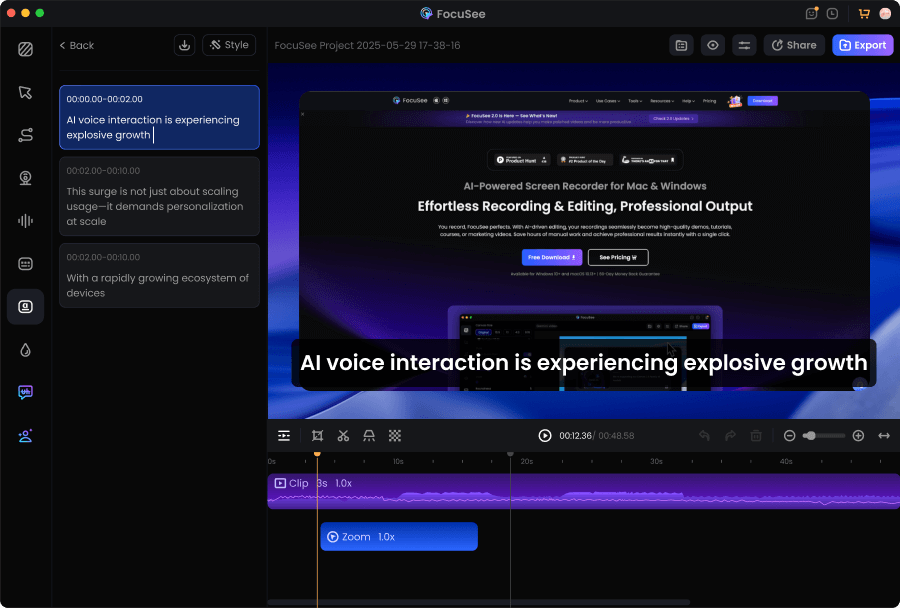
Review and Edit
Check the subtitles for accuracy. You can also edit the subtitle text.
4
Customize and Export
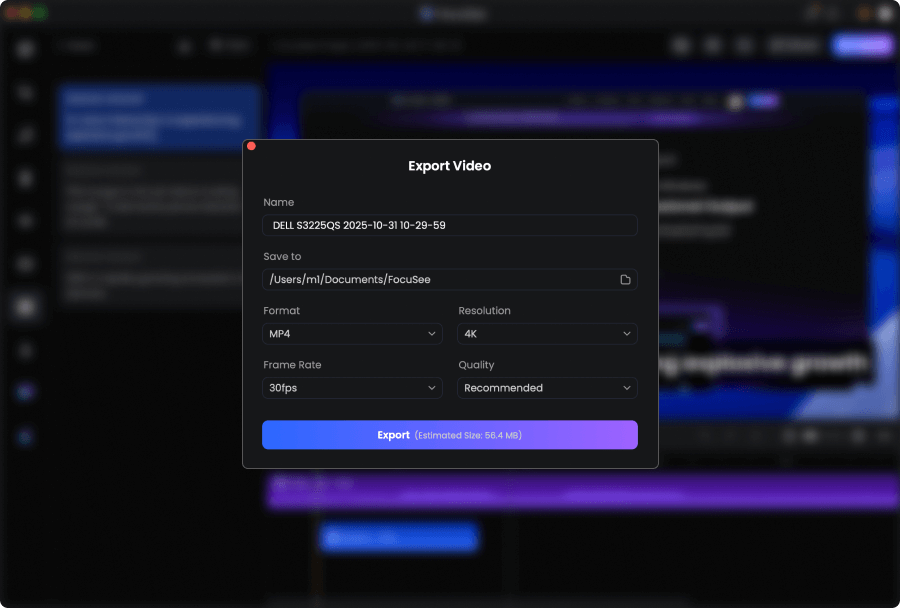
Change the subtitle size and position if needed. When you’re done, export the video with the subtitles automatically added.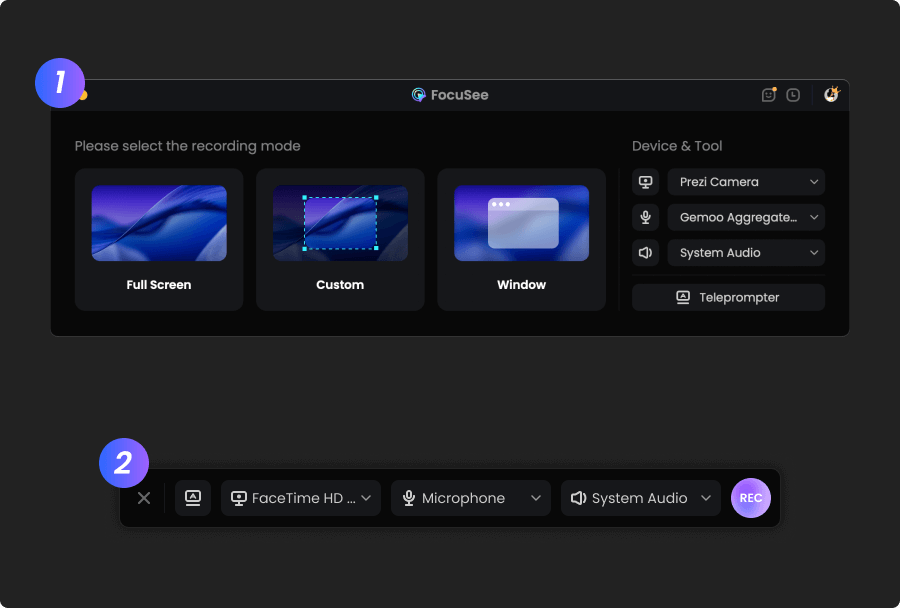
1
Record Your Video
Open FocuSee and start recording your screen.
2
Auto Generate Subtitles
Click Captions and choose the language spoken in the video. FocuSee will automatically detect the audio and create subtitles.
3
Review and Edit
Check the subtitles for accuracy. You can also edit the subtitle text.
4
Customize and Export
Change the subtitle size and position if needed. When you’re done, export the video with the subtitles automatically added.
FocuSee is an absolute game-changer. I’ve been looking for a tool that could save me hours of editing, and I finally found it. With just a few clicks it cuts out the boring parts, adds super accurate automatic captions, and exports videos already optimized for TikTok, Instagram, or YouTube. What impressed me the most is the speed: something that used to take me an entire evening now takes just a few minutes. The interface is simple, and you don’t need to be a professional editor to get professional-looking results. Sure, there are more advanced programs with tons of features, but for anyone who wants to create content quickly without wasting time, FocuSee is unbeatable. Highly recommended!
FocuSee is a fantastic screen recording tool! Its versatile recording options (full screen, custom area, window) meet all needs. The audio setup with waveform monitoring and noise reduction works amazingly—even my cheap mic sounded better. The editing features shine: one-click aspect ratio adjustment for social platforms, rich cursor effects (zooming, highlights, sounds), and smooth animations. The auto-subtitle function is impressive, hitting 95% accuracy despite poor audio. Layout presets for webcam integration are handy, and presets save time for repeated projects. Sharing and exporting are seamless. Minor tweaks aside, it’s a must-have for creators. Highly recommend!




Based on 3,200 customer reviews
More FocuSee Features


FAQs About AI Subtitle Generator
1. How does FocuSee’s AI subtitle generator work?
FocuSee uses advanced AI speech recognition to automatically transcribe your audio and generate perfectly timed subtitles. Just record your video, select the spoken language, and the AI creates accurate subtitles in minutes instead of hours of manual work.
2. How quickly can I generate subtitles with FocuSee?
With FocuSee, subtitle creation typically takes only a few minutes. The AI handles transcription, timing, and alignment automatically, helping you move from recording to a finished, captioned video much faster than manual workflows.
3. What accuracy can I expect from AI-generated subtitles?
FocuSee delivers up to 99% accuracy in speech recognition and subtitle alignment. This means most subtitles require little to no manual correction, even for longer videos.
4. Does the AI subtitle generator support languages other than English?
Yes. FocuSee supports 55+ languages, including English, Spanish, French, German, Japanese, Korean, and more. You can record in your native language and generate accurate subtitles automatically.
5. How do I edit or fine-tune subtitles after generation?
You can click any subtitle to jump to the exact moment in the timeline, preview, and make instant text edits. This makes it easy to proofread and refine subtitles without scrubbing through the entire video.
6. How do I automatically generate subtitles for a video?
Simply record your video in FocuSee, open the AI Subtitle Generator, choose the spoken language, and click Generate. FocuSee automatically transcribes, aligns, and applies subtitles in one seamless workflow.
7. Can I customize the appearance of subtitles?
Yes. You can adjust subtitle size, position, and spacing to match your brand style or platform requirements, so your captions look polished and consistent.
8. When should I use AI-generated subtitles?
AI-generated subtitles are ideal for:
- • Tutorials and step-by-step training
- • Online courses and educational content
- • Product demos and feature walkthroughs
- • Marketing and social media videos
They improve accessibility, viewer retention, and overall clarity.
9. What affects subtitle accuracy, and how can I improve it?
Subtitle accuracy depends on audio quality, background noise, and how clearly speech is captured. For best results, record clean audio and then quickly proofread key lines—FocuSee’s click-to-timeline editing makes corrections fast.


AI-Powered Screen Recorder for Mac & Windows
Effortless Recording & Editing, Professional Output