
As someone who’s had their fair share of tech hiccups ruin an otherwise productive day, I can’t overstate how valuable stability and efficiency are. FocuSee delivers both — and then some. Everything I needed was right where I expected it to be, from intuitive cursor effects to built-in captioning and layout tools. The editing flow felt natural, almost like the app was designed by someone who’s actually edited videos under deadline.
Brand Every Video, Effortlessly
Add your logo or custom watermark directly inside your editing flow — no plugins. Whether you’re recording tutorials, product demos, online courses, or marketing videos, FocuSee helps you protect your content and strengthen your brand identity with speed, precision, and total creative control.
Custom Logo Import – Build Instant Brand Recognition
Upload your own logo or custom watermark in seconds. Whether it’s your company emblem or a personal signature, FocuSee helps you create professional, on-brand videos that your audience will instantly recognize.


Flexible Watermark Placement – Position It Your Way
Take full control over where your watermark appears. Place it neatly in any corner or center of the screen — wherever it complements your visuals best. With precise positioning, you can protect your work without ever compromising on composition.
Adjustable Size – Find the Perfect Visual Balance
Easily adjust your watermark’s size to fit your video layout. Make it large enough to stay visible or smaller for a more subtle appearance. The flexible scaling ensures your watermark complements the video content without overpowering it.
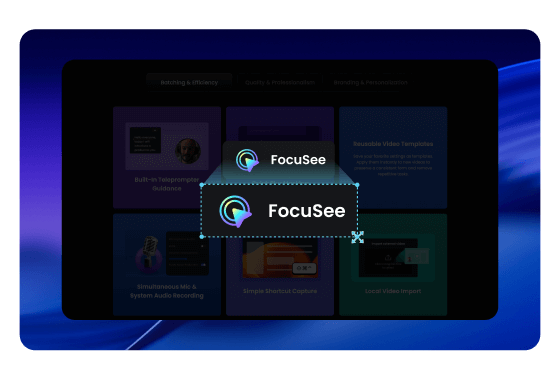
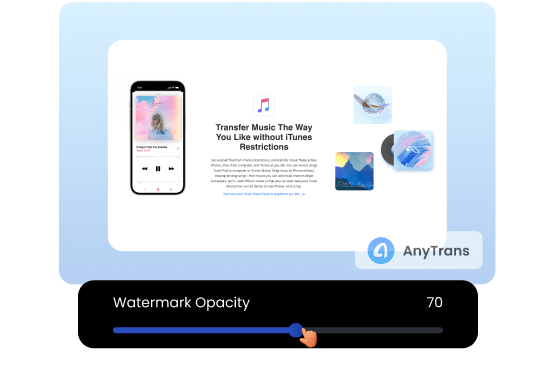
Transparency Control – Protect Without Distraction
Fine-tune your watermark’s transparency for a clean, professional finish. Keep your videos copyright-protected while maintaining a seamless viewing experience that looks polished and distraction-free.
How to Add Watermark to Your Video
Follow these quick steps to record, apply your logo, and export a polished, branded video.
1
Record Your Video
Open FocuSee and start recording your screen.
2
Add and Adjust Your Watermark
Click the Watermark option to upload your logo or image file. You can freely adjust its position, size, and transparency until it fits your video perfectly.
3
Preview and Export
Preview your video, make any final adjustments, and export it in high quality. Your watermark will be applied to the final output.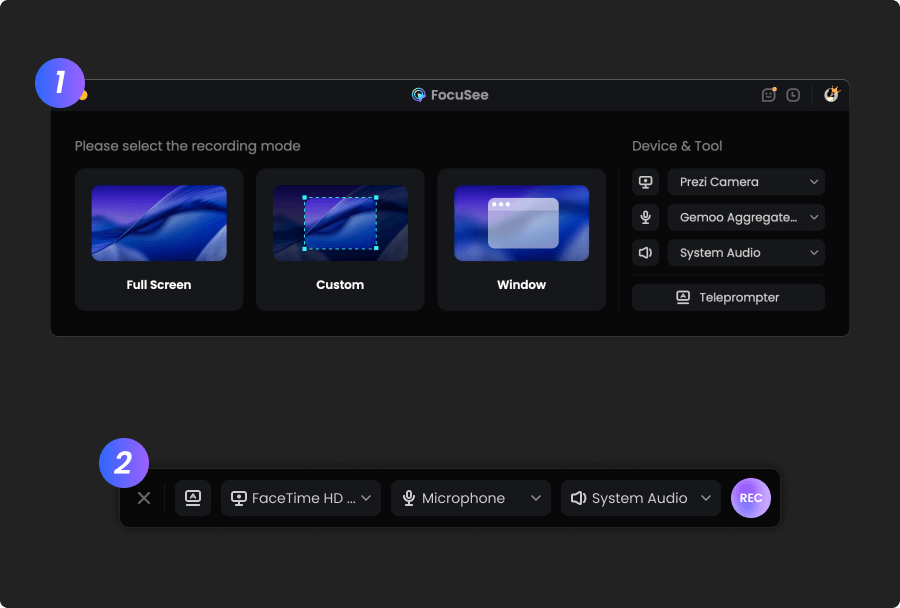

1
Record Your Video
Open FocuSee and start recording your screen.
2
Add and Adjust Your Watermark
Click the Watermark option to upload your logo or image file. You can freely adjust its position, size, and transparency until it fits your video perfectly.
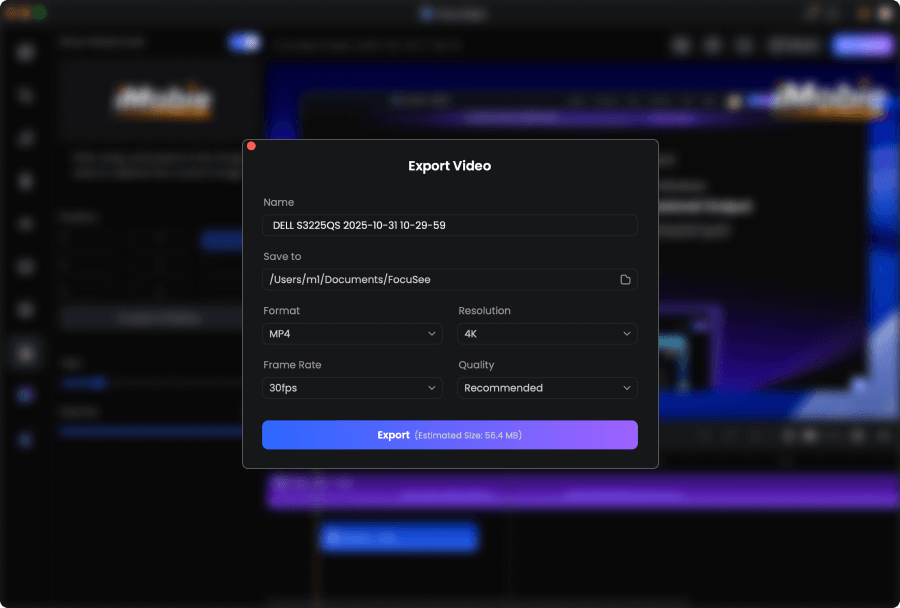
3
Preview and Export
Preview your video, make any final adjustments, and export it in high quality. Your watermark will be applied to the final output.
FocuSee is an absolute game-changer. I’ve been looking for a tool that could save me hours of editing, and I finally found it. With just a few clicks it cuts out the boring parts, adds super accurate automatic captions, and exports videos already optimized for TikTok, Instagram, or YouTube. What impressed me the most is the speed: something that used to take me an entire evening now takes just a few minutes. The interface is simple, and you don’t need to be a professional editor to get professional-looking results. Sure, there are more advanced programs with tons of features, but for anyone who wants to create content quickly without wasting time, FocuSee is unbeatable. Highly recommended!
I’ve tried a bunch of screen recording tools, but FocuSee really stands out with its smart auto-zoom, motion blur, and layout features - all without needing to edit manually. It fits perfectly into my design tutorial workflow and genuinely saves time while making the videos look pro. If you're a creator or educator, this is a must-try.




Based on 3,200 customer reviews
More FocuSee Features


FAQs About Video Watermark
1. How do I add a watermark or logo to my video?
Simply open the Watermark option in FocuSee, upload your logo or image, preview the placement, and export your video.
2. Can I customize how the watermark looks on screen?
Yes. You can adjust the watermark’s position, size, and transparency to fit your video layout and branding style.
3. Will adding a watermark affect my video quality?
No. Adding a watermark won’t reduce your video’s clarity or resolution. Your watermark is applied as part of the final export, so the video remains sharp while your branding stays visible.
4. Can I use this feature for tutorials, demos, or marketing videos?
Yes. It’s ideal for tutorials, product demos, online courses, and marketing clips—helping increase brand recognition and discourage unauthorized reuse.
5. Can I adjust or remove the watermark after adding it?
Yes. Before exporting, you can freely adjust the watermark’s position, size, and transparency, or remove it entirely. After exporting, reopen the project file in FocuSee to edit the watermark settings, then export a new version. Changes won’t affect the already exported video.
6. Do I need any extra software or plugins?
No. Watermarking is built into FocuSee’s editing workflow, so you can add and fine-tune your watermark in one place.
7. What kind of watermark image should I use for the best result?
FocuSee supports watermark image formats such as PNG, JPG, JPEG, and SVG. For a clean, professional look, use a high-quality logo and keep the transparency subtle. If you want a transparent-background watermark, PNG or SVG usually works best.
8. Where should I place a watermark on a video?
For branding, placing a watermark in a corner is usually the least distracting. For stronger copyright protection, a more central placement can make reuse harder while still keeping the video watchable. Preview the result to make sure the watermark stays visible without covering key content.


AI-Powered Screen Recorder for Mac & Windows
Effortless Recording & Editing, Professional Output