As someone who’s had their fair share of tech hiccups ruin an otherwise productive day, I can’t overstate how valuable stability and efficiency are. FocuSee delivers both — and then some. Everything I needed was right where I expected it to be, from intuitive cursor effects to built-in captioning and layout tools. The editing flow felt natural, almost like the app was designed by someone who’s actually edited videos under deadline.
Built-In Teleprompter That Turns Recording Into an Effortless Presentation
With your script always in view, you can focus on presenting instead of memorizing. FocuSee’s teleprompter keeps your delivery smooth, minimizes mistakes, and speeds up your entire recording process.
Video Recording Teleprompter – Reduce Retakes and Awkward Pauses
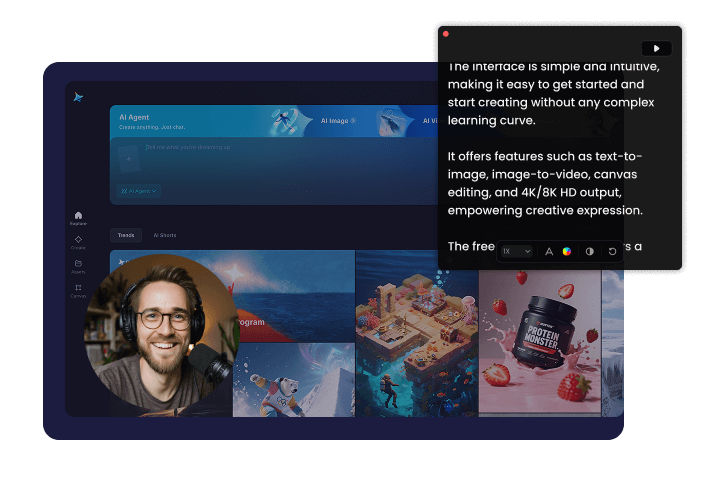
Whether you’re making a product demo or recording an online course, losing your script mid-sentence can derail the entire session. The on-screen teleprompter built directly into FocuSee eliminates software switching or external script checking during recording. Prompt content is visible only to you and never recorded in your video, giving you perfect script support while maintaining natural expression.
Adjustable Scrolling Speed – Perfectly Sync With Your Rhythm
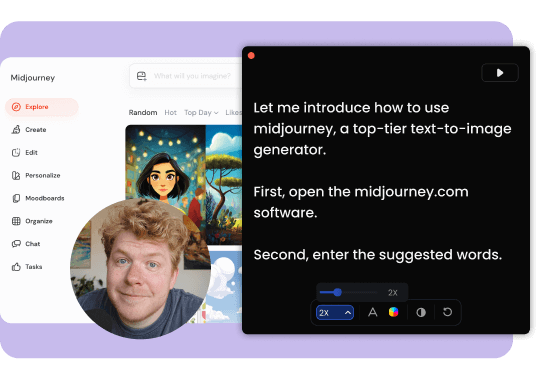
Adjust text scrolling speed to sync perfectly with your speaking rhythm. Whether it's fast-paced product introductions or in-depth knowledge explanations, find the most comfortable pace that keeps narration smooth and natural, delivering every time with confidence and control.
Text Display Customization - Comfortable Reading Without Fatigue
Freely set text size and color in the teleprompter tool to ensure content clarity and prevent visual fatigue during recording sessions. Mac users can also adjust transparency to maintain the most comfortable reading setup for the workflow.
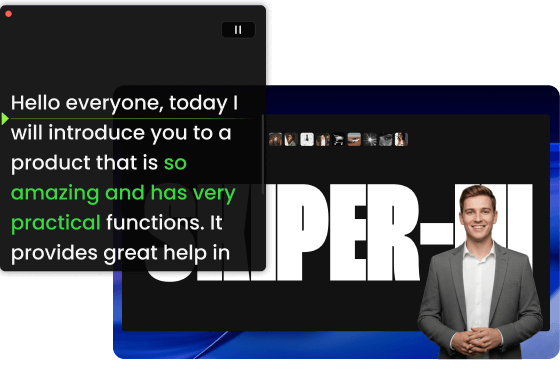
Reading Guide Line - Precise Positioning Without Getting Lost
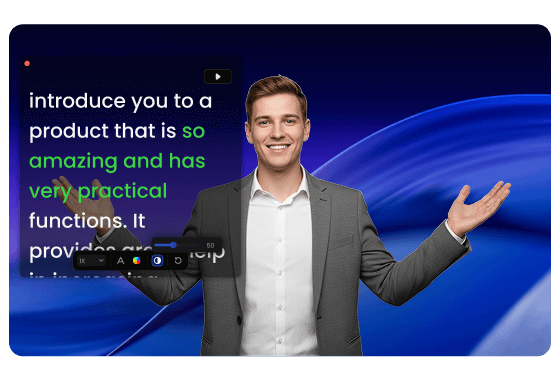
Losing your place mid-sentence not only hurts the flow but also breaks your audience’s focus. Smart reading guidelines in FocuSee video recording teleprompter help you quickly locate the current content position, ensuring your eyes are on track. Keep speech flowing naturally while avoiding unnatural expressions caused by searching for the reading position. It’s especially powerful for recording long-form content where pacing and precision matter most.
How to Apply FocuSee Built-in Teleprompter
Follow your script effortlessly while recording, creating polished videos in just a few clicks.
1
Open FocuSee and Access the Teleprompter
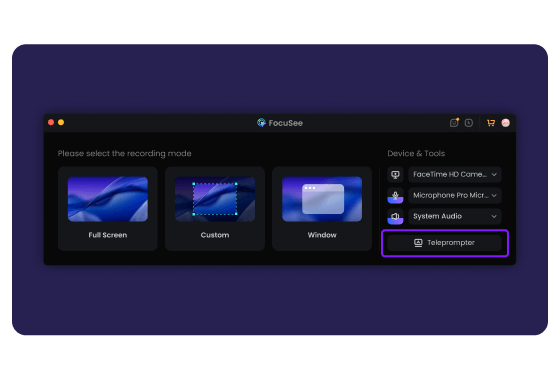
Launch FocuSee, click the Teleprompter button, enter your script, and adjust text size, scrolling speed, and other settings.
2
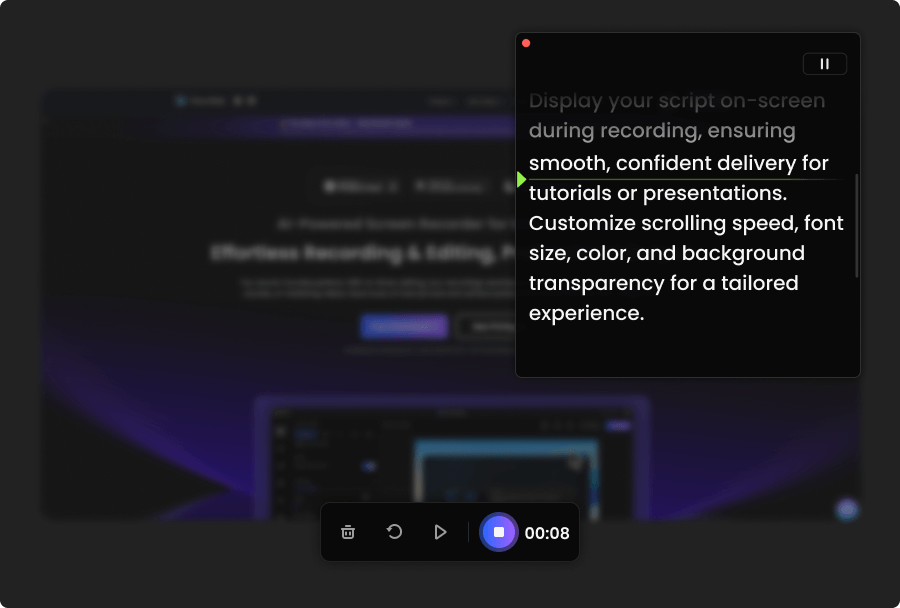
Record Your Video
Choose your desired recording mode, then begin recording your video while the teleprompter scrolls your script.
3
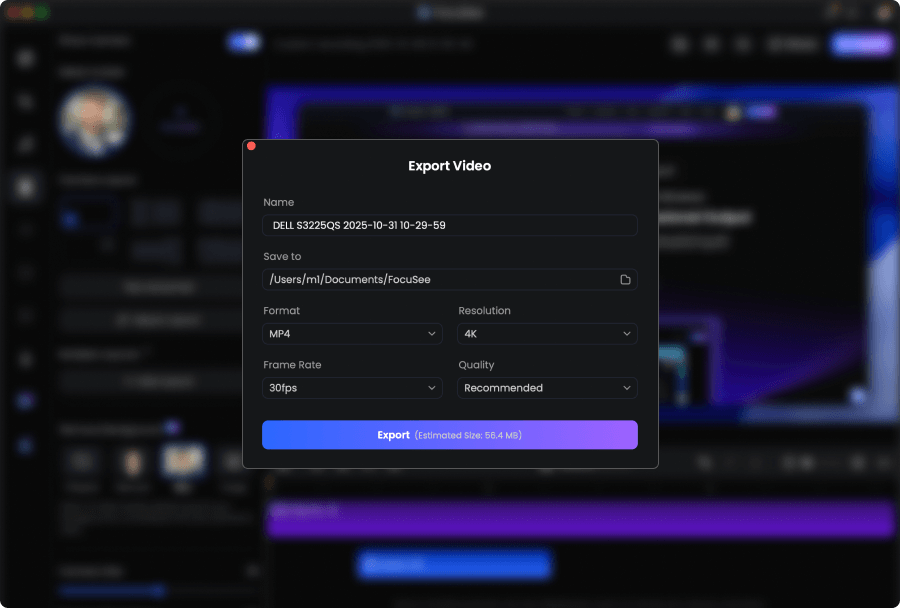
Preview and Export
Preview your polished recording and easily export it as a high-quality video.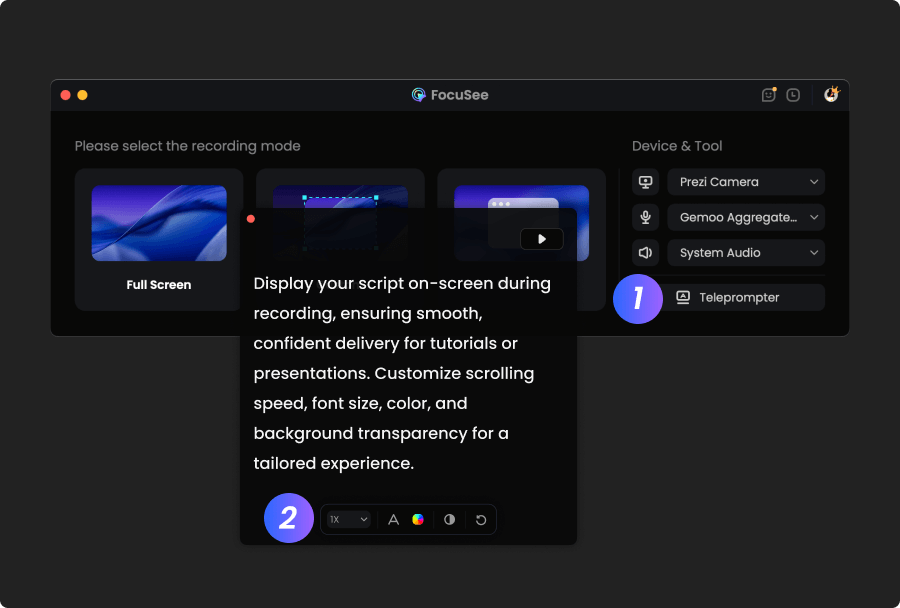
1
Open FocuSee and Access the Teleprompter
Launch FocuSee, click the Teleprompter button, enter your script, and adjust text size, scrolling speed, and other settings.
2
Record Your Video
Choose your desired recording mode, then begin recording your video while the teleprompter scrolls your script.
3
Preview and Export
Preview your polished recording and easily export it as a high-quality video.
FocuSee is an absolute game-changer. I’ve been looking for a tool that could save me hours of editing, and I finally found it. With just a few clicks it cuts out the boring parts, adds super accurate automatic captions, and exports videos already optimized for TikTok, Instagram, or YouTube. What impressed me the most is the speed: something that used to take me an entire evening now takes just a few minutes. The interface is simple, and you don’t need to be a professional editor to get professional-looking results. Sure, there are more advanced programs with tons of features, but for anyone who wants to create content quickly without wasting time, FocuSee is unbeatable. Highly recommended!
I’ve tried a bunch of screen recording tools, but FocuSee really stands out with its smart auto-zoom, motion blur, and layout features - all without needing to edit manually. It fits perfectly into my design tutorial workflow and genuinely saves time while making the videos look pro. If you're a creator or educator, this is a must-try.




Based on 3,200 customer reviews
More FocuSee Features


FAQs About Video Recording Teleprompter
1. How does a teleprompter improve my video recordings?
A teleprompter helps you deliver your script smoothly and confidently while recording. By keeping your text on screen, it reduces mistakes, awkward pauses, and repeated takes, so your narration sounds natural and professional.
2. Who should use a video recording teleprompter?
A video teleprompter is useful for creators recording tutorials, product demos, online courses, presentations, and marketing videos. It’s especially helpful when you want to stay on script without memorizing lines or stopping to check notes.
3. How do I record a video with the built-in teleprompter in FocuSee?
Open FocuSee, click the Teleprompter button, paste or type your script, and adjust settings like text size and scrolling speed. Then start recording—your script scrolls on screen while you speak, all within FocuSee and without extra software.
4. Will the teleprompter text appear in my recorded video?
No. The teleprompter text is visible only to you during recording and is never captured in the final video. Your audience sees a clean, professional video without any on-screen script.
5. Can I adjust the scrolling speed and text appearance?
Yes. FocuSee lets you customize the teleprompter’s scrolling speed, text size, and color to match your speaking pace and reading comfort. On Mac, you can also adjust transparency for a more comfortable setup.


AI-Powered Screen Recorder for Mac & Windows
Effortless Recording & Editing, Professional Output