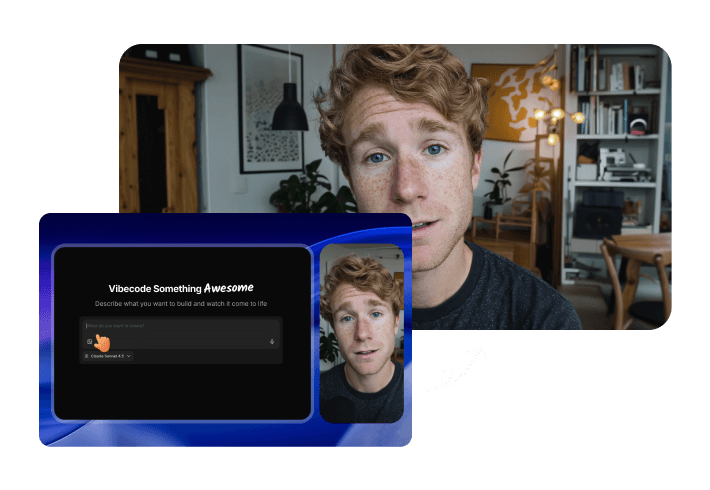
As someone who’s had their fair share of tech hiccups ruin an otherwise productive day, I can’t overstate how valuable stability and efficiency are. FocuSee delivers both — and then some. Everything I needed was right where I expected it to be, from intuitive cursor effects to built-in captioning and layout tools. The editing flow felt natural, almost like the app was designed by someone who’s actually edited videos under deadline.
Total Control Over Camera Layouts That Match Your Storytelling Style
From static to dynamic layouts, your camera presentation always aligns with your creative intent.
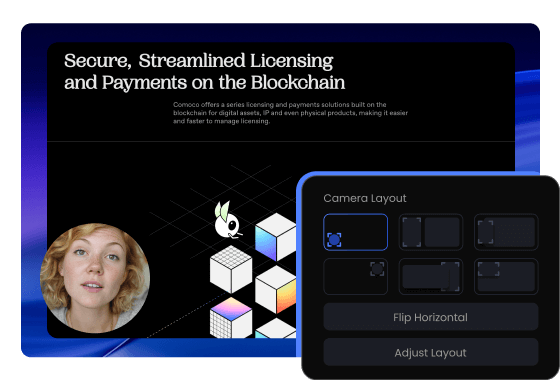
Various Camera Layouts - Perfect Fit for Every Content Type
Choose from full-screen, picture-in-picture, side-by-side, and custom positioning options. Whether you're delivering tutorial videos or showcasing products, there's always an optimal layout that makes your video more stunning.
Dynamic Layout - Smart Switching That Guides Attention
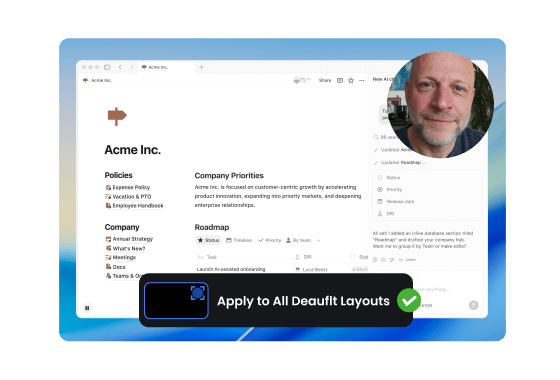
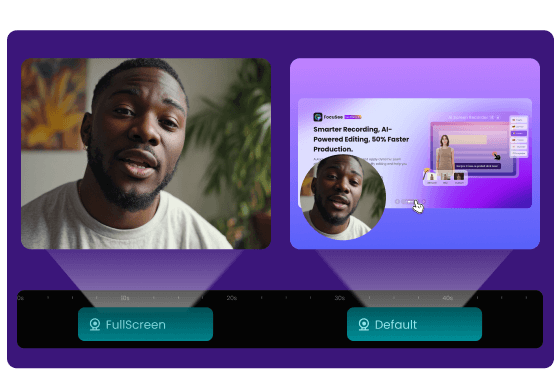
Switch between different layout modes effortlessly during editing: full webcam for personal explanations to build a connection, and automatic picture-in-picture during demonstrations to highlight key operations. You can change camera and screen positions on the fly, and smooth transition animations allow complex visual storytelling in one seamless take. No need for segmented recording or complex post-editing to save time and streamline your workflow.
Static Layout - Maintain Consistent Visual
Keep the same layout throughout your entire video to ensure visual consistency and professional appearance. Perfect for formal presentations and content that requires a stable look to keep audiences focused on your message.
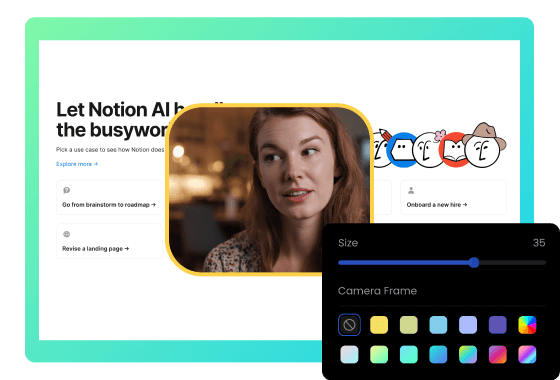
Camera Appearance Customization - Craft Your Signature Visual Style
Freely adjust camera size, corner radius, and border colors to perfectly integrate with your overall design. Optimize visual effects based on brand identity and personal preferences; every detail reflects professional quality.
Smart Adaptation - Automatically Optimize Viewing Experience
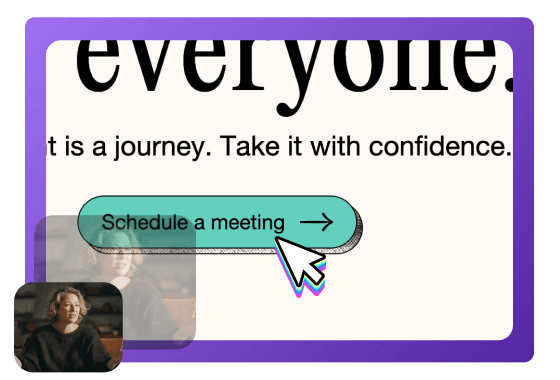
When zoom-in effects activate, the camera intelligently shrinks and directs viewers' attention to important movements, making videos clearer and information transfer more effective.
How to Apply Different Camera Layouts
Quickly change how your screen and camera appear in just seconds.
1
Record Your Video
Open FocuSee and start recording your screen.
2
Choose Camera Layouts
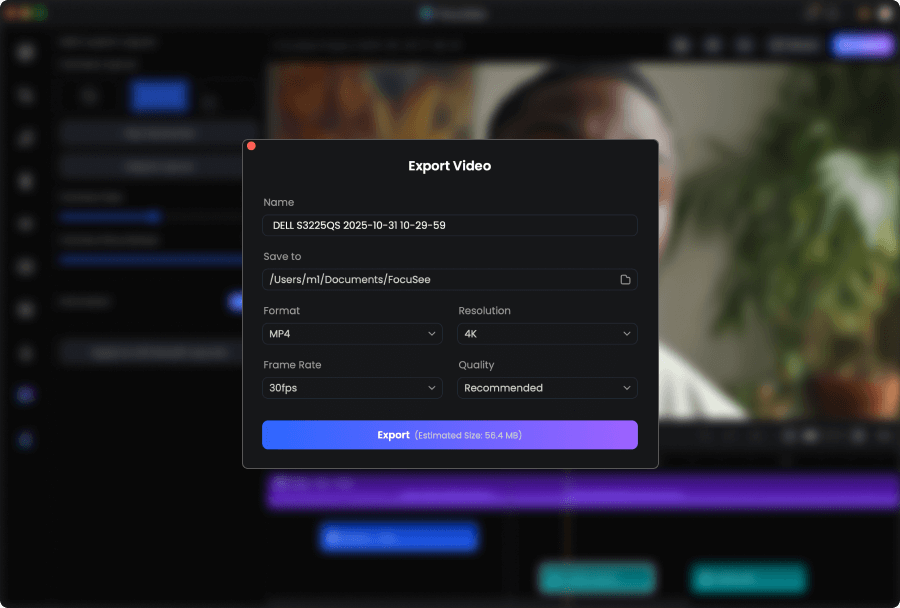
Click the Camera tab and select your favorite layout. To switch layouts within the same video, click “Add Layout” in the multiple layouts section.
3
Preview and Export
Preview your polished recording and easily export it as a high-quality video.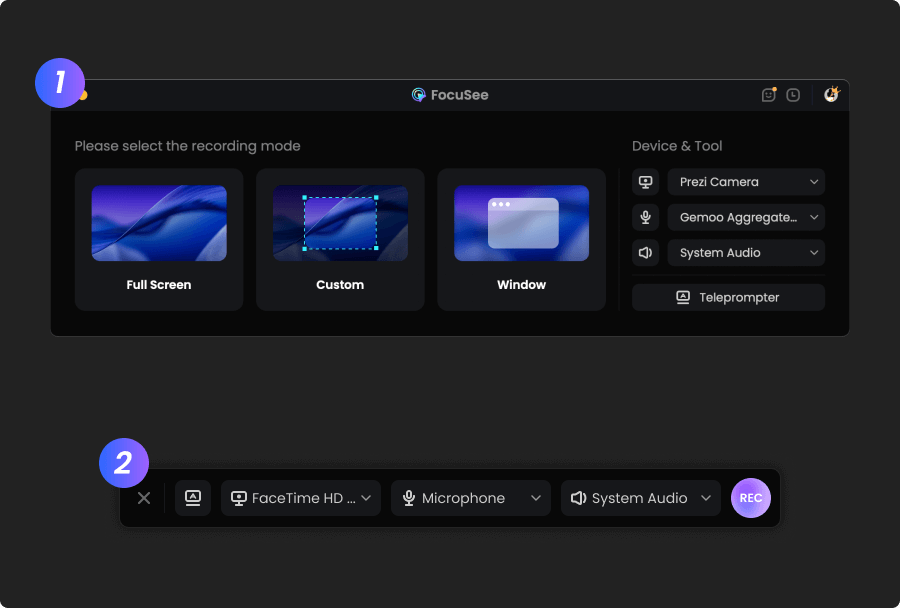
1
Record Your Video
Open FocuSee and start recording your screen.
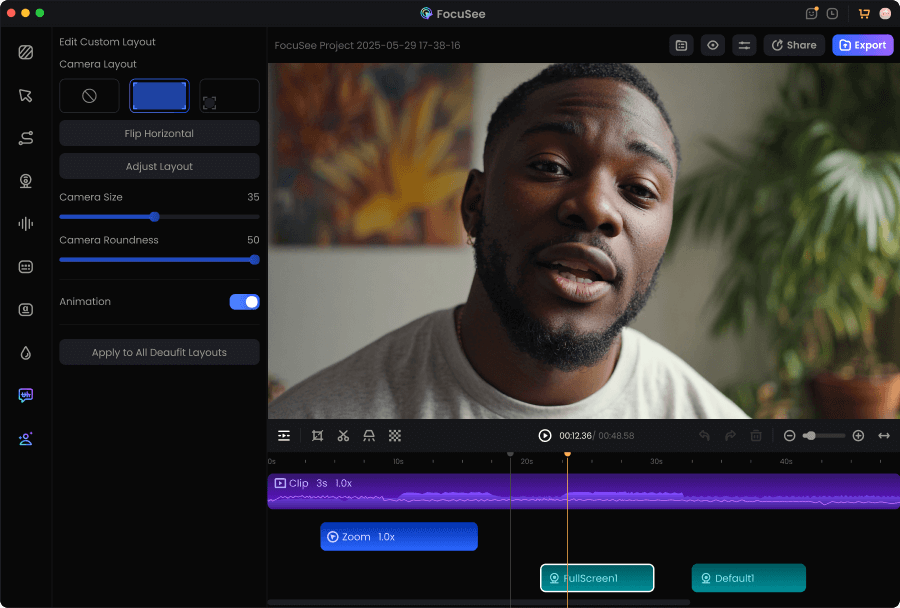
2
Choose Camera Layouts
Click the Camera tab and select your favorite layout. To switch layouts within the same video, click “Add Layout” in the multiple layouts section.
3
Preview and Export
Preview your polished recording and easily export it as a high-quality video.
I’ve tried a bunch of screen recording tools, but FocuSee really stands out with its smart auto-zoom, motion blur, and layout features - all without needing to edit manually. It fits perfectly into my design tutorial workflow and genuinely saves time while making the videos look pro. If you're a creator or educator, this is a must-try.
FocuSee is a fantastic screen recording tool! Its versatile recording options (full screen, custom area, window) meet all needs. The audio setup with waveform monitoring and noise reduction works amazingly—even my cheap mic sounded better. The editing features shine: one-click aspect ratio adjustment for social platforms, rich cursor effects (zooming, highlights, sounds), and smooth animations. The auto-subtitle function is impressive, hitting 95% accuracy despite poor audio. Layout presets for webcam integration are handy, and presets save time for repeated projects. Sharing and exporting are seamless. Minor tweaks aside, it’s a must-have for creators. Highly recommend!




Based on 3,200 customer reviews
More FocuSee Features


FAQs About Camera Layout
1. What are dynamic camera layouts?
Dynamic camera layouts let you change how your screen and webcam appear at different moments in a single video. For example, you can start with full-screen webcam, switch to picture-in-picture during a demo, or show screen only when you want viewers to focus.
2. Why use dynamic camera layouts?
Dynamic layouts help guide viewers’ attention by switching to the right view at the right time—webcam for personal explanations, and PiP or screen-focused views for demonstrations. This makes videos feel more engaging and professional, without needing segmented recording.
3. What camera layouts can I use in FocuSee, and when should I use each one?
FocuSee supports multiple camera layouts, including:
- • Full-screen webcam: webcam only on screen, best for introductions, personal explanations, talking-head sections, and presentations where your face and expression are the focus.
- • Picture-in-picture (PiP): webcam in a small frame over your screen, ideal for tutorials, product demos, and walkthroughs where viewers need to watch your screen while still seeing the presenter.
- • Side-by-side: webcam and screen next to each other, great for step-by-step training, course lessons, interviews, or comparisons where both the screen and webcam need equal attention.
- • Custom layout: freely adjust webcam size and position, useful when you want to avoid covering UI elements, highlight key areas of the screen, or place the webcam frame according to your brand layout and composition.
4. What’s the difference between a static layout and a dynamic layout?
A static layout stays the same throughout the whole video for a consistent, formal look. A dynamic layout lets you switch layouts during editing to match different moments—explanations, demos, and key steps—within one seamless video.
5. How do I apply or change camera layouts in FocuSee?
Open the Camera tab and select your preferred layout. If you want to switch layouts within the same video, use Add Layout in the Multiple Layouts section, then preview and export.
6. Can I customize the camera frame style (size, shape, border)?
Yes. You can adjust the camera size, corner radius, and border colors so your webcam frame matches your brand style and overall video design.
7. Can the camera layout adapt automatically during zoom-ins?
Yes. When zoom-in effects activate, FocuSee can automatically shrink the camera to keep important on-screen actions clear and help viewers focus on key movements.

AI-Powered Screen Recorder for Mac & Windows
Effortless Recording & Editing, Professional Output