As someone who’s had their fair share of tech hiccups ruin an otherwise productive day, I can’t overstate how valuable stability and efficiency are. FocuSee delivers both — and then some. Everything I needed was right where I expected it to be, from intuitive cursor effects to built-in captioning and layout tools. The editing flow felt natural, almost like the app was designed by someone who’s actually edited videos under deadline.
From Noisy Recordings to Studio-Quality Sound — Instantly with AI Audio Enhancer
Enhance your workflow with advanced AI-powered noise removal and intelligent voice enhancement. Clean up background noise, balance audio levels, and instantly produce clear, studio-quality sound.
Intelligent Noise Removal – Eliminate Distractions, Boost Clarity
Say goodbye to the hiss, hum, and chaos that make your videos sound amateur. Advanced AI detect and remove multiple types of noise — from background chatter and environmental sounds to device-level static — so your recordings stay sharp, stable, and polished. Even without an expensive studio setup, you'll produce clear, professional audio for tutorials, demos, and online courses.
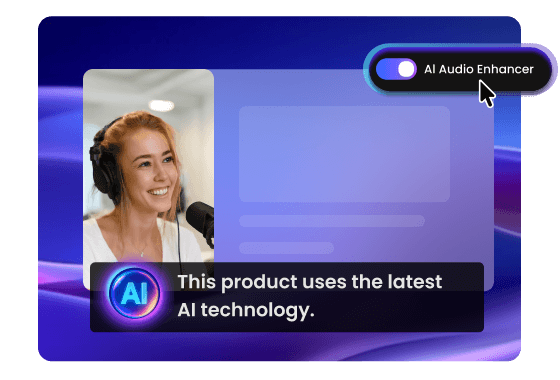
Voice Enhancement – Make Every Word Sound Confident and Clear
Don't let weak audio undermine your message. With FocuSee's AI voice clarity enhancer, your vocals are automatically optimized for richness, fullness, and presence. It intelligently boosts speech frequencies and sharpens tone so you make your voice clear in videos and sound like a seasoned presenter — even with a basic microphone.
Smart Volume Balancing – Consistent Sound, Zero Effort
Uneven volume caused by head movement or distance from the mic? FocuSee’s AI audio enhancer automatically balances levels, even when recording conditions change. Get a smooth, consistent listening experience that keeps viewers focused on your message, without manual audio adjustments.
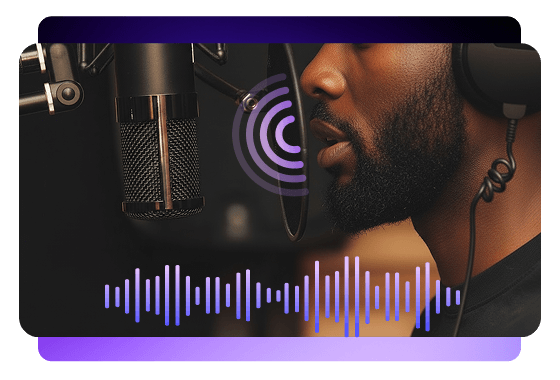
Vocal Detail Purification – Clean Audio, No Manual Editing
Cleaning up breaths, lip sounds, and mouth clicks manually is tedious and complex. FocuSee's AI-powered vocal enhancer removes them for you, drastically reducing post-production work while delivering studio-level audio quality. No audio engineering background required — just professional sound that's ready to publish.
How to Use AI Audio Enhancer
Follow these simple steps to remove background noise, improve voice clarity, and produce studio-quality sound.
1
Record Your Video
Open FocuSee and start recording your screen.
2
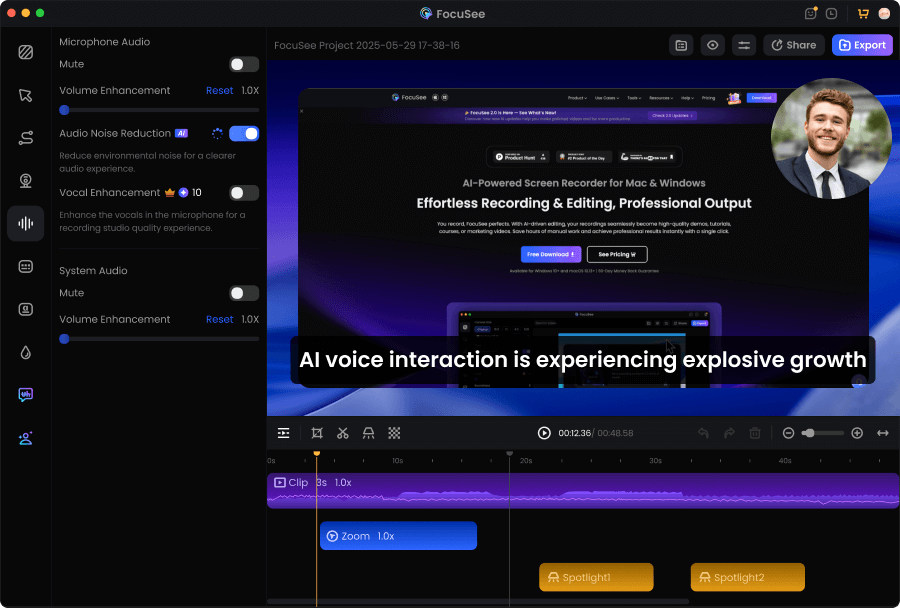
One-Click AI Noise Removal
Click Audio Noise Reduction to instantly detect and remove background noise automatically.
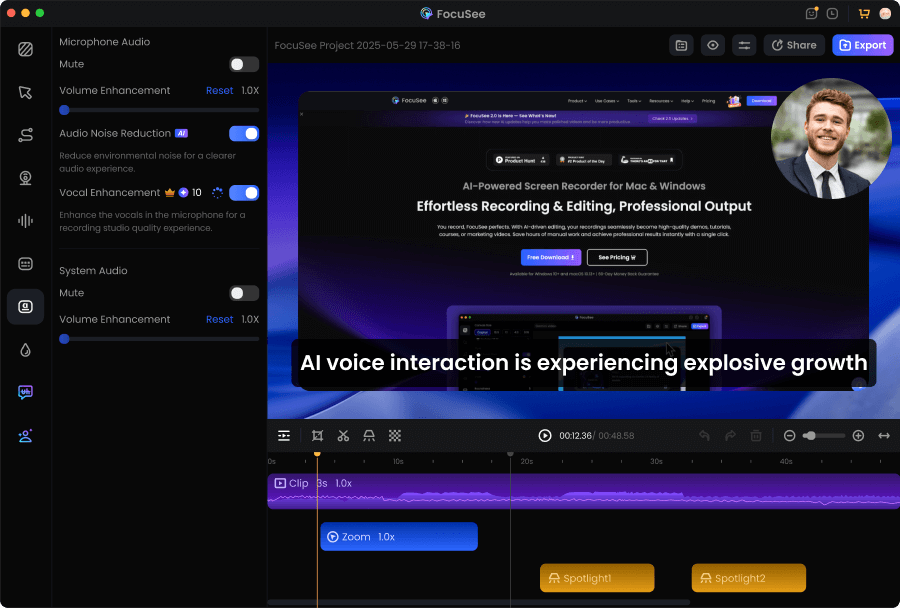
3
Automatic Voice Enhancement
Enable the Vocal Enhancement to balance audio levels and enrich vocal tones.
4
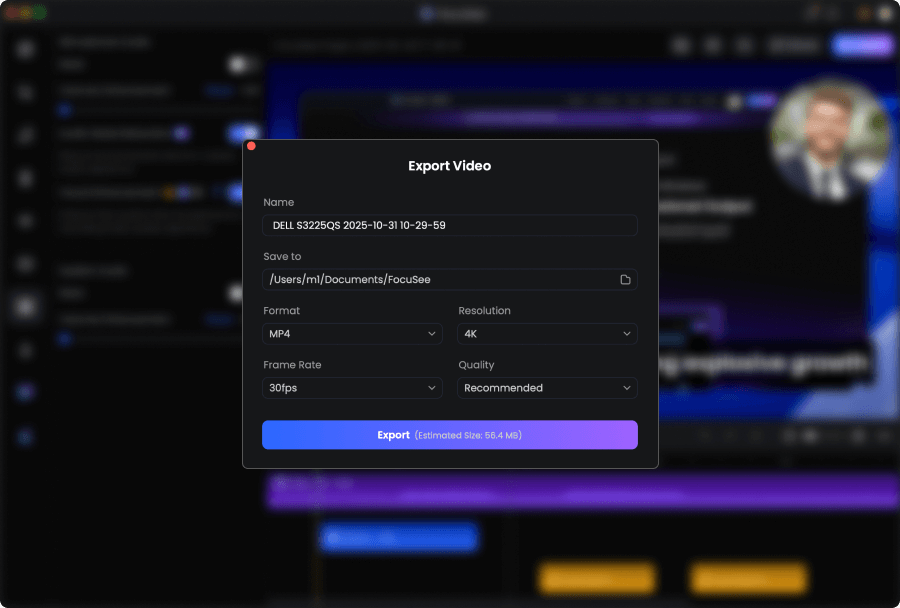
Preview and Export
Play back your edited video to confirm clarity and balance. When satisfied, export your video.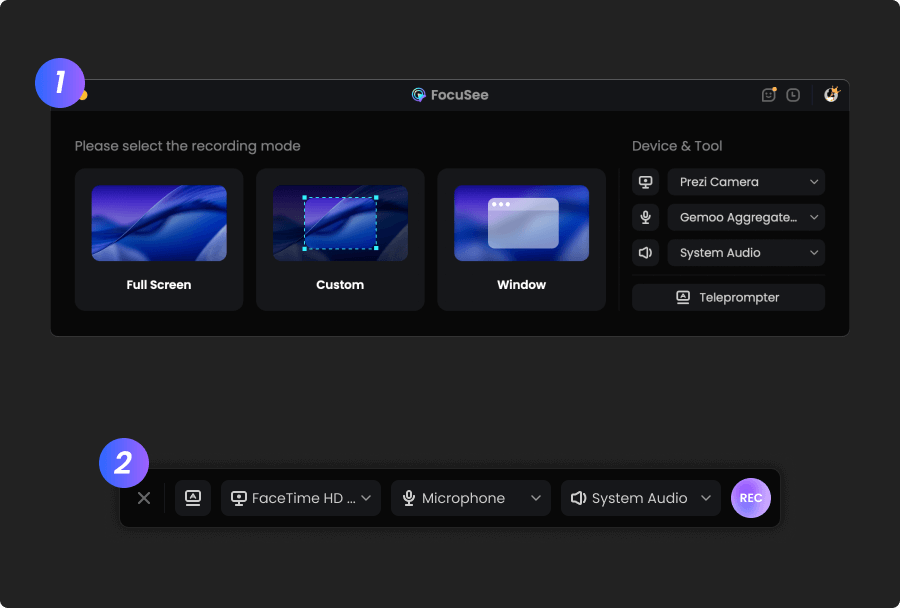
1
Record Your Video
Open FocuSee and start recording your screen.
2
One-Click AI Noise Removal
Click Audio Noise Reduction to instantly detect and remove background noise automatically.
3
Automatic Voice Enhancement
Enable the Vocal Enhancement to balance audio levels and enrich vocal tones.
4
Preview and Export
Play back your edited video to confirm clarity and balance. When satisfied, export your video.
As a content creator who records a lot of tutorial videos, I really like how FocuSee combines screen recording and editing in one place. The interface is clean, easy to use, and features like cursor highlight, zoom, and beautify make the workflow super smooth. The new AI updates, like smart cut and voice enhancement, are also very promising. Just shared my full experience in a YouTube video — it’s definitely worth trying!
FocuSee is a fantastic screen recording tool! Its versatile recording options (full screen, custom area, window) meet all needs. The audio setup with waveform monitoring and noise reduction works amazingly—even my cheap mic sounded better. The editing features shine: one-click aspect ratio adjustment for social platforms, rich cursor effects (zooming, highlights, sounds), and smooth animations. The auto-subtitle function is impressive, hitting 95% accuracy despite poor audio. Layout presets for webcam integration are handy, and presets save time for repeated projects. Sharing and exporting are seamless. Minor tweaks aside, it’s a must-have for creators. Highly recommend!




Based on 3,200 customer reviews
More FocuSee Features


FAQs About AI Audio Enhancer
1. How do I remove background noise from a video?
Record your video in FocuSee, then click Audio Noise Reduction. The AI will automatically detect and remove background noise, helping your voice sound clearer without manual editing.
2. What types of noise can FocuSee remove?
FocuSee can reduce common background noise such as ambient sounds, microphone hum, and other unwanted audio distractions, while keeping your voice clear and stable.
3. What is Voice Enhancement in FocuSee?
Voice Enhancement is an AI feature that improves speech clarity and presence. It boosts vocal intelligibility and helps your narration sound more confident and professional—even if you recorded with a basic microphone.
4. Can FocuSee balance uneven volume automatically?
Yes. With Smart Volume Balancing, FocuSee automatically evens out volume changes caused by head movement or distance from the microphone, so your audio stays consistent throughout the video.
5. Can FocuSee remove breaths, mouth clicks, or lip sounds?
FocuSee includes Vocal Detail Purification to reduce distracting vocal artifacts such as breaths and mouth noises, helping you achieve cleaner audio without tedious post-production work.
6. Do I need audio editing experience to use AI Audio Enhancer?
No. FocuSee is designed for beginners and professionals alike. You can enhance audio with a few clicks, preview the result, and export—no mixing or audio engineering skills required.
7. Is AI Audio Enhancer good for screen recordings like tutorials and online courses?
Yes. It’s ideal for tutorials, online courses, product demos, and marketing videos—especially when you’re recording in non-studio environments and need quick, professional audio cleanup.


AI-Powered Screen Recorder for Mac & Windows
Effortless Recording & Editing, Professional Output