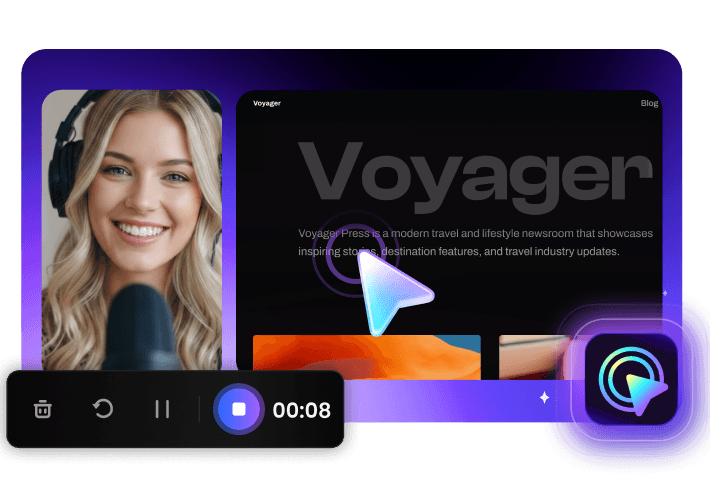
FocuSee is a fantastic screen recording tool! Its versatile recording options (full screen, custom area, window) meet all needs. The audio setup with waveform monitoring and noise reduction works amazingly—even my cheap mic sounded better. The editing features shine: one-click aspect ratio adjustment for social platforms, rich cursor effects (zooming, highlights, sounds), and smooth animations. The auto-subtitle function is impressive, hitting 95% accuracy despite poor audio.
Create Stunning Videos with AI Screen Recording
FocuSee is more than just a screen recorder—it combines automation and AI to simplify post-production. Zoom effects and cursor smoothing are applied automatically, while AI removes silent pauses, cleans filler words, and enhances audio quality. Skip tedious edits and turn raw recordings into polished, ready-to-share videos in one click.
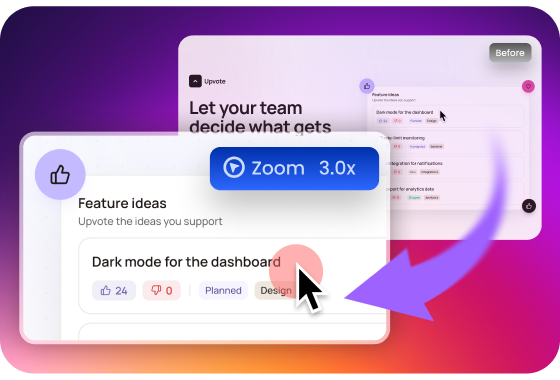
Auto Zoom & Cursor Intelligence - Guide Every Viewer’s Attention
Keeping viewers focused is one of the hardest parts of screen recording. Manually adding zoom effects and adjusting cursor movement takes time and often feels inconsistent. FocuSee automatically detects key actions and applies zoom effects to highlight important areas, while cursor movement is smoothed, animated on clicks, and hidden during idle moments for a cleaner viewing experience. The result is a clear, guided video where every action is easy to follow and nothing distracts from your message.
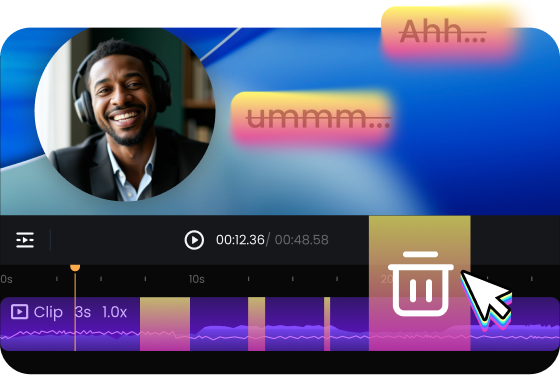
AI Smart Editing - Cut Hours Down to Seconds
Editing is the biggest bottleneck in video creation. With FocuSee’s AI screen recorder free features, unnecessary pauses, filler moments, and awkward gaps are automatically removed, delivering a clean and professional flow without manual trimming. Instead of spending hours on editing, you get a refined video instantly, ready for tutorials, demos, or presentations.
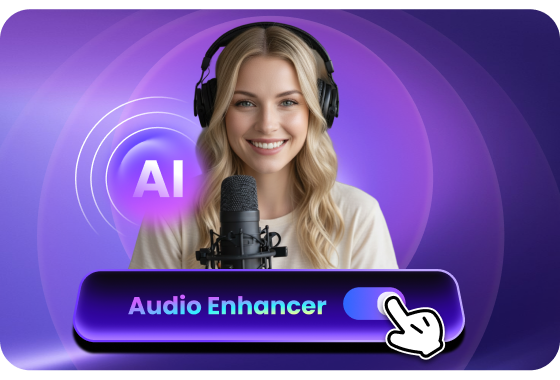
AI Audio Enhancement - Sound Clear and Professional
Poor audio can ruin even the best recordings. FocuSee uses AI to reduce background noise, remove distractions, and enhance voice clarity automatically. Whether you are recording in a noisy environment or using a basic microphone, your audio will sound crisp, balanced, and easy to understand, without extra tools or setup.
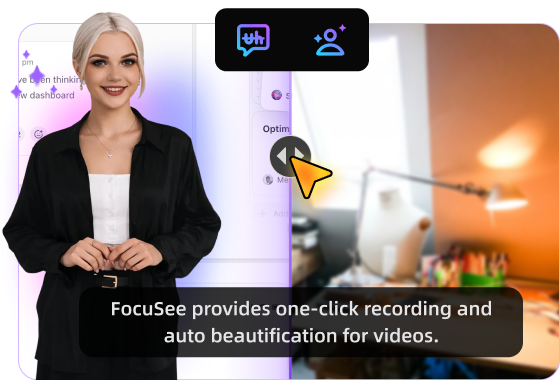
AI Content Enhancement - Subtitles, Avatar & Background
Creating polished videos usually requires multiple tools for subtitles, on-screen presence, and background cleanup. FocuSee brings them together in one simple workflow. Generate accurate subtitles in 50+ languages, use an AI avatar instead of showing your face, and remove or blur backgrounds instantly—no extra tools or editing needed. Create professional, ready-to-share videos faster with fewer steps.
How to Use This AI Screen Recorder
Create professional videos in three simple steps with AI for screen recording:
1
Record Your Screen
Open FocuSee and capture your screen, workflow, or presentation as usual.
2
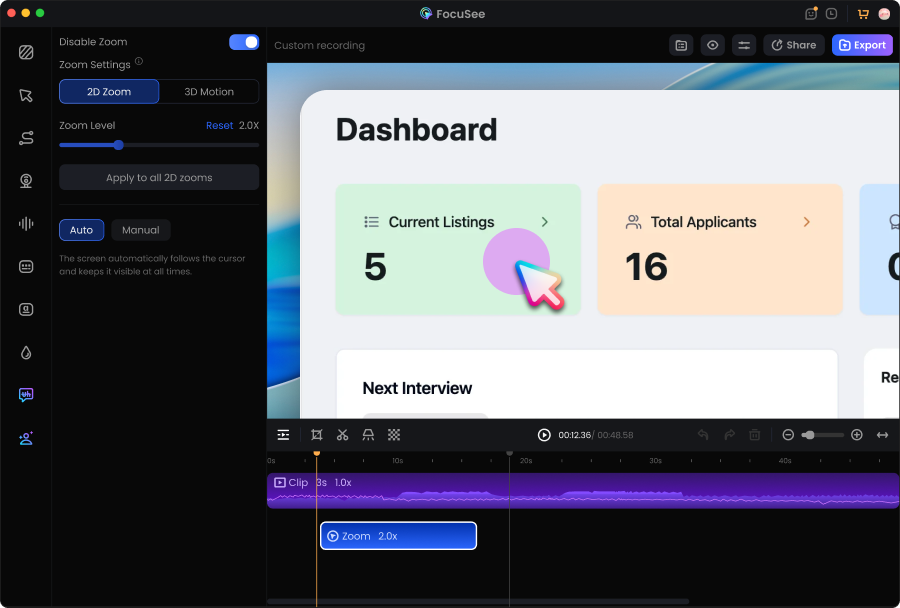
Process Automatically
Zoom effects and cursor motion are applied automatically, while AI removes silent pauses, cleans up filler words, and enhances audio.
3
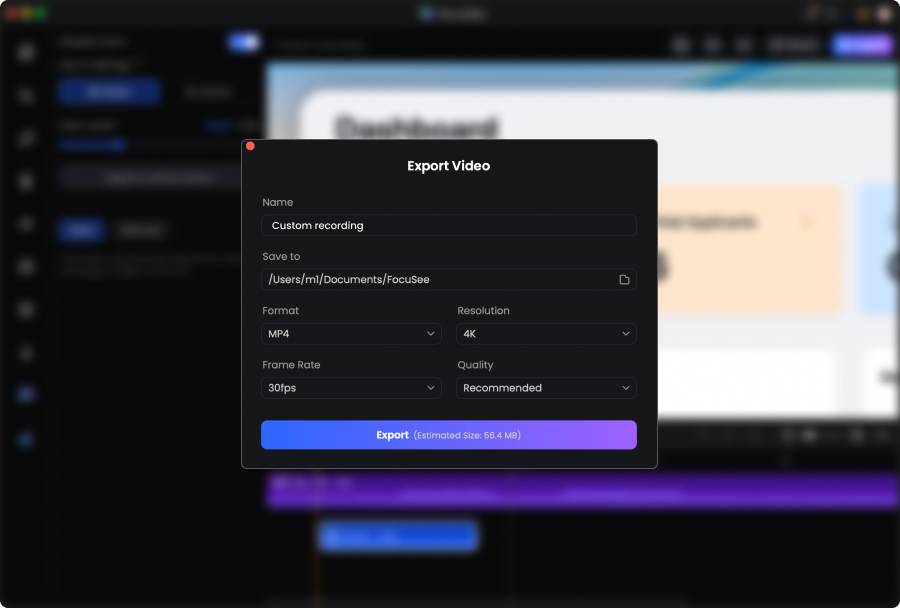
Preview and Export
Make quick adjustments if needed, then export a high-quality video ready to share.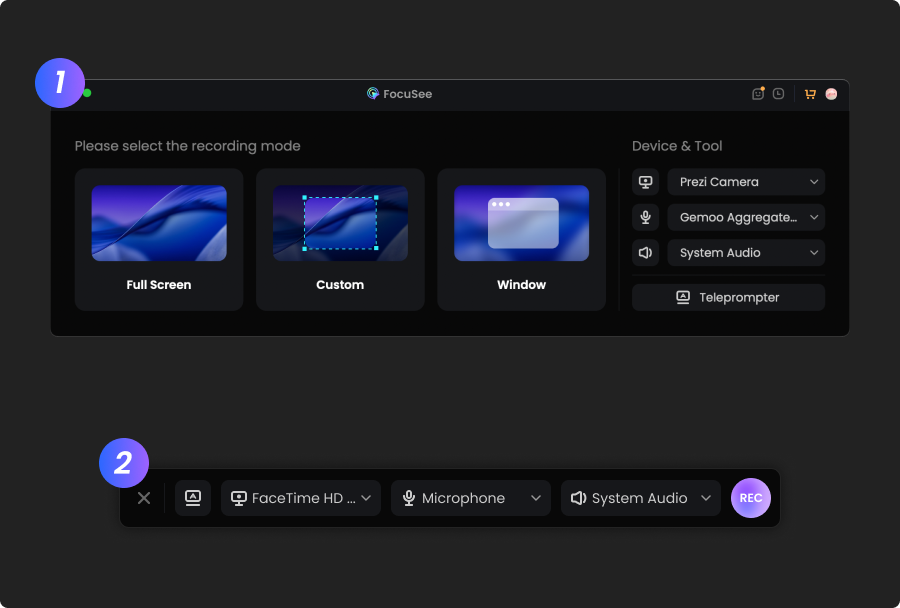
1
Record Your Screen
Open FocuSee and capture your screen, workflow, or presentation as usual.
2
Process Automatically
Zoom effects and cursor motion are applied automatically, while AI removes silent pauses, cleans up filler words, and enhances audio.
3
Preview and Export
Make quick adjustments if needed, then export a high-quality video ready to share.
I’ve tried a bunch of screen recording tools, but FocuSee really stands out with its smart auto-zoom, motion blur, and layout features - all without needing to edit manually. It fits perfectly into my design tutorial workflow and genuinely saves time while making the videos look pro. If you're a creator or educator, this is a must-try.
I finally got the cursor tracking feature to work on my Windows PC, and it's a total game-changer for my vlogging setup. I'm so incredibly happy with it.




Based on 3,200 customer reviews
More FocuSee Features


FAQs About AI Screen Recorder
1. What is an AI screen recorder?
An AI screen recorder uses artificial intelligence to automate editing tasks like zooming, cutting, and enhancing audio, turning raw recordings into polished videos with minimal effort.
2. Why use an AI tool for screen recording instead of a traditional recorder?
Traditional tools require manual editing, while an AI tool for screen recording automates the entire process, saving time and improving video quality.
3. Is FocuSee an AI screen recorder free to use?
FocuSee offers an AI screen recorder free version with powerful features, allowing users to create professional videos without upfront cost.
4. How does AI for screen recording improve video quality?
AI automatically applies zoom, smooths motion, enhances audio, and removes unnecessary parts, ensuring your video looks and sounds professional.
5. Can I still customize the results after AI processing?
Yes, you can fine-tune zoom, cursor effects, and other elements to match your style and needs.
6. Who should use an AI screen recorder?
Content creators, educators, marketers, and professionals who want to create high-quality videos quickly without spending hours editing.


AI-Powered Screen Recorder for Mac & Windows
Effortless Recording & Editing, Professional Output