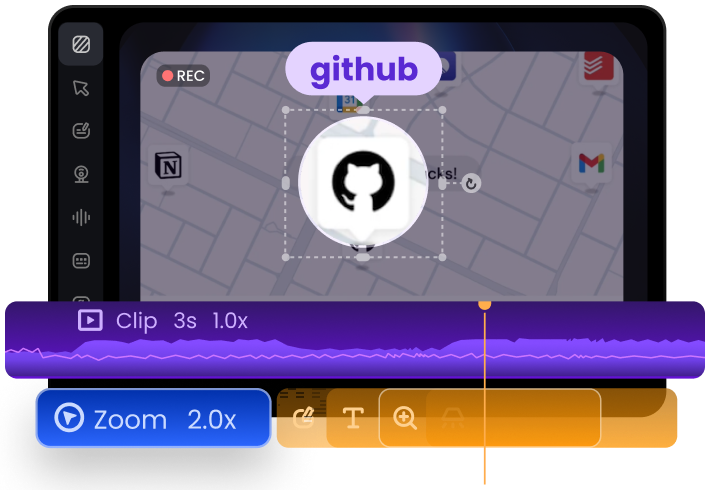
FocuSee is a fantastic screen recording tool! Its versatile recording options (full screen, custom area, window) meet all needs. The audio setup with waveform monitoring and noise reduction works amazingly—even my cheap mic sounded better. The editing features shine: one-click aspect ratio adjustment for social platforms, rich cursor effects (zooming, highlights, sounds), and smooth animations. The auto-subtitle function is impressive, hitting 95% accuracy despite poor audio.
Turn Screen Recordings into Clear Visual Explanations
Annotating during recording can interrupt your flow and limit precision. With FocuSee, you can add annotations after recording, giving you full control to refine your message without distractions. Focus on capturing first, then improve your content with flexible post-recording annotation.
Screen Annotation Tool - Explain Clearly with Visual Guidance
Complex workflows are hard to follow without explanation. FocuSee's screen annotation tool lets you annotate screen recordings using text, arrows, and shapes to make every step easy to understand. Turn raw recordings into clear, structured content your audience can follow effortlessly.
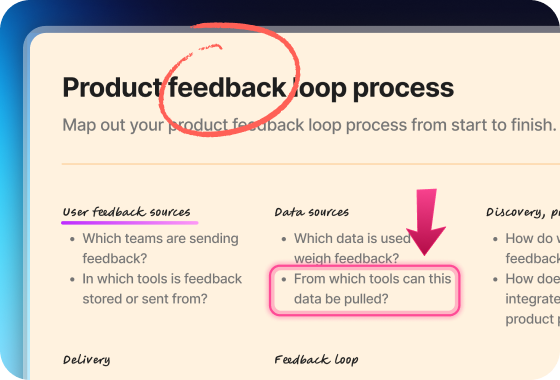
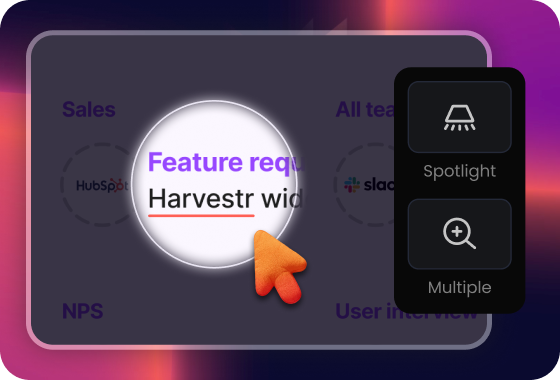
Guide Viewer Attention with Magnifier and Highlights
Important details can easily be missed without proper focus. When you annotate screen recordings, spotlight and magnifier effects help guide viewer attention directly to key actions and critical areas. Make it instantly clear what matters most, so viewers always know where to look and what to understand.
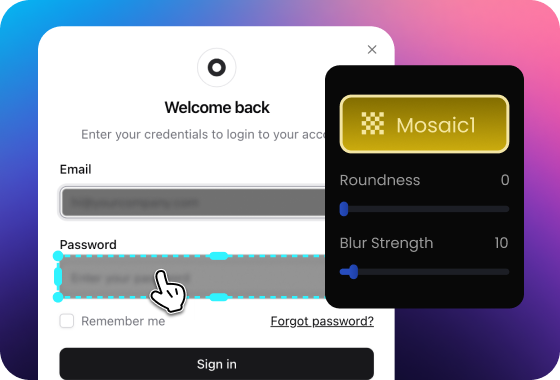
Information Control - Share with Confidence
Sensitive information can limit how you share videos. This screen annotation software allows you to blur private details and control what appears on screen. Create content that is safe, clean, and ready to publish anywhere.
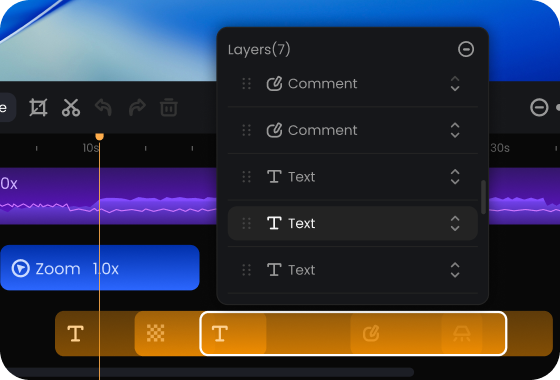
Annotate Screen Recordings with Timeline Control
Annotations should match your video flow, not stay static. Easily annotate screen recordings with precise timing control—set when annotations appear and how long they stay. Align every highlight with your narrative for a smoother, more professional viewing experience.
How to Annotate Screen Recordings
Create clear, guided videos in three simple steps:
1
Record Your Screen
Capture your workflow, presentation, or tutorial using FocuSee.
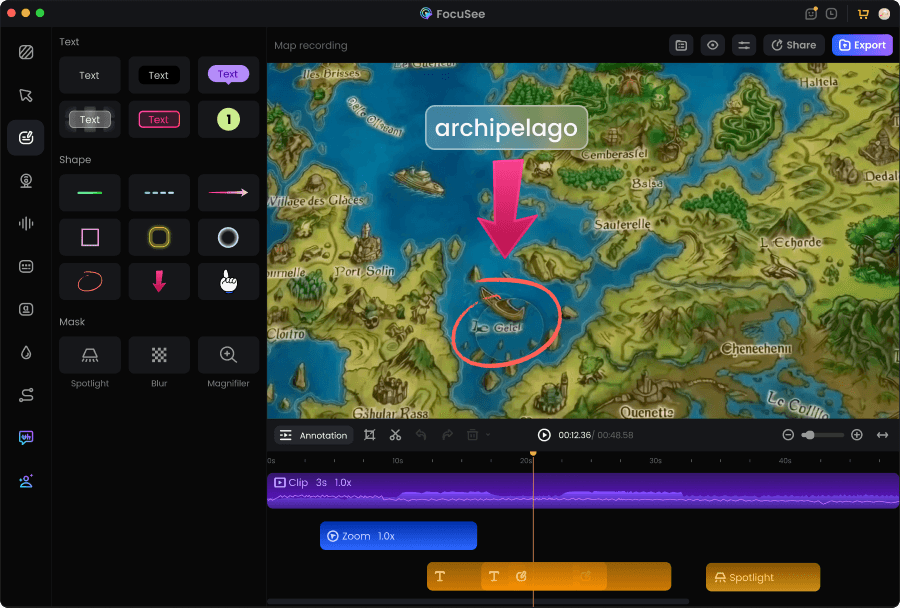
2
Annotate Screen Recording
Use post-recording annotation tools to add text, shapes, highlights, and effects.
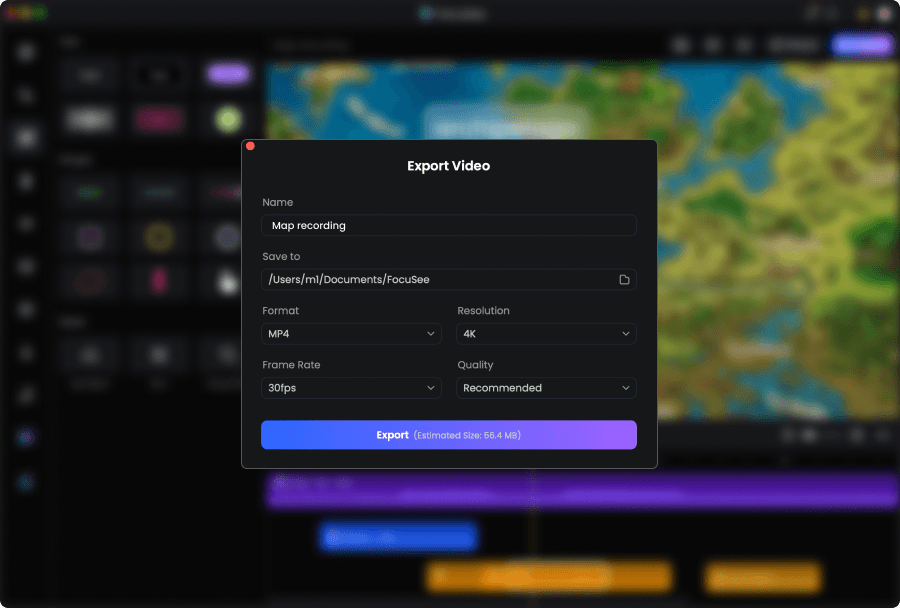
3
Preview and Export
Review your annotated video and export a polished, professional result.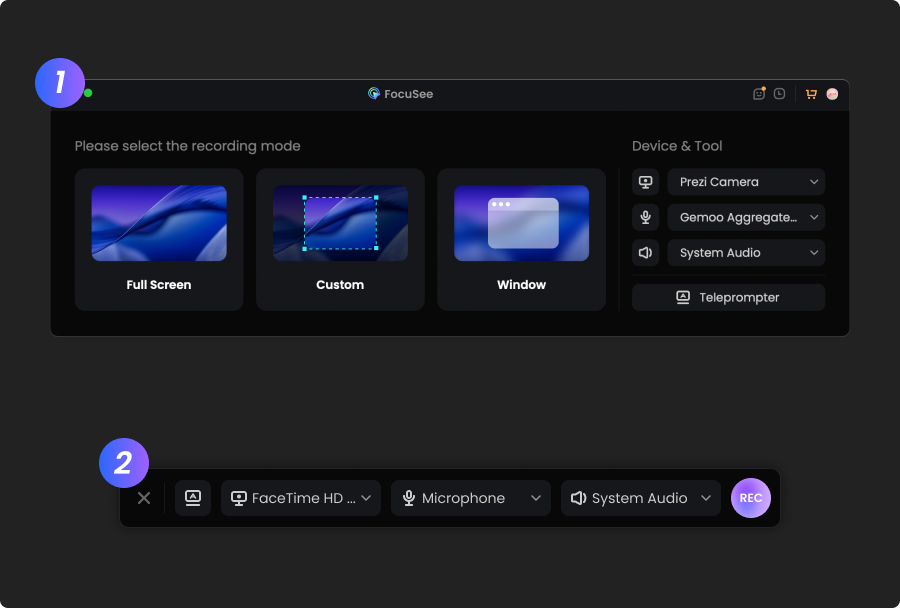
1
Record Your Screen
Capture your workflow, presentation, or tutorial using FocuSee.
2
Add Annotations After Recording
Use post-recording annotation tools to add text, shapes, highlights, and effects.
3
Preview and Export
Review your annotated video and export a polished, professional result.
I’ve tried a bunch of screen recording tools, but FocuSee really stands out with its smart auto-zoom, motion blur, and layout features - all without needing to edit manually. It fits perfectly into my design tutorial workflow and genuinely saves time while making the videos look pro. If you're a creator or educator, this is a must-try.
I finally got the cursor tracking feature to work on my Windows PC, and it's a total game-changer for my vlogging setup. I'm so incredibly happy with it.




Based on 3,200 customer reviews
More FocuSee Features


FAQs About Screen Annotation
1. What is screen annotation?
Screen annotation is the process of adding visual elements like text, arrows, or highlights to a screen recording to explain actions and improve clarity.
2. Can I annotate screen recordings after recording?
Yes, FocuSee allows you to annotate screen recordings after capture, making it easier to edit and refine without re-recording.
3. Why use a screen annotation software instead of live annotation tools?
Post-recording annotation provides more control, flexibility, and accuracy compared to adding annotations during recording.
4. What can I use to annotate screen capture videos?
FocuSee is a powerful screen annotation tool that lets you annotate screen capture content with text, shapes, spotlight, blur, and more.
5. Is FocuSee the best screen recorder with annotations?
FocuSee combines screen recording and annotation in one tool, making it a strong choice for users who want both creation and explanation in a single workflow.
6. When should I annotate screen recordings?
Annotation is useful for tutorials, product demos, training videos, and any content where you need to clearly explain steps or highlight key details.

AI-Powered Screen Recorder for Mac & Windows
Effortless Recording & Editing, Professional Output