Screen Studio vs Camtasia: Which Screen Recorder Fits Your Workflow?

The main difference between Screen Studio and Camtasia comes down to editing speed versus manual control. Screen Studio is a highly specialized, Mac-only tool designed to automatically add cinematic zooms and cursor smoothing with almost no manual editing. In contrast, Camtasia is a robust, cross-platform non-linear video editor built for deep, multi-track manual video production.
When comparing these two screen recorders, your decision is often forced early by your operating system. Screen Studio is natively macOS only, meaning Windows users cannot run it without complex workarounds. Beyond platform compatibility, choosing between them usually depends on your daily workflow: do you want fast, automated polish for software tutorials, or do you need the deep manual timeline control required for complex e-learning courses?
Screen Studio Overview: Fast Auto-Editing (But Mac-Only)
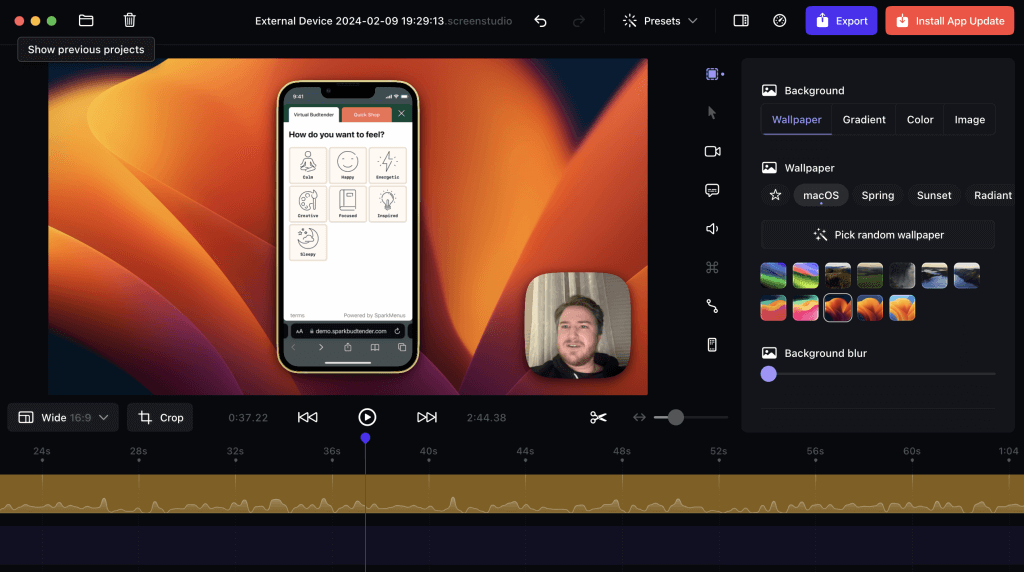
Screen Studio
Screen Studio has gained immense popularity among creators for one simple reason: it makes simple screen recordings look highly professional with very little effort. Its primary appeal lies in its automated editing workflow. Instead of requiring you to manually track your mouse or cut clips, it automatically applies smooth cursor movements, click animations, and cinematic zoom effects.
This makes Screen Studio an exceptionally fast option for creating software tutorials, social media demos, and quick product walkthroughs. However, it has one absolute boundary: it is natively macOS only.
Pros of Screen Studio:
- Extremely fast workflow for simple tutorials and demos
- Beautiful default cursor smoothing and automatic zoom effects
- Minimal learning curve compared to traditional video editors
Cons of Screen Studio:
- Natively macOS only; completely unavailable for Windows users
- Lacks a deep multi-track timeline for heavy video and audio editing
- Limited customization if you want to break away from its default aesthetic
Camtasia Overview: Cross-Platform Power (With a Steep Learning Curve)
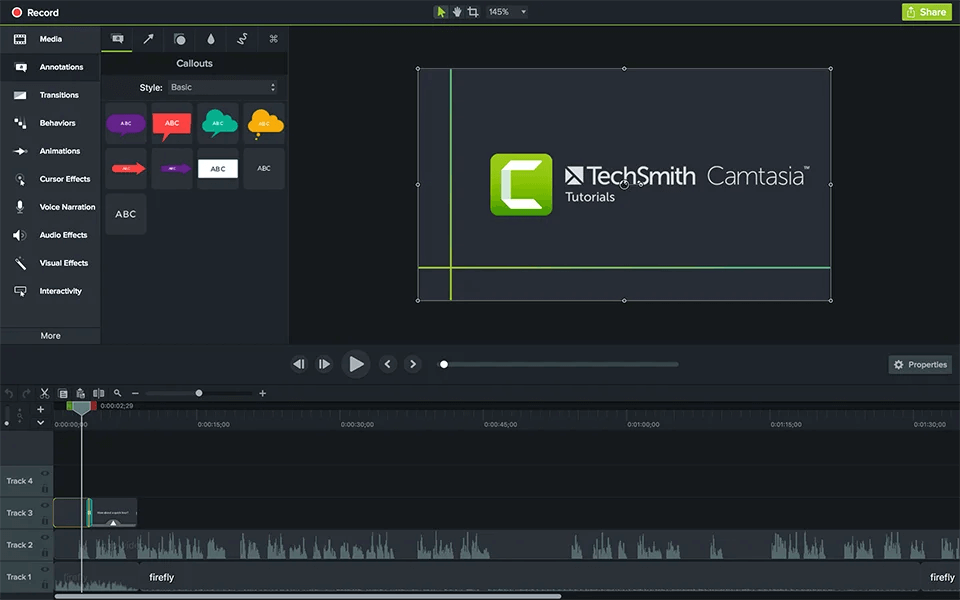
Camtasia
Camtasia is a powerhouse in the screen recording space, operating as a full non-linear video editor that works seamlessly on both Windows and macOS. Its primary appeal is flexibility and control. If you need to combine multiple camera angles, layer complex visual effects, or heavily manipulate audio tracks, Camtasia provides the timeline architecture to do it.
However, this power comes at the cost of workflow speed. While Camtasia can create zooms and cursor highlight effects, it generally requires tedious manual keyframing and editing to achieve the cinematic look that modern tutorials demand. It is also a significant financial investment, geared more toward professional production teams and heavy course creators. (Note: Because Camtasia’s pricing frequently changes, always check their official page for exact subscription or license costs.)
Pros of Camtasia:
- Full cross-platform support for both Windows and Mac
- Advanced multi-track timeline for complex video and audio production
- Rich library of built-in assets, transitions, and manual cursor effects
Cons of Camtasia:
- Steep learning curve for users who just want quick video polish
- Manual keyframing for zooms and cursor effects takes significantly longer
- Expensive pricing model that may be overkill for basic product demos
Head-to-Head Comparison: Screen Studio vs Camtasia
To help you evaluate which tool fits your daily production needs, here is a direct comparison across key criteria.
| Screen Studio | Camtasia | |
| Platform Support | macOS only | Windows & macOS |
| Editing Workflow | Automated | Manual timeline editing |
| Zoom & Cursor Effects | Automatic | Manual keyframing |
| Learning Curve | Very Easy | Steep |
| Pricing | One-time license | Premium pricing |
| Best For | Fast demos & tutorials | E-learning & advanced editing |
The Takeaway:
Screen Studio easily wins on speed and automatic polish for simple demos, while Camtasia wins on cross-platform flexibility and deep manual editing control. However, this comparison leaves a glaring gap. Many users find themselves wanting Screen Studio’s fast auto-editing features, but they need a dedicated Windows screen recorder.
The Missing Middle: The Problem for Windows Users
For many creators, comparing these two tools highlights a common and frustrating problem: you want the cinematic, automatic polish of Screen Studio, but you use a Windows PC. Users often waste hours searching for a native Windows version of Screen Studio, only to find it doesn’t exist.
On the other hand, purchasing a massive software suite like Camtasia just to record simple software tutorials is complete overkill. It requires a significant financial investment and forces you to spend hours manually keyframing zooms and cursor paths—time you could have spent publishing content.
Modern creators, educators, and product marketers need a “missing middle”: a cross-platform alternative that offers the speed of auto-editing without forcing you to learn a massive manual video editor.
FocuSee: The Cross-Platform Auto-Editing Alternative
If you are looking for a tool that bridges the gap between these two extremes, FocuSee is an AI-powered screen recorder that natively supports both Windows and macOS. It brings automatic smart zoom, cursor tracking, and click animations directly to your desktop, drastically reducing post-production time without requiring a Mac.
FocuSee is not designed to replace Camtasia for heavy, multi-track VFX film editing. Instead, it is the perfect middle-ground for fast, polished tutorials and demos. It eliminates the need for tedious manual keyframing by automating the most time-consuming parts of creating screen-based videos.
How the FocuSee Auto-Editing Workflow Works:
Step 1. Check Compatibility: Ensure you are on a supported Windows (10+) or macOS device.
Step 2. Record Your Screen: Capture your software demo, browser window, or presentation as normal.
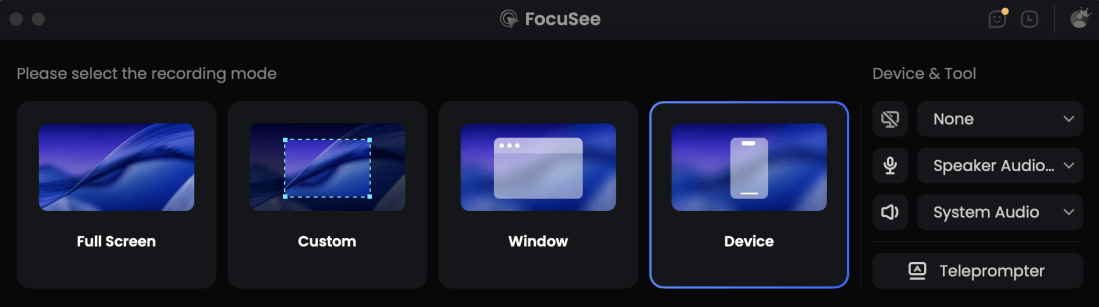
Choose the Recording Model
Step 3. FocuSee Automatically Applies Effects: Under supported conditions, the software automatically adds smart zooms, smooths your cursor, and highlights clicks so viewers can follow your actions easily.

Show Mouse Cursor
Step 4. Adjust Easily: Review the AI-generated timeline and tweak focus points quickly without complex keyframing.
Step 5. Export Your Video: Export your polished tutorial in up to 4K resolution (where compatible), ready for YouTube or social media.
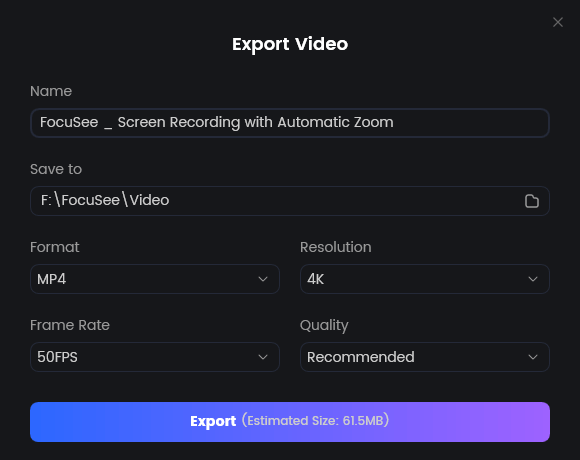
Export Your Video
By handling the zooms and cursor tracking automatically, FocuSee provides the speed of Screen Studio with the Windows support you expect from larger software.
Decision Guide: Which Tool Fits Your Workflow?
Choosing the right software comes down to evaluating your operating system and how much time you are willing to spend in post-production. Use this scenario guide to make your final decision:
| Choose… | |
| Mac user wanting the fastest auto-edited demos | Screen Studio |
| Need advanced timeline editing and effects | Camtasia |
| Need cross-platform auto-editing on Windows or Mac | FocuSee |
Each tool excels in its designated lane. Be honest about your technical skills and time constraints before investing in manual video editing software. If you are looking to step away from complex timelines entirely, exploring a dedicated Camtasia alternative might be your best bet.
Frequently Asked Questions
Is Screen Studio available for Windows?
No, Screen Studio is natively macOS only. If you want similar automated cinematic zoom and cursor tracking on a PC, FocuSee is an excellent Windows alternative.
How does Screen Studio auto zoom compare to Camtasia’s manual animations?
Screen Studio analyzes your recording to automatically apply zooms where your cursor moves and clicks. Camtasia can achieve similar zoom-and-pan effects, but you must manually set keyframes on the timeline, which takes significantly more time.
Can an auto-editing tool replace Camtasia?
It depends on your project. An auto-editing tool like FocuSee cannot replace Camtasia for heavy non-linear video editing, multi-camera syncing, or custom VFX. However, for daily software tutorials, product demos, and quick onboarding videos, an auto-editor easily replaces Camtasia by saving hours of manual editing.
How do you get cinematic cursor effects on Windows?
You can use an AI-powered screen recorder like FocuSee, which natively supports Windows 10 and above. It automatically tracks your mouse, applies cursor smoothing, and adds click animations under supported conditions, bypassing the need for tedious manual video editing.
Do I need a powerful PC to run Camtasia or Screen Studio?
Hardware requirements depend heavily on your chosen workflow. Camtasia is a full non-linear video editor, meaning high-resolution, multi-track editing will require a relatively powerful PC or Mac (specifically high RAM and CPU capabilities) to prevent rendering lag. Screen Studio is optimized specifically for macOS and runs exceptionally well on modern Apple Silicon processors. If you are on a standard Windows machine and want to avoid the heavy processing load of traditional timeline editors, an auto-editing tool like FocuSee can handle smart zooms and cursor effects efficiently, provided your device meets the baseline requirements (such as Windows 10 or later and at least 8 GB of RAM).
The Bottom Line: Which Screen Recorder Should You Choose?
Ultimately, the choice between Screen Studio and Camtasia is a choice between workflow speed and manual control. Screen Studio is fantastic for Mac users who want rapid, automatic polish, while Camtasia remains a powerhouse for creators who need deep, manual, multi-track editing on any platform.
However, if you are a Windows user frustrated by platform limitations, or simply a creator tired of manually keyframing zooms for every software tutorial, there is a better middle ground. FocuSee provides the cross-platform flexibility of Camtasia paired with the time-saving automation of Screen Studio.
If you want to significantly reduce your post-production time and create professional, easy-to-follow videos without a steep learning curve, check compatibility and try FocuSee to streamline your next software tutorial.
Related Articles
- Screen Studio Alternative for PC and Mac Users
- How to Make a Professional SaaS Product Demo Video
- Tutorial Video Maker: Record Step-by-Step Educational Content