Camtasia vs Loom: Which Screen Recorder Fits Your Workflow?

Loom is built for recording and sharing videos quickly, making it ideal for async updates, bug reports, and internal communication. Camtasia gives you much more control over editing, zooms, cursor effects, and multi-track production, but that control comes with more setup and post-production work.
For quick communication, choose Loom. For highly customized tutorials, choose Camtasia. If you want polished software demos without spending hours editing a timeline, an auto-editing tool like FocuSee sits between the two.
Head-to-Head Comparison: Features, Workflow, and Time-to-Publish
When evaluating Camtasia vs. Loom, counting features isn’t enough. You need to compare how each tool impacts your actual workflow and your time-to-publish.
Here is how the basic communication path (Loom) compares to the professional production path (Camtasia):
| Loom | Camtasia | |
| Primary Use Case | Async communication, updates, bug reports | Software tutorials, courses, polished demos |
| Platform / Deployment | Web, browser extension, desktop app | Native desktop app for Windows and macOS |
| Ease of Use | Very easy; one-click recording and sharing | Steeper learning curve; timeline editing required |
| Editing Capabilities | Basic trimming and AI summaries | Multi-track editing, animations, transitions |
| Visual Polish | Basic screen capture | High; manual zoom, panning, and cursor effects |
| Time-to-Publish | Instant cloud sharing | Slower; editing, rendering, and uploading required |
| Pricing Model | Free tier + paid subscriptions | Perpetual license or subscription |
If you need a video immediately to replace a long email, Loom’s time-to-publish is unbeatable. But if you need to manually guide a viewer’s eye to specific parts of the screen, Camtasia provides the necessary tools at the cost of hours spent in post-production.
Loom: The Fast (But Basic) Path
Loom is built primarily for asynchronous video communication. Its primary strength is eliminating friction between recording your screen and sharing the result with a colleague or client.
However, for tutorial creators, that speed comes with limitations regarding visual quality and viewer guidance.
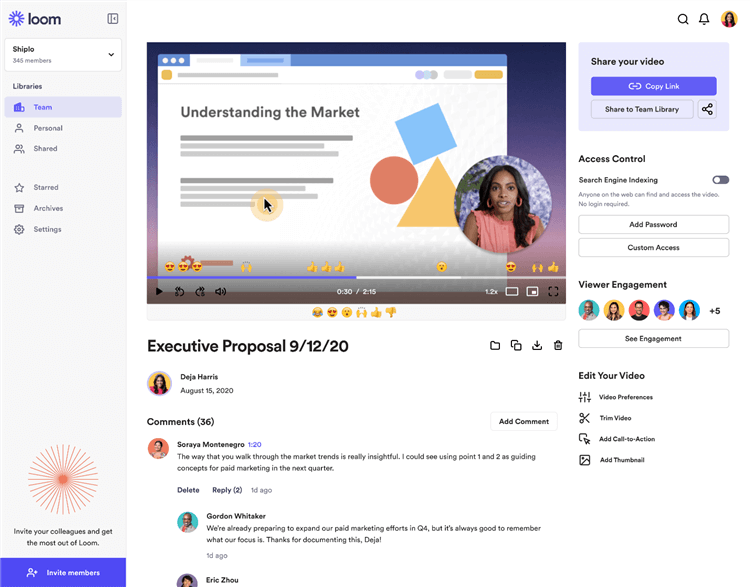
Loom Overview
Pros of Loom:
- Zero rendering time: The video uploads to the cloud as you record, generating a shareable link instantly.
- Extremely easy to use: Requires virtually no training to start recording your screen and webcam.
- Great for async communication: Perfect for replacing long emails, reporting bugs, or giving quick internal feedback.
Cons of Loom:
- Lacks visual polish: Videos can feel too casual or unpolished for official, customer-facing tutorials or high-stakes product demos.
- No advanced viewer guidance: It lacks smart zooms, panning, and professional cursor tracking to highlight specific UI elements.
- Limited post-production: While paid tiers offer basic trimming and AI-generated summaries, you cannot perform complex timeline edits, add B-roll, or layer multiple audio tracks.
Camtasia: The Professional (But Heavy) Path
Camtasia is a mature screen recorder and timeline editor designed for detailed video production. It is built for creators who want ultimate control over every frame of their video.
While its capabilities are vast, it introduces a significant time cost that can be overwhelming for creators who need to produce videos daily.
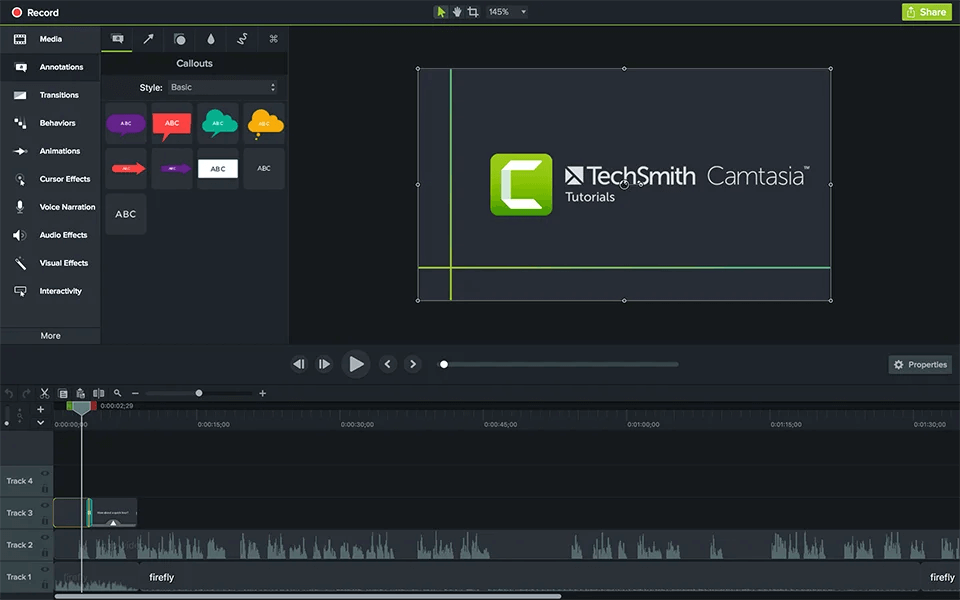
Camtasia Interface
Pros of Camtasia:
- Ultimate editing control: Full non-linear timeline editor for complex, multi-track video and audio projects.
- Advanced visual effects: Deep manual control over zooms, pans, custom cursor highlights, and annotations.
- High-quality production: Ideal for producing cinematic online courses, detailed software training, and premium YouTube tutorials.
Cons of Camtasia:
- High time cost: Manually keyframing zooms and adding captions to every single video takes hours of post-production work.
- Steeper learning curve: Requires users to learn traditional video editing concepts, which can be daunting for beginners.
- Heavy resource usage: Rendering high-resolution projects demands more system resources and time compared to cloud-based tools.
How We Tested
To make the comparison more practical, we tested Loom, Camtasia, and FocuSee using the same 3-minute software tutorial workflow on the same computer and recording setup.
Each tool was used to complete the same basic production tasks: recording the screen, trimming mistakes, adding captions, highlighting important UI elements, and preparing the video for sharing or export. We measured recording time, editing time, rendering/processing time, and time-to-publish separately.
The goal was not to compare every feature, but to measure how much hands-on work each tool requires to turn a raw screen recording into a polished tutorial.
| Loom | Camtasia | FocuSee | |
| Trim Mistakes | ✓ | ✓ | ✓ |
| Add Zooms | — | ✓ | ✓ |
| Cursor Effects | Limited | ✓ | ✓ |
| Captions | ✓ | ✓ | ✓ |
| Callouts / Annotations | ✓ | ✓ | ✓ |
| Total Editing Time | 25 min | 45 min | 15 min |
Test setup: MacBook Pro with Apple Silicon, macOS, latest available versions of Loom, Camtasia, and FocuSee. 3-minute 1080p software tutorial.
Editing time measures the time spent actively editing the same source recording. Rendering and upload time were measured separately and are not included in the editing-time figure.
The Hidden Tradeoff: Speed vs. Polish
The biggest difference between Loom and Camtasia isn’t just the number of editing features. It’s how much time you need to spend turning a raw recording into a polished video.
Loom prioritizes speed and easy sharing, while Camtasia gives you much more control over the final result—but requires more hands-on editing.
That’s why we measured editing time and total time-to-publish, rather than comparing features alone. The results show how much the workflow can differ when creating the same 3-minute software tutorial.
FocuSee: The Auto-Editing Alternative
To bridge the gap between basic screen recording and heavy video editing, you can use an AI-powered screen recorder like FocuSee.
FocuSee is designed specifically for the “best of both worlds” scenario. Available as a native desktop application for Windows and Mac, it provides a stable recording environment that automates post-production. Instead of forcing you to manually edit a timeline for hours, it tracks your actions during the recording and applies professional polish instantly. While it doesn’t replace Camtasia for complex, multi-track cinematic editing, it excels at producing fast, highly polished software tutorials.
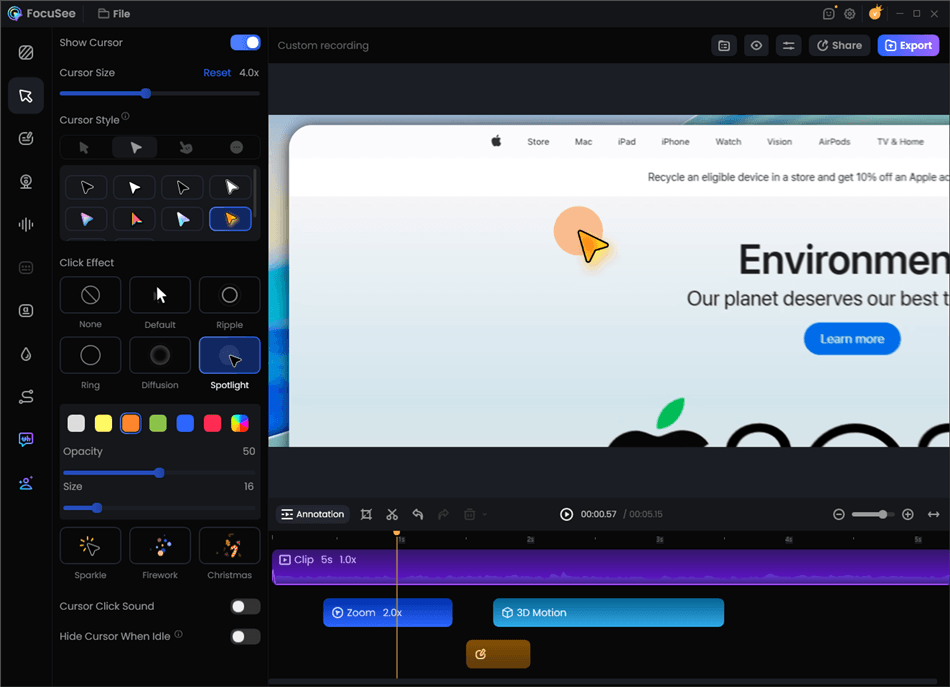
Record Screen with Cursor Following
Here is how the auto-editing workflow saves time:
- Record your screen normally: Capture your tutorial or product demo just as you would with any standard tool.
- Let AI apply visual focus: Under supported conditions, FocuSee automatically tracks your cursor, adds smart zoom effects to key clicks, and applies highlight animations without any manual keyframing.
- Review automated enhancements: FocuSee can automatically generate AI subtitles, clean up background audio, and frame your webcam layout.
- Export and share: Skip the hours of timeline editing and export your polished tutorial directly.
By automating the exact tasks that make traditional editing so tedious, FocuSee gives you Camtasia-style polish in a fraction of the time.
Scenario Recommendations: Which Tool Fits Your Workflow?
Choosing the right screen recorder depends entirely on what you are trying to achieve and how much time you have. Here are concrete recommendations based on common video creation scenarios:
- Choose Loom if: You need to send a quick, internal team update, report a bug to developers, or replace a long email instantly. It is the best choice when speed is critical and visual polish doesn’t matter.
- Choose Camtasia if: You are producing highly complex, multi-track cinematic tutorials, need advanced color grading, or want to build extensive custom animations from scratch. It remains the gold standard for dedicated video editors.
- Choose FocuSee if: You are creating external product demos, customer onboarding videos, or YouTube software tutorials. It is the ideal Camtasia alternative when you want professional zooms, cursor tracking, and subtitles, but you want the AI to handle the editing so you don’t lose hours in post-production.
Frequently Asked Questions
Is Camtasia better than Loom for product demos?
Yes, for visual polish. Camtasia allows you to add zooms, highlights, and annotations to guide the viewer. However, it is much slower than Loom. If you want polish without the speed penalty, an auto-editing tool is often a better fit.
Can Loom edit videos like Camtasia?
No. While Loom offers basic trimming and AI-generated summaries on its paid tiers, it lacks a multi-track timeline editor, custom transitions, and advanced visual effects.
Does Loom offer zooming and cursor tracking features?
No, Loom does not have native automatic smart zooms or deep manual zooming capabilities. It simply records your whole screen exactly as it appears.
Is Camtasia too complex for quick daily screen recordings?
For simple, daily high-volume output, Camtasia’s steeper learning curve and high post-production time cost make it less ideal. It is built for considered, professional editing rather than quick sharing.
How does FocuSee handle cursor effects?
Under supported conditions, FocuSee automatically tracks your cursor movements during the recording and applies enhancements like spotlights, click animations, and smart zooms, requiring little to no manual editing afterward.
The Bottom Line: Which Tool Should You Choose?
Ultimately, the choice between Camtasia and Loom depends on your tolerance for manual work and your need for visual quality. Loom easily wins on raw speed for asynchronous communication, making it a staple for internal team updates. Camtasia wins on deep manual control, making it indispensable for complex, cinematic video editing.
However, if you are stuck in the middle—needing polished tutorials, clear product demos, and professional onboarding videos without the burden of manual editing—FocuSee is the ideal bridge. It delivers the viewer guidance of a professionally edited video at a speed much closer to a simple screen capture.
Evaluate your own time-to-publish requirements. If you want to stop manually editing every zoom, click, and caption, try FocuSee for your next software tutorial and see how much time auto-editing can save your workflow.
Related Articles:
- Best AI Screen Recorders for Windows and Mac
- Screen Studio Alternative for Windows
- How to Make a SaaS Product Demo Video