10 Best AI Screen Recorder Tools to Automate Your Workflow

For many content creators, recording a video is the easy part—post-production is where the real frustration begins. Hours are often spent manually zooming into UI elements, cutting long silences, and cleaning up background noise, creating a bottleneck that slows down content output and creativity.
This is exactly what modern AI screen recording software is designed to solve. By automating tasks like cursor tracking, noise suppression, and visual emphasis, these tools shift the focus back to teaching and storytelling instead of timeline-based editing.
More importantly, screen recording itself has evolved. It is no longer just a capture tool, but is becoming an AI-powered content production system—where recording is only the first step in an automated creation workflow.
What is AI Screen Recording Software?
AI screen recording software is a new generation of tools that goes beyond simple screen capture. Unlike traditional screen recorders that only record and export video, AI-powered tools actively enhance, structure, and optimize the recording process.
The key difference lies in what happens after (and during) capture:
Traditional screen recorders only capture your screen and require manual editing afterward.
AI screen recorders automatically improve the recording by adding zoom effects, removing noise, and structuring content in real time or post-processing.
What makes a screen recorder “AI-powered” is its ability to intelligently handle tasks such as auto zoom on key actions, text-based or automated editing, noise and filler removal, and content structuring into clearer, more digestible segments.
Why Switch to AI Screen Recorder? The Time Cost Reality
The primary distinction between standard tools and AI-based recording software isn’t pixel quality—it’s the post-production workload.
- Standard Method: A 10-minute tutorial requires 60 to 90 minutes of manual editing to add zooms and clean audio.
- AI Method: With smart screen recording features processing metadata during capture, that same video often takes just 10-15 minutes of final review.
This guide evaluates the top options available today to help you find an AI-powered screen recorder that actually restores your productivity.
Best AI Screen Recorder Comparison Table
| Best For | Key AI Strength | Workflow Speed | Platforms | |
| FocuSee | Tutorial creators, solo makers | Auto zoom & smart cursor focus | ⭐⭐⭐⭐⭐ | Windows, macOS |
| Descript | Podcasters, scripted creators | Text-based editing & AI voice | ⭐⭐⭐⭐☆ | Windows, macOS |
| OBS + NVIDIA Broadcast | Streamers, power users | Real-time AI noise & background removal | ⭐⭐⭐☆☆ | Windows (RTX GPU) |
| Loom | Teams, async updates | Filler removal & auto summaries | ⭐⭐⭐⭐☆ | Web, Desktop |
| Camtasia | Trainers, instructional designers | AI-assisted edits + full control | ⭐⭐⭐☆☆ | Windows, macOS |
| Riverside | Remote interviews, podcasts | Local recording + AI audio enhancement | ⭐⭐⭐⭐☆ | Web, Desktop |
| Tella | SaaS demos, marketing videos | Auto scene structuring & quick edits | ⭐⭐⭐⭐☆ | Web |
| ScreenPal | Education, training content | Auto captions & simple AI editing | ⭐⭐⭐☆☆ | Windows, macOS, Web |
| VEED.io | Browser-based creators | AI subtitles, translation & editing | ⭐⭐⭐⭐☆ | Web |
| Screenify Studio | AI-first creators, automation workflows | AI-native auto zoom & smart editing | ⭐⭐⭐⭐☆ | Windows, macOS |
Top 10 AI Screen Recorder Tools to Automate Your Workflow
Here are 10 AI screen recorders we found and tested to automate workflows.
FocuSee: Best for Automated Tutorials
Best For: Creators who want truly “done-for-you” tutorials—automatic zooms, clean audio, and polished visuals without touching a timeline.
For creators who prioritize efficiency above all else, FocuSee stands out as the most automation-first screen recorder for Windows and macOS on this list. Instead of asking you to “edit smarter,” it fundamentally rethinks the workflow by embedding editing intelligence into the recording itself.
FocuSee treats your mouse movements, clicks, and keyboard actions as editing instructions, effectively turning your cursor into the camera operator. The result is a tutorial that feels intentionally edited—even though no manual keyframing or timeline work was ever done.
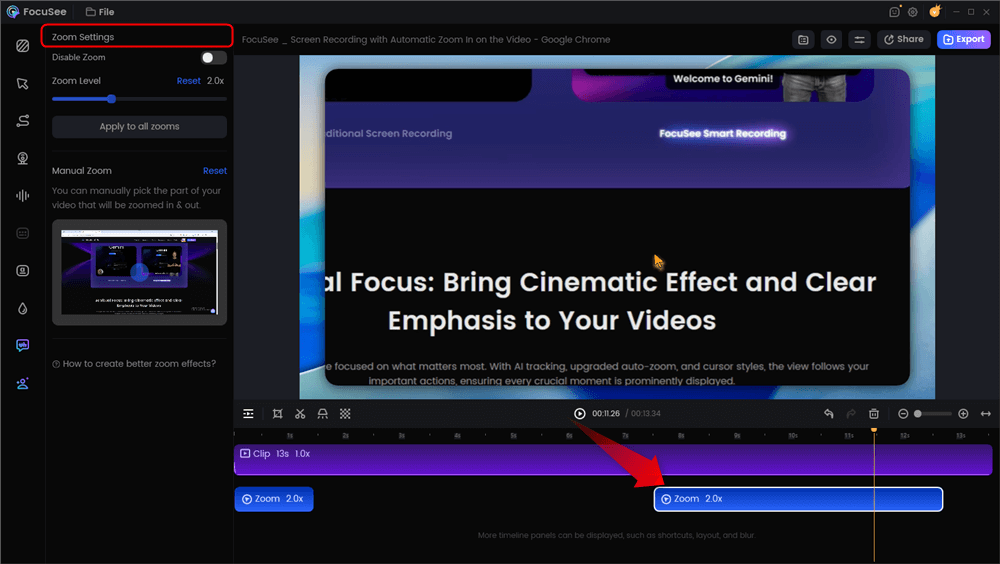
Automatic Zoom Effects
The AI Advantage
In a traditional workflow, guiding viewer attention requires painstaking manual work: adding zoom keyframes, highlighting UI elements, smoothing cursor movement, and cutting dead air. FocuSee automates all of this by default.
- Smart Focus & Auto-Zoom (Spotlight): Automatically detects mouse clicks and interaction zones, zooming or spotlighting the relevant UI area in real time. Viewers are always guided to the right place—without you setting a single keyframe.
- Intelligent Cursor & Keyboard Visualization: The cursor can auto-hide when inactive, display click animations, and even show on-screen keyboard shortcuts. This dramatically improves clarity in software tutorials and coding demos.
- Annotation: Enhance your videos with clear, layered annotations. Add text, shapes, arrows, and spotlights simultaneously to highlight key details and guide viewers through each step with precision and ease.
- AI Smart Cut & Audio Enhancement: Filler words, long pauses, background hum, breathing sounds, and minor mouth noises are automatically removed. The end result is a concise, professional-sounding video straight out of the recorder.
- Built-in Teleprompter & AI Avatar (Optional): FocuSee can display your script during recording or replace your webcam entirely with a virtual avatar—eliminating retakes while maintaining a consistent, polished on-camera presence.
- Automatic Subtitles & Layout Polish: Subtitles are generated with high accuracy in 50+ languages, while background blur, layout adjustments, and privacy masking are applied automatically—no green screen or manual masking required.
In short, FocuSee doesn’t just speed up editing—it removes the need for most of it altogether.
Real-World Test Results
During our testing on a MacBook Pro M2, FocuSee excelled at handling continuous background noise, such as air-conditioner hum, and produced clean, usable audio without manual tuning. Auto-zoom behavior was accurate and context-aware, rarely over-zooming or missing key UI interactions.
That said, the AI Audio Enhancement struggled slightly with sudden, irregular noises, such as loud mechanical keyboard strikes, where specialized audio-first tools like Descript still hold an edge.
Pros
- True Auto-Editing: Zooms, highlights, captions, cursor effects, and filler-word cuts are generated automatically during recording.
- Extreme Time Savings: Most videos require only a quick review before export—no timeline work needed.
- Cross-Platform Consistency: Identical, responsive experience on both Windows and macOS.
- Post-Recording Flexibility: Batch-adjust zoom intensity, cursor styles, or layouts after recording if needed.
Cons
- Export-First Workflow: Optimized for direct publishing rather than round-tripping into pro editors like Premiere Pro.
Descript
Best For: Podcasters, scripted video creators, and those who prefer editing text documents over video timelines.
Descript is widely regarded as the premier AI video editing software for creators who want to edit a video by deleting text from a transcript. It fundamentally changes the editing mental model.
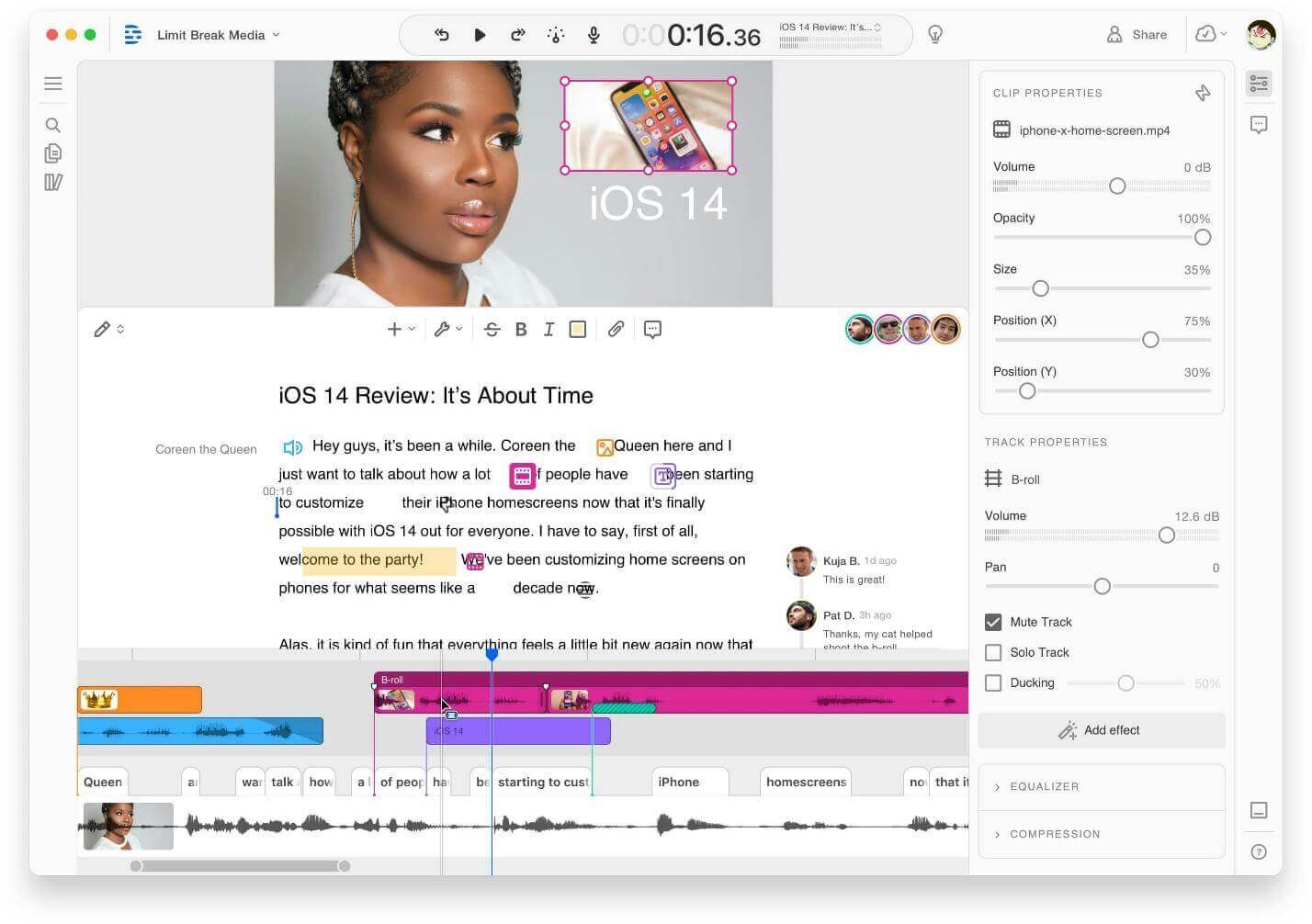
Descript
The AI Advantage
Its standout feature is “Overdub,” which allows you to correct audio mistakes by typing new text in your own AI-cloned voice. It also features “Studio Sound,” a regenerative filter that can turn echoey laptop audio into podcast-quality sound.
Real-World Test Results:
During our Windows 11 testing, “Studio Sound” proved to be the most impressive noise-reduction tool in the group. It completely isolates the voice from a noisy background. However, be careful not to set the intensity to 100%, as it can occasionally make speakers sound robotic or “clipped.”
Integration & Workflow:
- Integrations: Exports explicitly to Adobe Premiere Pro, Final Cut Pro, and DaVinci Resolve (XML/FCXML), making it a perfect “pre-edit” tool for professional workflows.
- Friction Point: The initial transcription phase can take a few minutes for long recordings, which may slow down users seeking instant playback.
Pros:
- Text-Based Editing: Delete a word in the transcript, and it cuts the video frame automatically.
- Studio Sound: Industry-leading voice isolation.
- Eye Contact AI: Can digitally adjust your eyes to look at the camera if you were reading a script.
Cons:
- Steep Learning Curve: Requires unlearning traditional timeline editing.
- Resource Heavy: Can feel sluggish on older machines with limited RAM.
OBS Studio (with NVIDIA Broadcast)
Best For: Live streamers and users with powerful dedicated graphics cards (NVIDIA RTX series).
OBS is the industry standard for streaming, but it becomes a powerful AI-powered screen recorder when paired with the NVIDIA Broadcast Engine. This is not a “download and go” solution; it requires a modular setup.
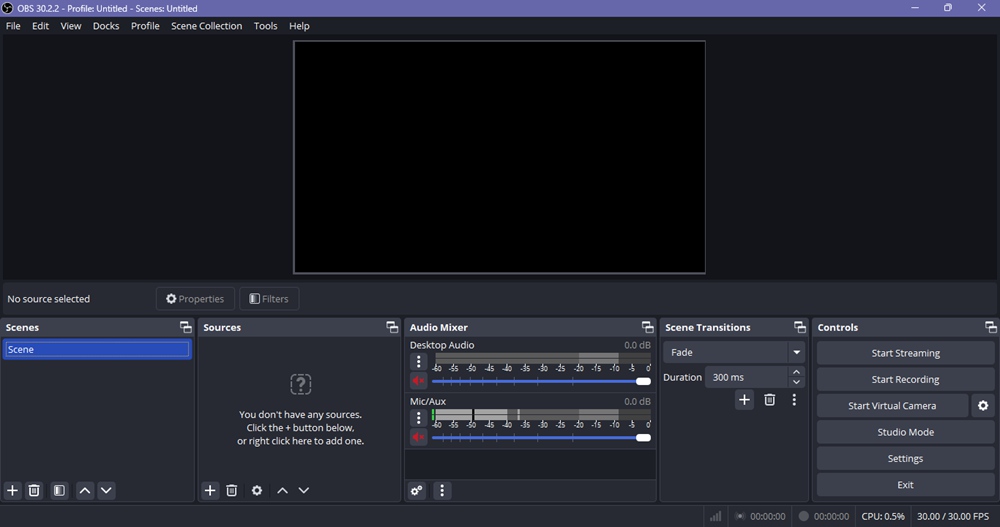
OBS
The AI Advantage
NVIDIA Broadcast handles background removal (virtual green screen) and room echo removal in real-time using the Tensor Cores on RTX graphics cards. This means the “editing” happens before the video is even recorded.
Real-World Test Results:
On our Windows desktop with an RTX 3070, the background removal was flawless. However, on the Mac, setup was significantly more difficult. Since NVIDIA Broadcast is Windows-exclusive, Mac users must rely on Apple’s native “Portrait Mode” effects, which OBS can access, but with less granular control.
Integration & Workflow:
- Integrations: Direct integration with Twitch, YouTube Live, and practically every capture card on the market.
- Friction Point: We experienced two crashes on Windows when trying to load the noise removal plugin while recording at 4K resolution. This setup is resource-intensive.
Pros:
- Zero Cost: Free and open source.
- Real-Time Processing: No rendering time required; the video is ready the moment you stop recording.
- Professional Quality: The highest potential video bitrate and quality on this list.
Cons:
- High Technical Barrier: You must manually install plugins and configure audio input sources.
- Hardware Dependent: Requires a dedicated NVIDIA GPU for the best AI features.
Loom
Best For: Asynchronous communication and remote teams.
Loom utilizes screen capture AI technology to focus on speed and information transfer rather than polished production value. It is the tool of choice for replacing meetings with video.
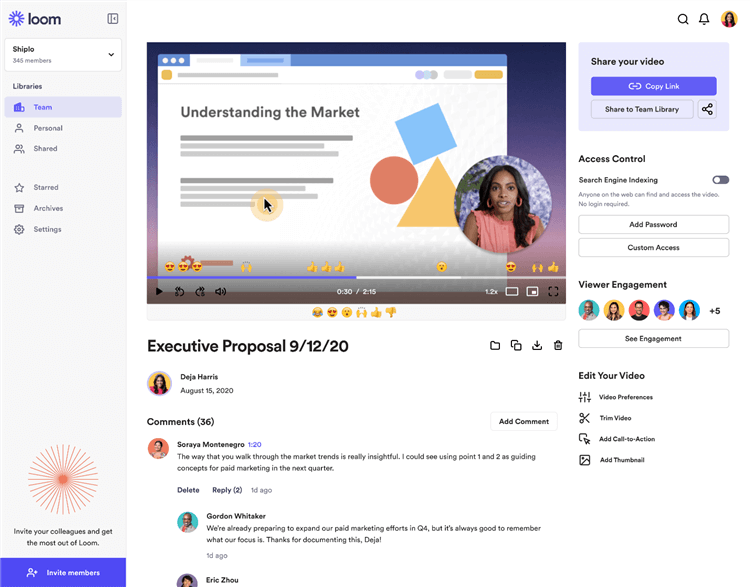
Loom Overview
The AI Advantage
“Loom AI” automatically removes “umms” and “ahhs” (filler words) and generates instant summaries, titles, and chapters for your video. This makes your content searchable and easy for teammates to skim.
Real-World Test Results:
The “Filler Word Removal” is aggressive and generally accurate, though it sometimes cuts off the very start of a sentence if you speak too quickly after a pause. The browser extension is convenient, but for longer recordings (5+ minutes), the desktop app proved much more stable in our tests.
Integration & Workflow:
- Integrations: Unmatched embedding capabilities. Looms unfurl and play directly inside Notion, Slack, Jira, and Gmail.
- Workflow: Record -> AI Auto-Title -> Paste link in Slack.
Pros:
- Speed: The fastest “record-to-share” pipeline.
- Context: AI summaries help viewers decide if they need to watch the whole video.
Cons:
- Monthly Subscription: The best AI features are locked behind the paid “AI Add-on” tier.
- Editing Limits: Very basic trimming capabilities; not suitable for creative storytelling.
Camtasia
Best For: Instructional designers who want AI assistance but demand granular control over every frame.
Camtasia is a veteran in the space that has recently adopted smart screen recording features. It offers a “best of both worlds” approach, combining a traditional multi-track timeline with AI accelerators.
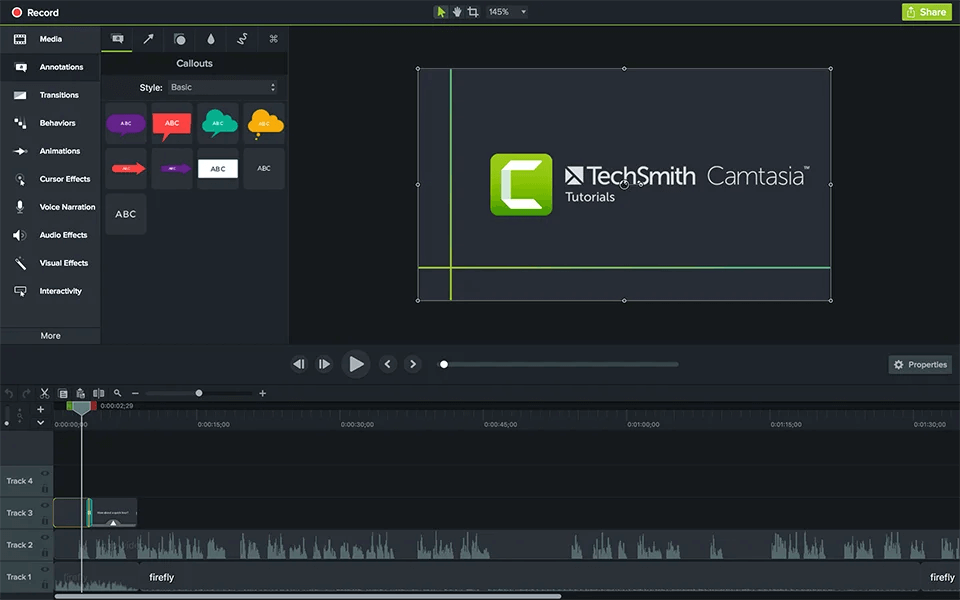
Camtasia Overview
The AI Advantage
Camtasia now includes “Rev,” a workflow that lets you apply AI-assisted layouts, cursor smoothing, and background removal immediately after recording. Unlike FocuSee, which handles everything for you, Camtasia suggests edits that you can tweak.
Real-World Test Results:
The “Cursor Smoothing” feature is a highlight—it takes jittery mouse movements and turns them into a straight, professional line. However, the file sizes for Camtasia projects (.tscproj) are enormous compared to Descript or FocuSee, consuming significant drive space during our 40-hour test.
Integration & Workflow:
- Integrations: Direct export to Screencast.com, YouTube, and specialized Learning Management Systems (LMS).
- Audio: Integrates with “Audiate,” TechSmith’s AI audio editor (sold separately).
Pros:
- Granular Control: You can adjust the exact ease-in/ease-out speed of a zoom animation.
- Feature Rich: Includes a massive library of assets, annotations, and transitions.
Cons:
- Price: One of the more expensive upfront costs.
- Performance: Can be slow to render 4K projects on machines without Apple Silicon or high-end GPUs.
Screenify Studio — Best for AI-Native Screen Recording
Best For: Creators who want cinematic, fully AI-enhanced screen recordings with auto zoom, captions, and editing processed on-device.
Screenify Studio is an AI-native screen recording tool designed to go beyond simple capture. Instead of treating editing as a post-process, it embeds AI directly into the recording workflow, automatically enhancing visuals and structuring content in real time.
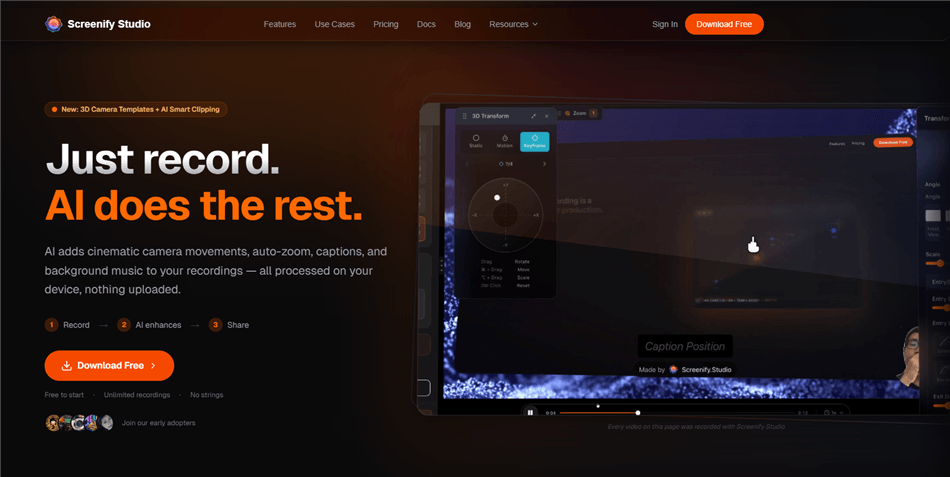
AI Screen Recorder- Screenify Studio
Key AI Features:
- AI-powered auto zoom based on cursor and click detection
- On-device AI captions and transcription
- Smart clipping to remove silence and dead zones
- Real-time background and voice enhancement
- 3D cinematic camera and callout effects
Unlike traditional screen recorders, Screenify treats every recording as a multi-layer production, combining capture, editing, and enhancement into a single workflow.
Riverside — Best for Remote Interviews
Best For: Podcasters and interview-based content creators who need high-quality remote recordings.
Riverside is designed for remote video and podcast recording, capturing audio and video locally on each participant’s device to avoid quality loss from internet instability. It combines recording, transcription, and AI enhancement into one workflow.
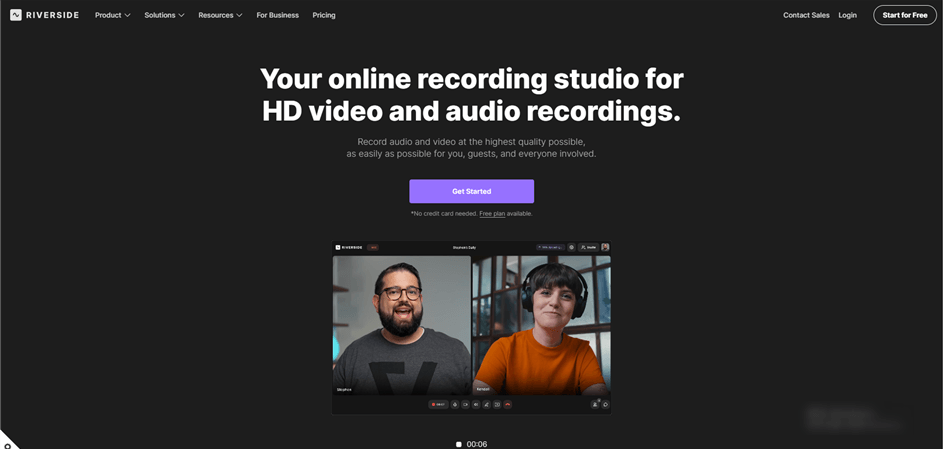
AI Screen Recorder – Riverside
The AI Advantage
Riverside uses AI to enhance multi-track recordings, including voice isolation, noise reduction, and automatic transcription. Because recordings are captured locally, AI processing works on high-quality source files rather than compressed streams.
Real-World Test Results:
During testing with two remote participants on unstable Wi-Fi, Riverside maintained high-quality recordings without noticeable compression artifacts. AI noise reduction handled background hum well, though occasional sync drift required minor manual adjustment in longer sessions.
Integration & Workflow:
- Integrations: Exports to Adobe Premiere Pro, Final Cut Pro, and supports direct publishing to platforms like YouTube and Spotify.
- Friction Point: Upload and processing time increase with longer recordings, especially when handling multiple high-resolution tracks.
Pros:
- Local Recording Quality: No quality loss due to the internet connection.
- Multi-Track Flexibility: Separate audio/video tracks for each participant.
- AI Transcription: Accurate and fast subtitle generation.
Cons:
- Upload Delay: Processing can take time after recording.
- Browser Dependency: Performance varies depending on system and browser stability.
Tella — Best for Marketing Videos
Best For: SaaS marketers and product teams creating polished demos and social content.
Tella is a browser-based screen recorder focused on simplicity and speed, combining recording and lightweight editing into a single streamlined workflow.
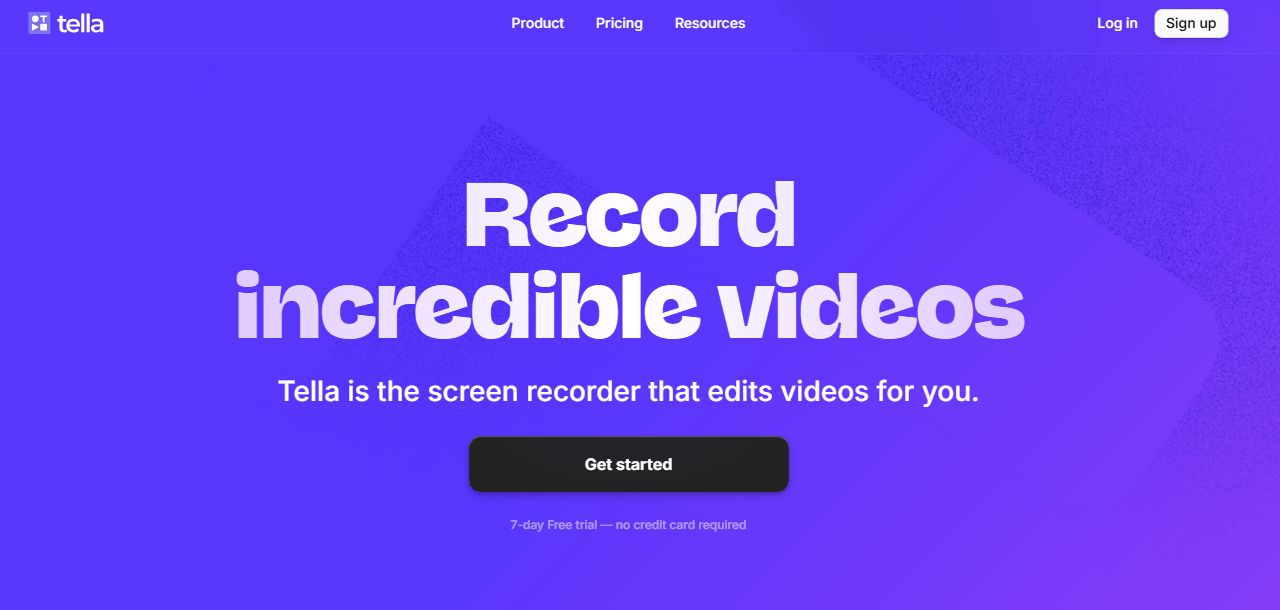
AI Screen Recorder – Tella
The AI Advantage
Tella uses AI to simplify editing by automatically trimming scenes, organizing clips, and applying layouts. It reduces the need for manual timeline adjustments by turning recordings into pre-structured video segments.
Real-World Test Results:
In testing short product demo videos (2–5 minutes), Tella significantly reduced editing time by auto-organizing clips into scenes. However, for longer or more complex recordings, manual adjustments were still needed to refine pacing.
Integration & Workflow:
- Integrations: Direct export for social media platforms and easy sharing via links.
- Friction Point: Limited advanced editing controls compared to desktop software.
Pros:
- Fast Workflow: Record and publish within minutes.
- Clean UI: Beginner-friendly and intuitive.
- Scene-Based Editing: Simplifies video structure without timeline complexity.
Cons:
- Limited Depth: Not suitable for complex editing projects.
- Browser Limitations: Performance depends on internet and browser stability.
ScreenPal — Best for Education & Training
Best For: Teachers, educators, and corporate trainers creating instructional content.
ScreenPal focuses on accessibility and ease of use, offering a simple recording and editing environment with basic AI-assisted features for educational workflows.
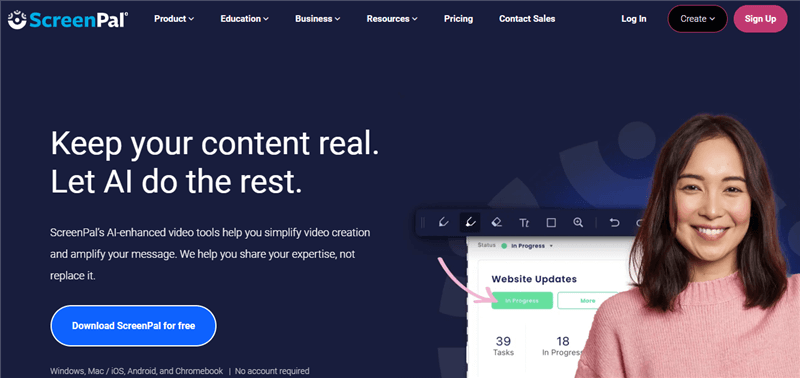
AI Screen Recorder – ScreenPal
The AI Advantage
ScreenPal includes AI-powered captions, basic editing assistance, and automated publishing tools. While less advanced than other tools, it prioritizes usability and speed for instructional content creation.
Real-World Test Results:
During testing for tutorial videos, ScreenPal performed reliably with stable recording and easy export. Auto-captioning worked well for clear speech, though accuracy dropped slightly with technical terminology.
Integration & Workflow:
- Integrations: Direct upload to YouTube, LMS platforms, and cloud hosting services.
- Friction Point: Limited AI depth and fewer automation features compared to newer AI-native tools.
Pros:
- Ease of Use: Very beginner-friendly.
- Education-Focused: Built-in tools for teaching workflows.
- Affordable: Lower cost compared to premium tools.
Cons:
- Basic AI Features: Limited automation compared to competitors.
- Design Limitations: Fewer customization and visual enhancement options.
VEED.io — Best for Browser-Based AI Editing
Best For: Creators who want fast, no-install AI video editing and screen recording.
VEED.io is a browser-based video editing platform that combines screen recording with a full suite of AI-powered editing tools, making it ideal for quick content production.
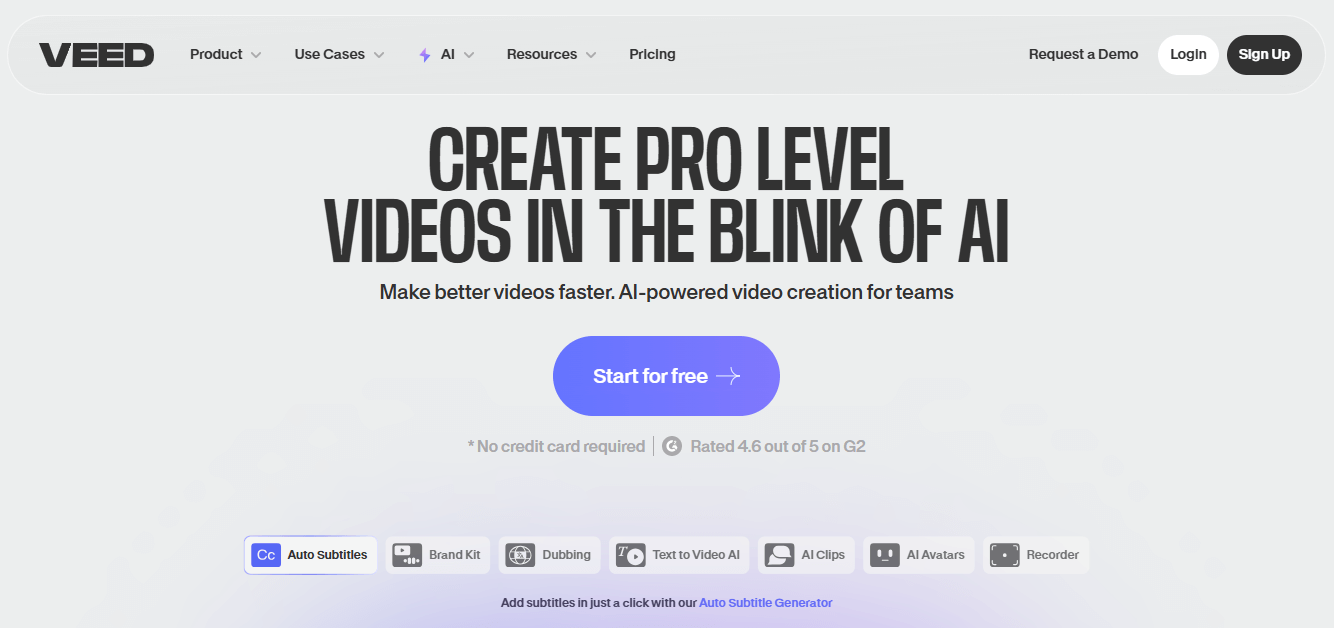
AI Screen Recorder – VEED
The AI Advantage
VEED.io offers strong AI editing capabilities, including automatic subtitles, translation, background removal, and text-based editing—all accessible directly in the browser without installation.
Real-World Test Results:
In testing short-form content and subtitle generation, VEED.io performed quickly and accurately. However, larger projects (10+ minutes) showed slower processing speeds due to browser limitations.
Integration & Workflow:
Integrations: Easy export for YouTube, TikTok, and other social platforms.
Friction Point: Performance can lag with high-resolution or long-duration videos.
Pros:
- No Installation Required: Fully browser-based workflow.
- Strong AI Subtitle Tools: Fast and accurate transcription and translation.
- All-in-One Editor: Combines recording and editing in one place.
Cons:
- Performance Limits: Slower with large files or long videos.
- Subscription Model: Advanced features require paid plans.
AI Screen Recorder by Use Case
Instead of choosing tools blindly, the best way to pick an AI screen recorder is by your actual workflow needs. Here’s a breakdown based on real creator use cases:
Best AI Screen Recorders for Tutorials & Product Demos
If your goal is to create step-by-step walkthroughs, software demos, or educational content:
- FocuSee — fully automated zoom, cursor tracking, and editing-free workflow
- Camtasia — advanced control with AI-assisted editing tools
- ScreenPal — simple education-focused recording with captions
👉 Best choice: FocuSee (fastest “record → publish” workflow)
Best for Teams & Async Communication
If you are replacing meetings or improving team communication:
- Loom — instant sharing + AI summaries + filler removal
- VEED.io — browser-based collaboration + subtitles
- ScreenPal — lightweight sharing for training content
👉 Best choice: Loom
Best for Transcription & Text-Based Editing
If your workflow depends heavily on transcripts or podcast-style editing:
- Descript — industry-leading text-based video editing + Overdub AI
- Riverside — high-quality remote recording + AI transcription
- VEED.io — fast subtitle + translation generation
👉 Best choice: Descript
Best Free AI Screen Recorders
If you want zero-cost or freemium tools:
- OBS Studio (with NVIDIA Broadcast) — real-time AI processing
- Loom (free tier) — basic async video sharing
- ScreenPal — beginner-friendly free plan
👉 Best choice: OBS Studio
Best Browser-Based AI Screen Recorders
No installation required, works directly in browser:
- VEED.io — full AI editing suite in browser
- Tella — simple SaaS demo creation
- Loom — fastest sharing workflow
👉 Best choice: VEED.io
Best AI Screen Recorders for Mac & Windows
Cross-platform tools with strong optimization:
- FocuSee — optimized for both Mac (Apple Silicon) and Windows
- Descript — strong performance on both systems
- Camtasia — enterprise-level stability across platforms
👉 Best choice: FocuSee
Real-World Workflow: How to Configure AI for Success
Adopting AI-based recording software requires adjusting your production workflow. As one user noted during our research, “AI features should complement your workflow, not replace your creative oversight.”
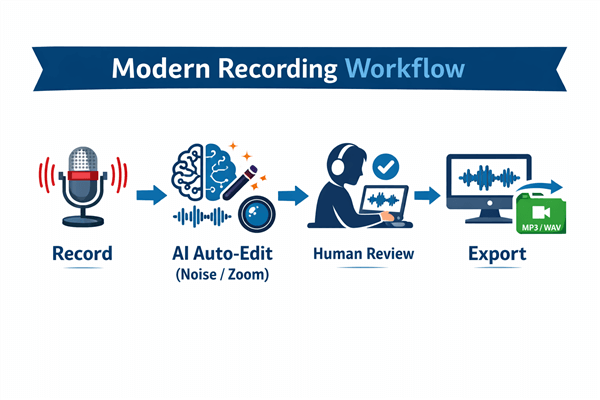
AI-based Recording Workflow
Here is the specific configuration workflow we used during testing to maximize efficiency:
Step 1. Preparation & Settings:
- Zoom Sensitivity: For FocuSee, set “Auto-Zoom” to High for coding tutorials (where text is small) but Low for slide presentations (to avoid motion sickness).
- Visibility: Toggle “Cursor Highlight” to at least 150% size. This ensures your actions are visible even when viewers watch on mobile devices.
- Audio: If using Descript or OBS, perform a 10-second “mic check” to ensure the noise gate isn’t cutting off your quietest whispers.
Step 2. Recording:
Perform your task naturally. Do not “fake” zooms by leaning into the screen; trust the software to follow your clicks.
Ste 3. AI Processing:
Allow the software to generate the initial cut. Use this time to grab a coffee—rendering smart zooms takes more processing power than a standard video export.
Step 4. Human Review:
Watch the playback. AI lacks context—it might zoom in on a pop-up ad instead of your content. Manually adjust these errant keyframes.
Choosing the Right AI Screen Recording for Mac and Windows
When selecting AI screen recording for Mac and Windows, operating system compatibility is the deciding factor.
For Windows Users (Windows 10/11):
Windows is the superior platform for real-time AI processing if you have a dedicated GPU. Tools like OBS with NVIDIA Broadcast thrive here. If you are on a standard office laptop with integrated graphics, stick to cloud-processed tools like Loom or lightweight editors like FocuSee to avoid system lag.
For macOS Users (Big Sur+):
Mac users benefit significantly from Apple Silicon (M1/M2/M3 chips). Descript and FocuSee are highly optimized for the Neural Engine in these chips, allowing for smooth background blur and voice isolation without draining the battery or overheating the device. However, avoid plugin-heavy setups like OBS unless you are comfortable troubleshooting permissions in System Preferences.
Frequently Asked Questions About AI Screen Recorders
What is the best AI screen recorder for Windows?
The best AI screen recorder for Windows is FocuSee, thanks to its automated zoom, cursor tracking, and fully AI-driven editing workflow. For advanced streaming setups, OBS with NVIDIA Broadcast is also a strong free option.
What is the best AI screen recorder for Mac?
For Mac users, FocuSee and Descript are the top choices. Both are optimized for Apple Silicon (M1/M2/M3) and provide smooth AI-powered editing without heavy performance issues.
Does AI screen recording replace video editing?
AI screen recorders significantly reduce manual editing, but they do not completely replace human editing. Most tools still require final review to fix misaligned zooms, pacing, or context errors.
What is the best free AI screen recorder?
The best free AI screen recorder is OBS Studio with NVIDIA Broadcast, offering real-time AI noise removal and background effects. Loom also provides a free tier for simple async videos.
Loom vs Descript: which is better?
Loom is better for fast team communication and sharing, while Descript is better for creators who need advanced AI editing and transcript-based video production.
What is the best AI screen recorder for tutorials?
FocuSee is the best AI screen recorder for tutorials because it automatically handles zooming, cursor focus, annotations, and editing in one workflow without manual timeline work.
Are AI screen recorders better than traditional screen recorders?
Yes, AI screen recorders save significant post-production time by automating zoom, noise removal, and editing. Traditional tools still require manual editing for professional output.
What is the best AI screen recorder for teams?
Loom is the best AI screen recorder for teams because it focuses on quick recording, instant sharing, and AI-generated summaries for async communication.
Do AI screen recorders work offline?
Yes, desktop tools like FocuSee, Camtasia, and OBS work offline. However, browser-based tools like VEED.io and Tella require internet access.
What is the difference between AI screen recorders and normal screen recorders?
Normal screen recorders only capture video, while AI screen recorders automatically enhance footage with zoom effects, noise reduction, subtitles, and structured editing.
What is the best browser-based AI screen recorder?
The best browser-based AI screen recorder is VEED.io, offering AI subtitles, translation, and editing without installation.
Can AI screen recorders improve audio quality?
Yes, tools like Descript, Riverside, and OBS (with NVIDIA Broadcast) can significantly improve audio quality by removing noise, echo, and filler sounds automatically.
Final Thoughts
Switching to AI-powered screen recording tools isn’t just a software upgrade—it’s a shift in how you value your time. Manual tasks like zooming, trimming, and audio cleanup are no longer unavoidable parts of the workflow.
Instead, modern tools let you automate most of the editing process so you can focus on creating and sharing content faster.
Choosing the right tool depends on your workflow:
- For fast tutorial creation: Use FocuSee — it automates zooms, cursor focus, and editing so you can go from recording to finished video in minutes.
- For scripted or narrative content: Use Descript — its text-based editing gives you precise control over storytelling and audio.
- For live streaming and technical setups: Use OBS — powerful and flexible, especially when paired with AI enhancements like NVIDIA Broadcast.
- For quick team communication: Use Loom — designed for instant recording, sharing, and async collaboration.
Ultimately, the best tool is the one that removes your biggest bottleneck—whether that’s editing time, audio cleanup, or content distribution. The less time you spend in post-production, the more time you can spend creating.