Steps to Create a Video Presentation
Record a Video Presentation
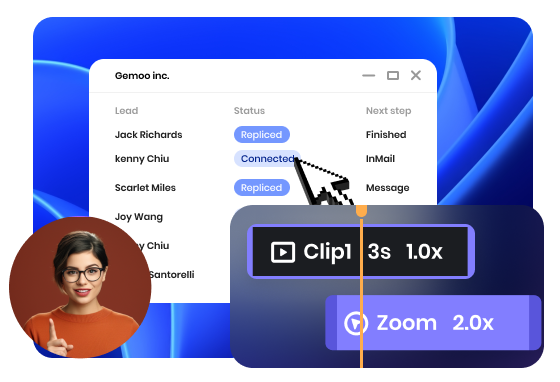
Make a video presentation by recording your screen. You can record the whole or part of the screen, or record audio and webcam at the same time.

Edit the Video Presentation
Edit your video presentation. You can apply video effects such as the addition of a mouse cursor, auto-zoom effects, and spotlight enhancements to enhance its visual appearance
Save & Share
Preview the video presentation. Save it locally and share it with your team members.
Why Use This Video Presentation Maker
Smooth Mouse Cursor Movement
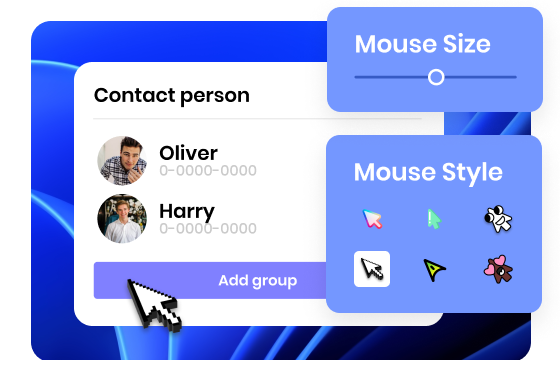
By integrating smooth mouse cursor movement into your video presentations, you will enhance the overall quality, professionalism, and engagement of your content. With the ability to customize mouse styles, resize the mouse cursor, and incorporate mouse animation effects, you can create a seamless viewing experience that allows your audience to effortlessly follow your actions on the screen.
Create a Video Presentation Now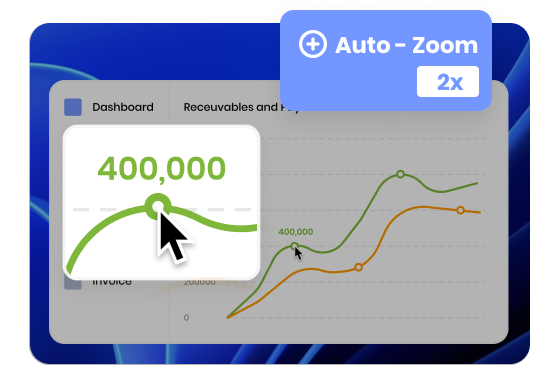
Smart Automatic Zoom-in Effect
Enhance your video presentations with the automatic zoom-in effect. With this feature, you can automatically zoom in on actions you perform on your screen and effortlessly boost your audience's attention and engagement. This ensures that every important action or detail is highlighted, making it easier for your viewers to follow along and grasp the key points.
Create a Video Presentation Now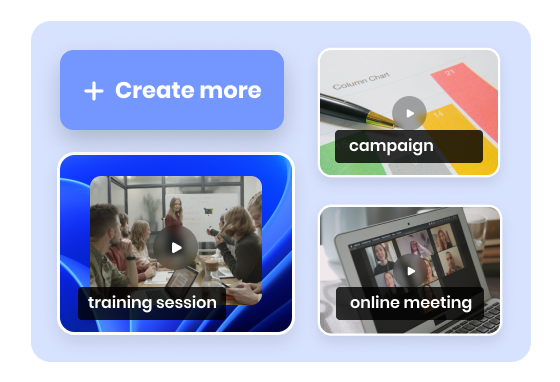
Personalize Presentation Videos
You can easily create video presentations that cater to a wide range of purposes and needs. Whether you're making a video presentation for delivering an online meeting, a video performance report, an educational lecture, a marketing campaign, or a training session, it can empower you to create compelling video presentations tailored to your specific application.
Create a Video Presentation NowMore Video Editing Tools
FAQs About Video Presentation Maker
1. What is a video presentation maker?
A video presentation maker is a tool that helps you record and produce a presentation as a video—typically by capturing your slides or screen with narration, and optionally adding a webcam view. With FocuSee, you can record your screen with audio and webcam, then enhance clarity with cursor effects and auto-zoom.
2. How do I make a video presentation with FocuSee?
3. Can I record my screen, audio, and webcam at the same time?
4. How can I make slide presentations easier to follow on video?
5. Can FocuSee automatically zoom in during a presentation recording?
6. What’s the best length for a video presentation?
7. Can I record only part of my screen (not the whole display)?
8. Can I create a video presentation from PowerPoint?
9. What makes a video presentation look professional (without heavy editing)?
 FocuSee
Video Presentation Maker
Create professional video presentations on your own with this easy-to-use Video Presentation Maker.
Create a Video Presentation Now