Screen Studio vs ScreenFlow: Which Video Workflow Fits You Best?

Screen Studio and ScreenFlow take very different approaches to video editing. Screen Studio focuses on automated visual polish for quick, polished screen recordings, while ScreenFlow offers a traditional timeline editor for more precise, hands-on control.
Both are Mac-only, so the better choice depends largely on whether you prioritize speed and automation or editing control.
To see how that difference plays out in practice, we tested both tools on the same software tutorial and compared their recording and editing workflows.
Screen Studio vs ScreenFlow: At a Glance
To help you evaluate which tool best fits your screen recording and editing needs, here is a side-by-side comparison of Screen Studio, ScreenFlow, and FocuSee—a cross-platform AI alternative.
| Screen Studio | ScreenFlow | FocuSee | |
| Platform | macOS | macOS | Windows & macOS |
| Editing Approach | Automatic | Manual timeline | Automatic + manual controls |
| Automatic Zoom | ✓ | — | ✓ |
| Cursor Enhancement | Automatic | Manual | Automatic |
| Multi-track Timeline | — | ✓ | — |
| Captions | ✓ | ✓ | ✓ |
| Audio Enhancement | ✓ | Advanced | ✓ |
| Best For | Quick demos & tutorials | Complex video projects | Automated demos & tutorials |
If you are working on a Mac and need granular control over layers, audio, and transitions, ScreenFlow’s traditional timeline is the standard. If you want high-quality Mac demos in minutes without touching keyframes, Screen Studio excels. However, if you are frustrated by the “Mac-only” limitation or want automatic zoom and cursor effects combined with AI captions and audio cleanup on either a PC or a Mac, FocuSee provides a highly effective alternative workflow.
Also Read: Screen Charm vs Screen Studio >
Screen Studio vs ScreenFlow: Our Hands-On Test
Instead of comparing features alone, we tested both tools using the same 3-minute software tutorial.
The goal was to see how much work was required to turn a raw screen recording into a polished video. We repeated the same workflow in FocuSee to see how an automated, cross-platform alternative compared.
For each tool, we:
- Recorded the same 3-minute software walkthrough.
- Removed two mistakes from the recording.
- Added captions.
- Added visual emphasis to two important UI actions.
- Applied zoom and cursor effects where needed.
- Exported the finished video.
We measured the time required for each post-recording task and compared the amount of manual editing involved.
Screen Studio and FocuSee reduced manual work with automatic zoom and cursor effects, while ScreenFlow gave us more control but required more hands-on editing.
ScreenFlow was the stronger option for complex, multi-layer projects. For a straightforward software tutorial, however, the automated workflow made it faster to reach a polished result.
Screen Studio: Best for Fast, Polished Mac Recordings
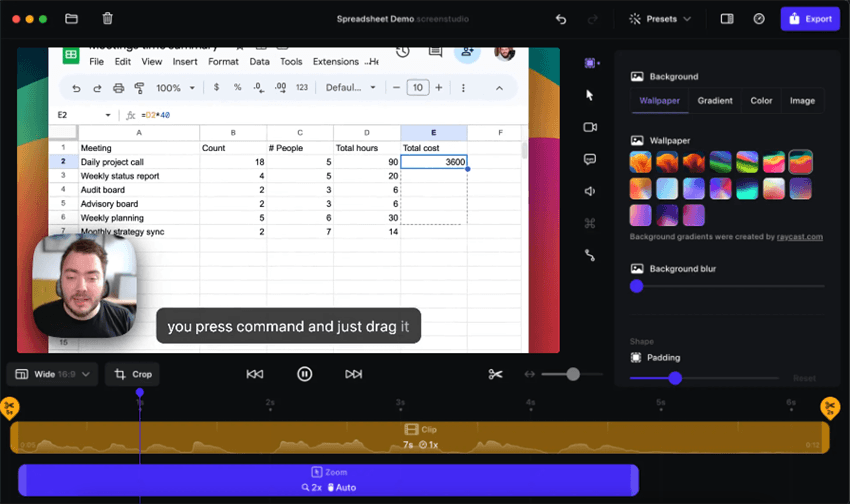
Screen Studio Interface – Mac Only
Screen Studio has gained massive popularity among SaaS founders, marketers, and content creators for its ability to turn basic screen captures into visually stunning videos with almost zero editing effort. Its main value lies in its global automation: it intelligently applies smooth cursor movements, automatic zooms, motion blur, and aesthetic backgrounds immediately after you finish recording.
Pros:
- Time-saving automation: Eliminates the need to manually keyframe every zoom or cursor click.
- High-quality visual output: Instantly produces a polished, modern look ideal for social media and SaaS demos.
- Highly intuitive: Requires no prior video editing experience to create professional-looking content.
Cons:
- Platform restriction: Strictly macOS only.
- Lacks a full non-linear timeline: It is difficult to make complex structural cuts, add multi-track b-roll, or intricately layer audio and video files.
Best-Fit User:
Mac users who want to produce fast, beautiful product demos, feature updates, or short social media tutorials with minimal post-production effort.
Also Read: Best Screen Studio for Windows >
ScreenFlow: The Robust Non-Linear Editor
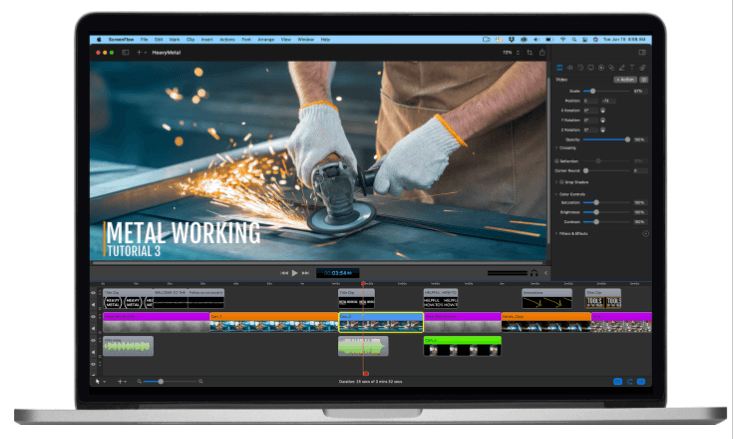
ScreenFlow Interface
ScreenFlow by Telestream is a veteran in the Mac screen recording space, operating as a powerful, traditional non-linear video editor (NLE). Unlike Screen Studio’s “record and done” approach, ScreenFlow gives you an expansive, multi-track timeline where you can stack video clips, audio tracks, text layers, and animations exactly how you want them.
Pros:
- Total editing control: A full multi-track timeline allows for precise frame-by-frame adjustments.
- Advanced capabilities: Includes professional tools for color correction, audio mixing, complex transitions, and text animations.
- Ideal for complex projects: Excellent for long-form online courses, intricate software tutorials, and multi-camera editing.
Cons:
- Platform restriction: Strictly macOS only.
- High manual effort: Creating modern zoom effects and smooth cursor highlights requires manually plotting keyframes, which is incredibly time-consuming.
- Steeper learning curve: Navigating a professional NLE takes time to master compared to auto-editors.
Best-Fit User:
Mac users who require deep, granular editing control and do not mind spending the necessary time to fine-tune animations and transitions manually.
While ScreenFlow is undeniably powerful for complex structural edits, the tedious manual effort required for basic zoom and cursor effects is exactly what drives many creators toward automated tools like Screen Studio or cross-platform alternatives.
Also Read: Top 10 Screenflow Alternatives & Competitors >
FocuSee: The Cross-Platform AI Alternative
If you are frustrated by the Mac-only exclusivity of Screen Studio and ScreenFlow, or if you simply want a screen recorder that combines visual polish with AI presentation features, FocuSee is an ideal alternative.
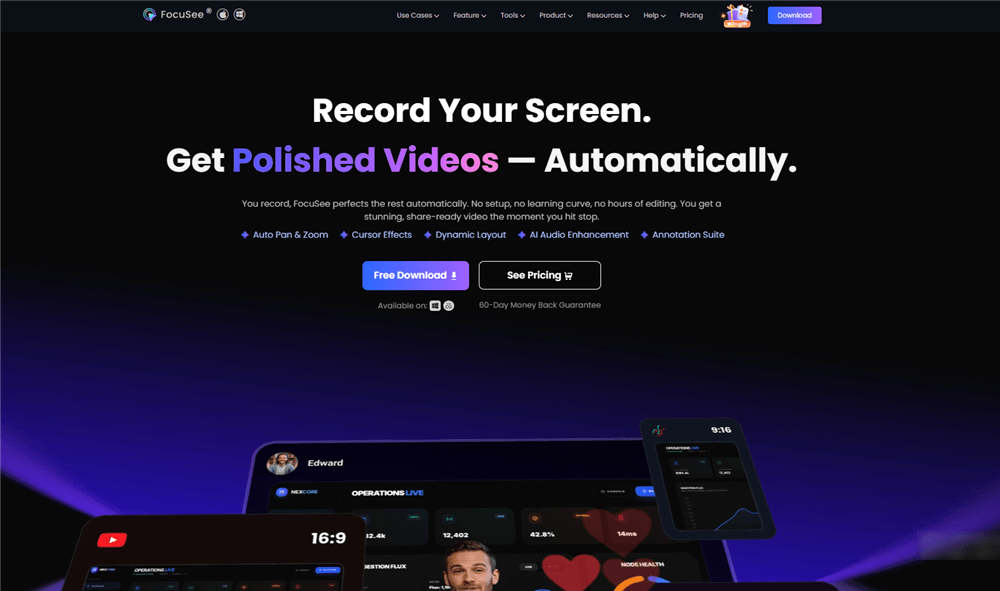
FocuSee Official Website
FocuSee is an AI-powered auto-editing screen recorder that works natively on both Windows and macOS desktop. It maps directly to the pain of manual editing by automatically applying smart zooms, cursor tracking, and background polish to your recordings—delivering a highly polished aesthetic to both PC and Mac users. Additionally, FocuSee reduces manual post-production even further by offering AI capabilities like subtitle generation and audio enhancement under supported conditions.
How the FocuSee Workflow Works:
1. Record your screen: Capture your desktop, web app, or even a connected mobile device.
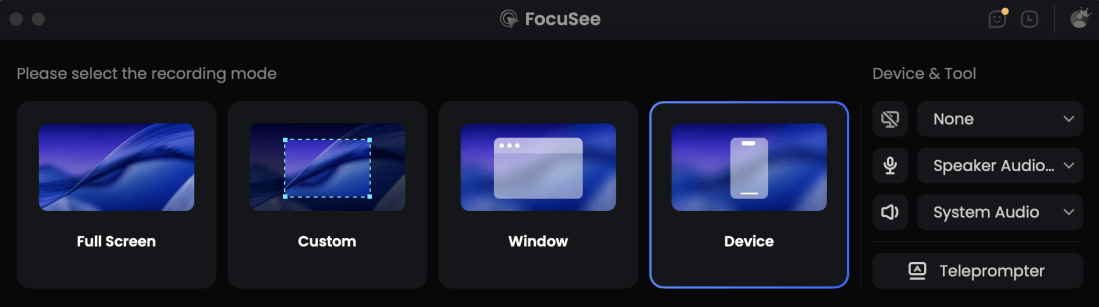
Choose the Recording Model
2. Let AI apply focus: FocuSee automatically tracks your cursor, adding smooth zooms and click highlights without manual keyframing.
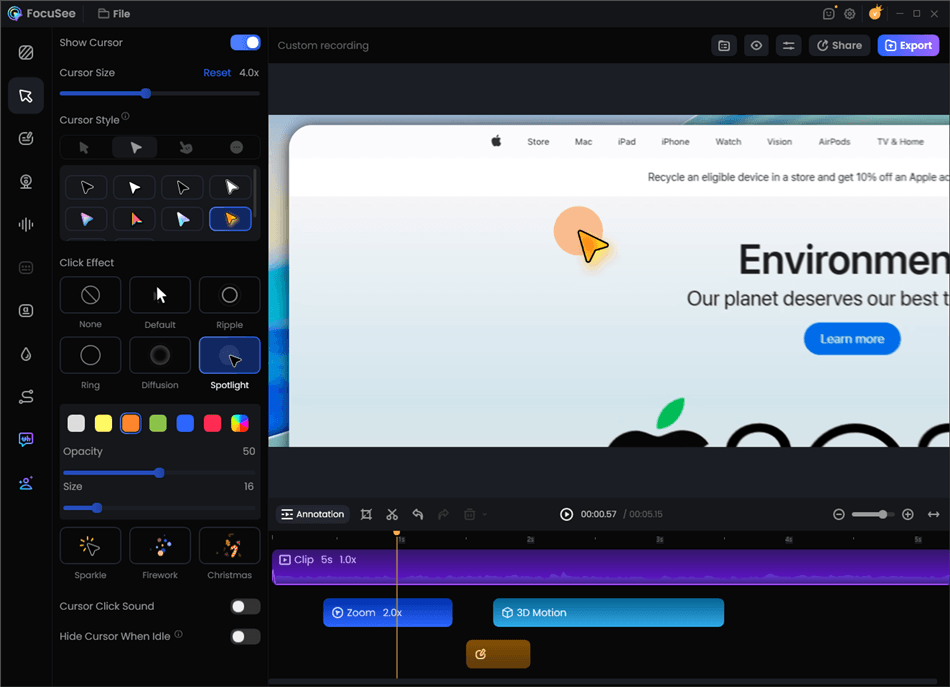
Record Screen with Cursor Following
3. Enhance with AI tools: Generate AI captions to improve accessibility, and apply the AI Audio Enhancer to clean up background noise. (Note: AI subtitle accuracy and audio enhancement results depend on the original audio clarity, accent, and background noise levels.)
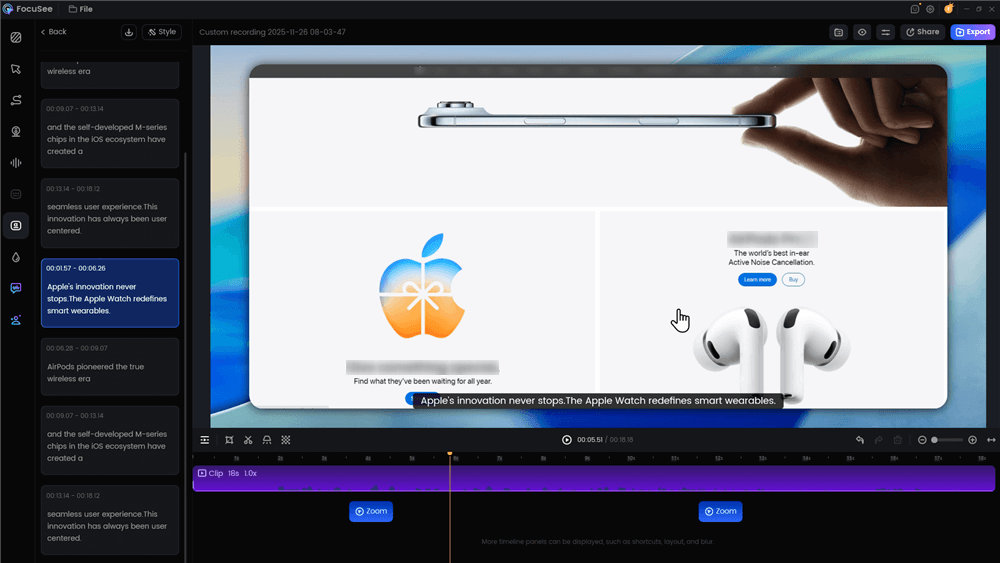
Automatic Subtitle Generation
4. Customize and Export: Adjust the camera layout, tweak zoom timing if needed, and export your video up to 4K resolution (depending on your device specifications and plan).
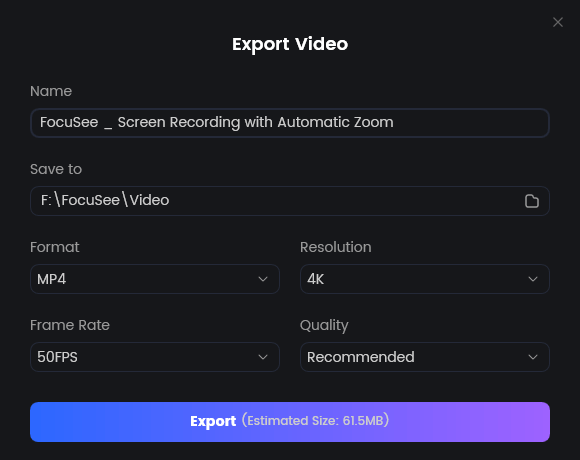
Export Your Video
Note: FocuSee is designed as an auto-editing enhancement tool for tutorials and demos. It is not intended to replace a full non-linear video editing suite like ScreenFlow for complex, multi-track cinematic projects.
Ready to improve your video creation speed? Learn more about the FocuSee screen recorder today.
Which Workflow Fits Your Scenario?
Choosing the right software depends entirely on what you are creating, the operating system you use, and how much time you want to spend editing. Use this scenario guide to find your best fit:
| Best Choice | Why | |
| Quick SaaS demo on Mac | Screen Studio | Automatic visual polish |
| Complex course or multi-track project | ScreenFlow | Full timeline control |
| Automated screen recording on Windows | FocuSee | Automatic editing + Windows support |
| Need captions and audio enhancement | FocuSee | Built-in tools in one workflow |
Screen Studio wins on simplicity. ScreenFlow wins on control. FocuSee wins when you want automated editing without being limited to macOS.
Frequently Asked Questions
Are Screen Studio and ScreenFlow subscription-based?
Their pricing and licensing models differ and may change over time. Check the official pricing pages for the latest plans, features, and license terms.
Is ScreenFlow too complicated for simple tutorials?
It can be. ScreenFlow provides extensive timeline control, but creating effects such as zooms and cursor emphasis can require more manual editing. For simple software tutorials, an automated screen recorder may require less post-production work.
Does Screen Studio have a traditional timeline editor?
No. Screen Studio focuses on a streamlined editing workflow rather than a traditional multi-track timeline. It is better suited to quick screen recordings and software demos than complex projects requiring multiple video and audio layers.
Can I use Screen Studio or ScreenFlow on Windows?
No. Both Screen Studio and ScreenFlow are designed for macOS. Windows users will need a different screen-recording and editing tool.
Which offers better automatic zoom and cursor effects?
Screen Studio and FocuSee automate zoom and cursor effects, while ScreenFlow gives you more manual control over these effects through its timeline.
Do I need a powerful computer to run these screen recorders?
Basic screen recording is generally not demanding, but high-resolution recording, video editing, and effects can require more system resources. Check each tool’s recommended system requirements for the best performance.
Final Verdict: Which Screen Recorder Should You Choose?
The right choice depends on how you want to work.
- Choose Screen Studio if you want to create polished Mac screen recordings quickly with automatic visual effects and minimal manual editing.
- Choose ScreenFlow if you need a full timeline editor and precise control over multiple video, audio, and graphic layers.
- Choose FocuSee if you want an automated screen-recording workflow on Windows or macOS, particularly for software tutorials and product demos.
In our test, Screen Studio and FocuSee required less manual work for visual polishing, while ScreenFlow offered more control for complex editing. The key difference is speed versus control: choose automation when you want to finish quickly, and timeline editing when you need to control every detail.