Screen Charm vs Screen Studio: Which Cinematic Screen Recorder is Right for You?

When choosing a cinematic screen recorder, the main differences between Screen Charm and Screen Studio come down to their pricing structures and exact macOS compatibility.
Because both tools frequently update their software, we advise checking their official pricing pages for the most up-to-date plans before making a final decision.
Head-to-Head Comparison: Features, Pricing, and Compatibility
To help you see how these two tools stack up against each other, here is a side-by-side look at their core overlapping features, operating system requirements, and pricing models. We have also included team support and AI features to highlight the specific gaps you might need to fill depending on your workflow.
| Screen Studio | Screen Charm | |
| Pricing Model | Subscription | One-time fee |
| OS Compatibility | macOS only | macOS, Apple Silicon only |
| Windows Support | No | No |
| Intel Mac Support | Yes | No |
| Cinematic Auto-Zoom | Yes | Yes |
| Cursor Smoothing | Yes | Yes |
| Cross-Platform Team Support | No | No |
| Built-in AI Subtitles | No | No |
| Ideal For | Mac users wanting premium polish without minding subscriptions | Apple Silicon users wanting to avoid recurring fees |
Both tools excel at taking raw screen recordings and automatically applying polished zooms and smooth cursor movements. However, the true deciding factors are whether you are willing to pay a subscription, whether your exact machine is supported, and whether your team requires cross-platform compatibility.
Screen Studio: Premium Features on a Subscription Model
Screen Studio has become highly popular among Mac creators for its ability to turn plain tutorials into visually stunning, cinematic presentations. It is famous for its polished auto-zoom, background styling, and smooth cursor enhancements.
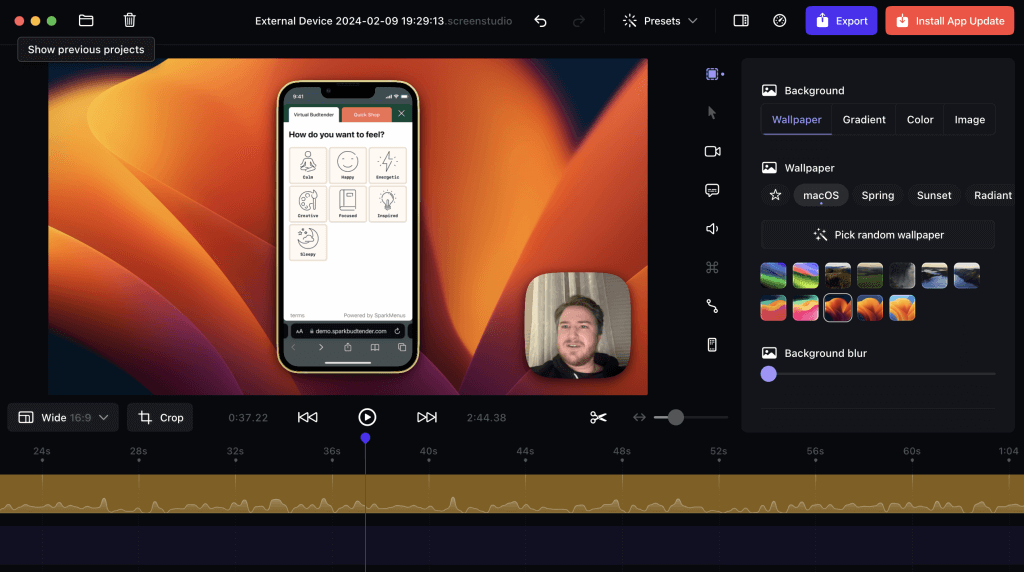
Screen Studio
Pros of Screen Studio:
- Exceptionally smooth, highly polished cinematic zoom effects.
- Intuitive interface that makes post-production incredibly easy for Mac users.
- Regular updates and feature improvements.
Cons of Screen Studio:
- Operates on a subscription model, which can be a barrier for budget-conscious creators who prefer to buy software outright.
- Exclusively available for Mac users, completely alienating the Windows market.
For many creators, the workflow fit and premium output justify the recurring subscription, but the ongoing commitment is something buyers must weigh heavily when evaluating a Screen Studio alternative.
Screen Charm: The One-Time Purchase Alternative for Apple Silicon
Screen Charm enters the market as a direct answer for users who want cinematic auto-zoom capabilities but are frustrated by subscription fatigue.
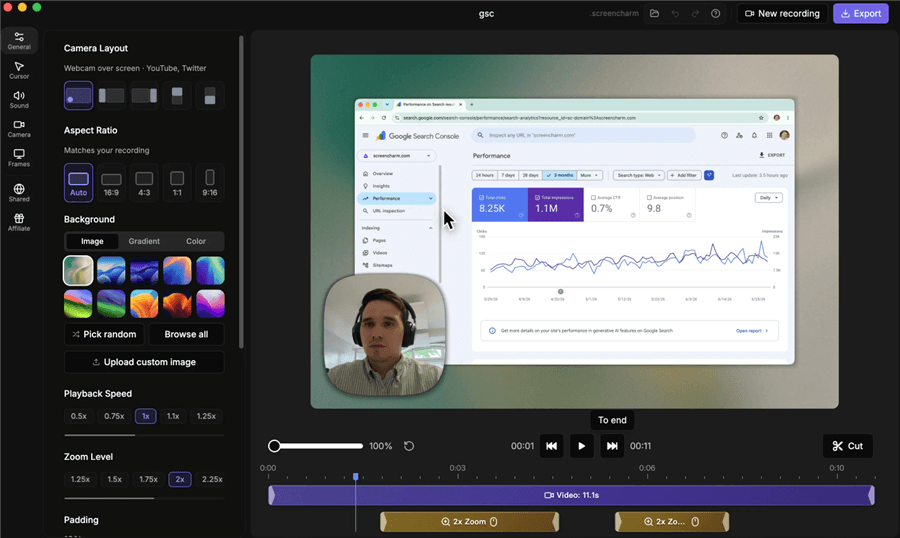
Screen Charm Overview
Pros of Screen Charm:
- One-time payment model appeals strongly to users wanting to avoid recurring fees.
- Delivers competitive auto-zoom and cursor smoothing for professional-looking tutorials.
Cons of Screen Charm:
- Severe OS Limitation: It only works on Apple Silicon Macs (M-series chips). If you are using an Intel-based Mac, you are completely locked out of using this software.
- Completely excludes Windows users.
- Some users may worry about the longevity of updates for one-time purchase apps compared to heavily funded subscription tools.
If you have a newer Mac and want to pay just once, Screen Charm is a compelling option. Just verify your processor type under “About This Mac” before purchasing so you don’t make an incompatible software purchase.
The OS Gap: What About Windows and Mixed-Platform Teams?
While much of the debate centers around “subscription vs one-time fee,” many tool comparisons ignore a massive missing piece: Windows users are entirely excluded from both Screen Charm and Screen Studio.
If you use a Windows PC, you cannot install either of these cinematic recorders. Furthermore, this creates a major headache for mixed-platform teams (where some employees use Macs and others use PCs). When a company wants to standardize how their product demos, internal SOPs, or customer support tutorials look, they simply cannot rely on a Mac-only app.
Even within the Apple ecosystem, the user base is fragmented because Intel Mac users cannot run Screen Charm. If you want the beautiful, automated cinematic look of these tools but operate on a PC—or need to accommodate a diverse team setup—you should explore the best screen recorders for Windows. To solve the headache of fragmented team workflows, you need a solution that bridges the gap with a unified cross-platform workspace.
FocuSee: The Best Cross-Platform Alternative with Built-in AI
For users restricted by the Mac-only limitations of Screen Charm and Screen Studio, FocuSee is the ideal cross-platform alternative. FocuSee is an AI screen recorder that supports both Windows (Windows 10+) and macOS (macOS 10.15+), including both Intel and Apple Silicon Macs.
It provides the same highly desired auto-zoom and smart cursor enhancements to create polished demos, but it also brings advanced AI features that the Mac-only options lack.
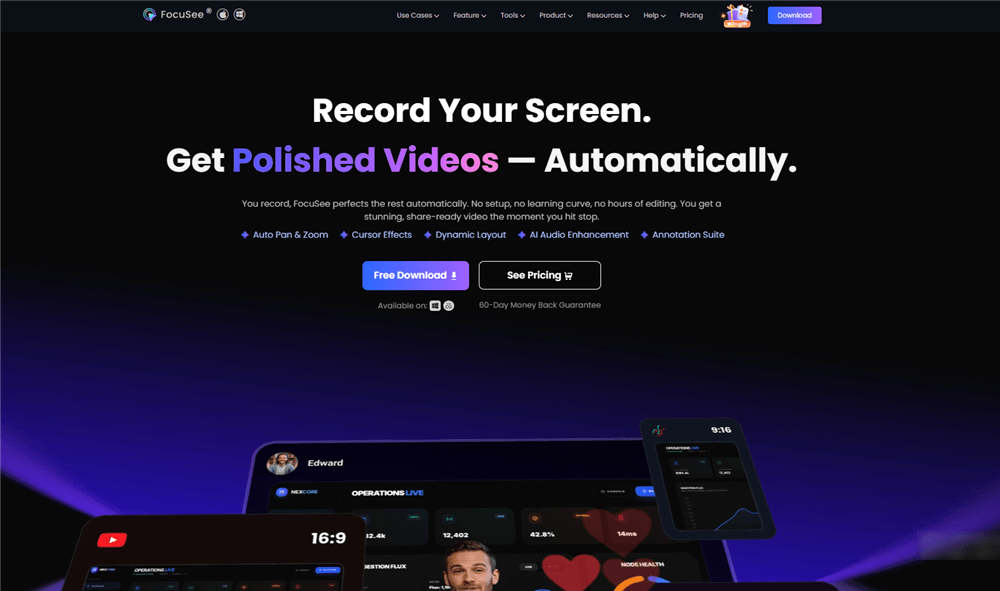
FocuSee Official Website
How the FocuSee Workflow Helps Cross-Platform Teams:
Step 1. Record on Any Device: Open FocuSee on your Windows PC or Mac and choose to record your screen, webcam, or both.
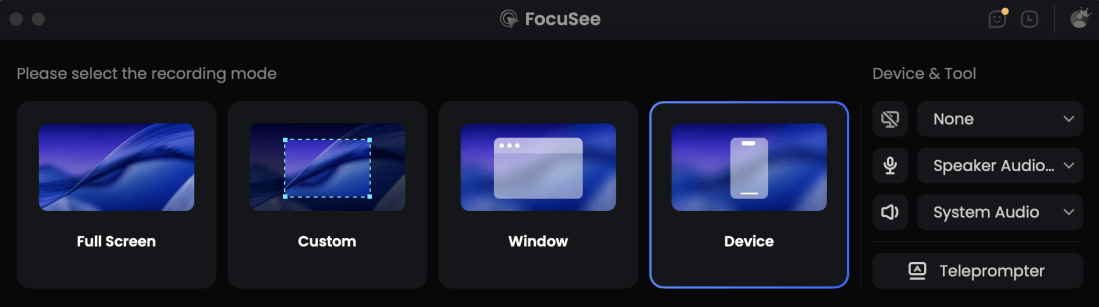
Choose the Device Recording Model
Step 2. Apply Auto-Edits: FocuSee automatically tracks your cursor and applies smart zooms to highlight important clicks under supported conditions.
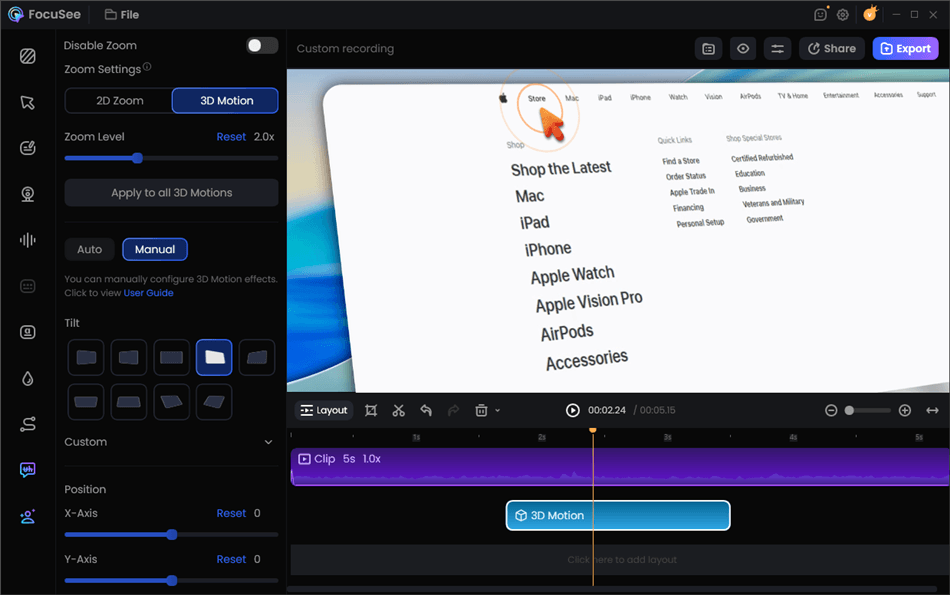
Screen Studio Alternative for Windows – FocuSee
Step 3. Enhance with AI: Use built-in AI tools to automatically generate subtitles, remove awkward silence and filler words, or clean up background noise to improve audio clarity.
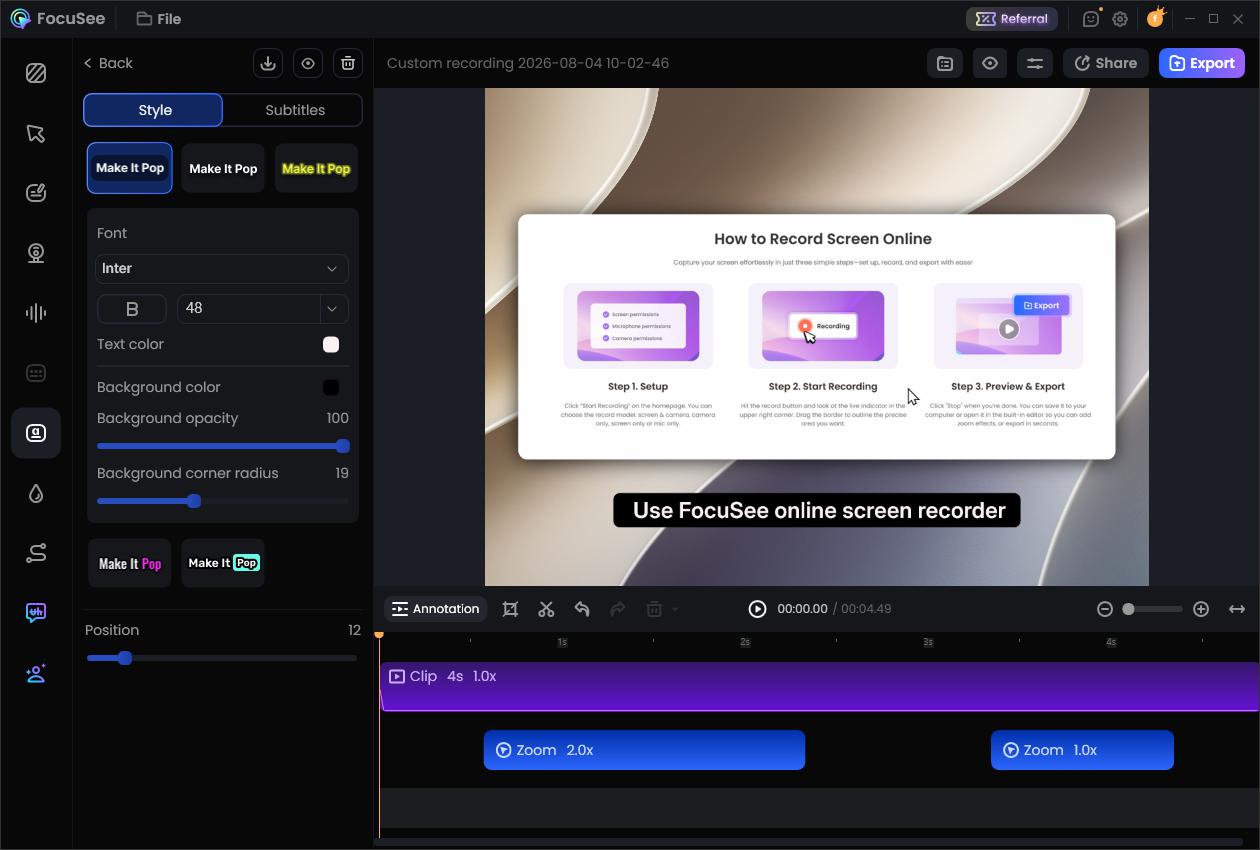
Edit Subtitle
Step 4. Stay on Script: Use the built-in teleprompter to record software tutorials without needing multiple retakes. What’s more, you can also add annotations.
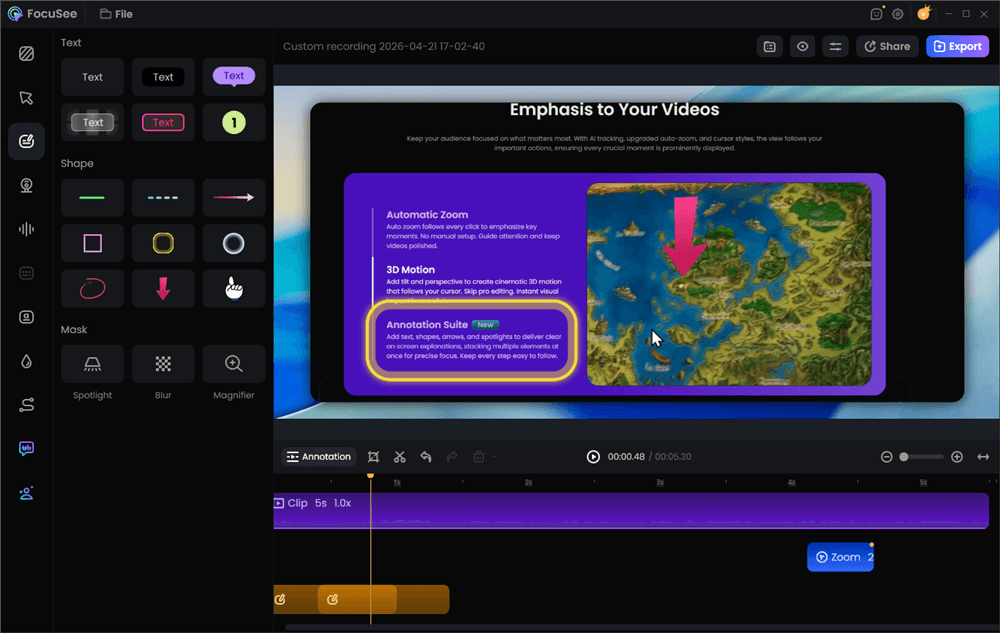
Add Annotations for Clarity
Step 5. Export Flexibly: Export in multiple aspect ratios (landscape for YouTube, vertical for TikTok/Shorts) with up to 4K resolution where compatible with your hardware.
By offering a unified application for both Windows and Mac, FocuSee solves the standardization problem for mixed-platform teams while speeding up the tutorial creation process.
Decision Guide: Screen Charm vs Screen Studio vs FocuSee
Choosing the right cinematic screen recorder depends entirely on your operating system, budget preferences, and need for advanced features. Use this quick decision framework to find your best fit:
- Choose Screen Studio if: You are on a Mac, you do not mind paying a recurring subscription, and you want a premium, highly polished editing experience specifically designed for the Apple ecosystem.
- Choose Screen Charm if: You strictly use an Apple Silicon Mac (M1/M2/M3), you want to avoid subscriptions in favor of a one-time purchase, and you only need core auto-zoom and cursor smoothing features.
- Choose FocuSee if: You use Windows, you use an Intel-based Mac, you work on a mixed-platform team (Mac + PC), or you specifically need advanced AI features like automatic subtitles, filler-word removal, and a built-in teleprompter to speed up your workflow. In these cases, it serves as the ultimate Screen Charm alternative and Screen Studio replacement.
Frequently Asked Questions
Is Screen Charm a good alternative to Screen Studio?
Yes, Screen Charm is an excellent alternative if you want a one-time purchase model rather than a subscription. However, it requires an Apple Silicon Mac to run.
Which screen recorder has the best auto-zoom?
Screen Studio is widely considered the industry standard for exceptionally smooth auto-zoom on Mac, while FocuSee offers highly competitive smart-zoom and cursor-tracking features that work across both Windows and macOS.
Does Screen Charm work on Intel Macs or Windows?
No. Screen Charm is strictly limited to Apple Silicon Macs. It does not support Intel-based Macs or any version of Windows.
Is Screen Studio worth the subscription price?
For full-time content creators and SaaS marketers who rely exclusively on Macs, Screen Studio’s polished output often justifies the subscription. Budget-conscious users, however, may prefer alternatives.
What is the best one-time purchase alternative to Screen Studio?
For Apple Silicon users, Screen Charm is the direct one-time purchase alternative.
Is there a Windows alternative to Screen Studio and Screen Charm?
Yes, FocuSee is the best alternative for Windows users. It delivers cinematic auto-zoom, cursor smoothing, and multi-platform export capabilities natively on Windows 10 and later.
Which cinematic screen recorder has built-in AI subtitles?
FocuSee features built-in AI speech recognition that can automatically generate subtitles for your recordings under supported conditions, a feature not natively central to Screen Studio or Screen Charm.
What is the best screen recording tool for mixed Windows and Mac teams?
FocuSee is ideal for mixed-platform teams because it provides a standardized, AI-powered recording and auto-editing workflow across both Windows and macOS devices.
Final Verdict: Which Screen Recorder is Right for You?
Ultimately, your choice of cinematic screen recorder comes down to the hardware on your desk and your preferred pricing model. Screen Studio remains a premium, subscription-based powerhouse for Mac creators, while Screen Charm offers a highly requested one-time fee alternative—provided you own a newer Apple Silicon Mac.
However, if you are one of the millions of users restricted by these Mac-only limitations, you don’t have to miss out on automated, professional-looking demos. FocuSee bridges the gap by offering a powerful, AI-driven auto-editing workflow that works seamlessly across both Windows and macOS.
Before making your final purchase, check your system compatibility and evaluate which software best aligns with your daily tutorial and demo creation needs. If cross-platform support, AI subtitles, and a built-in teleprompter sound like the perfect fit for your workflow, explore how FocuSee can streamline your video production today.
Related Articles: