For many tutorial creators, this creates a frustrating dilemma. Loom can feel too basic and visually plain for professional tutorials, while OBS can feel overwhelmingly complex and requires hours of manual post-production. Fortunately, you don’t have to choose between “fast but basic” and “professional but hard.” There is now a modern, auto-editing third option designed specifically for those seeking a Loom screen recorder alternative that provides professional polish without the steep learning curve.
At a Glance: Comparing Loom and OBS Studio
Before diving into the details, here is a high-level comparison of how Loom and OBS Studio stack up, specifically from the perspective of recording tutorials and software demos.
| Loom | OBS Studio | |
| Screen Recording | ✓ | ✓ |
| Webcam Recording | ✓ | ✓ |
| Local Recording | ✓ | ✓ |
| Cloud Sharing | ✓ | ✕ |
| Live Streaming | Limited | ✓ |
| Multi-source Scenes | Limited | ✓ |
| Built-in Editing | ✓ | Limited |
| AI Editing | ✓ | ✕ |
| Captions | ✓ | ✕ native |
| Cursor Emphasis | ✓ | Via setup/plugins/workflow |
| Advanced Audio | Basic/Intermediate | ✓ |
| Recording Control | Basic | Advanced |
| Best For | Async communication | Streaming & production control |
If your priority is firing off a quick update to a colleague, Loom’s instant setup wins. If you need unlimited free recording time or want to broadcast to Twitch, OBS is the unmatched choice. However, if your goal is creating polished, engaging tutorials, both tools come with significant tradeoffs.
Loom: Fast and Easy, but Visually Basic
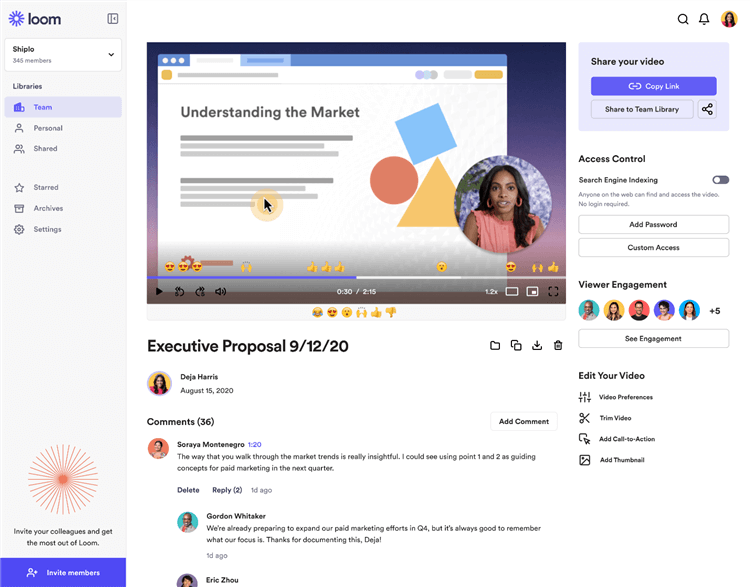
Loom Overview
Loom has made screen recording almost as easy as sending an email, and that remains its biggest strength. Its workflow is built around asynchronous communication: record a message, make a few quick edits, and share it instantly with a link. It works especially well for team updates, product feedback, sales outreach, and short how-to videos.
Loom has also evolved beyond basic screen recording. Depending on the plan, it offers features such as 4K recording, trim and stitch editing, drawing tools, mouse emphasis, captions, and AI-powered tools for generating summaries, chapters, and removing filler words or silence.
The trade-off is less about capability and more about workflow. If your goal is to create highly polished software tutorials or product demos with precise visual control, you may still need a more specialized editing workflow. Loom is designed to help you communicate ideas quickly; it is not primarily built around extensive post-production or automated visual presentation.
Pros of Loom:
- Fast, intuitive screen and webcam recording.
- Instant cloud hosting and link sharing for easy collaboration.
- Built-in editing, captions, drawing, and mouse emphasis.
- AI features can streamline tasks such as summaries, chapters, filler-word removal, and silence removal on supported plans.
- Supports high-quality recording, including up to 4K on eligible plans.
Considerations for Tutorial Creators:
- Loom is optimized for quick communication and sharing rather than extensive video post-production.
- More advanced editing and AI features are tied to paid plans.
- Creators who want automated visual effects, highly customized presentation styles, or a more editing-focused workflow may prefer a specialized screen-recording tool.
- The free Starter plan limits individual screen recordings to 5 minutes and recording quality to 720p.
OBS Studio: Powerful and Free, with More Manual Control
At the other end of the spectrum is OBS Studio, a free and open-source tool built for users who want detailed control over their recordings and live streams. It supports multiple scenes, video and audio sources, filters, and advanced recording configurations, making it a popular choice for streaming and more complex capture setups.
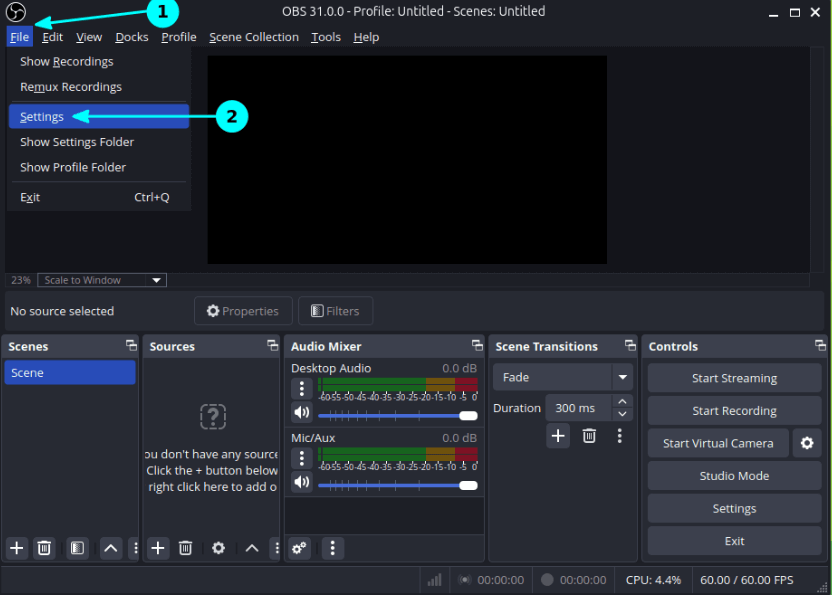
That flexibility is also what makes OBS different from more streamlined screen-recording tools. OBS focuses primarily on capturing and broadcasting video rather than turning a raw recording into a finished tutorial. Once you finish recording, you may need a separate video editor to trim footage, add captions, create zoom effects, or highlight important parts of the screen.
Pros of OBS Studio:
- Free and open-source, with no watermarks or recording time limits.
- Extensive control over scenes, video sources, audio sources, and recording settings.
- Well suited for live streaming on platforms such as YouTube and Twitch.
- Supports complex recording setups, including multiple cameras, displays, microphones, and other sources.
- Highly customizable through plugins and advanced configuration options.
Considerations for Tutorial Creators:
- The setup and learning curve can be higher than with dedicated screen-recording tools, especially when using multiple scenes and sources.
- OBS focuses on recording and streaming rather than built-in post-production.
- More polished tutorials may require a separate editor for tasks such as trimming, captions, zooms, annotations, and visual effects.
- Advanced customization is powerful, but it can also mean more time spent configuring and managing the recording workflow.
For tutorial creators, the main trade-off is not recording quality—OBS can produce excellent recordings—but how much control and manual work you want throughout the production process. If you prefer complete control over every recording source and setting, OBS is hard to beat. If you want to move from recording to a polished tutorial with less manual editing, a more automated workflow may be a better fit.
Loom vs OBS: Which One Should You Choose?
The right screen recorder depends on what you want to do after you hit Record.
Choose Loom if you mainly create quick async updates, team feedback, or short videos that need to be shared immediately. Its cloud-based workflow makes recording and sharing simple.
Choose OBS if you need advanced control over scenes, audio, video sources, or live streaming. It is a strong choice for creators who don’t mind spending more time configuring their recording setup.
Consider FocuSee if your main goal is creating polished tutorials or SaaS/product demos. It combines screen recording and editing with features such as automatic zooms, cursor effects, and subtitles, reducing the amount of manual post-production.
FocuSee: The Auto-Editing Alternative for Polished Tutorials
If you are frustrated by Loom’s basic appearance and OBS’s steep manual editing curve, there is a third category of screen recorders built specifically for this workflow: auto-editing video creators.
FocuSee is an AI-powered desktop screen recorder (available for Windows and macOS) designed exclusively for recorded tutorials, demos, and training videos. It bridges the exact gap between speed and polish. You simply record your screen as easily as you would with Loom, but instead of leaving you with a flat video or forcing you to use a complex editor like OBS, FocuSee automatically enhances the recording for you.
How the FocuSee auto-editing workflow works:
Step 1. Record your screen: Open the desktop app and capture your screen, webcam, and audio without complex scene setups.
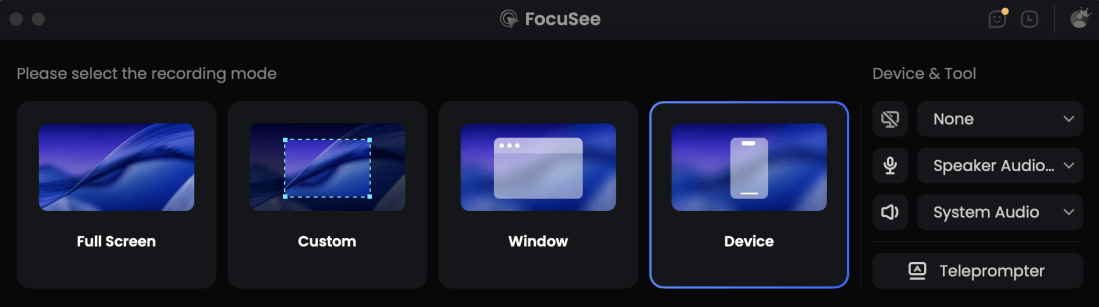
Choose the Recording Model
Step 2. Let AI apply visual focus: As soon as you stop recording, FocuSee adds automatic zoom and cursor effects so viewers can follow every click without manual keyframing.
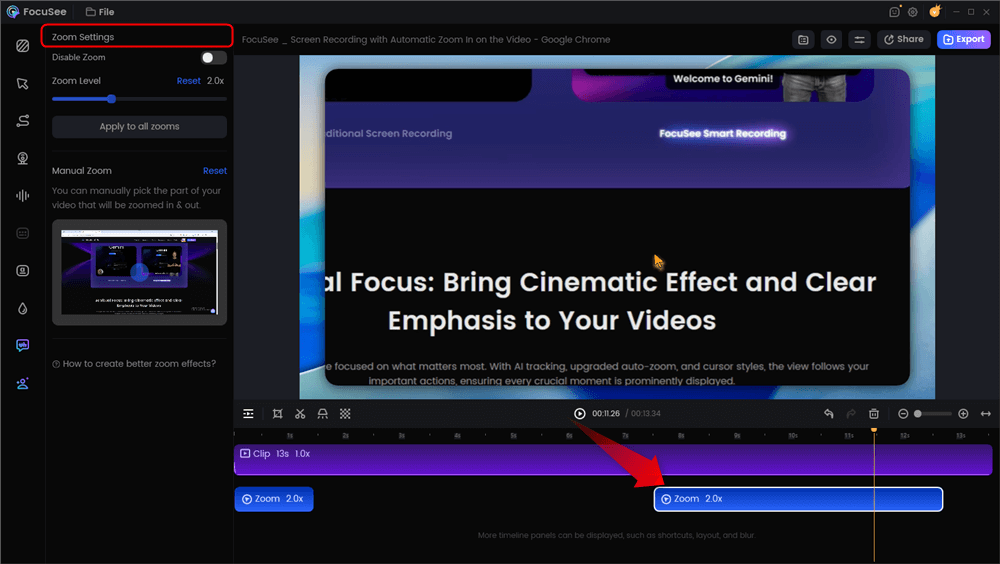
Automatic Zoom Effects
Step 3. Enhance with AI tools: Generate AI subtitles and clean up background noise to ensure your instructions are perfectly clear (note: some AI features rely on available AI credits).
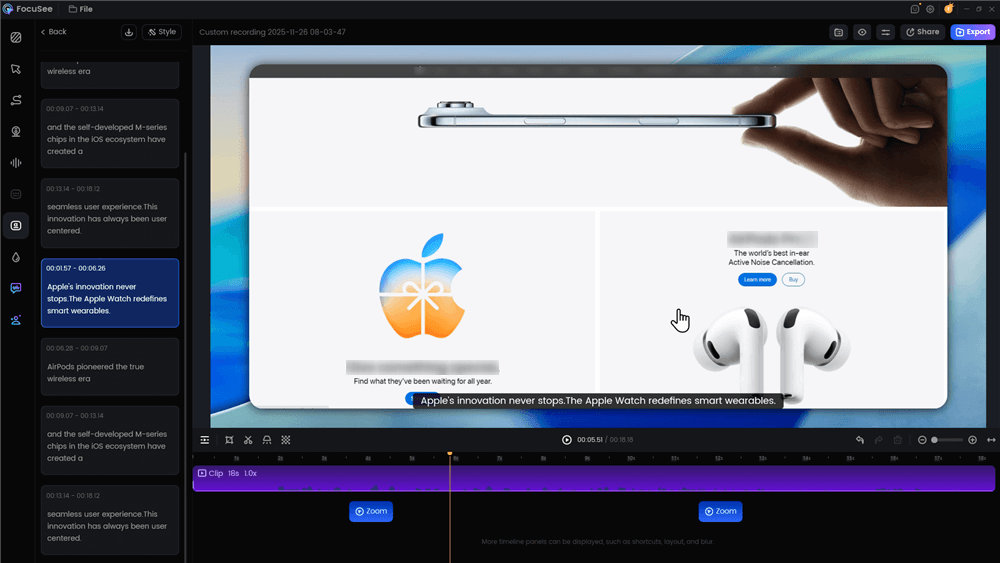
Automatic Subtitle Generation
Step 4. Export or Share: Make quick adjustments to the auto-generated layout, then export your polished video or share it via a link.
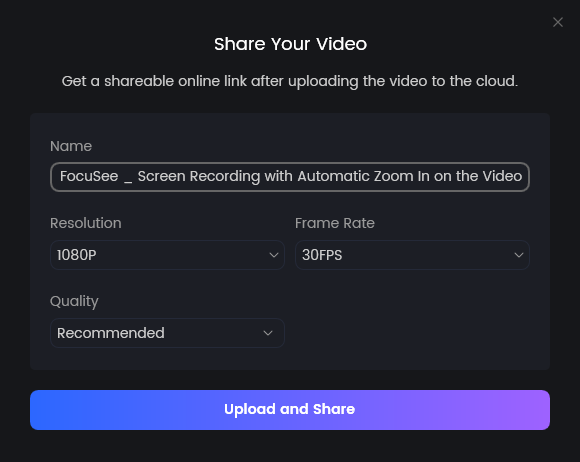
Share Video
By automating the exact post-production tasks that make OBS workflows so tedious—zooming, highlighting, and captioning—FocuSee gives tutorial creators professional polish in a fraction of the time.
Final Verdict: Which Screen Recorder Fits Your Workflow?
Choosing the right screen recorder ultimately depends on what you are trying to create.
- Choose Loom if your primary goal is instant, async workplace communication where speed matters more than visual polish.
- Choose OBS Studio if you are a live streamer, a broadcaster, or someone who needs complex, unlimited manual recording for free—and you don’t mind spending time in a separate video editor afterward.
However, if you are a tutorial creator, marketer, or educator frustrated by Loom’s basic look and exhausted by OBS’s steep editing curve, you need a workflow that prioritizes both speed and presentation.
FocuSee serves as the practical middle ground. By acting as an auto-editing tutorial video maker, it automatically applies the smart zooms, cursor effects, and AI subtitles needed to make instructions crystal clear under supported desktop conditions. Try FocuSee on Windows or Mac today to save hours of manual editing while still publishing highly polished tutorials and demos.
Frequently Asked Questions
Is OBS better than Loom for recording tutorials?
It depends on what you need. OBS is better if you want detailed control over recording settings, multiple sources, scenes, and audio. Loom is easier if you want to quickly record a tutorial and share it without managing a complex setup. For polished tutorials that require extensive editing or visual effects, you may also want a dedicated video editing tool.
Is Loom better than OBS for team communication?
Yes, in most cases. Loom is designed around asynchronous video communication, making it easy to record a message and share it with a link. OBS is primarily a recording and live-streaming tool, so it is better suited to production control than quick team updates and feedback.
Can OBS edit recorded videos?
OBS is primarily designed for recording and live streaming rather than post-production. It does not provide a full built-in video editor for tasks such as trimming, captions, zooms, or annotations. For more advanced editing, you will typically need to use a separate video editor after recording.
Can Loom record in 4K?
Yes. Loom supports 4K recording on eligible paid plans. The available recording quality depends on your Loom plan and settings, so check Loom’s current plan details before upgrading.
Does Loom have AI editing?
Yes. Loom offers several AI-powered editing and productivity features on eligible plans, including filler-word and silence removal, as well as tools for generating summaries and chapters. Its AI capabilities and availability can vary by plan.
Can I use Loom and OBS for the same workflow?
Yes, but they are optimized for different purposes. For example, you could use Loom for quick internal updates and OBS for recordings that require multiple sources or more advanced production control. Using both can make sense if your video needs vary from project to project.
What is a good Loom or OBS alternative for tutorials?
If your priority is creating polished software tutorials with less manual post-production, FocuSee is one option to consider. It combines screen recording with features such as automatic zoom effects, cursor effects, subtitles, and video editing, making it more focused on the workflow from recording to finished tutorial.
Related Articles