Top 5 High Quality Screen Recorder Tools for Windows & Mac

Finding a high-quality screen recorder often feels like navigating a minefield of hollow marketing claims. You download a tool promising 4K screen recording, only to end up with pixelated footage, unsynchronized audio, or a watermark plastered across the center of your video. If you create software training or professional presentations, you know the frustration of recording a perfect 10-minute tutorial, only to realize later that the menu text is unreadable and the mouse movement is choppy.
Whether you are looking for the best screen recorder for PC or Mac, generic lists often fail to address the technical nuances of bitrate, codecs, and system resource usage. You need a solution that delivers professional clarity without requiring a degree in video engineering.
In this guide, we examine the top 5 professional screen recording software options, providing data-backed comparisons on pricing, performance, and features to ensure your screen capture software produces crystal-clear results.
This guide is based on hands-on testing across a MacBook Pro (M1), a Windows 11 Dell XPS 15, and a custom NVIDIA GPU desktop, evaluating frame rate stability, CPU usage, and audio sync under real-world conditions.
Quick Comparison: Top 5 High Quality Screen Recorders
We know your time is valuable. Before diving into the deep reviews, use this data table to identify which tool fits your budget and technical requirements.
| Software | Pricing Model | Max Resolution | Max FPS | Editing Time Needed | Watermark? |
| 1. FocuSee | Subscription or Lifetime | 4K | 60 | ⭐ Low (Auto) | Yes (Free Version) |
| 2. OBS Studio | Free (Open Source) | 4K+ | 60+ | High (Manual) | No |
| 3. Camtasia | Subscription | 4K | 60 | Medium | Yes (Trial) |
| 4. Bandicam | One-time License | 4K (UHD) | 480 | High | Yes (Free Version) |
| 5. Snagit | Subscription or License | 4K | ~30 | Low | No |
Top 5 Good Screen Recorders
1. FocuSee
Best for: High-quality tutorials & product demos with automated clarity enhancement
Cost: Free trial available; Paid plans start at ~$19.99/mo or lifetime license options.
Platform: Windows, macOS, and web-based.

High Quality Screen Recorder – FocuSee
In our tests on the MacBook Pro (M1) and Dell XPS 15, FocuSee delivered sharp 4K recordings with stable frame rates and clean audio sync. What sets it apart, however, is how it enhances clarity automatically—not just how it captures video.
High-quality recording isn’t just about resolution, but readability. FocuSee tracks cursor movement and applies smooth, context-aware zooms, making UI details easier to see and follow—even in fast workflows.
Unlike traditional tools that rely on manual editing, FocuSee improves video clarity by default with motion tracking, click highlighting, and dynamic zooming. The result is more focused, easier-to-follow recordings, especially for tutorials.
It also enhances audio quality with AI-powered cleanup, removing pauses and filler words for a tighter, more professional output.
Performance-wise, FocuSee handled 4K/60FPS smoothly with lower CPU usage than heavier tools, while maintaining sharp visuals, smooth motion, and no noticeable audio desync.
Pros:
- Clarity-Driven Auto Zoom: Keeps UI elements readable by dynamically focusing on key actions
- Stable 4K Recording: Smooth frame rates and sharp output with minimal performance impact
- AI Audio & Silence Cleanup: Produces cleaner, more professional narration automatically
- Multi-Track Audio Recording: Separate system and mic tracks for precise post-editing control
- Lightweight Performance: Lower CPU usage compared to full editing suites
Cons:
- Limited Advanced Editing: While excellent for polish and speed, it is not a full non-linear editor (NLE) like Premiere Pro or Camtasia.
- Watermark: The free version includes a watermark on exported videos.
How Much Time Does FocuSee Actually Save?
In a typical workflow using traditional tools like OBS + a video editor:
- Recording: 10 minutes
- Manual zoom & cursor highlighting: 20–30 minutes
- Cutting pauses, filler words: 20–40 minutes
- Total editing time: 40–70 minutes
With FocuSee:
- Recording: 10 minutes
- Auto zoom, auto highlight, auto trimming: Done automatically
- Total editing time: ~10–15 minutes
Time saved: Up to 70–80% per video
Verdict:
FocuSee is not just a screen recorder—it is a quality enhancement tool for tutorial-style content. Instead of relying on manual editing to improve clarity, it builds visual focus and readability directly into the recording workflow.
If your definition of “high quality” includes not only resolution, but also clarity, smoothness, and viewer comprehension, FocuSee is one of the most efficient tools available. It is especially well-suited for creators who want professional-looking tutorials without sacrificing hours on post-production.
2. OBS Studio
Best for: Streaming & Total Control
Cost: Free (Open Source).
Platform: Windows, macOS, Linux.
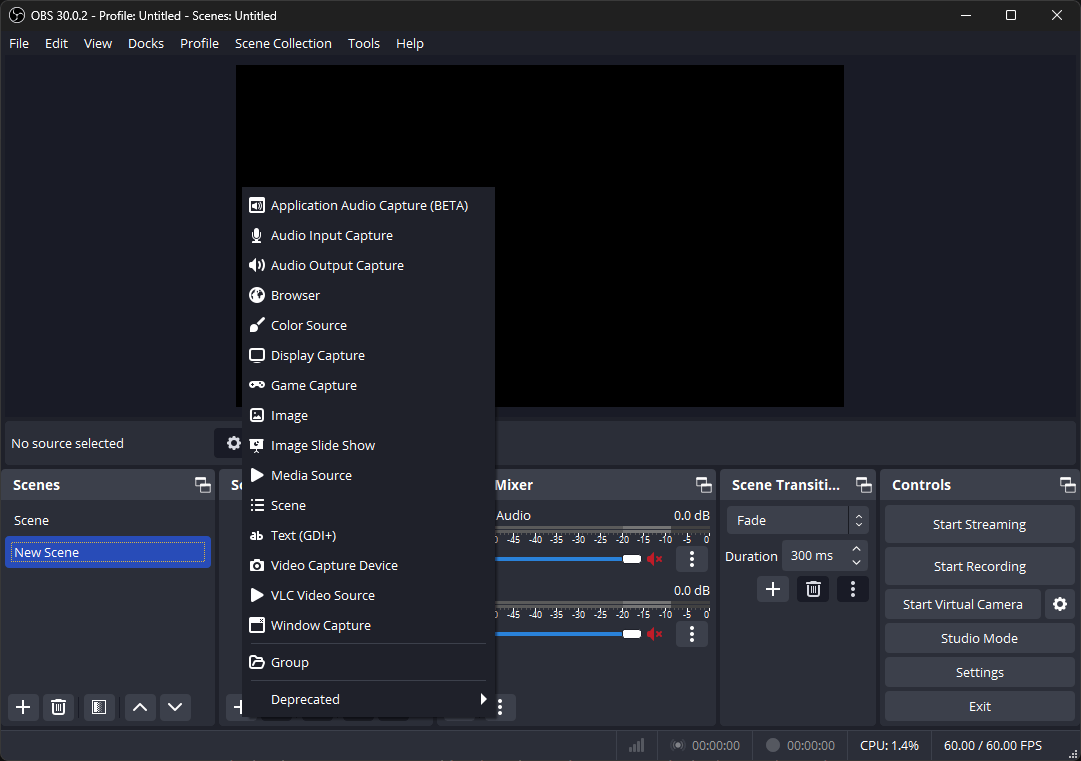
High Quality Screen Recorder – OBS
OBS is the industry standard for live streaming, but it is also a powerhouse for local recording. It offers unparalleled control over video codec settings, screen recording bitrate, and audio mixing. In our lab, we were able to dial in specific bitrates (up to 40,000 kbps) to achieve truly lossless recording quality.
Because OBS allows you to select your encoder, we configured it to use the NVIDIA NVENC (H.264) encoder on our desktop rig. The result was buttery smooth 60 FPS recording with virtually zero impact on system performance. However, on the Dell XPS laptop (without tweaking settings), we initially experienced some skipped frames until we optimized the settings.
Pros:
- Zero Cost: Completely free with no watermarks.
- Pro-Level Settings: Control every aspect of the video, from color space to audio sample rates.
- Scene Composition: Mix webcam, screen, and browser sources in real-time.
Cons:
- High Learning Curve: It is not “plug and play.” You must manually configure encoders and scenes.
- No Editing Suite: You cannot trim or edit clips inside OBS; you will need separate video editing software.
Verdict: The best screen recorder for PC if you have technical patience and want broadcast-quality results for free.
OBS vs FocuSee: Control vs Speed
While OBS offers unmatched control, it comes with a hidden cost: time. To achieve the same tutorial-style clarity as FocuSee in OBS, you would need:
- Manual zoom keyframes in post-production
- Separate editing software (e.g., Premiere Pro, DaVinci Resolve)
- Additional time for cutting silences and syncing audio
In other words, OBS is not just a recorder — it’s a workflow commitment. If your priority is efficiency and fast content production, this extra complexity can quickly become a bottleneck.
3. Camtasia
Best for: Complex Editing & Long-Form Content
Cost: ~$179/year (Subscription).
Platform: Windows, macOS.
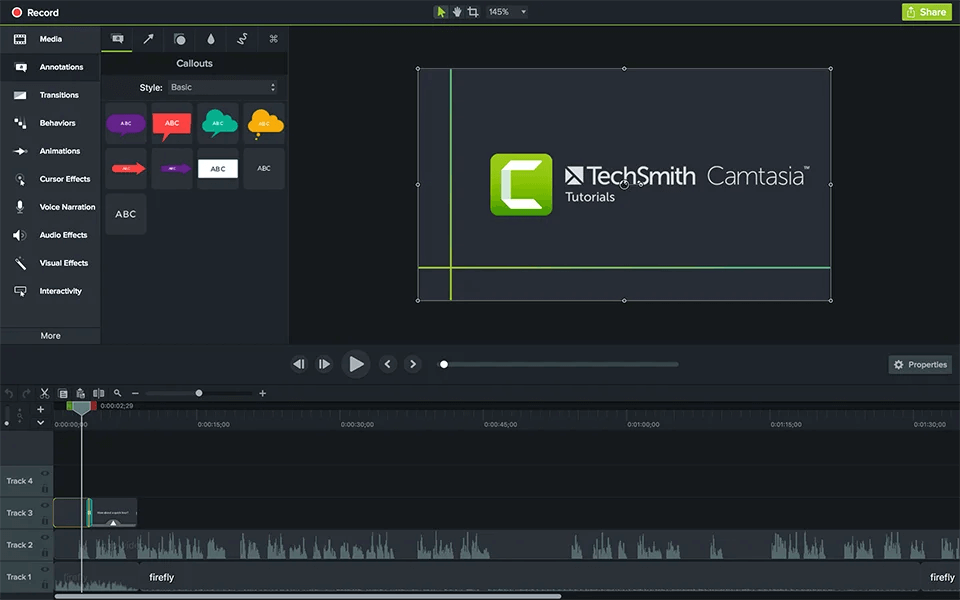
High Quality Screen Recorder – Camtasia
If you need a full video editing suite attached to your recorder, Camtasia is the heavy hitter. Unlike the lightweight options on this list, Camtasia allows for deep editing, annotations, multi-track timelines, and green screen effects.
During our testing on the Dell XPS 15, we noted that Camtasia is resource-intensive. While recording 4K footage, the system fans spun up audibly, and rendering a 10-minute 4K project took significantly longer than exporting from FocuSee. However, the trade-off provides a massive library of assets, intros, and transitions that other recorders lack.
Pros:
- All-in-One Suite: Record, edit, and export in one interface.
- Rich Assets: Includes a library of royalty-free music and motion graphics.
- Interactive Features: Allows you to add quizzes and interactive elements to videos.
Cons:
- Price: It is one of the most expensive tools on the market.
- Performance Heavy: Requires a reasonably powerful computer for smooth 4K editing.
Verdict: Ideal for instructional designers and corporate trainers who need to build comprehensive courses and have the budget to support it.
4. Bandicam
Best for: High-FPS Gaming
Cost: ~$33 (One-time license for 1 PC).
Platform: Windows Only.
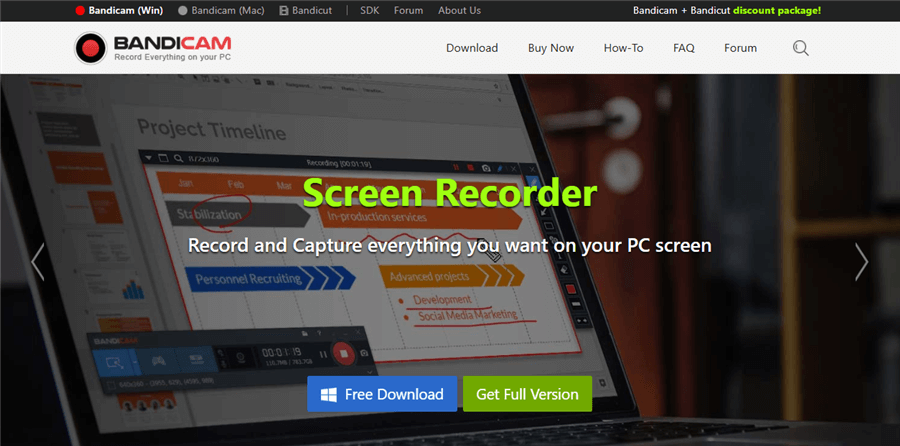
High Quality Screen Recorder – Bandicam
For game recording, Bandicam remains a favorite on Windows due to its focus on raw performance. In our benchmark tests on the custom desktop rig (RTX 3080), Bandicam was the most efficient tool, using only ~4-6% CPU while recording gameplay at 4K resolution.
Bandicam supports capturing up to 480 FPS, which is critical for gamers who want to record slow-motion replays. It also supports hardware-accelerated video codec options like H.264 (NVIDIA NVENC) and Intel Quick Sync.
Pros:
- High FPS Support: Captures up to 480 FPS for ultra-smooth gaming playback.
- Compression: Produces smaller file sizes without significant quality loss compared to raw capture.
- Device Recording: Can record from external devices like Xbox, PlayStation, or smartphones via HDMI.
Cons:
- Windows Only: No macOS version available.
- Dated Interface: The UI feels older compared to modern tools like FocuSee or Snagit.
- Watermark: The free version places a watermark at the top of the video.
Verdict: The top choice specifically for gamers who need high frame rate capture without lagging their machine.
5. Snagit
Best for: Quick Screenshots & Workplace Comms
Cost: ~$63 (One-time license).
Platform: Windows, macOS.
High Quality Screen Recorder – Snagit
Snagit is the standard for rapid business communication. It is not designed for high-end gaming or hour-long tutorials. Instead, it excels when you need to grab a quick image or a 30-second explainer video to send to a colleague on Slack or Teams.
Snagit creates “Video from Images” and simple screen recordings. In our testing, we found the frame rate is generally capped (often around 30 FPS), which makes it unsuitable for recording gameplay or high-motion video. However, for recording a spreadsheet walkthrough or a bug report, the clarity is perfect.
Pros:
- Workflow Speed: The fastest way to capture, annotate, and share a visual.
- GIF Creation: Easily converts short videos into GIFs for email or chat.
- Panoramic Capture: Excellent for capturing long scrolling webpages.
Cons:
- Low FPS: Not suitable for gaming or fluid motion video.
- No Advanced Editing: Video editing is limited to simple trimming.
Verdict: Essential for office productivity and asynchronous communication, but not for “YouTuber” style content.
How to Record Screen Without Losing Video Quality
Here is a critical technical insight that many users overlook: Resolution does not equal quality. You can record a “4K” video that still looks blocky if your bitrate is too low.
The Expert Insight: Many users assume resolution is the only metric that matters. However, in our lab tests, we found that bitrate control and video codec choice have a much larger impact on text sharpness. A 1080p video recorded at a high bitrate (e.g., 15,000 kbps) will often look sharper than a 4K video recorded at a starved bitrate (e.g., 5,000 kbps).
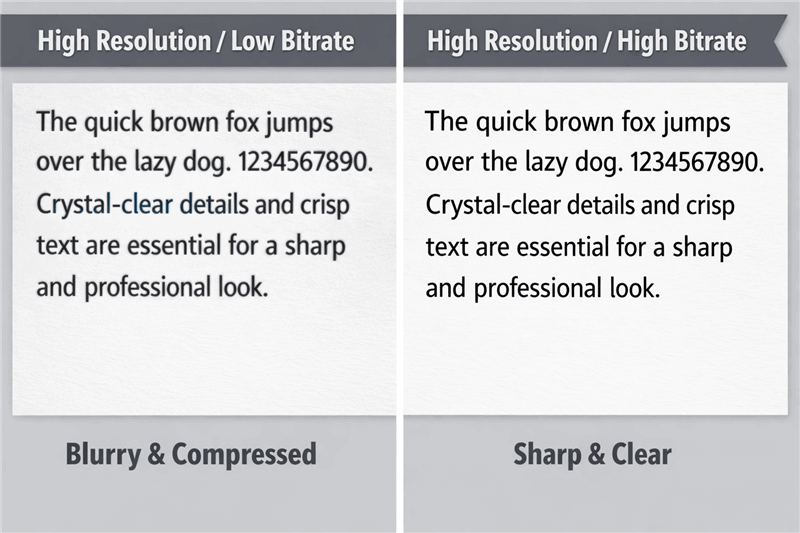
Screen Comparing – Low Bitrate Artifacts vs High Bitrate
To ensure lossless recording or near-lossless quality, configure these three factors:
Bitrate: Think of this as the amount of data allowed in every second of video.
- 1080p: Aim for 8,000–12,000 kbps.
- 4K: Aim for 30,000–60,000 kbps.
- Note: If you use OBS, you can set “CQP” (Constant Quantization Parameter) for quality-based bitrate management rather than a fixed number.
Frame Rate (FPS):
- Software Demos: 30 FPS is sufficient and saves file space.
- Gaming: 60 FPS is the minimum standard; 120 FPS+ is ideal for editing slow motion later.
Codecs (H.264 vs. H.265):
- H.264 (AVC): The compatibility king. Use this if you are editing on an older computer.
- H.265 (HEVC): The modern standard. It provides the same quality at roughly half the file size. Use this if you have a modern GPU (RTX 30-series or Apple Silicon).
Windows vs. macOS: Optimizing Your Setup for Crystal Clear Video
Even the best screen recorder for Mac or PC will struggle if the operating system isn’t optimized for media capture.
Optimizing Windows 11 for Recording
On our Dell XPS and desktop rig, we found that enabling Game Mode made a measurable difference in reducing stutter.
- Go to Settings > Gaming > Game Mode and turn it On. This prioritizes recording processes.
- GPU Scheduling: Search for “Graphics Settings” and enable “Hardware-accelerated GPU scheduling.” This helps offload the encoding work to your dedicated graphics card.
Optimizing macOS (Sonoma/Sequoia)
For Apple users, the biggest hurdle is permissions.
Permissions Check: macOS is strict. You must grant permission for “Screen Recording” and “Microphone” in System Settings > Privacy & Security. Without this, your screen will record as a black window, or your audio will be silent.
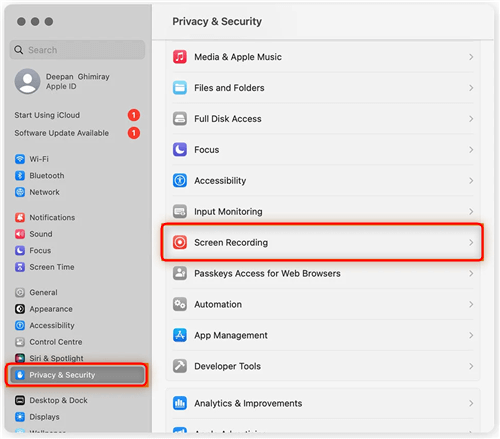
macOS Screen Recording Menu
Apple Silicon: Ensure you are downloading the “Apple Silicon” or “Universal” version of software like OBS. Using the Intel version (via Rosetta) caused higher CPU usage and battery drain in our M1 testing.
FAQs: Achieving Professional Screen Recording Quality
Which screen recorder supports true 4K recording?
FocuSee, OBS Studio, Camtasia, and Bandicam all support true 4K screen recording. However, Bandicam and OBS generally offer better performance for 4K at high frame rates due to their efficient hardware encoding implementations.
Is FocuSee free?
FocuSee offers a free version, but it applies a watermark to your exported videos and may have recording time limits. To remove the watermark and unlock full 4K export features, a paid plan is required.
Why does my recording look blurry even at 1080p?
This is usually a bitrate issue. If your recorder is set to a low bitrate (e.g., 2,500 kbps), fast motion will cause pixelation. Increase your bitrate to at least 10,000 kbps for 1080p recording. Also, ensure your recording resolution matches your monitor’s resolution.
Can I record system audio and microphone audio on separate tracks?
Yes. For professional editing, this is highly recommended. OBS Studio, FocuSee, and Camtasia all support multi-track audio recording. This allows you to fix levels in post-production—for example, lowering the volume of a loud system alert without quieting your voiceover.
Final Verdict: Which Tool Fits Your Workflow?
Choosing the top 5 high-quality screen recorder solutions depends entirely on your specific goals and budget.
- For Automated Tutorials: Choose FocuSee. It struck the best balance in our tests between quality and speed of production, automating the tedious zooming and cursor highlighting tasks.
- For Streaming & Tech Enthusiasts: Choose OBS Studio. It is free, powerful, and offers the highest ceiling for quality if you are willing to learn the settings.
- For Corporate Training: Choose Camtasia. It is an investment, but the integrated editing suite handles complex course creation better than any other tool.
- For Gaming: Choose Bandicam. Its ability to capture high FPS with low CPU usage is unmatched on Windows.
- For Quick Office Work: Choose Snagit. It is the fastest way to share a quick visual idea.
Don’t let technical hurdles stop you from sharing your knowledge. Download the tool that matches your technical comfort level and start recording today.