5 Best Video Presentation Software (Free & AI Tools for Slides, Screen & Webcam)

Creating a polished video presentation for stakeholders in different time zones can be a significant source of stress. The fear that your recording will sound echoey or look amateurish is real, especially when you don’t have time for complex video editing. You need to combine your slides, screen recording, and webcam into one seamless video, but the sheer number of options is overwhelming.
This guide is designed to solve that problem. We’ve conducted hands-on testing of the top video presentation makers to find the one that delivers professional results with a minimal learning curve. We’ll show you the best software for clear and effective communication.
Our Testing Process: How We Evaluated Each App
We created a standardized, real-world testing setup using a MacBook Air M3 (macOS Sonoma) and a Dell XPS 13 Plus (Windows 11). This reflects what most professionals use and ensures our results are practical and relevant.
We evaluated each app across five core criteria:
- Ease of Use: How fast a new user can go from installation to exporting a finished video, focusing on intuitive, low-friction workflows.
- Performance on Everyday Hardware: Smooth operation, minimal lag, and reasonable resource usage. During a 15-minute 1080p test, top apps stayed under 35% CPU on the Dell XPS with quiet fan levels.
- AI Feature Quality: Accuracy and usefulness of AI subtitles, filler-word removal, and noise reduction—measuring whether they truly speed up editing.
- Collaboration Capabilities: Support for shared scripts, team comments, and brand asset libraries.
- Mobile Viewing Experience: How well videos display on smartphones, including aspect ratio handling and playback clarity.
Quick Comparison: Top Video Presentation Tools at a Glance
Selecting the right tool depends entirely on your primary goal. A sales professional creating product demos needs different features than a teacher recording online lectures. This comparison table highlights the strengths of four leading platforms to help you make a quick, informed decision.
| FocuSee | Loom | Canva | Prezi | Powtoon | |
| Best For | AI demos & tutorials | Quick recording | Design videos | Interactive talks | Animated videos |
| Ease | ★★★★★ | ★★★★★ | ★★★★☆ | ★★★☆☆ | ★★★★☆ |
| AI | ★★★★★ | ★★★☆☆ | ★★☆☆☆ | ★★☆☆☆ | ★★☆☆☆ |
| Recording | Screen + cam | Screen + cam | Limited | Cam + slides | ❌ None |
| Editing | Advanced | Basic | Template-based | Medium | Scene-based |
| Free Plan | Watermark | 5-min limit | Watermark | Public only | Watermark |
| Collab | ★★★★☆ | ★★★★★ | ★★★★☆ | ★★★☆☆ | ★★★☆☆ |
This table provides a high-level overview. For professionals needing polished, client-ready recorded presentations with minimal editing, an AI-powered tool like FocuSee offers a distinct advantage. For teams needing quick, informal screen shares, Loom excels.
Editor’s Choice: FocuSee – Best for AI-Powered Polish
After extensive testing, FocuSee stands out as the best video presentation maker for business professionals who need polished results without the complexity of traditional editing. It directly solves the most common user anxieties by framing its features as practical solutions.
Problem: “My video will look amateurish and hurt my credibility.”
Solution: Intelligent Visual Focus. FocuSee’s standout feature is its ability to automatically track your cursor movement and zoom in on key areas of the screen. This creates a dynamic viewing experience that directs the audience’s attention precisely where you want it. It mimics the actions of a professional video editor, ensuring your tutorials and product demos look intentional and build trust.
Problem: “I don’t have time to learn complex editing software.”
Solution: AI-Powered Editing. This is where FocuSee saves the most time. Its ‘Smart Cut’ feature automatically removes awkward pauses and filler words. This solves the exact challenge faced by professionals like Alex, who needed to record a Q3 roadmap presentation for stakeholders across multiple time zones. Instead of spending hours re-recording, Alex recorded a single take, and FocuSee cleaned it up in minutes.
The built-in AI Teleprompter also allowed Alex to read a script naturally while maintaining eye contact with the camera, forging a stronger connection with the audience. The result was a seamless asynchronous video presentation that impressed the team.
A Small Caveat: Who It Might Not Be For
To build trust, it’s important to be transparent. FocuSee’s strength is its automated, AI-driven workflow. Suppose you are a professional video editor who wants granular, manual control over every transition and keyframe on a complex timeline. In that case, you might find its streamlined approach too automated for your specific needs.
From PowerPoint to Polished Video in 15 Minutes
FocuSee excels at turning existing slide decks into engaging videos. Here is a simple workflow to create a professional video in under 15 minutes.
Step 1. Open Your Slides and Start a Screen Recording
Open your PowerPoint, Keynote, or PDF slides on your computer. Launch FocuSee and select Screen Recording. Choose whether to display your slides in window or full-screen mode.
This method preserves your animations, transitions, and presenter flow.
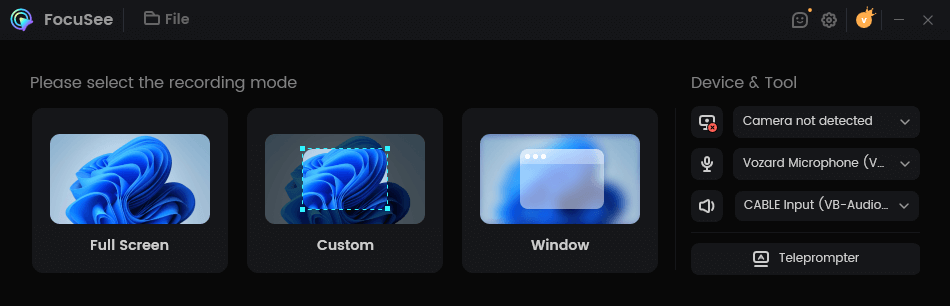
Choose a Recording Mode
Step 2. Set Up Your Recording
Before recording, configure your webcam and microphone. Choose your USB microphone from the dropdown and confirm your audio levels. If you prepared a script, paste it into the built-in teleprompter so you can deliver smoothly.
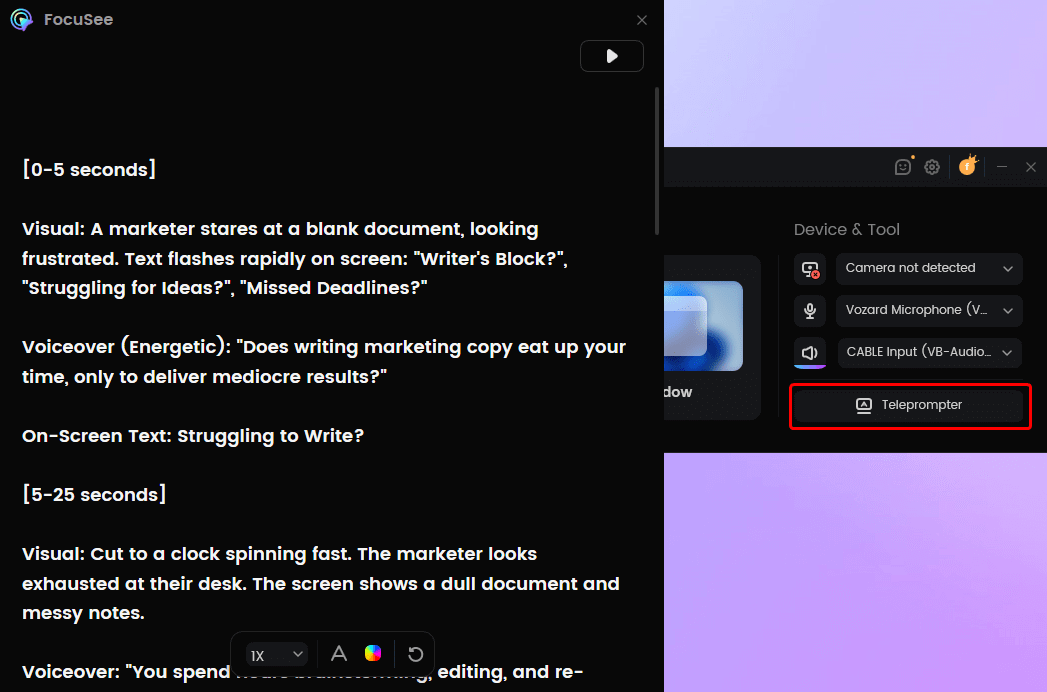
FocuSee Teleprompter
Step 3. Record Your Presentation
Press Record and present your slides just as you would in a meeting—advance through the deck, explain key points, and stay natural. FocuSee captures your voice, webcam bubble, and slide activity simultaneously.
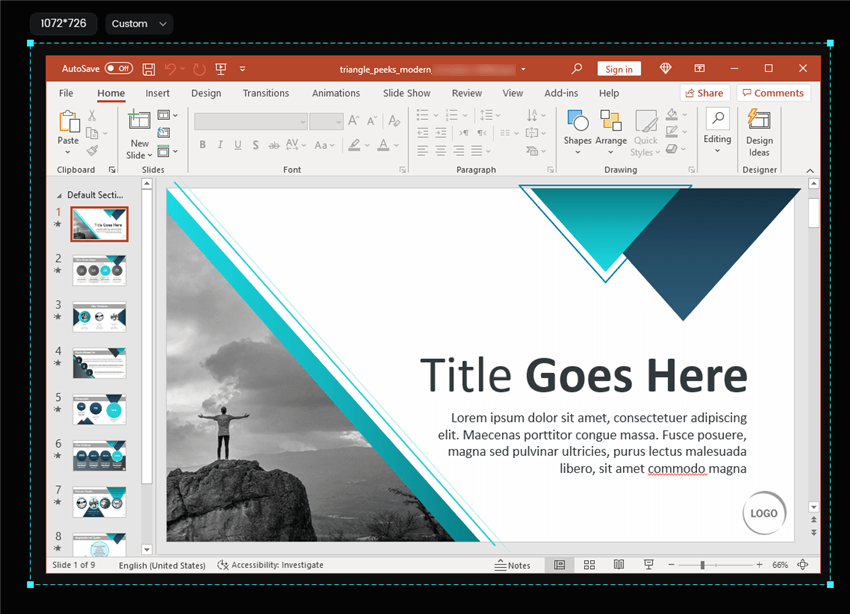
Frame an Area to Record
Step 4. Apply AI Enhancements to Boost Clarity
After recording, use Smart Cut to remove pauses and filler words. Generate auto subtitles with one click. These AI tools instantly boost clarity and accessibility without manual editing.
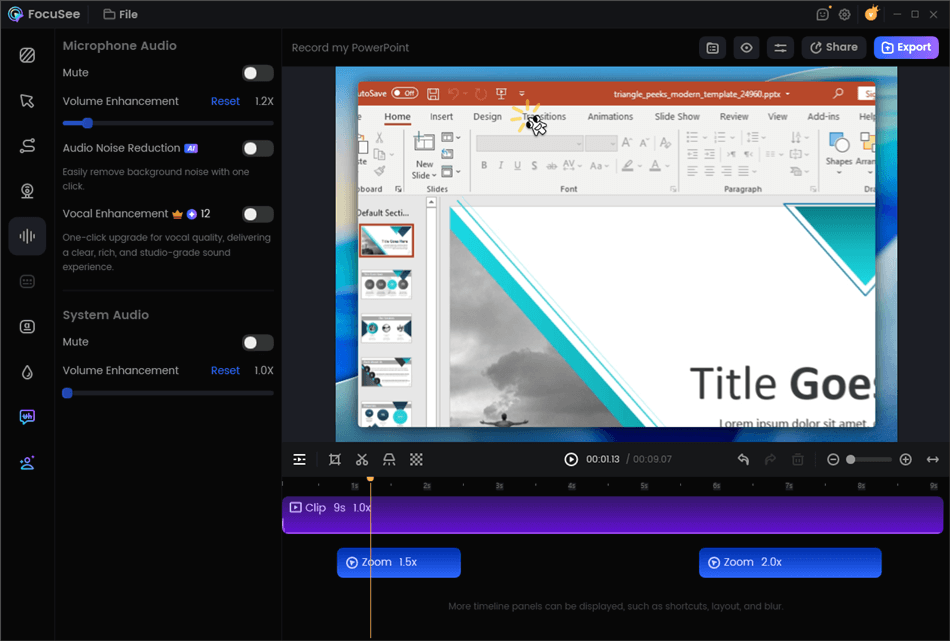
Edit Your Recording
Step 5. Export and Share
Choose your aspect ratio (16:9 for YouTube, 9:16 for mobile). Export a high-quality MP4 or create a shareable link with viewer analytics.
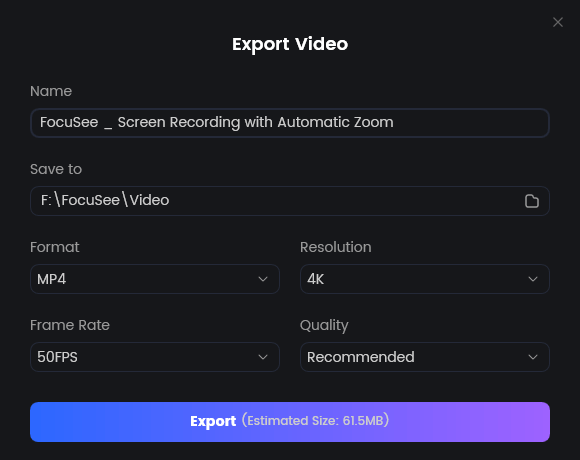
Export Your Video
The Pro Feature You Can’t Ignore: Object-Based Editing
Here is a critical factor that separates good presentation tools from great ones: object-based editing. Many tools permanently “burn” your webcam footage onto your screen recording. If your face bubble covers an important chart, your only option is to re-record the entire segment.
The best video presentation software avoids this by recording the screen, webcam, and audio as separate streams. This non-destructive workflow is a game-changer. It means that after you finish recording, you can treat your webcam bubble as a movable object. Did it cover a key statistic? Simply drag it to another corner. This provides enormous flexibility and saves you from the perfectionist trap of endless re-takes.
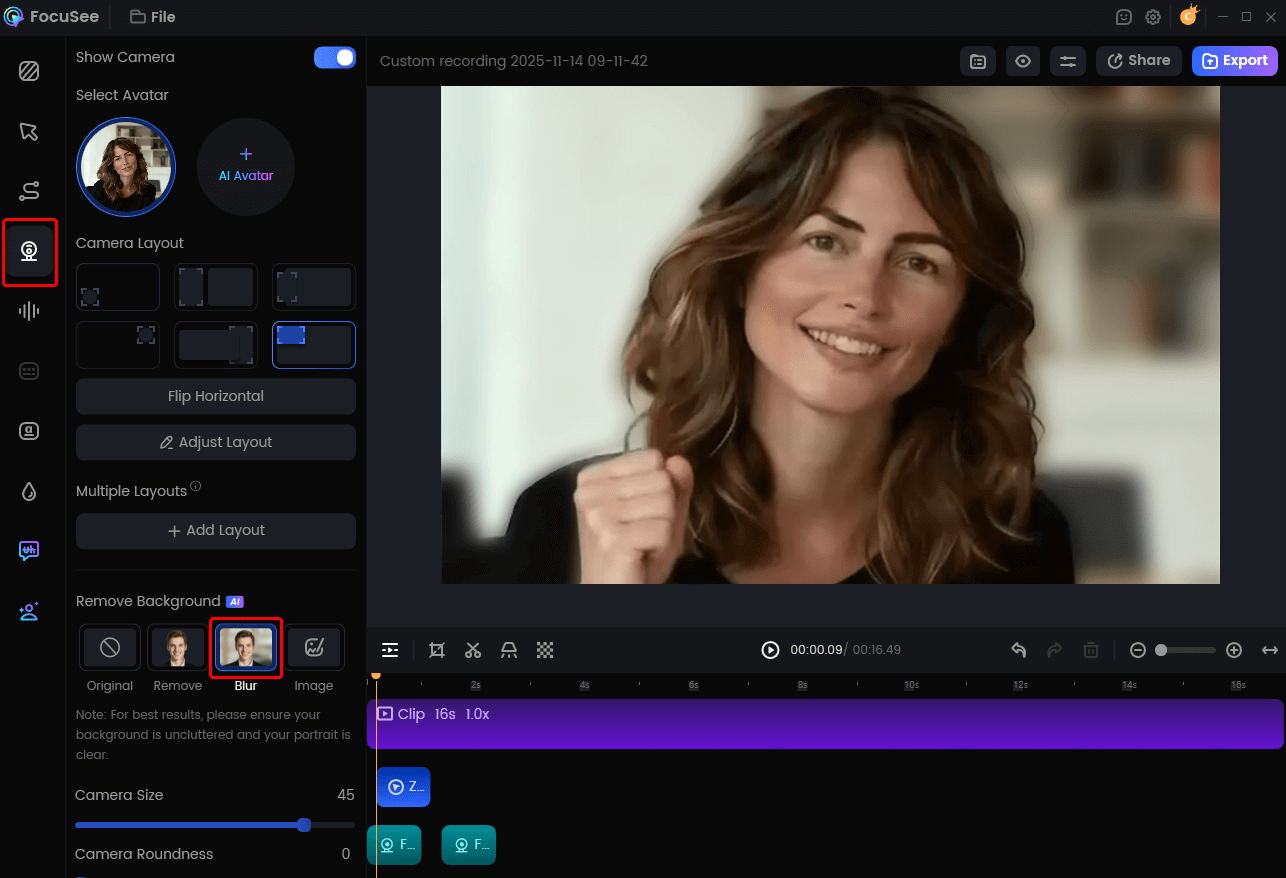
Remove Camera Background
Other 4 Great Video Presentation Software
While FocuSee is our top pick, other tools excel in specific areas. Your ideal choice might be different depending on your primary objective.
Loom – Best for Quick Screen Recording & Async Updates
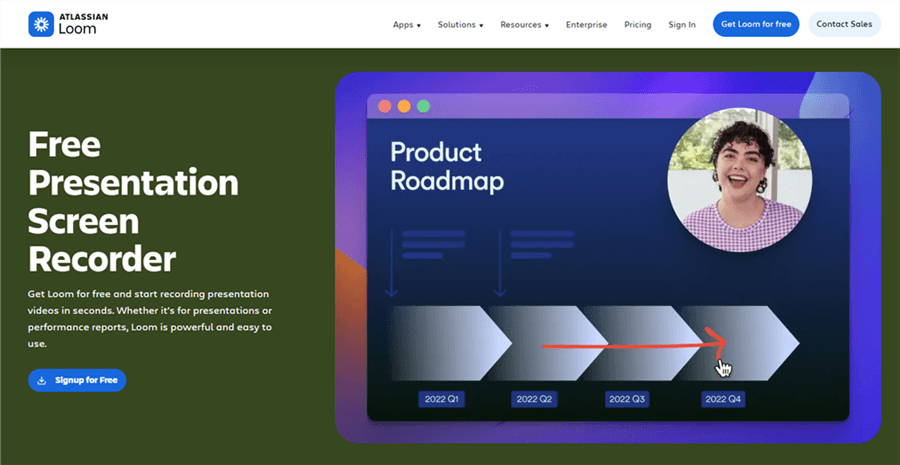
Video Presentation Software – Loom
Loom is one of the most popular tools for fast, no-friction video communication. It allows you to record your screen, webcam, and voice simultaneously, then instantly share via a link—making it ideal for remote teams and internal communication.
Key Features:
- One-click screen + webcam recording
- Instant shareable links with viewer tracking
- Basic trimming and commenting tools
- Integrations with tools like Slack, Gmail, and Notion
Best for:
- Team updates and async communication
- Quick product walkthroughs
- Internal training or feedback videos
Pros:
- Extremely easy to use (minimal setup)
- Fast recording and sharing workflow
- Strong collaboration features
Cons:
- Limited editing and AI capabilities
- Free plan restricts video length and storage
- Not ideal for polished, client-facing presentations
Powtoon – Best for Animated Explainer Videos
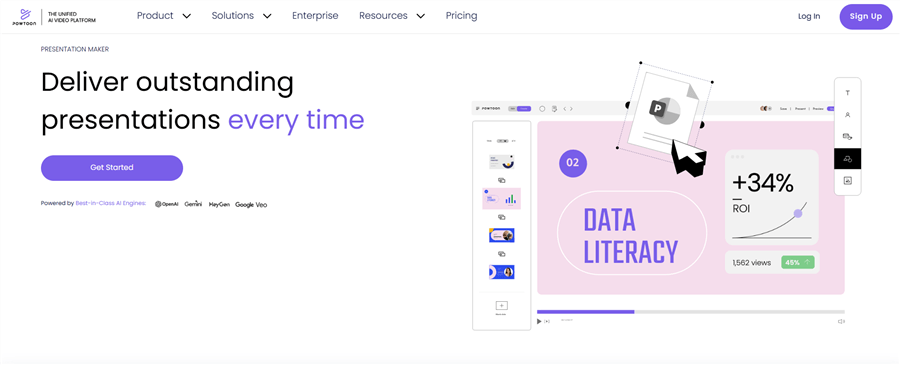
Video Presentation Software – Powtoon
Powtoon is designed for creating animated presentations and explainer videos without needing advanced design skills. Instead of recording your screen, you build scenes using characters, icons, and motion graphics.
Key Features:
- Large library of animated characters and templates
- Drag-and-drop timeline editor
- Voiceover and music integration
- Pre-built story structures for marketing and training
Best for:
- Marketing explainer videos
- HR onboarding and training content
- Story-driven presentations
Pros:
- Highly engaging visual storytelling
- No need for live recording
- Strong template ecosystem
Cons:
- More time-consuming than screen recording tools
- Limited flexibility in free plan
- Less suitable for real-time demos or tutorials
Prezi Video – Best for Interactive & Non-Linear Presentations
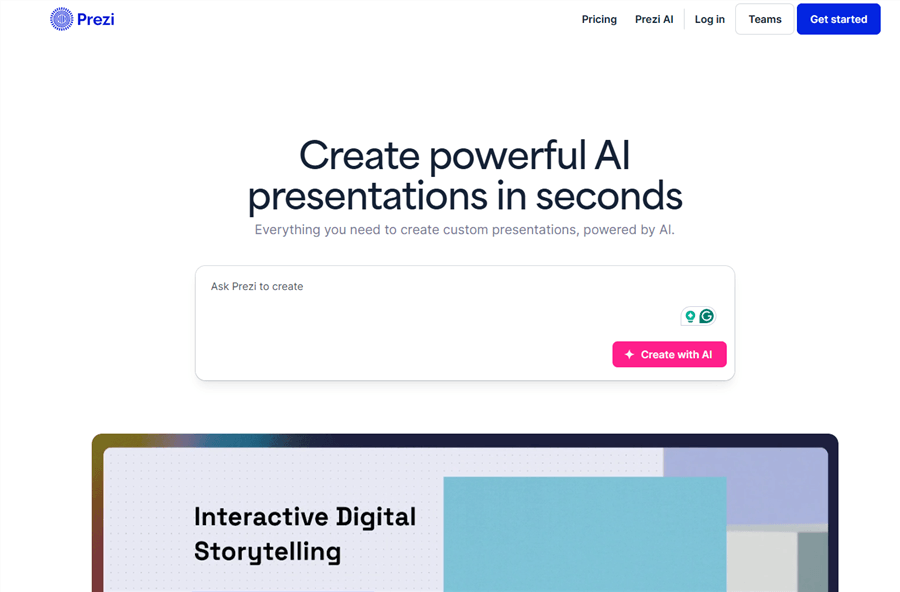
Video Presentation Software – Prezi
Prezi Video offers a unique presentation style where you appear on screen alongside your content. Its zoomable canvas creates a dynamic, conversation-like experience, making it especially effective for teaching and storytelling.
Key Features:
- Zoom-and-pan presentation canvas
- Presenter overlay (you + content in one frame)
- Integration with Zoom, Teams, and other meeting tools
- Interactive, non-linear navigation
Best for:
- Online teaching and lectures
- Engaging storytelling presentations
- Live or recorded presentations with audience interaction
Pros:
- Visually distinctive and engaging
- Great for maintaining audience attention
- Strong for education use cases
Cons:
- Steeper learning curve than traditional tools
- Can feel overwhelming for simple presentations
- Less suitable for step-by-step tutorials
Canva – Best for Design-Heavy Video Presentations
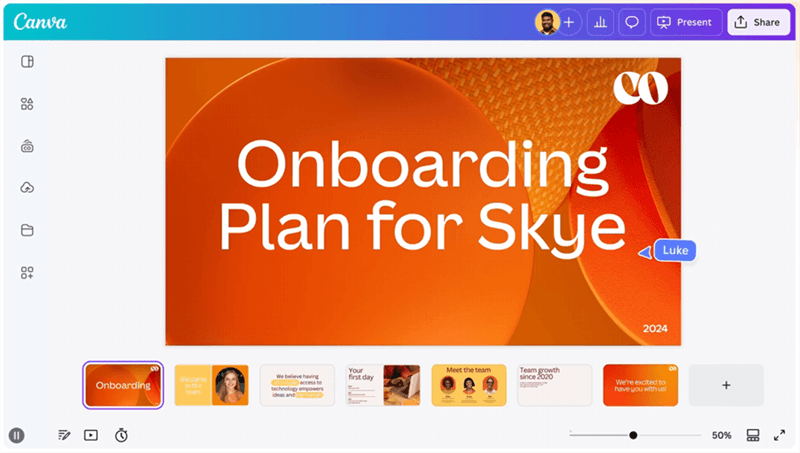
Video Presentation Software – Canva
Canva is a design-first platform that also supports video creation. It’s ideal for users who want visually polished presentations with minimal effort, thanks to its extensive template and asset library.
Key Features:
- Drag-and-drop video editor
- Thousands of templates, stock videos, and graphics
- Brand kit for consistent visual identity
- Basic animation and transition effects
Best for:
- Social media presentations
- Marketing and branding videos
- Visual-first storytelling
Pros:
- Extremely beginner-friendly
- Powerful design ecosystem
- Great for quick, attractive visuals
Cons:
- Limited screen recording capabilities
- Lacks advanced AI editing features
- Export quality and branding limitations on the free plan
FAQs about Best Video Presentation Maker
Which tool is best for recording my screen, slides, and webcam at the same time?
Tools like FocuSee and Loom are designed for simultaneous screen and webcam recording. FocuSee offers more advanced post-production features like auto-zooming and highlighting, making it ideal for polished tutorials and sales pitches.
Can I turn my existing PowerPoint into a video without rebuilding it?
Yes. A dedicated tool like FocuSee allows you to directly import PPTX, PDF, or Keynote files, which are automatically converted into video scenes.
How do I add subtitles to my video presentation for accessibility?
AI-powered tools are the easiest method. A tool like FocuSee can auto-generate timed subtitles from your voiceover with high accuracy. This is far more efficient than manually transcribing and timing captions.
Which video presentation software is best for teachers?
A tool like Prezi Video or FocuSee is an excellent choice. Prezi is great for creating interactive, non-linear lectures, while FocuSee is ideal for recording clear, step-by-step tutorials and course content with its auto-zoom and highlighting.
What are the typical pricing tiers for these tools?
Most operate on a freemium model. Free plans are good for testing but are often limited by video length, storage, video quality (1080p/4K), or a watermark. Paid plans typically start around $10-$20 per user/month and unlock the features needed for professional content.
Final Thoughts
Choosing the right video presentation maker doesn’t have to be complicated. The goal is to find a tool that eliminates technical barriers, allowing you to focus on your message, not the software. Stop worrying about looking unprofessional or spending hours on tedious edits. An AI-powered tool like FocuSee automates the difficult parts—like removing pauses, highlighting key details, and adding subtitles—so you can create polished, credible videos in minutes.
Take control of your asynchronous communication. Download a free trial of FocuSee to experience how quickly you can turn your ideas into compelling presentations that your audience will actually watch.