Master Video Editing AI in 2026: The Guide to Automating Your Workflow

The landscape of content creation has shifted significantly with the widespread adoption of video editing AI. For many creators, the excitement of filming fades quickly when faced with the tedious reality of post-production. Spending hours meticulously trimming silence, struggling with color grading, or trying to sync audio drains creative energy, especially if you lack advanced technical skills.
This guide explores how the best AI video editing software can transform that bottleneck into a streamlined process. Rather than replacing your creativity, these tools act as a force multiplier, handling the repetitive technical tasks so you can focus on storytelling.
We have evaluated these methods to help you move beyond marketing claims and find a practical workflow. Whether you need automated video editing software for bulk social clips or precision tools for tutorials, the goal is to identify solutions that maintain high-quality output without technical headaches.
Choosing the Right Tool: A Landscape Analysis
The most common frustration creators face isn’t that “AI doesn’t work”—it’s that they are using the wrong tool for the job. A tool designed for screen recordings will fail miserably at cinematic vlogs.
To solve the “single hammer” problem, we have categorized the top AI tools into three distinct workflows. You should choose based on the type of content you produce.
1. The Tutorial & Demo Specialist: FocuSee
For creators making software tutorials or product demos, the biggest pain point is manual zooming. You often need to highlight a specific button click or mouse movement. Doing this manually requires setting hundreds of keyframes.
FocuSee solves this specific problem. It records your screen and uses cursor-tracking algorithms to automatically apply zoom and pan effects. It turns a static screen recording into a dynamic video without you touching a timeline.
2. The Narrative & Podcast Editor: Descript
If your content is dialogue-heavy—like interviews, podcasts, or talking-head YouTube videos—editing by waveform is slow. Descript allows you to edit video by editing text. It transcribes your footage, and when you delete a sentence in the word processor, it cuts that scene from the video. It is the superior choice for fixing verbal mistakes or rearranging a narrative flow.
3. The Social Media Repurposer: OpusClip
For a social media manager required to produce multiple short-form videos weekly for Instagram and TikTok, the workload of manually finding “viral moments” in a long video is unsustainable. Tools like OpusClip ingest long-form content (like a 30-minute interview), analyze the topic changes, and automatically slice it into vertical, captioned shorts.
| Tool Name | Best Use Case | Key AI Feature | Pricing Model |
| FocuSee | Screen Recordings | Auto-Zoom on Cursor | Paid / Perpetual |
| Descript | Dialogue / Podcasts | Text-Based Editing | Subscription |
| OpusClip | Social Media Shorts | Viral Moment Detection | Subscription |
Step-by-Step Workflow: How to Edit Videos with AI
For tutorial creators who want a truly automated editing workflow, FocuSee handles most of the tedious post-production tasks automatically, including zooming, cursor highlights, filler word removal, and subtitles. Here’s how a typical session looks:
Step 1: Import Your Recording
Drag your screen recording, webcam, or microphone footage into FocuSee. The software immediately analyzes cursor movements, audio levels, and scene interactions. Unlike timeline-based editors, you don’t need to click “Silence Detection” or manually scan waveforms—the AI identifies pauses, filler words, and key actions on its own.
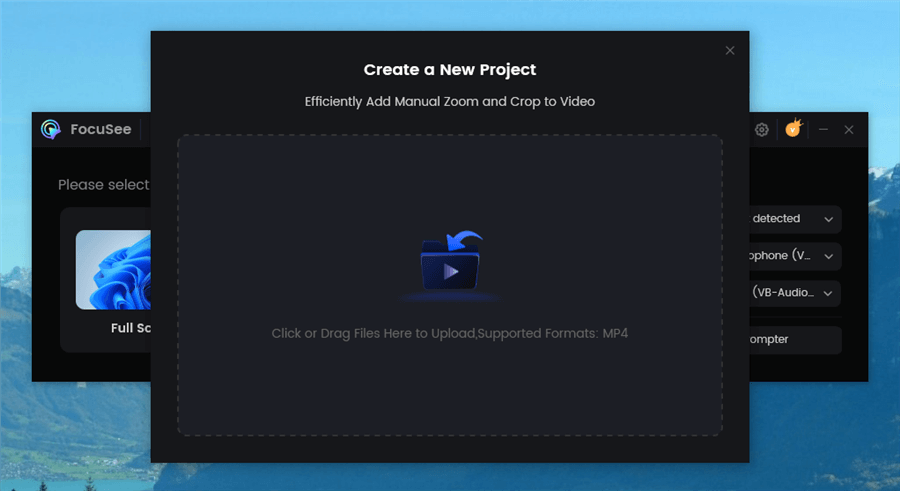
Upload Your Footage
Step 2: Automatic AI Processing
Smart Focus & Auto-Zoom: FocuSee tracks your mouse and automatically zooms on the active area, highlighting key steps without manual keyframing.
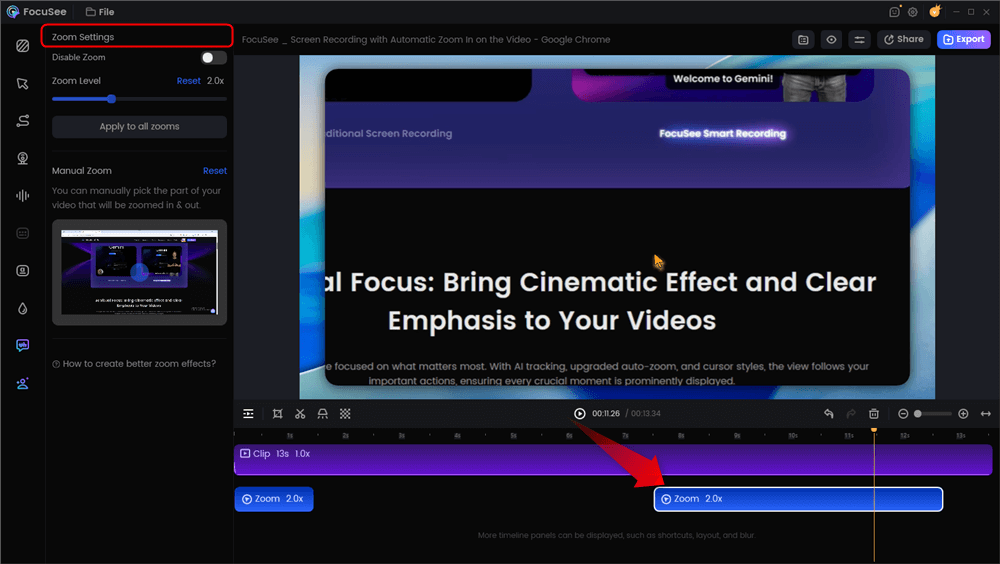
Automatic Zoom Effects
AI Smart Cut: Removes “uh,” “um,” long pauses, and other filler noises.
Auto Subtitles & Social Media Cropping: Generates accurate captions in 50+ languages and automatically crops videos for platforms like YouTube, TikTok, and LinkedIn.
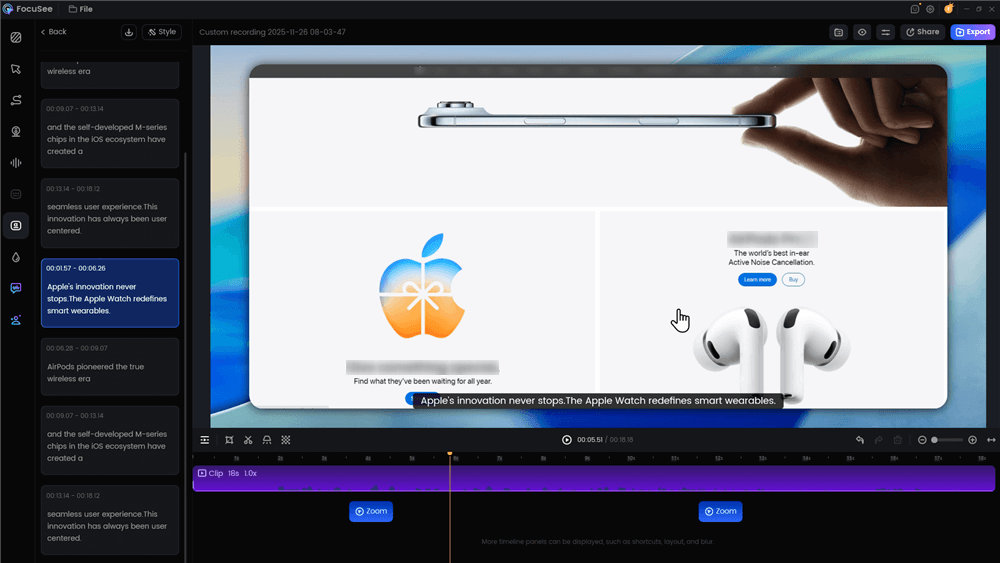
Automatic Subtitle Generation
Audio Enhancement & Background Noise Removal: Produces clear, professional-quality sound instantly.
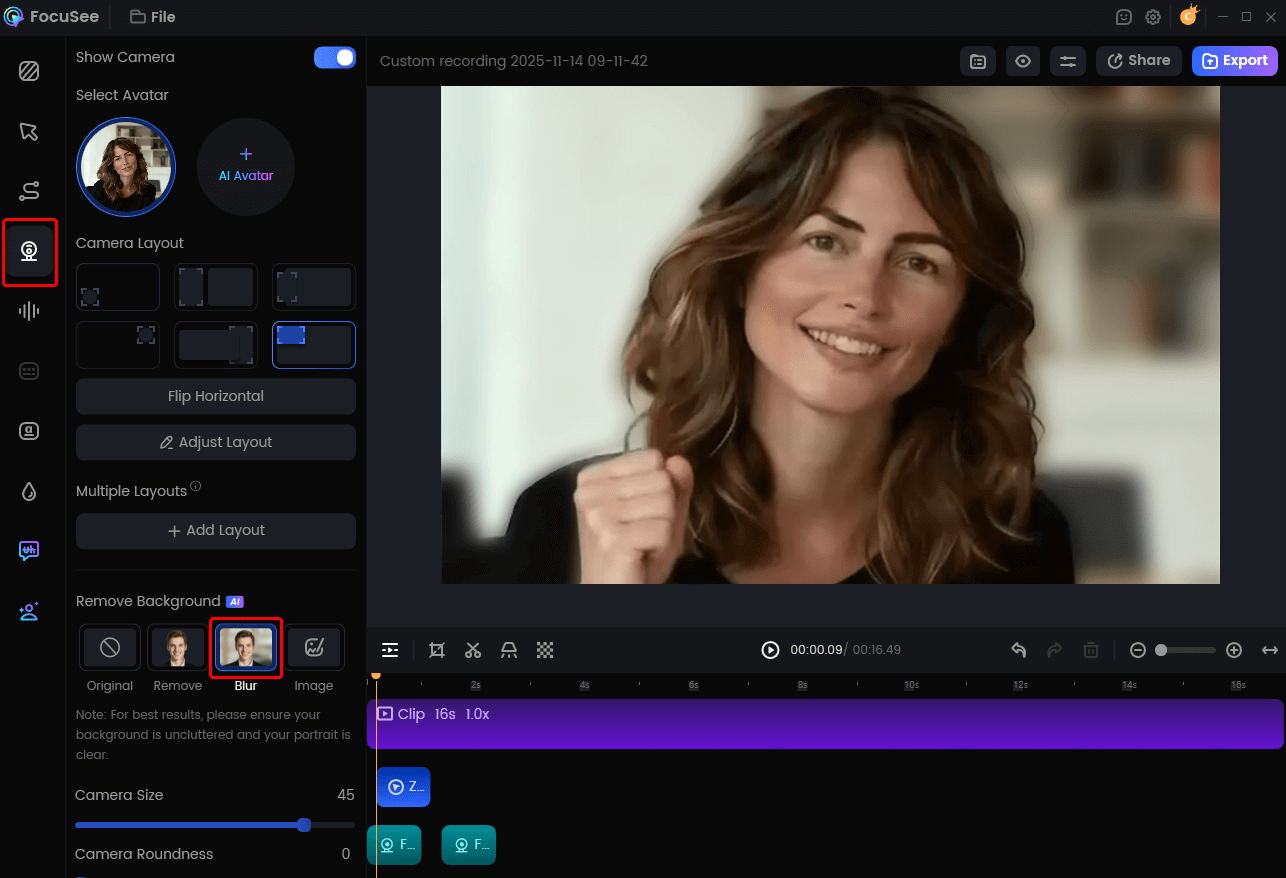
Remove Camera Background
Step 3: Quick Verification & Export
After AI processing, review your video. FocuSee lets you restore any segments if the AI misinterpreted a pause or click. Once verified, export in 4K/60fps MP4, GIF, or other platform-optimized formats.
Why This Works for Tutorials
FocuSee eliminates keyframe fatigue and repetitive post-production work, letting creators focus on teaching rather than timeline management. The combination of Smart Focus, Auto-Zoom, AI Smart Cut, and Auto Subtitles transforms raw screen recordings into polished, share-ready tutorials in a fraction of the usual time.
Is FocuSee Right for You?
- YES: Software demos, coding tutorials, presentation decks, or online courses.
- NO: Travel vlogs, short films, or heavily narrative-driven videos.
Further Reading: Social Media Video Marketing >
Balancing Automation and Creativity: Expert Best Practices
While AI-powered video stabilization and auto-cutting are impressive, relying solely on algorithms leads to generic content. AI video editing tools are powerful for automating mundane tasks like trimming footage and color correction. However, a critical misunderstanding persists: AI cannot replace the need for creative editing.
AI enhances speed, but human input is essential for artistic choices like storytelling, pacing, and comedic timing.
The Hybrid Workflow Procedure
To get the best results, use a phased approach:
- Phase 1: The AI Rough Cut. Use automated video editing software to handle the heavy lifting—removing dead air, generating captions, and initial color balancing.
- Phase 2: The Creative Pass. Once the technical foundation is set, you must intervene. This involves adjusting the timing of a joke, selecting music that matches the emotional tone, or refining the narrative arc.
By delegating the technical labor to the software, you reserve your mental energy for the storytelling decisions that actually engage your audience.
Under the Hood: How AI Editing Tools Work
Understanding the mechanics allows you to predict where the AI might fail. These tools do not “watch” video; they analyze data streams.
Silence Detection
The software scans audio waveforms for decibel levels dropping below your set threshold. It marks these timestamps and executes a cut command. This is pure data processing, which is why it is exponentially faster than human review.
Object Recognition and Cropping
Visual automation, such as auto-reframe for TikTok, utilizes computer vision. The AI identifies the primary subject—often a face or a moving cursor—by analyzing pixel contrast and movement vectors. It then dynamically adjusts the crop window to keep that subject centered. This converts horizontal footage into vertical formats without losing the focal point.
Troubleshooting: Overcoming Common AI Pitfalls
Beginners often encounter specific issues when relying on default settings. Here is how to fix the “Plastic Look” and audio glitches.
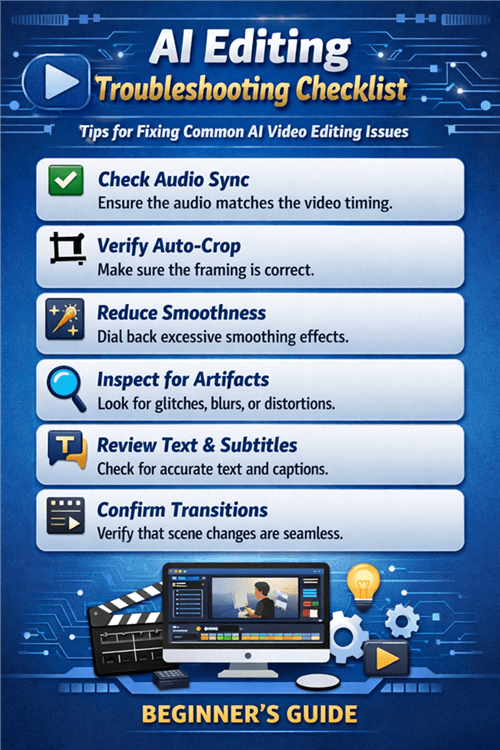
A Troubleshooting Checklist for AI Editing
The “Plastic” Look (Over-Smoothing)
AI beauty filters or noise reduction tools often remove skin texture, making the subject look like a mannequin. Locate the Effect Controls panel in your software (often on the top left or right sidebar). Find the effect labeled “Beauty,” “Denoise,” or “Skin Softening.” Dial the Intensity or Mix slider down from the default 100% to 35-50%. You want to retain some natural grain.
Audio Artifacts (The Underwater Sound)
Aggressive background noise removal can make your voice sound robotic or “underwater.” This happens when the AI strips away frequencies that overlap with your voice.
Always preview audio with headphones, not laptop speakers. If it sounds processed, reduce the Noise Reduction Amount by 10-20%. It is better to have slight background noise than a distorted voice.
Frequently Asked Questions About AI Video Editing
Q: What are the best AI video editing tools for YouTube videos?
A: For talking-head videos, Descript is excellent for editing the narrative flow. For tutorials, FocuSee handles the visual engagement best. For repurposing long content into Shorts, OpusClip is the industry standard.
Q: Are there AI video editing apps for beginners with no prior experience?
Yes. Tools like Canva (Magic Edit) and CapCut are designed for beginners. They utilize drag-and-drop interfaces and handle complex backend tasks—like bitrate management—automatically.
Q: How can AI video editing help speed up my editing workflow?
Video editing AI accelerates workflows by removing the need for real-time review of raw footage. Instead of watching a 30-minute clip to find the best 5 minutes, AI tools can transcribe the video, allowing you to edit the footage by editing the text document.
Q: Can AI-powered video editing replace traditional manual editing?
Not entirely. While AI excels at technical execution, it lacks human intuition. The most professional results come from using AI to handle the “grunt work” (trimming silence, syncing) and then applying manual edits for the final creative polish.
Support Note: “The software recommendations in this guide are regularly updated. AI algorithms improve monthly; always ensure you are running the latest version of your chosen tool for optimal performance.”
Conclusion
The challenge of video editing—the time drain and the technical frustration—is no longer a necessary barrier to entry. By adopting video editing AI, you can move from spending hours on repetitive trimming to producing polished content in minutes.
If your focus is screen recording and tutorials, FocuSee offers a direct solution to the zooming problem. If you are managing a podcast or social clips, tools like Descript or OpusClip will serve you better. Start by automating the most tedious part of your workflow today, and use that recovered time to focus on your narrative.