Does Video Star Have a Watermark? The 2026 Guide to Clean Exports

Imagine spending hours perfectly syncing an anime edit on your iPhone. You have adjusted the curves, nailed the transitions, and the flow is flawless. But as you hover over the save button, a wave of anxiety hits you: Will a clunky app logo stamp itself over your work once you render the final file?
For mobile creators, this isn’t just a technical question; it is about protecting the aesthetic you worked so hard to build. You have likely seen mixed messages online or watched TikToks covered in UI clutter, leading you to worry that sticking to the free version means accepting a branded video.
If you are searching for whether Video Star has a watermark, you can breathe a sigh of relief. The answer is likely better than you expect, but it requires using the correct export method to avoid accidental interface clutter.
Does Video Star Add a Watermark to Exports?
The short, definitive answer is no. Unlike many competitors in the iOS video editing market, Video Star does not force a watermark on your exported videos.

Video Star interface vs the Clean Export in iOS Photos
This applies to both the paid “Pro” users and those using the free version of the app. This distinction is vital because apps like Alight Motion or CapCut often operate on a “freemium” model where the free tier aggressively brands your content, requiring a subscription to remove it. Video Star respects your content’s integrity right out of the box.
However, if the app is watermark-free, why do you constantly see the Video Star logo or interface scrolling through your TikTok feed? Based on our testing and analysis of search results, the confusion stems almost entirely from how users save their videos, not the app itself.
The Source of the Confusion: Screen Recording vs. Exporting
If you see a video with the Video Star interface—meaning the buttons, timeline sliders, and play bar are visible—the creator did not use the export function. Instead, they used the iOS screen recording feature to capture the preview window.
Here is the technical reality of why this happens:
- The Interface Overlay: When you are inside the editor, the Video Star UI overlays tools on top of your clip so you can work.
- The “Lazy” Export: Users often screen-record this playback to avoid waiting for rendering or because they cannot find the save button.
- The Result: The final video contains all the app’s buttons, creating a “watermark” effect that shouldn’t be there.
Free vs. Pro: Do You Need to Pay for Clean Edits?
A common misconception among new editors is that a Pro subscription is required to remove branding. This is a standard monetization tactic in the mobile editing industry, so it is natural to assume Video Star follows suit.
However, you do not need to upgrade to Pro to remove a watermark. If your primary concern is keeping your video clean, the free version is fully capable of doing so. You should only purchase a subscription or power packs if you need specific creative tools.
When you purchase a pass, subscription, or specific effect packs, your money goes toward advanced editing capabilities, not a clean export. These premium features include:
- Advanced Keyframing: Custom movement graphs for smoother transitions.
- Multi-Layer Support: Complex compositing capabilities and masking.
- Premium Effects: Specialized distortion, coloring, and particle effects.
If you stick to the basic tools, you can still export your video without any branding. Do not purchase a subscription solely to remove a logo, as this is a misunderstanding of the app’s value proposition.
Video Star Watermark Explained: Why Logos Persist
Despite the app being clean, questions about watermarks remain frequent. Beyond the screen-recording error mentioned earlier, there are three other reasons you might see branding on clips across social media.
1. The “Fan Edit Watermark” Culture
In the fan edit community, creators often face content theft. To combat this, they manually add their own text overlays—sometimes crediting “Edited with Video Star” or their username—to prove the legitimacy of their work and prevent others from claiming it. This is a stylistic choice applied by the creator, not a mandate by the software.
2. The Platform Loop-Back
Often, a user will download a video from TikTok to edit it further in Video Star. When they do this, the TikTok watermark is “baked” into the source footage. When they export the final result from Video Star, that TikTok logo remains. Viewers then mistakenly attribute the messy branding to Video Star rather than the source file.
3. Audio Watermarks (“Audio Jungle”)
Watermarks aren’t always visual. If you are editing an edit and hear a voiceover saying a producer’s name (e.g., “Audio Jungle,” “Motion Array,” or a generic robotic voice), that is an audio watermark embedded in the music track itself.
This happens when you use a preview version of a copyrighted song or download a track from a stock audio site without a license. Video Star cannot remove copyright protection from audio files. To fix this, you must source a clean version of the audio file.
How to Remove the Watermark in Video Star
To ensure you avoid accidental interface recording and achieve a pristine output, you must follow the standard rendering procedure. The interface can be cluttered, so here is specifically where to look and what to do:
Step 1. Finalize Your Edit: Ensure all your transitions and effects are rendered.
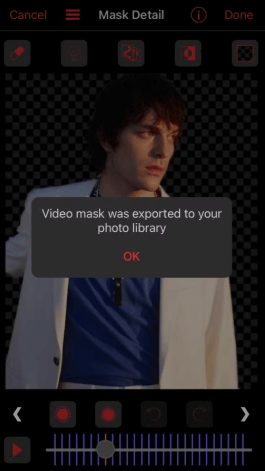
Step 2. Locate the “Make Video” Icon:
- Inside the Editor: Look for the ‘X’ in the top left to exit the editing layer and return to the main window.
- Main Window: Look for the Share/Export icon (usually a square with an arrow pointing up, or a clapboard icon depending on your version) located in the top right corner of the screen.
Video Star Export Button
Step 3. Select “Send to Camera Roll”: A menu will pop up. Tap “Send to Camera Roll.”
Note: Avoid “Send to Instagram” or “Send to TikTok” directly if you want the highest quality master file saved to your device first.
Step 4. Wait for the Render: The app will process the video frame-by-frame. This strips away the UI and results in a clean file.
For Tutorial Creators: When You Want to Show the Interface
While most users want to hide the interface, some creators specifically want to show it. If you are creating a “How-To” tutorial or a “Making Of” breakdown to show your editing workflow, capturing the interface becomes necessary.
However, relying on the native iOS screen recorder introduces significant quality issues for viewers:
- Visual Clutter: The red recording indicator is permanently visible at the top.
- Lack of Focus: Viewers cannot see where you are tapping, as iOS does not provide touch indicators by default.
- Distractions: Push notifications or low battery alerts can pop up and ruin a take.
For casual sharing, the native recorder works. But if you are trying to build a following by teaching editing techniques, the lack of zoom and focus makes it difficult for viewers to follow your steps on a small mobile screen.
A Better Way to Record Tutorials: FocuSee
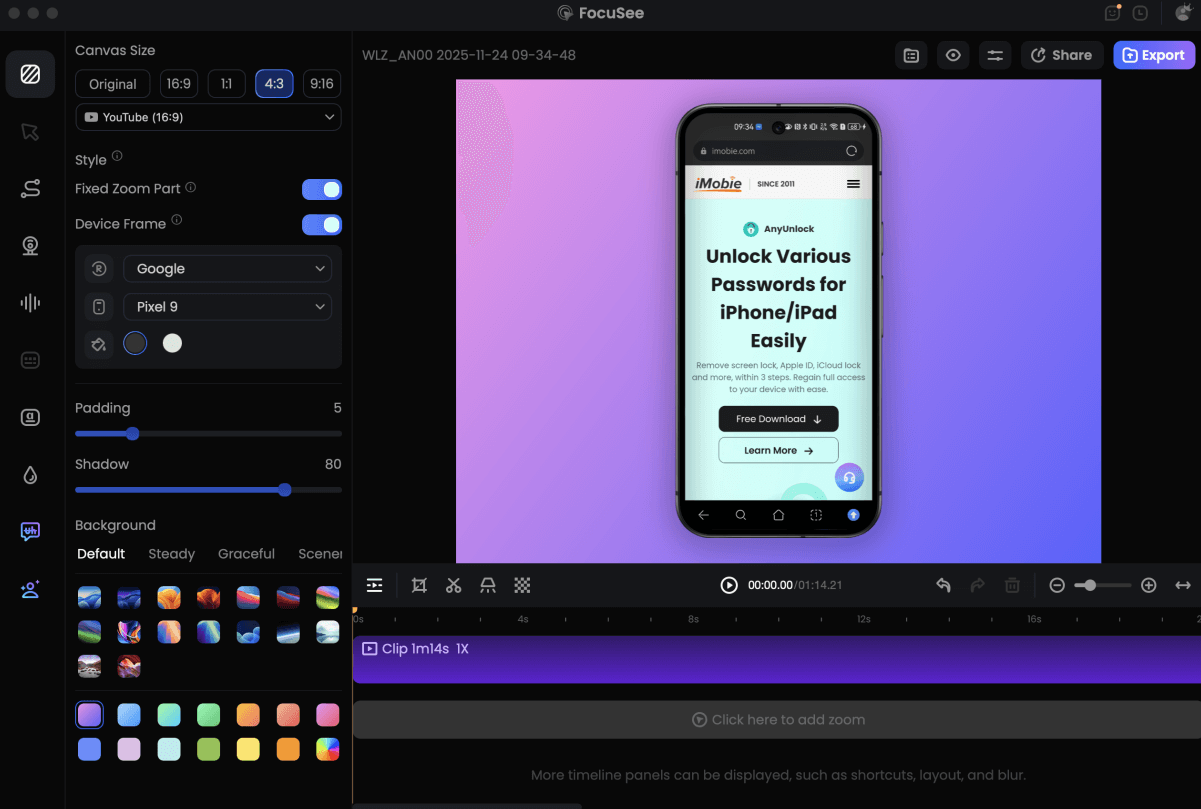
If you’re serious about creating high-quality tutorials—whether you’re mirroring an iPhone or Android device to record an app walkthrough, or capturing a desktop masterclass—using a dedicated tool like FocuSee is a major upgrade over standard screen recording.
Unlike native mobile or system recorders that capture a static, cluttered screen, FocuSee is built to automate the post-production of tutorial videos and solve the real pain points of teaching software:
- Automated Engagement: FocuSee’s Smart Focus & Zoom-in automatically detects taps, clicks, and interactions—on both mobile and desktop recordings—and zooms in so viewers never miss what you selected.
- Clarity in Navigation: It adds customizable click and touch animations, making complex workflows easy to follow, especially in mobile app tutorials.
- Polished, Multi-Platform Output: FocuSee supports flexible aspect ratios and professional layouts, allowing you to export one recording for YouTube, TikTok, Instagram, and Shorts without re-editing.
If your goal is simply to export a finished clip, native tools may be enough. But if your goal is to teach others how you created it, FocuSee handles the repetitive, technical parts of tutorial editing—so you can focus on the lesson itself.
Record Android Phone Screen
Frequently Asked Questions
Does Video Star add watermarks in certain effects or templates?
No. Whether you use a basic transition or a complex multi-layer effect, the app does not stamp a logo on your work. If you see a watermark, it is likely from a third-party asset you imported or a screen recording error.
How do I remove the UI if I accidentally screen recorded?
If you screen recorded the preview and now have buttons in your video, you cannot “remove” them easily without cropping the video significantly. You must go back into the Video Star app, open the project, and use the “Send to Camera Roll” function to export a clean version.
Does the ‘Make Video’ feature add a watermark?
No. The “Make Video” or render process is designed to compile your layers into a single file. This process is inherently clean of any app branding.
Why does my audio sound like a robot is talking over it?
That is an audio watermark (e.g., “Audio Jungle”). This is embedded in the music file you downloaded, usually because it is a preview track. Video Star cannot remove this. You need to find a licensed or clean version of the song.
Conclusion
The fear that Video Star will brand your hard work is unfounded, provided you follow the correct export steps. Video Star remains one of the few powerful mobile editors that respects your content’s aesthetic, offering a completely clean export in the free version.
The key is to trust the export button. Stop screen recording your previews—which degrades quality and adds clutter—and let the app render the file properly. If you encounter crashes, use the troubleshooting tips above to clear the path for a proper save.
For those looking to pivot from making edits to teaching them, consider how tools like FocuSee can professionalize your tutorials. Otherwise, verify your export settings today and enjoy your clean, unbranded edits.