5 Best SaaS Explainer Video Makers for High-Converting Demos

There is nothing quite as stressful as the final countdown to a Product Hunt launch. You have the code ready and the landing page built, but you are missing the most critical asset: a compelling video that shows users why they should care.
Many founders we speak to are in this exact position. With less than 24 hours before launch, they attempt a DIY screen recording, only to end up with shaky mouse movements, echoing audio, and a result that makes a premium tool look like a budget experiment.
If you are reading this, you share that frustration. You need a solution that bridges the gap between expensive agencies (which take weeks) and amateur screen captures (which erode trust). You don’t have time to learn motion graphics, and you certainly don’t want a generic cartoon template that clashes with your UI.
This guide identifies the 5 best tools for creating professional, high-converting product walkthroughs. We tested these solutions to ensure they fit the actual workflow of modern startup teams—from recording to branding and final export.
Comparison: DIY Recording vs. Specialized SaaS Software
Before selecting a specific tool, it is necessary to evaluate the trade-offs between manual production methods and specialized software. Many founders initially attempt to save money by using basic screen capture tools (like OBS or QuickTime) combined with generic video editors. However, the hidden cost of this approach is time—your most valuable resource during a launch.
Manually zooming in on button clicks, masking sensitive data (like emails or API keys), and syncing audio can take hours for a single minute of footage. If you need an explainer video but hiring an agency is too expensive, you typically face a binary choice: spend weeks learning complex software like Adobe Premiere or use a dedicated SaaS explainer video creator.
| Feature | Manual Editing | Specialized SaaS Tools |
| Zooming | Manual Keyframes | Auto-Follow |
| Cursor Smoothing | None | Automatic |
| Branding | Manual Overlay | Global Settings |
| Time per Minute of Video | 4 Hours | 30 Minutes |
Specialized tools bridge this gap by automating post-production. Unlike manual editing, where every cursor effect must be keyframed by hand, dedicated software automatically detects mouse actions and applies smooth transitions. For a startup, this efficiency is vital. It allows you to produce a high-polish product walkthrough in hours rather than days.
5 Best SaaS Explainer Video Makers
FocuSee
Best for Automated Product Walkthroughs & Screen Recordings
For founders who need a video that looks modern and professional without the “generic cartoon” aesthetic, FocuSee is our top recommendation. It is a specialized screen recording tool available for Windows and macOS, designed specifically to automate the tedious parts of creating a professional video.
While it is a paid tool, it offers a trial that allows you to test its capabilities before committing.
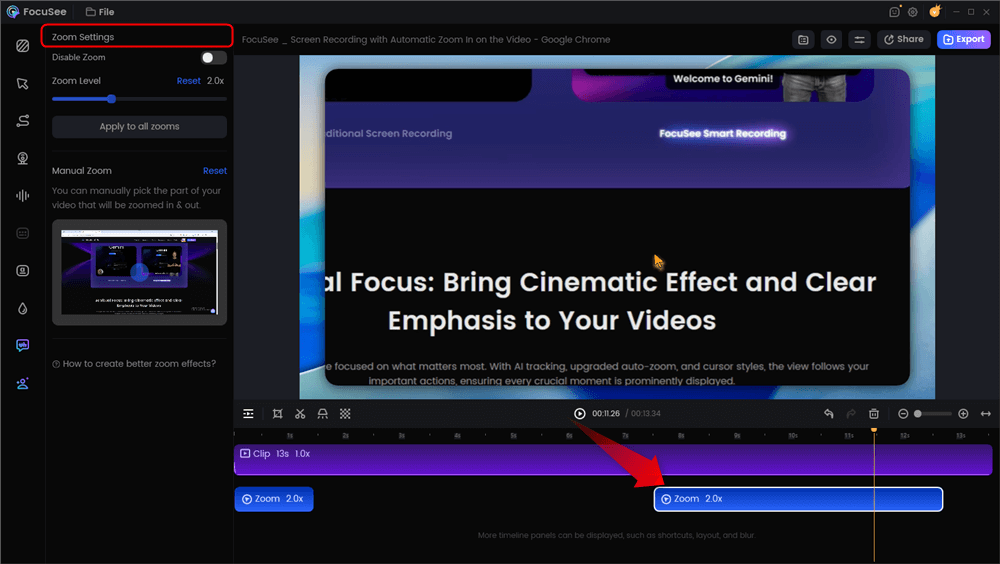
Automatic Zoom Effects
Why It Works for SaaS (Real-World Testing)
We tested FocuSee on a MacBook Air while running a resource-heavy dashboard in Chrome. Here is exactly what happened during our tests and why it matters for your workflow:
- The “Shaky Hand” Fix: During our recording, we intentionally moved the mouse erratically to simulate nervousness. FocuSee’s algorithm smoothed this out automatically in post-production. You do not need steady hands; the software treats the cursor path as an editable object.
- Smart Focus & Auto-Zoom: Instead of manually setting keyframes (which takes hours in traditional editors), the software automatically tracked our clicks. If we clicked a “Settings” button, the video automatically zoomed in on that action.
- Editing Mistakes: We misclicked a feature during the demo. In the timeline editor, we could simply cut that specific “action point” without destroying the rest of the flow. You don’t have to re-record the whole take just because of one slip-up.
Addressing the Branding & Quality Concerns
A major concern for SaaS founders is brand consistency. You cannot have a video that uses the wrong shade of blue.
- Custom Branding: In the “Canvas” settings, we were able to input specific Hex codes for the background and border elements. You can also upload your company logo to watermark the footage automatically.
- Solving the “Blurry Video” Issue: Many users complain that their crisp 4K recordings look blurry when uploaded to LinkedIn or Twitter. This is often a bitrate issue, not just resolution. FocuSee allows you to export in 4K, but more importantly, it maintains a high bitrate.
- Pro Tip: For LinkedIn, export at 1080p with a high bitrate rather than 4K to prevent LinkedIn’s compression algorithm from crushing your quality.
Audio Clean-Up
We recorded our voiceover using the built-in laptop microphone (not a studio mic) in a room with a humming fan. The AI Audio Enhancement feature successfully isolated the voice and removed the background hum. While a dedicated microphone is always better, this feature is a lifesaver for founders recording from a home office.
Here are the explainer videos we created with FocuSee.
Vyond
Best for Animated Explainer Videos
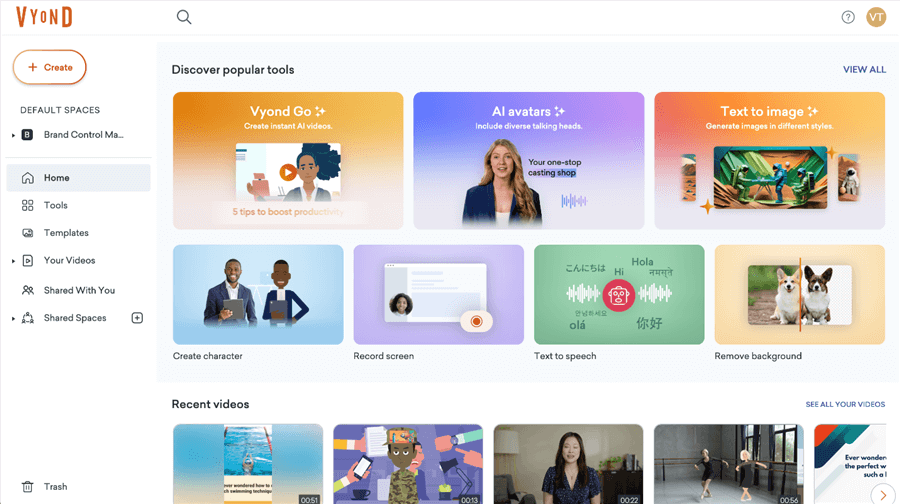
Best SaaS Explainer Video Maker – Vyond
If your goal is to tell a conceptual story rather than show a specific UI (for example, if your product is a backend API without a visual interface), Vyond is the industry standard for 2D animation. It offers extensive libraries of characters and props suitable for B2B environments.
- Pros: Deeply customizable characters; excellent lip-syncing features; strictly business-focused assets (no childish cartoons).
- Cons: Can look “templated” if you don’t spend time customizing colors and props; significantly higher price point than screen recorders.
Synthesia
Best AI Avatar Video Maker
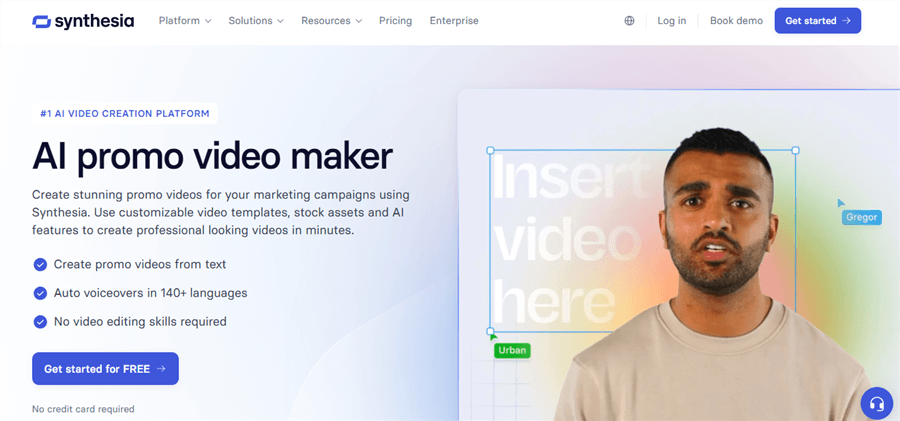
SaaS Explainer Video Maker – Synthesia
For teams that need an on-camera presenter to build trust but lack the camera gear or on-screen talent, Synthesia allows you to generate videos using AI avatars. You simply type your script, and a realistic avatar delivers it.
- Pros: Easy localization (instantly translate your demo into Spanish or French); no camera gear needed.
- Cons: Avatars can still lack subtle human emotional nuance; it is difficult to show complex software workflows alongside the avatar compared to a dedicated screen recorder.
Canva
Best Free Video Maker for Budget Startups
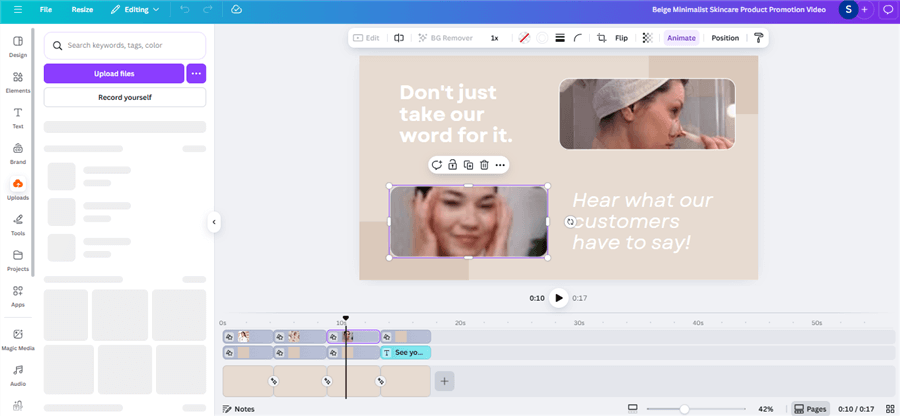
SaaS Explainer Video Maker – Canva
Canva is a versatile option for startups on a strict budget. While primarily a design tool, its video editor provides drag-and-drop templates and stock footage.
- Pros: Extremely easy to use; free tier available; massive library of icons and illustrations.
- Cons: Limited advanced animation features; you cannot “edit” screen recordings (like smoothing a mouse) within Canva—you can only trim the clip.
Adobe After Effects
Best for High-End Motion Graphics
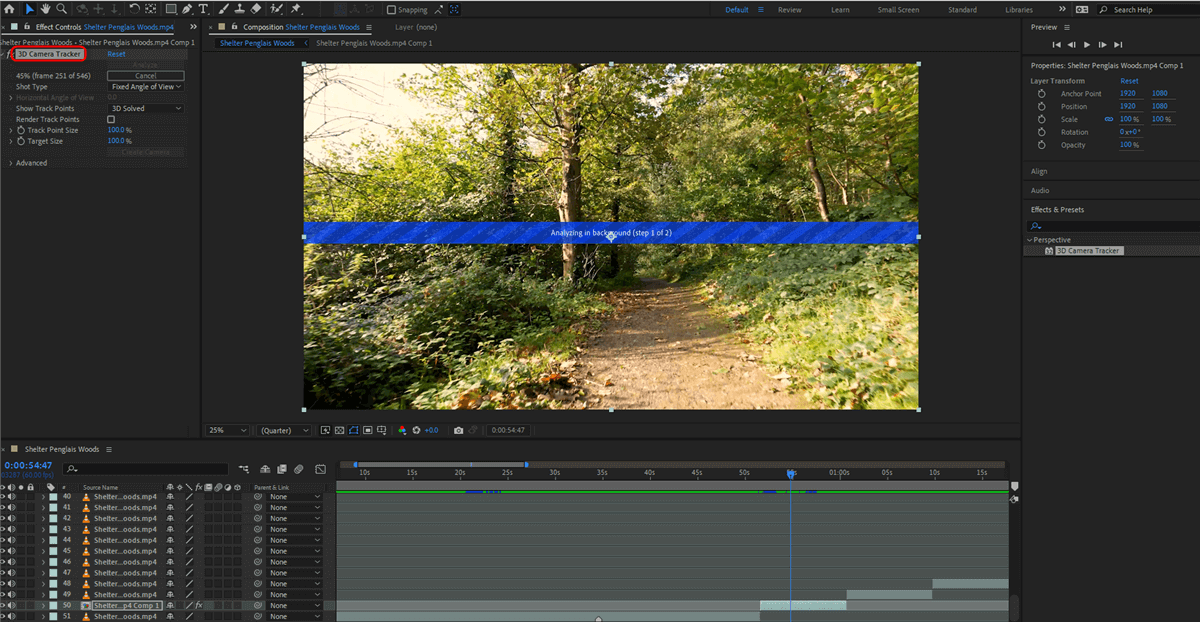
SaaS Explainer Video Maker – After Effects
For a completely custom, broadcast-quality look, After Effects remains the leader. This is the tool agencies use.
- Pros: Limitless creativity and visual fidelity; industry standard for motion graphics.
- Cons: Extremely steep learning curve; requires a powerful computer; generally overkill for simple product updates.
Scripting Framework: The Outcome-First Approach
Even the best software cannot save a poor script. A critical tip that most guides miss is that high-performing SaaS videos are not “feature tours”—they are outcome-first stories.
A common mistake is spending the first 30 seconds explaining what the product is, instead of showing the result immediately. To maximize conversion, structure your script around the “Problem → Promise → Proof” framework.
The 60-Second Framework
- The Hook (0:00–0:05): State the user’s specific pain point immediately. Example: “Stop wasting hours on manual data entry.”
- The Problem (0:05–0:15): Agitate the struggle. Show the “before” state (e.g., a messy spreadsheet).
- The Promise (0:15–0:30): Introduce your tool as the solution. Focus on the value proposition, not the tech stack.
- The Proof (0:30–0:50): This is where your screen recording shines. Show the software delivering on the promise in real-time.
- The CTA (0:50–1:00): Give a specific instruction. Example: “Start your free trial today at [URL].”
Keeping the total length between 60 and 90 seconds ensures you respect the viewer’s time while delivering a complete narrative arc.
Production Strategy: Modular Editing for Fast UI Updates
SaaS interfaces change frequently. A button moves, a color palette updates, or a menu item is renamed. This leads to a common frustration: a video becomes obsolete only weeks after launch.
To solve this, you must adopt a modular production strategy. Do not record your entire 60-second video in one long take. If you do, a single UI change requires you to re-record everything.
Workflow: The “Scene-Save” Method
Here is the step-by-step workflow we recommend for managing this in tools like FocuSee or Camtasia:
- The Master Folder: Create a folder on your desktop for your video project. Inside, create sub-folders labeled: 01_Intro, 02_Dashboard_Demo, 03_Settings_Feature, 04_Outro.
- Record Independent Scenes: Record your “Dashboard” segment as its own project file. Export it as a high-quality video clip. Do the same for your “Settings” feature.
- Assemble the Final Cut: Import these finished clips into a “Master Project” file where you add the music and voiceover.
- The Update Cycle: When your Dashboard UI updates next month, you only need to open the 02_Dashboard_Demo project, re-record that 15-second interaction, export it, and swap it into your Master Project.
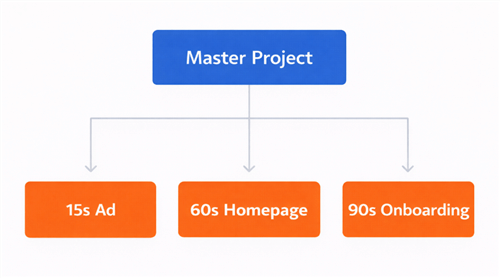
Master Project
This modularity also allows for efficient repurposing. You can maintain a “Master Project” file and export different cuts: a full 90-second onboarding video for new users, a 60-second version for the landing page, and a rapid 15-second cut focusing solely on the “Proof” scene for social media ads.
Frequently Asked Questions About SaaS Video Creation
Should a SaaS explainer video be animated or screen-recorded?
The choice depends on your product’s maturity. If you are pre-product or selling an abstract concept (like cybersecurity APIs), an animated explainer video is better for visualization. If your product has a functional UI, a screen recording is superior because it provides tangible proof of value to the buyer.
Can I create a SaaS explainer video with AI voiceover and captions?
Yes. Modern tools offer high-quality AI voice generation that sounds natural. Using AI for voiceovers allows you to edit the script later without re-hiring a voice actor. Captions/subtitles are essential, as many users watch videos on LinkedIn or Twitter on mute.
What video format is best for embedding on a SaaS landing page?
MP4 (H.264 codec) is the safest standard for compatibility. However, for shorter, looping clips without audio (like a hero section background), WebM provides better compression and faster load times.
How do I measure if my explainer video is working?
Do not just track views. Track “play rate” (percentage of visitors who click play) and “engagement rate” (how much of the video they watch). If viewers drop off at the 10-second mark, your hook is weak. Ideally, host B2B videos on platforms like Wistia or Vimeo Business to get granular analytics that YouTube does not provide.
Conclusion
Creating a high-converting demo doesn’t require a Hollywood budget; it requires clarity and the right software. Whether you choose a robust animated video maker or a streamlined screen recorder, the goal is to communicate value quickly.
Don’t let perfectionism delay your go-to-market strategy. If you need to show your product in action to solve the “trust” problem, tools like FocuSee offer the fastest path from raw footage to a polished asset. In our testing, it was the only tool that effectively smoothed out cursor movements and handled noise reduction without requiring external plugins.
Identify the tool that matches your technical comfort level, script your outcome using the framework above, and get your video live. Your product is ready—make sure your users can see it.