The Best Video Voice Enhancer of 2025: A Guide to Clear Audio

The frustration is real: you’ve recorded a great video, but the audio feels flat, distant, or plagued by the hum of an air conditioner. When your message is undermined by poor sound quality, your entire project suffers. If you need to enhance voice in video but feel overwhelmed by complex software, you’re not alone. Many creators fear they’ll only make things worse.
This guide provides a direct, tested solution. We’ll show you how to make the voice clearer in the video using reliable techniques that deliver professional results. To ensure our advice is accurate and actionable, we’ve put these methods to the test.
How AI Solves the “Louder Isn’t Clearer” Problem
When faced with quiet recordings, the first instinct is to simply boost the volume. However, this common mistake usually makes the problem worse. Increasing the volume amplifies everything—your voice, the background hum, the room echo, and any microphone hiss. The result is audio that’s louder but even less clear.
True speech clarity comes from separation and tonal balance, not just loudness. This is where an AI voice enhancer for video changes the game by automating the two critical stages that audio engineers perform manually.
- Voice Isolation: The AI algorithm, trained on thousands of hours of audio, intelligently distinguishes the human voice from all other sounds. It performs advanced background noise removal first, digitally separating your speech from distracting elements like fans, traffic, or room echo.
- Intelligent Enhancement: Only after your voice is isolated does the AI apply targeted improvements. It performs audio normalization for consistent volume, equalization to improve clarity, and dynamic compression to balance the loud and quiet parts of your speech.
This modern technique allows you to bypass the steep learning curve of traditional editing by following three fundamental rules of audio quality.
The 3 Rules of Voice Clarity
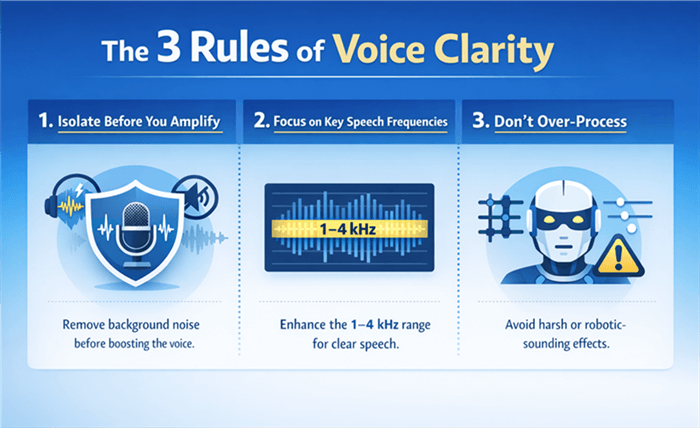
The 3 Rules of Voice Clarity
1. Isolate, Don’t Just Amplify
The core of effective audio enhancement is removing unwanted sounds before making the voice louder. AI tools excel at this because they perform voice isolation first, ensuring only the clean vocal track is amplified.
2. Target Key Speech Frequencies
The intelligibility of the human voice resides in the mid-range frequencies (roughly 1 to 4 kHz). Professional dialogue enhancement uses an EQ equalizer to subtly boost this range, making speech “pop” without sounding harsh.
3. Avoid Over-Processing
Another frequent error is applying too much noise reduction, which can create unnatural, robotic-sounding artifacts. A high-quality tool uses subtle processing that preserves the natural character of the voice.
AI vs. Manual Editing: A Clear Decision Framework
When you need to remove noise and enhance voice video, you have two main options: modern AI tools or traditional manual editing software (like a Digital Audio Workstation, or DAW). For content creators, educators, and marketers who value time and consistency, this framework helps you choose the right path.
| Criteria | AI Voice Enhancer | Manual Editing (DAW) |
| Time Cost | Minutes. Upload, click, and download. | Hours. Requires manually identifying noise, applying multiple filters, and making repeated adjustments. |
| Skill Level | Beginner. No audio engineering knowledge required. | Expert. Requires deep knowledge of speech frequencies, gain staging, and plugins. |
| Consistency | Very High. Predictable, uniform results every time. | Variable. Depends entirely on user’s skill and audio conditions. |
| Risk of Error | Low. Automation prevents common audio-damaging mistakes. | High. Easy to over-process and degrade audio quality. |
For the vast majority of video creators, the choice is clear. An AI-powered solution provides superior results with a fraction of the time and effort.
Choosing Your AI Tool: Simplicity vs. Control
While “AI voice enhancer” sounds like one thing, different tools offer different workflows. Choosing the right one depends on your needs.
FocuSee – All-in-One Video Workflow
FocuSee is an all-in-one screen recording and video editing tool with built-in AI voice enhancement. Instead of treating audio as a separate post-production step, it enhances voice quality automatically as part of the video workflow.
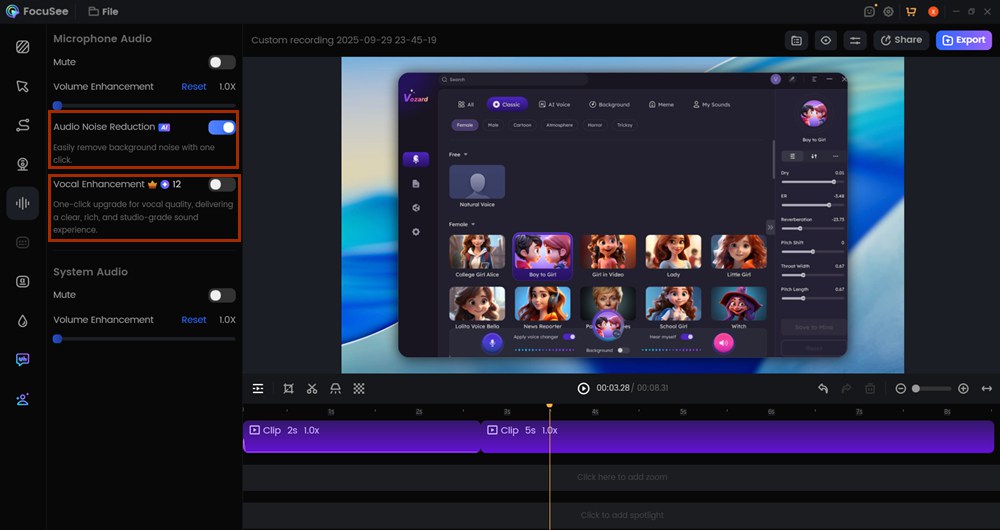
AI Audio Enhancement
Key Features
- AI Audio Enhancement: Automatically removes background noise, echoes, breathing sounds, and mouth clicks.
- Voice Isolation First: Enhances clarity without boosting background noise.
- Integrated Video Workflow: Audio enhancement happens inside the same app used for recording, editing, zoom effects, and exports.
- Set-and-Forget Processing: Minimal tuning required—ideal for fast production.
- High-Quality Export: Maintains sync and quality when exporting 1080p or 4K videos.
- AI Smart Cut: What’s more, it can clean up recordings by auto-removing filler words, dead air, and long pauses, making your videos concise and more engaging.
Best For
- Screen recordings, tutorials, product demos
- Solo creators and educators
- Social media and course content where speed matters
Trade-Off
- Less granular manual audio control compared to dedicated audio editors
- Optimized for clarity and consistency, not sound design
Adobe Podcast (Enhance Speech)
Adobe Podcast’s Enhance Speech is a free, browser-based AI tool focused exclusively on cleaning spoken audio. It treats audio enhancement as a standalone process, independent of video editing.
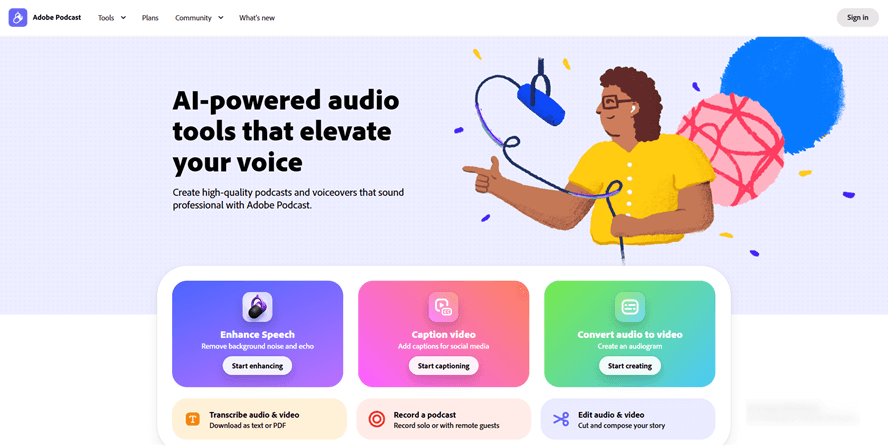
Adobe Podcast
Key Features
- One-Click Speech Enhancement: Upload audio → process → download
- Strong Noise & Echo Removal: Designed to simulate studio-quality voice
- No Installation Required: Runs entirely in the browser
- Format-Agnostic Output: Clean audio can be imported into any video editor
Best For
- Fixing poorly recorded audio tracks
- Podcasters and voice-over creators
- Users who already edit video elsewhere
Trade-Off
- Audio-only (no video integration)
- Less control over how aggressive the processing is
- Can sound over-processed on already decent recordings
Descript
Descript combines transcription, audio enhancement, and video editing into a single, text-driven interface. Its AI enhancement feature, “Studio Sound,” cleans audio while keeping everything editable at a deeper level.
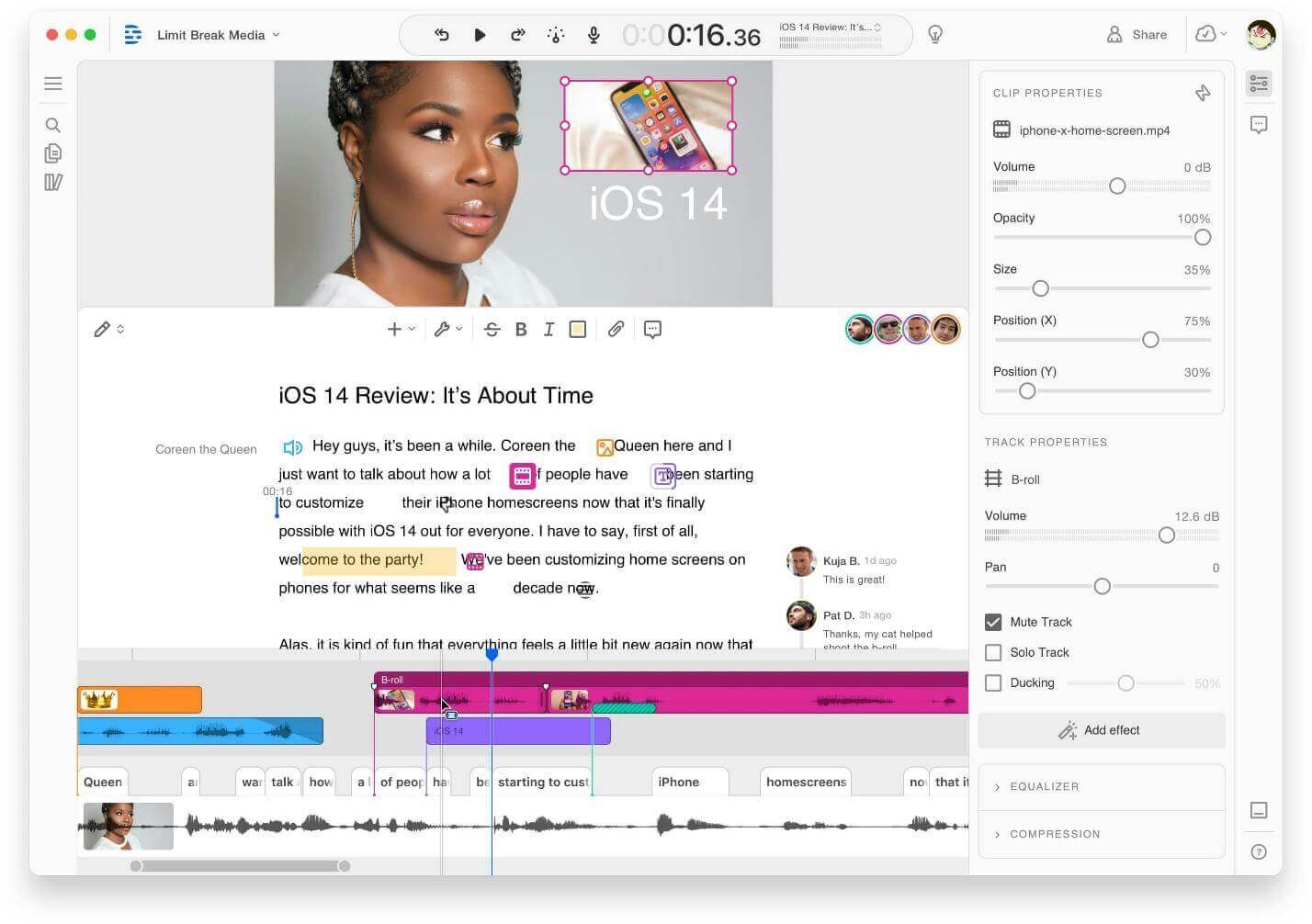
Descript
Key Features
- Studio Sound (AI Enhancement): One-click cleanup for voice recordings
- Text-Based Editing: Edit audio and video by editing text
- Filler Word & Silence Removal: Automatically trims “ums,” pauses, and dead air
- Multitrack Editing: Suitable for interviews and podcasts
- Advanced Manual Controls: More flexibility than pure one-click tools
Best For
- Podcasters and interview-based content
- Teams working with scripts and transcripts
- Creators who want both automation and control
Trade-Off
- Higher learning curve
- Heavier workflow than simple record-and-export tools
- Overkill for quick screen recordings
How to Choose Quickly
- Want the fastest workflow with minimal setup? → FocuSee
- Just need to clean up an audio file? → Adobe Podcast
- Need transcription-driven editing and deeper control? → Descript
Step-by-Step Guide: How to Enhance Dialogue with FocuSee
For creators who need a fast, all-in-one solution, FocuSee’s integrated AI Audio Enhancement & Noise Reduction feature is designed to solve the pain points of muffled dialogue and background noise without a complex workflow. Here is the simple, step-by-step procedure.
Step 1: Import Your Video
Open FocuSee and either record a new video or import an existing one by dragging it into the editor. Your video and its audio waveform will appear on the timeline.
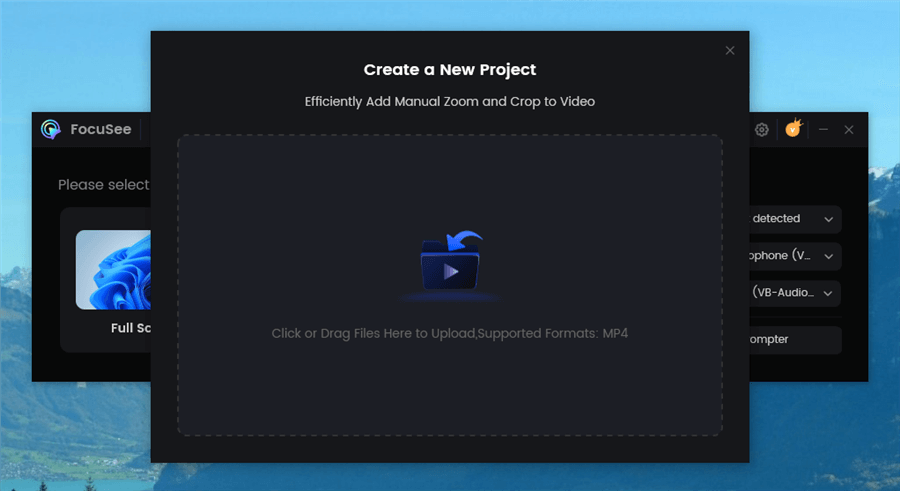
Upload Your Footage
Step 2: Locate the Audio Enhancement Feature
In the editing panel on the right, click to expand the “Audio” section. You will see a toggle labeled “AI Audio Enhancement & Noise Reduction.”
Audio Enhancement Feature
Step 3: Activate AI Enhancement
Simply click the toggle to turn the feature on. FocuSee’s AI immediately processes the audio to deliver superior clarity. There are no other settings to configure.
What if the AI Result Isn’t Perfect? A Reality Check
One-click tools are powerful, but they aren’t magic. If you find the enhanced audio sounds thin or slightly unnatural, it’s usually due to the source recording, not the AI.
From our testing, we found AI works best on files with consistent background noise (like hums, fans, or air conditioning). However, it can’t fix fundamental recording problems. If your voice sounds thin after enhancement, it’s likely because the microphone was too far away to begin with. The AI can remove noise, but it can’t add presence that was never captured. For sudden, sharp noises like a dog bark, you may still need to manually cut that small section of the video.
Platform-Specific Audio: Enhancing Voice for YouTube, TikTok, and Courses
Effective audio enhancement isn’t a one-size-fits-all process. Tailoring your sound for the platform ensures a better viewer experience.
For YouTube Videos
- Key Goal: Consistency and clarity. Viewers expect a smooth experience without jarring volume changes.
- Technical Focus: Loudness normalization is critical. YouTube automatically adjusts video volume to its standard (around -14 LUFS). While a one-click tool like FocuSee doesn’t offer specific LUFS targeting, its AI normalization produces a balanced output that works seamlessly with YouTube’s standards, preventing your audio from being squashed or becoming too quiet.
- Common Pitfall: Making audio excessively loud, which causes YouTube’s algorithm to turn it down and introduce unwanted compression artifacts.
For TikTok & Instagram Reels
- Key Goal: Immediacy and impact on mobile devices with small speakers.
- Technical Focus: A slightly more compressed and brighter sound works well. A tool’s automatic AI enhancement is perfect for this, as it boosts vocal clarity and balances volume to ensure your voice cuts through trending music and sound effects.
- Common Pitfall: Muffled or distant audio that gets lost in the noise, causing viewers to scroll past.
For Online Courses & Corporate Training
- Key Goal: Maximum intelligibility and professionalism over long viewing periods.
- Technical Focus: This use case benefits most from aggressive background noise removal and crystal-clear dialogue. Using the same AI tool across all modules ensures the audio quality remains consistent, which is paramount for maintaining a professional feel and building credibility.
- Common Pitfall: Inconsistent audio quality between lessons, which distracts from the educational content.
Further Reading: Video Marketing Strategy >
Your Path to Professional Audio
You no longer have to let muffled audio or distracting background noise undermine your hard work. Achieving clear, professional sound is not about mastering complex software; it’s about using the right tool for the job. An automated solution handles the technical details of noise reduction and dialogue enhancement, allowing you to focus on your message. This modern approach finally puts studio-quality audio within reach for every creator.
Ready to stop worrying about audio and start producing content that sounds as good as it looks? Download FocuSee and hear the dramatic difference its one-click AI enhancement can make on your next video.
Frequently Asked Questions on Video Voice Enhancement
How can I enhance my voice in a video so it sounds clearer?
To make your voice clearer, first use a tool for noise reduction to isolate your voice from the background. Second, apply equalization (EQ) to boost frequencies associated with speech clarity (1-4 kHz) and use audio normalization for consistent volume. An AI voice enhancer for video automates this entire procedure.
What is the best voice enhancement software for video for beginners?
For beginners, the best software is an AI-driven tool integrated into a video editor, like FocuSee or Descript. These applications replace complex manual controls with simple, one-click solutions, minimizing the learning curve and eliminating the risk of making the audio worse.
Can AI really improve voice quality in a video?
Absolutely. Modern AI audio enhancement algorithms are highly effective. They are trained on vast datasets of clean and noisy audio, allowing them to accurately separate the human voice from background sounds and intelligently apply enhancements for optimal clarity.
How do I remove background noise without damaging my voice?
The key is to use a high-quality noise reduction tool that prioritizes vocal preservation. AI-based tools are often superior because they are designed to preserve the natural character of the voice while precisely targeting specific noise profiles like fans, clicks, and hums.
Why does my voice sound muffled in videos?
Muffled audio is typically caused by poor microphone placement, excessive room echo, or a buildup of low-to-mid frequencies. A good video voice enhancer addresses this by reducing echo and using an EQ to cut muddy frequencies while boosting those that contribute to clarity.
Will enhancing voice reduce video quality?
No. The audio and video tracks in a digital file are separate. Processing and improving the audio track will have no impact on the visual quality (resolution, frame rate, or color) of your video.
Can I enhance the voice in a video for free?
Yes, excellent free tools like Adobe Podcast’s web enhancer exist. However, they require you to separate your audio, upload it, process it, and then re-sync it with your video. For creators who value a fast, integrated workflow, a dedicated all-in-one tool is often a better long-term solution.