Screen Studio vs Loom: Which Screen Recorder Should You Choose?

While both tools are excellent for their specific use cases, they leave a noticeable gap in the market. If you want Screen Studio’s cinematic polish and automatic zoom but you use Windows, you won’t be able to use it. You will need a dedicated cross-platform alternative to get that level of visual polish without spending hours in a complex video editor.
Screen Studio vs Loom: Feature and OS Comparison
Before diving into the specifics of each tool, here is a scannable breakdown of how Screen Studio and Loom compare across core technical and workflow differences.
| Screen Studio | Loom | |
| Supported Platforms | macOS only | Web, Windows, macOS, iOS, Android |
| Primary Use Case | Marketing videos, tutorials, demos | Async team communication |
| Editing Style | AI zoom, cursor smoothing, local rendering | Cloud recording with basic editing |
| Sharing Method | Local export (MP4/GIF) | Instant cloud links |
| Pricing Model | Subscription | Freemium / Subscription |
The most critical difference to spot immediately is OS compatibility: Screen Studio is strictly for Mac users, while Loom is a truly cross-platform cloud solution.
Screen Studio: Best for Cinematic macOS Demos
Screen Studio has become a favorite tool for macOS-based founders, marketers, and creators who need to make official, high-quality tutorials without spending hours in professional video editing software. Its main appeal is its ability to take a standard screen recording and automatically elevate it into a polished, engaging demo.
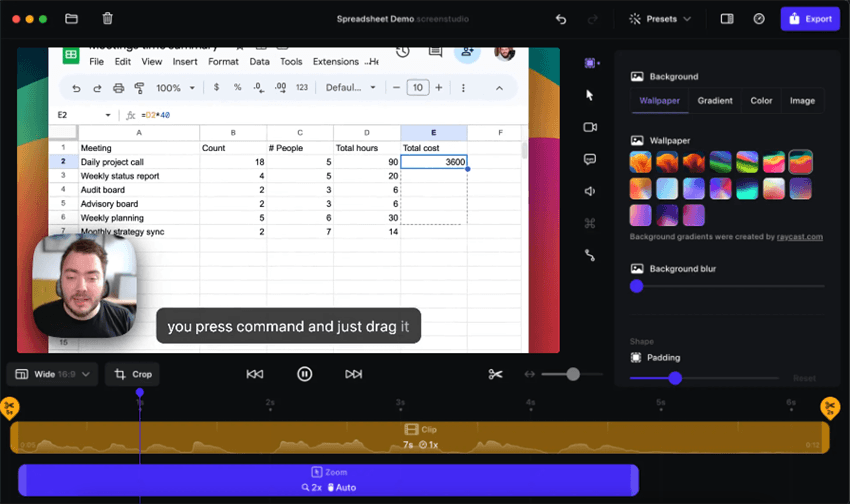
Screen Studio Interface – Mac Only
Pros of Screen Studio:
- Automatic Cinematic Zoom: The software automatically tracks your clicks and zooms in on important actions, making workflows incredibly easy to follow.
- Smooth Cursor Tracking: It replaces jerky, manual mouse movements with a smooth, stylized cursor path.
- High-Quality Export: It renders beautiful, high-resolution videos perfect for YouTube, social media, and product landing pages.
Cons of Screen Studio:
Strictly macOS Only: There is no native Windows version, leaving a massive portion of the software and creator market searching for a Screen Studio alternative.
Pricing Changes: Screen Studio recently transitioned from a highly popular lifetime license to a subscription pricing model($29/month and $108/year), which may stretch the budget for casual users.
Loom: Best for Instant Async Communication
Loom dominates the enterprise and remote work space because it eliminates the friction of sharing video. It is designed for speed rather than cinematic perfection, making it the go-to choice for remote teams, sales reps sending quick updates, and internal support staff.
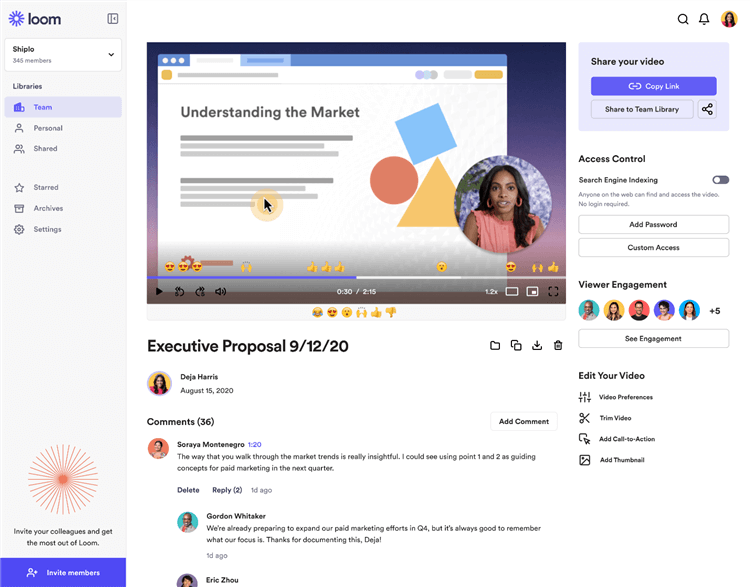
Best Walkthrough Video Maker – Loom
Pros of Loom:
- Instant Cloud Sharing: The moment you stop recording, a shareable link is generated and copied to your clipboard.
- Cross-Platform Accessibility: Loom works seamlessly across Windows, Mac, Chrome, iOS, and Android.
- Viewer Analytics & Engagement: You can see who watched your video, and viewers can leave time-stamped comments and emoji reactions.
Cons of Loom:
- Unpolished Visuals: Recordings look raw and exactly as you recorded them. It lacks the cinematic auto-zoom, cursor smoothing, and dynamic focus needed for official public-facing marketing videos.
- Cloud Dependency: Because it relies heavily on cloud processing, high-resolution local exports are not its primary strength, and you are tied to their hosting ecosystem.
Loom vs Screen Studio: What if You Need Auto-Zoom on Windows?
Comparing Screen Studio and Loom reveals a frustrating dilemma for many creators and marketers. What happens when you want Loom’s cross-platform accessibility, but you desperately need Screen Studio’s cinematic visual polish?
It is incredibly common to see a beautifully zoomed, highly polished software demo on social media, find out it was made with Screen Studio, and then hit a wall when you realize it is only available for Mac. If you are on a Windows PC looking for Screen Studio for Windows—or if you manage a cross-platform team where half the office uses Windows—you are essentially locked out of that automated, cinematic workflow.
Using Loom for those official demos leaves your videos looking a bit too raw and unprofessional. You need a dedicated cross-platform screen recorder with built-in auto-editing to bridge this gap.
Also Read: Screen Studio vs Tella: Which Auto-Editing Screen Recorder is Best?
FocuSee: The Best Alternative for Cross-Platform Polish
For users who need Screen Studio’s cinematic auto-zoom and cursor polish but use Windows—or want a single, cross-platform alternative for diverse teams—FocuSee provides an AI-assisted auto-editing experience that runs natively on both Windows and macOS.
FocuSee bridges the market gap by automatically applying automatic zoom and cursor effects under supported conditions, allowing you to create professional tutorials without manually keyframing every movement in a complex video editor.
How the FocuSee Workflow Works:
Step 1. Record your screen: Capture your Windows or Mac desktop, selecting full screen, window, or custom area.
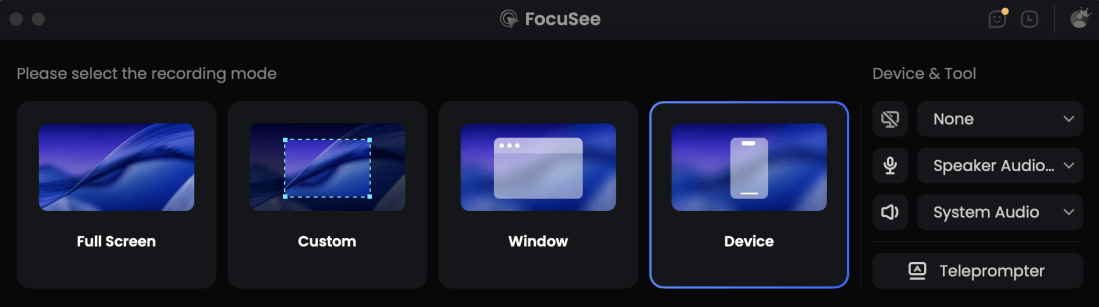
Choose the Device Recording Model
Step 2. Let AI apply visual polish: FocuSee automatically adds smart zooms, cursor animations, and dynamic backgrounds to your recording.
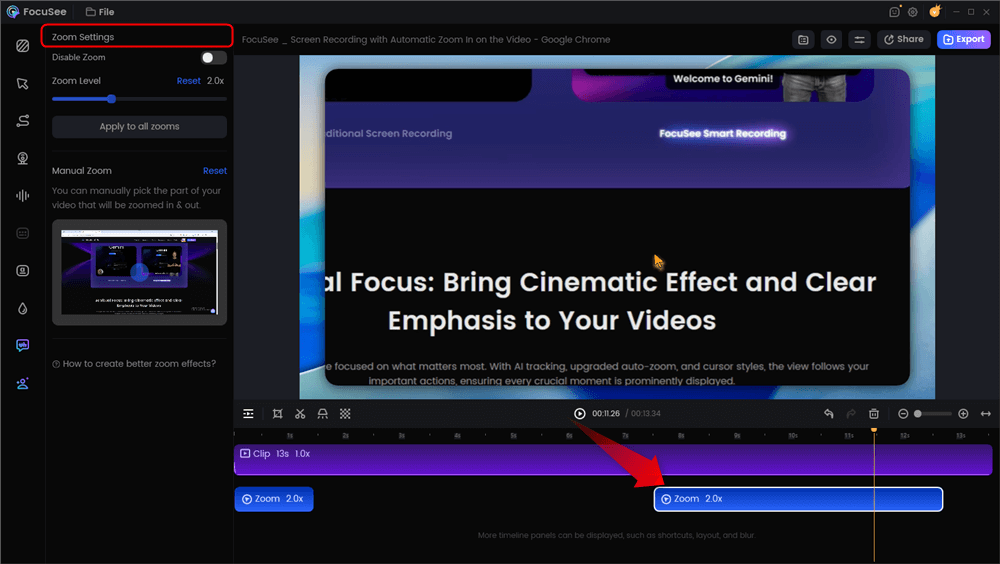
Automatic Zoom Effects
Step 3. Refine and customize: Adjust the zoom timing, change the cursor style, or add AI subtitles and annotations if needed.
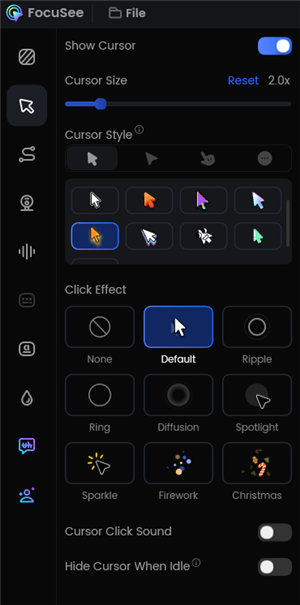
Change the Cursor Settings
Step 4. Export for any platform: Export your polished video in flexible formats and aspect ratios tailored for YouTube, social media, or your website.
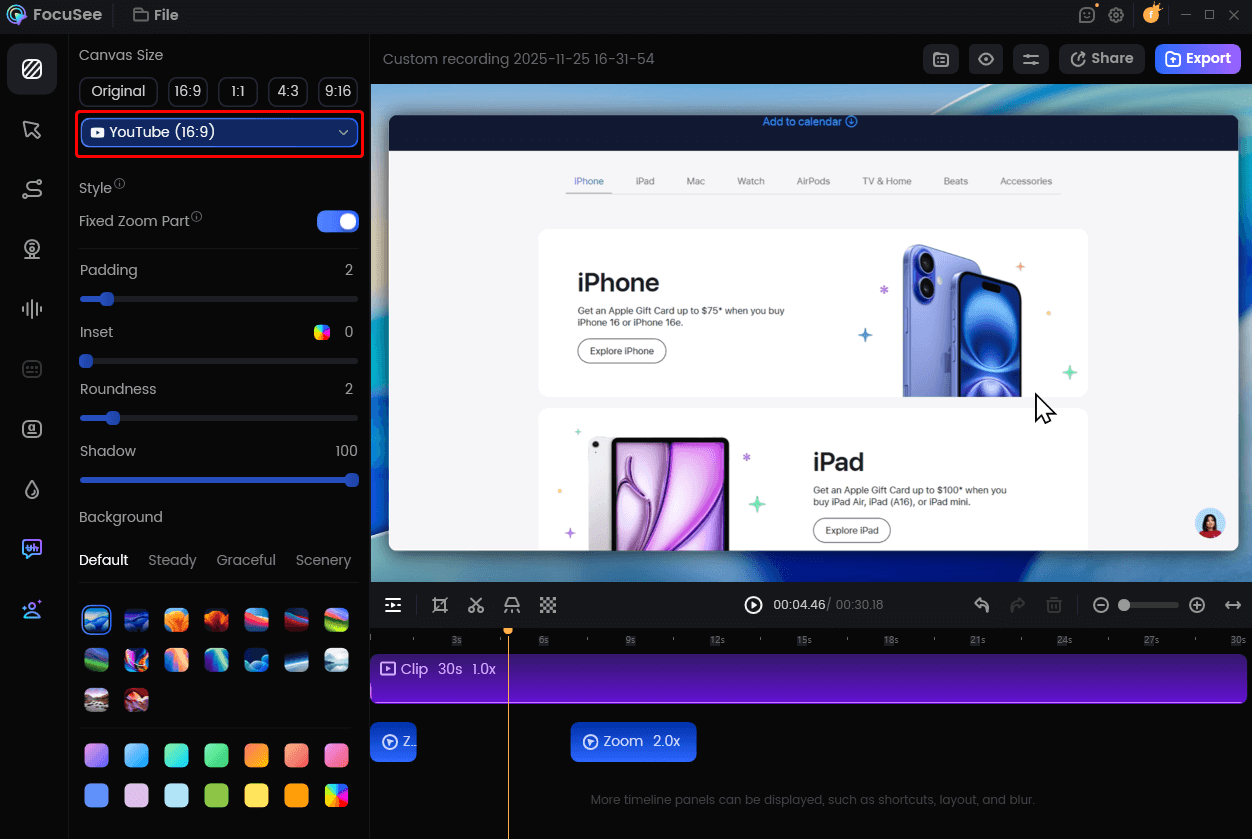
Change Video Size for YouTube
By offering AI subtitles, custom backgrounds, and cross-platform desktop support, FocuSee acts as the ideal “third way” for creators who want their demos to look stunning without being forced exclusively into the Mac ecosystem.
How FocuSee Compares to Loom and Screen Studio
To make your final decision easier, here is a practical framework mapping specific user scenarios to the right tool.
| The Best Tool | Why It Fits | |
| Quick team updates or support replies | Loom | Fast recording, instant cloud sharing, minimal setup. |
| Polished Mac-only product demos | Screen Studio | Cinematic effects, smooth cursor motion, premium macOS experience. |
| Auto-zoom demos on Windows or Mac | FocuSee | Smart zoom, cursor tracking, and cross-platform support. |
Frequently Asked Questions
Is Screen Studio better than Loom?
Neither is strictly better; they serve entirely different use cases. Screen Studio is better for highly polished, cinematic marketing demos, while Loom is better for fast, raw, asynchronous team communication and instant sharing.
Does Screen Studio work on Windows?
No, Screen Studio is strictly a macOS application. It does not run natively on Windows PCs.
Can I use Loom for polished product demos?
Yes, you can record demos with Loom, but the final video will look raw and unpolished. It lacks the cinematic auto-zoom, cursor smoothing, and visual focus features that professional marketers typically prefer for official videos.
Is there a screen recorder with auto-zoom for Windows?
Yes, tools like FocuSee provide auto-zoom, cursor animations, and AI-assisted visual polish for both Windows and Mac desktop systems under supported conditions.
What are the pricing differences between Loom and Screen Studio?
Both tools currently use subscription models, though Loom offers a limited free tier before requiring a paid plan for extended use. Screen Studio recently moved away from its lifetime license to a subscription structure. Always check their official websites for the most up-to-date pricing.
Does FocuSee work on both Mac and PC?
Yes, FocuSee is supported as a native desktop application on both macOS and Windows 10 or later.
Final Verdict: Which Screen Recorder is Right for You?
Choosing the right screen recorder comes down to your operating system, your need for visual polish, and your sharing workflow.
If your primary goal is speed and asynchronous communication with your remote team, choose Loom. Its instant cloud sharing is unmatched. If you are entirely embedded in the Mac ecosystem and want to produce highly polished, cinematic product demos, Screen Studio is a fantastic choice.
However, if you want that cinematic auto-zoom, smooth cursor tracking, and professional presentation, but you use a Windows PC—or if you manage a team that uses both operating systems—you need a different approach. FocuSee fills this exact gap, offering an AI-assisted auto-editing experience that turns raw desktop recordings into engaging tutorials on both platforms.
If you are ready to stop manually editing every zoom and cursor movement, try FocuSee to create your next polished, auto-edited tutorial.