The Best Screen Recorder with No Watermark (And No Hidden Time Limits)

Few things are more frustrating than spending time setting up the perfect screen recording, delivering a flawless 10-minute tutorial, and discovering a giant branded watermark splashed across your final video at the export stage. This “freemium trap” is a common hurdle for creators trying to find a reliable screen recorder with no watermark restriction.
Quick Answer: The Best Watermark-Free Screen Recorders
- Built-in OS Tools (100% Free): Windows Game Bar and Mac QuickTime offer safe, built-in recording with zero watermarks, though they lack advanced presentation features.
- Open-Source Tools (100% Free): OBS Studio and ShareX are completely free and leave no watermarks, but they come with a steep learning curve for absolute beginners.
- Premium Auto-Editing Tools (Paid/Time-Saving): FocuSee provides clean, watermark-free exports (on supported paid plans) while automatically adding smart zooms and cursor highlights to save hours of manual editing.
While finding the best screen recorders for Windows or Mac that won’t hold your video hostage behind a watermark is step one, the real challenge for creators is avoiding the hours of manual post-production editing required to make a tutorial look professional. Let’s look at why so many “free” tools add watermarks and how to choose the right option for your workflow.
Best Screen Recorder with No Watermark
Why Do Most ‘Free’ Screen Recorders Have Watermarks?
If you have ever downloaded a top-ranking screen recorder only to find your video ruined by a brand logo, you have experienced the standard freemium business model. Most commercial software companies use their “free” tier essentially as a trial version to demonstrate the software’s capabilities.
To encourage users to upgrade to a paid license, these tools impose hidden restrictions on the final output. The two most common limitations are forced watermarks placed dead-center on the export and highly restrictive 1-to-5 minute recording time limits. While these tools aren’t unsafe to use, they are intentionally restrictive.
Before you spend time configuring your microphone and figuring out how to screen record on Windows or Mac, it is critical to always verify a tool’s export conditions. Knowing exactly what a software allows on its free tier will save you the headache of re-recording your entire presentation.
Built-In OS Tools: Windows Game Bar & Mac QuickTime
If you just want to quickly capture your screen without downloading any third-party software, the tools already installed on your computer are your safest bet. Windows Game Bar (for PC) and QuickTime Player (an excellent piece of Mac video recording software) are genuinely free, impose no strict time limits, and absolutely do not add watermarks to your files.
Windows Game Bar
Windows Game Bar is the built-in screen recording tool available on Windows 10 and Windows 11. It allows users to quickly capture applications, gameplay, and audio without installing additional software. Since it comes pre-installed with Windows, it is one of the easiest ways to record your screen for free.
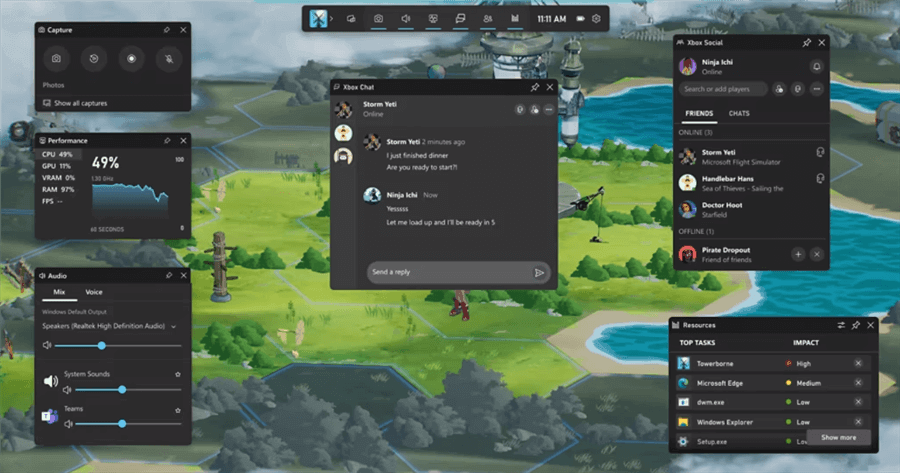
Windows Game Bar
Pros
- Completely free with no subscription fees
- Built directly into Windows and requires no download
- No watermarks on exported recordings
- Quick access through keyboard shortcuts
- Suitable for recording games and individual applications
Cons
- Cannot record the full desktop or File Explorer windows
- Limited recording controls and customization options
- No cursor highlighting, zoom effects, or annotations
- Basic audio management compared to professional tools
- Not ideal for creating tutorials or presentation videos
QuickTime Player
QuickTime Player is Apple’s built-in media player and screen recording solution for macOS. It provides a simple way to record your screen and microphone audio while maintaining excellent recording quality.
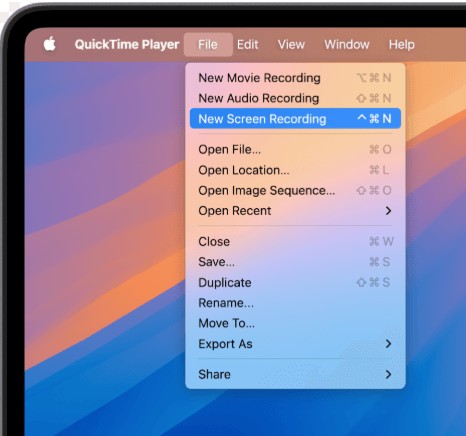
Screen Record on Your Mac Computer
Pros
- Free and pre-installed on every Mac
- No watermarks or recording limits
- Simple and beginner-friendly interface
- Produces high-quality screen recordings
- Supports microphone audio recording
Cons
- Lacks advanced editing capabilities
- No cursor highlighting or click effects
- No automatic zoom tracking
- Limited audio source management
- Not designed for professional tutorial production
Open-Source Free Tools: OBS Studio & ShareX
For users wondering what the best 100% free screen recorder for PC is, open-source software is the definitive answer. Tools like OBS Studio and ShareX are completely free, open-source, have zero time limits, and never force a watermark onto your recordings.
OBS Studio
OBS Studio is one of the most popular open-source screen recording and live streaming applications. It offers powerful recording capabilities, extensive customization, and professional-level control at no cost.
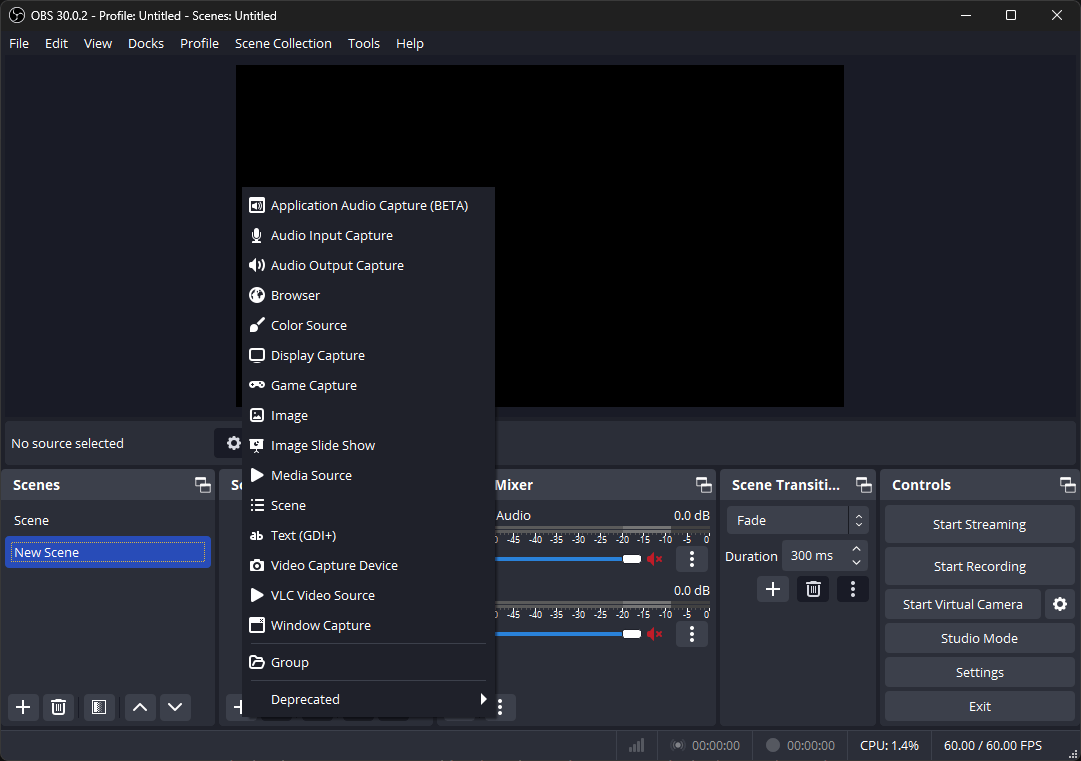
Choose Display Capture
Pros
- Completely free and open-source
- No watermarks, time limits, or export restrictions
- Supports advanced scene creation and transitions
- Professional audio and video routing controls
- Ideal for streaming, gaming, and high-quality recordings
- Large community with extensive plugin support
Cons
- Steep learning curve for beginners
- Complex setup process for optimal recording quality
- No built-in automatic editing features
- Requires manual post-production work
- No native cursor tracking or auto-zoom effects
ShareX
ShareX is a lightweight open-source screen capture and screen recording tool for Windows. It specializes in flexible capture options and productivity-focused workflows.
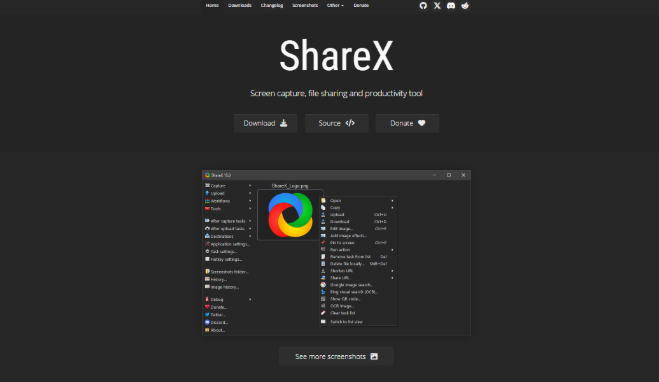
Screen Recorder – ShareX
Pros
- Completely free and open-source
- No watermarks or recording limitations
- Supports full-screen, window, and custom-region capture
- Fast and efficient for screenshots and short recordings
- Includes workflow automation and sharing options
Cons
- The interface can feel overwhelming for new users
- Limited video editing capabilities
- Not designed for professional video production
- No built-in cursor highlighting or zoom tracking
- Advanced features may require additional configuration
The Hidden Cost of ‘Free’: Post-Recording Editing Time
Finding a watermark-free screen recorder is a huge relief, but capturing a clean raw recording is really only half the battle in creating a usable video. The real bottleneck for anyone acting as a tutorial video maker isn’t just the watermark—it’s the hours spent manually editing the footage afterward.
If you are creating a product demo, an SOP for your team, or a software tutorial, your viewers need to know exactly where to look. In a standard raw recording, the mouse cursor is tiny, and text can be impossible to read on smaller screens.
Transforming that raw screen capture into a professional video typically forces creators to tackle a tedious manual checklist:
- Keyframing zoom-ins: Manually cutting the timeline and programming the camera to zoom into specific UI elements or text blocks.
- Creating spotlight effects: Adding shapes, highlight circles, or tracking animations to make tiny mouse movements and clicks visible.
- Typing and syncing captions: Re-listening to your audio track repeatedly to manually type out subtitles and align them with the exact timestamps.
- Trimming dead air: Scrubbing through the entire timeline to locate and cut out awkward pauses, mistakes, or filler words.
While completely free open-source tools are fantastic for budget-conscious users, investing in a premium tool is often worth it if it drastically reduces post-production manual editing. If your goal is to create polished, easy-to-follow videos without the tedious timeline work, you need a workflow that edits while you record.
FocuSee: The Premium Auto-Editing Screen Recorder
For creators, educators, and marketers who value their time, FocuSee is an AI-powered screen recorder designed specifically to streamline post-production. While FocuSee is a premium tool that provides watermark-free exports under supported paid plan conditions, it goes far beyond basic screen capture by automatically editing your tutorials and demos for you.
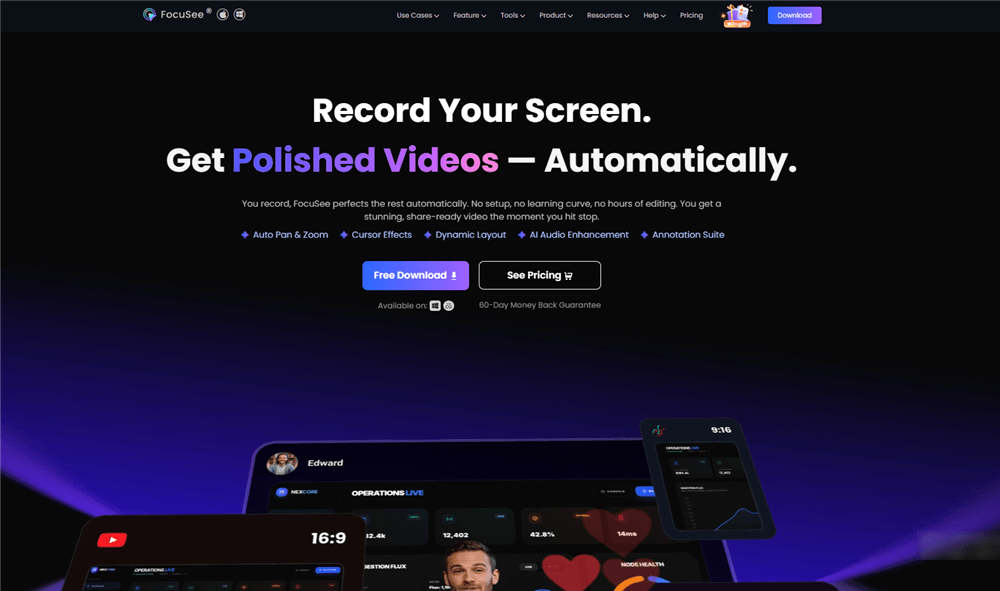
FocuSee Official Website
Instead of struggling with keyframes in a traditional editor, FocuSee applies presentation enhancements on the fly. It features automatic smart zooms that follow your actions, customizable cursor effects that make clicks obvious, AI-generated subtitles (which may require minor review), and background noise reduction to improve your narration clarity.
Interestingly, while FocuSee removes its own branding on paid plans, it actually includes a feature that allows you to add your own custom watermark to protect your branded content from being copied.
How the FocuSee Auto-Editing Workflow Saves Time:
Step 1. Open FocuSee and choose your recording mode (Full Screen, Window, or Custom Area).
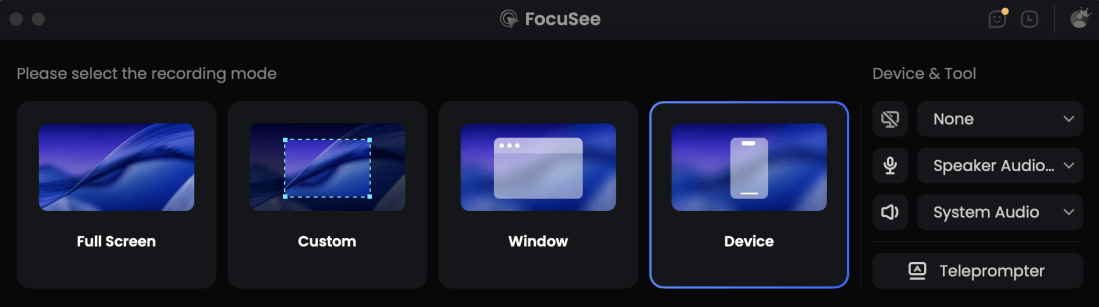
Choose the Recording Model
Step 2. Record your tutorial naturally. FocuSee runs quietly in the background capturing your screen, camera, and microphone.
Step 3. Review the automated edits. Once you stop recording, FocuSee automatically generates a timeline with smart zooms, cursor highlights, and AI subtitles already applied.
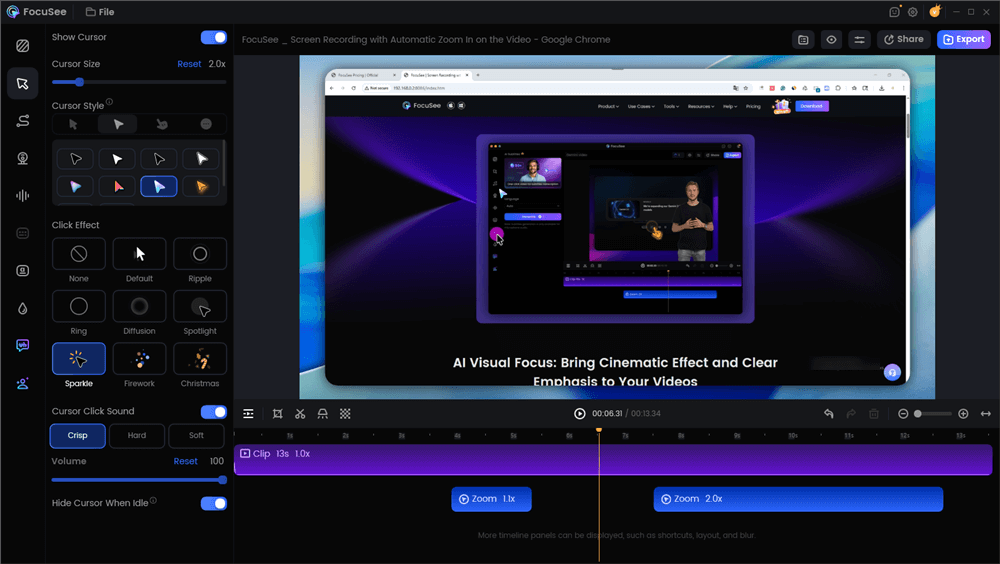
Edit the Video with Auto Zoom Effects
Step 4. Adjust and customize the zoom intensity, cursor color, or camera layout if needed.
Step 5. Export your polished video watermark-free (requires a supported paid plan) and share it directly with your audience.
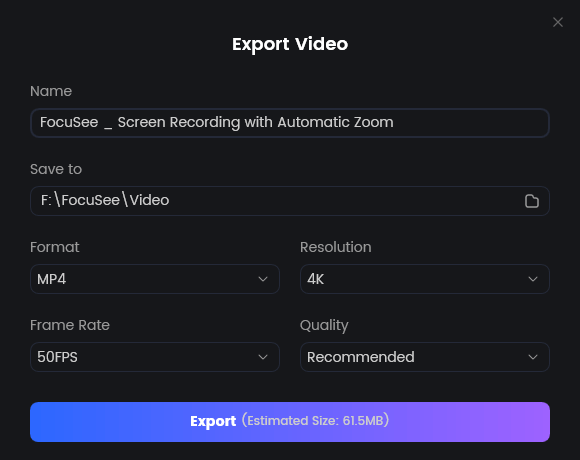
Export Your Video
Tool Comparison: Built-In vs. Open-Source vs. AI Auto-Editing
To help you choose the right screen recorder for your specific needs, here is a side-by-side look at how built-in, open-source, and premium auto-editing tools compare on key features.
| Primary Need | Why It Fits Best | |
| OBS Studio | Free live streaming & gaming | Powerful free tool with custom scenes and full control. |
| Camtasia | Multi-track timeline editing | Advanced editing tools for complex video projects. |
| Loom | Fast team communication | Instant recording and link sharing with minimal effort. |
| FocuSee | Polished tutorials & demos (Win/Mac) | AI automates zooms, cursor tracking, and subtitles. |
| Screen Studio | Aesthetic auto-zooming (Mac) | Beautiful built-in animations for Apple-focused workflows. |
If you have the technical patience to learn complex software and don’t mind manually editing your videos afterward, OBS Studio remains the undisputed king of truly free recording. However, if your goal is to produce polished, easy-to-follow tutorials quickly, upgrading to an auto-editing tool like FocuSee is a clearer next step.
Frequently Asked Questions About Screen Recorders
Does OBS Studio have a watermark?
No. OBS Studio is 100% free, open-source software and does not place any watermarks on your videos. It also has no time limits, though it does require significant technical setup to use effectively.
Does Windows Game Bar leave a watermark?
No. The Xbox Game Bar built into Windows 10 and 11 does not leave a watermark. However, it cannot record your entire desktop or the Windows File Explorer.
Is there a screen recorder with no time limit and no watermark?
Yes. If you want a completely free option, OBS Studio and ShareX offer unlimited recording with no watermarks. If you are willing to invest in a premium tool to save editing time, FocuSee offers watermark-free and limitless recording under its supported paid plans.
Can I remove a watermark from an already recorded video?
Removing a hardcoded watermark from a finished video is extremely difficult. You generally have to crop the video (losing part of the screen) or blur the area, which looks unprofessional. It is always better to record using a watermark-free tool from the start.
Is there a screen recorder that also automatically edits the video?
Yes. FocuSee is an AI-powered screen recorder that automatically applies smart zoom effects, cursor tracking, and AI subtitles as you record, significantly reducing the manual editing required for tutorials and demos under supported system conditions.
The Bottom Line: Which Watermark-Free Screen Recorder Should You Choose?
Navigating the hidden restrictions of freemium screen recorders doesn’t have to be a frustrating experience. The right choice depends entirely on your budget, your technical skills, and how much you value your time.
- Choose Windows Game Bar or Mac QuickTime if you need a fast, basic clip of a single window and don’t need to present complex steps clearly.
- Choose OBS Studio if you have zero budget, high technical patience, and don’t mind spending hours manually editing your footage in a separate video editor later.
- Choose FocuSee if you are a creator, marketer, educator, or SaaS professional who wants a streamlined, automated workflow. By investing in a supported paid plan, you not only get clean, watermark-free videos, but you also eliminate the tedious manual work of adding zooms, cursor highlights, and subtitles.
Stop letting hidden watermarks and manual editing slow down your content creation. Try FocuSee today to automatically generate smart zooms, cursor highlights, and AI subtitles as you record, and export your next professional tutorial clean and watermark-free.