The 8 Best Video Watermark Creators of 2026 (Tested & Reviewed)

That sinking feeling of seeing your hard work reposted without credit is a common frustration for content creators and social media managers. You spend hours creating great video content, only to have it stolen. Finding the right solution is a challenge; the market is flooded with tools that are either too complex, degrade your video quality, or sneak in their own branding. You need one of the best video watermark creators that offers control, efficiency, and a professional result without a steep learning curve.
This guide is designed to cut through that noise. We’re providing a clear, tested analysis to help you find the best video watermark software for your specific needs, from protecting a single clip to branding hundreds of videos at once.
Our recommendations are the result of over 20 hours of hands-on testing with 15 popular watermark tools on both Windows and macOS to validate performance, ease of use, and final video quality.
Quick Comparison: Find the Best Video Watermark Software in 60 Seconds
Before the detailed analysis, this matrix gives you a quick overview of our top picks. Use this table to compare the leading options and find a solution that aligns with your workflow, whether you prioritize speed, features, or platform.
| Tool Name | Best For | Platform | Standout Feature | Pricing |
| VisualWatermark | High-volume batch processing | Windows, macOS | Unmatched speed & simplicity | One-time purchase |
| FocuSee | All-in-one content creation | Windows, macOS | AI-powered editing & auto zoom | Free, subscription, lifetime |
| Kapwing | Quick online edits | Online | Collaborative tools | Freemium, subscription |
| VLC Media Player | Basic, free watermarking | Windows, macOS, Linux | No-cost solution | Free |
| Movavi Video Editor | Beginners needing an editor | Windows, macOS | User-friendly interface | Subscription, lifetime |
This at-a-glance comparison helps separate tools designed for simple watermarking from more robust video editors that also offer it. For social media managers who need to process many files, a tool excelling in batch watermarking is ideal. For creators producing tutorials, an AI video editor like FocuSee offers far more value by streamlining the entire creation process.
Top 8 Video Watermark Tools Tested [In-Depth Reviews]
Here, we take a closer look at each of the best video watermark tools we tested. Each review outlines the core functionality, performance, and ideal user, helping you move beyond marketing claims to understand how each tool performs in a real-world scenario.
Visual Watermark
For the core task of adding a watermark to existing videos, Visual Watermark is the undisputed champion. It’s a specialized tool built for one purpose: adding watermarks to photos and videos quickly and efficiently. Its interface is stripped down to the essentials, making it the fastest, most reliable solution for anyone who needs to process dozens or hundreds of videos at once. If your primary pain point is the sheer volume of content needing protection, this is your tool.
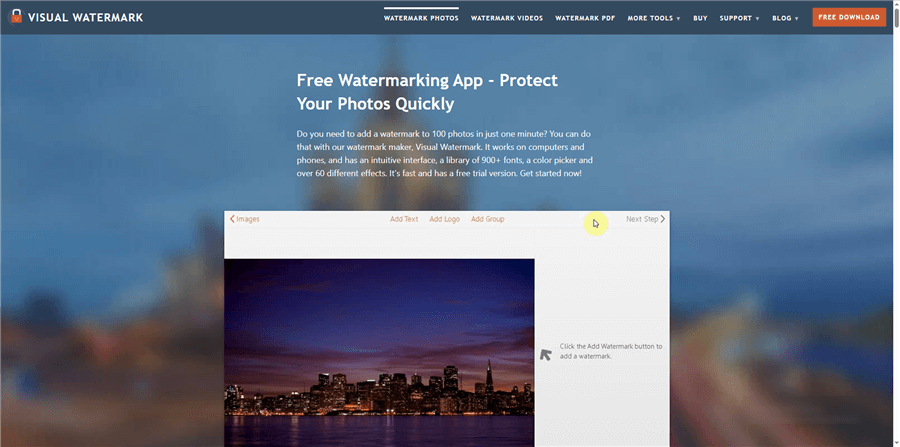
Visual Watermark
Pros:
- Exceptional performance for batch watermarking. In our test, it processed a batch of 20 one-minute 1080p videos in just under three minutes.
- Simple, no-frills interface is incredibly easy to learn.
- Offers good control over watermark placement, size, and opacity.
- One-time purchase model is cost-effective for long-term use.
Cons:
- It’s a single-task tool; no other video editing features are included.
- The user interface feels slightly dated compared to modern editors.
Verdict: The definitive choice for photographers, stock footage creators, and social media managers who need a reliable, high-speed batch video watermark creator without the complexity of a full video editor. It directly solves the most common watermarking problem with maximum efficiency.
Tested On: Windows 11.
FocuSee
FocuSee is more than a simple watermark tool; it’s a complete video creation suite designed for tutorials, demos, and educational content. Its primary function is screen recording, but its powerful AI-driven editor makes adding a professional logo watermark an effortless final step in a streamlined workflow. For users who need to create and brand videos from scratch, FocuSee addresses multiple pain points at once.
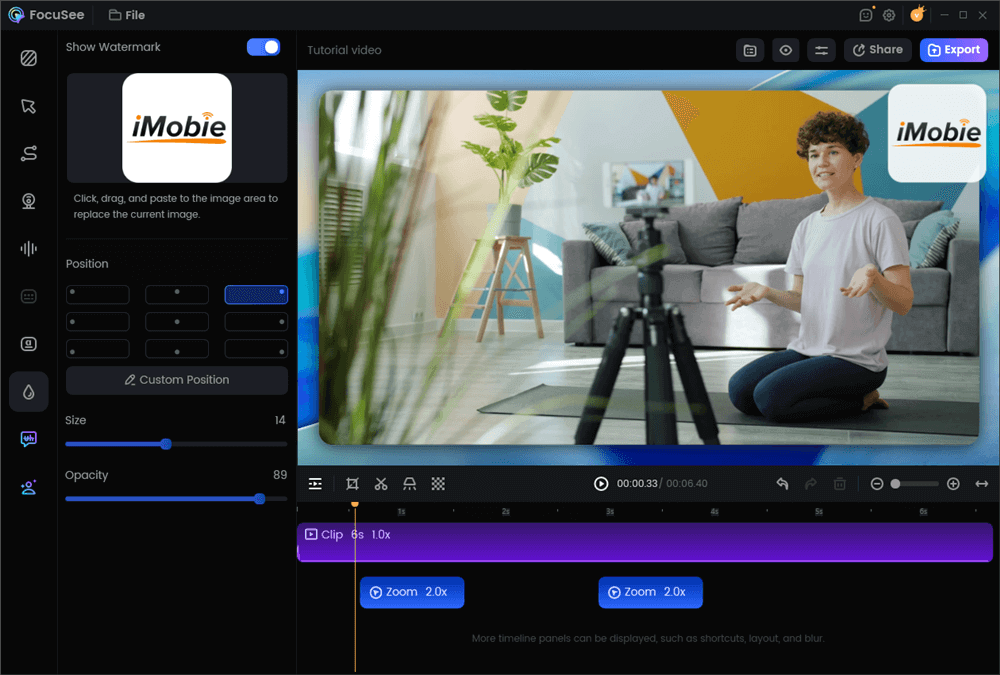
Add a Watermarket to a Video
Pros:
- AI-powered auto-zoom and cursor effects create professional tutorials with minimal effort.
- Adding a watermark is a simple drag-and-drop process onto the timeline overlay.
- Supports export resolution up to 4K, preserving video quality.
- Includes a full suite of editing tools, removing the need for multiple software subscriptions.
Cons:
- Overkill for users who only need to add watermarks to existing videos.
- No dedicated batch processing feature for watermarking only.
Verdict: Ideal for course creators, software demonstrators, and marketers who create screen-based video content. It solves the need for professional video branding while automating the most time-consuming parts of video editing.
Tested On: Windows 11 & macOS Sonoma (M3).
Kapwing
For those who prioritize convenience and collaboration, Kapwing is a powerful browser-based video editor. It allows you to upload a video, add a logo watermark or text watermark, and export it without installing any software. Its collaborative features make it a strong choice for teams working on video projects remotely.
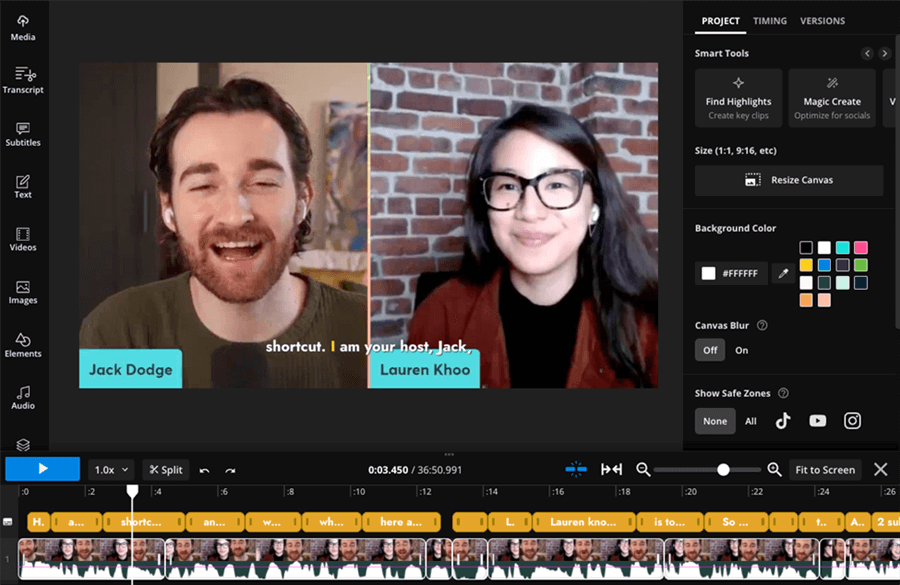
Video Watermark Tools – Kapwing
Pros:
- Fully browser-based, accessible from any computer.
- Intuitive drag-and-drop interface.
- Includes a wide range of editing tools beyond just watermarking.
- Free tier is generous, though exported videos will have a Kapwing watermark.
Cons:
- Entirely dependent on internet connection speed for uploads and downloads.
- Processing large 1080p and 4K files can be slow.
- Subscription is required for no watermark export.
Verdict: Excellent for quick, one-off edits, social media content, and teams needing a collaborative online tool. It’s the best watermark app for videos if you prefer a cloud-based workflow.
Tested On: Google Chrome on Windows 11 & macOS Sonoma.
VLC Media Player
Many people don’t realize that the ubiquitous VLC Media Player has a hidden watermarking feature. While it’s not user-friendly, it is a completely free and effective way to add a simple logo to a video without installing extra software or dealing with a company’s branding on your export.
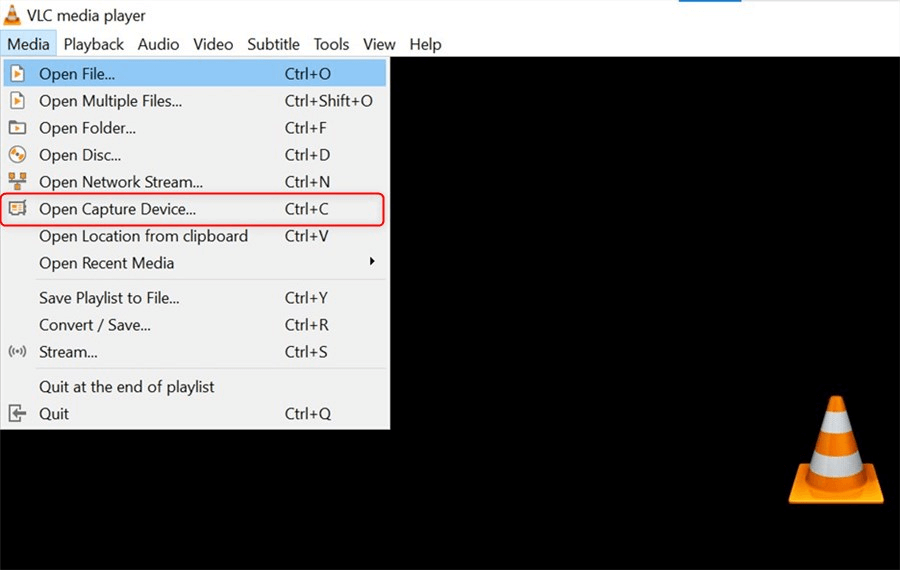
Video Watermark Tool – VLC Media Player
Pros:
- 100% free with no ads, subscriptions, or output watermarks.
- Already installed on millions of computers.
- Cross-platform (Windows, macOS, Linux).
Cons:
- The process is buried in menus and is not intuitive. To find it, you must go to Tools > Effects and Filters > Video Effects > Overlay.
- Very limited customization options for placement and opacity.
- You have to redo the setup every time; settings don’t save easily.
Verdict: A viable option if you are technically inclined, only need to watermark a video occasionally, and are determined not to spend any money or install new software.
Tested On: Windows 11.
Movavi Video Editor
Movavi Video Editor strikes a great balance between user-friendliness and powerful features. It’s designed for beginners who want to create polished videos without getting bogged down in technical complexity. Adding a watermark is a simple overlay process, and the software provides ample guidance for new users.
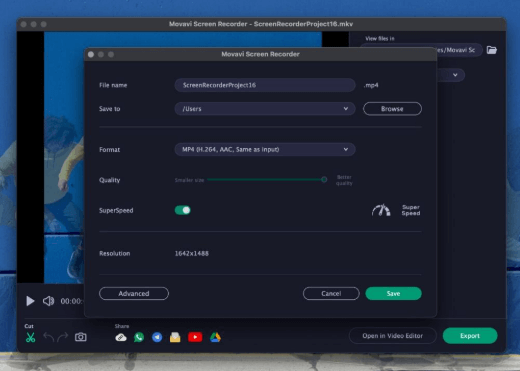
Movavi Screen Recorder
Pros:
- Extremely intuitive interface with a short learning curve.
- Comes with a large library of effects, titles, and transitions.
- Good performance on most modern computers.
- Offers both subscription and lifetime license options.
Cons:
- The free trial exports videos with a large Movavi watermark.
- Not designed for high-volume batch processing.
Verdict: A fantastic choice for aspiring YouTubers, students, or anyone new to video editing who needs an all-around tool that makes video branding simple.
Tested On: Windows 11 & macOS Sonoma.
Canva
While known primarily as a graphic design tool, Canva has steadily improved its video editing capabilities. For social media managers already using Canva to create graphics, its video editor provides a seamless way to add a logo watermark as part of an existing workflow.
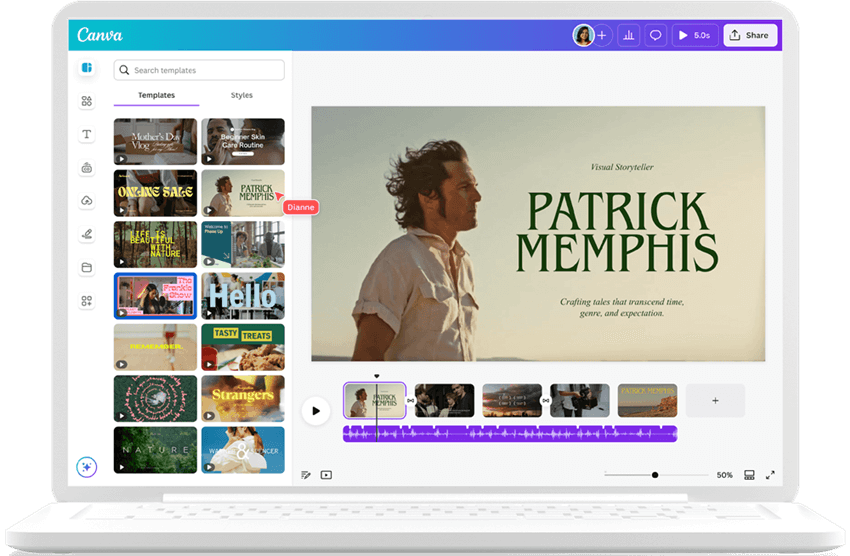
Video Watermark Tool- Canva
Pros:
- Perfect for users already in the Canva ecosystem.
- Massive library of templates, stock footage, and design elements.
- Extremely simple drag-and-drop functionality for adding logos.
Cons:
- Video editing features are basic compared to dedicated software.
- Can be slow when working with longer or high-resolution videos.
- Best features are locked behind a Canva Pro subscription.
Verdict: The ideal solution for marketers and content creators who live inside Canva and need to quickly brand short-form videos for social media platforms.
Tested On: Google Chrome on Windows 11.
iMovie
For Mac users, Apple’s iMovie comes pre-installed and offers a basic but effective way to watermark videos for free. While it doesn’t have a dedicated “watermark” function, you can easily overlay a transparent PNG logo using the Picture in Picture feature.
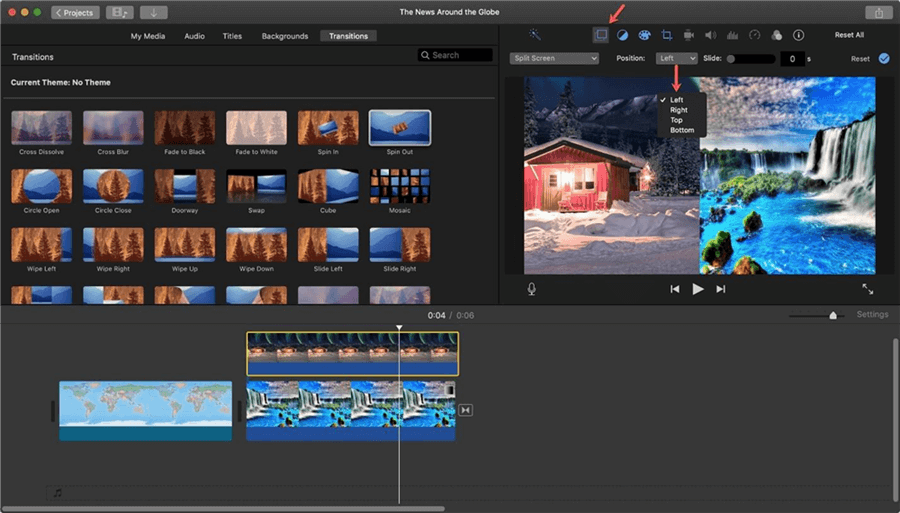
Video Watermark Tool – iMovie
Pros:
- Completely free for all Mac, iPhone, and iPad users.
- Simple, clean interface that’s easy for Apple users to navigate.
- Integrates well with the Apple Photos library.
Cons:
- Only available on Apple devices.
- Limited control over the exact size and position of the logo overlay.
- Not a true watermarking tool. To add a logo, you must drag it onto the timeline above your video clip, then select the Picture in Picture option from the overlay controls.
Verdict: If you’re a Mac user and only need to add a simple logo or text to a few videos, iMovie is a convenient, no-cost starting point.
Tested On: macOS Sonoma (M3).
Filmora
Filmora is a strong competitor to Movavi, offering a rich feature set that appeals to both beginners and intermediate users. Its clean interface makes common tasks, including adding a watermark, straightforward. It provides a good middle ground between basic tools and professional-grade software.

Video Watermark Tool – Filmora
Pros:
- Well-designed interface that balances features with ease of use.
- Good selection of built-in effects and titles.
- Offers a lifetime license option, which can be more affordable than subscriptions.
Cons:
- The free version exports with a prominent Filmora watermark.
- Can be demanding on system resources with 4K projects.
Verdict: A solid all-around video editor for hobbyists and content creators who want more power than a basic tool but aren’t ready for professional software like Adobe Premiere Pro.
Tested On: Windows 11.
Pro Tip: How to Add a Watermark Without Losing Video Quality
A critical tip many guides miss: the biggest risk when watermarking is not the logo itself, but the re-encoding process. Adding any element requires the video to be exported again. Low-quality tools can compress your file aggressively, resulting in a pixelated or blurry video.
This directly answers the question, “Will watermarking reduce my video quality?” It depends on the tool. Prioritize software that gives you control over export resolution and bitrate, allowing you to match your original file’s specifications. For 1080p and 4K videos, maintaining a high bitrate is essential to preserve detail.

High-Bitrate Export vs Low-Bitrate Export
Online Tools vs. Desktop Software
A central question is whether to use a video watermark creator online or install desktop software. The best method depends on your project’s scale, security needs, and internet connection.
The Case for Online Watermark Tools
Online tools are built for convenience. You can access them from any browser, making them great for occasional use or when you can’t install software.
- Pros: No installation required, accessible from anywhere, simple interfaces.
- Cons: Requires uploading/downloading large files, dependent on internet speed, potential privacy concerns, limited batch watermarking capabilities.
The Case for Desktop Software
Desktop software offers superior performance, security, and features. Because processing happens on your computer, you aren’t limited by upload speeds. This is the definitive choice for professionals and anyone needing to watermark multiple videos efficiently. A desktop batch video watermark creator is the only practical solution for high-volume workflows.
- Pros: Faster processing, enhanced security (files stay local), robust batch watermarking features, works offline.
- Cons: Requires installation, uses system resources, tied to a specific computer.
Conclusion
Choosing the best video watermark creator means aligning its strengths with your core needs. Your “best” tool depends entirely on your specific workflow.
For social media managers and creators facing constant content theft, an efficient batch video watermark creator like VisualWatermark is the most direct solution, saving hours of manual work. For creators who prefer the cloud or work collaboratively, an online tool like Kapwing is the answer.
However, if your work involves creating tutorials, demos, or courses from scratch, your workflow benefits most from an integrated solution. For creating and branding new tutorial content, an all-in-one suite like FocuSee is the most efficient choice, making professional video branding the final, easy step in a powerful, AI-assisted process.
Stop letting content theft devalue your work. Take control by choosing the right tool for your job, protecting your brand, and focusing on what you do best: creating.
Frequently Asked Questions (FAQ)
Here are direct answers to the most common questions about choosing and using video watermark software.
What is the best video watermark creator overall?
For pure, high-volume watermarking, VisualWatermark is the best dedicated tool due to its speed and simplicity. For all-in-one video creation and branding, FocuSee is the top choice because it integrates watermarking into a larger, AI-powered workflow.
Which video watermark creator is best for beginners?
Online tools like Kapwing or desktop editors with simple interfaces like Movavi Video Editor are excellent for beginners. They offer guided steps for adding both a text watermark and a logo with minimal technical knowledge.
Can I watermark videos for free without adding another watermark?
Yes. Tools like VLC Media Player and iMovie offer basic watermarking functions at no cost and will not add their own branding. Most freemium online tools will add their own watermark unless you upgrade.
Which tools support batch watermarking multiple videos?
Desktop software like VisualWatermark is specifically designed for efficient batch watermarking, allowing you to apply the same settings to hundreds of videos at once.
What is the best video watermark creator for Windows?
VisualWatermark is the best choice for high-volume batch processing on Windows. For creating and branding new content, FocuSee offers a powerful, native Windows application.
What is the best video watermark creator for Mac?
VisualWatermark is a top performer for batch watermarking on macOS. Mac users creating new content will find that FocuSee provides a seamless experience that feels native to the OS. For simpler, free needs, iMovie is a great starting point.
Will watermarking reduce my video quality?
It can if you use a poor-quality tool. The best watermark software allows you to control the export resolution and bitrate to match your original file, preserving its quality.
Should I use an online tool or desktop software for watermarking?
Use an online tool for occasional, single-video tasks. Use desktop software for better performance, security, and especially for processing multiple videos in a batch.
What file format should my logo watermark be?
Always use a transparent PNG. This format supports transparency, ensuring your logo doesn’t have a solid background box around it, which looks unprofessional.
We regularly update this guide as new tools and features are released. The developers of our recommended software, particularly VisualWatermark and FocuSee, offer consistent updates and reliable customer support, ensuring a sound long-term investment for your workflow.