4 Best Screen Recorders for Every Workflow in 2026

Finding the right screen recorder isn’t just about what happens when you hit record—it’s about the massive amount of time you spend after you hit stop. Most guides ignore the hours users lose to manual post-production, like adding zooms, highlighting cursors, and writing subtitles.
To save you time, here is a quick summary of the absolute best screen recorders depending on your specific needs:
- Best Free & Open-Source (Streaming): OBS Studio
- Best for Quick Async Video Messages: Loom
- Best for Deep Manual Video Editing: Camtasia
- Best for Auto-Edited Tutorials: FocuSee
Let’s break down how these tools compare, especially when it comes to the hidden cost of editing.
Quick Comparison: Top Screen Recording Software
How do these top tools compare in terms of price, features, platform support, and the actual effort required to produce a finished video? This table breaks down the essentials.
| Supported Platforms | Primary Use Case | Post-Production Effort | Key Features | |
| OBS Studio | Windows, macOS, Linux | Live streaming & raw capture | High (Separate editor needed) | Unlimited recording, customizable |
| Loom | Web, Windows, macOS, Mobile | Team communication | Low (Minimal editing) | Cloud links, async sharing |
| Camtasia | Windows, macOS | Complex tutorials | High (Manual editing) | Timeline editor, transitions |
| FocuSee | Windows, macOS | Auto-edited tutorials & demos | Low (AI automation) | Auto zoom, cursor tracking |
If you simply need to capture your screen, any of these will work. But if you’re creating tutorials, the difference in post-production effort is massive.
4 Best Screen Recorders for Every Workflow
OBS Studio: Best Free Screen Recorder for Streaming
OBS
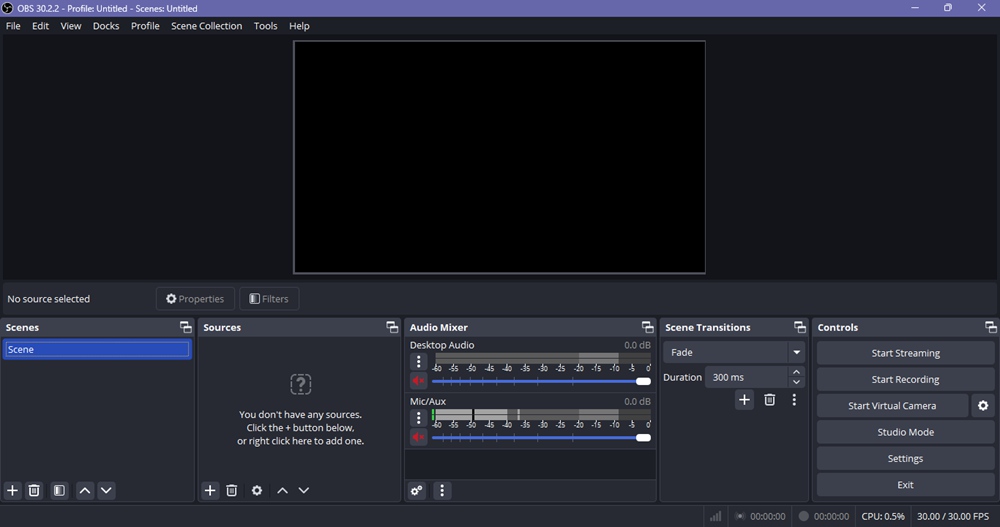
If you are looking for a completely free, highly powerful tool without any hidden watermarks or time limits, OBS (Open Broadcaster Software) Studio is the universal standard.
OBS is brilliant for live streaming and capturing raw footage. However, because it is essentially a broadcasting tool, it does not include a built-in video editor. Once you finish recording, you are left with a raw video file that requires routing into a separate non-linear video editor (NLE) if you want to add zooms, text, or polish.
Pros of OBS Studio:
- 100% free and open-source.
- No watermarks or recording time limits.
- Highly customizable audio and visual scene routing.
Cons of OBS Studio:
- Steep learning curve for beginners.
- High post-production effort (no built-in editing features).
Loom: Best for Quick Async Video Messages
Best Screen Recorder – Loom
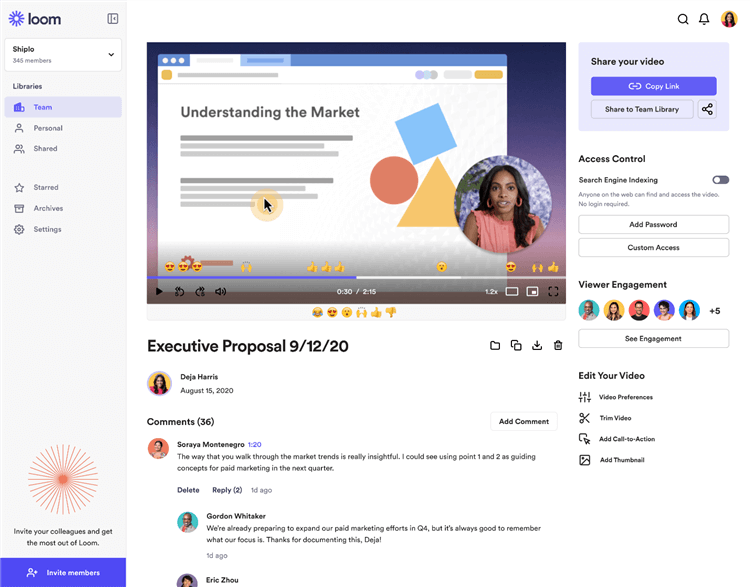
When you just need to show a coworker a bug or send a fast project update, Loom is the dominant choice. It removes the friction of recording and uploading by instantly generating a shareable cloud link the moment you finish speaking.
Loom is built for speed and asynchronous communication. While it is incredibly efficient for casual updates, it is not designed for creating polished, long-form software tutorials that require complex visual focus, dynamic zooms, or precise cursor highlighting.
Pros of Loom:
- Instant cloud sharing via a simple link.
- Excellent for quick team communication and async updates.
- Very low friction to start recording.
Cons of Loom:
- Limited editing capabilities for polished content.
- Not ideal for creating professional-grade, highly edited tutorials.
Camtasia: Best for Deep, Manual Video Editing
Best Screen Records – Camtasia
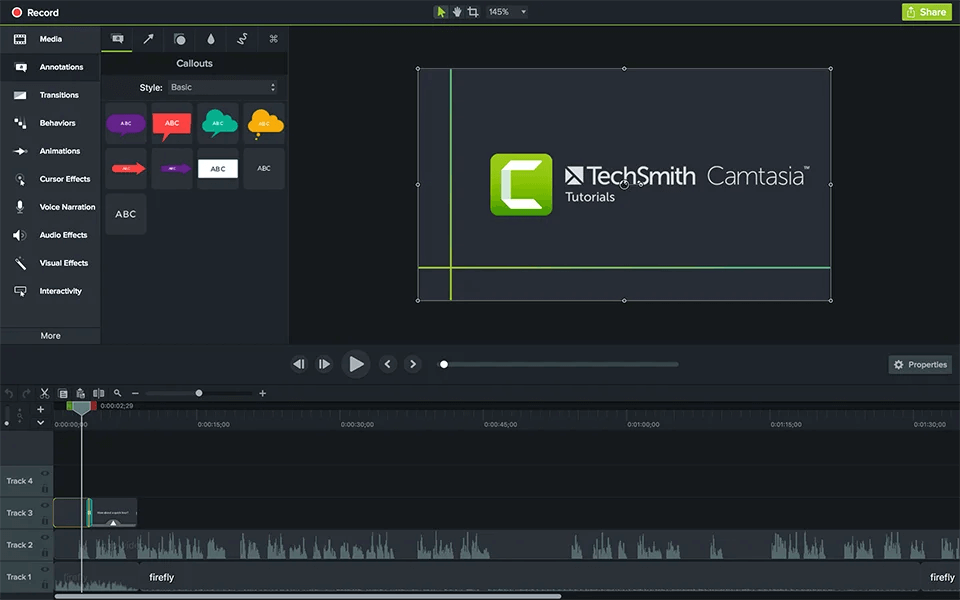
For years, Camtasia has been the traditional standard for professionals making complex software tutorials. It is a premium, powerful tool that combines a screen recorder with a fully functional timeline editor.
The biggest drawback of Camtasia is the massive time sink required for post-production. To make a tutorial easy to follow, users must manually keyframe every zoom-in, manually highlight the cursor, and manually add text callouts after the recording is finished. For a 10-minute tutorial, this manual editing fatigue can easily cost you hours of work. If you prefer to avoid manual keyframing, exploring a Camtasia screen recorder alternative designed for automation could be a more efficient path.
Pros of Camtasia:
- Powerful, traditional timeline editing for precise control.
- Excellent for highly complex, multi-layered tutorial projects.
- Long-standing industry standard with deep feature sets.
Cons of Camtasia:
- High manual post-production effort required for zooms and cursor effects.
- Premium software pricing model makes it an expensive investment.
FocuSee: Best AI Screen Recorder for Auto-Edited Tutorials
FocuSee Official Website
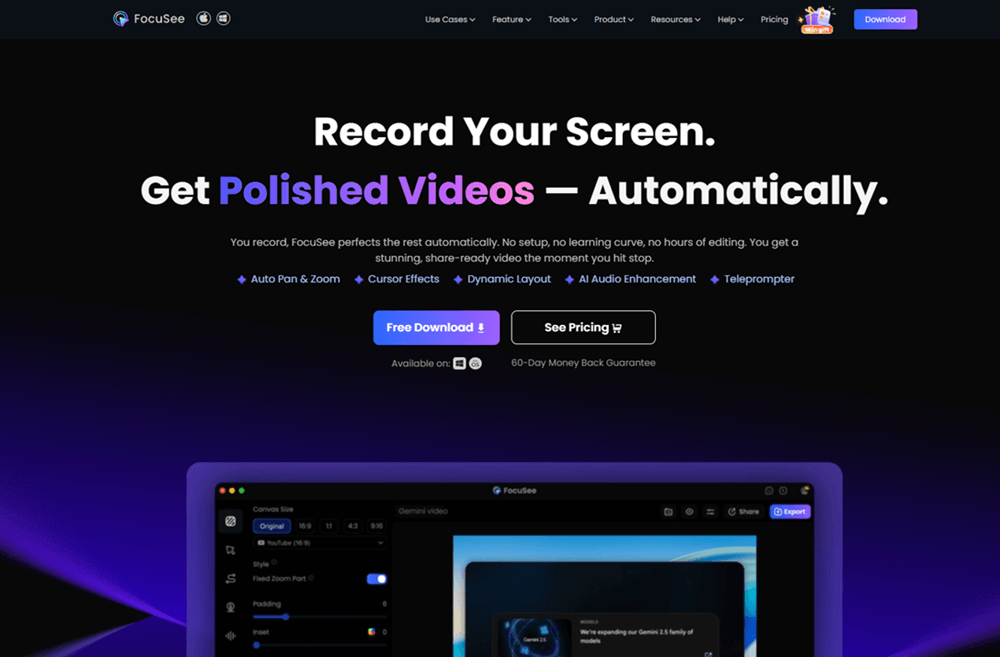
If you want the polished look of a Camtasia tutorial without the manual editing fatigue, FocuSee is the perfect solution. FocuSee is an AI-powered screen recorder specifically designed for tutorials, product demos, and training videos.
Instead of making you manually keyframe your visual focus, FocuSee tracks your actions while you record. It automatically adds smart zooms and dynamic cursor animations to highlight your clicks (where compatible), allowing you to skip hours of manual post-production work.
The FocuSee Auto-Editing Workflow:
- Record your screen: Capture your tutorial or product demo as you normally would on your Windows or macOS desktop.
- Smart visual focus: FocuSee automatically applies smart zooms and cursor tracking based on your mouse clicks and movements.
- Review AI Subtitles: The software generates AI subtitles and applies AI audio enhancement to clean up background noise (review recommended, as AI audio cleanup results depend on your original source audio quality).
- Customize and Export: Adjust the auto-generated layout if needed, and export your polished tutorial in minutes instead of hours.
Keep in mind that high-resolution exports (like 4K) and running multiple AI features smoothly perform best on systems that meet recommended hardware specifications. While FocuSee does not replace a full professional NLE suite for cinematic multi-cam editing, it is the ultimate shortcut for creators who want professional, easy-to-follow screen videos with minimal manual effort.
Buying Guide: How to Choose the Right Screen Recorder
Choosing the right screen recorder comes down to matching the software to your specific situation. Use this quick checklist to map your workflow to the right tool category:
- Choose OBS if: You need to stream gameplay or capture raw screen footage for free, and you don’t mind learning a complex interface or editing the raw video in another program later.
- Choose Loom if: You need to send a fast, unedited video message or bug report to a colleague and want an instant, shareable cloud link.
- Choose Camtasia if: You are a professional video editor who needs complex, manual timeline control and you have the budget and time to manually keyframe your effects.
- Choose FocuSee if: You want a dedicated screen recording tool for tutorials, SaaS demos, or training videos, and you want to handle your zooms, cursor highlights, and captions automatically.
Frequently Asked Questions About Screen Recorders
What is the best free screen recorder without a watermark?
OBS Studio is the best entirely free, open-source screen recorder. It has no watermarks or time limits, though it does have a steep learning curve.
Does Windows or Mac have a built-in screen recorder?
Yes. Windows has the Xbox Game Bar (and Snipping Tool), while Mac has QuickTime Player. Both are great for basic, raw captures but lack editing features.
How do I record my screen and system audio at the same time?
Most dedicated tools like OBS and FocuSee allow you to select your microphone and system audio as dual inputs before you hit record. Check your software’s audio settings to ensure both are toggled on.
How can I zoom in on my screen while recording?
You generally have two choices: manually keyframe the zooms after recording using a traditional tool like Camtasia, or use an auto-editing screen recorder like FocuSee to automatically apply smart zooms based on your mouse clicks.
Do I need a high-end PC to use screen recording software?
Basic raw recording tools run well on most modern PCs. However, finding the best 4K screen recorder to record in 4K at 60fps, or using software with multiple AI enhancements, will perform best on systems that meet recommended hardware requirements.
What is the difference between a basic screen recorder and an auto-editing screen recorder?
A basic screen recorder simply outputs a flat, raw video file. An auto-editing screen recorder tracks your actions and automatically applies post-production effects like zooms, subtitles, and cursor highlights to the final video.
Which screen recording software is easiest for beginners?
For simple async communication, Loom is the easiest. For beginners who want to create polished, professional-looking tutorials without learning complex video editing, FocuSee provides the easiest guided workflow.
Final Verdict: Which Screen Recorder Should You Choose?
Ultimately, the “best” screen recorder depends entirely on what you are trying to achieve. If you are live streaming, a free tool like OBS is your best bet. If you just need to share a fast async message, Loom is unmatched. And if you have the time and budget for heavy manual editing, Camtasia remains a classic choice.
However, there is a massive difference in post-production time between manual editing tools and AI-powered workflows. If you are a creator, educator, or SaaS team member making tutorials and product demos, FocuSee provides the best balance of professional output and ease of use.
Ready to stop wasting hours manually keyframing zooms and cursor highlights? Try FocuSee today to streamline your screen recording workflow and create clearer, more engaging videos in a fraction of the time.