Best Audio Recorder Online: Top Free Tools & Professional Workflows Tested

Imagine needing to send a critical voice explanation to a confused customer, but your company laptop blocks every software installation you try. This is the reality for many support specialists and remote workers. You have a solution in your head, but your workflow grinds to a halt due to IT restrictions. You search for a solution, try a random site, and are met with failed microphone permissions or audio that sounds like it was recorded underwater.
Facing a locked device when you need it most is a significant workflow bottleneck. This guide solves that problem. We have tested the browser ecosystem to find the best audio recorder online—verifying which tools actually respect your privacy, handle microphone permissions reliably, and export high-quality audio without forcing you to install a thing.
Tested on: Windows 11 (Chrome/Edge), macOS Ventura (Safari/Chrome), Chromebook, and iPhone 14 Pro (Safari). I evaluated these tools based on microphone signal retention, privacy protocols (local vs. cloud), and ease of use in restrictive IT environments.
Which Online Audio Recorder Fits Your Use Case?
If you need to choose a tool immediately without trial and error, use this decision matrix. Based on reader feedback, we have expanded this comparison to include critical constraints like Time Limits and Watermarks, so you don’t get stuck with a tool that cuts you off mid-sentence.
For a standard online audio recorder, no download, simple browser tools suffice. However, if your workflow involves tutorials or requires noise reduction, a dedicated tool provides better stability.
Quick Comparison: Best Online Audio Recorders
| Vocaroo | Rev | Adobe Podcast | FocuSee | |
| Best For | Quick link sharing (emails/chat) | High-quality WAV (podcasts/editing) | AI cleanup (remove echo) | Video + audio tutorials |
| Privacy Model | Server upload (public link) | Local (device-only) | Cloud upload (account required) | Local processing |
| Format | MP3 | MP3, WAV | MP3 | MP4, MP3 |
| Time Limit | None (file size limits) | Unlimited (browser dependent) | 30 mins/500MB | Unlimited |
| Cost / Watermark | Free/none | Free/none | Free (account required) | Free trial/watermark on free export |
If you need to edit the audio heavily later (e.g., for a podcast), always prioritize a recorder that exports WAV (uncompressed) over MP3. For quick sharing via email or Slack where speed matters more than fidelity, MP3 is the standard.
4 Best Free Online Audio Recorders (No Installation Required)
For users who face strict IT restrictions, an online audio recorder without a watermark that runs entirely in the browser is essential. Here are the 4 best tools categorized by specific workflows, with honest notes on their limitations.
Vocaroo: The Fastest Share Link
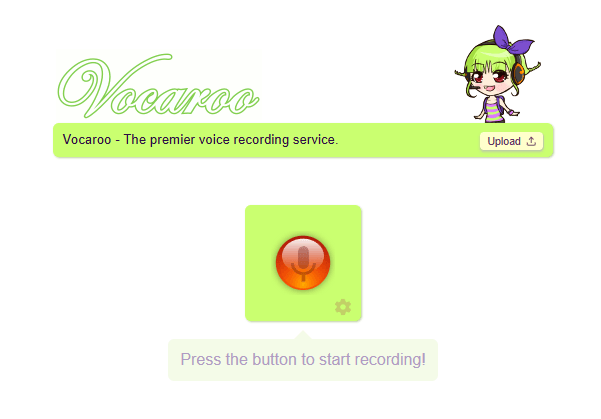
Online Audio Recorder – Vocaroo
When you need to send a quick 45-second explanation to a customer to clarify a confusing email, Vocaroo is the industry standard. It removes the friction of file management entirely. You record, get a unique URL, and paste it into a chat or email.
- The Reality Check: In our testing, Vocaroo prioritizes speed over quality. The audio is heavily compressed, often sounding “tinny” like a standard phone call. It is perfect for clarity but poor for professional presentation.
- Critical Warning: Vocaroo links are not permanent. Files are deleted after a few months of inactivity. Do not use this for long-term storage (e.g., legal records or HR meetings) unless you download the file immediately.
- Pros: No login, instant share link, works on almost any device (including legacy Windows machines).
- Cons: Low bitrate audio; temporary storage.
FocuSee Online Microphone Recorder
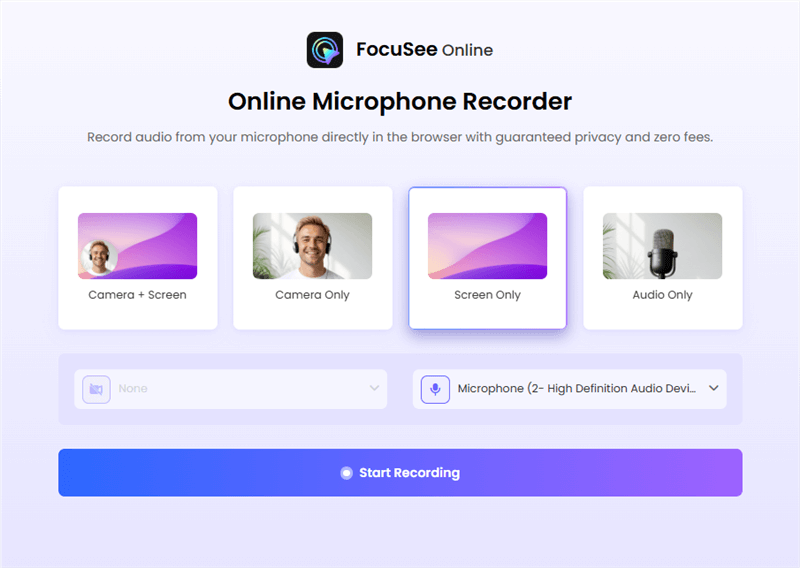
Choose The Recording Model
If you want a clean recording experience without installing software—but with better control and quality than basic tools, FocuSee’s online microphone recorder is a strong middle-ground option.
It runs entirely in your browser, making it ideal for restricted environments, while still offering a more polished experience than ultra-minimal tools like Vocaroo.
What makes it different:
- Local-first recording: Audio is processed in-browser, helping protect sensitive data
- Stable recording experience: More reliable for longer takes compared to lightweight tools
- Clean export workflow: Quickly download usable audio without extra steps
- Seamless upgrade path: If your needs grow, you can move to FocuSee’s full editor (for video + audio workflows) without switching ecosystems
Best For: Users who want better audio quality and stability than basic web tools, without jumping into cloud-based AI workflows.
Limitations:
- No instant share link like Vocaroo
- No AI enhancement like Adobe Podcast
Rev: Privacy-First Local Download
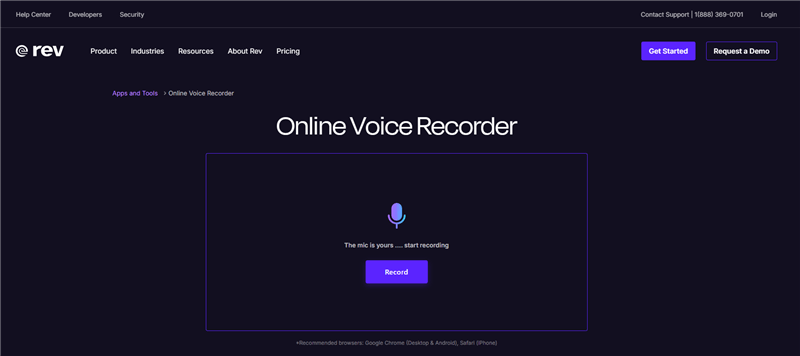
Online Audio Recorder – Rev
For sensitive internal data—like discussing a client’s billing issue—you should avoid uploading audio to a third-party server. Tools like Rev’s Online Voice Recorder or voice-recorder.io utilize local browser processing. This means the audio data never leaves your device until you choose to download MP3/WAV.
- The Experience: unlike Vocaroo, the audio here sounds rich and full. If you have a decent USB microphone, this tool captures it faithfully.
- Best For: Creating high-fidelity files (WAV) for later editing in software like Audacity or Premiere.
- Compatibility: Works well on desktop Chrome. On iPhone Safari, ensure you grant microphone access in Settings > Safari > Microphone.
Adobe Podcast: AI-Powered Cleanup
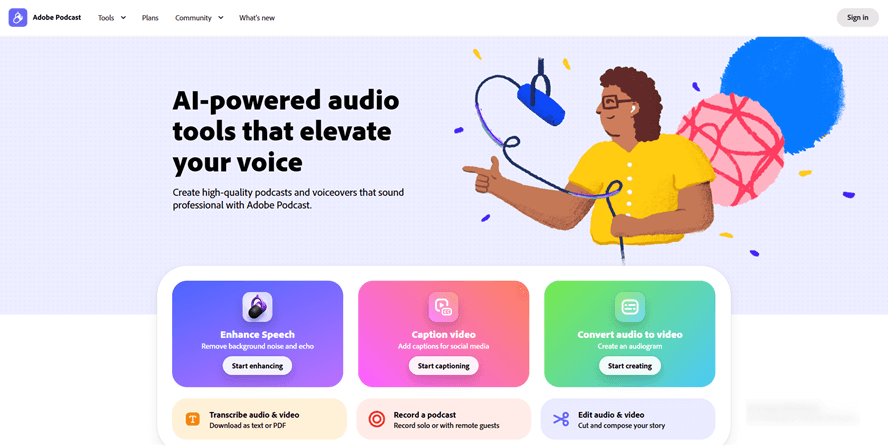
Adobe Podcast
If you are recording in a noisy office or a room with tiled floors, Adobe’s tool (formerly Project Shasta) is superior. It processes your recorded voice online session and applies aggressive noise reduction/echo removal automatically.
- The Trade-off: This is not instant. You must sign up for an Adobe account, record, and then wait for the cloud processing to finish.
- Constraint: You are limited to 30 minutes per session and 500MB max file size on the free tier.
- Result: The “Enhance Speech” toggle can make a laptop microphone sound like a studio broadcast, though it can sometimes sound slightly robotic if the background noise is too loud.
When Audio Isn’t Enough: The Visual Workflow (FocuSee)
While free browser tools handle quick voice clips, they often fail when you need to provide context. If your task involves walking a client through a new dashboard or debugging software, a voice note alone might confuse them. You end up having to say, “Look at the top right button,” which is prone to error.
This is where FocuSee serves as a solution for tutorials and walkthroughs.
If you strictly need an audio file, stick to Rev. But if your audio is meant to accompany a visual demonstration, FocuSee streamlines the process. Unlike basic web recorders, it captures your screen and microphone simultaneously but offers Separate Audio Track Recording.
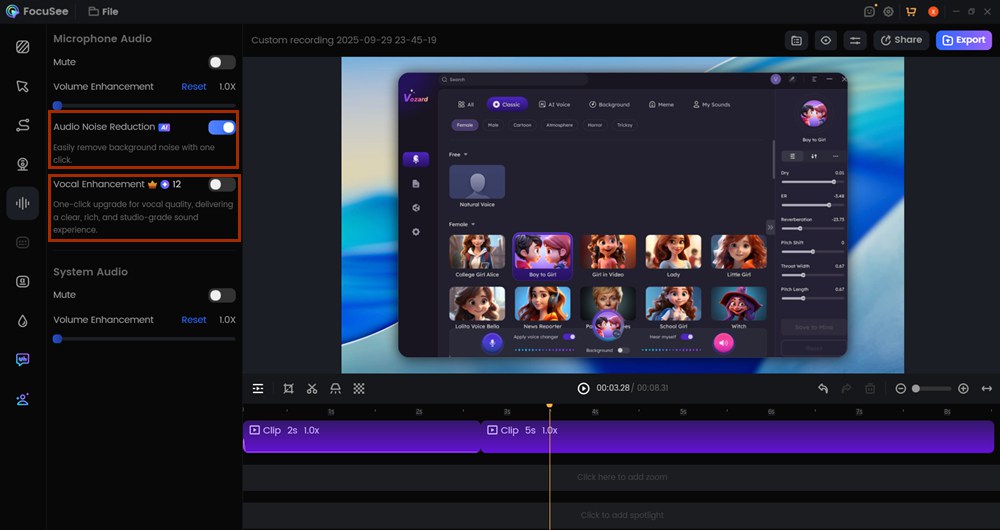
AI Audio Enhancement
Why consider this over a simple audio recorder?
- Flexibility: You can export the audio separately if you decide you don’t need the video later.
- AI Cleanup: For users struggling with background hums (AC units, computer fans), the built-in AI Audio Enhancement automatically levels the audio.
- Mistake Recovery: If you stumble over your words, FocuSee’s editing interface allows you to trim the audio visually without needing a separate tool like Audacity.
Ready to elevate your recordings? Try FocuSee for free and experience the difference in your next project.
Expert Guide: Troubleshooting Mic Permissions & Audio Quality
Most complaints about online voice recorders trace back to two controllable factors: mic permissions and input levels. In my experience helping users troubleshoot these tools, the moment of frustration usually hits when they finish a long take, only to realize the file is silent or distorted.
To prevent data loss, follow this Minimum Viable Workflow:
The “Allow” Barrier
When you first visit a recorder site, a browser pop-up will request access.
Chrome/Edge: If you accidentally clicked “Block” in the past, the site will simply fail to record. To fix this, look for the Lock Icon in the far left of your address bar (URL bar). Click it, find “Microphone,” and toggle it to “Allow” or “Ask.” Refresh the page.
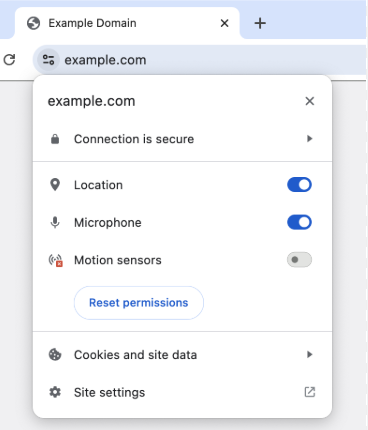
Find the Lock Icon
iPhone (Safari): Permissions are managed globally. If the site doesn’t work, go to iOS Settings > Safari > Camera & Microphone and ensure access is allowed.
The Hidden Input Setting
Don’t assume the tool picked your good USB mic.
- Where to look: Most web recorders hide this setting. On Vocaroo, it is a tiny settings gear icon that appears after you click record (or sometimes near the record button). On Rev, it is usually a dropdown menu labeled “Microphone” located directly above the visual waveform.
- The Fix: Manually check this dropdown. If it says “Default – MacBook Air Microphone” but you have a headset plugged in, switch it manually.
The 10-Second Level Test
This is the most critical step that most guides skip.
- Record 10 seconds of you speaking at your normal volume.
- Play it back immediately.
- Analyze:
- If the waveform touches the top/bottom edges of the box, your audio is clipping (distorted). Move back from the mic.
- If the wave is a flat line, it’s too quiet. Move closer.
- Listen: Do you hear a buzz? That’s your computer fan. Position the mic away from your laptop vents.
Pro-Tip on Formats: If you plan to edit the file (cut, boost volume), always export as WAV. MP3 is compressed, meaning every time you save it, you lose quality. Use MP3 only for the final delivery.
Privacy & Limitations: What You Must Know Before Recording
A major concern for corporate users is data security: “I don’t want my audio uploaded to someone’s server—how private is this?” It is vital to distinguish between Local Processing and Cloud Upload tools.
Local Processing (Client-Side):
Modern browsers support technologies (like WebAssembly) that allow tools to process audio entirely on your device. Sites that claim “Processing Locally” (like Rev’s online tool) do not send your voice data to a cloud server. This is the safest option for sensitive internal memos. Look for online audio recorders without sign up requirements, as this often indicates the tool doesn’t have a backend database to store user files.
Cloud Upload:
Tools that offer advanced features like transcription or AI-based noise reduction generally must upload your file to a server to process it. Always read the privacy policy to see if they retain rights to train their AI models on your voice data.
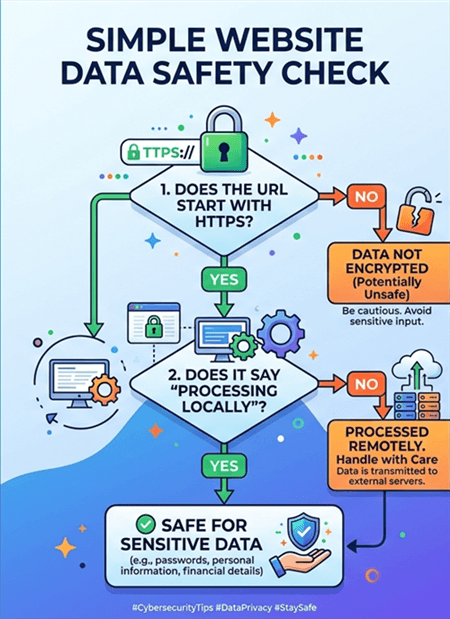
Website Data Safety Check
Hidden Limitations (Time & Size):
- Vocaroo: No hard time limit stated, but browser stability often degrades after 10-15 minutes. Recording often fails for long sessions.
- Rev Online: generally reliable for up to 30-45 minutes depending on your computer’s RAM (since it stores data in browser memory).
- Adobe Podcast: Strict limit of 30 minutes or 500MB per file.
Frequently Asked Questions About Online Audio Recording
What’s the best free audio recorder online that doesn’t require an install?
For purely audio tasks, Vocaroo is best for speed, while Rev’s Online Voice Recorder is best for quality and privacy. Neither requires installation.
Can I record audio online and download it as MP3 or WAV?
Yes. Most tools default to MP3. For WAV (uncompressed quality), use a tool like Rev or a configured setting in 123Apps. Always check the export options before you start recording.
Do Vocaroo links last forever?
No. Vocaroo deletes files after a period of inactivity (usually a few months). Always download the MP3 if you need to keep the record permanently.
Which online audio recorder works on iPhone (Safari)?
HTML5-based recorders like Vocaroo and voice-recorder.io work on iPhone Safari. You must tap “Allow” when iOS asks for microphone access. If it fails, check Settings > Privacy & Security > Microphone.
Why can’t the site access my microphone?
This is usually a permission block. In Chrome, click the “lock” icon in the address bar and toggle the microphone to “On.” Ensure your system settings (Windows/macOS) aren’t globally blocking browser mic access.
How do I share a recording as a link instead of downloading a file?
Vocaroo is the primary tool for this. It generates a unique URL immediately after recording, which is ideal for pasting into emails or customer support tickets.
What format should I choose for voiceovers—MP3 or WAV?
Choose WAV (44.1kHz or 48kHz) for the master recording. It is uncompressed and holds up better during editing. Export to MP3 only when you are ready to publish or share the final file.
Final Verdict: Choosing the Right Recorder for Your Workflow
Finding the right online audio recorder ultimately depends on where you are in your workflow. If you need a rapid, one-off voice clip to solve a customer ticket, a free, browser-based tool like Vocaroo or Rev cuts out the complexity. These tools are excellent for “fire and forget” audio tasks where long-term storage or editing isn’t required.
However, if your needs evolve into creating recurring professional content—such as software tutorials, product demos, or presentations where visual context is just as important as the audio—relying on a simple web recorder often leads to extra work in post-production. For those scenarios, FocuSee offers a robust solution. Automating the visual polish and ensuring clean, enhanced audio on a separate track, it removes the technical hurdles that usually slow down creators.