Does Zoom Record Your Screen or Just the Meeting: The Truth

Virtual meetings have become necessary for businesses and organizations to stay connected in today’s digital age. Zoom, one of the most popular platforms for these meetings, offers a variety of features and options, including video conferencing, screen sharing, etc., to enhance the virtual meeting experience. One of its features is screen recording, which helps users to record their interactions.
Does Zoom Record Your Screen or Just the Meeting
However, an important question that many people have in their minds is what Zoom records during a meeting. Does it capture the audio and video, or does it also record the screen, or both? This article will explore this topic in-depth to help answer this question and provide a comprehensive understanding. Discover whether Zoom records your screen or just the meeting, and how to manage your recording settings to ensure your privacy.
Table of Contents: hide
Does Zoom Record Your Screen or Just the Meeting?
How Zoom Works in Record Meetings?
Can Zoom Record You Without Permission?
Who Can Record a Zoom Meeting?
Pro Tip: How to Record Zoom Meetings (No Limitation with FocuSee)
Does Zoom Record Your Screen or Just the Meeting?
Zoom records the meeting, including audio, video, and any content that is actively shared, such as screen sharing, presentations, or whiteboards. It only records your screen when you choose to share it and does not capture your full screen or background activity. You have full control over what is visible, and recording cannot happen without notifying participants.
Also Read: Can Zoom Detect Screen Recording >
How Zoom Works in Record Meetings?
When a Zoom meeting is being recorded with permission from the host or co-host, all participants in the meeting will be notified that the session is being recorded. The recording can be paused and resumed at any time during the meeting by the host. It will capture all the activities, such as whiteboard work, shared screen, etc.
The recorded content can be stored on the local storage or the cloud. Once the meeting is recorded, you can view it by following the direction “C:” > “[User_Name]” > “Documents” > “Zoom” > “[date]recording.”
To start a meeting and record as a host, follow the steps below:
Step 1: Launch the Zoom application on your device.
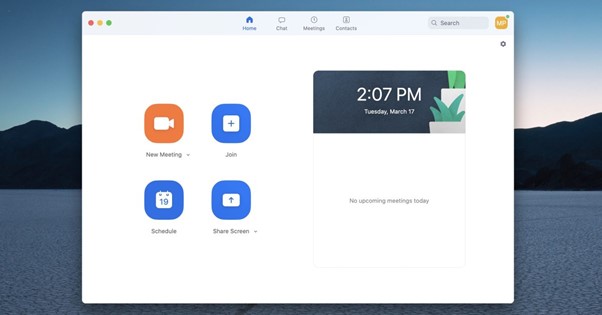
Open Zoom
Step 2: Now click on “New Meeting” and wait until the new window appears completely.
Step 3: Click “Record” to start recording the audio and video.
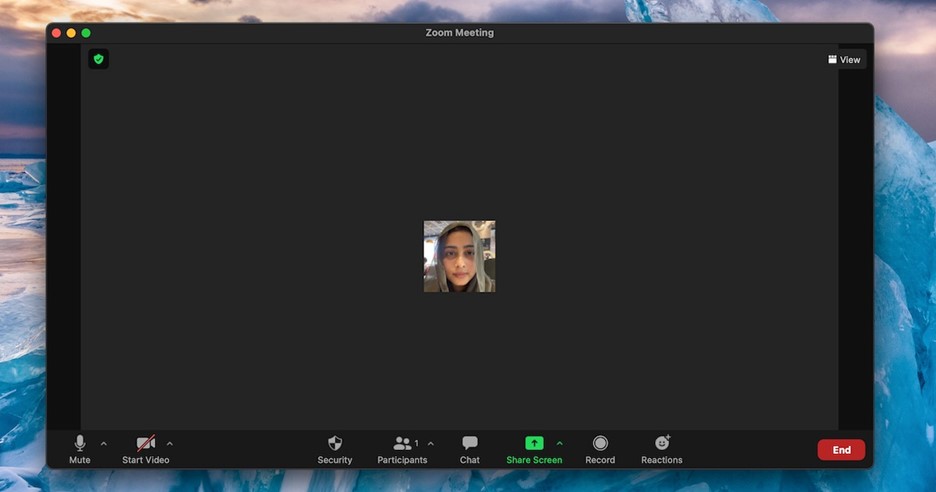
Click on New Meeting
Step 4: Now, you click on “Share Screen” > select any option > “Share.” Now, the shared screen will also be part of the recording.
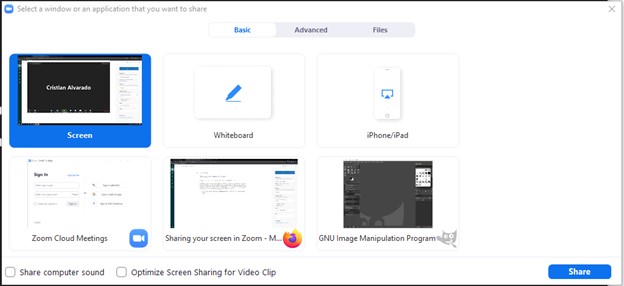
Click Share
Further Reading: Does HireVue Record Your Screen >
Can Zoom Record You Without Permission?
Direct Answer: Zoom cannot secretly record you or your screen without your knowledge. You will always be notified when a meeting is being recorded.
When recording starts, Zoom displays a clear notification to all participants, so there is no way for the platform to record a meeting in the background without you knowing. However, the meeting host (or someone given permission) can start recording without asking for your explicit approval—notification is automatic, not optional.
In terms of screen activity, Zoom only records what is shared within the meeting. It does not access or capture anything outside the Zoom window or record your screen unless you choose to share it. This means you remain in control of what is visible and recorded at all times.
Who Can Record a Zoom Meeting?
Direct Answer: Only the host or participants with permission from the host can record a Zoom meeting.
By default, the host has full control over recording settings and can start, pause, or stop the recording at any time. If needed, the host can also grant recording permission to specific participants during the meeting. Without this permission, other participants cannot use Zoom’s built-in recording feature.
Once recording begins, all participants are notified. The recording will include audio, video, and any shared content, depending on what is happening in the meeting. If you are concerned about being recorded, you can choose to turn off your camera, mute your microphone, or leave the meeting at any time.
Pro Tip: How to Record Zoom Meetings (No Limitation with FocuSee)
If you need more flexibility when recording Zoom meetings, Zoom’s built-in recording feature lets you capture audio, video, and shared screens during a session. However, it depends on host permissions and meeting settings, which can sometimes limit your ability to record freely.
For users who need full control, tools like FocuSee provide a more powerful and flexible way to record Zoom meetings locally. It can capture system audio, microphone input, webcam, and screen simultaneously, making it ideal for training videos, online courses, tutorials, or meeting documentation.
Beyond basic recording, FocuSee also includes several AI-powered features that improve recording quality and post-production efficiency. For example, its AI voice enhancement helps make speech clearer, while background noise removal reduces distractions from your environment. You can also use annotation tools to highlight key points during recording, making explanations easier to follow for viewers.
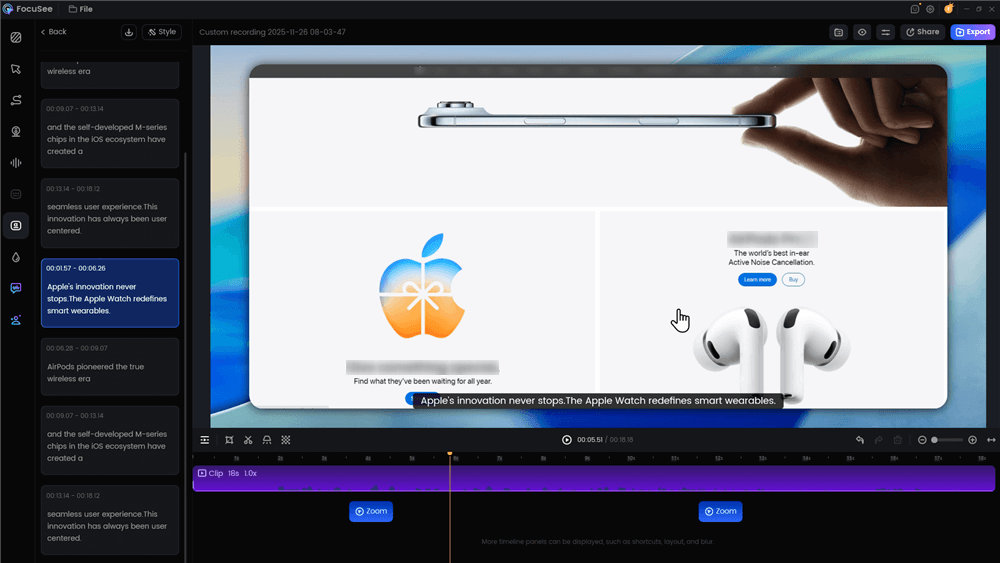
After recording, FocuSee can automatically generate captions and subtitles, helping improve accessibility and making meeting content easier to review or share. These features are especially useful for teams, educators, and content creators who need polished and professional recordings without heavy editing work.
To record a Zoom meeting using FocuSee or similar tools, simply:
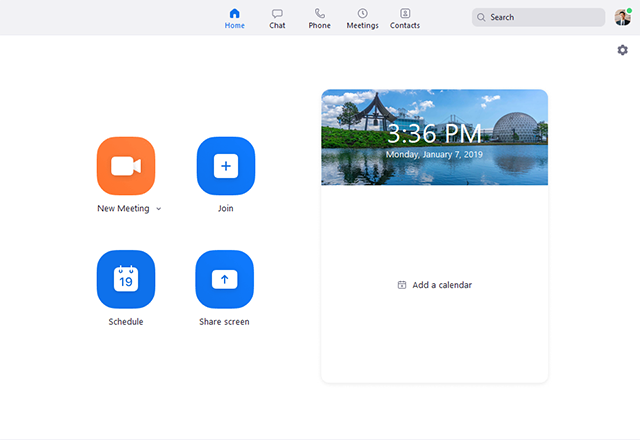
Step 1. Begin or join the Zoom meeting you want to record as usual.
Join a Zoom Meeting
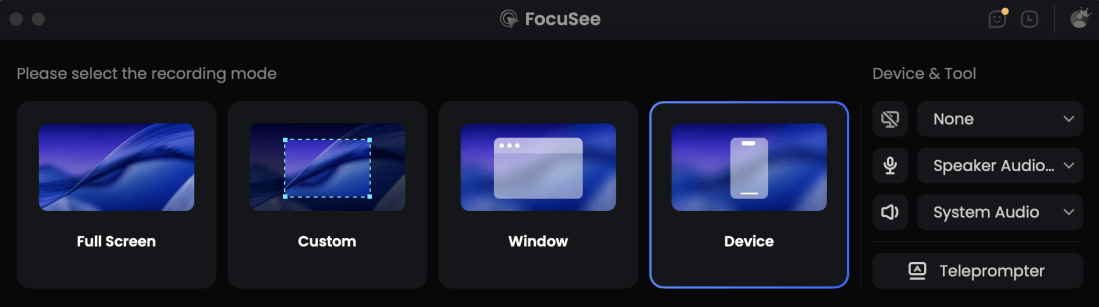
Step 2. Launch FocuSee and choose to capture the Zoom window or full screen, depending on your needs.
Choose the Recording Model
Step 3. Turn on system audio and webcam if required, so both meeting sound and your voice can be recorded clearly.
Step 4. Start recording the Zoom meeting. FocuSee will capture screen, audio, and webcam in real time.
Step 5. Enhance and finalize your recording. After recording, FocuSee can automatically: Generate AI-powered subtitles and captions for your video, apply AI voice enhancement to make speech clearer and more professional, and reduce background noise to improve overall audio quality.
Automatic Subtitle Generation
These post-processing features help turn raw meeting recordings into clean, shareable content for training, documentation, or tutorials.
Final Thought
With the wide range of software available today, companies can hold online meetings and recordings, which can help them achieve their goals remotely. However, users have privacy concerns about the recordings, and questions like “Does Zoom record your screen or just the meeting?” arise in their minds. Hence, we have answered this question in detail, and we hope you found this article informative. If you did, please feel free to share it with your friends and leave a comment with your thoughts or feedback in the comment section.
Zoom Recording FAQs: Screen, Privacy, and Permissions
1. Does Zoom notify you when recording?
Yes. Zoom always notifies all participants when a recording starts. A visible alert appears on the screen, so recording cannot happen without your knowledge.
2. Can Zoom detect screen recording?
No. Zoom cannot detect if you are using third-party screen recording software. However, using such tools without permission may violate privacy policies or local laws.
3. Does Zoom record audio when muted?
No. When you mute your microphone, your audio is not recorded. Only active audio inputs are captured during the meeting.
4. Can Zoom record your screen without sharing it?
No. Zoom only records your screen when you actively share it. It does not capture your full screen or background activity.
5. Can participants record a Zoom meeting?
Only if the host permits them. By default, only the host can record, but recording access can be granted to specific participants.
6. Where are Zoom recordings saved?
Zoom recordings can be saved locally on your device or to the Zoom cloud, depending on your settings and subscription plan.
7. Can Zoom record private messages?
No. Zoom does not record private chat messages unless they are saved manually or included in meeting exports.
8. Can you pause or stop Zoom recording?
Yes. The host (or authorized participant) can pause or stop the recording at any time during the meeting.
9. Does Zoom record your camera when it is off?
No. If your camera is turned off, your video is not recorded. Only active video feeds are captured.
10. Is Zoom recording safe for privacy?
Zoom includes built-in notifications and permission controls to protect user privacy. You always know when a recording is happening and what is being shared.