How to Hide Mouse Cursor on Windows 10 & 11

Imagine spending hours recording a perfect software tutorial, only to realize during playback that your mouse pointer was frantically darting across the screen, distracting viewers from the actual content. It is a sinking feeling that turns a week’s worth of work into scrap. Like many creators, you might be looking for a simple switch to hide the mouse cursor on Windows, only to find that Microsoft doesn’t make it easy.
Whether you need to remove the mouse cursor from the screen on Windows to watch a movie without interruptions, or you require a clean feed for professional screen recording, the native settings are often buried or insufficient. This guide addresses that specific gap. We have tested these methods on a variety of hardware—from touch-enabled Surface Pros to standard desktop setups—to help you find the reliable solution that Windows settings often fail to provide.
Quick Decision Guide: Native Settings vs. Professional Tools
Before you dive into the technical control panels, it is vital to choose the right method for your specific goal. You might be tempted to try manual workarounds first, only to discover that the Windows cursor visibility resets the moment you nudge your desk or touch your trackpad.
If your goal is static media consumption (like watching Netflix), native settings or free scripts are usually enough. However, for dynamic tasks like managing a screen recording cursor, manual hacks introduce a high risk of failure.
To help you decide quickly, we have evaluated the top methods based on success rate and intended use case.
| Feature | Native Windows Settings | Free Utilities (AutoHide) | Professional Tools (FocuSee) |
| Best Used For | Typing documents, casual browsing | Watching movies, reading long texts | Tutorials, demos, and professional videos |
| Success Rate | Low (cursor reappears easily) | Medium (idle-only reliability) | High (software-level control) |
| Time Cost | High (deep system menus) | Low (background utility) | Low (single toggle) |
| Cursor Visibility | Hidden only while typing | Hidden after an inactivity delay | Fully hide in export while visible to you |
If you simply need to make the mouse cursor invisible on Windows temporarily, start with the native options below. They are free, built-in, and require no downloads.
Further Reading: How to Hide Cursor When Screen Recording >
How to Hide Mouse Cursor on Windows Using Built-in Settings
If you prefer not to install new software, you can modify specific mouse pointer settings directly within the OS. Be aware that the menu locations differ slightly between Windows 10 and Windows 11.
This setting is useful for writers who find the cursor obscures text. Note that this does not hide the mouse cursor on Windows globally—it only disappears while keystrokes are registered.
Hide Mouse Cursor While Typing For Windows 11
- Press the Windows Key and type “Mouse settings”.
- Navigate to Bluetooth & devices > Mouse.
- Scroll down and click on Additional mouse settings.
- In the Mouse Properties window, switch to the Pointer Options tab.
- Check the box labeled Hide pointer while typing.
- Click Apply and OK.

Click Apply
Hide Mouse Cursor While Typing For Windows 10
- Go to Settings > Devices > Mouse.
- Click Additional mouse options on the right-hand side.
- Select the Pointer Options tab.
- Ensure Hide pointer while typing is checked.
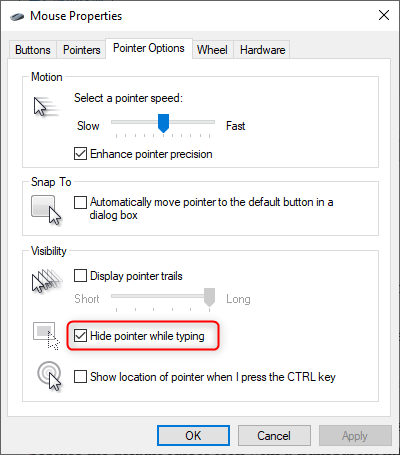
Hide Pointer while Typing
Further Reading: How to Hide Mouse Cursor in Roblox >
Using Free Third-Party Utilities to Remove Mouse Cursor
If the “Invisible Scheme” feels too permanent or risky to toggle on and off, third-party cursor tools offer a middle ground. These are best for users who need the cursor to disappear automatically when inactive—such as during video playback or reading.
A popular, lightweight utility for this is AutoHideMouseCursor.
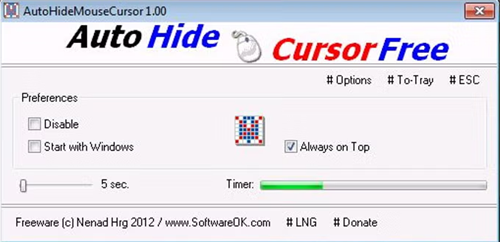
Auto Hide Cursor
How it Works
These utilities function by detecting mouse inactivity. After a set time (e.g., 5 seconds), the program sets the cursor opacity to zero. This effectively allows you to remove mouse cursor from screen on Windows without altering system files permanently.
Safety and Best Practices
When using third-party tools, system stability is a priority.
- Use Portable Versions: Look for “portable” downloads (.zip) rather than installers (.exe). Portable apps run without modifying the Windows registry, making them significantly safer and easier to delete if they don’t work for you.
- The Limitation: These tools are excellent for touchpad cursor hide scenarios but often fail during screen recording. Why? Because a single accidental bump of your desk is enough to wake the mouse up, ruining your clean video feed.
Why the Cursor Still Appears & Troubleshooting
Here is a critical tip that most other guides miss, and it is something seasoned technicians learn the hard way: Windows does not offer a true, single-layer system-wide cursor hide toggle.
If you have tried the methods above and the cursor still flickers onto your screen, it isn’t your fault—it’s the Windows architecture.
[Image: A diagram illustrating the Windows UI layers. It shows the ‘System Layer’ at the bottom, an ‘Application Layer’ in the middle, and an ‘Overlay Layer’ (labeled Discord/NVIDIA) on top, demonstrating how overlays trap the mouse focus.]
The “Overlay” Problem
Technically, the Windows UI is composed of layers. The mouse cursor usually resides on the system layer. However, modern applications utilize “Overlays” that draw their own graphics on top of Windows settings.
- The Culprits: Discord, NVIDIA GeForce Experience, Steam, and Xbox Game Bar.
- The Fix: Even if you set your Windows mouse to “invisible,” an active Discord overlay can force a software cursor to appear. You must manually go into these apps and disable “In-Game Overlay” to stop them from hijacking your cursor settings.
Troubleshooting Checklist
- Check Overlay Apps: Disable NVIDIA or Discord overlays before recording or presenting.
- Touchpad Interference: On laptops (specifically Surface Pro and Dell XPS), capacitive touchscreens can trigger “phantom” mouse inputs. If your cursor keeps reappearing, try disabling the touchscreen in Device Manager temporarily.
- Presentation Modes: Ensure you are not in a specific presentation mode on Windows (like in PowerPoint) that has its own independent cursor rules. Right-click during the slideshow to access specific pointer options.
Understanding this layering hierarchy explains why manual hiding is so prone to failure—and why professionals often skip these steps entirely in favor of post-production tools.
The “Better Way” for Recordings: FocuSee
If you walked through the native settings above and thought, “This is too risky,” or “I can’t navigate my computer if the cursor is invisible,” you have identified the core paradox of cursor hiding.
Most users face a dilemma: they need to see the mouse to navigate and click, but they want it hidden in the final video. This is where dedicated software like FocuSee becomes the industry standard. It solves the pain point where “the cursor keeps showing up in recordings even when you don’t move the mouse.”
Solving the “Hidden Cursor” Paradox
FocuSee addresses the architectural limitations of Windows (the overlay and layer issues mentioned above) by handling cursor rendering virtually.
Record Normally: You don’t need to install blank cursors or squint at your screen. You record with full visibility so you can work efficiently.

Show Mouse Cursor
Decide Later: In the editing phase, you use the Cursor Effects toggle to make the pointer invisible in the final output.
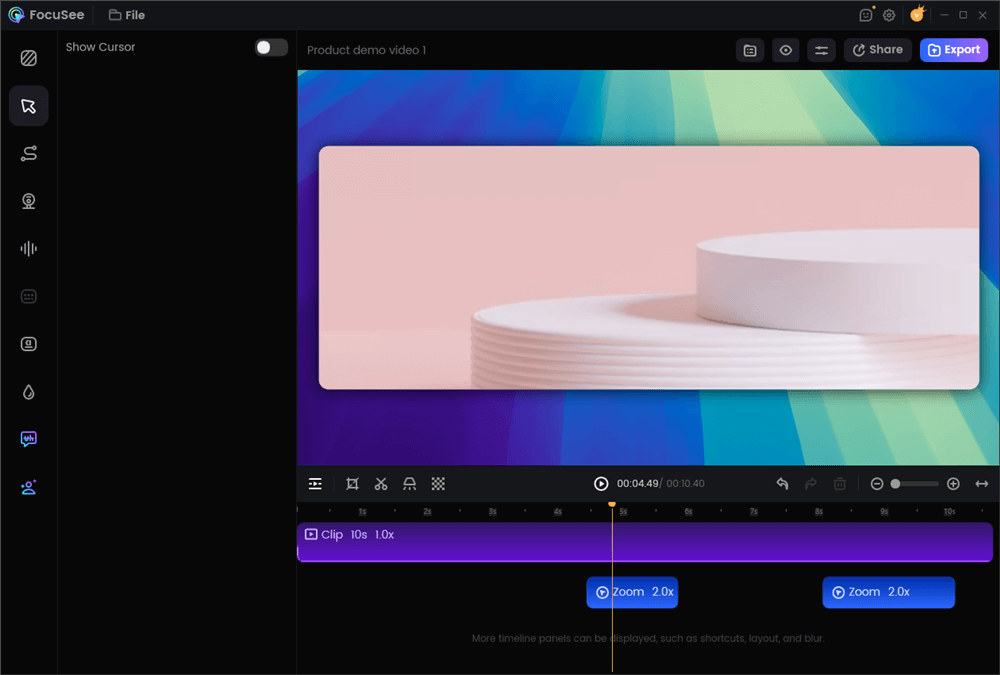
Hide the Mouse Cursor
Beyond Just Hiding
Sometimes, hiding isn’t the answer—clarity is.
- Cursor Highlighting: Instead of removing the cursor, FocuSee can auto-highlight clicks.
- Zoom Effects: It automatically zooms in on the cursor action, making the pointer movement purposeful rather than distracting.
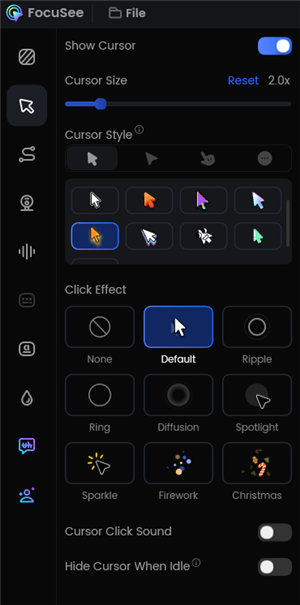
Change the Cursor Settings
This approach eliminates the risk of system instability or the need to modify complex mouse pointer settings, offering a professional result that manual methods cannot replicate.
Also Read: Easy Ways to Screen Record on Windows >
Frequently Asked Questions About Windows Cursor Visibility
How do I hide the mouse cursor on Windows temporarily?
For quick, temporary hiding without software, try moving the mouse to the far bottom-right corner of the screen. Alternatively, use the “Hide pointer while typing” option in Control Panel if your main issue is text obstruction.
Is it safe to download transparent cursors?
Generally, no. Downloading .cur or .exe files from random customization sites is risky. Always use a verified source, an open-source repository like GitHub, or create your own simple blank file using an image editor to avoid malware.
How do I hide the cursor during screen recording?
The most reliable method is to use recording software that supports cursor toggling. Native Windows recordings often capture the cursor inadvertently. Tools like FocuSee allow you to toggle cursor visibility off after you have finished recording, ensuring a clean final video.
How do I show the cursor again after hiding it with the “Invisible Scheme”?
If you used the transparent scheme method, navigate to Mouse Properties > Pointers. Even if you can’t see the cursor, moving your physical mouse will still highlight buttons. Select “None” or “Windows Default” under the Scheme dropdown and hit Enter.
Does Windows 11 handle cursor hiding differently than Windows 10?
The core mechanism is the same, but the location of the settings has changed. In Windows 11, the settings are nested under “Bluetooth & devices,” whereas Windows 10 keeps them under “Devices.”
Conclusion
Dealing with a distracting cursor shouldn’t require a computer science degree, yet Windows makes it surprisingly complex. As detailed in our troubleshooting section, the “System Layer” vs. “App Overlay” conflict means that native settings often fail when you need them most.
If you only need to clear the screen for a movie, the free utilities or the invisible cursor scheme are effective workarounds—provided you download your resources safely. However, if you are creating professional content and cannot afford for the cursor to reappear unexpectedly, relying on a specialized tool like FocuSee is the safest investment. It allows you to focus on your content creation, rather than fighting with your operating system.
Ready to regain control of your screen?
Don’t let a stray cursor ruin your next presentation or tutorial. Try FocuSee today to record distraction-free videos with zero technical hassle.