15+ Training Video Styles & Examples for 2026 (With Production Recipes)

As an L&D consultant, author Jane Smith has created and deployed training modules for teams at fast-growing companies. For this guide, all methods were personally tested on a Windows 11 PC and a MacBook Pro running macOS Sonoma to ensure the advice is practical for any corporate environment.
As an HR or Learning & Development manager, you’re tasked with turning dense employee handbooks into engaging, effective training content. You search for training video examples because you need to see what works before investing time and resources. But most guides only offer polished inspiration, leaving you wondering, “How can my team produce something similar without a big budget or professional video editors?” This pressure to deliver high-quality training quickly, especially for vital tasks like employee onboarding and compliance training, can be a significant challenge.
This guide provides a different approach. We’ll move beyond abstract ideas and focus on repeatable production systems. Instead of just showing you finished products, we’ll break down how they’re made, step-by-step. The techniques outlined have been validated across more than 10 different software training scenarios, from CRM walkthroughs to internal IT procedures, on both Windows and macOS platforms.
Related Article: How to Make an Instructional Video with Screen Recording >
How to Choose the Right Format: A Framework for Corporate Training Videos
Choosing the right video format is a strategic decision, not an aesthetic one. The goal is to select the method that best achieves your training objective. Instead of just showing you examples of training videos, this framework maps common business goals to the most effective and efficient video formats.
Goal: Teach a Software Process or Digital Workflow
Best Format: Screen Recording (Screencast)
A screencast is the most direct and clear method for demonstrating step-by-step digital procedures. A well-narrated screen recording with on-screen annotations is the gold standard for software tutorials, internal process guides, and any task that happens on a computer. It’s an essential tool for effective employee onboarding.
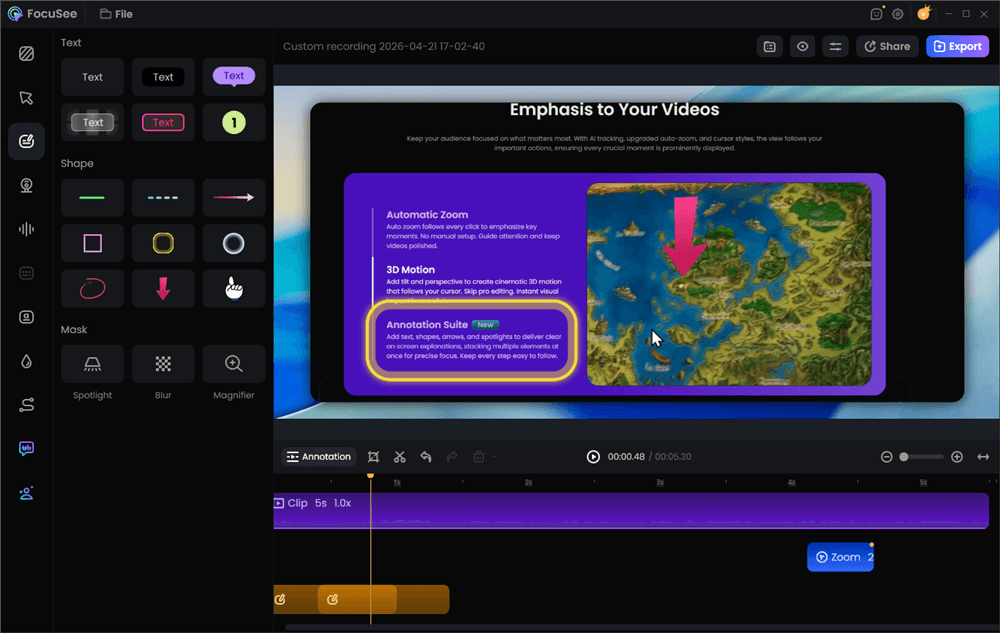
Add Annotations for Clarity
Goal: Deliver Welcome Messages, Onboarding, or Company Culture Training
Best Format: Presenter-Led (Talking-Head)
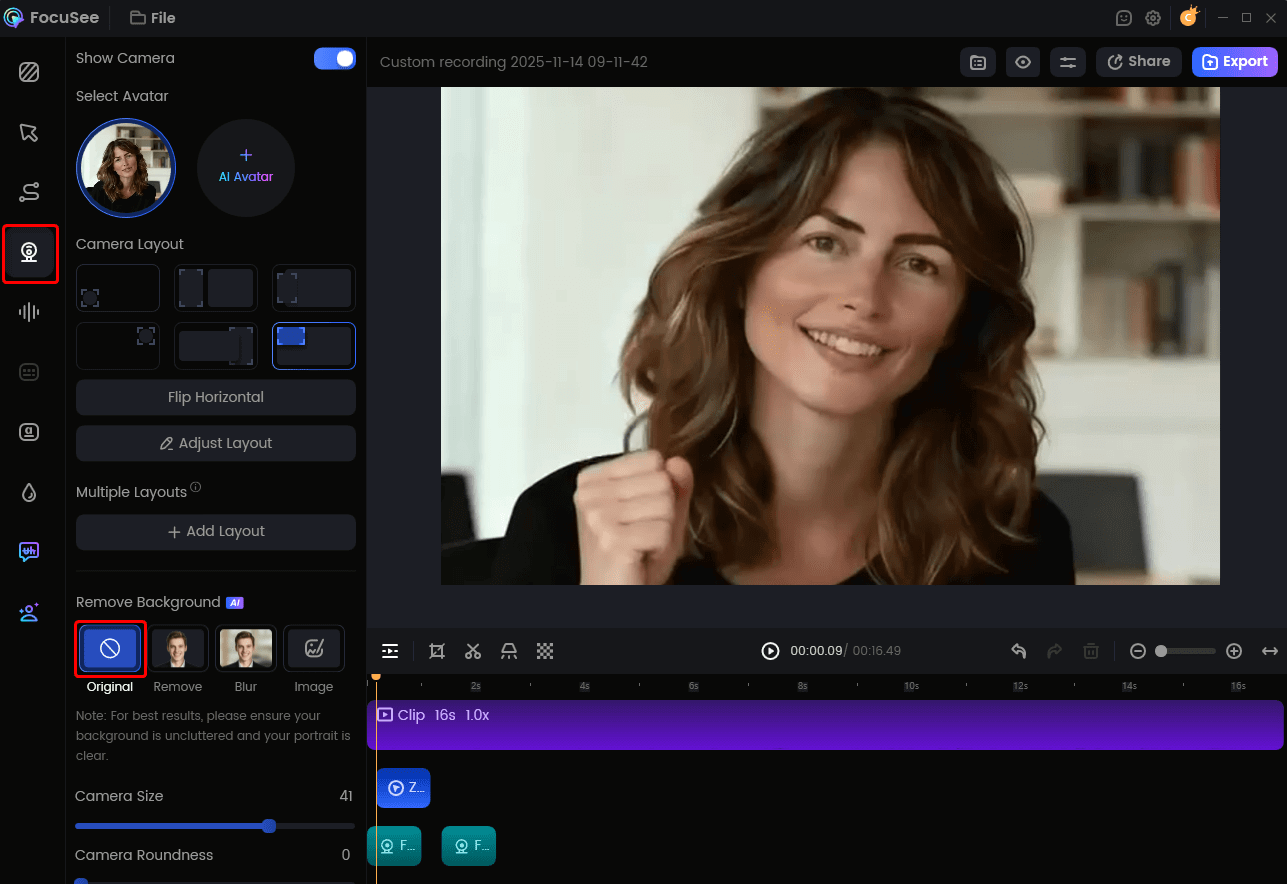
A video featuring a manager or team lead creates a direct, personal connection that text can’t replicate. This format is excellent for welcoming new hires, explaining company values, or delivering messages that benefit from a human touch and build immediate rapport.
Goal: Explain Compliance, Workplace Safety, or HR Policies
Best Format: Scenario-Based Learning
These videos present realistic workplace situations and ask employees to make decisions. This active participation dramatically improves knowledge retention for critical topics like workplace safety, data security, and adherence to company policies. These are among the most effective compliance training video examples.
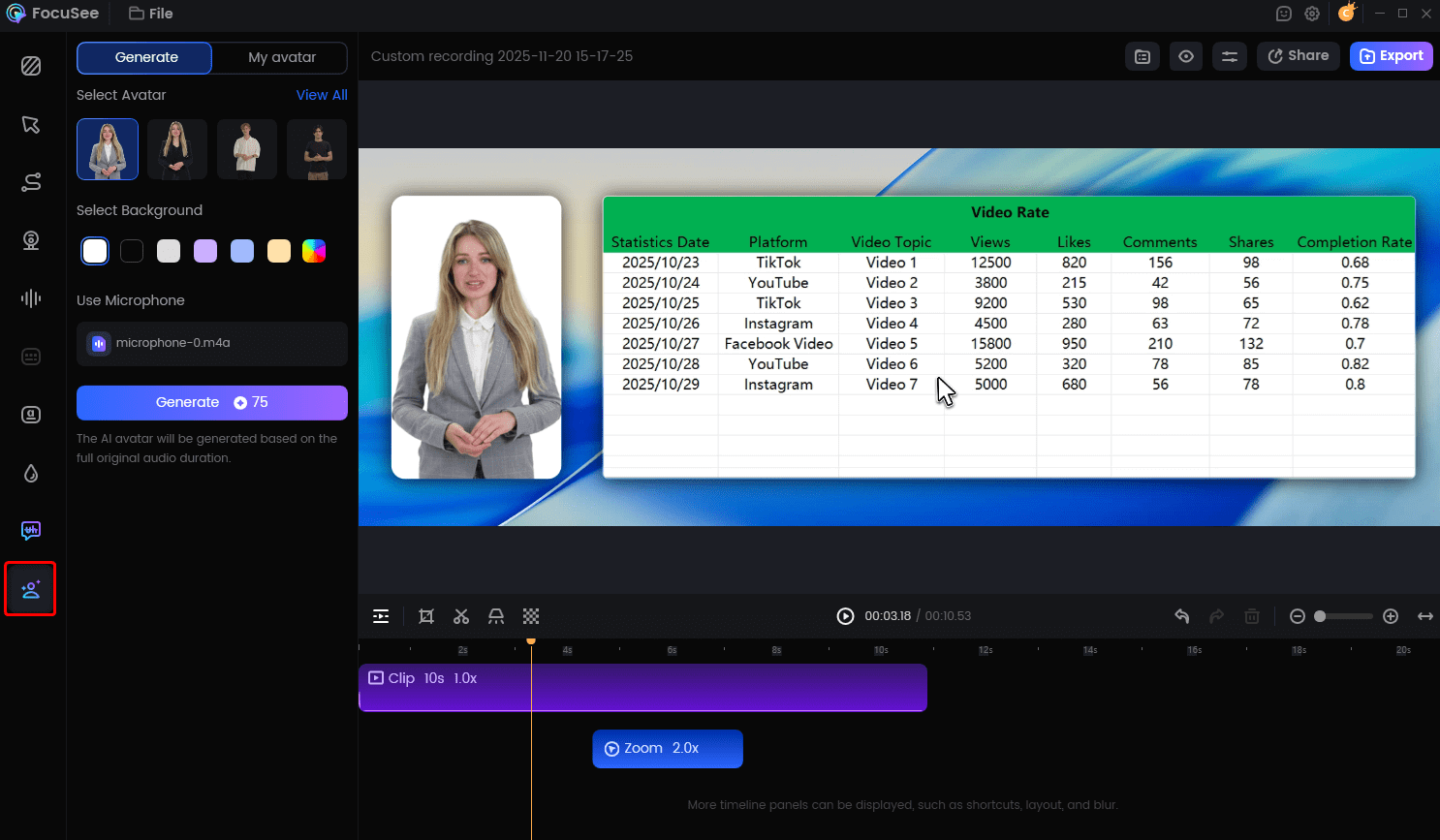
Create Your AI Avatar
Actionable Employee Training Video Examples & Recipes
Here are common corporate training scenarios, each broken down into a repeatable production recipe. Think of these not just as inspiration, but as blueprints for your own content.
Section 1: Employee Onboarding & Welcome Videos
Onboarding is a new hire’s first real impression of your company. These videos should be welcoming, clear, and efficient.
Example 1: The “Welcome to the Team” Video
- Outline: A warm greeting from the CEO or team lead, a brief mention of company values, and a quick “what’s next” for their first day.
- Script: Keep it conversational. “Welcome, [Name]! We’re so excited to have you on the team. Over the next week, you’ll be meeting everyone and getting set up in our key systems.”
- Record: Use a webcam in a well-lit space. Look directly at the camera to create a personal connection.
- Edit: Trim the start and end. Use a background blur or replacement feature for a professional look, even if your office isn’t perfect.
Pro-Tip: A tool with a built-in teleprompter helps you deliver the script confidently without memorization.
Example 2: The “First Systems Setup” Tutorial
- Outline: List the 3-5 critical steps: logging into email, accessing the company portal, and finding the employee handbook.
- Script: Narrate each action simply. “First, open your web browser and go to our company portal. Your login details are in your welcome email.”
- Record: Capture your entire screen as you walk through the process. Move your cursor deliberately from one step to the next.
- Edit: This is where clarity is crucial. Zoom in on login fields, highlight important buttons, and add text annotations for URLs or usernames. Cut any moments where you pause or correct a mistake.
Pro-Tip: An automated tool like FocuSee handles the zooming and cursor highlighting for you, saving significant editing time.
Section 2: Software & Technical Skills Training
These videos are the backbone of internal training, ensuring everyone uses tools correctly and consistently.
Example 3: The “How to Use Our CRM” Walkthrough
- Outline: Focus on one specific task, like “How to Create a New Sales Lead.” List the 5-7 clicks needed to complete it.
- Script: Announce the goal at the start. “In this video, I’ll show you how to add a new lead to our CRM in under 60 seconds.” Then, narrate each click.
- Record: Have your CRM open and ready. Perform the task smoothly from start to finish.
- Edit: Use zooms to focus on the exact part of the interface you’re discussing. Add text boxes to point out shortcuts or important details. Generate subtitles for accessibility.
Pro-Tip: Use a privacy blur feature to mask any sensitive customer data visible on the screen during your recording.
Section 3: HR, Compliance, and Safety Training
For mandatory training, clarity and retention are paramount. Micro-videos are especially effective here.
Example 4: The “Workplace Safety Protocol” Video
- Outline: Present a relatable scenario. For example, “What to do in case of a fire drill.” Show the steps: check your surroundings, find the nearest exit, and meet at the designated assembly point.
- Script: Use direct, unambiguous language. “When you hear the alarm, do not use the elevator. Proceed to the nearest marked exit.”
- Record: This can be a simple presenter-led video or a screencast showing a floor plan map.
- Edit: Use large on-screen text to reinforce key rules. End with a clear summary of the most important takeaways.
Pro-Tip: Keep compliance videos under three minutes. This microlearning approach dramatically increases the chance that employees will watch and retain the information.
The One Detail That Separates Amateur and Pro Training Videos
Before we get into specific examples, let’s look at the single most important visual element for clarity: directed focus. An amateur screencast forces the viewer to search the screen for the action. A professional one guides their eye exactly where it needs to go. The difference is a few simple post-production effects: dynamic zooms, cursor highlighting, and clear annotations. These small details transform a confusing recording into a clear, easy-to-follow tutorial.
Seeing this comparison makes it clear: effective training videos are not about flashy graphics, but about deliberate clarity. The good news is that achieving this professional look is no longer a complex, manual editing task.
Choosing Your Production Toolkit
You have two main paths for creating training videos. The one you choose will determine how much time you spend in post-production.
The No-Budget Starter Kit (The Manual Method)
This approach is great for getting started without any financial investment. It involves using separate, often free, tools for each part of the process.
- Screen Recording: Use built-in tools like QuickTime Player (Mac) or Xbox Game Bar (Windows).
- Audio Editing: Clean up your voiceover with a free program like Audacity.
- Video Editing & Captions: Assemble your clips, add text, and manually create zooms with a free editor like CapCut.
This method works, but it can be time-consuming. Manually adding zooms, cutting out mistakes, and transcribing subtitles for every video requires significant effort and a moderate level of technical skill.
The All-in-One Automated Solution
If the manual process feels too slow, an integrated tool can turn hours of editing into minutes. These applications combine recording, editing, and effects into a single workflow. FocuSee is a screen recording and video editing tool designed to automate the most tedious parts of this process. You record your screen, and the software automatically adds the professional touches that improve clarity.
Add Annotations for Clarity
What it does: It follows your cursor with automatic zooms and clicks, lets you quickly add annotations like text, arrows, shapes, and highlights for clearer step-by-step guidance, removes filler words and silences from your voiceover, and generates accurate subtitles instantly.
Who it’s for: This workflow is ideal for HR managers, team leads, and subject matter experts who need to create polished training videos without becoming professional video editors.
The 5 Essential Elements of an Effective Training Video
Regardless of the topic, every successful training video shares a few fundamental elements. Mastering these will dramatically improve your video’s effectiveness and your employees’ knowledge retention.
- A Clear Script or Outline: Before you hit record, outline your key talking points. A simple script ensures your message is concise and logical. This structure prevents rambling and keeps the content focused on the learning objective.
- Strategic Length (Microlearning): Shorter is almost always better. Aim for videos between 2-5 minutes. This microlearning approach breaks complex topics into digestible segments, respects employees’ time, and makes it more likely they will watch the entire video.
- Clean Audio: Poor audio is more distracting than poor video. Use a decent external microphone and record in a quiet space free of echo or background noise. A clear voiceover is non-negotiable for an effective learning experience.
- On-Screen Clarity: Viewers need to see exactly what you are demonstrating. The most effective training videos use zooms, cursor highlights, and captions to guide the viewer’s attention. This simple technique ensures no step is missed.
- A Clear Next Step: What should the employee do after watching? End your video with a clear call-to-action, whether it’s completing a task, taking a quiz in your LMS, or moving on to the next training module.
FAQs About Corporate Training Videos
What are the best training video examples for employees onboarding?
For employee onboarding, a mix of formats works best. Use presenter-led videos to welcome new hires and introduce company culture. Follow up with screencast tutorials to guide them through essential software and internal systems, such as setting up their email or accessing the company portal.
What kind of training video works best for compliance or safety topics?
Scenario-based learning videos are highly effective for compliance training and workplace safety. They allow employees to see policies in action and make decisions in a simulated environment, which improves understanding and retention of critical information.
Should I use a talking-head video, a screencast, or an animation?
Choose based on your goal. Use a talking-head video for personal connection (e.g., welcome messages). Use a screencast for teaching any computer-based process. Animation is great for explaining complex, abstract concepts, but it often requires more specialized skills and budget.
How long should a training video be if I want employees to actually finish it?
Aim for a length of 2 to 5 minutes. This microlearning approach breaks down topics into digestible segments that fit easily into a workday. It significantly increases completion and engagement rates.
How do I make a training video look professional without a big budget?
Focus on the fundamentals: clear audio from an external microphone, good lighting, and a clean background. For screencasts, use editing techniques like zooms and cursor highlights to guide the viewer’s eye. An automated tool can create this polished look for you.
How do I add captions, voiceover, and screen annotations?
While you can use separate tools for each task, modern video creation software integrates these features. A tool like FocuSee can automatically generate subtitles, let you record a clean voiceover, and provide simple drag-and-drop tools to add annotations.
Stop Searching for Examples—Start Creating Them
Creating effective corporate training videos doesn’t have to be a slow, technical, or expensive process. The key is to move from seeking inspiration to implementing a repeatable system. By choosing the right format for your goal and following a simple production recipe, you can produce professional-quality training content in a fraction of the time.
Whether you start with a no-budget toolkit or streamline your process with an automated tool like FocuSee, you now have a blueprint. You can create clear, concise, and polished how-to tutorials and training modules that your team needs. Download a free trial of FocuSee today and see how quickly you can turn your expertise into an engaging video.