5 Best Screen Recording Apps for Android in 2026 (Tested & Ranked)

Finding a reliable recorder that captures internal audio without a watermark is difficult because of Android’s rigorous system restrictions. You have likely experienced the frustration: downloading a promising app, recording a flawless gameplay session, and then realizing the internal audio is silent, or the clip is covered in ads.
We cut through the noise to find what actually works. To ensure accuracy, the apps listed below were verified using a Samsung Galaxy S23 (One UI 6.1), Google Pixel 8 (Android 14), and a OnePlus 11 to confirm performance across different manufacturer interfaces. Whether you need a quick bug report or a high-fidelity gaming clip, here are the 5 best screen recording apps for Android.
Top 5 Native Android Screen Recorders (No Watermark & Free Options)
If you need a direct free screen recording app for Android that lives on your device, we have ranked the top 5 options based on audio stability, battery impact, and ad intrusiveness.
1. Built-in Android Recorder (Best for Samsung & Pixel Users)
Starting with Android 11, the native recorder became the gold standard for stability. On the Samsung Galaxy S23 and Pixel 8, this tool is integrated directly into the Quick Settings panel.
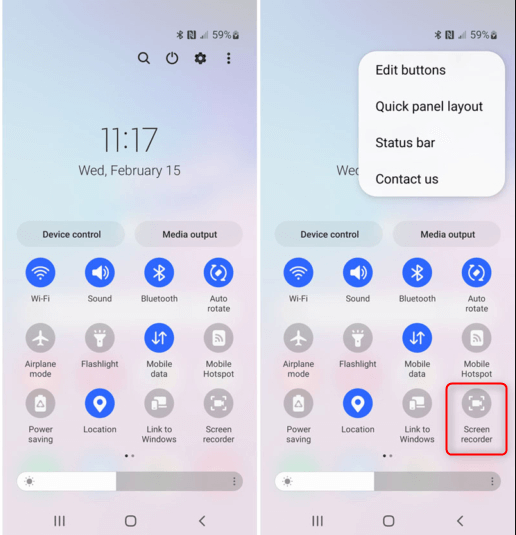
Built-in Android Recorder on Android Phone
- Best Use Case: Quick social media clips, sharing bugs, and simple UI interactions.
- Pros: No ads, no watermark, and system-level optimization means the lowest battery drain (approx. 5-7% per hour of recording).
- Cons: Limited settings; you generally cannot adjust bitrate or frame rate precisely.
2. AZ Screen Recorder
A veteran in the space, AZ allows for 1080p 60fps recording and microphone and system sound mixing. It provides extensive control over resolution and frame rates, making it adaptable to older and newer phones alike.
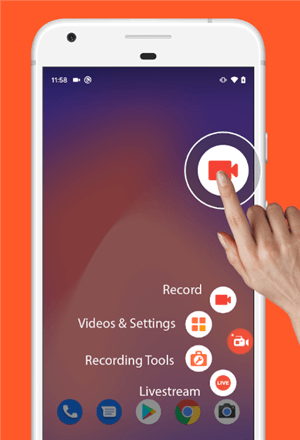
Android Screen Recorders – AZ Screen Recorder
- Best Use Case: Users who need specific resolution settings (e.g., forcing 720p to save storage space).
- Pros: Reliable overlay controls, live streaming support, and Wi-Fi transfer capabilities.
- Cons: The free version contains ads; the menu can feel cluttered compared to native tools.
3. XRecorder by InShot
Optimized for mobile gameplay recording, XRecorder includes a floating ball interface for quick access without pausing the game. It is designed to minimize the performance impact on the GPU while recording high-motion content.
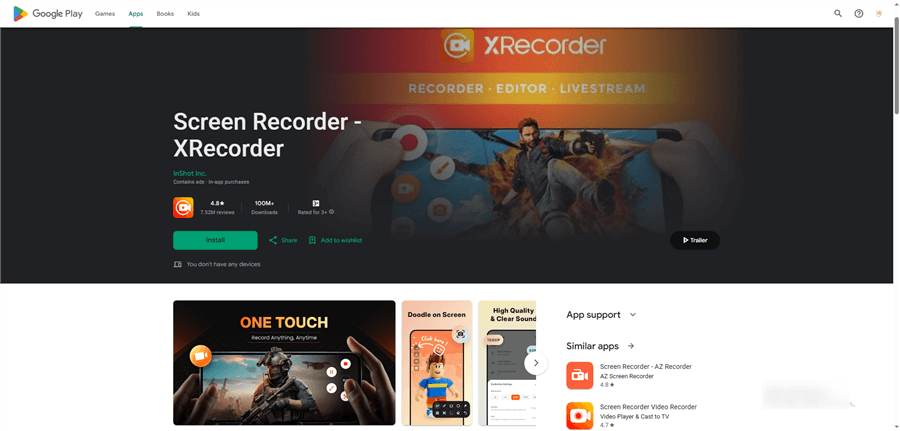
Android Screen Recorders – XRecorder
- Best Use Case: Recording PUBG Mobile, COD Mobile, or other high-fidelity games where frame rate matters.
- Pros: Excellent “Game Mode” to prevent lag; internal audio works reliably on Android 10+.
- Cons: Requires a Pro subscription to remove ads completely from the interface.
4. Mobizen
Mobizen is famous for its “Clean Recording Mode” which removes watermarks even in the free version (usually after watching a short ad). It is highly optimized for devices that might not be running the latest Snapdragon processors.
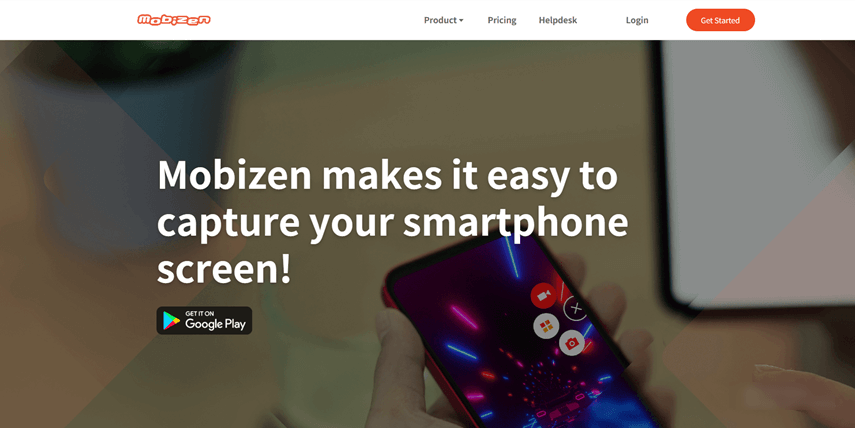
Android Screen Recorders – Mobizen
- Best Use Case: Users with mid-range phones (e.g., Galaxy A-series) or older Android versions.
- Pros: Highly compatible with legacy Android versions.
- Cons: Heavier battery usage. In our stress test on a Galaxy S21, Mobizen drained approximately 15% battery per hour, compared to just 8% using the native Samsung recorder.
5. ScreenCam
For users worried about privacy, ScreenCam is an open-source Android screen recorder without a watermark that requests zero unnecessary permissions. It does not track your data or serve ads.
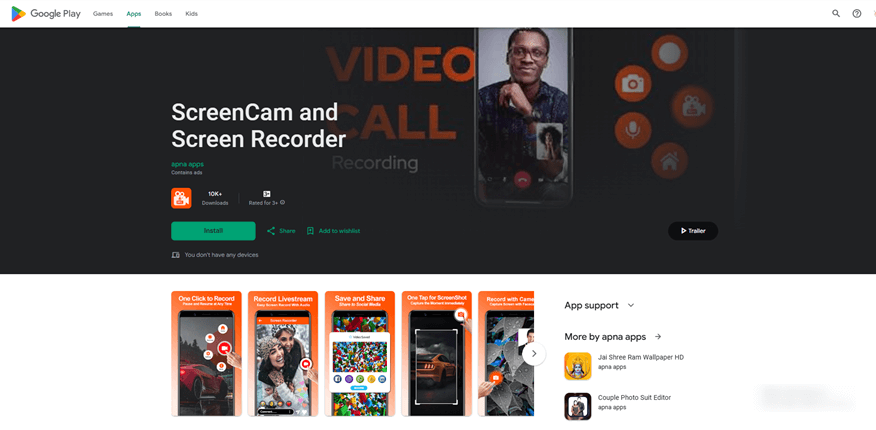
Android Screen Recorders – ScreenCam
- Best Use Case: Privacy-conscious users and developers who want clean, raw footage.
- Pros: No ads, no tracking, high bitrate support (up to 50 Mbps).
- Cons: The interface is utilitarian/basic; internal audio setup can be tricky on some custom ROMs.
Why Internal Audio Fails: The Android 10+ Reality Check
One of the most common complaints we see is: “Apps claim to record internal audio, but it creates a silent video.”
Here is the critical technical context: The problem is usually Android, not the app. Prior to Android 10, Google restricted apps from capturing system sound to prevent piracy. While Android 10+ introduced an API to allow this, it still requires the target app (the game or app you are recording) to explicitly allow audio capture.
If you are recording a Zoom call and get silence, it is likely because Zoom has blocked that signal for privacy reasons.
The “Blocked vs. Allowed” Reference List
To save you time debugging, here is a quick reference based on our testing of popular apps:
| Audio Recording Status | Common Examples | |
| Mobile Games | ✅ Allowed | PUBG, Genshin Impact, Minecraft, COD Mobile |
| Video Streaming | ❌ Blocked (DRM) | Netflix, Disney+, Hulu, Prime Video |
| Communication | ⚠️ Usually Blocked | Zoom, Google Meet, WhatsApp Calls (voice often blocked) |
| Music Apps | ⚠️ Varies | Spotify (device-dependent), YouTube Music |
| Social Media | ✅ Allowed | Instagram Reels, TikTok, YouTube (standard videos) |
If you see an option for “Mic” vs. “Internal Audio,” understand the difference. Mic Recording picks up sound from your physical speaker (low quality, background noise). Internal Audio grabs the direct digital signal (crystal clear). If internal audio fails on a specific game, check the game’s settings or developer notes—it may not support the Android Audio Playback Capture API.
Troubleshooting: Fixing Lag, Crashes, and Black Screens
Even with the best screen recording apps for android phones, technical hiccups happen. If you encounter screen recorder lag or crashes, follow these specific diagnostic steps.
1. Fixing the Black Screen (DRM Protection)
If you try to record Netflix or a banking app, the screen will turn black. This is not a bug; it is a security feature called FLAG_SECURE. No legitimate app can bypass this. To record protected content, you generally need external hardware capture cards, not a mobile app.
2. Preventing App Crashes (Battery Optimization)
Android’s aggressive battery management often “kills” background recorders to save power, causing recordings to stop randomly. You must manually exempt your recorder from these limits.
Note: The menu path differs by manufacturer. We have verified these paths for 2024/2025:
For Samsung (One UI 6+): Go to Settings > Apps > [Your Recorder] > Battery. Select Unrestricted.
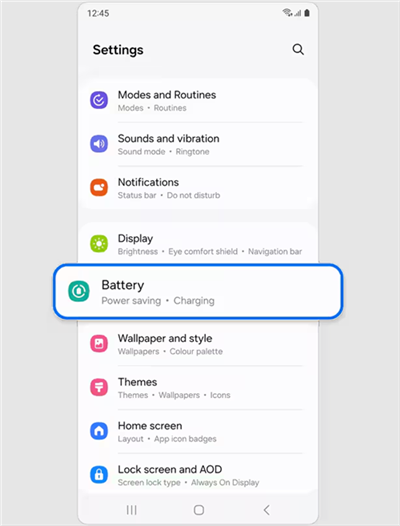
Samsung Phone Battery Settings
(Note: Do not use the general “Device Care” menu; go specifically through the Apps menu for precise control.)
For Google Pixel (Stock Android 14): Go to Settings > Apps > See all apps > [Your Recorder] > App Battery Usage. Select Unrestricted.
3. Eliminating Lag and Frame Drops
Recording at 1080p 60fps is demanding. If your game starts stuttering:
- Lower the Resolution: Drop to 720p. On a mobile screen, the quality difference is negligible, but the performance gain is massive.
- Adjust Bitrate: High bitrate (12Mbps+) looks great, but eats CPU. Try lowering it to 8Mbps.
Pro Tip for Creators: When Mobile Apps Aren’t Enough
Before you finish your project, ask yourself: What is the end goal of this recording? If you are creating quick clips for WhatsApp, the native apps listed above are perfect. However, if you are producing tutorial video recording content for YouTube, editing that footage on a 6-inch touchscreen can become a nightmare of imprecise cuts and difficult zooming.
For polished tutorials, many professionals skip on-phone editing entirely. They mirror their Android screen to a PC and use a desktop-based tool like FocuSee.
Why Mirror & Record?
- Automated Edits: FocuSee uses “Smart Focus” to automatically zoom in on the buttons you click on your Android screen, saving you hours of manual keyframing.
- Cursor Effects: It adds a virtual cursor to your touch inputs, making it easier for viewers to follow your tapping gestures.
- Workflow: You record the phone, but you edit with a mouse and keyboard.
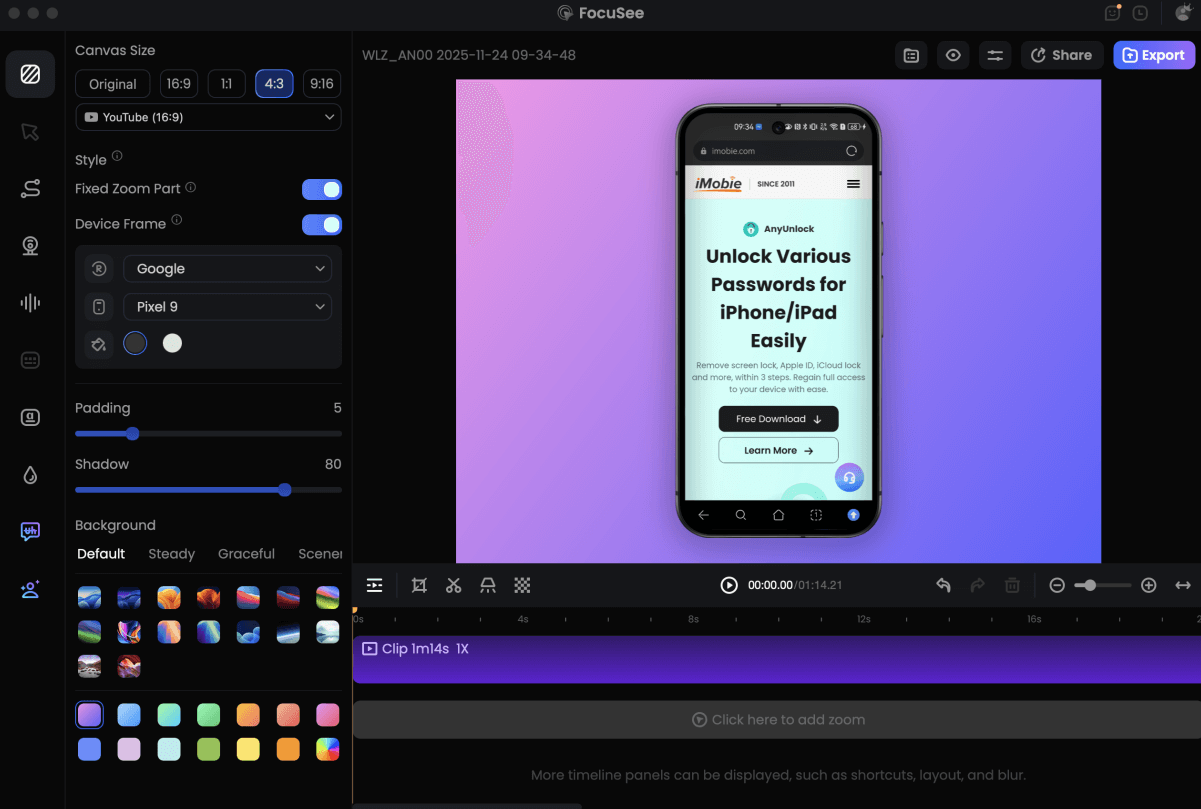
Record Android Phone Screen
While not an Android app itself, using a desktop tool via mirroring (using scrcpy or Windows Link) is the secret weapon for creators who want to graduate from “screen captures” to “professional productions” without the headache of mobile editors.
Frequently Asked Questions About Android Screen Capture
Which Android screen recording app is best for my phone?
For Samsung and Pixel users, the built-in recorder is the most stable option. For older devices or users needing overlay controls, AZ Screen Recorder is the most compatible third-party choice.
What is the best free screen recorder for Android with no watermark?
The native Android recorder and ScreenCam (Open Source) are completely free and never add watermarks. Other apps like Mobizen allow you to remove the watermark by watching a short advertisement.
Why is my internal audio silent?
This is usually because the app you are recording (e.g., Zoom or a Banking App) has blocked audio capture for privacy or security. Check our “Blocked vs. Allowed” table above to see if your app is supported.
Does screen recording drain the battery?
Yes. Native recorders are optimized and drain about 5-8% per hour. Third-party apps, especially older ones like Mobizen, can drain up to 15% per hour because they lack system-level integration.
Conclusion
Stop wasting time downloading apps that promise the world but deliver pixelated, watermarked messes. You now know to bypass the limitations of standard mobile gameplay recording. For quick clips, the native tools on your Samsung or Pixel are more than capable. However, if your goal is to create professional, zoomed-in tutorials that engage viewers, consider the hybrid workflow: mirror your screen and let FocuSee automate the hard work of zooming and polishing. Download the app that fits your workflow today and start creating.