5 Best Online Screen Recorder With Audio Solutions

You need to capture a quick tutorial or record a bug report for a coworker, and you have exactly five minutes to do it. You don’t want to download bulky software. You just want a reliable, instant link to share. But finding a platform that actually works often feels incredibly frustrating. You press record, only to discover the audio and video are out of sync, a massive watermark ruins the presentation, or the platform unexpectedly demands a download before saving.
This guide evaluates the 5 best web-based options available today. By providing transparent benchmarks on time limits, watermarks, and instant sharing capabilities, we will help you secure a reliable recording method for your next project.
We tested across 15 browser versions, comparing desktop vs. tab audio recording, and found that true watermark-free unlimited browser recording is very rare. Tests were run on Windows PCs, MacBook Air/Pro, iMac, Mac mini, and Chromebooks, using built-in/external mics and webcams, across Chrome, Edge, Safari, and Firefox on Windows 10/11 and macOS 12+. Performance depends mainly on browser capabilities and permissions, not the OS.
Why Web Recorders Fail at Full System Sound Capture
Before we look at the specific tools, we must address the biggest technical hurdle causing silent videos. The most confusing obstacle during screen capture is when your voice records perfectly through the microphone, but the video sound (the system audio) remains completely silent.
This happens due to strict browser-level audio capture limitations. Browsers are designed with heavy security protocols to prevent malicious websites from eavesdropping on your background desktop activity. Because of this, modern browsers—especially Google Chrome—strictly limit system audio capture.
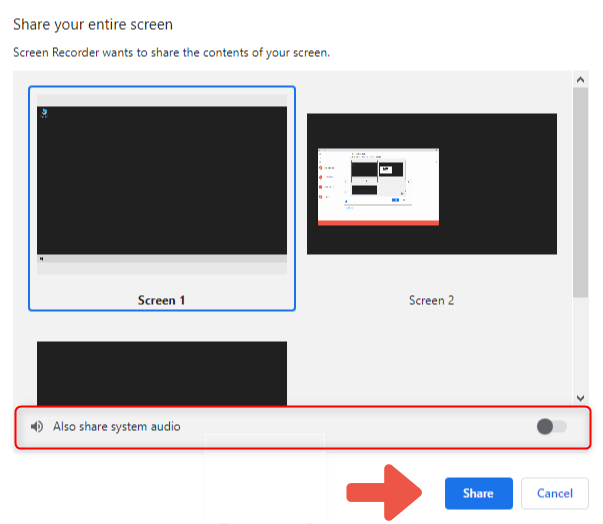
Share Your Entire Screen
When you select “Entire Screen” during a web capture, the browser API deliberately blocks the system sound signal to protect your privacy. This explains why web tools appear inconsistent across different devices and operating systems.
CRITICAL WARNING: The “Golden Rule” of Browser Audio
To record system sound using a web tool, you MUST select the “Record browser tab audio” option in the screen-sharing pop-up menu. If you select “Entire Screen” or switch your view to another desktop application, the sound recording will fail immediately. This is a hard-coded browser security feature, not a bug in your recording tool.
Top 5 Browser Screen Recorders With System Audio
Finding a platform that allows you to record instantly without hidden traps requires careful vetting. Here is a scannable benchmark table so you can immediately see the limitations, export options, and sharing capabilities of five actual, name-brand web tools.
Scannable Benchmark Comparison
| Max Time (Free Tier) | Watermark? | Export Format | Sharing Method | |
| Loom | 5 Minutes | No | MP4 (via cloud download) | Instant Cloud Link |
| FocuSee | Unlimited | No | MP4 | Local Download & optional sharing |
| Panopto Express | Unlimited | No | WebM / MP4 | Local Download & YouTube Upload |
| ScreenApp.io | 1 Hour | No | WebM / MP4 | Local Download & Cloud Backup Link |
| Veed.io | 10 Minutes | Yes | MP4 | Instant Cloud Link |
| RecordCast | 5 Minutes | Yes | WebM / MP4 | Local Download |
1. Loom
Loom is the industry standard for instant link sharing. It operates flawlessly in the browser or via an extension. The moment you hit stop, the video processes in the cloud, and a shareable link copies directly to your clipboard. This makes it perfect for fast client demos or bug reports.
What happens at the limit? On the free tier, your recording abruptly stops the moment you hit the 5-minute mark. You will receive a warning at 4 minutes, but it will hard-stop and save what you have so far.
2. FocuSee Online Screen Recorder
FocuSee is a lightweight browser-based screen recording tool that lets you start capturing instantly without installing software or creating an account.
It focuses on simplicity: open the page, grant screen/audio permissions, and start recording directly in your browser. Depending on your browser and system permissions, it can capture screen, microphone, and in some cases system/tab audio.
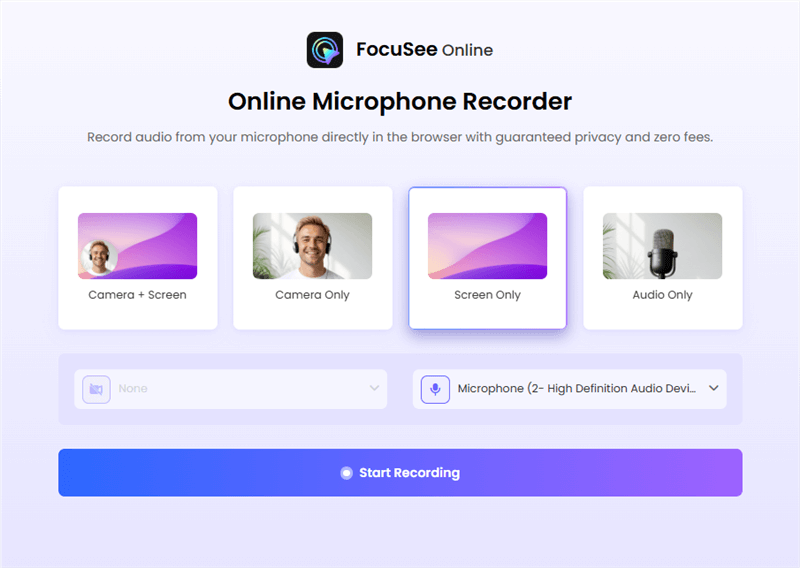
Choose The Recording Model
Once finished, the recording is processed locally in the browser and exported as a downloadable MP4 file. This makes it useful for quick demos, walkthroughs, or lightweight tutorial capture without relying on cloud processing.
What happens at the limit?
There is no fixed minute cap in the tool itself; instead, recording length is generally constrained by browser memory and system performance. Long recordings may depend on device capability rather than a hard platform cutoff.
2. Panopto Express
Panopto Express is an incredibly powerful, pure web recorder. It truly requires no installation and no account login to start. It relies on native browser APIs to capture high-definition video and tab audio seamlessly.
What happens at the limit? There is no time limit. You can record for hours without watermarks. Upon finishing, the video saves directly to your local hard drive, or you can push it automatically to YouTube or Google Classroom.
3. ScreenApp.io
If you need automatic transcription alongside your video, ScreenApp.io is a fantastic web option. It offers up to an hour of free recording and handles tab audio brilliantly.
What happens at the limit? The recording automatically ends at 60 minutes. It saves the file locally first, protecting your privacy, and then offers a cloud link if you choose to upload it for team sharing.
4. Veed.io
Veed is heavily focused on browser-based video editing. You can record your screen and microphone, and immediately drop the footage into their web editor to add text or trim mistakes.
What happens at the limit? You are capped at 10 minutes per recording on the free tier. Additionally, the free version places a prominent, permanent watermark across the top of your final video export.
5. RecordCast
RecordCast handles basic tasks efficiently and offers a built-in web editor. It is a reliable backup option if you simply need to capture a quick process.
What happens at the limit? You are strictly limited to 5 minutes. If you exceed this, the application prompts a warning and stops the capture. You must also download the file locally; there is no instant cloud-link sharing on the free tier.
Troubleshooting Audio Sync and Permission Errors
Even with the best web-based platforms, you might encounter technical hurdles. Screen and audio permissions are notoriously confusing within modern browsers. If you are experiencing silent recordings or poor synchronization, reviewing your system settings is the required first step.
Verifying Browser Permissions
When you attempt to capture microphone and webcam feeds, the browser must request explicit permission.
1. Click the padlock or settings icon located in the browser’s address bar.
2. Ensure that both the Microphone and Camera toggles are set to “Allow.”
3. Reload the webpage to apply the new settings.
System-Level Solutions
macOS and Windows also enforce global privacy controls that override browser settings. On macOS, navigate to System Settings > Privacy & Security, and verify that your browser has permission for both Screen Recording and Microphone access. Windows users should check Settings > Privacy & security > Microphone to ensure desktop apps can access the hardware.
Fixing Audio Desync
If your video and audio tracks do not match, the issue often stems from CPU overload causing dropped frames. Close unnecessary browser tabs and background applications before you begin.
Alternative: When Online Tools Fail
I want to be completely upfront: FocuSee is a desktop application operating on a subscription or licensing model. If you came to this guide strictly for free, no-install web tools, you can skip this section entirely.
However, if you are reading this because you are frustrated by 5-minute cut-offs, dropped frames, or the strict Chrome security limitations that block full desktop audio, a dedicated desktop tool is the most reliable escape route.
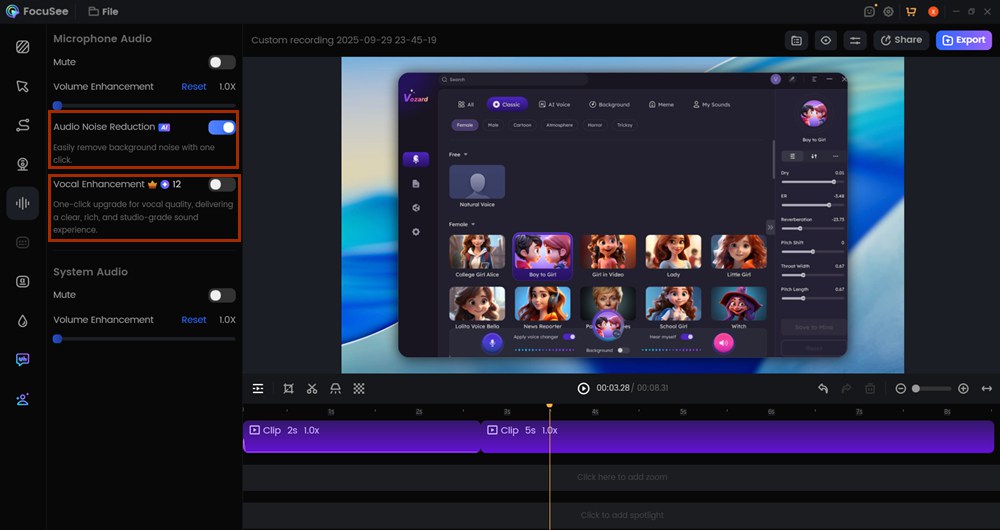
AI Audio Enhancement
Browser tools are excellent for quick, temporary tasks, but they operate within a strict sandbox. If your goal is to capture complex desktop audio across multiple applications simultaneously, web solutions introduce a noticeable risk of audio dropping.
FocuSee bypasses these browser restrictions entirely. Because it installs directly onto your machine, it communicates natively with your sound card, guaranteeing perfect synchronization across your entire system, not just a single Chrome tab.
Users frequently struggle with audio and video falling out of sync on longer recordings. FocuSee solves this through its Separate Audio Track Recording feature, capturing the microphone and system sound independently. Beyond basic capture, FocuSee automates the editing phase. Features like Smart Focus and Auto-Zoom automatically highlight clicked areas, keeping viewers engaged. The software also handles automatic Subtitles and Speech Recognition, generating accurate captions instantly in over 50 languages.
Desktop tools like FocuSee provide ongoing customer support and regular updates to handle changes in OS audio drivers, ensuring your recording setup remains stable for years. For professional SaaS tutorials, educators, or anyone needing guaranteed stability without arbitrary limits, investing in a dedicated desktop tool remains the superior method.
Frequently Asked Questions About Online Screen Capture
To conclude this evaluation, let us address the most common high-intent questions regarding privacy, compatibility, and file formats.
Will my recordings be stored locally or uploaded?
This depends entirely on the platform you choose. WebRTC tools like Panopto Express process the video entirely within your browser and save the file directly to your local hard drive. Platforms like Loom automatically upload your video to their servers for instant cloud sharing. Always verify the platform’s privacy policy to ensure you know exactly where your data resides.
Can I download recordings as MP4 with audio?
Yes. Some native browser tools save files in the WebM format by default because it is highly optimized for the web. Most major tools, including ScreenApp and Veed, allow you to export directly to MP4 with perfectly synced sound for maximum compatibility across older devices.
Can I use online screen recorders on Mac and Windows?
Absolutely. Web-based tools are inherently cross-platform. Because they run inside Chrome, Edge, or Firefox, they perform identically across Windows, macOS, and even Chromebook environments.
Is it safe to use an online screen recorder with audio?
Using reputable platforms is generally safe. To maximize security, select a tool that processes the recording locally rather than transmitting your unencrypted desktop data to remote servers. Always verify the site has a valid SSL certificate (the padlock in the URL bar) before granting camera or microphone access.
What is the best tool for recording tutorials with audio?
For quick, disposable clips or internal bug reports, Loom or Panopto Express are excellent choices. For professional, public-facing tutorials requiring perfect audio sync, automated zooming, and no watermarks, transitioning to a dedicated tool like FocuSee is highly recommended.
Conclusion
Capturing a quick, reliable video should not drain your valuable time. Finding a web platform that genuinely works requires navigating strict browser security limits, specifically the rule dictating that browsers only capture audio from a single tab.
Web-based tools like Loom and Panopto Express are incredibly convenient for quick shares and instant cloud links. Just remember to closely monitor their time limits and watermark policies. If you require long sessions, multi-application desktop sound capture, or advanced automated editing, stepping up to a professional desktop solution is the smartest choice to regain control over your content creation.