5 Best Meeting Recording Software for Remote Teams

For remote teams, the difference between a successful project and a missed deadline often lies in the accuracy of your meeting notes. If you rely on memory or hasty scribbles, you are likely familiar with the anxiety of losing critical details.
Consider Alex, a remote project manager at a mid-sized tech firm. Alex spends his days juggling back-to-back online meetings. On a typical day, he hosts a morning Zoom call to set deliverables, joins a client demo on Teams, and ends with a training session for new hires. In the past, he tried frantically scribbling notes—only to realize later that important details, like a hard deadline mentioned in passing, slipped through the cracks. This scenario is all too common, but the right meeting recorder tools can solve it.
However, “recording a meeting” means different things to different people. Are you trying to capture a searchable text log of a decision? Or are you trying to create a polished video tutorial for a new employee?
To help you find the best meeting recording software, we moved beyond generic feature lists. This guide is the result of hands-on testing on a Dell XPS 13 and an Apple MacBook Pro 14-inch. We specifically tested these tools while running typical background apps (Slack, Chrome with 10+ tabs) to see if they cause system lag, and critically, whether they can capture system audio (the voices of other participants) without complex setups.
Quick Decision: Visual Replay vs. Meeting Intelligence
Before downloading a new app, you must clarify your primary goal. Our testing revealed that most tools fall into two distinct categories, and confusing them leads to frustration.
- The “Visual Archive” (Screen Recorders): Tools like FocuSee or OBS. These capture exactly what is on your screen. They are excellent for demos and training but “dumb” regarding content—they don’t know what was said, only that it was said.
- The “Searchable Brain” (AI Assistants): Tools like Otter or Fireflies. These focus on audio and text. They generate searchable transcripts so you can find “Project Alpha deadline” without watching a video.
Native built-in recorders (like in Zoom or Teams) often compress video heavily and require host permission. Third-party tools bypass this, but they introduce a technical hurdle: capturing system audio. On a Mac, for example, recording the voice of a guest speaker often requires specific audio routing drivers. We have noted which tools handle this automatically below.
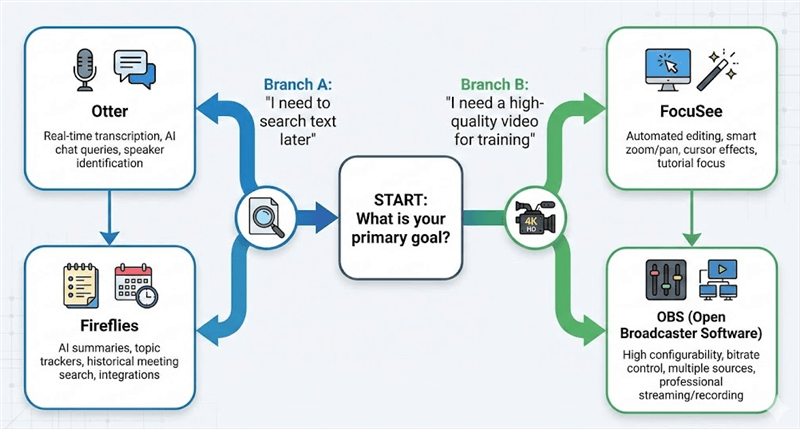
Meeting Recording Decision Tree
Key Comparison Criteria:
- Integration Friction: How hard is it to set up? (e.g., inviting a bot vs. installing a driver).
- Audio Capture: Does it record other speakers clearly without echo?
- Retrievability: Can you search the content later?
Top 4 Video Meeting Recording Apps for Transcription & AI Notes
If your goal is to “never take notes again” or to log data into a CRM, visual screen recorders are the wrong tool. You need AI meeting assistants. These tools connect to your calendar or dial into your calls.
1. Otter AI (Best for Pure AI Transcription)
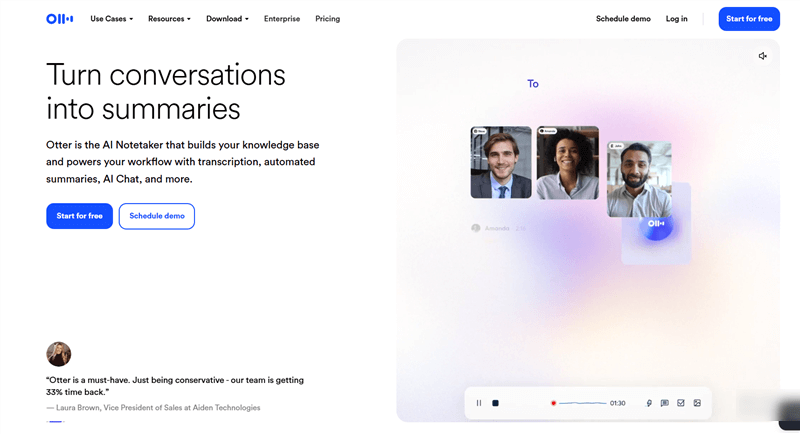
Meeting Recording App – Otter AI
Otter is the industry leader for a reason. It connects to your Google or Outlook calendar and automatically joins your Zoom, Teams, or Meet calls as a participant. It generates a real-time, scrolling transcript that highlights who is speaking.
- Integration Friction: Low. You authenticate your calendar, and the “OtterPilot” bot joins automatically. You do not need IT admin permissions, though the bot will be visible to all attendees.
- Best For: Teams who need a text-based archive to search for specific decisions weeks later.
- Trade-off: The free plan has a hard cap on monthly transcription minutes. Accuracy drops if multiple people talk over each other.
2. Fireflies AI (Best for CRM Integration)
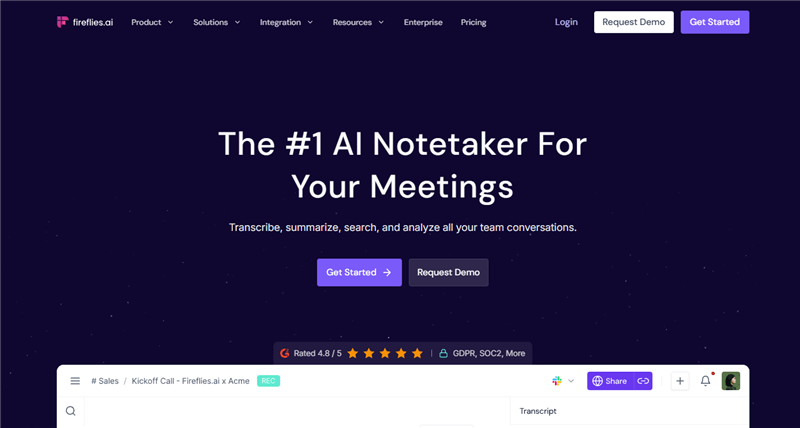
Meeting Recording App – Fireflies AI
Fireflies operates similarly to Otter but is built with sales teams in mind. Its superpower is deep integration with CRMs like Salesforce and HubSpot. It doesn’t just record; it analyzes the conversation to track “talk-to-listen” ratios and sentiment, logging this data directly into the client’s file.
- Integration Friction: Medium. Requires calendar access. For the CRM features to work, you will likely need to authenticate your Salesforce/HubSpot account, which may require Admin approval depending on your company’s security settings.
- Best For: Sales teams needing data intelligence on their calls.
- Trade-off: The video quality is secondary; this is a data tool first, a visual tool second.
3. OBS Studio (Best Free Meeting Recording Software)
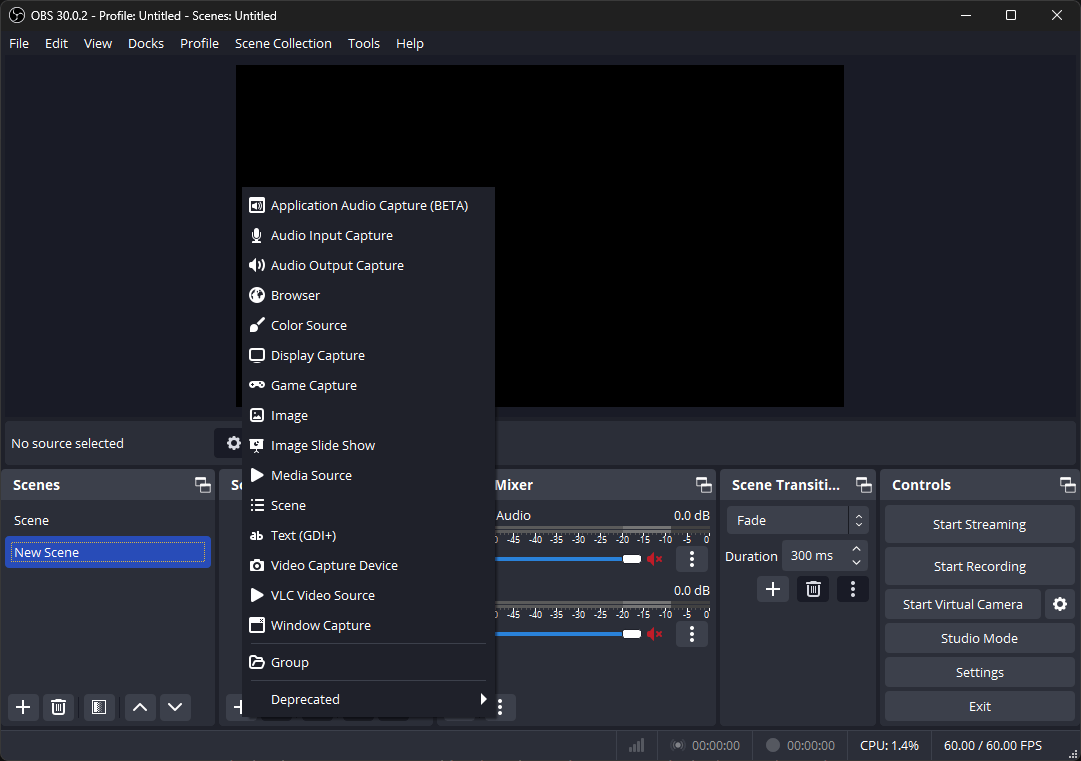
Meeting Recording App – OBS
For users who need a powerful, strictly free meeting recording software without time limits or watermarks, OBS is the standard. It records high-quality video locally to your hard drive.
- Integration Friction: High. This is a manual tool. It does not join your calendar. You must manually set up “Scenes” to capture your window.
- Critical Audio Note: On macOS, capturing system audio (your colleagues’ voices) is not native in OBS. You must install a third-party plugin like BlackHole or VB-Cable to route the audio correctly. Without this, your recording will only have your microphone audio.
- Best For: Technical users who need unlimited recording length and total control.
4. Loom (Best for Asynchronous Updates)
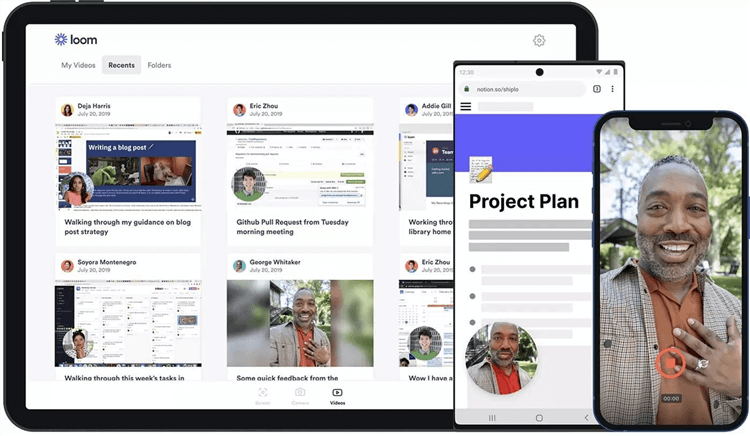
Meeting Recording App – Loom
Loom is designed to replace meetings, not record them. It offers a browser extension for quick screen recording with a webcam bubble overlay.
- Integration Friction: Very Low. Works as a Chrome extension or desktop app.
- Best For: “This could have been an email” updates. Sending a 2-minute Loom often prevents the need for a 30-minute meeting.
- Trade-off: The free version limits videos to 5 minutes.
Best for Pre-Recorded Training & Demos: FocuSee (Review)
Important Distinction: We found FocuSee is not ideal for recording a live client strategy call where you simply need a record of the conversation. Its automated editing features can be distracting in that context. However, for corporate trainers creating asynchronous updates or “how-to” guides to replace a meeting, it is unmatched.
FocuSee acts as an automated video editor. If you are recording a tutorial on how to use a new software dashboard, standard screen recorders leave viewers squinting at small text. FocuSee uses Smart Focus to automatically zoom in on the area where your mouse clicks or types.
The “System Audio” Test:
During our testing on macOS Ventura, FocuSee handled system audio capture relatively well, but it requires installing a specific audio driver during setup. Once installed, it captured computer audio (e.g., a video playing in a browser or a colleague speaking on a call) clearly.
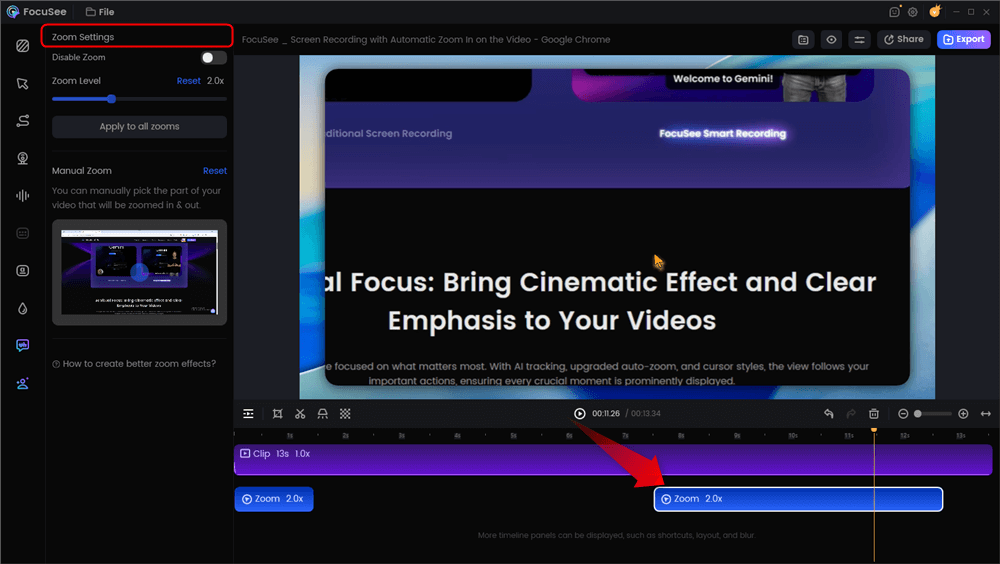
Automatic Zoom Effects
Warning for Live Meetings:
If you use FocuSee to record a standard face-to-face Zoom call, disable the Smart Focus feature. Otherwise, the camera will frantically zoom in on your mouse cursor while your client is talking, ruining the video. Use this tool when visuals matter more than conversation.
Why it stands out:
- Automated Polish: Instantly adds zooms and background blurs, saving hours of editing.
- Mouse Effects: Makes cursor movement smoother and easier to track.
- Best Use Case: Asynchronous video updates or training libraries, not daily meeting minutes.
Privacy, Consent, and Hardware: The Missing Manual
Implementing new software requires more than just installation; you must consider the legal and technical implications. A common oversight in many guides is the issue of two-party consent.
In many jurisdictions (such as California and the EU), it is illegal to record a conversation unless all parties agree. While bots like Otter announce “Recording in Progress,” this may not meet strict legal compliance standards for consent.
The CYA (Cover Your Assets) Rule: Always verbally confirm consent before the recording starts. “I’m going to turn on the recorder to catch our notes, is that okay?” captures their verbal “Yes” on the track.
Hardware Performance & Optimization
Modern AI meeting assistant tools process heavy data streams. During our testing, we found that running high-definition local recording alongside a resource-heavy app like Teams caused thermal throttling on standard ultrabooks.
For users on machines like the MacBook Air M2 (which lacks active cooling fans), this can lead to system lag. To mitigate this:
- Reduce Resolution: Set your screen recorder to 1080p instead of 4K.
- Close Background Apps: Browsers with dozens of tabs consume the RAM needed for smooth video encoding.
- Offload Processing: If your hardware struggles, choose a cloud-based tool (like Otter) rather than a local recorder (like OBS). Otter processes the audio on their servers, saving your CPU.
Frequently Asked Questions About Meeting Recorders
How do I record system audio on a Mac?
This is the most common technical hurdle. macOS does not natively allow third-party apps to “hear” other apps. If you use OBS, you must install a virtual audio driver like BlackHole. If you use Otter or Fireflies, this isn’t an issue because the bot joins the meeting as a participant and receives audio directly from the conference bridge.
What is the best app to record a meeting?
It depends on the output you need. For text-heavy notes and searching past conversations, Otter.ai is the leader. For polished visual tutorials to replace a meeting, FocuSee is excellent. For a completely free, local archive, OBS Studio is the most powerful, provided you can handle the setup.
Do meeting recording tools also transcribe the audio?
Not all of them. Screen recorders (like OBS or FocuSee) capture pixels—they do not “understand” the words. To get text, you must use an AI meeting assistant (like Otter/Fireflies) or upload your video file to a separate transcription service later.
Is it legal to record a work meeting?
It varies by location, but generally, you should assume you need consent. In “two-party consent” states, recording without the other person’s knowledge is a crime. Always notify participants visually and verbally.
Conclusion: Stop Losing Critical Details Today
The technology to capture every detail of your virtual meeting interactions is readily available, yet many teams still rely on fallible human memory. Shifting from manual notes to automated recordings eliminates “he said, she said” debates and ensures client requests aren’t lost.
Your Next Step:
Don’t try to overhaul your entire company’s workflow overnight. Run a simple pilot test next week:
- If you need notes: Invite the free version of Otter.ai to one internal meeting. See if the transcript actually saves you time.
- If you need to train someone: Use FocuSee or Loom to record a 3-minute video explaining a task, rather than scheduling a 30-minute call.
The clarity and time saved will likely speak for themselves.