6 Best Video Screen Recorder Online Tools for Instant Capture in 2026

For support specialists trying to quickly capture a software bug, finding a genuine, no-install screen recorder often feels incredibly frustrating. You need an instant solution to document reproducible software glitches for your developers, but many tools demand unexpected downloads, insert intrusive watermarks, or fail to record your system audio and microphone simultaneously.
Facing missing audio and confusing browser permissions when you just need to send a quick video is a significant obstacle. If you rely on built-in webcams, microphones, and browsers like Chrome, Edge, Safari, or Firefox, you want a method that works reliably for fast communication. This article provides a verified list of the 5 best video screen recorders online options that actually operate right in your browser, alongside step-by-step expert advice on overcoming the exact permission hurdles that cause dropped audio.
Benchmark Comparison: The Top 6 Browser Tools
To save you from testing dozens of websites, here is a quick benchmark table comparing the exact limitations of the top free tiers for these browser-based recorders.
| Max Free Time Limit | Watermark? | Max Resolution | Best Export Format | |
| Loom (Web) | 5 Minutes | No | 720p | Cloud Link / MP4 |
| RecordCast | 5 Minutes | No | 1080p | WebM / MP4 |
| FocuSee Online Screen Recorder | No Fixed Limit | No | Browser-Dependent | MP4 (Local Download) |
| ScreenApp | 1 Hour | No | 1080p | MP4 / WebM |
| Screencastify | 10 Videos / 30 Mins | No | 1080p | Google Drive / MP4 |
| Panopto Express | Unlimited | No | Up to 4K | MP4 / YouTube |
6 Top Picks: Record Screen Video Online Free (No Installation)
When you need an immediate solution without downloading extensions, you require true browser-based operations. Many applications masquerade as web apps but actually prompt you to install a small launcher. I excluded any tool that requires a launcher download. The tools listed below are verified to run entirely within your browser, ensuring a genuine “no download” experience.
Loom (Web Version)
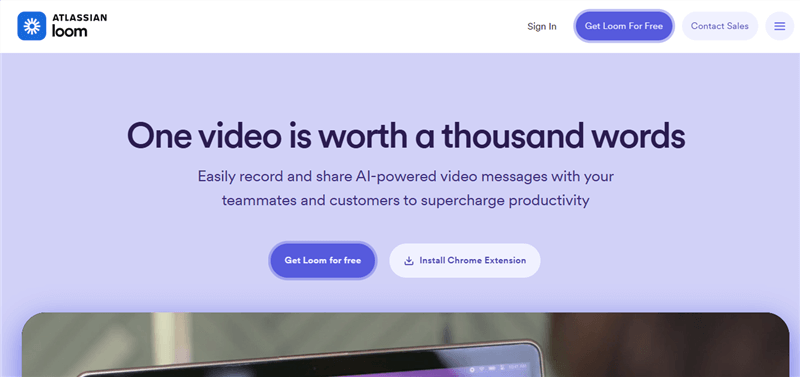
Screen Recorder and Video Editor – Loom
Best for: Quick Link Sharing
Loom’s web interface allows you to record your screen and webcam instantly. It is ideal for async communication to quickly generate a shareable link for a colleague or client.
- Pros: Generates an instant sharing link the second you click stop. Excellent integration with Slack and email.
- Cons: The web version can occasionally drop frames on Safari; it runs much smoother on Chrome or Edge.
- Free Plan Limit: 5 minutes per video.
- Watermark: None.
- Max Resolution: 720p on the free tier.
- Export: Direct link sharing, or you can download the MP4 from your dashboard.
RecordCast
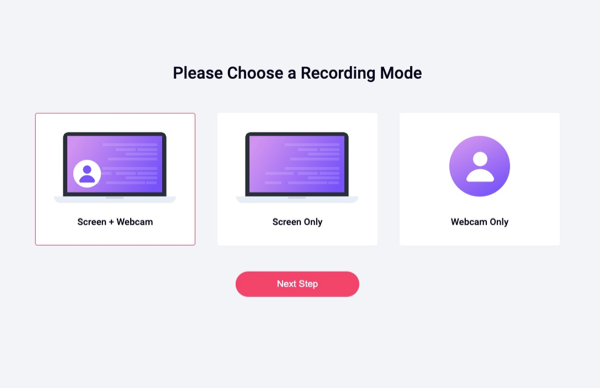
RecordCast Online Screen Recorder
Best for: Privacy and Local Saving
If you want an online screen recorder without a watermark that processes files locally, RecordCast is an excellent option. It handles the recording process directly in your browser cache, keeping your initial captures off remote servers until you decide to export.
- Pros: High privacy standard due to local browser processing. Includes a basic built-in video editor.
- Cons: Rendering the final video takes a few extra minutes, depending on your computer’s processing power.
- Free Plan Limit: 5 minutes per recording.
- Watermark: None.
- Max Resolution: 1080p.
- Export: MP4.
FocuSee Online Screen Recorder
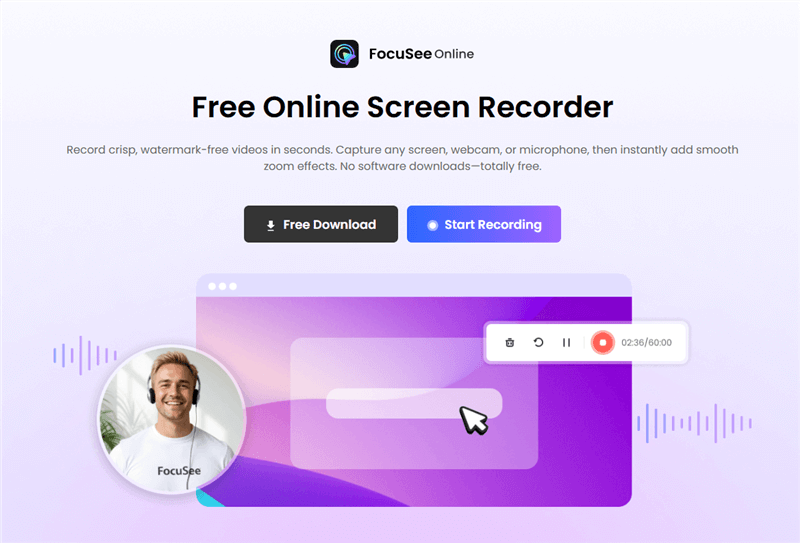
FocuSee Online Screen Recorder Free
Best for: Fast, No-Login Screen Recording
FocuSee Online Screen Recorder is a lightweight browser-based tool built for instant screen capture without installation or account setup. It’s ideal when you want a clean, distraction-free recording experience with minimal friction.
- Pros: No sign-up required. Fast startup with a simple interface. Suitable for quick demos and tutorials.
- Cons: Fewer advanced editing features compared to full video platforms.
- Free Plan Limit: No strict time limit mentioned for basic use (browser-dependent).
- Watermark: None (standard recordings).
- Max Resolution: Depends on browser and screen configuration.
- Export: Local video download.
ScreenApp
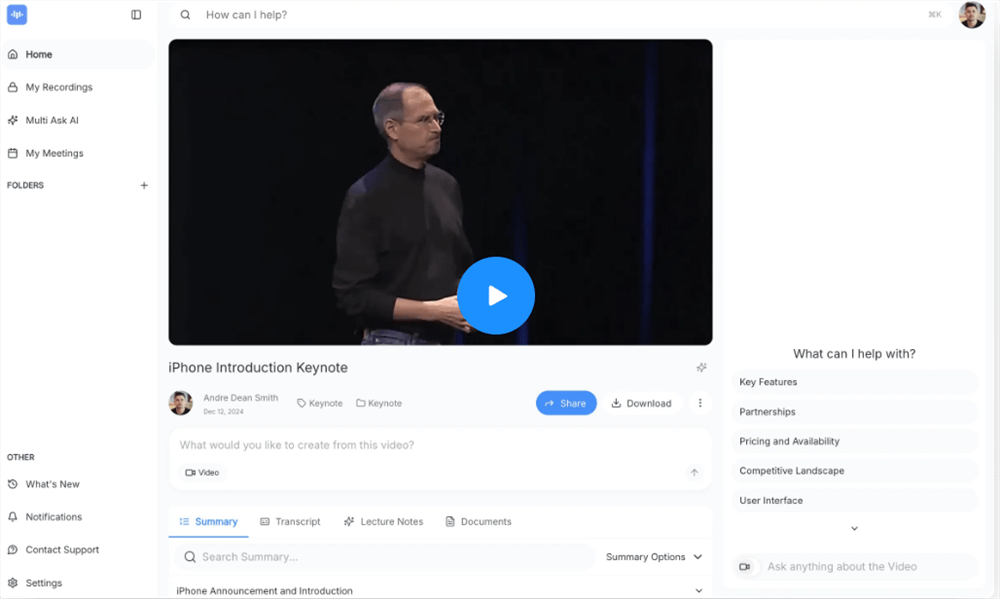
Free Screen Video Recorder Online – ScreenApp
Best for: Simple Bug Reporting
ScreenApp requires no sign-up for immediate use. It is perfect for professionals who need to execute a rapid MP4 screen recording to show a developer a reproducible software glitch.
- Pros: Extremely generous time limits on the free tier. Very straightforward interface.
- Cons: You are limited in how many videos you can save to their cloud before you must upgrade or delete old files.
- Free Plan Limit: Up to 1 hour per recording.
- Watermark: None.
- Max Resolution: 1080p.
- Export: WebM or MP4 download.
Screencastify (Web App)
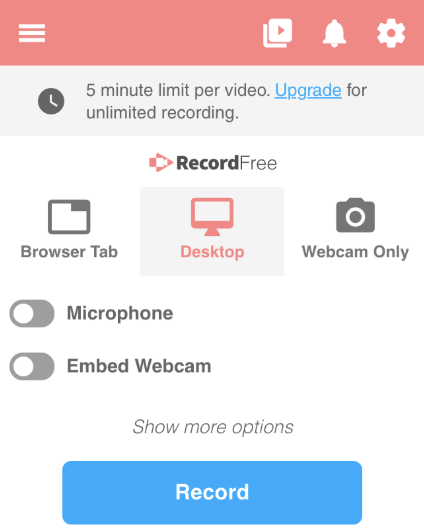
Video Screen Recorder Online – Screencastify
Best for: Browser Tab Capture
Screencastify excels when you strictly need to record browser tab activity. It smoothly integrates with Google Drive for incredibly fast file management and team sharing.
- Pros: Autosaves to Google Drive immediately. Very reliable audio capture for specific Chrome tabs.
- Cons: The free tier heavily limits how many videos you can store or export.
- Free Plan Limit: Limited to 10 active videos on the free tier.
- Watermark: None.
- Max Resolution: 1080p.
- Export: Google Drive link, direct MP4 download, or export to YouTube.
Panopto Express
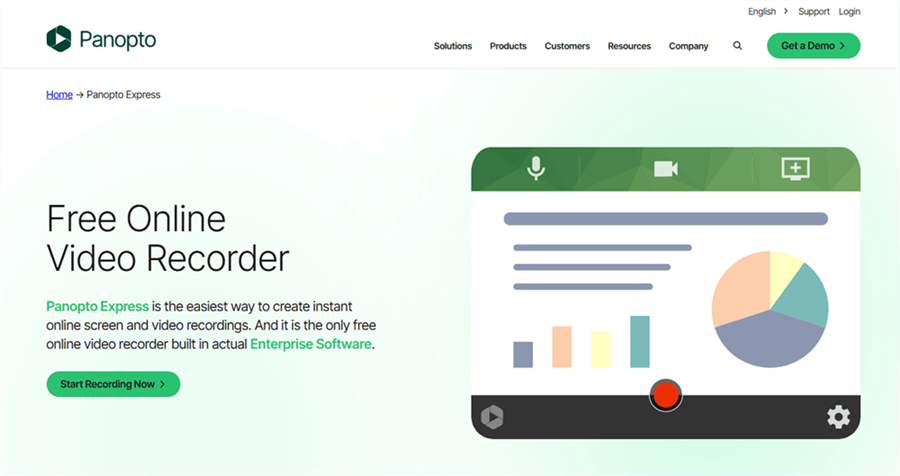
Video Screen Recorder Online – Panopto Express
Best for: High-Resolution and Unlimited Time
Many lists feature tools that secretly require launchers, but Panopto Express is a 100% genuine browser tool that handles high-end recording effortlessly. It completely removes the annoying constraints found in typical free software.
- Pros: No time limits whatsoever. Supports multiple camera inputs simultaneously.
- Cons: The interface is slightly more cluttered than Loom or ScreenApp.
- Free Plan Limit: Unlimited.
- Watermark: None.
- Max Resolution: Up to 4K, depending strictly on your monitor and webcam capabilities.
- Export: MP4 download, or send directly to YouTube and Google Classroom.
How to Bypass Missing Audio and Permission Errors
Here is a critical detail most guides fail to explain: the biggest limitation of any online screen recording tool is not its feature set. The real culprit behind missing audio is strict browser-level security design.
Many users assume a tool is broken when it fails to capture system audio (like a notification sound or a video playing in a presentation). Browsers use WebRTC (Web Real-Time Communication) to record. Modern web browsers implement robust sandbox protocols to prevent malicious websites from eavesdropping on your entire computer.
Because of this security, capturing your full desktop audio via a web browser is often intentionally blocked by Windows and macOS.
If you need to record a video playing on your screen alongside your microphone voice, here are the exact steps to guarantee it works in Chrome or Edge:
Step 1: Click the record button on your chosen web app.
Step 2: When the browser’s “Choose what to share” popup appears, do not select “Entire Screen.”
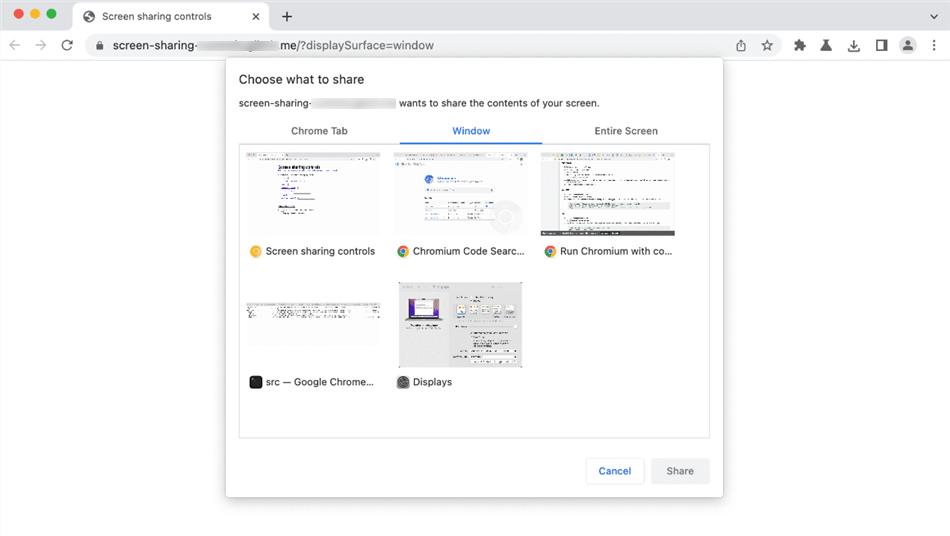
Choose What to Share
Step 3: Click on the “Chrome Tab” (or “Edge Tab”) option at the top of the popup.
Step 4: Look at the bottom left corner of that popup window. You will see a small toggle switch labeled “Share tab audio.” Make sure this is checked.
Step 5: Select the specific tab containing your presentation or software bug, then click “Share.”
By isolating the recording to a single tab, the browser can securely route that specific tab’s internal audio to the recording tool without triggering your operating system’s global security blocks.
How to Choose: Browser Screen Capture vs. Professional Software
Before selecting a tool, deciding between a quick browser screen capture utility and a professional desktop application helps you identify the best method for your specific project.
| Browser-Based | Desktop Software | |
| Success Rate | Medium | High |
| Time Cost | Fast start | Setup needed |
| Safety Risk | Medium (cloud risk) | Low (local files) |
| Performance | Limited | Full power |
| Quality | 720p–1080p | Up to 4K |
| Features | Basic | Advanced |
| Long Recording | Unstable | Stable |
| Offline Use | No | Yes |
Here is a breakdown of how web-based tools and desktop software compare across four critical factors:
- Success Rate: A screen capture directly in the browser relies entirely on your internet connection and browser stability. If you need to record your microphone and webcam simultaneously for a long session, desktop software offers a significantly higher success rate without dropping frames.
- Time Cost: Web apps excel at speed. You open a tab, click record, and instantly receive a link. Desktop software requires an initial setup but saves time during post-production with automated editing features.
- Technical Skill: Browser tools are designed for immediate use with zero learning curve. Professional software may require basic knowledge of video export formats.
- Safety Risk: If you handle sensitive company data, locally installed software, or web tools that process files locally, minimize the risk associated with uploading temporary files to cloud servers. Always review data retention policies.
Alternative for Heavy-Duty Work: Transitioning to Desktop Software
Dealing with browser limitations makes instant communication simple, but if your workflow evolves past quick bug reports, online utilities eventually fall short. Attempting to record high-quality client tutorials or hour-long work demos using only a web browser often results in dropped frames or audio desyncs due to internet bandwidth fluctuations.
If you require a method that guarantees flawless quality for formal presentations, you may eventually transition to a premium desktop solution like FocuSee (available for Windows and macOS).
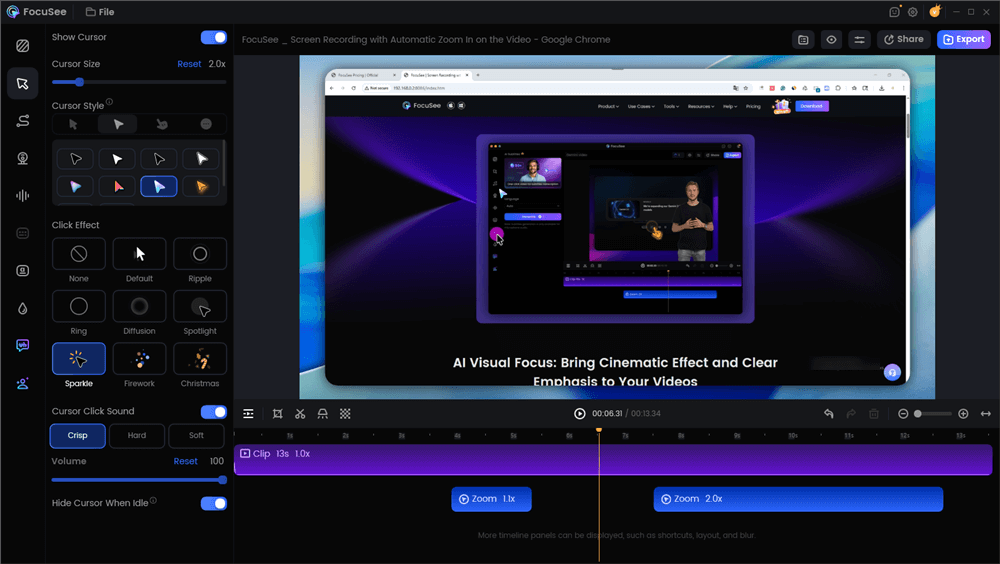
Edit the Video with Auto Effects
Desktop software operates independently of your browser’s WebRTC sandbox, entirely bypassing the frustrating audio permission blocks. FocuSee also automates the tedious aspects of video production that browser apps ignore. It features a separate audio track recording, effortlessly capturing internal system sounds alongside your voice. Additionally, it applies AI Smart Cut to instantly trim out filler words and uses Auto-Zoom to automatically highlight clicked areas. This keeps your viewers focused on important steps without requiring you to manually edit timelines.
FAQs About Web-Based Video Screen Recorders
When choosing an online screen recording tool, you likely have specific questions regarding privacy and technical capabilities. Here are clear answers to the most common queries.
What is the best online video screen recorder?
For quick, short-link sharing, Loom is an excellent choice. For long sessions requiring zero time limits and high resolution, Panopto Express is highly recommended.
Do I need to install anything to record my screen online?
No. A genuine web-based tool operates entirely within your web browser using WebRTC technology. You simply grant temporary microphone and camera permissions via a browser popup. If a website asks you to download a “launcher” file, it is not a true online recorder.
Why is my screen recorder not capturing system audio?
This usually happens because you selected the “Entire Screen” option during the browser permission prompt. Due to operating system security protocols, browsers often block the entire system audio. To fix this, select the “Share Tab” option and check the “Share tab audio” box.
Is it safe to use an online screen recorder?
Reputable web tools are safe. Look for services like RecordCast that process the video recording locally within your browser cache to protect sensitive data. Always review the privacy policy before recording internal company information.
Can I record my screen with my webcam simultaneously?
Yes. Almost all top-tier web tools allow you to record your microphone and webcam simultaneously. You just need to check the respective camera boxes in the tool’s interface before hitting record.
Are there time limits on free online screen recorders?
Yes, most free online tools restrict recordings to 5 or 10 minutes. Tools like Panopto Express are exceptions, offering unlimited recording directly in the browser.
Can I use these tools on Mac and Windows?
Absolutely. Because browser screen capture relies entirely on software like Chrome, Edge, or Safari, the method is completely operating system agnostic.
Can I download my recordings as an MP4?
Yes. The majority of top-tier browser tools provide an MP4 screen recording download. MP4 remains the standard among video export formats because of its excellent quality and broad compatibility.