11 Best Free Online Audio Recorders (Tested)

Imagine you are a freelance content creator like Lisa, needing to record a voiceover quickly for an upcoming social media campaign. You search for a simple browser solution because you want to avoid installing heavy software. Instead of a straightforward tool, you encounter platforms claiming to be free but hiding severe restrictions, mandatory account sign-ups, or unremovable watermarks. Your test recordings sound muffled, plagued by background noise, and leave you confused about whether to choose MP3 or WAV formats to fix the issue. Privacy concerns immediately arise about where your audio files are stored, making the entire process stressful.
Facing a locked, restricted, or low-quality tool when you need reliable results fast is a significant obstacle. This guide directly solves those exact problems. We will explore tested methods to bypass hidden limits, secure high-quality microphone input, and easily download or share your files seamlessly.
I tested browser-based audio recording pipelines—focusing on bypassing automatic gain control—to address common issues like background noise and poor voice quality. Testing was primarily done on desktop devices (Windows PCs, macOS machines, Chromebooks) using major browsers, including Chrome, Edge, Safari, and Firefox. While mobile and tablet testing was included, the focus remained on desktop performance, which depends more on browser capabilities and microphone permissions than on the operating system.
Best Online Audio Recorders — Comparison Table
| Best For | Time Limit | Format | Privacy | |
| Vocaroo | Instant sharing | ~50MB limit | MP3/WAV/OGG/FLAC | Cloud |
| Reverb Record | Shareable voice notes | ~10 min (free) | Link / MP3 | Cloud |
| 123Apps Recorder | Quick local recording | ~30 min (cache-based) | MP3 | Local |
| FocuSee Online Recorder | Clean UI & fast recording | Session-based | Standard | Local |
| Riverside.fm | Interviews/podcasts | ~2 hrs (free tier) | WAV/MP3 | Local + Cloud sync |
| Zencastr | Multi-speaker recording | Unlimited | MP3 (WAV paid) | Local + Cloud |
| Podcastle | AI-enhanced recording | Unlimited | MP3/WAV | Cloud |
| TwistedWave | Advanced editing | 5 min (free) | MP3/WAV/FLAC | Cloud |
| Bear Audio Tool | Local editing | Cache-based (~300MB) | MP3/WAV | Local |
| Sodaphonic | Simple editing | Cache-based | MP3/WAV | Local |
| MyEdit | AI voice tools | 10 min / 100MB | MP3/WAV | Cloud |
The 10 Best Free Online Audio Recorders (No Download Required)
Navigating the sea of options requires matching the right tool to your specific task without falling into traps. We have categorized the top browser-based audio tools based on practical use cases, explicitly stating their limits and privacy standards so you can bypass the trial-and-error phase.
Best for Quick Voice Notes
When you need to capture a fleeting idea, speed is essential.
1. Vocaroo
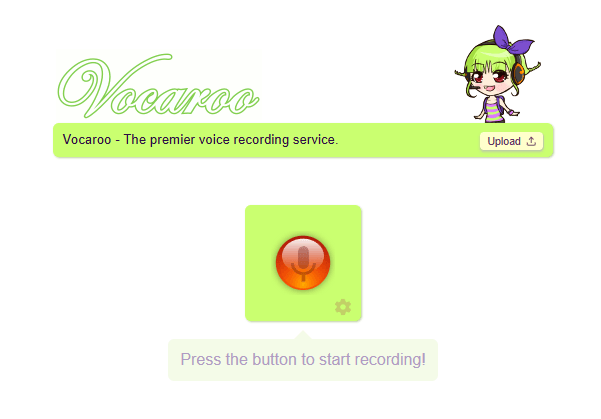
Online Audio Recorder – Vocaroo
Best For: Instant, highly shareable voice messages.
- Time Limit: No explicit strict limit, but large files frequently fail to save due to browser cache restrictions.
- Export Formats: MP3, WAV, OGG, FLAC.
- Privacy Level: Cloud Processing (Less Private).
- Pros: Single-click recording; generates a QR code or URL instantly.
- Cons: No editing features.
Hands-on Note: I lost a 10-minute voiceover on Vocaroo because I accidentally refreshed the page before the link generated. Keep your sessions under two minutes.
2. Reverb Record
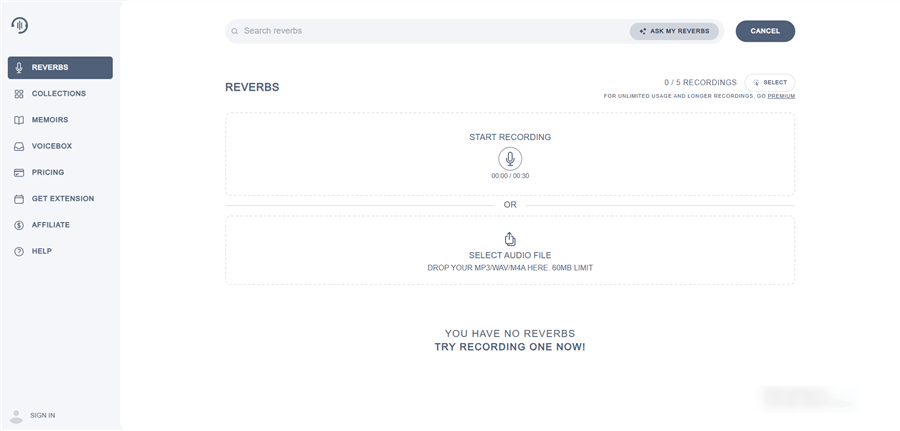
Online Voice Recorder – Reverbs
Best For: Embedding audio notes into emails or forums.
- Time Limit: 10 minutes per recording on the free tier.
- Export Formats: Shareable link (direct file download requires an account).
- Privacy Level: Cloud Processing (Less Private).
- Pros: Excellent organizational features and integrations.
- Cons: Requires signing up to access your past recordings.
3. Online Voice Recorder (123Apps)
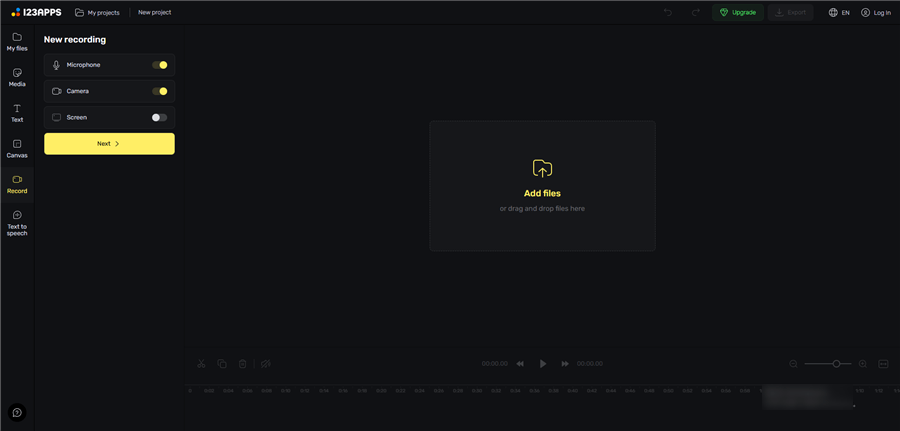
123Apps Online Screen Recorder
Best For: Quick recordings that you want to save locally.
- Time Limit: Dictated by your browser’s local cache (typically safe for up to 30 minutes).
- Export Formats: MP3 only.
- Privacy Level: Local Browser Processing (Highly Private).
- Pros: Allows basic audio trimming at the beginning and end of your clip.
- Cons: Lacks uncompressed WAV export.
4. FocuSee Online Microphone Recorder
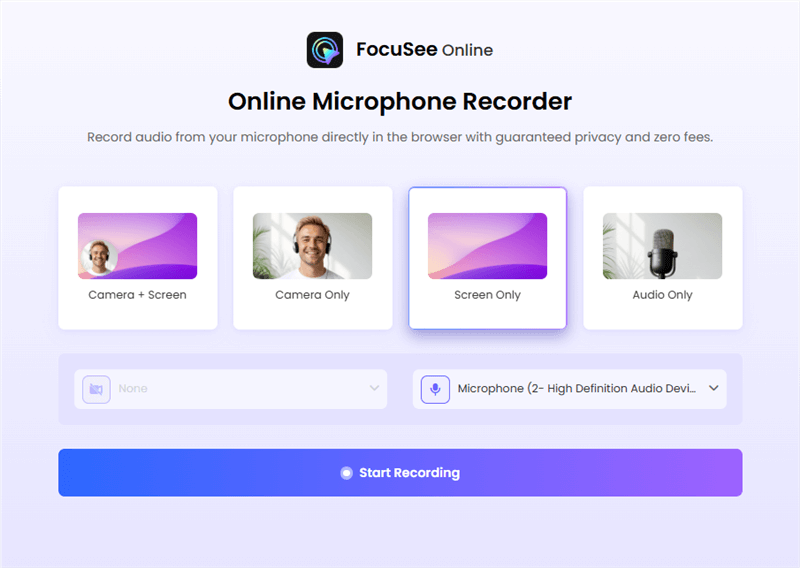
Choose The Recording Model
Best For: Clean, no-distraction voice recording with instant start.
- Time Limit: No fixed limit (depends on browser session stability).
- Export Formats: Standard audio export (browser-based).
- Privacy Level: Local Browser Processing (Highly Private).
- Pros: Minimal UI, no ads, no watermark, one-click recording.
- Cons: Lacks advanced editing features.
Hands-on Note: Compared to cluttered tools, FocuSee felt noticeably smoother to start and use—ideal when you just want to record quickly without adjusting settings.
Best for Interviews and Podcasts
Capturing multi-person audio requires stability and high fidelity.
5. Riverside.fm (Free Tier)
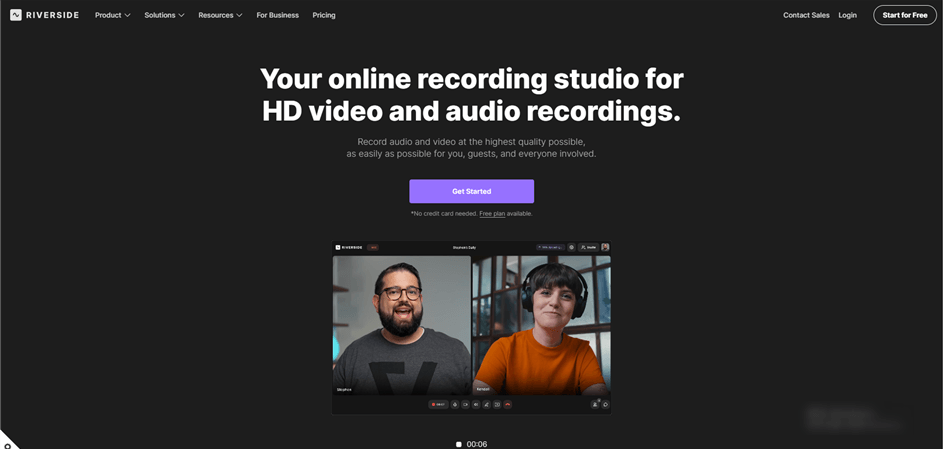
Online Audio Recorder – Riverside
Best For: High-quality remote interviews.
- Time Limit: 2 hours of separate audio/video track recording.
- Export Formats: Up to 44.1 kHz WAV.
- Privacy Level: Local Recording synced to Cloud Servers.
- Pros: Captures audio locally on each participant’s device before uploading, preventing internet dropouts from ruining the master file.
- Cons: The free tier adds a visual watermark to video exports.
6. Zencastr (Free Tier)
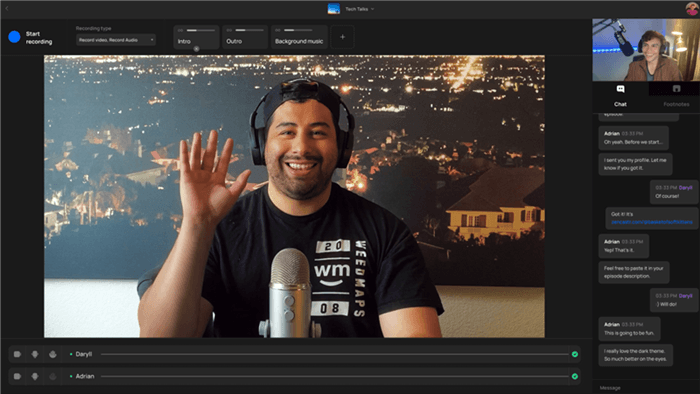
Best Online Audio Recorder -Zencastr
Best For: Podcasters focused purely on high-quality audio.
- Time Limit: Unlimited audio recording on the free tier.
- Export Formats: MP3 (WAV requires a paid upgrade).
- Privacy Level: Local Recording synced to Cloud Servers.
- Pros: Generates separate tracks for every speaker.
- Cons: The interface can be slightly complex for first-time guests.
7. Podcastle (Basic)
Best Online Audio Recorder -Podcastle
Best For: Solo creators and podcasters needing fast cleanup.
- Time Limit: Unlimited basic audio recording.
- Export Formats: MP3 and WAV.
- Privacy Level: Cloud Processing (Less Private).
- Pros: Integrates basic noise suppression to clean up tracks immediately after finishing.
- Cons: Advanced AI editing tools are locked behind a paywall.
Best for Light Editing
If you need to cut out mistakes before sharing, these tools offer built-in flexibility.
8. TwistedWave Online
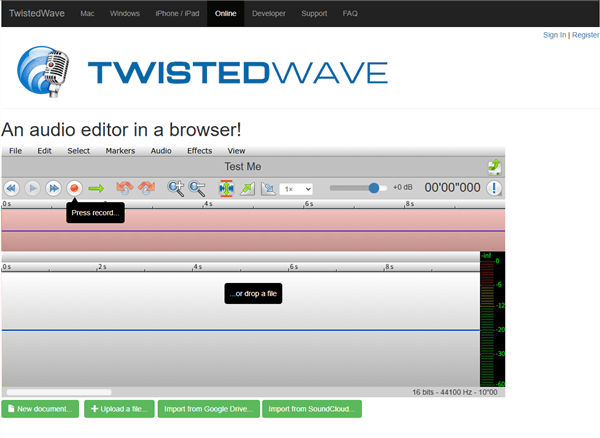
TwistedWave Online
Best For: Detailed, browser-based audio editing.
- Time Limit: 5 minutes per file on the free tier.
- Export Formats: MP3, WAV, FLAC, OGG.
- Privacy Level: Cloud Processing (Less Private).
- Pros: Robust effects such as normalization, fading, and pitch shifting.
- Cons: Strict 5-minute limit heavily restricts longer projects.
9. Bear Audio Tool
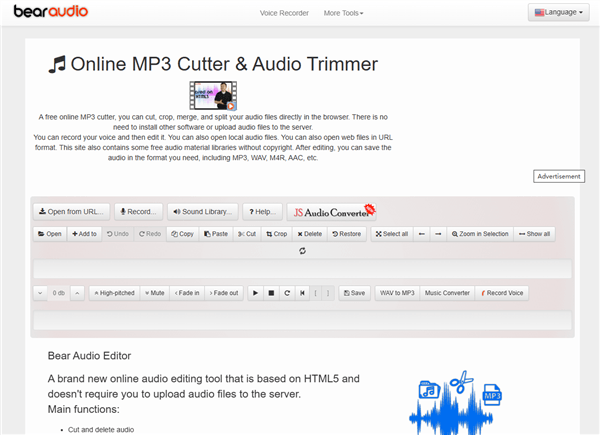
Bear Audio Tool
Best For: Secure audio trimming without server uploads.
- Time Limit: Determined by your browser’s local cache size (roughly 300 MB).
- Export Formats: MP3, WAV, M4R.
- Privacy Level: Local Browser Processing (Highly Private).
- Pros: Relies entirely on HTML5, meaning it never uploads your files to external servers.
Hands-on Note: During my testing, Bear Audio Tool processed and exported a 5-minute WAV file in under 5 seconds because everything happens locally.
10. Sodaphonic
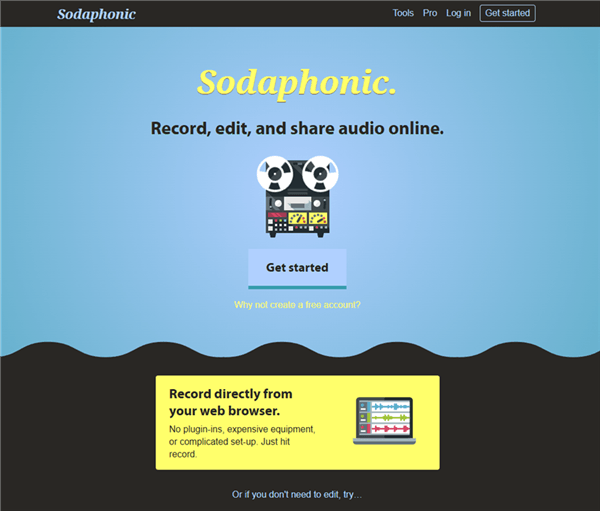
Online Voice Recorder – Sodaphonic
Best For: Fast, minimalist editing.
- Time Limit: Browser cache limit.
- Export Formats: MP3, WAV.
- Privacy Level: Local Browser Processing (Highly Private).
- Pros: Extremely clean interface for snipping out unwanted pauses.
- Cons: Lacks advanced audio effects.
11. MyEdit
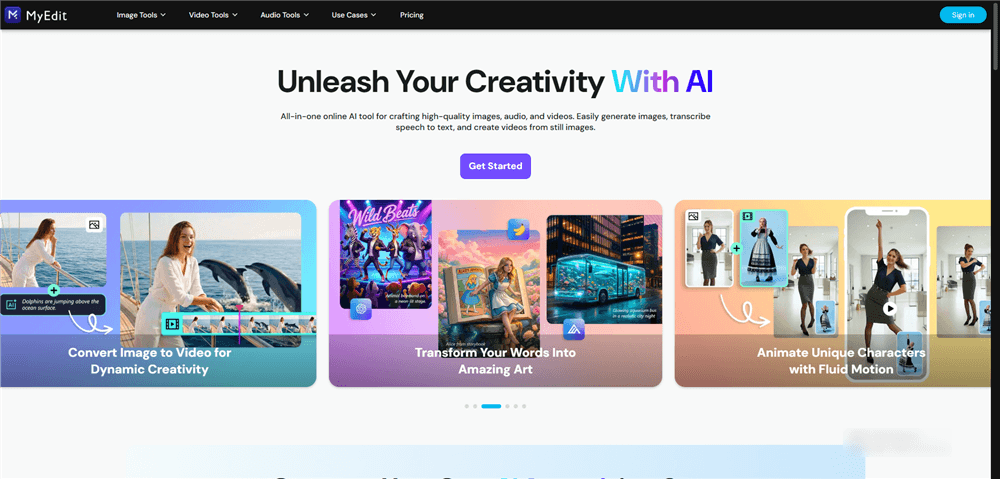
Online Audio Recorder – MyEdit
Best For: AI-powered vocal removal and cleanup.
- Time Limit: 10 minutes or 100MB per file.
- Export Formats: MP3, WAV.
- Privacy Level: Cloud Processing (Files automatically deleted after 24 hours).
- Pros: Excellent for isolating vocals or applying voice changers directly in a web tab.
- Cons: Requires a free account to download the processed files.
Why Browser Audio Sounds Muffled (And the Fix)
Even when using a highly rated web tool, you might notice your voice sounds muffled, robotic, or full of static. Here is a critical expert insight: the biggest overlooked factor in online recording is the web browser’s internal audio processing pipeline.
Web browsers are optimized for video conferencing. To save bandwidth during live calls, browsers automatically apply aggressive gain control, harsh noise suppression, and heavy compression. These hidden settings degrade high-quality recordings, squashing the natural dynamics of your voice.
[Image: A short visual guide demonstrating how to disable OS-level enhancements in Windows and macOS settings. Alt-text: A diagram showing how to improve microphone capture quality by adjusting operating system settings.]
You can significantly improve your results by taking control of this pipeline. First, skip your laptop’s built-in microphone and connect a dedicated external USB microphone. Second, manually disable operating system-level enhancements.
For Windows 11 Users:
1. Go to Settings > System > Sound.
2. Scroll down to the “Input” section and click on your active microphone.
3. Locate the Audio enhancements setting and change the dropdown menu to Off.
For macOS Users (Monterey and newer):
1. Open System Settings > Sound.
2. Click the Input tab and select your microphone.
3. Uncheck Use ambient noise reduction (if available for your specific hardware).
4. Important Step for macOS Sonoma/Sequoia: Look for the orange microphone indicator in your top menu bar during an active recording. Click it and ensure “Mic Mode” is set to Standard instead of “Voice Isolation.” Voice Isolation applies heavy digital compression that ruins voiceover fidelity.
Finally, you must understand the critical difference between MP3 and WAV files. MP3 files are compressed; they permanently delete audio data to save storage space. To preserve the highest fidelity for client projects or detailed editing, always select uncompressed formats like WAV when your chosen web tool offers the option.
Troubleshooting Mic Permissions and Privacy Status
A common frustration when attempting to record in a browser is encountering a “microphone not working” error. Because modern web browsers prioritize user security, they strictly block microphone access until you grant explicit permission.
To fix permission errors in Chrome and Edge:
1. Click the small settings icon (often a padlock or sliders) located on the far left side of your URL address bar.
2. Locate the “Microphone” setting in the dropdown menu.
3. Toggle the switch to “Allow.”
4. Refresh the webpage to apply the new settings.
For Safari users: Navigate to Safari > Settings > Websites > Microphone, and ensure the specific website URL is set to “Allow.”
Beyond basic setup, privacy remains a paramount concern. Where do these sites store your voice recordings? The answer depends entirely on the technology powering the website.
Many tools, such as Bear Audio Tool, use the Web Audio API. This technology processes your voice data locally within your browser’s cache. Once you download the file and close the tab, the data disappears entirely from your computer. Conversely, podcasting platforms like Riverside upload your audio directly to their remote cloud servers. If you are handling sensitive, confidential, or proprietary information, you must choose tools tagged as “Local Browser Processing” to guarantee absolute privacy.
Alternative to Browser Constraints: Upgrading to Desktop Software
If you are exhausted by the hidden time limits, sudden browser crashes, and confusing privacy policies of web-based pages, upgrading to a dedicated application provides a guaranteed, stress-free outcome. When web tools fall short of professional demands, FocuSee acts as the ideal upgrade.
FocuSee is a dedicated screen and video creation tool for Windows and macOS. It functions as an offline, all-in-one application for creators who need to reliably capture their screen, webcam, and microphone simultaneously.
To resolve the frequent complaint of poor sound quality, FocuSee features advanced AI Audio Enhancement. This built-in function automatically isolates your voice and removes background hums, breathing, and mouth sounds, ensuring clear audio without requiring a perfect, soundproof studio.
If you want simple editing features without juggling multiple browser tabs, FocuSee incorporates an AI Smart Cut function. This automatically detects and removes filler words like “uh” and “um,” alongside awkward silences, instantly delivering a concise, polished file.
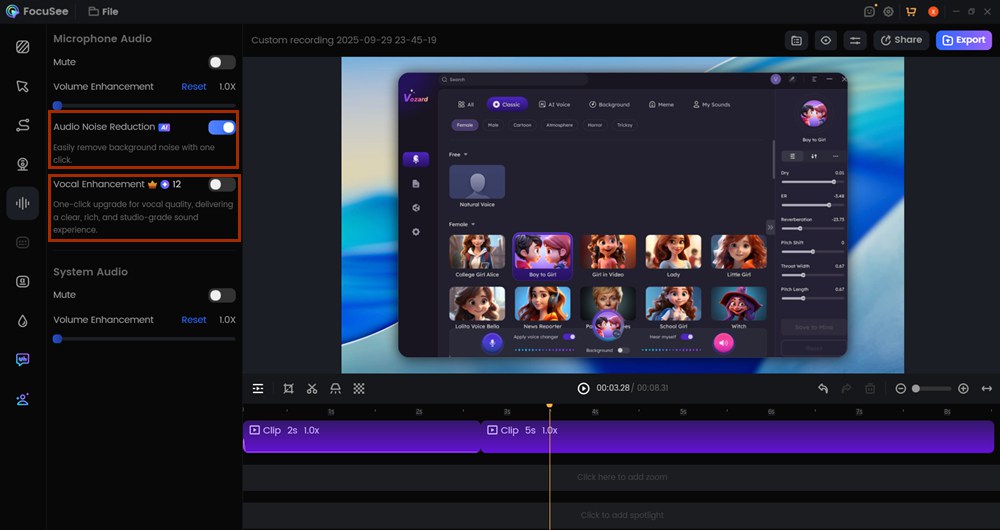
AI Audio Enhancement
Many creators express a strong need to mix specific sounds later in post-production. FocuSee resolves this by offering Separate Audio Track Recording. It captures your microphone and the computer’s system audio independently. For task-driven professionals, downloading a dedicated application automates the heavy lifting of post-recording cleanup, keeping your files entirely secure on your hard drive and removing the anxiety of sudden internet drops.
Frequently Asked Questions
What is the best free web audio recorder?
The ideal choice depends entirely on your specific goal. For quick, shareable voice messages, Vocaroo is highly efficient. For podcasting, the free tier of Riverside.fm is highly recommended. For safe, local editing, Bear Audio Tool performs exceptionally well.
Do I need to install anything?
No. The top 10 tools listed above operate entirely within your web browser (Chrome, Safari, Edge). You only need an internet connection to load the page and a functioning microphone.
Are these online tools secure?
Security varies by platform. Tools that use HTML5 and local browser processing (like 123Apps) are highly secure because your files never leave your computer. Cloud-based tools upload your data to external servers, making them less ideal for highly confidential information.
Why is my microphone failing to capture sound?
This is almost always a security permission issue. Browsers automatically block microphone access by default. You must click the settings icon next to the URL address bar and manually switch the microphone permission to “Allow.”
Which format is better: MP3 or WAV?
WAV is significantly better for professional editing because it is uncompressed, capturing and retaining 100% of the raw audio data. MP3 is compressed, meaning it actively deletes data to create a smaller file size, making it suitable for casual sharing but detrimental to high-end editing.
Are there time limits?
Yes, virtually every web application has limitations. Browser-based tools are restricted by your computer’s local cache limits, and cloud-based tools often enforce strict paywalls ranging from 5 minutes to 2 hours. Always check the limits highlighted in our list before starting a long session.
Can I capture system audio (like YouTube or game sounds)?
Most browser applications only capture your physical microphone. To capture internal system sounds, you typically need to use built-in operating system features or dedicated offline software like FocuSee.
Can I use these tools on Mac and Windows?
Yes. Because these applications run inside modern web browsers, they are entirely cross-platform compatible across Windows PCs, MacBooks, and Chromebooks.
Regain Control of Your Audio Quality
Struggling with web platforms that limit your recording time, mandate cloud uploads, or secretly compress your audio can severely delay your projects. By choosing the right tool from the start—and taking a few seconds to adjust your operating system’s audio settings—you can capture clear, professional voiceovers entirely for free.
If browser limits prove too restrictive for your daily workflow, transitioning to reliable desktop software like FocuSee directly answers the need for a seamless, private, and high-quality experience. Take control of your content creation, ensure your files remain secure, and solve your audio production hurdles today.