Choosing the Best Video Capture Software for Your Workflow

Choosing the right video capture software can feel overwhelming because the market is flooded with tools designed for entirely different purposes. Many users get stuck trying to record simple software tutorials using complex live streaming tools, or they settle for basic presentation recorders that leave them with hours of manual editing work later. To find the right fit, it is important to evaluate software not just on its capture features, but on the post-recording editing effort required.
The Short Answer: Which Tool is Best?
The “best” video capture software depends entirely on what you are trying to create and how much time you want to spend editing:
- For live streaming and advanced setups, OBS Studio remains the free industry standard.
- For complex, multi-track project editing, Camtasia is a powerful traditional timeline editor.
- For quick, unpolished async team messaging, Loom is the fastest browser-friendly choice.
- For polished tutorials and product demos, AI auto-editing tools like FocuSee automatically add zooms and captions under supported conditions, saving hours of manual post-production when you need to create step-by-step tutorial videos.
Video Capture Software Comparison: Features, Platforms, and Editing Effort
Before diving into individual reviews, here is a scannable overview of the top video capture options. Notice how different tools map to different technical skill levels, pricing models, and post-recording workloads.
| Primary Use Case | Target Audience | Platform | Pricing Model | Post-Recording Editing Effort | |
| OBS Studio | Live streaming & recording | Gamers, Streamers | Windows, Mac, Linux | Free | High (Manual setup) |
| Camtasia | Multi-track video editing | Course Creators, Educators | Windows, Mac | Paid | High (Timeline editing) |
| Loom | Async video messaging | Internal Teams | Browser, Windows, Mac | Freemium | Low (Minimal editing) |
| FocuSee | AI tutorials & demos | SaaS Teams, Creators, Educators | Windows, Mac | Paid | Low (AI auto-editing) |
| Screen Studio | Aesthetic screen recordings | Apple Users, Designers | Mac Only | Paid | Low (Auto effects) |
5 Best Video Capture Software for Your Workflow
OBS Studio: Best for Free, Advanced Live Streaming
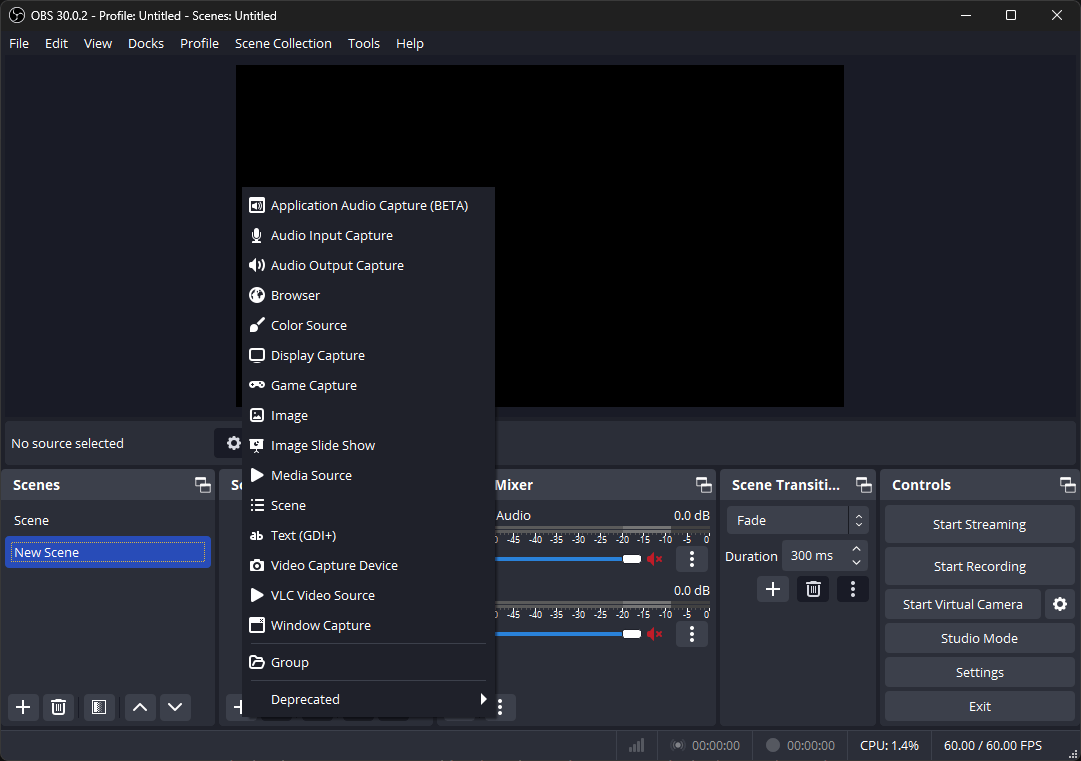
Choose Display Capture
OBS (Open Broadcaster Software) Studio is the undisputed industry standard for live streaming and highly customized screen recording. It is incredibly powerful, open-source, and entirely free.
However, it is built primarily for broadcast setups, not for quick, everyday screen capture. Because it does not feature a built-in video editor, you are left with a raw video file that requires external software if you want to trim mistakes, add zoom effects, or highlight your cursor. If you are creating software walkthroughs and find this setup too complex, you may want an easier OBS alternative.
Pros:
- 100% free with no watermarks or time limits.
- Unmatched customization for scenes, audio tracks, and multiple camera inputs.
- Highly stable for long-form recording and gaming.
Cons:
- Notoriously steep learning curve for beginners.
- Massive overkill for non-technical support teams or simple tutorial creation.
- No built-in editing features, meaning 100% of post-production must be done manually elsewhere.
Camtasia: Best Traditional Editor for Extensive Post-Production
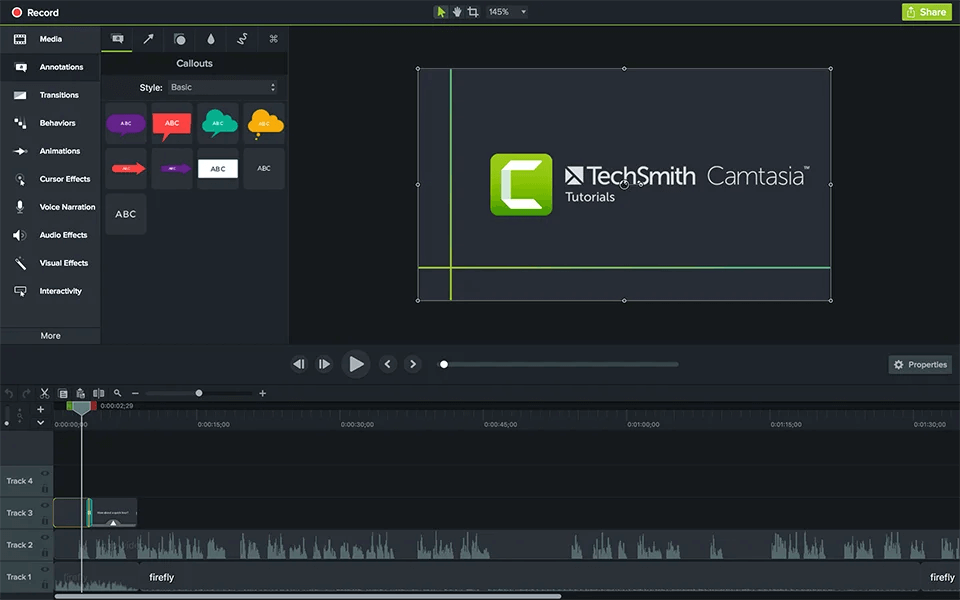
Best Tools for Product Walkthrough Videos – Camtasia
Camtasia has long been a favorite for educators, trainers, and course creators. It combines a solid screen recorder with a very robust, traditional non-linear timeline editor.
If your project requires extensive multi-track editing, complex green-screen keying, or intricate custom animations, Camtasia provides the granular control you need. The trade-off is the sheer amount of time it takes to produce a video. Manually adding every single pan, zoom, cursor highlight, and text callout across a 10-minute tutorial eats up hours of valuable time. For teams producing high volumes of videos, finding an easier Camtasia alternative can significantly speed up the workflow.
Pros:
- Excellent all-in-one suite for recording and traditional editing.
- Huge library of customizable assets, transitions, and annotations.
- Great for complex, multi-layered video projects.
Cons:
- Very time-intensive manual post-production process.
- Premium price tag compared to simpler alternatives.
- Can be resource-heavy on older computers.
Loom: Best for Quick Async Video Messaging
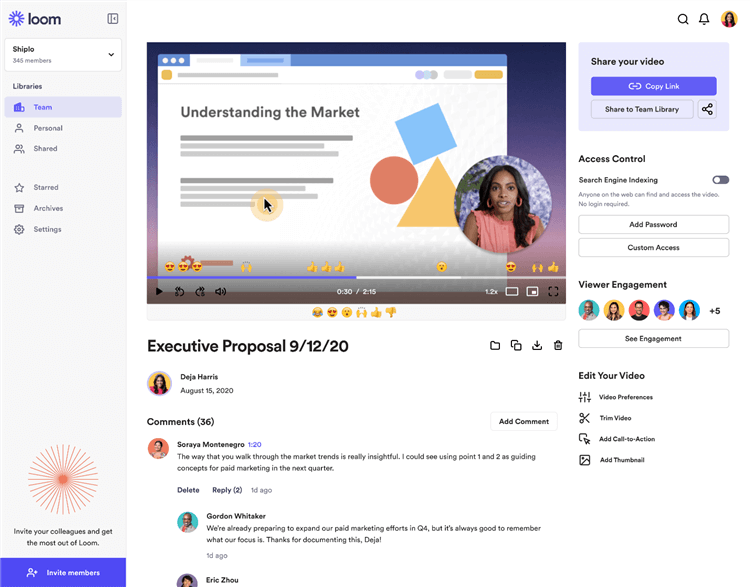
Best Walkthrough Video Maker – Loom
Loom dominates the market for quick, asynchronous video communication. It is designed to replace long emails and unnecessary meetings by allowing users to record their screen and webcam instantly from a browser or desktop app.
While Loom is the absolute fastest way to send a raw update to a colleague, it intentionally lacks the polished presentation features required for high-quality public demos, professional YouTube tutorials, or paid courses. If you need viewer attention focused on specific clicks, you might need a Loom alternative for product demos.
Pros:
- Incredibly easy to use with a fast, browser-friendly workflow.
- Instant cloud hosting and link sharing as soon as you hit stop.
- Excellent for internal team updates and fast bug reporting.
Cons:
- Lacks the dynamic visual focus (like auto-zooms or cursor highlights) needed for polished, step-by-step public tutorials.
- Output is mostly raw; any major mistakes require recording again or basic trimming.
- Requires a stable internet connection for optimal cloud recording.
FocuSee: Best AI-Powered Software for Tutorials and Demos

Show Mouse Cursor
If you are a SaaS founder, educator, or creator who needs the polished look of Camtasia but the speed of Loom, AI auto-editing software is the best path forward. FocuSee is an AI-powered screen recorder designed specifically to bridge this gap.
Instead of making you spend hours manually keyframing zooms or typing out captions, FocuSee automatically tracks your cursor, applies automatic zoom and cursor effects, and generates subtitles under supported recording conditions. It turns a basic screen recording into a dynamic, easy-to-follow tutorial with minimal manual effort.
How the FocuSee Workflow Saves Time:
- Record your screen: Capture your desktop, web app, or specific window alongside your webcam and microphone.
- Let AI apply visual focus: FocuSee automatically adds smart zoom effects and cursor highlights where you click, making complex interfaces easier to follow.
- Enhance audio and text: The software generates AI subtitles and can help remove awkward silences or background noise. Because AI accuracy depends on your microphone’s audio clarity and background conditions, these automated enhancements provide an excellent starting point rather than an instantly perfect final cut.
- Review and Export: Briefly review the AI-generated subtitles and smart cuts for accuracy, make any quick layout adjustments, and export the polished video for YouTube, social media, or your help center.
Because FocuSee handles the heavy lifting of visual focus, it is a massive time-saver for teams that need to produce professional step-by-step videos efficiently.
Screen Studio: Popular Auto-Editing Tool for Mac Users
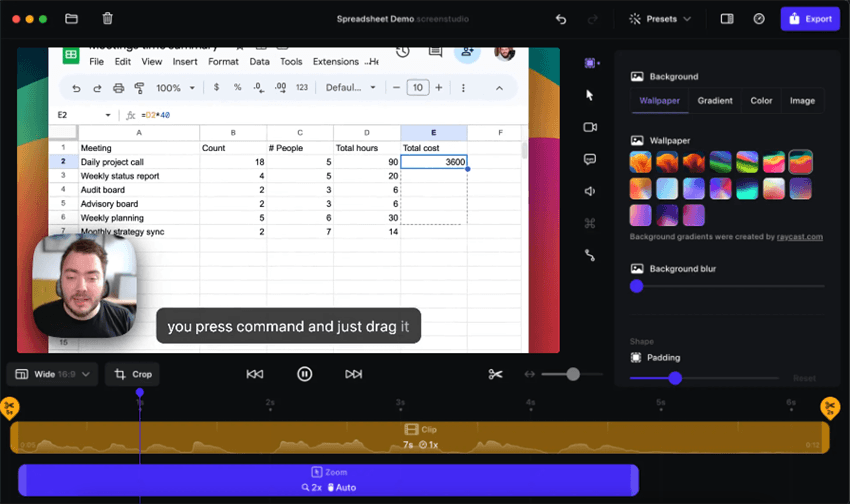
Screen Studio Interface – Mac Only
Screen Studio is another strong player in the AI auto-editing category, highly praised for its beautiful default aesthetics and smooth auto-zooming capabilities. Like FocuSee, it is designed to take a plain screen recording and instantly upgrade it with dynamic focus and cursor tracking.
While it produces stunning results for designers and Apple users, its biggest limitation is platform availability. Screen Studio is strictly a Mac-only application. This creates significant friction for Windows users or cross-platform teams who need a standardized tool across their whole organization. If your team uses PCs, you will need a reliable Screen Studio alternative that supports both Windows and Mac.
Pros:
- Excellent, high-quality default zoom and cursor animations.
- Beautiful background padding and shadow effects.
- Fast processing for high-end Apple Silicon hardware.
Cons:
- Mac-only; completely unavailable for Windows users.
- Less flexibility if you want to heavily alter the default aesthetic style.
How to Choose the Right Video Capture Software for Your Needs
With the differences in manual effort and platforms established, here is a quick decision framework to help you choose the best video capture software for your specific situation.
Note on Hardware: Always check the minimum specifications of the software you choose. Low-spec computers often suffer from lag and frame drops during recording, especially if you are attempting to capture 4K video or run multiple AI features simultaneously.
| Primary Need | Why It Fits Best | |
| OBS Studio | Free live streaming & gaming | Powerful free tool with custom scenes and full control. |
| Camtasia | Multi-track timeline editing | Advanced editing tools for complex video projects. |
| Loom | Fast team communication | Instant recording and link sharing with minimal effort. |
| FocuSee | Polished tutorials & demos (Win/Mac) | AI automates zooms, cursor tracking, and subtitles. |
| Screen Studio | Aesthetic auto-zooming (Mac) | Beautiful built-in animations for Apple-focused workflows. |
Frequently Asked Questions About Video Capture Tools
What is the best video capture software for Mac?
For traditional timeline editing, Camtasia is popular. For AI-assisted auto-editing, FocuSee and Screen Studio are top choices, though FocuSee offers cross-platform support while Screen Studio is Mac-only.
What is the best video capture software that is free or inexpensive?
OBS Studio is completely free and open-source, making it the best option if you have zero budget and don’t mind a steep learning curve.
How do you record videos from different devices for team tutorials?
You need software that supports cross-platform capture. FocuSee, for instance, allows you to record mobile screens through supported desktop workflows, making it easier to unify team tutorials.
Can I record just my webcam and gameplay separately?
Yes, advanced tools like OBS Studio allow you to isolate and record multiple sources (webcam, gameplay, system audio) onto separate tracks for granular editing later.
Which video capture software is best for low-end PCs?
Browser-based recorders like Loom rely on cloud processing, making them lighter on low-end PCs. If using desktop software, check minimum specs and record at lower resolutions (like 720p) to avoid lag.
How can I reduce the time spent editing my screen recordings?
Transition from manual editors to AI auto-editing software. Tools like FocuSee automatically handle repetitive tasks like zooming in on clicks, highlighting cursors, and generating subtitles.
What is the difference between OBS and simple screen recorders?
OBS is a broadcast tool that offers extensive customization of scenes and inputs but lacks an editor. Simple screen recorders just capture your screen to an MP4, while auto-editing recorders enhance the video for you.
Are there video capture tools that edit automatically?
Yes. The “AI Auto-Editing” category is growing rapidly. Tools like FocuSee can automatically apply smart zooms, cursor effects, and AI subtitles based on your recording actions.
The Bottom Line: Which Video Capture Software Should You Choose?
Finding the best video capture software ultimately comes down to matching the tool to your editing tolerance. If you are a streamer looking for advanced, free customization, OBS Studio remains undefeated. If your goal is to send a 30-second unpolished update to your team, Loom is the fastest way to do it. And if you enjoy spending hours in a timeline adjusting keyframes, Camtasia is a powerhouse.
However, for creators, educators, SaaS marketing teams, and support staff making public-facing tutorials and product demos, AI auto-editing is the future.
Instead of wasting hours manually editing your screen recordings to make them look professional, FocuSee does the heavy lifting for you. By automatically applying smart zooms, dynamic cursor enhancements, and AI-generated subtitles, FocuSee helps you produce highly polished videos in a fraction of the time. If you want to streamline your video creation workflow on Windows or Mac, check your system compatibility and try FocuSee today to see how much manual editing time you can save.