Best Online Screen Recorders: 10 Free Tools for Screen & Video Recording

Need to record your screen without downloading software? Online screen recorders let you capture your screen directly from a browser, with options for microphone audio, system or tab audio, webcam recording, and more. Some tools are completely free, while others offer advanced editing and sharing features.
In this guide, we’ve tested and compared 10+ online screen recorders to help you find the right tool for quick recordings, tutorials, presentations, demos, and more.
Quick Comparison: Best Online Screen Recorders
Not sure which online screen recorder is right for you? The table below compares popular browser-based tools by their main use case, free access, audio and webcam support, video quality, and recording limits.
| Best For | Free | Audio | Webcam | Time Limit | |
| FocuSee Online | Quick, watermark-free recordings | Yes | Mic + tab audio | Yes | Unlimited* |
| 123Apps | Private screen recording | Yes | Mic + system audio | Yes | Up to 90 min |
| ScreenPal | Simple recording & sharing | Yes | Mic; system audio on paid plans | Yes | 15 min |
| Loom | Quick video messages | Yes | Mic + audio | Yes | 5 min/video |
| Clipchamp | Recording + editing | Yes | Mic + tab audio | Yes | 30 min |
| VEED | Recording + online editing | Yes | Mic + supported audio | Yes | Plan-dependent |
| Screencastify | Education & Chrome recording | Yes | Mic + tab audio | Yes | 5 min/video* |
| RecordCast | Recording + basic editing | Yes | Mic + system audio | Yes | Plan-dependent |
| Panopto Express | Browser-based recording | Yes | Mic + supported audio | Yes | No fixed limit* |
| Apowersoft | Flexible screen capture | Yes | Mic + system audio | Yes | Plan-dependent |
*Features and limits can vary by browser, operating system, recording mode, or free-plan restrictions. Check the tool’s current terms before starting a long or important recording.
Quick picks: Choose FocuSee Online if you want a simple, free, no-download recorder with webcam and microphone support. 123Apps is a strong option for longer, locally processed recordings, while Loom is better suited to short recordings that need instant sharing. If you want to record and edit in the same browser workflow, Clipchamp or VEED may be a better fit.
10 Best Online Screen Recorders
The best online screen recorder depends on what you need to capture. Some tools are built for quick, no-download recordings, while others focus on video sharing, webcam recording, or browser-based editing. Here are 10 options worth considering.
1. FocuSee Online — Best for Quick, Free Screen Recording
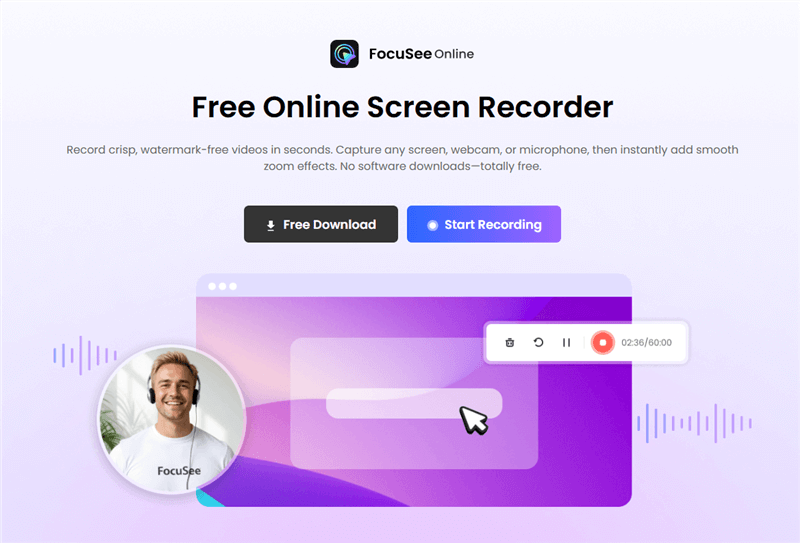
FocuSee Online Screen Recorder Free
FocuSee Online lets you record your screen, a browser tab, a window, webcam, or microphone directly from your browser. It requires no software download, account, or watermark, making it a convenient choice when you need to start recording immediately.
You can also add zoom effects after recording, which is useful for tutorials, walkthroughs, and product demos where viewers need to focus on specific parts of the screen. Recordings are processed locally in the browser, and the available recording time depends on your browser and device resources.
Best for: Quick, watermark-free recordings without installation.
2. 123Apps — Best for Simple, Private Recordings
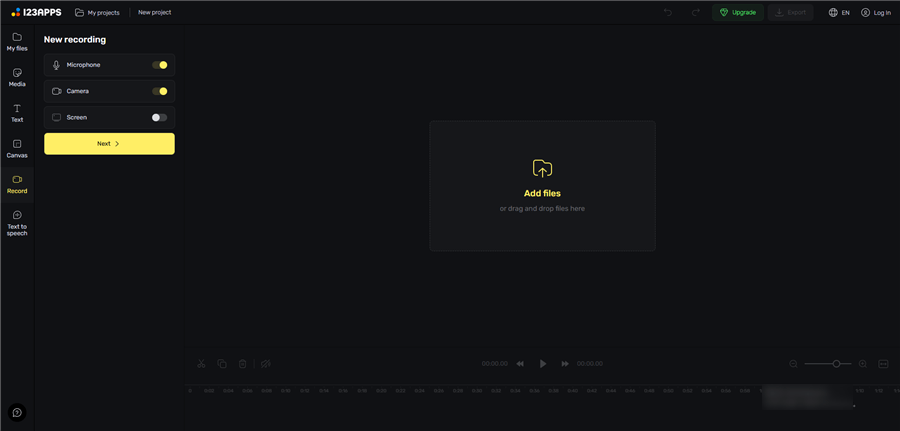
123Apps Online Screen Recorder
123Apps Screen Recorder is a straightforward browser-based option for users who want to record their screen without installing desktop software. It supports screen, webcam, and microphone recording and is designed around simple local recording and downloading.
The tool is particularly useful when you want a basic recording without creating an account or relying heavily on cloud-based video processing.
Best for: Simple, free recordings with local downloads.
3. ScreenPal — Best for Quick Recording and Sharing
ScreenPal is designed for users who want to record their screen and quickly share the result. It supports screen and webcam recording, making it suitable for tutorials, presentations, demonstrations, and short video messages.
Its main advantage is the balance between recording and sharing. Instead of using a separate tool to distribute your recording, you can use ScreenPal’s sharing workflow to send videos to others.
Best for: Quick screen recordings that need to be shared with others.
4. Loom — Best for Instant Video Sharing
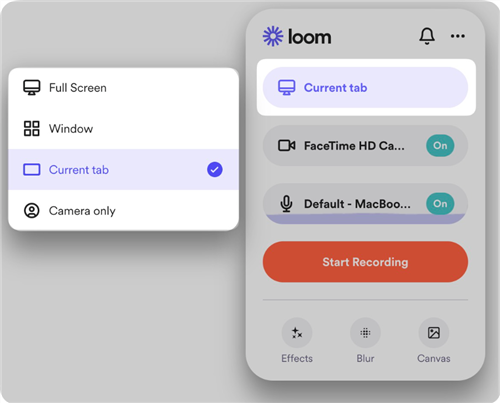
Loom Extension
Loom is especially useful for asynchronous communication, including product demos, team updates, tutorials, and feedback videos. It combines screen and camera recording with instant sharing and built-in editing.
Loom’s current free Starter plan limits screen recordings to 5 minutes per video and supports up to 720p video quality, so it is best suited to shorter recordings unless you upgrade.
Best for: Short screen recordings that you want to share instantly.
5. Clipchamp — Best for Screen Recording and Basic Editing
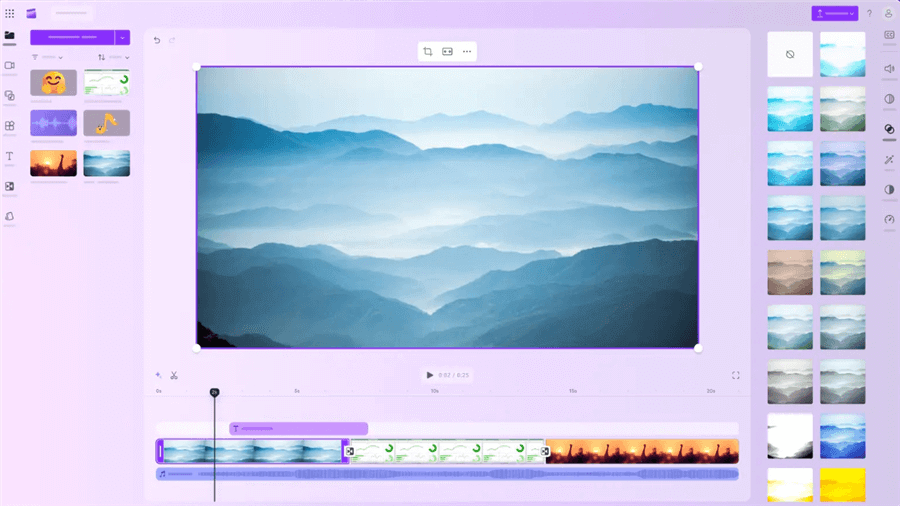
Clipchamp Interface
Clipchamp combines browser-based screen and webcam recording with video editing. You can record a browser tab, window, or entire screen with or without sound, then continue editing the recording in the same workflow.
Its online screen and camera recorder is free and supports recordings of up to 30 minutes per session without a watermark.
Best for: Recording and editing videos in the same browser-based workflow.
6. VEED — Best for Online Recording and Editing
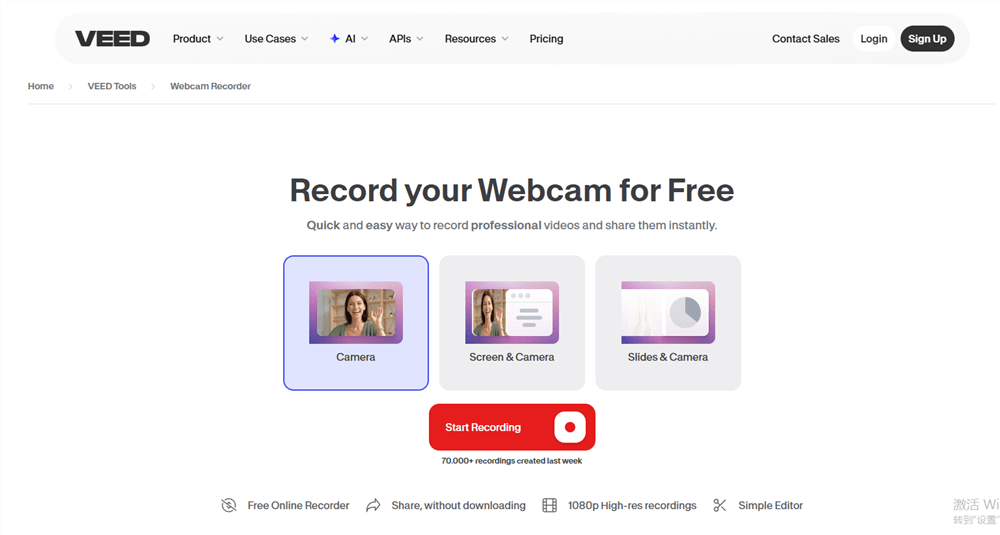
Free Online Webcam Recorder – Veed
VEED is more than a screen recorder. It combines screen, webcam, and audio recording with an online video editor, making it useful when the recording needs additional editing before publishing.
You can record a browser tab, window, or entire screen and then use VEED’s editing tools to trim, clean up, and enhance the video. Its online recorder supports high-resolution recording and includes features such as background noise removal and AI-powered editing tools.
Best for: Creating polished videos without switching to a separate editor.
7. Screencastify — Best for Browser-Based Recording and Education
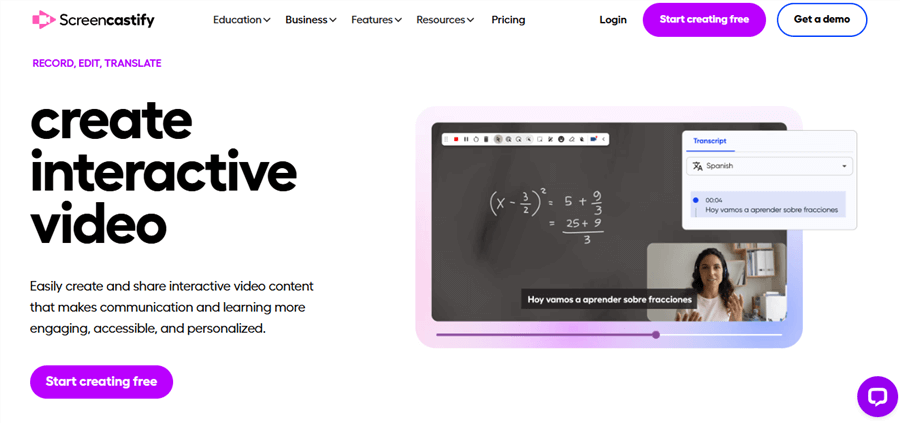
Screen Recorder and Video Editor – Screencastify
Screencastify runs directly in the browser and is particularly popular for education, training, and instructional content. It can record browser tabs, the full screen, and webcam footage, then share the finished video through its built-in workflow.
Its current free plan allows up to 10 videos and up to 30 minutes per recording, with video quality up to 1080p.
Best for: Teachers, students, and anyone creating browser-based tutorials.
8. RecordCast — Best for Simple Recording and Editing
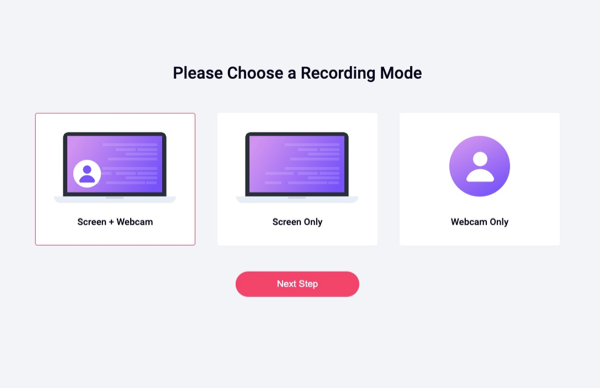
RecordCast Online Screen Recorder
RecordCast combines screen recording with a basic online video editor, so you can capture your screen and make simple edits without downloading desktop software.
It is a practical option for short tutorials, demonstrations, and video messages where you need basic trimming or webcam recording but don’t require a full professional editing suite.
Best for: Short recordings with basic browser-based editing.
9. Panopto Express — Best for Long Browser Recordings
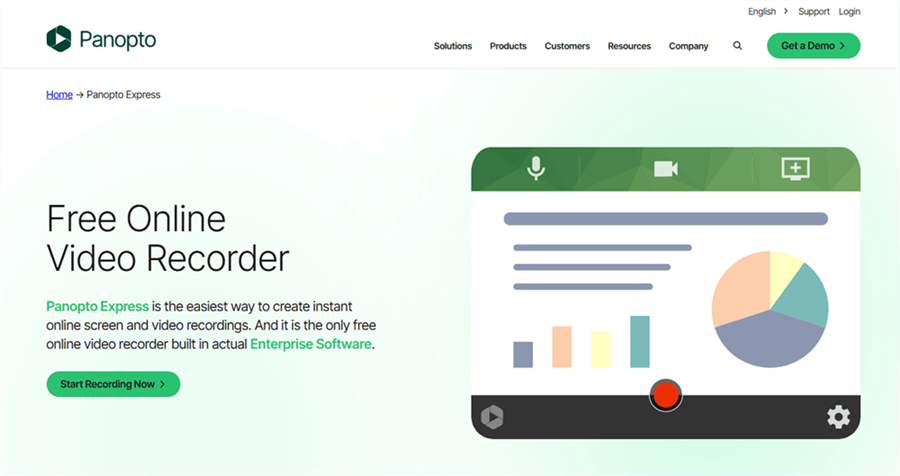
Free Online Screen Recorder – Panopto Express
Panopto Express is designed for recording video, screens, browser tabs, and applications directly from a browser. It can also combine multiple video sources in a single recording.
One notable advantage is that Panopto Express states that there are no recording time limitations, trial periods, watermarks, or feature limitations. It is therefore a strong option for longer presentations, lectures, and demonstrations.
Best for: Long presentations, lectures, and multi-source recordings.
10. Apowersoft — Best for Flexible Online Screen Capture
Apowersoft Online Screen Recorder
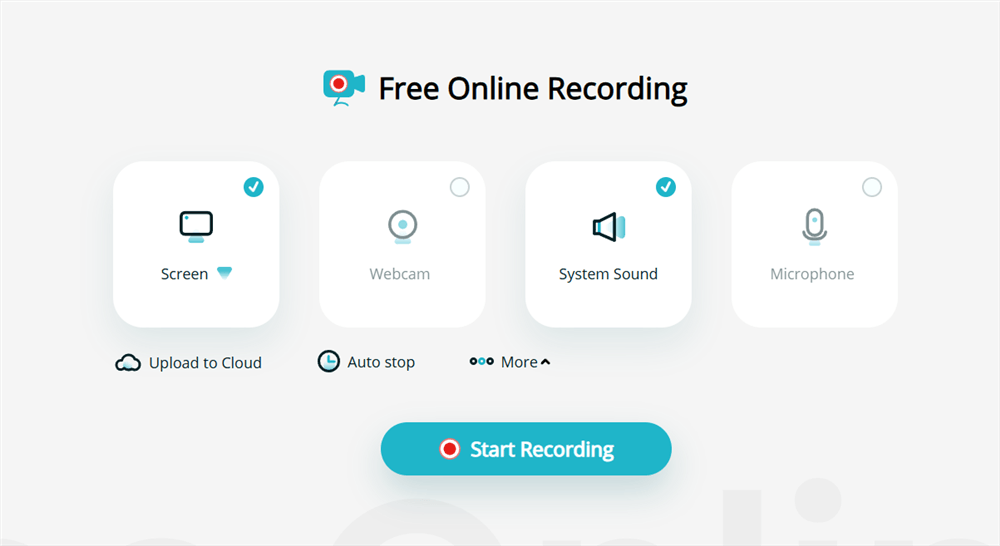
Apowersoft Free Online Screen Recorder provides several screen capture options for users who want to record directly from a browser. It supports different recording sources and can be useful for tutorials, presentations, and general screen capture.
Its broader recording options make it a good choice when you want more flexibility than a minimal one-click recorder, although some features may vary depending on the recording method and plan.
Best for: Flexible screen capture with multiple recording options.
Also Read: Apowersoft Free Online Screen Recorder Review and Alternative >
Best Free Online Screen Recorders
If you’re looking for a free online screen recorder, the best choice depends on what matters most to you. Some tools are better for watermark-free recording, while others are more suitable for longer videos, webcam capture, audio recording, sharing, or editing.
| Recommended Tool | Why | |
| Best free without a watermark | FocuSee Online | Free recording without watermark or account. |
| Best free for long recordings | Panopto Express | No stated time limit. |
| Best free for webcam recording | 123Apps | Supports screen, webcam, and mic. |
| Best free for audio recording | FocuSee Online | Supports mic and browser audio. |
| Best free for quick sharing | Loom | Record and share with a link. |
| Best free for editing | Clipchamp | Record and edit in one workflow. |
Which Free Online Screen Recorder Should You Choose?
Choose FocuSee Online if you want to start recording immediately without installing software, creating an account, or adding a watermark. It’s particularly convenient for quick tutorials, demos, and screen recordings.
Choose Panopto Express if recording length is your main concern. Its browser-based recorder doesn’t state a fixed recording time limit, making it a better fit for longer presentations and lectures.
Choose 123Apps if you need a simple combination of screen, webcam, and microphone recording without a complicated workflow.
Choose Loom if your priority is sharing rather than editing. It’s built around short video messages, making it useful for team updates, feedback, and quick explanations.
Choose Clipchamp if you want to record and edit your video in one place. Its browser-based workflow lets you make basic edits immediately after recording.
Keep in mind that “free” does not always mean unlimited. Recording time, video quality, storage, watermark restrictions, and available audio features can vary between tools and plans. Check the current limits before starting an important or long recording.
The “No Sound” Fix: Audio & Permissions
If your screen recording has no sound, the problem is usually an incorrect audio source or browser permission.
Choose the Right Audio Source
- Record your voice: Enable Microphone.
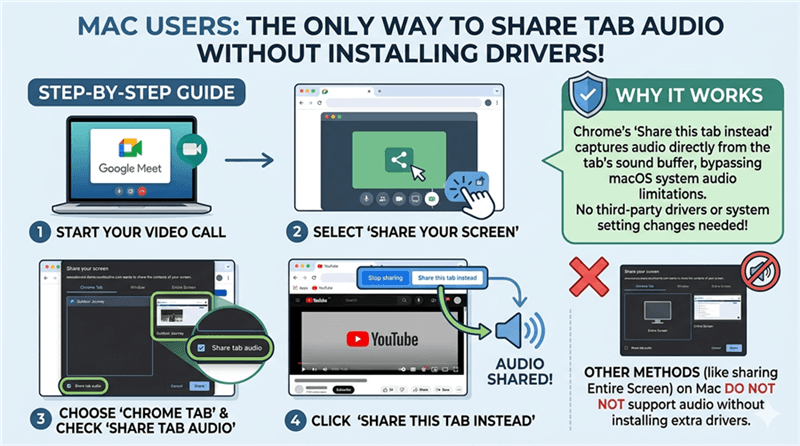
- Record audio from a website: Select Tab Audio when sharing the browser tab.
- Record sound from desktop apps: Use System Audio if your browser and operating system support it.
Mac users: Browser-based recorders may not be able to capture system-wide audio from desktop apps. If you need to record app audio, try sharing the app’s web version and capture its Tab Audio instead.
Check Browser Permissions
If your microphone isn’t working, click the lock icon next to the address bar and make sure microphone access is allowed. Refresh the page after changing the permission.
Do a Quick Test
Before recording a long video, make a 10-second test recording and check both your voice and the source audio. This simple step can prevent a silent recording.
Share this Tab Instead
Troubleshooting Quality, Watermarks, and Privacy
Browser-based screen recorders are convenient, but recording quality can vary depending on your browser, device, and network.
Fixing Lag and Quality Issues
If your recording is laggy or blurry:
- Close unnecessary tabs and apps to free up CPU and RAM.
- Enable hardware acceleration in your browser if available.
- Check the recording quality before starting, especially if you need 1080p video.
- Use a stable browser and internet connection for tools that process recordings online.
Privacy and Storage
Before using an online recorder, check how it handles your recordings.
- Local processing: Some tools process recordings directly in your browser, which can offer better privacy.
- Cloud processing: Other tools upload recordings to their servers, making sharing easier but requiring more attention to storage and privacy settings.
For sensitive or confidential content, check the tool’s privacy policy and where recordings are stored before you start recording.
Conclusion
The best online screen recorder depends on what you need:
- For quick, free recording: FocuSee Online offers browser-based recording without downloads or watermarks.
- For long recordings: Panopto Express is a strong choice with no stated recording time limit.
- For quick sharing: Loom makes it easy to record and share videos instantly.
- For recording + editing: Clipchamp and VEED combine screen recording with online editing.
If you need more advanced features such as automatic zoom, cursor effects, and professional editing, FocuSee Desktop is a better fit than a browser-based recorder. Choose the tool that matches your workflow and start recording.
FAQs About Online Screen Recorder
What is the best online screen recorder?
The best online screen recorder depends on what you need. FocuSee Online is a good choice for quick, free recordings without downloads or watermarks, while tools such as Loom, Clipchamp, and VEED are better suited to sharing or editing videos online.
What is the best free online screen recorder?
FocuSee Online is a strong option if you want a free browser-based recorder with no watermark or account required. Other free options include 123Apps, Panopto Express, and Clipchamp, depending on your recording length and editing needs.
Can I record my screen online without downloading software?
Yes. Many online screen recorders work directly in a browser and don’t require a desktop app. You typically need to allow browser permissions for screen, microphone, or webcam access before recording.
Can I record my screen with audio online?
Yes. Many browser-based screen recorders support microphone audio, while some also support browser tab or system audio. The exact audio sources available can vary by browser and operating system.
Can I record system audio with an online screen recorder?
Some online screen recorders support system or tab audio, but browser and operating system restrictions can affect how audio is captured. If you need reliable system audio recording, check whether the tool specifically supports your browser and OS before recording.
Can I record my screen and webcam at the same time?
Yes. Many online screen recorders support simultaneous screen and webcam recording. This is useful for tutorials, presentations, online lessons, and video demonstrations.
Are online screen recorders safe?
Generally, reputable online screen recorders are safe to use, but you should check how each service handles recordings and permissions. For sensitive content, a recorder that processes or stores videos locally may offer more privacy than a cloud-based service.
Can I use an online screen recorder on Mac?
Yes. Most browser-based screen recorders work on Mac as long as the browser and operating system support the required screen-recording permissions. You may need to allow screen, microphone, or camera access in macOS settings.
Can I record a browser tab with audio?
Yes. Some online screen recorders let you capture a specific browser tab together with its audio. This is useful for recording online videos, web applications, presentations, and browser-based tutorials.
Is online recording better than desktop screen recording?
Online recording is better when you need a quick recording without installing software. Desktop screen recorders are generally more suitable for long recordings, advanced editing, higher-quality exports, and features such as automatic zoom or cursor effects. Choose based on the type of video you need to create.