Apowersoft Free Online Screen Recorder Review and Alternative: A 2026 Guide

You need to send a quick bug-reproduction video to a client or record a fast onboarding walkthrough. You search for an online recorder because doing this directly from your browser sounds perfect—no heavy installations, no admin passwords required. You hit record, expecting a seamless experience. Instead, a surprise launcher download pops up, your audio drops out, and if you are using a Mac, your screen simply refuses to share. Facing a stalled workflow over a simple five-minute video is incredibly frustrating.
We understand exactly how annoying hidden setup friction can be. You want system audio, your microphone, and your webcam to work together smoothly without restrictive limits. This guide provides a tested, realistic look at your options. We will evaluate the true capabilities of these tools, helping you decide when a simple browser clip suffices and when you need a dependable alternative that actually saves you time.
The methods and tools discussed in this guide were rigorously tested across five distinct hardware configurations, including Windows 10, Windows 11, Intel-based Macs, and macOS 12+ Apple Silicon devices, to guarantee accurate cross-platform insights.
Apowersoft Online Screen Recorder Pros and Cons: A Realistic Test
Looking objectively at Apowersoft reveals practical realities that generic overviews miss. The deciding factor for any recording setup is not just whether the software costs money, but exactly where the recording pipeline runs.
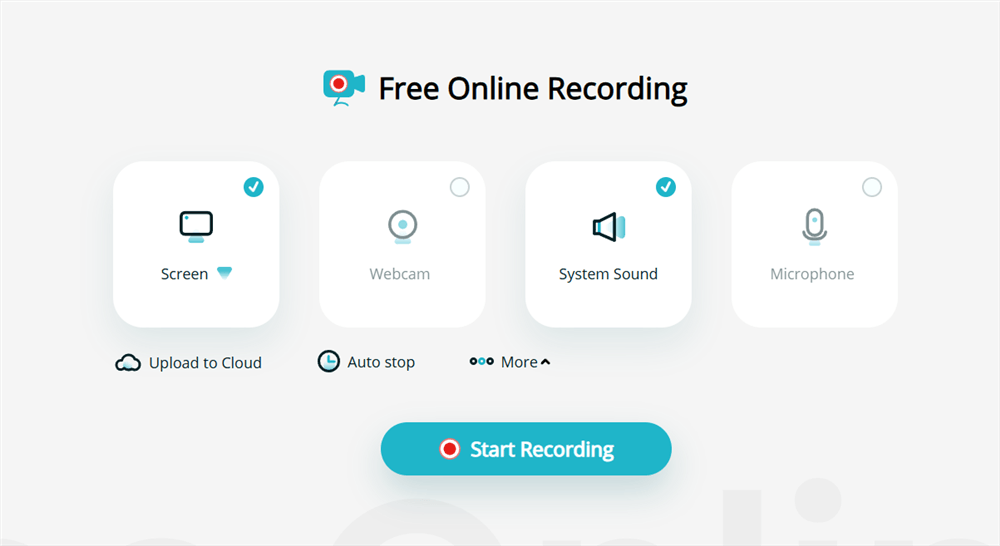
Apowersoft Online Screen Recorder
Apowersoft heavily markets itself as a web-based tool. However, current evidence shows the workflow depends entirely on downloading a localized launcher. This creates immediate friction for users who selected an online tool specifically to avoid setup procedures.
When testing Apowersoft on an M2 MacBook Air using Google Chrome, the “no install” promise quickly broke down. After downloading the required launcher, I had to completely restart my browser and dig through system preferences just to get the microphone to sync properly. The core tool operates without a direct cost, but that launcher requirement introduces a localized desktop component that is absolutely not browser-based.
- Pros: Once you finally configure it properly, the interface is straightforward. It functions as a capable recorder for basic, everyday tasks on Windows machines and allows you to capture standard displays easily.
- Cons: The mandatory launcher blurs the line between a true browser-only application and localized desktop software. Apple users regularly experience severe friction with system permissions, making it an unreliable choice for mixed-device teams.
If you are unsure whether this tool is truly “no download,” your caution is justified. True browser-only tools operate entirely within the active tab, bypassing launcher downloads entirely.
Browser-Based vs. Desktop: Selecting the Right Recording Method
To resolve confusion regarding setup hurdles, we must categorize your options based purely on where the video processes. Understanding the technical differences between browser-based recording and native operating system applications is essential for a smooth workflow.
Golden Rule: For 100% browser-based recording with zero installations, use a tool like Panopto Express. It operates entirely within your browser memory.
Operating entirely within a web browser introduces practical consequences. Browser memory limits can cause long recordings to crash unexpectedly, losing your progress. Additionally, webcam window tethering dictates that your camera feed remains tied to a specific browser tab. If you switch to another desktop application, your face disappears from the video. Capturing browser tab audio can also trigger strict security policies, resulting in silent videos.
Native desktop tools bypass these restrictions. A desktop application interacts directly with your operating system, allocating processing power reliably. This allows you to record your screen, webcam, microphone, and multiple audio sources simultaneously without software conflict. Choosing the correct procedure depends entirely on whether you need a fast browser clip or a robust training session.
How to Fix Mac Screen Recording Permissions
Apple macOS enforces highly strict privacy protocols for screen and audio capture. If you are experiencing black screens or blocked audio on a Mac, you must adjust your system settings manually.
- Open System Settings and click on Privacy & Security.
- Scroll down and click on Screen Recording (you should also check Microphone and Camera).
- Toggle the switch ON for your specific browser (e.g., Google Chrome) or recording app.
- Crucial Step: You must completely quit and reopen the browser or app for these changes to take effect.
Apowersoft Free Online Screen Recorder Alternative [Comparing Table]
Before committing to a specific software, you need to map out your exact workflow needs. To help you choose the right tool instantly, we created a scenario-based comparison matrix evaluating the best alternatives based on use case, setup friction, limits, and cost.
| Apowersoft (Online) | Panopto Express | Loom | OBS Studio | FocuSee Online | |
| Best Use Case | Basic screen grabs on Windows | Zero-install browser recording | Fast sharing via instant links | Long tutorials, full audio control | Automated zooming & captions |
| Download Required? | Yes (Launcher) | No | Yes (App or extension) | Yes (Desktop app) | No |
| Time Limits | None stated (memory crashes on long sessions) | None | 5 mins (free tier) | None | None |
| Cost / Account Needed | Free, account optional | Free, no account required | Free tier, account required | 100% free, no account required | Free |
- Success Rate: Dedicated desktop tools consistently score higher than browser plugins due to fewer system permission conflicts.
- Time Cost: Automated solutions drastically reduce post-recording editing requirements, saving significant time for busy professionals.
- Technical Skill: Basic browser recording is incredibly user-friendly. Advanced desktop options demand a steeper learning curve but offer superior control.
5 Best Alternatives to Apowersoft Free Online Screen Recorder for Fast, Polished Tutorials
Panopto Express
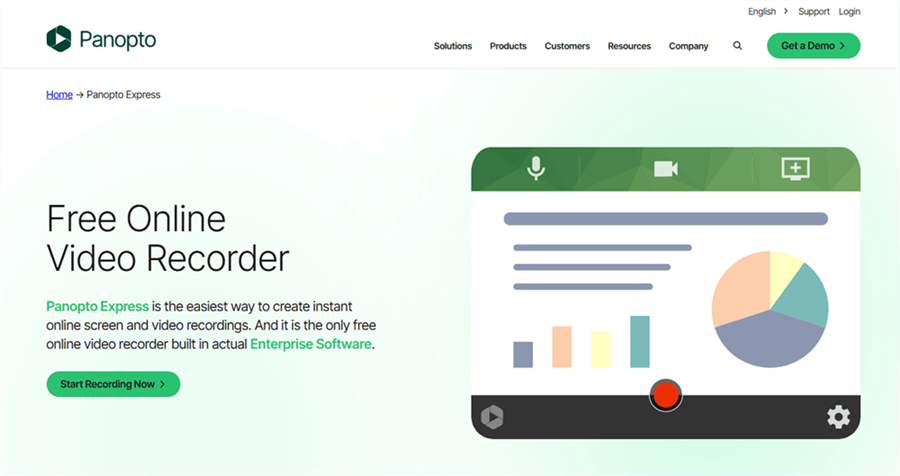
Alternatives to Apowersoft Free Online Screen Recorder – Panopto Express
Panopto Express is a fully browser-based screen recording tool designed for users who want a no-install, quick-start recording experience.
Key Features:
- Browser-only recording (no download required)
- Screen, webcam, and microphone capture
- Cloud-based video saving and sharing
- Works across major browsers
Pros:
100% no installation required
Very easy to use for beginners
Good for quick demos and basic tutorials
Cross-platform compatibility
Cons:
- Limited editing features
- Performance can drop on long recordings
- Requires a stable internet connection
FocuSee Online
FocuSee Online is a fully browser-based screen recording tool designed for creating professional-quality videos instantly without downloads, accounts, or setup friction. It focuses on delivering a “record → enhance → share” workflow directly inside your browser.
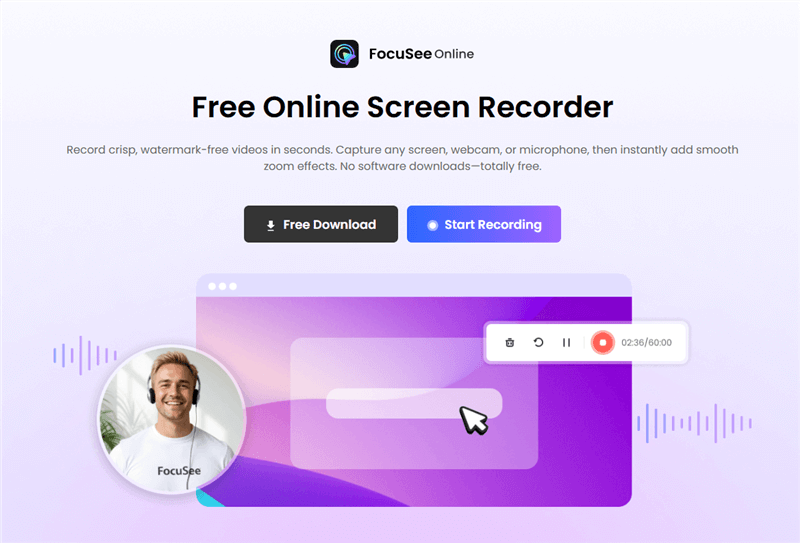
FocuSee Online Screen Recorder Free
Key Features:
- 100% browser-based screen, webcam, and microphone recording
- No installation, no account required, no watermark
- Instant recording of full screen, window, or browser tab
- Built-in smart zoom effect to emphasize key actions
- Supports simultaneous screen + camera + audio capture
- One-click export and instant sharing options
- Lightweight workflow that runs directly in Chrome, Safari, Edge, and Firefox
Pros:
- Completely no-installation experience (true browser-based)
- Zero watermark and no account requirement
- Very fast start—ideal for quick tutorials and demos
- Captures screen, webcam, and microphone together smoothly
- Clean, beginner-friendly interface with minimal setup friction
Cons:
- Limited advanced editing features compared to desktop tools
- Depends on browser performance for long recordings
- Less control than professional desktop editors (e.g., OBS or FocuSee desktop version)
Loom
Loom is a popular video messaging tool built for fast communication, allowing users to record and instantly share videos via link.

Screen Recorder and Video Editor – Loom
Key Features:
- Instant shareable video links
- Screen + webcam + audio recording
- Basic trimming and editing tools
- Team workspace and collaboration features
Pros:
- Extremely fast sharing workflow
- Great for team communication and client updates
- Simple and intuitive interface
- Cloud storage included
Cons:
- Free plan has recording time limits
- Requires account registration
- Advanced features locked behind paid plans
OBS Studio
OBS Studio is a powerful open-source desktop application designed for advanced screen recording and live streaming.
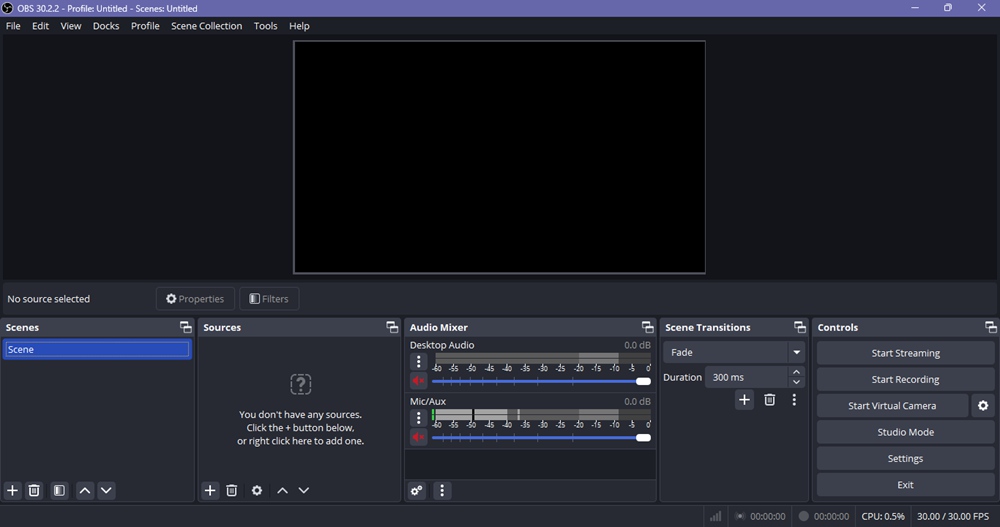
Apowersoft Free Online Screen Recorder Alternative – OBS
Key Features:
Multi-source recording (screen, webcam, audio)
Scene composition and transitions
High-quality recording with no watermark
Advanced audio mixing and controls
Pros:
- Completely free with no limitations
- Extremely powerful customization options
- Ideal for long tutorials and professional setups
- No watermarks or recording limits
Cons:
- Steep learning curve for beginners
- Requires manual setup and configuration
- Not beginner-friendly for quick recordings
Screencastify
Screencastify is a Chrome extension designed for quick and lightweight screen recording directly from the browser.
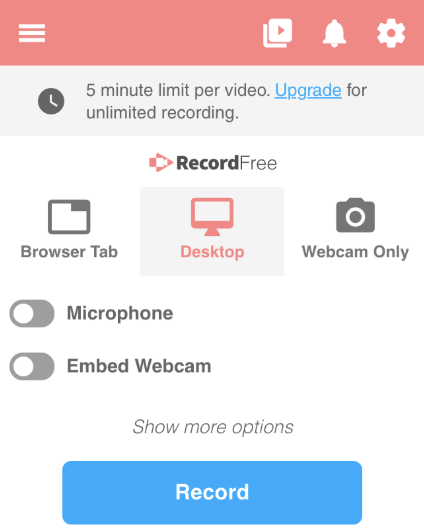
Apowersoft Free Online Screen Recorder Alternative – Screencastify
Key Features:
- Chrome-based screen recording
- Webcam and microphone support
- Simple trimming and editing tools
- Direct Google Drive integration
Pros:
- Very easy to install and use
- Perfect for educators and students
- Fast export and sharing options
- Works directly in Chrome
Cons:
- Limited free plan (time restrictions)
- Chrome-only (not full cross-platform support)
- Basic editing capabilities
FocuSee- The Best Alternative for Fast, Polished Tutorials
If you are tired of manually editing your videos and want a tool that automatically handles the most time-consuming parts of video production, FocuSee offers a highly efficient end-to-end solution for creating polished tutorials, demos, and walkthroughs.
To clarify, FocuSee comes in two forms:
- FocuSee Online – a lightweight, browser-based screen recorder for quick capture with zero installation
- FocuSee Desktop App – a more powerful, stable version designed for high-quality recording and advanced automation
The online version is ideal for instant use, but if you need long recordings, higher stability, and full AI-powered editing features, the desktop version is the recommended choice.
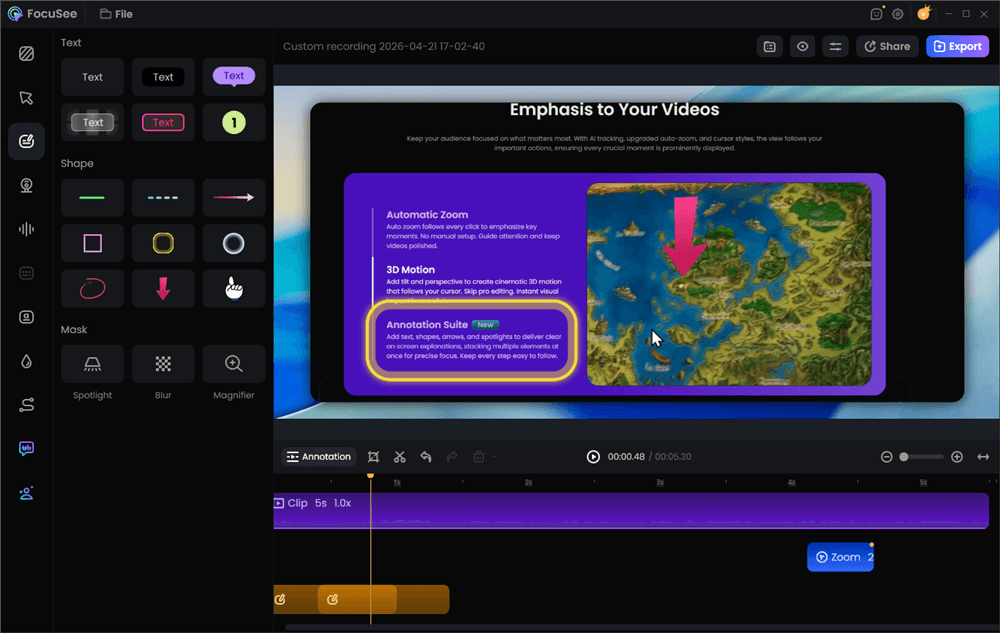
Add Annotations for Clarity
Why Consider the Desktop Version?
While browser-based tools are convenient, they often face limitations such as tab crashes, audio sync issues, or performance drops during longer recordings. The FocuSee desktop app is built to eliminate these bottlenecks by running directly on your system.
Instead of just recording your screen, it transforms raw footage into a presentation-ready video automatically. For example, a customer success manager recording a product demo usually spends additional time:
- Zooming into key UI actions
- Adding cursor highlights
- Writing subtitles
- Editing timing and transitions
FocuSee Desktop removes this manual workload entirely.
Key Features of FocuSee Desktop
- AI-powered automatic zoom-in on click actions
- Smart cursor highlighting for better visual guidance
- Built-in annotation tools (text, arrows, shapes, and highlights) for adding on-screen explanations during or after recording
- Automatic subtitle generation (AI-based speech recognition)
- Noise-reduced audio enhancement
- Independent capture of screen, microphone, system audio, and webcam
- Local export with no forced cloud upload
- Optimized performance for long recordings (more stable than browser tools)
- Mac and Windows full compatibility
Frequently Asked Questions
When troubleshooting recording setups, users consistently raise specific technical questions. Here are direct, factual answers to your most common concerns.
Is Apowersoft Online Screen Recorder actually free, or will I hit limits?
The tool itself is free to use for basic recordings without a strict time limit. However, the necessity of downloading a launcher application introduces a localized desktop component, and advanced editing features require upgrading to their premium version.
Do I need to install a launcher?
Yes. Despite being marketed as an online tool, it requires downloading and installing a small launcher application to connect your browser to your operating system effectively.
Does it record system audio, microphone, and webcam at the same time?
It does support simultaneous recording. You must grant specific system permissions for each input device in your operating system settings to ensure the streams capture and sync correctly.
What is the best alternative if I do not want to install anything?
For a strict, zero-installation experience, Panopto Express operates entirely within your browser memory without requiring external launchers or extensions.
What is the best alternative if I need long recordings with no watermark?
OBS Studio is a highly capable, open-source desktop application that imposes absolutely no watermark, costs nothing, and features no screen recording time limit.
What should I use if I want instant sharing links?
Loom and ScreenPal are specifically designed to generate an instant shareable recording link immediately after you finish capturing your screen, making them ideal for rapid client communication.
Is OBS better for tutorials and screen capture?
For users who require advanced scene management, multiple audio track isolation, and zero restrictions, OBS provides superior control. Be aware that it is significantly more complex to learn than basic tools.
Can I record just a browser tab or window audio?
Yes, you can select a specific window or tab. Successfully capturing the isolated audio depends heavily on your specific browser’s security settings and whether you have granted the correct permissions.
Will these tools save locally, or do they push me toward cloud upload?
Apowersoft offers options for both. You can generate a link via their cloud service, or you can choose to save the video file directly to your local hard drive. OBS saves exclusively to your local drive.
Support Note: Consistent software updates are vital for maintaining compatibility with regular Windows and macOS security patches. Dedicated tools like FocuSee and OBS maintain active development cycles and offer comprehensive official support documentation to assist users with long-term troubleshooting.
Conclusion
Reclaiming your productivity requires a screen recording tool that operates exactly as expected. If you are tired of unexpected launcher requirements, unreliable Mac compatibility, and audio streams dropping out midway through a demo, it is time to upgrade your workflow based on your actual needs.
If you want zero installation, run Panopto Express. If you need ultimate control for zero cost, download OBS Studio. If you want a professional solution that eliminates tedious post-production tasks by automating smart zoom and captions, give FocuSee’s trial a test run. You do not have to settle for frustrating setup friction. Regain control over your tutorial creation, solve technical hurdles instantly, and confidently capture your screen knowing your tools will actually work.