10 Best AI Voice Enhancers (Fix Noise, Echo & Low-Quality Audio Fast)

For content creators, audio quality is often the barrier between being perceived as an amateur or a professional. If you are searching for the best AI voice enhancer solutions, you likely share a common frustration: you’ve recorded a great interview or tutorial, but on playback, it’s plagued by background hiss, echo, or muddy vocals. You need a tool that can salvage your recordings without requiring a degree in sound engineering.
This guide is the result of hands-on testing to find the best AI voice enhancer software capable of genuine voice clarity improvement. We tested these tools on over 50 different audio files—ranging from quiet room recordings on a MacBook Pro to noisy street interviews on a Pixel 7—to separate the marketing hype from the tools that actually deliver studio-quality results.
At a Glance: The Top 10 Tools Compared
To help you choose quickly without opening ten different tabs, here is a breakdown of pricing, privacy, and best use cases for our top picks.
| Tool | Best For | Price Model | Platform | Privacy |
| Adobe Podcast | Podcasters (Audio only) | Free/Sub | Web | Cloud |
| FocuSee | Video Tutorials and demo | One-time/Sub | Win/Mac | Local |
| Descript | Text-based Video Editing | Freemium/Sub | App/Web | Cloud |
| Krisp | Live Calls (Zoom/Teams) | Freemium/Sub | App | Local |
| Auphonic | Batch Processing | Freemium/Credits | Web | Cloud |
| NVIDIA Broadcast | Live Streaming (RTX) | Free | Win | Local |
| Lalal.ai | Music Stem Separation | Pay-per-minute | Web | Cloud |
| Media.io | Quick File Conversion | Freemium | Web | Cloud |
| Veed.io | Social Media Clips | Subscription | Web | Cloud |
| Audo Studio | Simple Noise Cleaning | Freemium | Web | Cloud |
10 Best AI Voice Enhancer Software by Use Case
We have categorized the top tools by their primary workflow. Different algorithms are optimized for different tasks, from real-time noise suppression to post-production restoration.
Best AI Voice Enhancers by Use Case:
- Podcast & voice clarity: Adobe Podcast, Descript
- Video tutorials: FocuSee
- Real-time calls: Krisp, NVIDIA Broadcast
- Quick online cleanup: Veed.io, Audo Studio
- Music processing: Lalal.ai
Best for Podcasters & Spoken Audio
1. Adobe Podcast (Enhance Speech)
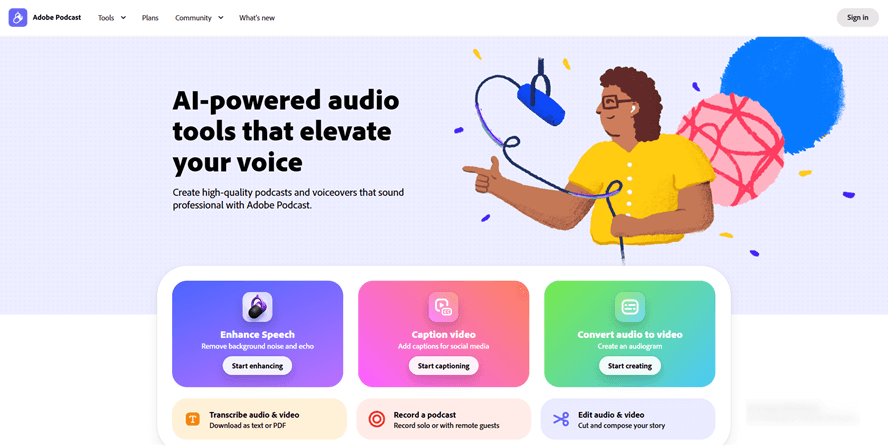
Adobe Podcast
An industry favorite for podcast audio quality. Adobe’s algorithm excels at removing echo and making average built-in microphones sound like a professional studio setup.
- Pros: Incredible echo removal; free web version is very generous.
- Cons: Can sound robotic at full strength; no fine-tuning controls on the free web version.
- Expert Insight: Use the “Strength” slider in the Premium version. Dialing it back to 70% often retains more natural room tone than the default 100%.
2. Descript
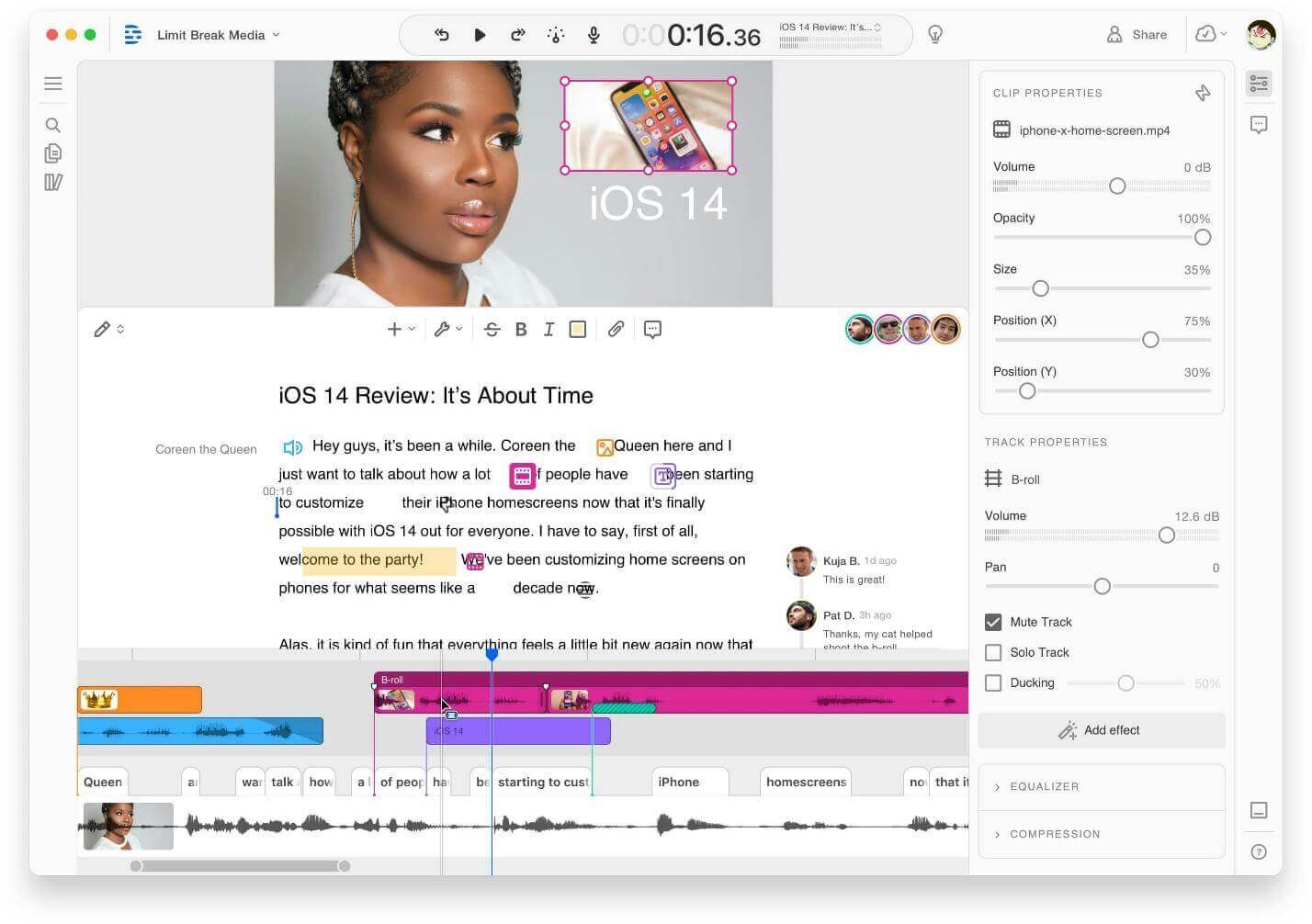
Descript
Known for its “Studio Sound” feature, this tool combines speech enhancement AI with text-based editing. You edit your audio by deleting text from the transcript.
- Pros: All-in-one editor; regenerative AI fills in gaps in speech.
- Cons: Subscription-based; requires uploading files to the cloud.
- Best For: Creators who want to edit the content of their podcast, not just the quality.
3. Auphonic
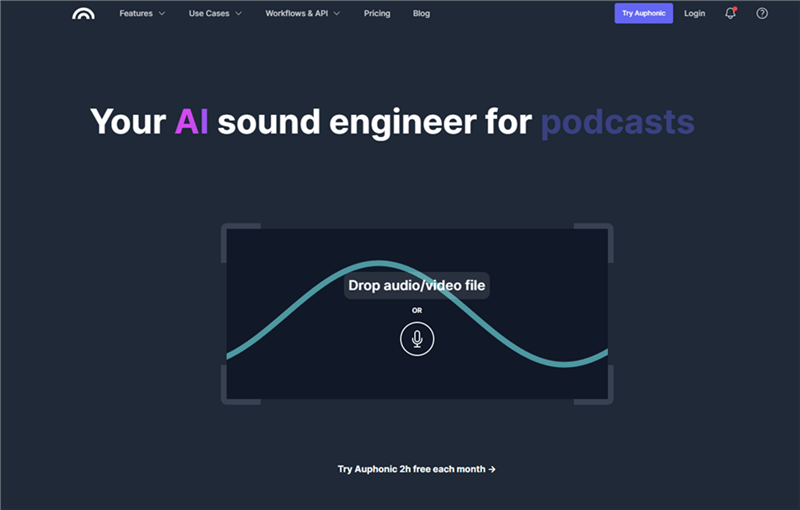
Best AI Voice Enhancer – Auphonic
A post-production web tool that automates leveling, loudness normalization, and noise reduction. Unlike others, it processes multiple files at once.
- Pros: Great for standardizing volume across different speakers; supports video files.
- Cons: The interface is utilitarian and less intuitive for beginners.
Best for Video Creators & Tutorials
4. FocuSee
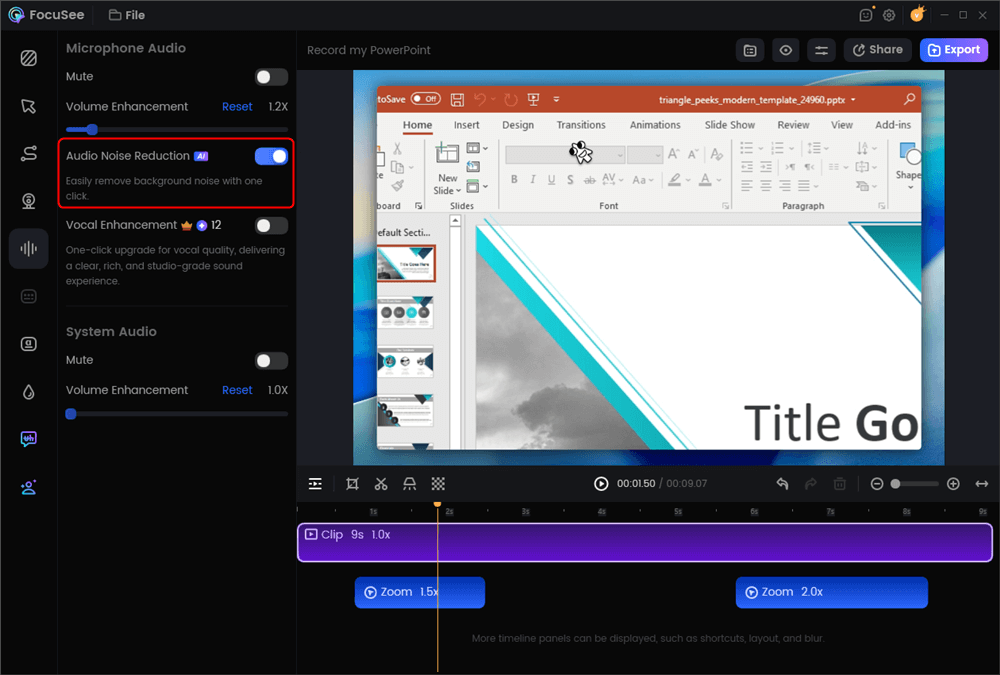
AI Audio Enhancement
For creators making screen recordings or tutorials, FocuSee creates a streamlined workflow. It isn’t just an audio tool; it’s a screen recorder that applies AI Audio Enhancement automatically during the editing phase.
- Pros: Handles video editing (zooms/cursor effects) and audio cleaning in one step; processes locally on your computer (great for privacy).
- Cons: Designed specifically for screen recordings, not general audio files.
- Why it works: It solves the workflow bottleneck. Instead of exporting audio to fix it elsewhere, FocuSee applies noise reduction and equalization instantly while you edit the video.
Check more powerful features of FocuSee from this video:
5. Veed.io
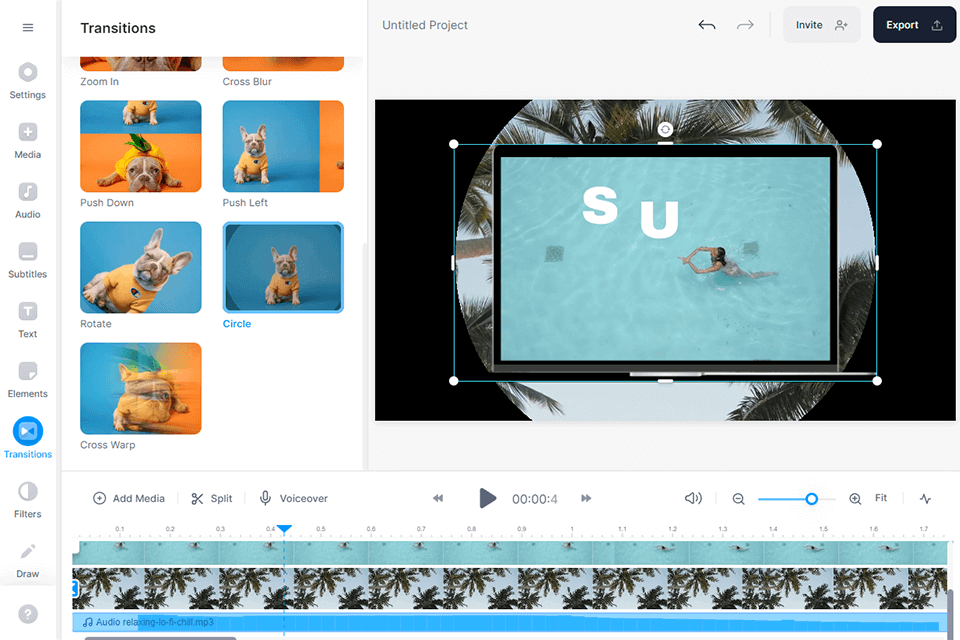
AI Audio Enhancer – Veed
A cloud-based video editor with a “Clean Audio” button. It effectively removes wind noise and static from uploaded video clips.
- Pros: entirely browser-based; great for adding subtitles alongside audio cleaning.
- Cons: Export times can be slow for large 4K files; subscription required for watermark-free exports.
Best for Real-Time Calls & Streaming
6. Krisp
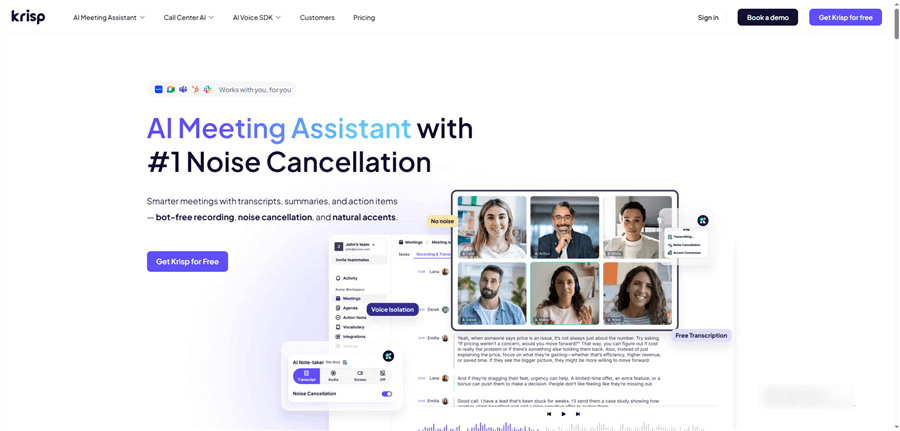
Best AI Voice Enhancer – Krisp
The leader in real-time voice enhancement. It sits between your microphone and your conferencing app (such as Zoom/Teams) to instantly filter out background noise.
- Pros: Bidirectional noise cancellation (removes noise from both the caller and other people on the call).
- Cons: It doesn’t record audio; it only cleans live streams.
7. NVIDIA Broadcast
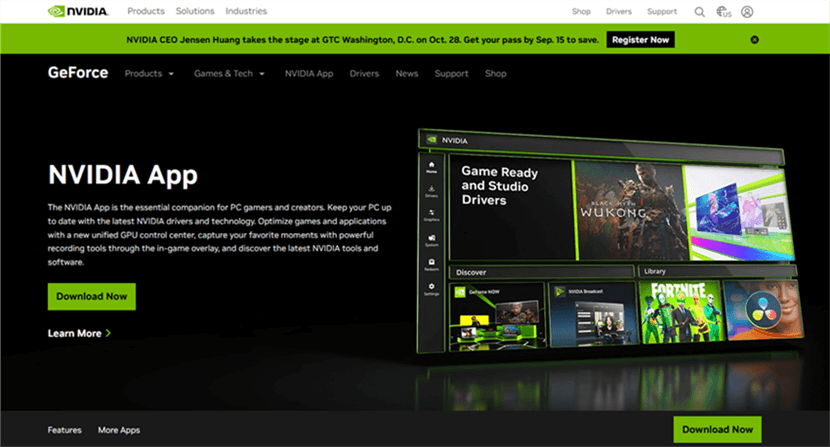
AI Audio Enhancer – NVIDIA ShadowPlay
Ideal for Windows users with RTX graphics cards. It uses your GPU to perform powerful local voice isolation.
- Pros: Completely free; extremely low latency; creates a “virtual green screen” for video too.
- Cons: Hardware restricted (requires NVIDIA RTX card); Windows only.
Best for Music & Quick Fixes
8. Lalal.ai
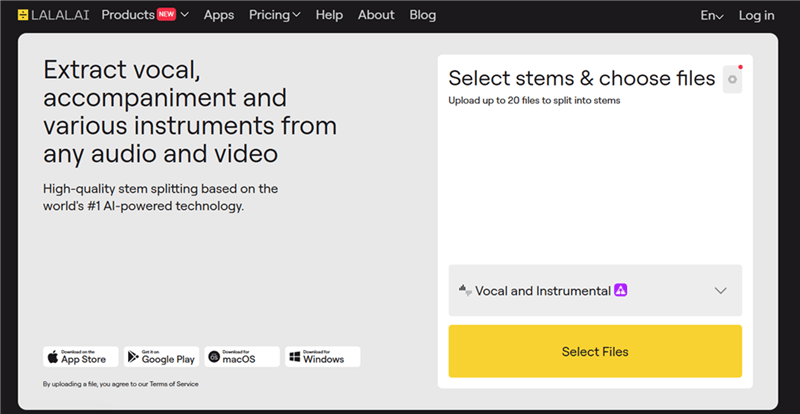
Best AI Voice Enhancer – Lalal AI
Specialized in stem separation, allowing you to isolate vocals from a musical track with high precision.
- Pros: Best-in-class for removing background music, not just static noise.
- Cons: Pay-per-minute pricing structure can get expensive.
9. Media. io
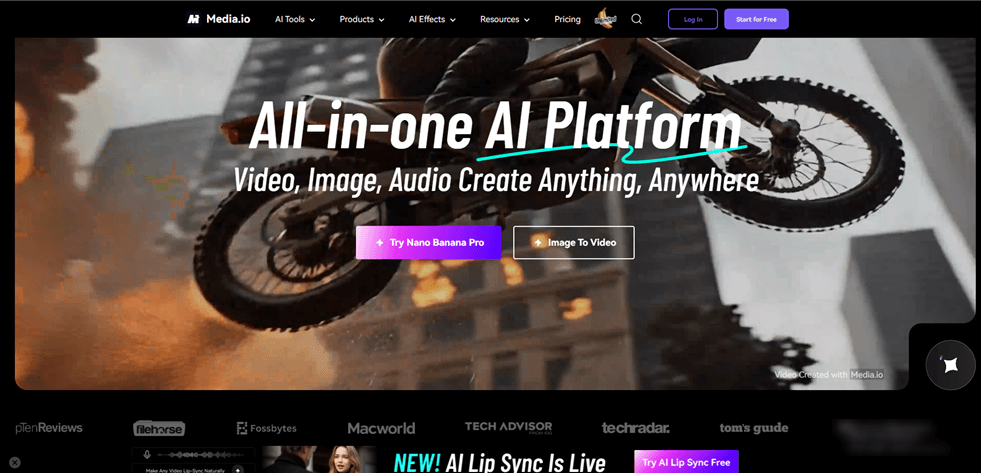
Best AI Voice Enhancer – Media. io
A browser-based AI voice cleaner is good for quick file conversions and light noise reduction.
- Pros: Simple drag-and-drop interface; supports many file formats.
- Cons: Privacy concern (files uploaded to cloud); limited free processing.
10. Audo Studio
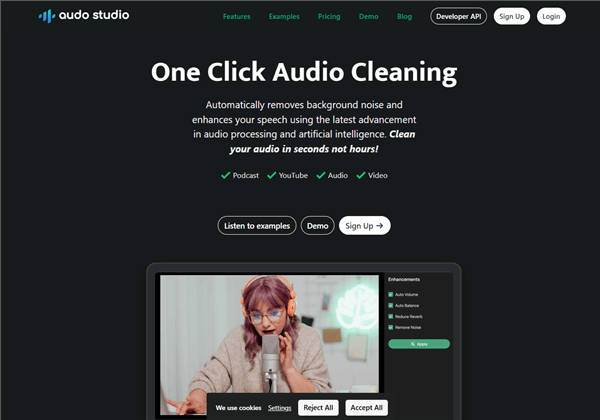
Best AI Voice Enhancer – Audo Studio
A simplified interface focused purely on cleaning up noisy speech recordings.
- Pros: One knob to control noise reduction intensity.
- Cons: Less advanced feature set than Descript or Adobe.
Behind the Tech: Why Some Enhancers Sound Robotic (And How to Fix It)
A common frustration is discovering that an AI tool has made your speech sound metallic, clipped, or “underwater.” Based on our analysis, this happens when users expect AI to totally “fix” broken recordings.
The Science of Artifacts:
When AI tools are pushed too hard, they suffer from over-processing. Tools that rely on simple spectral subtraction often cut into the frequencies of the human voice. The solution is rarely “more processing,” but rather finding the right balance.
How to Fix the “Robotic” Voice:
- Lower the Intensity: In tools like Adobe Podcast or Descript, locate the “Strength” or “Intensity” slider. Lowering it from 100% to 40–60% brings back natural breath sounds and room tone, removing the robotic edge.
- Check the Noise Gate: If words are getting cut off at the start or end, your noise gate threshold is too high. Lower the threshold so the AI doesn’t mistake quiet syllables for background noise.
- Mix with Raw Audio: If the software allows (like in a DAW), mix the processed signal with a little bit of the original raw audio to add texture back to the voice.
Robotic audio usually happens when AI noise reduction removes parts of the human voice along with background noise.
Pro Tips: Getting Studio-Quality Voice on a Budget
While finding the best AI voice enhancer is important, software cannot work miracles on terrible input. Helping the AI before hitting record yields significantly better results.
Pre-Software Optimization
To ensure your voice cleaner delivers natural results, follow these budget-friendly steps:
- Dampen the Room: Echo is the hardest artifact for AI to remove without sounding robotic. Use soft furnishings—pillows, blankets, or clothes racks—around your microphone to absorb bouncing sound waves.
- Mic Proximity: Get closer to the microphone (about a fist’s distance). This increases the signal-to-noise ratio, making voice isolation much easier for the algorithm.
- Lower the Gain: High sensitivity picks up computer fans and street noise. Lower your input gain and speak up; this gives the AI a cleaner “target” to enhance.
FAQ: Common Questions About AI Voice Enhancement
Do I need to upload my files to the cloud?
It depends on the tool. Adobe Podcast, Descript, and Media.io process files in the cloud, which may not be suitable for sensitive corporate data. FocuSee, Krisp, and NVIDIA Broadcast process audio locally on your device, offering better privacy and security.
Why does my voice sound robotic after enhancement?
This occurs when the noise reduction is too aggressive, removing natural frequencies along with the noise. Try lowering the enhancement intensity to roughly 50% or moving closer to your microphone during recording to give the AI a better signal.
Is there a free AI voice enhancer that works well?
Yes. Adobe Podcast’s web tool is excellent for free voice clarity improvement, though it has file size limits. NVIDIA Broadcast is free if you already own the hardware.
What is the best tool for video tutorials specifically?
For video tutorials, FocuSee is the most efficient choice because it handles the visual edits (pan and zoom) and the audio enhancement in a single automated workflow, saving you from switching between multiple apps.
Conclusion
Achieving professional audio no longer requires expensive hardware or years of training. The key is identifying your specific workflow—whether you need real-time suppression for calls, deep cleaning for podcasts, or a quick fix for video tutorials.
For creators who want to minimize post-production time, FocuSee offers a compelling all-in-one workflow. By combining screen recording, auto-editing, and local AI audio enhancement, it eliminates the technical barriers that often slow down video production. Download FocuSee today to experience immediate voice clarity improvement and produce the studio-quality content your audience deserves.