Fixed! Xbox Game Bar Screen Recording Not Working

“There was a problem trying to get your captures. Try again in a bit” previous solution not working.
— A user from Learn Microsoft
Experiencing issues with your Xbox Game Bar screen recording can be frustrating, especially when you want to capture and share your gaming moments. But don’t worry, there are 10 potential fixes you can try to get your screen recording running smoothly again. There are 10 effective ways to troubleshoot and resolve common problems with Xbox Game Bar screen recording.
Xbox Game Bar Screen Recording Not Working
Why Is the Xbox Game Bar Not Recording?
The Xbox Game Bar not recording can be due to several reasons, and there are various solutions to troubleshoot and fix the issue. Here are some common reasons:
- Xbox Game Bar may be disabled
- Missing enabled files in the Registry Editor
- Built-in restrictions in some games
- App bugs or settings issues
- Game Bar settings are not correctly configured to record game clips.
- The Xbox Game Bar might not work properly if Game mode is disabled.
10 Fixes! Xbox Game Bar Recording Not Working
If you’re experiencing issues with Xbox Game Bar screen recording not working, you can try the following steps to troubleshoot and resolve the problem:
Fix 1. Check Xbox Game Bar Settings
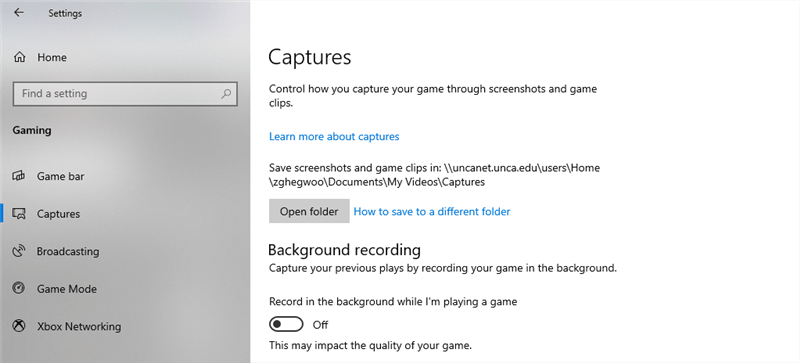
To ensure that you’re able to use the Xbox Game Bar for recording gameplay or other screen activities on your Windows 10 or Windows 11 PC, it’s essential to verify that the Game Bar is not only enabled but also properly configured to your preferences. Here’s a detailed guide on how to access and adjust the Xbox Game Bar settings:
Check Xbox Game Bar Settings
1. Click on the Start button and then select the Settings icon (the gear symbol) to open the Windows Settings menu.
2. In the Settings menu, click on the “Gaming” tab, which will present various options related to gaming and game performance.
3. Within the Gaming settings, look for the “Xbox Game Bar” or a similar section that may be labeled under “Game Mode” or “Captures & broadcasts.”
4. Ensure that the toggle for “Xbox Game Bar” is switched on (it should be highlighted or show a checkmark).
Fix 2. Update Xbox Game Bar
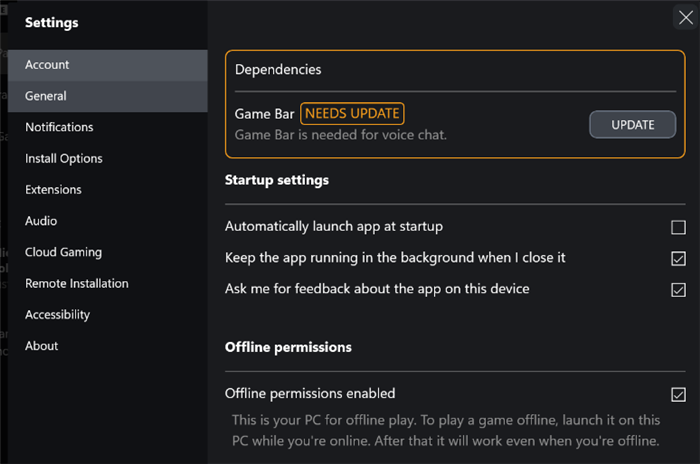
Updating the Xbox Game Bar is an important step to ensure you have the latest features, performance improvements, and bug fixes. The Game Bar receives updates through the Windows Update system, which means that keeping your Windows operating system up to date will also update the Game Bar. Here’s how you can check for and install updates for the Xbox Game Bar:
Update Xbox Game Bar
1. Click on the Start button and select the Settings icon。
2. In the Settings menu, click on “Update & Security.”
3. Under the “Windows Update” tab, click on “Check for updates.” Windows will then search for the latest updates available for your system.
Fix 3. Use an Xbox Game Bar Alternative
If you’re still having trouble, you can record the screen without the Xbox. You can try using third-party screen recording software as an alternative to Xbox Game Bar. Several options available, such as FocuSee can offer high-quality recording without time restrictions or watermarks sometimes found with Xbox Game Bar.
FocuSee is a screen recording tool that not only captures your screen activity but also automatically applies a series of enhancements to create polished videos. Compared with Xbox Game Bar, it is designed to save you time and effort that would otherwise be spent on manual video editing.
Key Features of FocuSee:
- Automatic Zoom-In: FocuSee automatically follows the cursor movement and applies dynamic zoom-in effects to enhance the video.
- Auto-Caption: It provides real-time transcription of spoken words during the recording process.
- Customization: Offers various cursor styles, layouts, camera frames, and filters for personalized video appearance.
- Flexible Export: Supports exporting in social media-friendly sizes and up to 4K resolution, including high-quality GIFs.
- Easy Sharing: Enables sharing of videos with interactive elements such as quizzes and call-to-action buttons.
- Adapt Your Selfie Layout Anytime: Choose from preset layouts or customize camera size and position throughout your video with full layout flexibility.
- Smart Privacy Blur: Automatically blur sensitive content (faces, text, or objects) to safeguard privacy and ensure compliance.
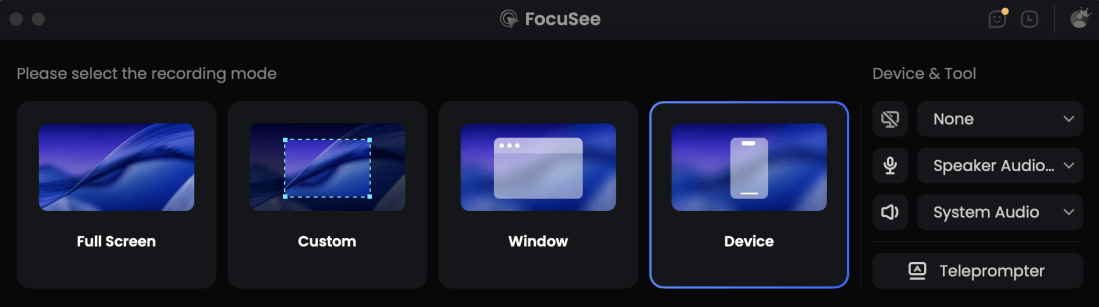
Step 1. Free install FocuSee and launch it on your computer. Choose a screen recording mode and click the REC button to initiate the recording process.
Choose the Recording Model
Step 2. Record your activities on the screen and automatically apply zoom-in effects.
Frame an Area to Record
Step 3. Stop the recording process and go to the video editing interface to enhance your video with ease.
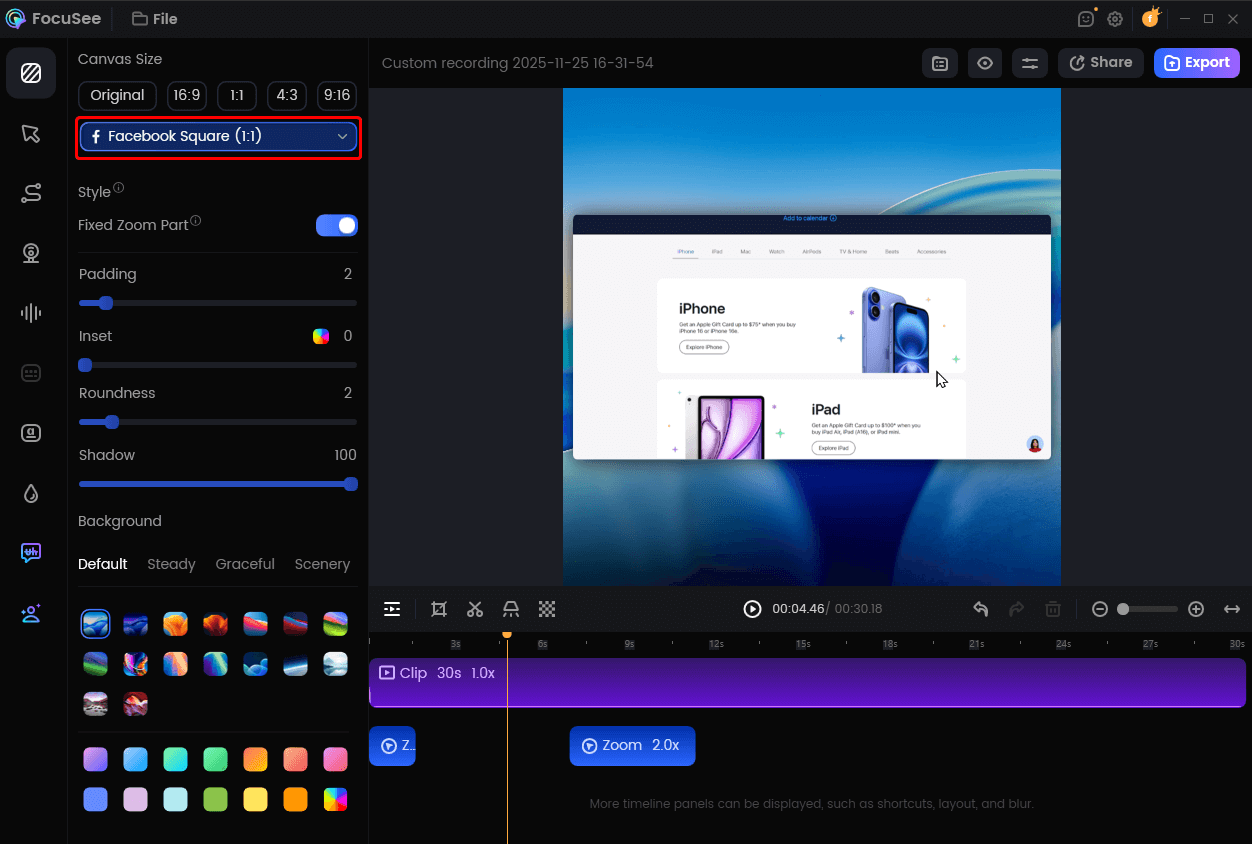
Resize Your Video For FaceBook
Fix 4. Use Shortcut Keys
Instead of using the Xbox Game Bar interface, try using the keyboard shortcut Windows logo key + Alt + R to start and stop recording. Here’s how you can use this shortcut:
1. Before you can use the shortcut, make sure that the Xbox Game Bar is enabled on your Windows 10 or later system. You can check this in the Settings app under Gaming > Xbox Game Bar.
2. While you’re in a game or any application you want to record, press the Windows logo key + Alt + R. This will start a new recording.
3. To stop the recording, simply press the same key combination (Windows logo key + Alt + R) again. The recording will be saved to your designated video folder.
Fix 5. Reset or Repair Xbox Game Bar
If you’re experiencing issues with the Xbox Game Bar on your Windows 10 or later system and it’s not functioning as expected, you can indeed try resetting or repairing it. Here’s a step-by-step guide on how to do that:
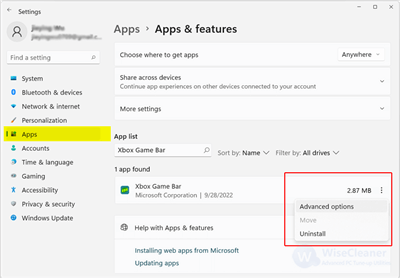
Reset or Repair Xbox Game Bar
1. Click on the Start button and then select the Settings icon.
2. In the Settings window, click on “Apps” to access the list of installed applications.
3. Within the Apps section, click on “Apps & features” from the left-hand menu. Scroll through the list of applications to find “Xbox Game Bar”.
4. Click on “Xbox Game Bar” to highlight it. In the Advanced options, you may see several choices: the Repair option will attempt to fix any issues with the app without affecting your settings or data, while the Reset option will remove all the data, including settings and any game-related data, and reinstall the app to its original state.
Fix 6. Reinstall Xbox Game Bar
If you’ve tried various troubleshooting steps and your Xbox Game Bar screen recording is still not working, uninstalling and reinstalling the feature from the Microsoft Store could be the next solution to try. Here’s how you can do it:
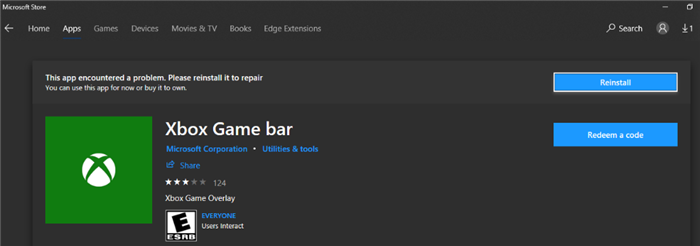
Reinstall Xbox Game Bar
1. Navigate to the Microsoft Store app on your Windows PC.
2. Use the search function to locate the Xbox Game Bar or navigate to the gaming section where it might be listed.
3. Once you’ve found the Xbox Game Bar, click on it to open its page. Look for an “Uninstall” button and confirm the action when prompted.
Fix 7. Check for Game-Specific Restrictions
Some games may have built-in restrictions that prevent screen recording, either due to copyright or anti-cheat measures. When you attempt to use the Xbox Game Bar’s recording feature while playing these games, you may find that the recording does not start, or if it does, it may not capture the gameplay correctly.
Here are a few things you can try if you encounter this issue:
- Make sure to review the game’s terms of service and any applicable laws to ensure that you’re not violating any rules or regulations when attempting to record gameplay.
- Look for any messages or notifications when you try to record a game. Some games will explicitly state that recording is not allowed.
- If you’re trying to record gameplay for a game with restrictions, you might be able to record the game’s menus or non-restricted areas and then edit these clips together with gameplay footage that you’ve recorded another way.
Fix 8. Change Video Capture Location
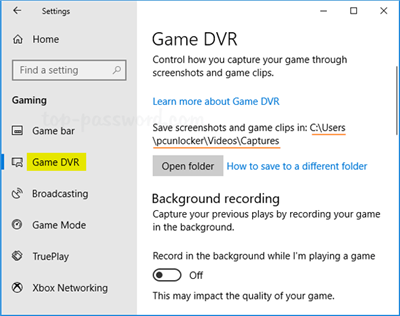
If the Xbox Game Bar is not recording due to insufficient space on your C drive, you can change the default save location for your recordings to another drive with more available space. Here’s how you can do it:
Change Video Capture Location
1. Click on the Start button and then select the Settings icon. In the Settings window, click on “Gaming”.
2. Within the Gaming option, click on “Game DVR”.
3. Look for a section that allows you to change where new content is saved.
4. Look for and tap on the “Open folder” button and ensure that the save location is set to the new drive you’ve chosen. Save any changes you’ve made.
Fix 9. Check for Errors and Codes
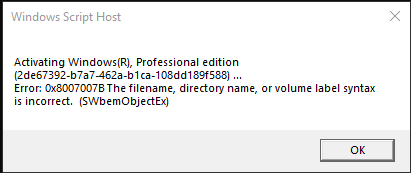
Encountering an error code like 0x8007007B (or any other specific error code) while trying to record with the Xbox Game Bar indicates that there’s a particular issue that needs to be addressed. The error code 0x8007007B is commonly associated with issues during the Windows activation process.
Check for Errors and Codes
Here are several methods to fix this error based on the information provided from various sources:
Command Prompt
- Ensure you have a stable internet connection.
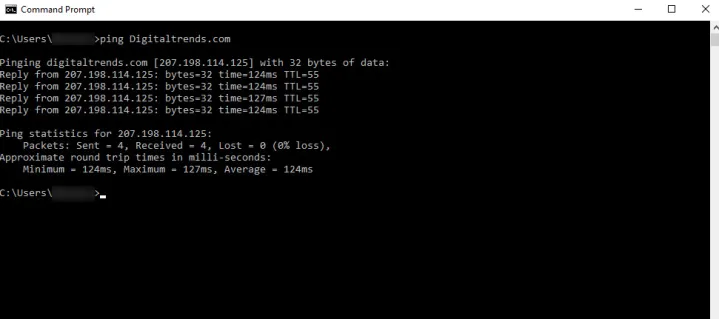
- Open the Command Prompt as an administrator and use the slmgr.vbs command to activate Windows with a KMS key or a generic volume license key provided by your organization.
- Run the SFC scan to repair corrupted system files which might be causing the activation issue. The command is sfc /scannow.
- Use the Deployment Image Servicing and Management tool to restore the system image. The command is dism.exe /online /cleanup-image /restorehealth.
Fix 10. Enable Gaming Captures
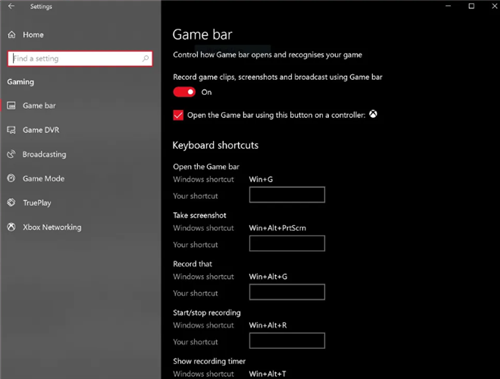
Ensure that the gaming capture feature is enabled in Windows can also fix Xbox Game Bar screen recording not working. Follow these steps to verify and enable the gaming capture feature within Windows:
Enable Gaming Captures
- Click the Start button and then select the gear icon to open the Windows Settings.
- In the Settings window, navigate to the “Gaming” section from the menu on the left.
- Look for a section labeled “Captures,” “Game Bar,” or “Game DVR” within the Gaming Settings.
- Within the Captures settings, locate the switch or checkbox that corresponds to the gaming capture feature and ensure it is turned on.
After confirming that the capture feature is enabled and making any desired adjustments, close the Settings application to apply your changes.
FAQs on Game Bar Recording Not Working
Why is my Xbox Game Bar not recording at all?
There could be several reasons, such as the Game Bar being disabled, missing or corrupted files, or incorrect settings. Check if the Game Bar is enabled in the settings, update it, and ensure all settings are correctly configured.
Can I use a different screen recording software if Xbox Game Bar isn’t working?
Yes, you can use third-party screen recording software like FocuSee, which offers high-quality recording without the limitations sometimes found with Xbox Game Bar.
What are the keyboard shortcuts to start and stop recording with Xbox Game Bar?
You can use the shortcut Windows logo key + Alt + R to start and stop recording.
How do I reset or repair the Xbox Game Bar?
Go to Settings > Apps > Apps & features, find “Xbox Game Bar,” and click on it. You can then choose to repair or reset the app.
What should I do if I encounter an error code while trying to record?
Specific error codes like 0x8007007B can be resolved by running system file checks (sfc /scannow) and using the Deployment Image Servicing and Management tool (DISM).
Final Thought
Fixing Xbox Game Bar screen recording issues can be straightforward with the right steps. Whether it’s adjusting settings, updating the Game Bar, or trying alternative software-FocuSee, these solutions can help you get back to recording quickly. If problems persist, Microsoft Support is always an option. Happy recording!