Can a Website Detect When You Are Taking Screenshots and Screen Recording?

Are you curious if websites can detect when you’re screen recording or taking screenshots? The answer is no. However, this may vary depending on the technology employed by the website, as well as your browser and operating system.
As we all know, taking a screenshot and recording the screen while browsing the internet is a common activity that most users do from time to time. Since most websites are public and their content can be accessed freely, there are no restrictions regarding copying information or taking snapshots of the site’s visual look.
Still, users are aware that websites closely follow what the visitors do and which pages they visit. Within the same paradigm, it’s logical to ask the question of whether a website can detect when one of its pages is being recorded. The answer depends on the type of website from which you are extracting images or videos, so this topic deserves a bit more space to discuss in-depth and provide a nuanced answer that reflects the truth.
Also Read: How to Record Google Slides >
What Can a Website Detect?
In a typical case, a website will register the IP address of every visitor and keep track of the visited pages and the elements that were interacted with.
- Clicking on any link
- Navigation shortcut
- Navigate image and ad
- Navigate any other item on the page
These will leave a trace in the website’s database. Such information is typically aggregated, but can also be viewed in a more granular manner to understand how individual users are acting during their time on the site.
On the other hand, an average website doesn’t control any mechanism that would allow it to detect what the visitors are doing with third-party software and whether they are creating website screenshots while browsing. Since most websites don’t really care whether users are copying the pages (and some might even encourage it), they are happy to use a standard architecture that has no detection tools.

What Can a Website Detect
Among the relatively rare exceptions are websites that ask you to download some software. Such websites might have a way of tracking your actions taken with apps installed on your computer, so presumably, that could include screen recording activities as well. However, it’s questionable how much value the site’s owners could get from such trivial input and whether they are tracking it despite the possibility of doing so.
Websites that prohibit screen recording and screenshots usually include:
- Streaming services such as Netflix or HBO Max have exclusive content and want to prevent unauthorized copying.
- Corporate portals, on the other hand, restrict access to outsiders and may contain trade secrets.Financial and banking apps also block screenshots to safeguard personal information and account numbers. They view screenshots as a potential means to bypass restrictions and steal sensitive data.
Can Websites Detect Screen Recording
From all of the above, it’s clear that a vast majority of websites don’t even attempt to monitor screen recording activity by the users as they have nothing to lose by it. On the other hand, sites that provide access to copyrighted images or videos are far more interested in learning about the recording habits of the visitors. Thus, some of them might deploy advanced software that will discover if the user is copying visual material by employing a screen recording app.

How To Make Gif From Screen Recording
The exact mechanisms used by streaming sites or stock footage libraries might not be publicly known, but it’s safe to assume that at least some digital media providers have them in place. Even if they detect screen recording, the companies in this industry are unlikely to take any action against the user unless the recording was used for commercial purposes. Recording the content of your screen so you can take a closer look at the image is one thing, but ripping videos from streaming platforms to sell them elsewhere is a serious offense that won’t go unpunished. That’s why counting on the naiveté of the site operators is probably a bad idea.
Bonus Tips – Record Screen on Windows & Mac with Zoom in Effects
If you’re looking for a professional screen recorder that makes your recordings more engaging with less manual editing, FocuSee is worth considering.
FocuSee is a screen recorder and video editor for Windows and Mac. It lets you capture your screen, webcam, and audio, then quickly turn your recordings into polished tutorials, product demos, presentations, gameplay videos, and more.
One of FocuSee’s standout features is automatic zoom. Instead of manually adding zoom effects to every part of a recording, FocuSee automatically detects important on-screen actions and applies smooth zoom effects to highlight them. This makes it easier to guide viewers’ attention without spending hours editing the recording afterward.
Key Features:
- Automatic Zoom: FocuSee automatically detects important clicks and on-screen actions and adds smooth zoom effects to highlight key areas of your recording.
- Cursor Effects & Callouts: Customize the cursor with click effects, highlights, and other visual effects to make on-screen actions easier to follow.
- AI-Powered Editing Tools: Generate subtitles, remove filler words, enhance audio, and make other quick edits with built-in AI tools.
- Flexible Video Styling: Customize camera layouts, backgrounds, frames, rounded corners, shadows, and spacing to create a polished look.
- High-Quality Export: Choose from preset video sizes for different platforms and export recordings in up to 4K/60FPS or as GIFs.
Follow the steps to record videos with FocuSee:
Step 1: Begin by downloading FocuSee onto your computer. Set up your audio recording, connect your microphone and camera, and choose from the three available recording modes: Full screen, Custom, windows or mobile devices.
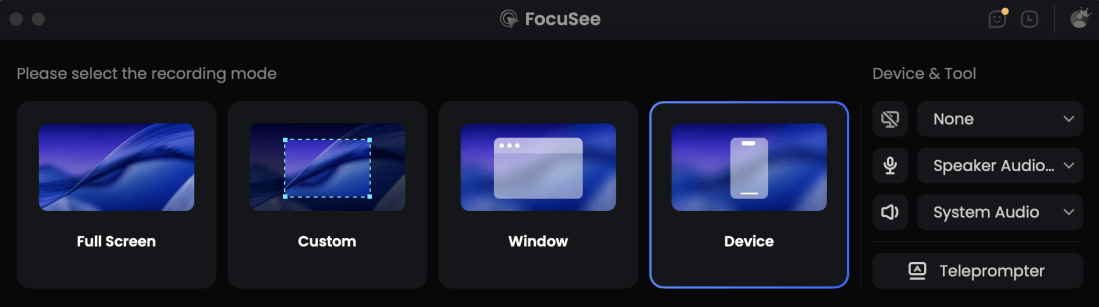
Choose the Device Recording Model
Step 2: After selecting your preferred recording mode, you will be given a 3-second countdown to prepare. Once the countdown is complete, FocuSee will automatically start recording your screen.
Step 3: FocuSee enhances your recorded videos by generating zooming animations automatically. Additionally, you can improve mouse visibility using various styles, make cursor adjustments, apply highlighting, and enhance the background appearance.
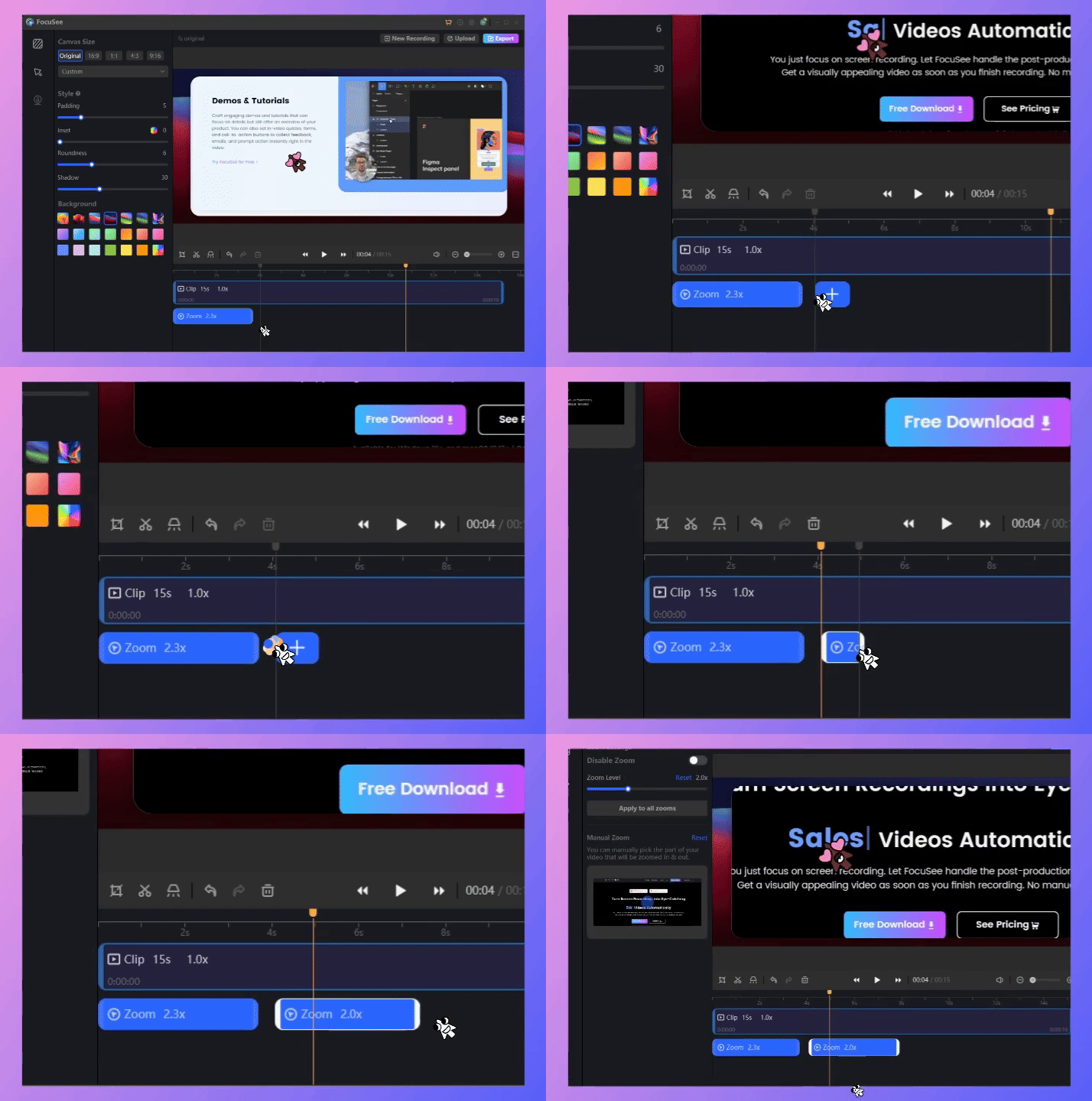
Add Zoom-in Effect Manually
Step 4: Once you have finished recording, you have options for exporting the video. You can save it as a GIF or video file, download it locally to your device, or upload it to the cloud and share it with others using a shareable link.
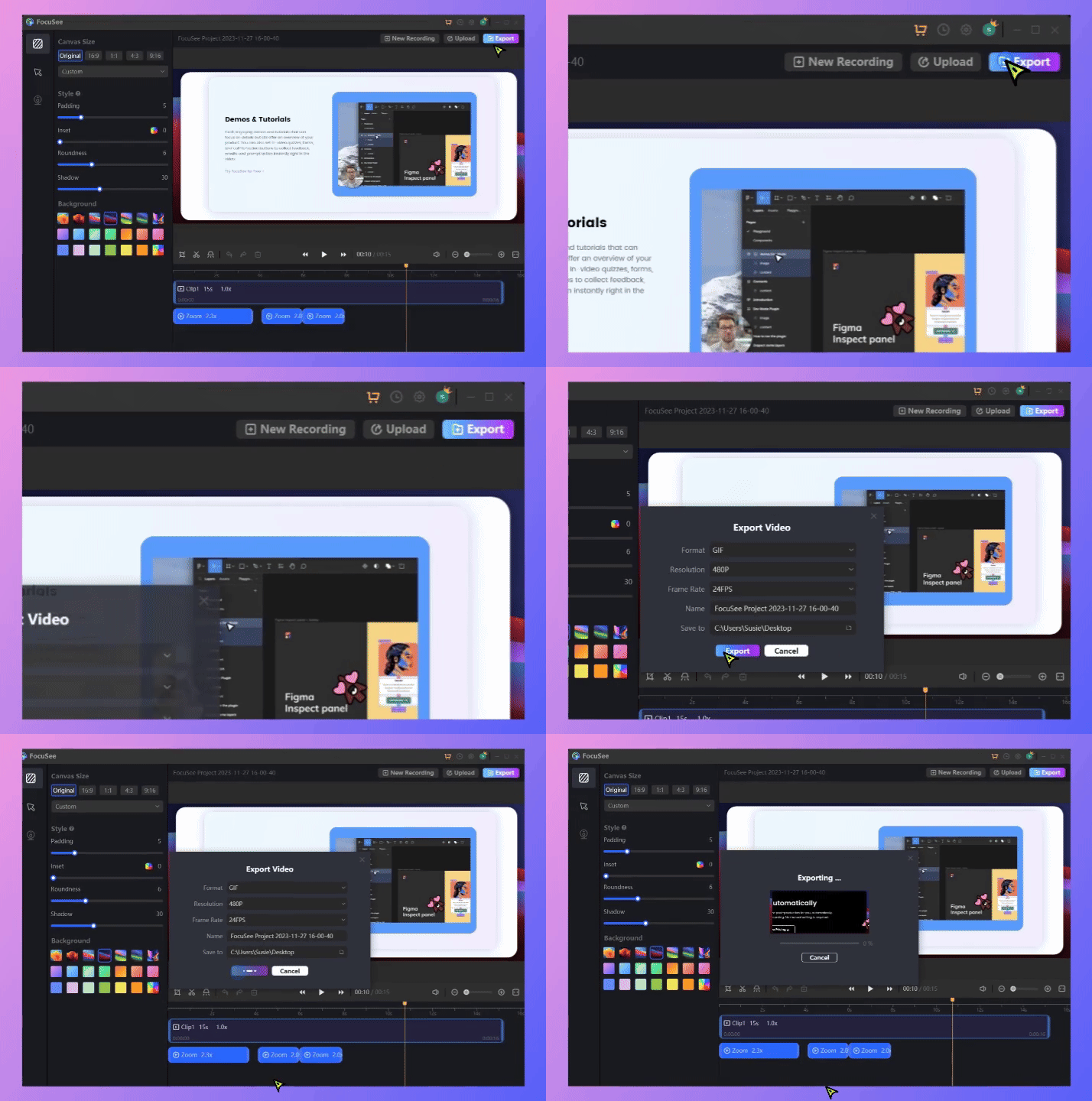
How to Export the Video
The information in this article is for knowledge-sharing purposes only. We do not promote or support any actions that infringe upon copyright laws. Please refrain from using this information for commercial purposes.
Can Browsers like Chrome and Safari Detect Screenshots?

Can Browsers Detect Screenshots
While the websites mostly can’t see when you are snipping screenshots, it’s interesting to inquire whether the web browsers used to access online content can detect such actions. There is no doubt that browsers retain a lot of information and that includes the visited pages, but as it turns out they are not capable of noticing when the user hits the print screen button, either. In their default configuration, popular browsing apps such as Google Chrome or Safari are not equipped with this capacity.
There is a way to introduce this ability to your browser if you have a compelling reason:
- By installing specialized plugins or extensions for these browsers, it’s possible to give them the capacity to accurately recognize when a user is taking a screenshot.
This can be beneficial for the user, as it provides a convenient track record of all screenshots taken while on the web. At the very least, it’s prudent to be aware of the possible functions that you can add to your preferred browser through extensions, including those that might collect information about screenshots taken on the visited websites.
FAQs about Detecting Screenshots of a Website
Which websites are most likely to detect screenshots or screen recording?
Websites that distribute valuable media content, such as streaming platforms, online courses, and digital content libraries, may use technical measures to monitor or restrict screen capture. However, a website’s ability to detect screenshots or screen recording depends on how the content is delivered and what controls the platform has implemented.
Can I copy an entire web page without the website detecting it?
The ability to detect a full-page screenshot depends on the website, browser, and capture method. Some screen capture tools can save an entire web page as a single image, but this does not necessarily mean the website can identify how the content was captured. If the page contains copyrighted or private material, make sure you have the right to copy, save, or redistribute it.
Can websites identify users who record copyrighted videos without permission?
A website may collect information such as IP addresses, account activity, and other technical data, depending on its privacy policy and security systems. These records can potentially help a platform investigate unauthorized use or access. However, whether a website can identify a specific recording activity depends on the technologies and monitoring measures it uses. Always follow the site’s terms of service and applicable copyright laws when recording or saving online content.
Final Words
While website operators closely follow where you go while you are online, they lack the tools to detect how you are using third-party apps on your computer. Thus, when you activate a screenshot function and save an image or video from an online source, this won’t trigger any automated responses or get you in any kind of trouble. Only those websites that sell access to high-end multimedia are likely to detect screenshot tools used, and even they don’t care unless you plan on starting a business based on pilfered media content.
Please free try FocuSee if you need to record your website screen!