FocuSee 2.4: A Complete Post-Production Experience for Polished Videos

Screen recordings are no longer used only for quick explanations or internal communication. They have become an important format for software tutorials, product demos, online content, social media, and client presentations.
As screen recordings are shared with wider audiences and used in more professional scenarios, simply capturing what happens on screen is no longer enough. A polished video also needs clear visual guidance, engaging pacing, readable subtitles, balanced audio, and a presentation style that fits where it will be shared.
FocuSee was built to automate much of this work after recording. Existing features such as automatic zoom, cursor effects, camera layouts, and annotations already help turn raw footage into a clearer and more visually engaging video.
From Screen Recording to Share-Ready Video
With FocuSee 2.4, that post-production experience becomes even more complete. Background audio, enhanced subtitle editing, intelligent typing acceleration, automatic focus on input areas, and webcam beauty effects now work alongside FocuSee’s existing editing features to improve not only how a video looks, but also how it sounds, flows, and communicates.
Together, these capabilities take FocuSee beyond screen capture and toward a more complete, automated video-finishing workflow.
After recording, FocuSee helps package your content into a polished video that is better suited for tutorials, product demos, social media, and client presentations—with less manual editing and fewer additional tools.
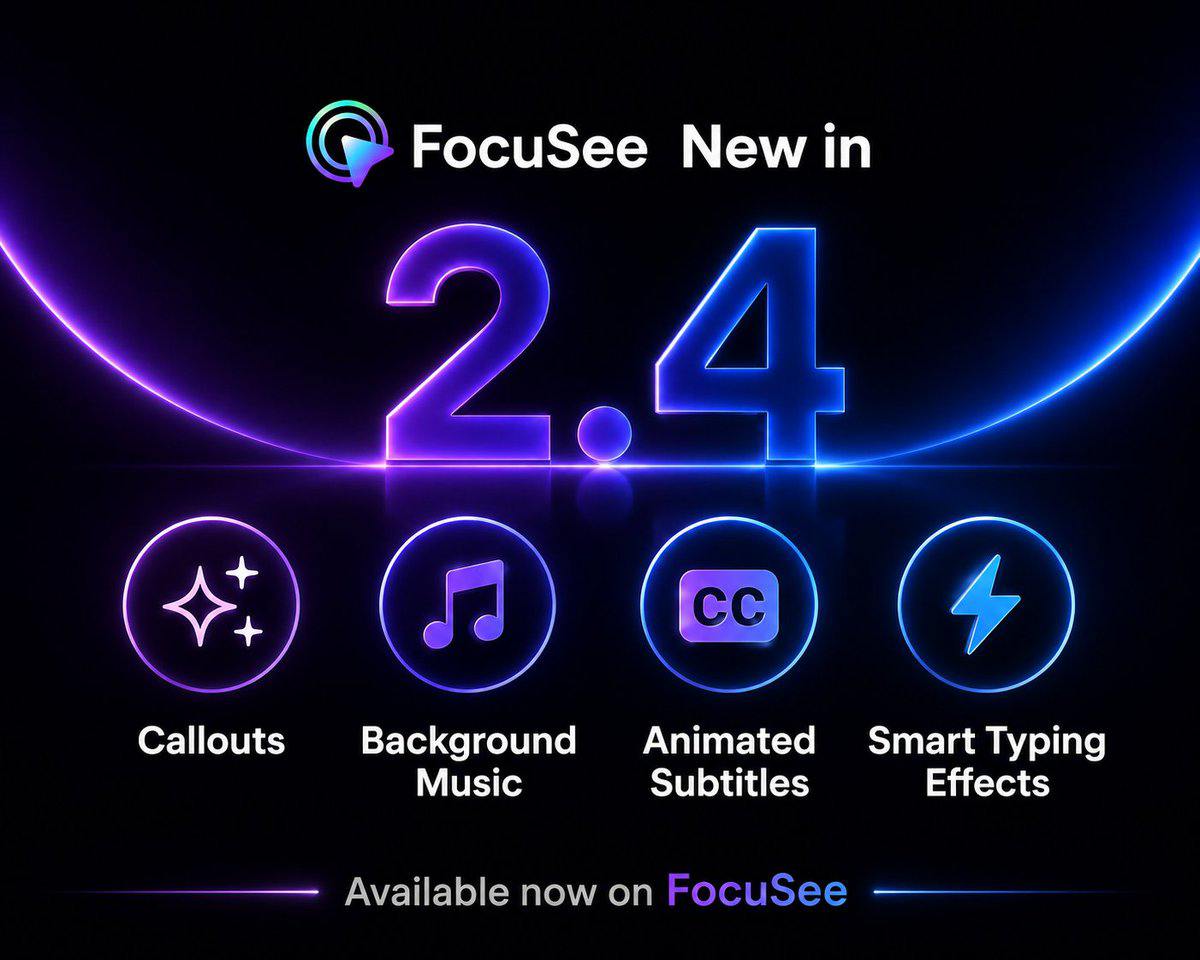
Make Your Videos Sound More Complete
A screen-only video can sometimes feel quiet or unfinished, especially when it does not include narration. Finding suitable music, trimming it to match the video, and balancing its volume can also add unnecessary work.
FocuSee 2.4 now lets you add background audio directly to your project.
Choose from ready-to-use music tracks sourced from Pixabay, or import your own music, voice-over, or other audio files in popular formats such as MP3, AAC, and M4A.
You can then make essential adjustments without leaving FocuSee:
- Trim the audio to the section you need
- Adjust its volume
- Add fade-in and fade-out effects
- Choose where the audio starts and ends
- Loop shorter tracks to match the full video
This lightweight audio workflow is designed for the everyday needs of screen recording creators. It is an easier way to add atmosphere, energy, or supporting narration without moving your project into a complex multi-track audio editor.
Whether you’re making a product demo, a tutorial, a walkthrough, or a social video, background audio helps the final result feel more intentional and complete.
Edit Subtitles with More Control
Automatically generated subtitles save time, but the first result is not always the final result. A subtitle may be too long, cover an important part of the screen, contain a recognition error, or appear slightly too early or too late.
FocuSee 2.4 upgrades subtitles from an automatically generated output into a more flexible subtitle editing workspace.
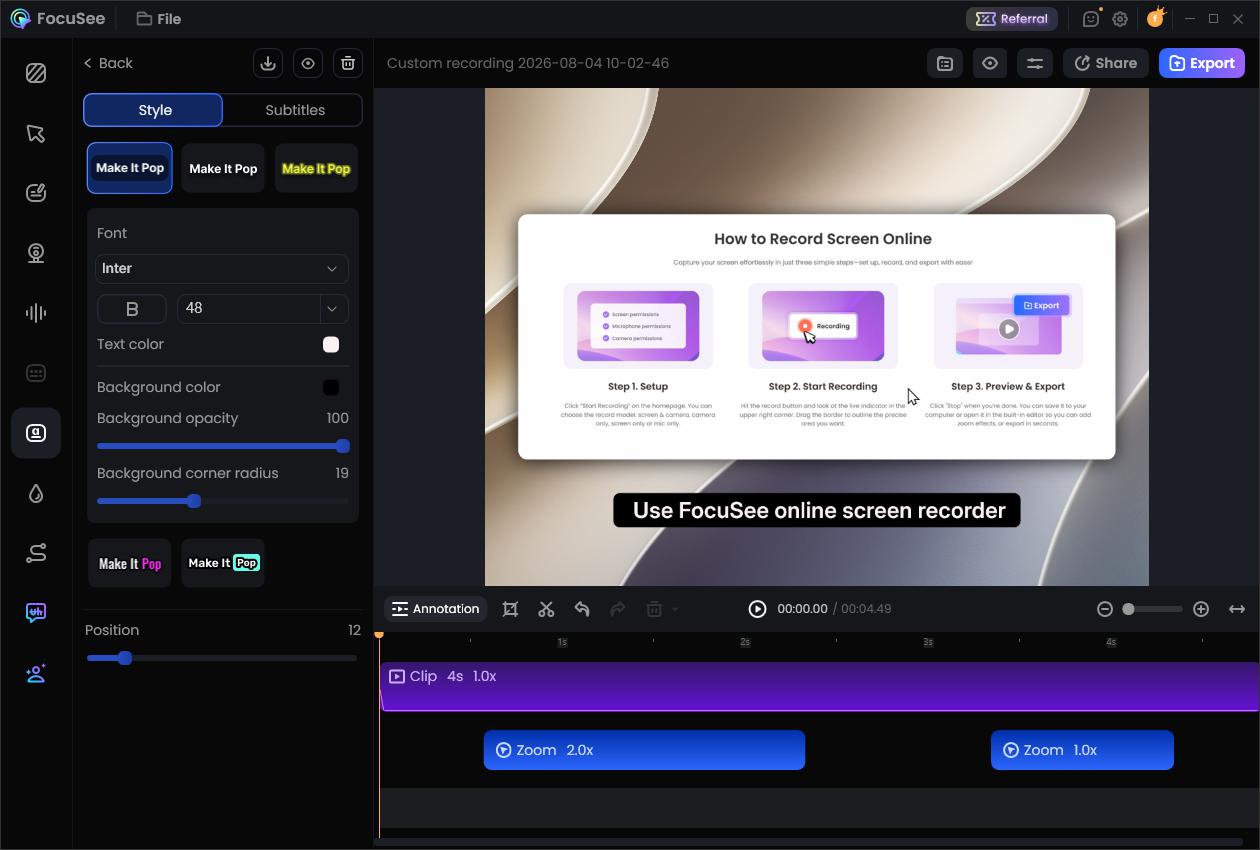
You can choose from new style templates, customize fonts, colors, positions, and background transparency, or edit individual subtitle blocks directly. You can also adjust timestamps, add line breaks, split or merge subtitle blocks, and import existing SRT files. This reduces subtitle rework while giving you greater control over readability, timing, and presentation—making it easier to adapt videos for tutorials, product demos, and social media.
When using auto-generated subtitles, the Highlight style can emphasize the current word or phrase as it is spoken, adding energy and rhythm to the viewing experience.
Instead of accepting whatever the automatic transcription produces, you can now refine both the content and the presentation of your subtitles—all inside FocuSee.
Make Typing Faster and Easier to Follow
Typing is often essential in code tutorials, AI prompt demos, searches, forms, and document workflows. But watching every character appear in real time can slow down the video, while small input areas can make important text difficult to follow.
Previously, creators had to scan the timeline, find each typing sequence, speed it up manually, and add zoom effects where needed.
FocuSee 2.4 can now automatically detect typing sequences and mark them on the timeline. You can speed up a single sequence or apply the same action to all detected typing sections at once.
You can also enable automatic zoom for typing sequences. FocuSee identifies the relevant input area and generates a zoom effect, making important text easier for viewers to see.
These features are especially useful for:
- AI prompt demonstrations
- Search tutorials
- Coding videos
- Form-filling walkthroughs
- Document editing
- Product onboarding videos
By speeding up repetitive typing and bringing important input into focus, FocuSee helps tutorials and demos feel faster, clearer, and more engaging, with much less timeline work.
Create a Better On-Camera Presence
FocuSee 2.4 adds webcam beauty effects to help you create a more natural and polished on-camera appearance without relying on a separate camera app.
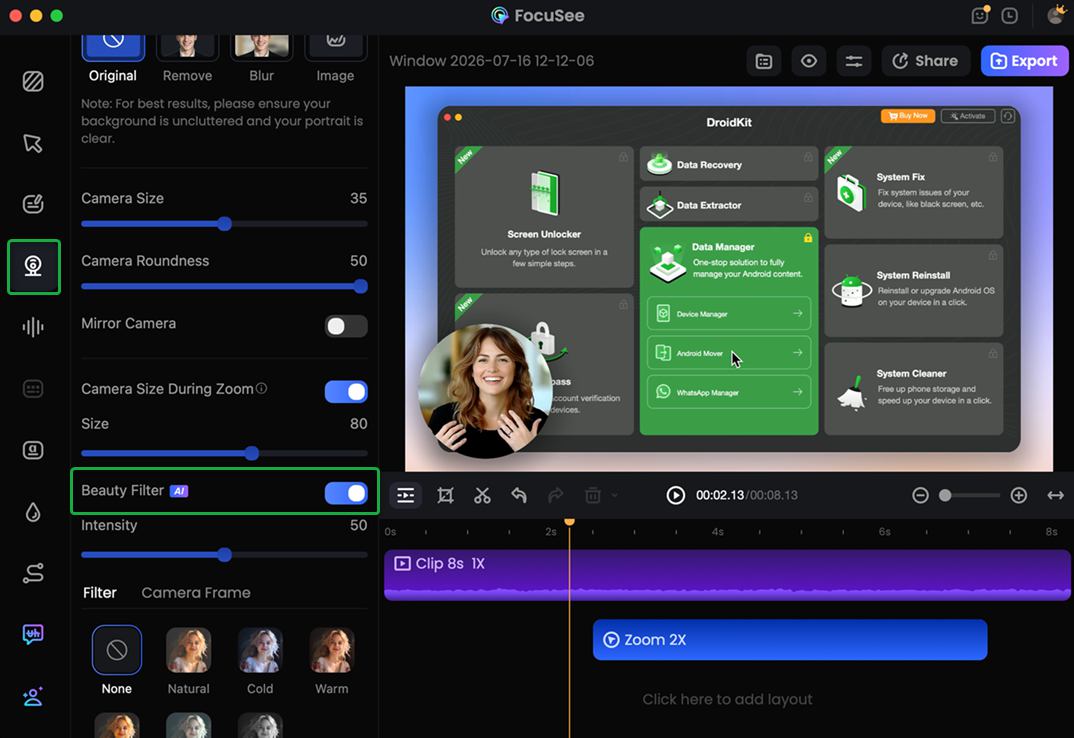
Turn the effect on, adjust its overall intensity, and use the live preview to find the level that looks right for you. The combined enhancement is designed to apply subtle skin smoothing and brightening while keeping the workflow simple.
It is not about dramatic retouching. It is about helping you feel more confident on camera and improving the first impression of your presentation with minimal effort.
More Thoughtful Details for a Smoother Workflow
FocuSee 2.4 also includes several smaller improvements that reduce repetitive setup and give you more ways to guide your viewers.
New Callout Annotation
The new Callout annotation highlights a selected area while adding a sense of depth around it. Similar to a spotlight, it helps direct attention to an important interface element, button, or piece of information.
Smarter Full-Screen Recording Settings
When recording in full-screen mode, FocuSee now automatically sets background padding, inset, and corner radius to zero. This produces a cleaner full-screen layout and reduces the need to reset these values manually.
Remembered Zoom Speed
Once you adjust the zoom speed, FocuSee remembers your preference. The same speed can be applied the next time you manually add a zoom or FocuSee automatically generates one, keeping motion more consistent across your projects.
New macOS 27 Wallpaper
FocuSee 2.4 adds a macOS 27 desktop wallpaper to the default background options, making it easier to package your recording with a fresh, system-inspired visual style.
Meet a More Complete Post-Production Experience
FocuSee 2.4 marks the next step in FocuSee’s evolution—from automatically enhancing screen recordings to helping users produce complete, share-ready videos.
By combining its existing editing capabilities with new tools, FocuSee can handle more of the post-production process in one place. You remain in control of the details, while FocuSee takes care of the repetitive work required to turn a recording into a finished video.
Whether you’re explaining a workflow, presenting a product, or creating content for social media, FocuSee 2.4 helps you move smoothly from recording to publishing. This allows you to stay focused on your message while creating videos that are clear, engaging, and ready to share.
FocuSee 2.4 is now available for both macOS and Windows. Update to the latest version and turn your next screen recording into a polished, share-ready video.